---
title: "Aurelia 1.0: How to build a simple secured application"
description: "Aurelia 1.0 is out. Learn what's changed by building an application using ES6, aurelia-auth and much more!"
authors:
- name: "Prosper Otemuyiwa"
url: "https://auth0.com/blog/authors/prosper-otemuyiwa/"
date: "Apr 8, 2021"
category: "Developers,Tutorial,Aurelia"
tags: ["aurelia", "authentication", "authorization", "jwt", "spa", "api", "auth"]
url: "https://auth0.com/blog/aurelia-how-to-build-a-simple-secured-application/"
---
# Aurelia 1.0: How to build a simple secured application
-----
**TL;DR**: Aurelia is a great client-side JavaScript framework and adding JWT authentication to Aurelia apps is easy with the [aurelia-auth package](https://github.com/paulvanbladel/aurelia-auth). Check out the [GitHub repo](https://github.com/auth0-blog/aurelia-quote-app) for this article to find out how to add authentication to your Aurelia app.
-----
Aurelia is a client-side JavaScript framework that has been gaining a lot of popularity lately. One of the nice aspects of Aurelia is that it anticipates common application needs and provides simple conventions for accomplishing them. Aurelia 1.0 was released about two weeks ago and a lot of things have changed: new tools have been added and support for mobile applications has been enhanced.
## Aurelia 1.0 Overview
Getting started with Aurelia is a piece of cake. The framework's [getting started guide](http://aurelia.io/hub.html#/doc/article/aurelia/framework/latest/quick-start/1) offers an in-depth set of instructions and a [seed project](https://github.com/aurelia/skeleton-navigation/releases) that make it very simple to get up and running quickly.
A lot of work has gone into Aurelia 1.0. Here are a few things that you should know:
* Aurelia 1.0 ships with a CLI tool. You can run `npm install -g aurelia-cli` to get the new CLI tool. Then just run `au new` and the CLI will set up your project and you'll have an app ready to deploy within a few minutes. You can read more about it in the [CLI documentation](http://aurelia.io/hub.html#/doc/article/aurelia/framework/latest/the-aurelia-cli).
* Aurelia now fully supports Webpack. As a result, there are two Webpack skeletons, one for Babel and one for Typescript. You can read about it in the new [Webpack documentation](http://aurelia.io/hub.html#/doc/article/aurelia/framework/latest/setup-webpack).
* The documentation now supports mobile devices and also has new content on data-binding, templating, router configuration, and much more!
You can check out everything you need to know about the Aurelia 1.0 release [here](http://blog.durandal.io/2016/07/27/aurelia-1-0-is-here/).
This tutorial is simply an upgrade to Ryan's excellent article on [Creating your first Aurelia app](https://auth0.com/blog/creating-your-first-aurelia-app-from-authentication-to-calling-an-api/). We'll still focus on building the same app but this time we'll use the Aurelia CLI and we'll totally do away with having JSPM packages in our app.
This tutorial will show how to add JWT authentication to a random-quote application. We'll be using the [NodeJS JWT Authentication Sample](https://github.com/auth0/nodejs-jwt-authentication-sample) as our backend to show how we can retrieve a JWT upon login, save it in local storage, and send it along with every subsequent request. Our app will let all visitors retrieve a random quote, but logged-in users will be able to get a super-secret quote. We will use the Aurelia CLI to build our app.
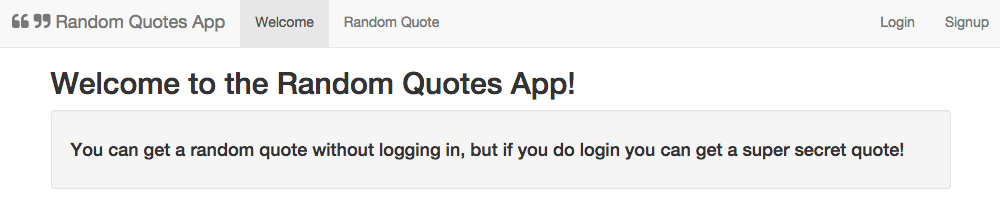
_App Welcome Page_
## Let's Get Started
Follow the instructions in the readme for the [NodeJS JWT Authentication Sample](https://github.com/auth0/nodejs-jwt-authentication-sample) to get the server running.
**Note:** Please change the port to `3002` to avoid collision with BrowserSync once we start our aurelia app.
To help us with our token dealings on the frontend, we'll use the awesome [aurelia-auth plugin](https://github.com/paulvanbladel/aurelia-auth) provided by [Paul van Bladel](https://twitter.com/paulbladel), along with some pointers from his [sample app repo](https://github.com/paulvanbladel/aurelia-auth-sample).
### Using The CLI
If you don't have the CLI installed:
* Run `npm install -g aurelia-cli` to install the new tool.
* Then just run `au new` to get the CLI wizard started.
* Choose the custom option, select `Babel` as the default transpiler
* Select `none` for the CSS processor
* Select `no` for the unit testing
* Select your editor, then go ahead to install the dependencies and create the project.
Once the dependencies are installed (it will take a few minutes), your project is ready to go. Just change the directory into the project folder and run it by typing `au run --watch`. This will run the app and watch the project's source for changes. Open a web browser and navigate to the URL indicated in the CLI's output. If you've got everything set up correctly, you should see the message "Hello World!" in the browser.
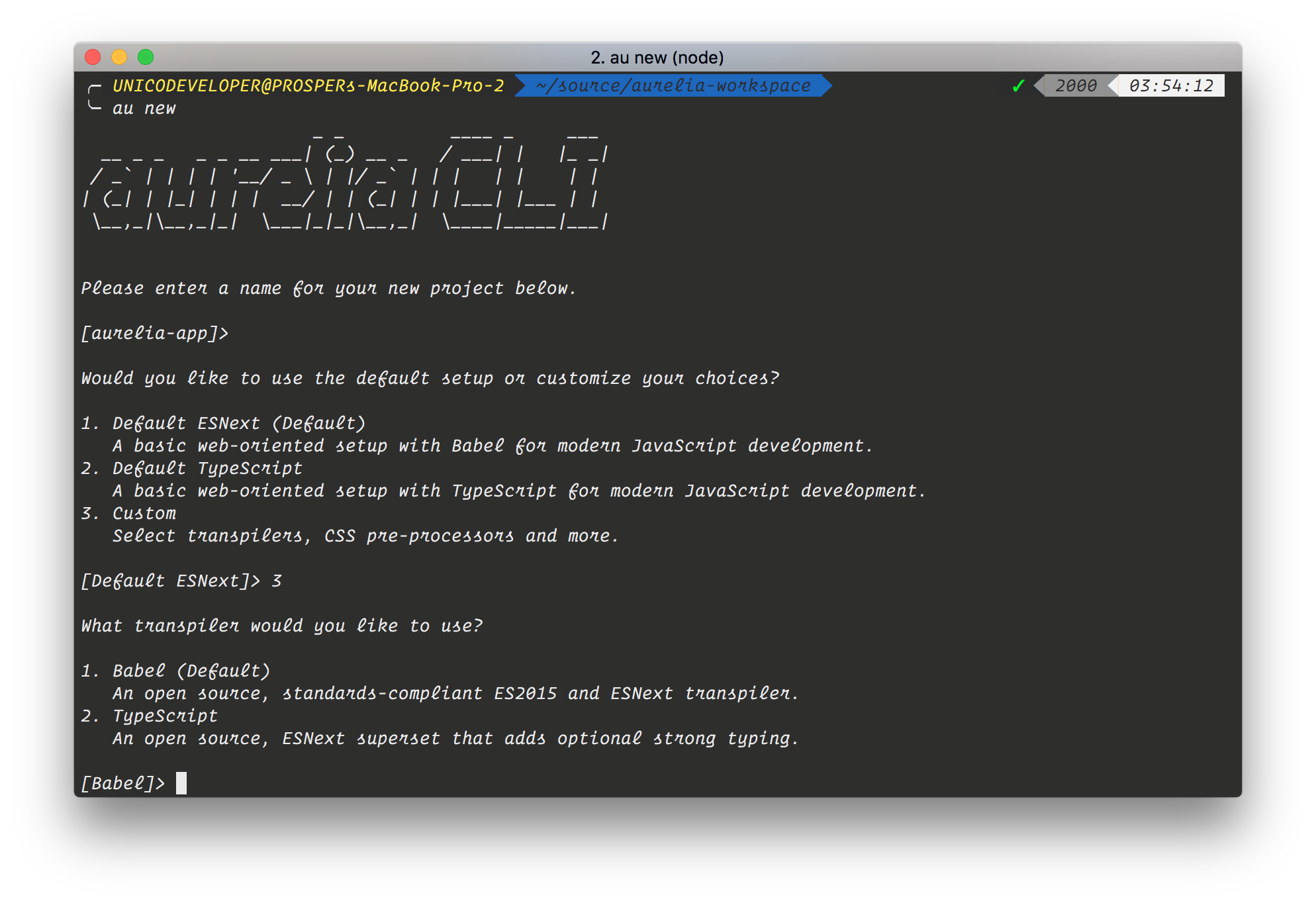
_Aurelia CLI Welcome Interface_
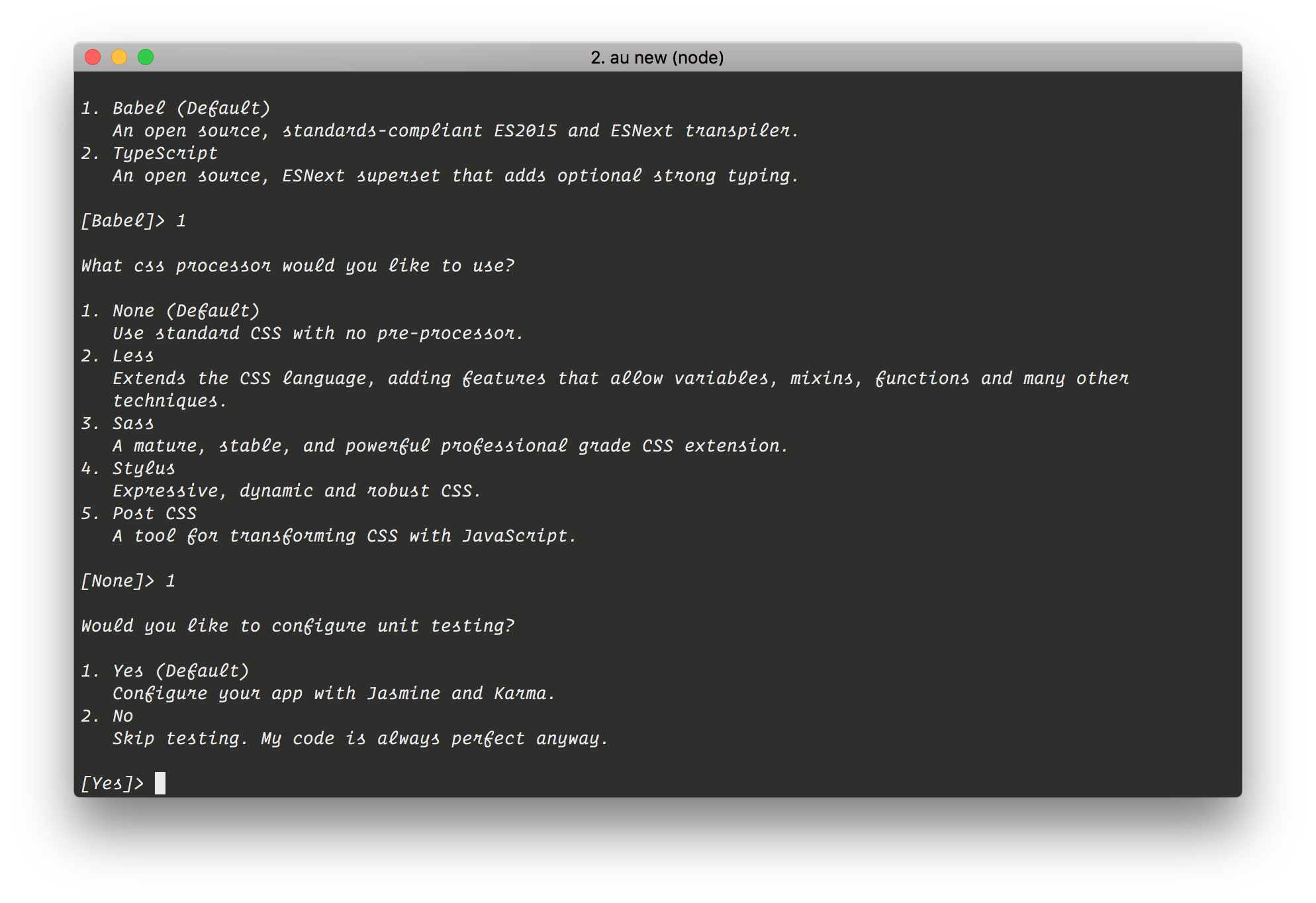
_Aurelia CLI - Select processors & tools_
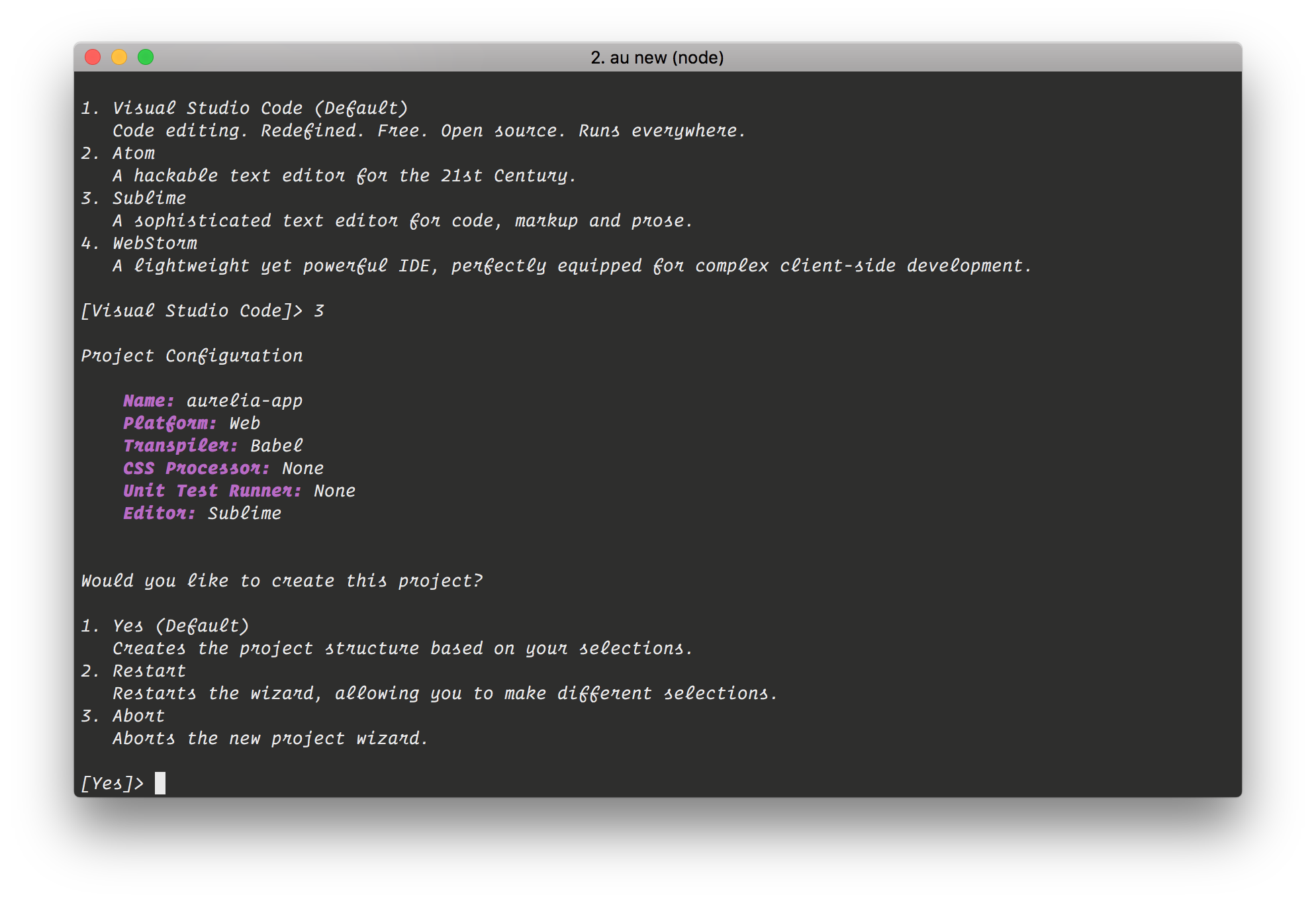
_Aurelia CLI - Select Editor_
### Application Bootstrap Config
Let's give our app the name `quotes-app` and reflect this in the `body` tag of `index.html` where the app loads.
```html
Aurelia
```
We only need to reference one script file: `vendor-bundle.js`. There are two bundles that are defined by default in an app created via the CLI: `app-bundle.js`, which contains your code, and `vendor-bundle.js`, which contains all third-party libraries.
Aurelia looks for a JavaScript file with the same name in the `src` directory for the main app config details. Let's create that now:
```js
// src/quotes-app.js
import environment from './environment';
import config from './auth-config';
//Configure Bluebird Promises.
//Note: You may want to use environment-specific configuration.
Promise.config({
warnings: {
wForgottenReturn: false
}
});
export function configure(aurelia) {
aurelia.use
.standardConfiguration()
.plugin('aurelia-auth', (baseConfig) => {
baseConfig.configure(config);
})
.feature('resources');
if (environment.debug) {
aurelia.use.developmentLogging();
}
if (environment.testing) {
aurelia.use.plugin('aurelia-testing');
}
aurelia.start().then(() => aurelia.setRoot());
}
```
You can see here that we're importing a file called `auth-config.js` and that it's the export from this file that is passed to the `baseConfig` for the plugin. The `auth-config` file will let us override the aurelia-auth plugin's defaults with our own specifics. Worthy of mention is the `environment` file that we imported. With Aurelia 1.0, we can easily define the plugins and resources we want to load in either `debug`, `testing`, or `production` mode. Now, let's create the `auth-config` file:
```js
// src/auth-config.js
// Specific settings for our application's
// authentication context. These will override
// the default settings provided by aureliauth
var config = {
// Our Node API is being served from localhost:3002
baseUrl: 'http://localhost:3002',
// The API specifies that new users register at the POST /users enpoint.
signupUrl: 'users',
// Logins happen at the POST /sessions/create endpoint.
loginUrl: 'sessions/create',
// The API serves its tokens with a key of id_token which differs from
// aureliauth's standard.
tokenName: 'id_token',
// Once logged in, we want to redirect the user to the welcome view.
loginRedirect: '#/welcome',
}
export default config;
```
The API is accessible at `localhost:3001`, so we set this as our `baseUrl`. Next, we will set up the proper endpoints needed for signing users up and logging them in. We also need to override the `tokenName` with what our API serves, which in this case is `id_token`. Our API serves both `id_token` and `access_token` but we'll see how to handle the `access_token` later in the tutorial. Finally, we say that we want to redirect the users to the `welcome` view once they log in.
## Set Up Dependencies
In this tutorial, we'll need to pull in some external libraries to help us with authentication and beautification of the app. We need **bootstrap**, **jquery**, [aurelia-auth](https://github.com/paulvanbladel/aurelia-auth), and **aurelia-http-client**. To get them set up, we'll install them with NPM. So, execute the following on the terminal:
```bash
npm install aurelia-auth aurelia-http-client bootstrap jquery --save
```
With these libraries installed, we now need to tell **Aurelia** which application bundle should be included and properly configure them with the module system. Open up the `aurelia_project` directory. There you'll see an `aurelia.json` file. This file contains all the information that the Aurelia CLI uses to build our project. Scroll down and you'll see a `bundles` section. Let's add our dependencies like so:
```js
"bundles": [
{
"name": "app-bundle.js",
"source": [
"[**/*.js]",
"**/*.{css,html}"
]
},
{
"name": "vendor-bundle.js",
"prepend": [
"node_modules/bluebird/js/browser/bluebird.core.js",
"scripts/require.js"
],
"dependencies": [
...
...
"aurelia-auth",
"aurelia-http-client",
"jquery",
{
"name": "bootstrap",
"path": "../node_modules/bootstrap/dist",
"main": "js/bootstrap.min",
"deps": ["jquery"],
"exports": "$",
"resources": [
"css/bootstrap.css"
]
},
{
"name": "aurelia-auth",
"path": "../node_modules/aurelia-auth/dist/amd",
"main": "aurelia-auth"
},
{
"name": "aurelia-fetch-client",
"path": "../node_modules/aurelia-fetch-client/dist/amd",
"main": "aurelia-fetch-client"
},
{
"name": "aurelia-http-client",
"path": "../node_modules/aurelia-http-client/dist/amd",
"main": "aurelia-http-client"
},
....
]
}
]
```
You can read more about configuring 3rd party libraries in the documentation on the [Aurelia CLI](https://github.com/aurelia/cli).
### Application Routing Config
We'll now need to set up the application's routing configuration. Let's first set up the HTML that will require and load our nav bar and other views:
```html
```
Here, we are requiring the `nav-bar` and binding it to the router. We will serve our views from the `` within our containing `
`.
```js
// src/app.js
import {inject} from 'aurelia-framework';
import {Router} from 'aurelia-router';
import {FetchConfig} from 'aurelia-auth';
import AppRouterConfig from 'router-config';
// Using Aurelia's dependency injection, we inject Aurelia's router,
// the aurelia-auth http client config, and our own router config
// with the @inject decorator
@inject(Router, FetchConfig, AppRouterConfig)
export class App {
constructor(router, fetchConfig, appRouterConfig) {
this.router = router;
// Client configuration provided by the aureliauth plugin
this.fetchConfig = fetchConfig;
// The application's configuration, including the
// route definitions that we've declared in router-config.js
this.appRouterConfig = appRouterConfig;
};
activate() {
// Here we run the configuration when the app loads
this.fetchConfig.configure();
this.appRouterConfig.configure();
};
}
```
The HTTP configuration that `aurelia-auth` provides is what handles adding the JWT as a header if the user is authenticated. The `fetchConfig` file has logic that checks for the existence of a token in `localStorage` and then adds an `Authorization` header with a value of `Bearer ` if one exists. The token will be sent for all HTTP requests to the API but will only be needed for protected resources.

_Request Headers_
We can keep our routing logic within the main `app.js` file, as is done in many Aurelia projects, but in our case we'll put this configuration in a separate file called `router-config.js` that we are injecting. Let's set up this routing configuration:
```js
// src/router-config.js
import {AuthorizeStep} from 'aurelia-auth';
import {inject} from 'aurelia-framework';
import {Router} from 'aurelia-router';
// Using Aurelia's dependency injection, we inject Router
// with the @inject decorator
@inject(Router)
export default class {
constructor(router) {
this.router = router;
};
configure() {
var appRouterConfig = function(config) {
config.title = 'Random Quotes App';
// Here we hook into the authorize extensibility point
// to add a route filter so that we can require authentication
// on certain routes
config.addPipelineStep('authorize', AuthorizeStep);
// Here we describe the routes we want along with information about them
// such as which they are accessible at, which module they use, and whether
// they should be placed in the navigation bar
config.map([
{ route: ['','welcome'], name: 'welcome', moduleId: './welcome', nav: true, title:'Welcome' },
{ route: 'random-quote', name: 'random-quote', moduleId: './random-quote', nav: true, title:'Random Quote' },
// The secret-quote route is the only one that the user needs to be logged in to see, so we set auth: true
{ route: 'secret-quote', name: 'secret-quote', moduleId: './secret-quote', nav: true, title:'Super Secret Quote', auth: true },
{ route: 'signup', name: 'signup', moduleId: './signup', nav: false, title:'Signup', authRoute: true },
{ route: 'login', name: 'login', moduleId: './login', nav: false, title:'Login', authRoute: true },
{ route: 'logout', name: 'logout', moduleId: './logout', nav: false, title:'Logout', authRoute: true }
]);
};
// The router is configured with what we specify in the appRouterConfig
this.router.configure(appRouterConfig);
};
}
```
Aurelia gives us the ability to customize the navigation pipeline with some extensibility points, including an `authorize` route filter. Using this filter means we can specify which routes we would like authentication to be required for. Since our `super-secret-quotes` route needs to remain top secret until the user is logged in, we put `auth: true` in it. We hook into this filter by calling `addPipelineStep`, passing in the `AuthorizeStep` that is provided by the `aurelia-auth` plugin.
With the configuration out of the way, let's get to coding the actual routes and their views! We'll need to have files that take care of each route in place before the app will work so you can comment out the routes in `router-config.js` that aren't ready yet.
## Setting up Routes and Views
Two files are required for each route in Aurelia: a JavaScript file for the view model logic and an HTML file for the view itself. Views are enclosed within `` tags but are otherwise created with normal HTML combined with Aurelia's databinding.
### The Nav Bar and Welcome Route
Let's start at the top and set up the navigation bar.
```html
...
...
```
Notice here that we're running a filter on the repeated navigation items with `authFilter: isAuthenticated`. This allows us to hide any nav menu items that are to be protected if the user isn't authenticated, and this is how we will hide the `super-secret-quote` menu item when the user isn't logged in. We're also conditionally showing the Signup, Login, and Logout links. See the [GitHub repo](https://github.com/auth0-blog/aurelia-quote-app/blob/master/src/nav-bar.html) for the rest of the markup.
```js
// src/nav-bar.js
import {bindable} from 'aurelia-framework';
import {inject} from 'aurelia-framework';
import {AuthService} from 'aurelia-auth';
@inject(AuthService)
export class NavBar {
// User isn't authenticated by default
_isAuthenticated = false;
@bindable router = null;
constructor(auth) {
this.auth = auth;
};
// We can check if the user is authenticated
// to conditionally hide or show nav bar items
get isAuthenticated() {
return this.auth.isAuthenticated();
};
}
```
Here in the `nav-bar.js` file, we have a method that checks whether the user is logged in, which is what we hook into in the view.
Create a new file `welcome.html` and add code to it like so:
```html
${heading}
${info}
```
Create the Javascript file `welcome.js` that will feed the html file with content.
```js
// src/welcome.js
export class Welcome {
heading = 'Welcome to the Random Quotes App!';
info = 'You can get a random quote without logging in, but if you do log in you can get a super secret quote!';
}
```
### Signup, Login, and Logout
Next, let's set up the `signup`, `login`, and `logout` routes.
### Signup
```html
...
${signupError}
...
```
In this view, we're providing two ``s that take the user's email and password. We've also got an alert box at the bottom to show the user any errors that are returned. We'll need to set up the view models for these next.
```js
// signup.js
import {inject} from 'aurelia-framework';
import {AuthService} from 'aurelia-auth';
// Using Aurelia's dependency injection, we inject the AuthService
// with the @inject decorator
@inject(AuthService)
export class Signup {
heading = 'Sign Up';
// These view models will be given values
// from the signup form user input
email = '';
password = '';
// Any signup errors will be reported by
// giving this view model a value in the
// catch block within the signup method
signupError = '';
constructor(auth) {
this.auth = auth;
};
signup() {
// Object to hold the view model values passed into the signup method
var userInfo = { email: this.email, password: this.password }
return this.auth.signup(userInfo)
.then((response) => {
localStorage.setItem('access_token', response.access_token);
console.log("Signed Up!", response);
})
.catch(error => {
this.signupError = error.response;
});
};
}
```
The `signup()` method uses `aurelia-auth` to send a POST request to the API, which either creates a new user or returns an error if there was a problem. During the process of creating a new user, if successful, both `id_token` and `access_token` are returned. The `aurelia-auth` plugin automatically stores the `id_token` in localStorage, while we manually store the `access_token` returned.
**Note:** The `aurelia-auth` plugin automatically stores just one token, thus the reason why we are storing the `access_token` manually.
### Login
The `login` route is pretty similar. You'll just need to swap out `submit.delegate="signup()"` for `submit.delegate="login()"` and adjust the other [pieces of markup](https://github.com/auth0-blog/aurelia-quote-app/blob/master/src/login.html) appropriately.
The JavaScript for `login` looks similar as well, but this time we are sending the POST request to the `sessions/create` endpoint:
```js
// login.js
import {AuthService} from 'aurelia-auth';
import {inject} from 'aurelia-framework';
@inject(AuthService)
export class Login {
heading = 'Login';
// User inputs will be bound to these view models
// and when submitting the form for login
email = '';
password = '';
// This view model will be given an error value
// if anything goes wrong with the login
loginError = '';
constructor(auth) {
this.auth = auth;
};
login() {
return this.auth.login(this.email, this.password)
.then(response => {
localStorage.setItem('access_token', response.access_token);
console.log("Login response: " + response);
})
.catch(error => {
this.loginError = error.response;
});
};
}
```
### Logout
The `logout` route essentially follows the same pattern using `authService.logout()` to remove the user's JWT from `localStorage`. See [the repo](https://github.com/auth0-blog/aurelia-quote-app/blob/master/src/logout.js) for further detail.
With all this in place, we should now be able to signup, login, and log out users. Test it out to make sure that everything is running as expected. If everything is working properly, when the user logs in there will be two tokens set in `localStorage` as `aurelia_id_token` and `access_token`.
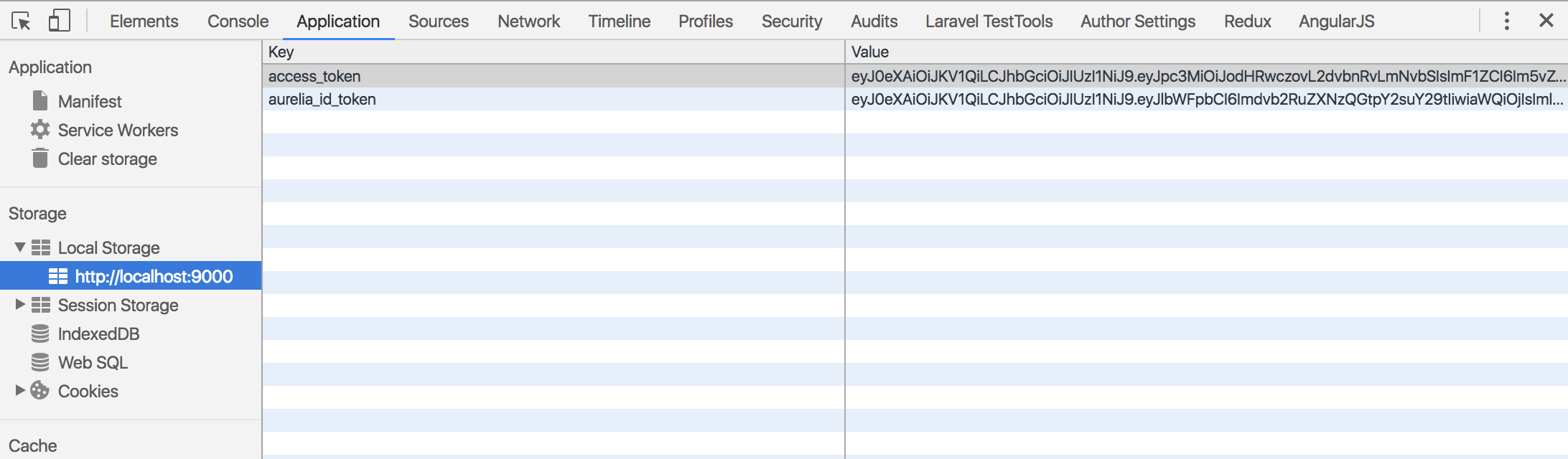
_Aurelia localStorage Tokens_
## The Random Quote and Super-Secret Quote Routes
With signup, login, and logout in place, we now need to create the files for our quote routes. Let's first take care of the `random-quote` route.
```html
${heading}
${randomQuote}
```
This view simply displays the heading and the text of the quote that we retrieve.
```js
// src/random-quote.js
import {inject} from 'aurelia-framework';
import {HttpClient} from 'aurelia-http-client';
// Using Aurelia's dependency injection, we inject HttpClient
// with the @inject decorator to make HTTP requests
@inject(HttpClient)
export class RandomQuote {
heading = 'Random Quote';
// View model that will be populated with the
// the random quote retrieved from the API and
// displayed in the view
randomQuote = '';
constructor(http) {
this.http = http;
};
activate() {
return this.http.get('http://localhost:3001/api/random-quote')
.then(response => {
this.randomQuote = response.content;
}).catch(error => {
console.log('Error getting quote');
});
};
}
```
We want to fetch the quote when the route is hit, so within the `activate()` method we are making a GET request to our `random-quote` endpoint, which is located at `localhost:3001/api/random-quote`. If we get a good response, we set the quote text onto `randomQuote` so that it can be accessed in the view.
The super `secret-quote` route is a little bit different. We are making a request to a different endpoint. We are also sending an `Authorization` header with a Bearer token, which is an access token in this case.
In case you are wondering why we are using an `access_token` and not `id_token`, check out [why you should use access tokens to secure an api](https://auth0.com/blog/why-should-use-accesstokens-to-secure-an-api/).
For the view in `secret-quote.html`, make sure to change `${randomQuote}` to `${secretQuote}`.
```js
// src/secret-quote.js
import {inject} from 'aurelia-framework';
import {HttpClient} from 'aurelia-http-client';
// Using Aurelia's dependency injection, we inject HttpClient
// with the @inject decorator to make HTTP requests
@inject(HttpClient)
export class SecretQuote {
heading = 'Super Secret Quote';
// View model that will be populated with the
// the secret quote retrieved from the API and
// displayed in the view
secretQuote = '';
constructor(http) {
this.http = http.configure(x => {
x.withHeader('Authorization', 'Bearer ' + localStorage.getItem('access_token'));
});
};
activate() {
return this.http.get('http://localhost:3002/api/protected/random-quote')
.then(response => {
this.secretQuote = response.content;
}).catch(error => {
console.log('Error getting quote');
});
};
}
```
If there is no valid `access_token` in `localStorage`, we won't be able to get to this route. If somehow we got to it, the request would fail because no JWT would be sent to the server.
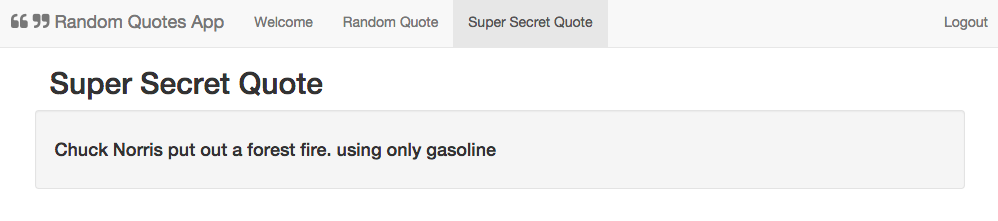
_Aurelia Super Secret Quote Page_
## Aside: Using Aurelia with Auth0
Auth0 issues [JSON Web Tokens](http://jwt.io/introduction) on every login for your users. This means that you can have a solid [identity infrastructure](https://auth0.com/docs/identityproviders), including [single sign-on](https://auth0.com/docs/sso/single-sign-on), user management, support for social (Facebook, GitHub, Twitter, etc.), enterprise (Active Directory, LDAP, SAML, etc.), and your own database of users with just a few lines of code.
You can use [Lock](https://auth0.com/docs/libraries/lock) to integrate [Auth0](https://auth0.com) with Aurelia as well and get authentication up and running in no time!
To start, sign up for a free Auth0 account if you haven't already. Then bring in the **Auth0Lock** script.
```html
```
Next, instantiate Lock with your Auth0 credentials.
```js
// app.js
export class App {
lock = new Auth0Lock('AUTH0_CLIENT_ID', 'AUTH0_DOMAIN');
...
}
```
To log a user in, create a `login` method that opens the Lock widget and saves the returned profile and JWT in local storage.
```js
// app.js
login() {
this.lock.show((err, profile, token) => {
if(err) {
console.log(err);
}
else {
localStorage.setItem('profile', JSON.stringify(profile));
localStorage.setItem('id_token', token);
this.isAuthenticated = true;
}
});
}
```
**Important API Security Note:** If you want to use Auth0 authentication to authorize _API requests_, note that you'll need to use [a different flow depending on your use case](https://auth0.com/docs/api-auth/which-oauth-flow-to-use). Auth0 `idToken` should only be used on the client-side. [Access tokens should be used to authorize APIs](https://auth0.com/blog/why-should-use-accesstokens-to-secure-an-api/). You can read more about [making API calls with Auth0 here](https://auth0.com/docs/apis).
To make authenticated HTTP calls, simply attach the user's JWT as an `Authorization` header. This can be done on a per-request basis, or you can configure all HTTP calls to include the header.
```js
// app.js
// Send the Authorization header with the JWT in a single HTTP call
getSecretThing() {
this.http.fetch('/api/protected-route', {
headers: {
'Authorization': 'Bearer ' + localStorage.getItem('access_token')
}
})
.then(response => response.json())
.then(data => this.secretThing = data.text);
}
```
```js
// Send the Authorization header in all HTTP calls
// app.js
constructor(http) {
this.http = http;
this.http.configure(config => {
config.withDefaults({
headers: {
'Authorization': 'Bearer ' + localStorage.getItem('access_token')
}
});
});
}
```
To log the user out, simply remove his or her profile and JWT from localStorage.
```js
// app.js
logout() {
localStorage.removeItem('profile');
localStorage.removeItem('id_token');
localStorage.removeItem('access_token');
this.isAuthenticated = false;
}
```
That's it! You now have authentication with Auth0 in your Aurelia app.
For more details, including how to protect certain routes in your app, check out the [Auth0 Aurelia docs](https://auth0.com/docs/quickstart/spa/aurelia/no-api). There you can also download a seed project to get started from scratch.
## Wrapping Up
Aurelia 1.0 shipped with great improvements to tooling, application setup, and a focus on enhancing the ability to build mobile apps. If you don't want to use the `aurelia-auth` plugin, there is a good alternative, which is [https://github.com/SpoonX/aurelia-authentication](https://github.com/SpoonX/aurelia-authentication). You can definitely try it out while working your way through the tutorial.
The [Aurelia documentation](http://aurelia.io/hub.html#/doc/article/aurelia/framework/latest/quick-start) is a great place to check out all the improvements and new things that come bundled with Aurelia 1.0. Do you like the improvements? Have you started using Aurelia 1.0 in production? Let me know your thoughts about Aurelia 1.0 in the comments section below. 😊