---
title: "Connecting Auth0 to MongoDB"
description: "Configure MongoDB as an Auth0 custom database to simplify user migration or just add OAuth/Open ID Connect."
authors:
- name: "Ben Dechrai"
url: "https://auth0.com/blog/authors/ben-dechrai/"
date: "Oct 7, 2021"
category: "Developers,Product,Custom Databases"
tags: ["custom-databases", "mongodb", "auth0"]
url: "https://auth0.com/blog/connecting-auth0-to-mongodb/"
---
# Connecting Auth0 to MongoDB
Configuring MongoDB as an Auth0 custom database can simplify your user migration process, or even just add an OAuth and OpenID Connect layer on top of your existing database of users. Whatever your reason, let's step through the process of connecting Auth0 to MongoDB.
This article is also available in video format
## Enabling Custom Databases
Don't already have an Auth0 account yet? **Sign up for free today!**
Once you're logged in, head to the [Database Connections](https://manage.auth0.com/#/connections/database) page, and click on the **Create DB Connection** button.
Give this database configuration a meaningful name, click the **Create** button, and then switch to the **Custom Database** tab.
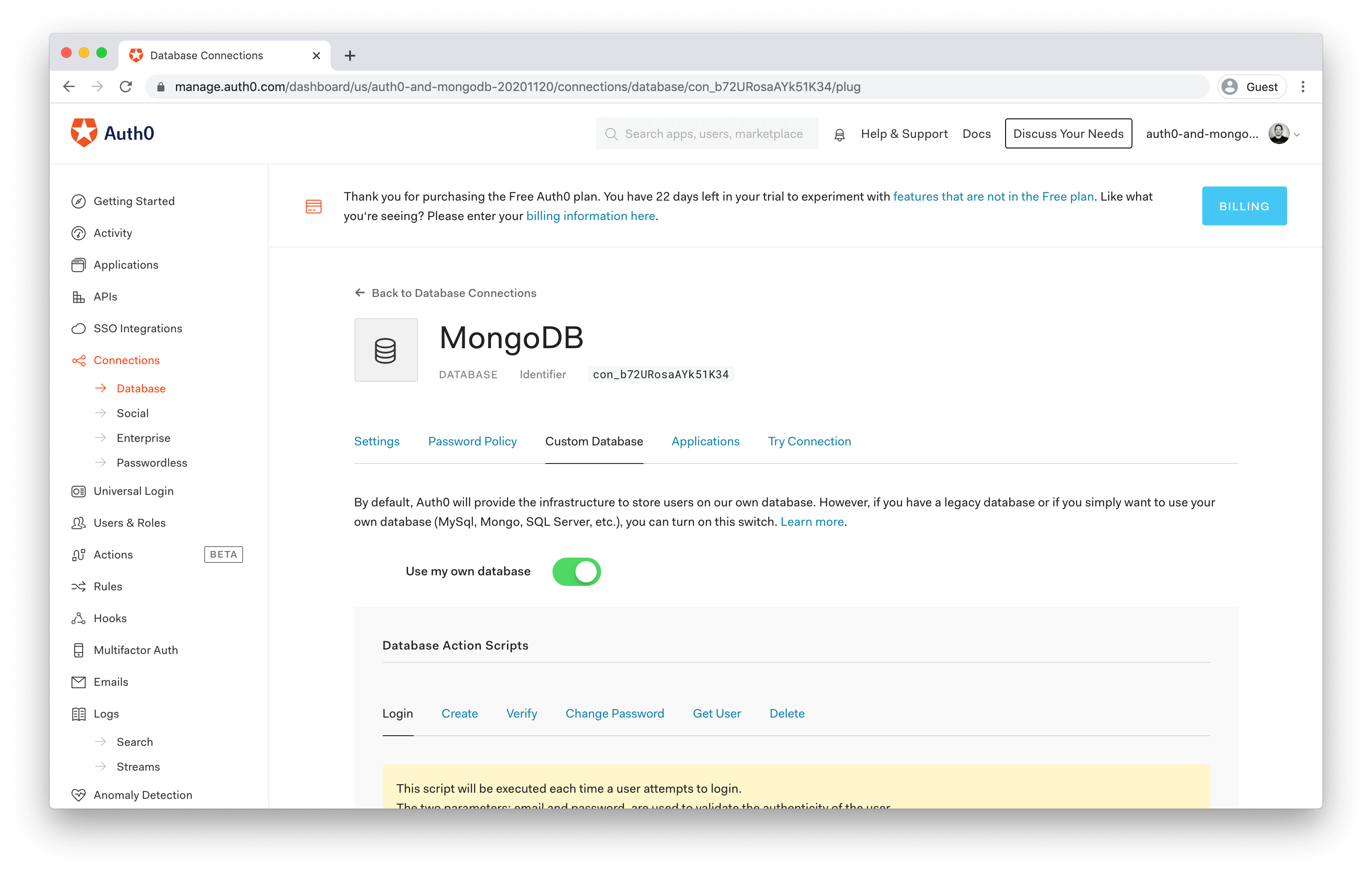
On this screen, you can enable the **Use my own database** option and define the JavaScript that will run when the following events are triggered:
* **Login** - executed each time a user attempts to login, to validate the authenticity of the user against a MongoDB record;
* **Create** - executed when the user signs up, to create a record in MongoDB;
* **Verify** - executed after a user signs up and follows the email "verification" link, to set a corresponding flag in MongoDB;
* **Change Password** - executed when the user changes their password, or the reset email was sent and the user follows the "change password" link, to update a record in MongoDB;
* **Get User** - executed to determine the current state of existence of a user, which returns a matching MongoDB record if any, without requiring the user's credentials; and
* **Delete** - executed when a user is deleted, to deactivate or delete the respective MongoDB record.
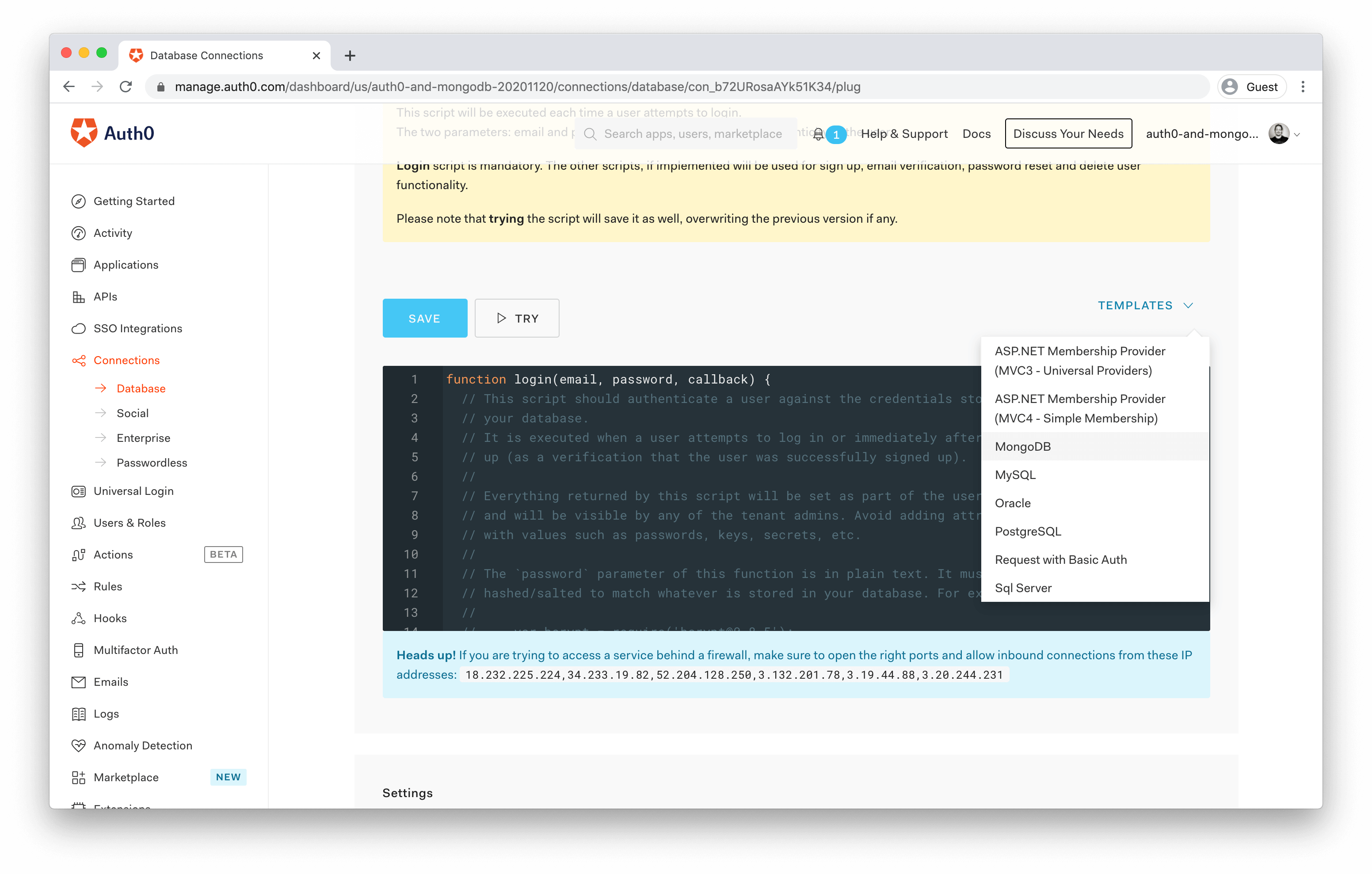
For each of these scripts, you'll see a **Templates** drop-down above the code editor, and MongoDB is one of the options that come out of the box. You'll come back to this later.
## Setting up a MongoDB Cluster
Before you do that, though, set up your MongoDB instance. Assuming you already have an account at [https://mongodb.com/](https://mongodb.com/), head to your dashboard and go to the **Projects** tab. Then create a new project, and in that project, create a new cluster. The free, shared clusters with the default settings are sufficient for our purposes, but you might want to consider one of the paid options if their features better suit your needs.
>This guide should also work fine if you're using an existing database, but you might need to tweak some of the upcoming instructions to your specific circumstances.
Once the cluster is built, which can take up to three minutes, you need some connection details to use in the scripts back in the Auth0 dashboard.
Click on the **Connect** button, and configure the IP Addresses that can connect to your cluster. If you look back in the Auth0 interface, you'll see a list of IP addresses under the code editors for any of your scripts. Add these in using the **Add a different IP Address** button in MongoDB.

The next thing you need to do is define a user that's allowed to connect to the system. Choose a username and sufficiently strong password, and continue.
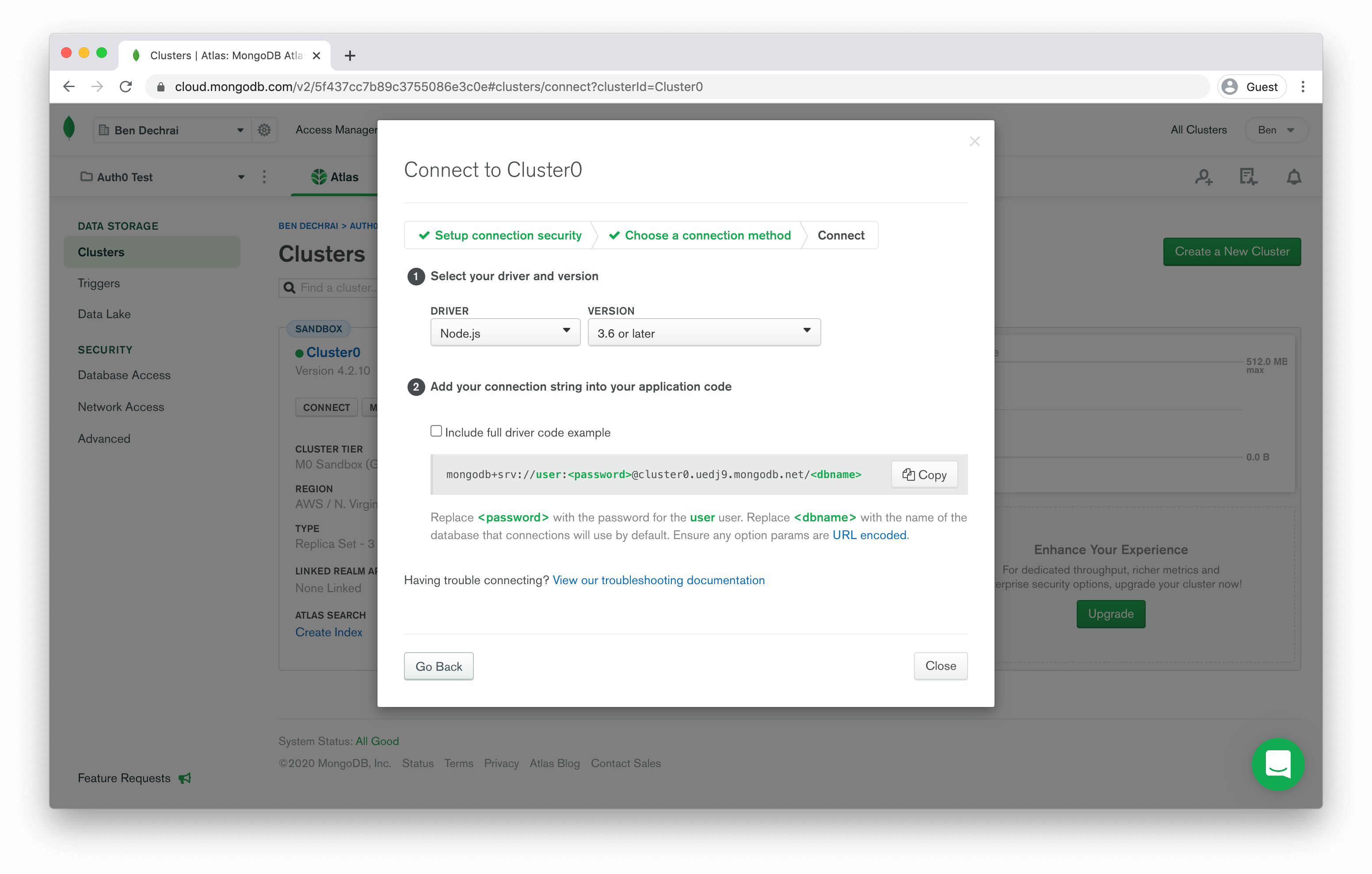
Finally, you get to choose a connection method. The scripts you're configuring in Auth0 fall under the **Connect your Application** scenario, and clicking on this will reveal the connection string you need to use in your scripts.
## Defining the Auth0 Custom Database Scripts
Copy the connection string from MongoDB, and switch back to the Auth0 interface. Select to edit the **Login** script, and choose MongoDB from the templates drop-down.
You'll see the following line in the code:
``` javascript
const client = new MongoClient('mongodb://user:pass@localhost');
```
Replace the entire connection string with the value you just copied from MongoDB, and you'll see something that looks like:
``` javascript
const client = new MongoClient('mongodb+srv://user:@xxx.mongodb.net/?...');
```
You can remove `` from this connection string, because it's already specified later in the script.
``` javascript
const client = new MongoClient('mongodb+srv://user:@xxx.mongodb.net/?...');
```
Now you need to replace `` with the actual password, but you know it's bad practice to keep these in the scripts.
There's a solution for this, though. Under the script editor, you'll see a **Settings** section that allows you to store data exposed to all the scripts via environment variables. This is a much more secure way to store the password.
Add a key/value pair with the key `MONGO_PASSWORD` and the password you provided when configuring access in MongoDB.
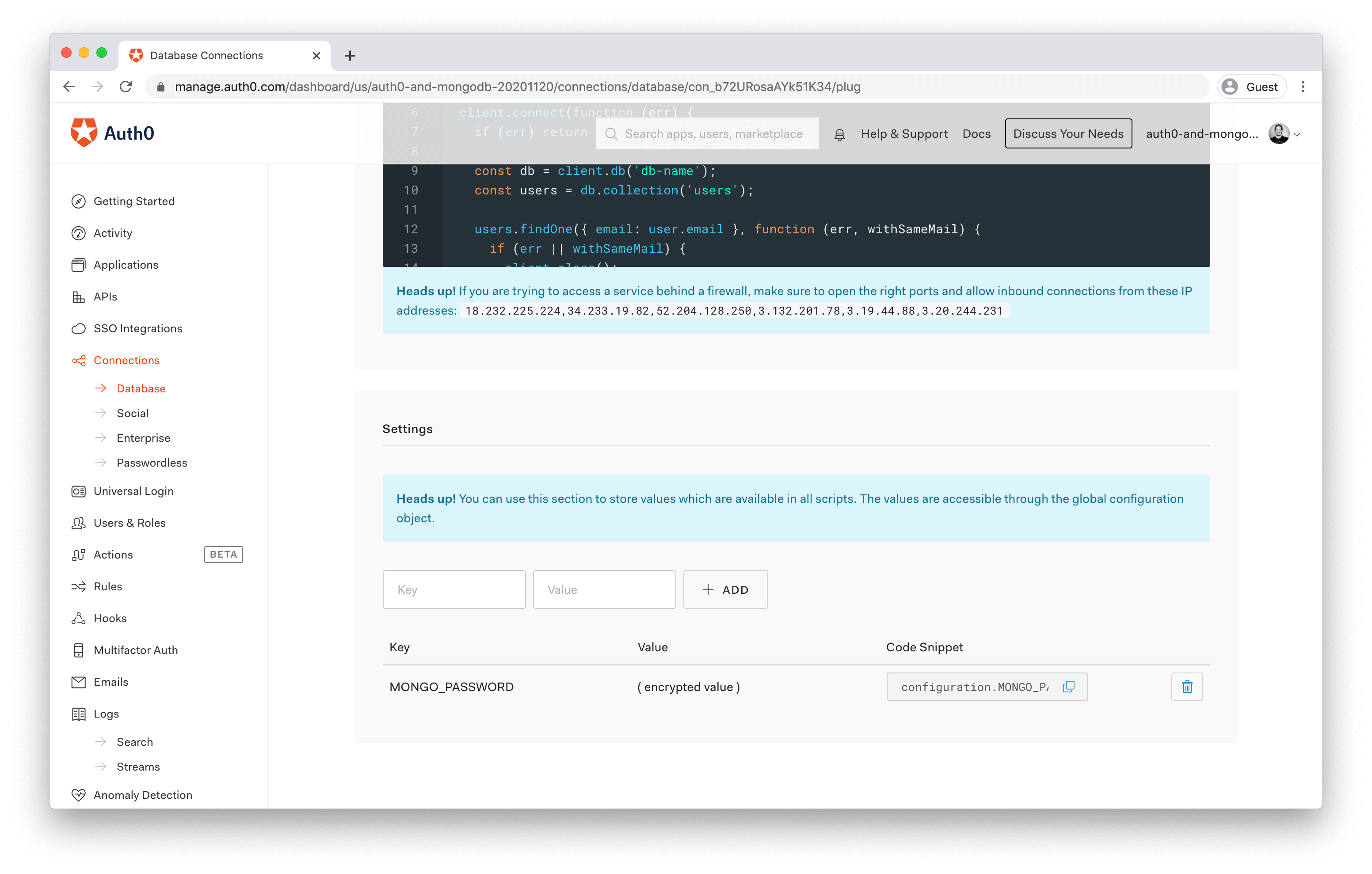
You'll then be able to copy the **Code Snippet** from the new entry, and use that in your connection string instead:
``` javascript
const client = new MongoClient('mongodb+srv://user:' + configuration.MONGO_PASSWORD + '@xxx.mongodb.net/?...');
```
## Creating the Mongodb Database to Store Users In
The next thing you'll need to do is create a database and collection in MongoDB. Jumping to the MongoDB interface again, close the dialog box containing the connection information and click on the **Collections** button.
On the Collections page, click the **Add My Own Data** button, and provide the database name `db-name` and the collection name `users` and click **Create** to continue.
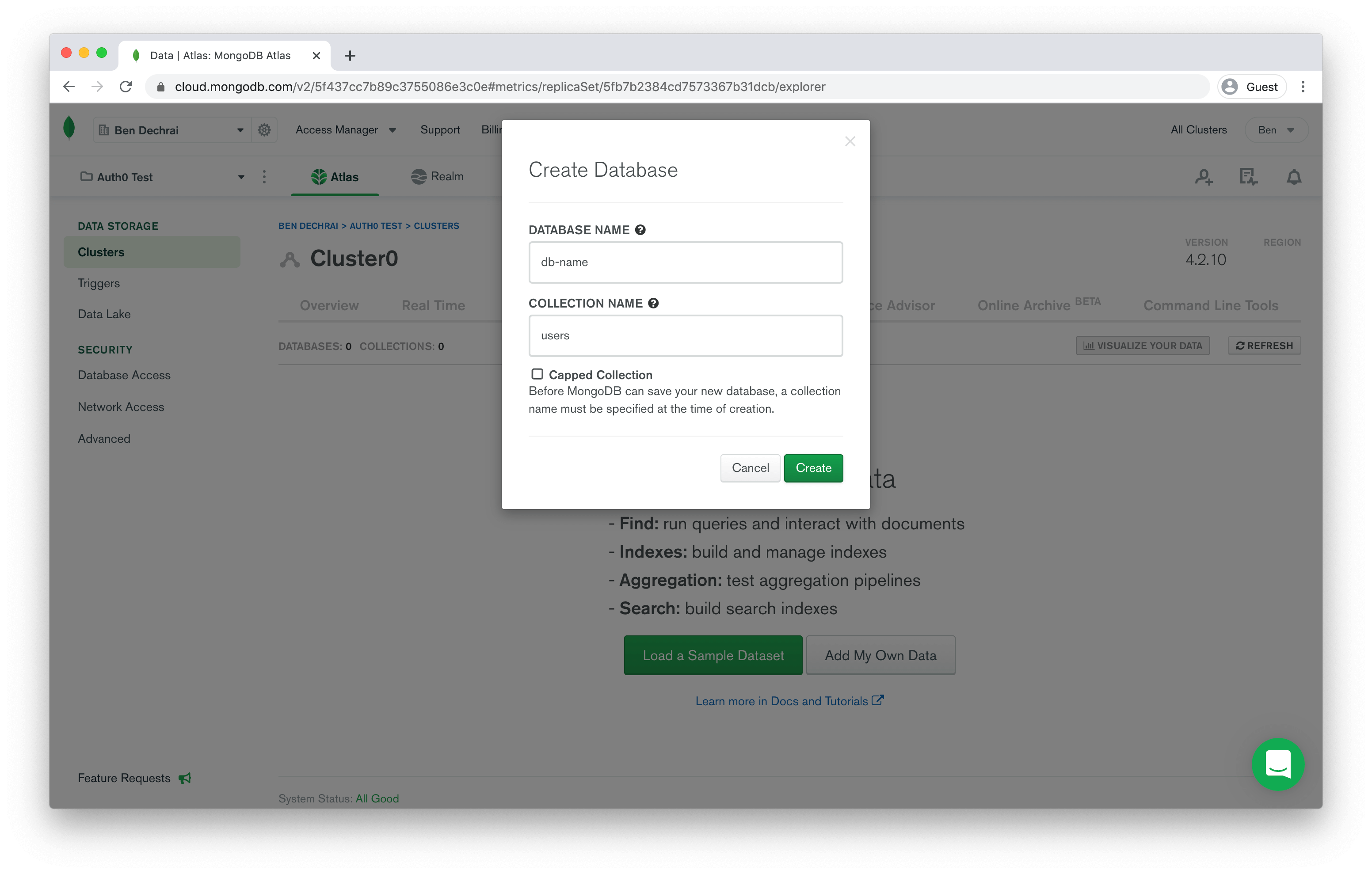
That's it for this step! The database is ready, and you just need to finish up the Auth0 custom database configuration.
## Finalizing the Auth0 Custom Database Scripts
Switch back to the Auth0 interface again and you should see the **Login** script editor. The script is already connecting to the `db-name` database and pulling users out of the `users` collection. If you used other names in the previous step, make sure you update the code in all the scripts on around lines 8 to 10:
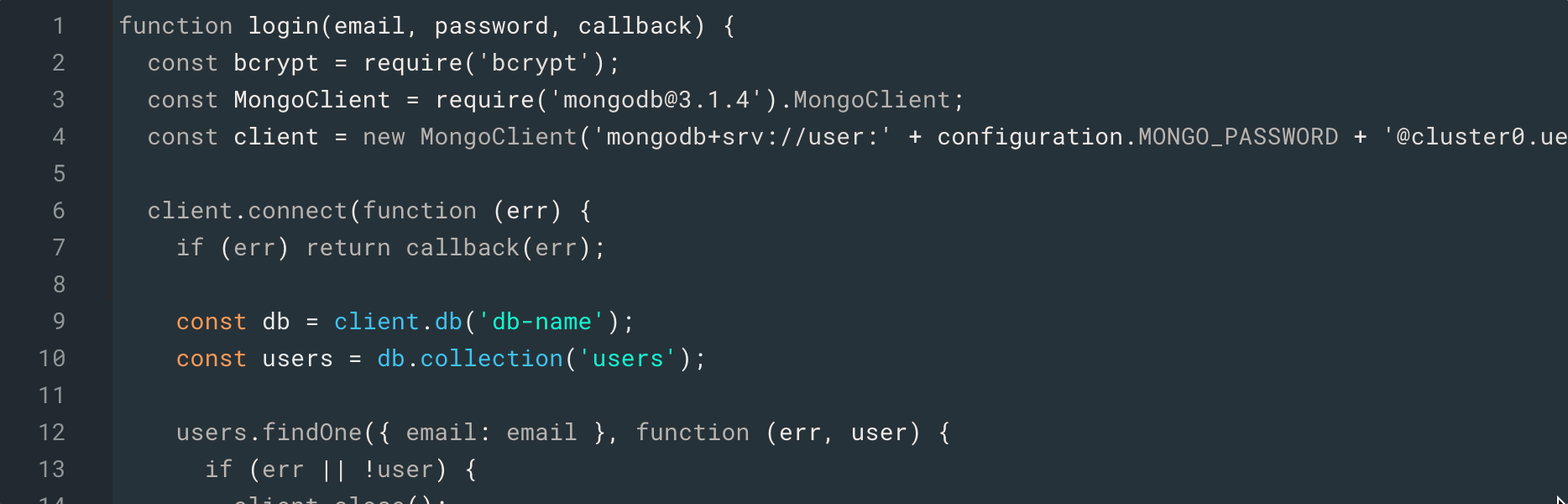
Before you move on, copy line 4 into your clipboard, which instantiates the client with the correct connection string.
To configure the other scripts, simply iterate through each one, select MongoDB from the templates dropdown, and replace the client instantiation line with the one you just copied from the **Login** script.
There are just two more little changes you'll need to make to make everything work.
By default, each new user won't have an `email_verified` flag at all, so setting it later won't work. To remedy this, head back to the **Create** script, and find the line that defines the value of `user.password`:
``` javascript
user.password = hash
```
This is probably line 24. Directly after this line, add the following:
``` javascript
user.email_verified = false
```
Now, when someone creates a new account, the new user object in MongoDB will be created with the `email_verified` flag as false.
The second change is to the **Delete** script. On around line 11, you'll see the line that tells MongoDB to delete the user:
``` javascript
users.remove({ _id: id }, function (err) {
```
The issue here is that the value of `id` is the user's email address, whereas the `_id` in MongoDB is an object ID. Change the key in this filter to `email` in order to correctly identify the MongoDB record to be removed:
``` javascript
users.remove({ email: id }, function (err) {
```
Clicking on the **Save** button above the code editor will save all changes in all the scripts. So hit that, and you're done!
## Testing the Database
You can use the **Try** button to test each of these scripts out now. If you're starting with a new database, try the **Create** script first, and go from there.
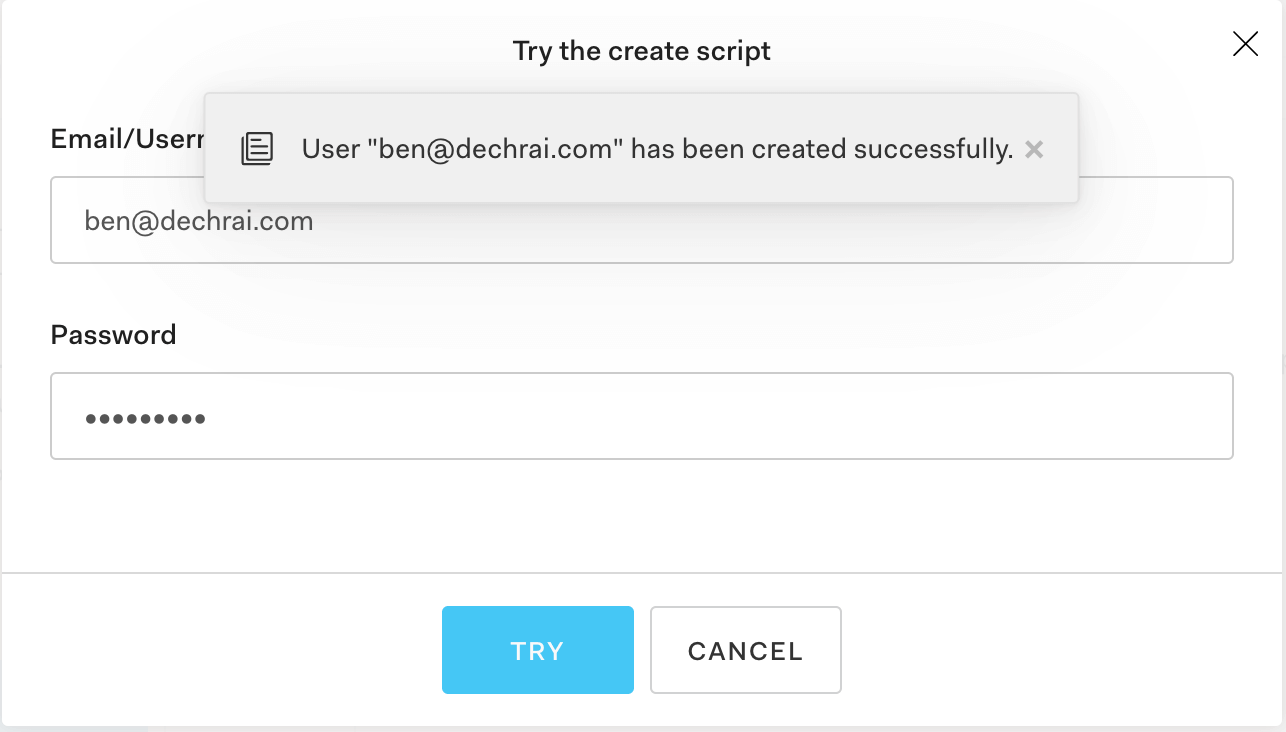
If you're using an existing database, you can try logging in with an existing user's credentials. If you're having authentication issues, make sure the **Login** script is using the same hashing mechanism as the code that generated these users in the first place.
And if you're having trouble, head over to our Community Forum and drop your request below.