---
title: "Custom Events in Vue"
description: "Learn how to create custom events in Vue!"
authors:
- name: "Chris Sevilleja"
url: "https://auth0.com/blog/authors/chris-sevilleja/"
date: "Jul 7, 2020"
category: "Developers,Tutorial,Vue"
tags: ["vue", "vuejs", "javascript", "custom", "events", "auth0"]
url: "https://auth0.com/blog/custom-events-in-vue/"
---
# Custom Events in Vue
In this article, we are going to be chatting about making custom events in Vue. We will talk about basic events in Vue before moving on to making our own custom events. We will be working in a CodeSandbox and you can find the [final code here](https://codesandbox.io/s/vigilant-einstein-rxbi3).
[Vue's](https://vuejs.org/) component system is powerful and allows us to build any application type. We can create global components using `Vue.component('login-form', { ... })` or we can use Vue's [Single File Components](https://vuejs.org/v2/guide/single-file-components.html) when we are building out more complex projects.
Every application needs to listen for user interactions. Some examples of common [events in the HTML DOM](https://www.w3schools.com/jsref/dom_obj_event.asp) that we often listen for are:
- [click](https://www.w3schools.com/jsref/event_onclick.asp)
- [mouseover](https://www.w3schools.com/jsref/event_onmouseover.asp)
- [play](https://www.w3schools.com/jsref/event_onplay.asp)
- [resize](https://www.w3schools.com/jsref/event_onresize.asp)
- [scroll](https://www.w3schools.com/jsref/event_onscroll.asp)
Once we are done creating our [Vue templates](https://vuejs.org/v2/guide/syntax.html) and our Vue styles, the next step in making our apps complete is to [handle events](https://vuejs.org/v2/guide/events.html).
## Handling Basic Events in Vue
In Vue, we can listen for the HTML DOM events using the [`v-on` directive](https://vuejs.org/v2/api/#v-on). This adds an event listener to listen for the built-in DOM events and will look like this:
``` html
```
We are creating a button here that listens for the event click. We are using the `blastoff()` method to handle that event.
### Shorthand for v-on
We can also use the [v-on shorthand](https://vuejs.org/v2/guide/syntax.html#v-on-Shorthand), `@`, to simplify our templates further.
```html
```
Handling DOM events in Vue is quick, thanks to the `v-on` directive. When we start building out our custom components, we may need to handle some more complicated events.
## How to Create a Custom Vue Event
We can create a custom event from our Vue components by using the [$emit](https://vuejs.org/v2/guide/components.html#Emitting-a-Value-With-an-Event) method. Here we have a button that emits a `sandwich-chosen` event with a value of `grilled-cheese`:
``` html
```
For more complex scenarios, we can pass in an object as the second parameter. This is useful if we need to provide our parent components with more information like a user object:
``` html
```
That's the quick version of how to create a custom Vue event. Let's dive deeper and talk about:
- Creating custom Vue events
- Naming custom Vue events
- Emitting data through Vue events
- Syncing data between parent and child components
## How Vue Handles Events
Before we go any further, we need to talk about Vue's methodology when it comes to components and custom events.
> Vue takes an approach similar to the HTML DOM events. An element will "emit" an event and the data from that event.
Just like we can "listen" for when an element emits an event, we can create custom events that come from our components. For instance, we can have an HTML button that emits a `click` event. We can also have a custom component called `` that emits a `color-chosen` event:
``` html
```
This is a robust way to handle custom events because we know that a child component has inputs ([props](https://vuejs.org/v2/guide/components-props.html)) and outputs ([custom events](https://vuejs.org/v2/guide/components.html#Listening-to-Child-Components-Events)). We can reuse this same component in many places and always know that it has the same API.
> **Note**: It's important to read through the [Vue style guide](https://vuejs.org/v2/style-guide/) when thinking about naming components, especially if we are switching between global components and single file components projects.
## Creating Custom Vue Events
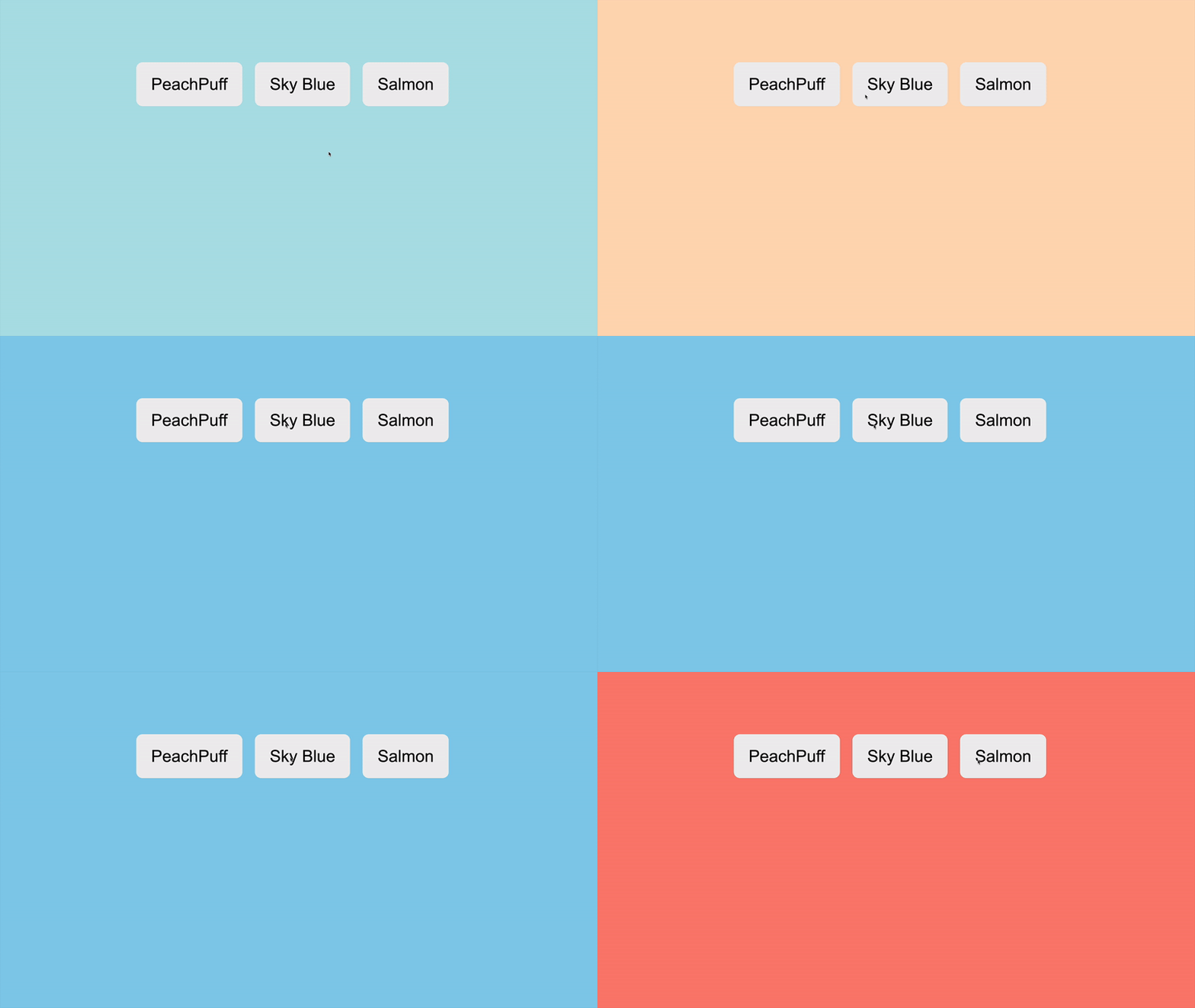
Let's expand on our `` example from above. We can create a Vue example where our main app background will change depending on if a user clicks one of three [HTML colors](https://www.w3schools.com/colors/colors_names.asp):
- peachpuff
- skyblue
- salmon
Let's start by creating our main `App.vue` component:
``` html
```
In our main `App` component, we have created a main `
` that has a style of `background` bound to our `backgroundColor` variable that starts as `powderblue`.
Right now, this Vue application does nothing and will probably throw an error since we haven't defined our `` component. Let's do that now in `ColorPicker.vue`:
``` html
```
The next step is for this component to emit a custom event. We'll call this event `color-chosen`. In `ColorPicker.vue`, add:
``` html
```
Our component is now emitting an event! We can listen for this event from our parent component now. Back in `App.vue`, update as follows:
``` html
```
We've added an `updateBackgroundColor` method to listen to this component for that `color-chosen` event. The next step is to get our child component to pass the color chosen to our parent component.
### Naming conventions for Vue custom events
Naming conventions from the Vue docs say to **always name events with kebab-case.** The reason for this is that when Vue compiles its HTML, HTML does not differentiate between upper or lowercase letters. That means that in our browsers' eyes, there is no difference between `colorChosen` and `colorchosen`. For this reason, it's best always to use the `color-chosen` version.
## Emitting Data Through Vue Events
To pass data through an emitted event, we can pass the data as the second parameter. In `ColorPicker.vue`:
``` html
```
Now we can listen for the color chosen from our parent component!
```javascript
methods: {
updateBackgroundColor(color) {
this.backgroundColor = color;
}
}
}
```
That will be all the code required to update our background color since we bound that color variable using the `:style` directive.
### Refactoring to be a cleaner component
Instead of calling `$emit` three times within our template, we can move that logic into our JavaScript to create a cleaner component. In `ColorPicker.vue`:
``` html
```
When we use `$emit` from within our `
```
Then in our child component:
``` html
```
# The Final Product!
All the code can be found in [this CodeSandbox](https://codesandbox.io/s/vigilant-einstein-rxbi3)! I have added a little more CSS so that the color fills the page! Feel free to fork and play around with this code!
## Conclusion
Vue events can make our components more versatile and reusable. By using `$emit`, we can pass data out of a component and up to a parent component. The parent component then has the ability to utilize that information; however it sees fit.
This model lets us create components that are compartmentalized from the other parts of our app, a great value when creating complex applications.
---