---
title: "Developing and Publishing an NPM Package"
description: "Learn, through a practical tutorial, what tools we can leverage to develop and publish high-quality NPM packages."
authors:
- name: "Bruno Krebs"
url: "https://auth0.com/blog/authors/bruno-krebs/"
date: "Dec 20, 2017"
category: "Developers,Tutorial,Node"
tags: ["npm", "node.js", "node", "packages", "oss", "open-source-software", "git", "github", "tests", "unit-tests", "es6", "travis"]
url: "https://auth0.com/blog/developing-npm-packages/"
---
# Developing and Publishing an NPM Package
**TL;DR:** In this article, we are going to learn what tools we should take advantage of when developing NPM packages. We will start from scratch and create a GitHub Repository to host our package, then we will look into interesting and important topics. For example, we will talk about IDEs, we will configure ESLint in our project, we will publish the package on NPM and into the registry, and we will even integrate a continuous integration tool. The code that gave life to this article can be found in [this GitHub repository](https://github.com/brunokrebs/masks-js).
## What NPM Package Will We Build
After following all the steps shown in this article, we will have [our own package published in the NPM package registry](https://www.npmjs.com/package/masks-js). The features that this package will support (and how to build them) are not the focus of this article. There are plenty of great tutorials out there that can teach us [how to develop in Node.js](https://auth0.com/blog/building-and-authenticating-nodejs-apps/). The focus here are the processes and the tools that we can use to build great NPM packages.
Nevertheless, to give a heads up, we are going to build and publish an NPM package that masks raw digits into US phones. For example, if we pass `1234567890` to the package, it will return `(543) 126-0987`.
The following list gives an overview of the topics that we are going to cover in this article:
```bash
Git and GitHub
> Creating the GitHub Repository
> Cloning the GitHub Repository
> Ignoring Files with Git
IDEs (Integrated Development Environments)
NPM Package Development
> NPM Init
> Semantic Versioning
> EditorConfig
> ES6+: Developing with Modern JavaScript
> Linting NPM Packages
> Automated Tests
> Coding the NPM Package
> Test Coverage
> Publishing the NPM Package
> Continuous Integration
Conclusion
```
## Installing Node.js
The first two prerequisites are Node.js and NPM (but that comes with Node.js). We could use [the official Node.js download webpage](https://nodejs.org/en/download/) to install these dependencies. However, the best way to install Node.js in a development machine is not through the official URL. [There is a package called NVM (Node Version Manager) that provides a simple bash script to manage multiple active node.js versions](https://github.com/creationix/nvm). It's the best option because, with just one command, we can switch Node.js and NPM versions.
## Git and GitHub
Besides Node.js and NPM, we also need [Git](https://git-scm.com) and [GitHub](https://github.com/). Why are we going to use them? Because [Git is the best, most advanced, and most used version control system](https://www.atlassian.com/git/tutorials/what-is-git) and [GitHub is the most used Git platform](https://github.com/). The best open source projects in the world are hosted in this platform. For example, [Node.js source code is versioned with Git on GitHub](https://github.com/nodejs/node).
> __Note__ that this article won't lecture about Git. If you are not familiar with Git, you will still be able to follow this article. However, every developer should learn how to properly use Git and GitHub. So, if needed, stop reading and go [learn Git](https://git-scm.com/docs/gittutorial) (and install it too, of course :D). You can come back later.
### Creating the GitHub Repository
Great, we already decided where we will keep our source code safe. It's time to create the repository to start working on it. If we head to [the _Create a new repository_ web page on GitHub](https://github.com/new), we will see a form that asks for three things: repository name, description, and visibility. As we are building a module that handles masks, let's answer these questions as follows:
- **Repository name**: masks-js
- **Description**: A NPM package that exports functions to mask values.
- **Visibility**: Public
After that, GitHub gives us options to initialize the repository with a `README` file, to add a `.gitignore` file, and to add a license to our module. We will use all three options as follows:
- **Create README**: Yes, let's check this box.
- **Add .gitignore**: Why not? Less typing later. Let's choose `Node` in this combo.
- **Add a license**: Again, less work later. Let's set this combo to `MIT License`.
Done! We can hit the _Create repository_ button to finish the process.
### Cloning the GitHub Repository
After creating the repository (which should be instantaneous), GitHub will redirect us to our repository's webpage. There, we can find a button called _Clone or download_ that gives a shortcut to the URL that we will need. Let's copy this URL and open a terminal. On this terminal, let's choose an appropriate directory to host the root directory of our project (e.g. `~/git`), and then let's clone the repository.
The code snippet below shows the commands that have to be used to clone the repository:
```bash
# choosing a directory to clone our repo
cd ~/git
# using git to clone
git clone git@github.com:brunokrebs/masks-js.git
# moving cursor to project root
cd masks-js
```
The last command will put our terminal in the project root. There, if we list the existing content, we will see four items:
- A directory called `.git` that is used by Git to control the version of our code locally. Most probably, we will never touch this directory and its content manually.
- A file called `.gitignore` where we keep entries that identify items that we do not want Git to version. For example, in the near future, we will make Git ignore files generated by our IDE.
- A file called `LICENSE`. We don't have to touch this file, it contains a predefined content granting the [MIT License](https://opensource.org/licenses/MIT) to our code/package.
- A file called `README.md` that contains just the name of our package (`masks-js`) and its description.
### Ignoring Files on Git and NPM
During the next sections, we will create some artifacts that we don't want to send to GitHub or to NPM. For example, our IDE will add some configuration files to our project root that we want to Git to ignore. Another thing that we want Git to ignore is the `./lib` directory that we will create when publishing our package. This directory will only be shared on the NPM package itself (i.e. for developers downloading the package through NPM). Therefore, let's update `.gitignore` as follows:
```.gitignore
# leave everything else untouched
.idea/
.vscode/
lib/
```
As we don't want NPM to ignore `./lib`, let's create the `.npmignore` file. In this file we will add the following configuration:
```.npmignore
.nyc_output/
coverage/
node_modules/
.idea/
.vscode/
```
This will make NPM ignore these five folders, but not `./lib`.
> Note that we are just removing folders that are not important to developers that want to use our package.
Let's commit and push these changes to GitHub:
```bash
git add .gitignore .npmignore
git commit -m 'making Git and NPM ignore some files'
git push origin master
```
## IDEs (Integrated Development Environments)
Developing good software, arguably, passes through a good IDE. Among other things, IDEs can help us refactor our code, be more productive (mainly if we know their shortcuts), and debug our code. They usually help us by pointing out possible problems before compiling and/or running our code either. Therefore, this is a topic that cannot be put aside.
On the Node.js/NPM environment, there is a good number of IDEs available. A few of them are paid and lot are free. However, in this author's opinion, there are only two IDEs that are really relevant: WebStorm and Visual Studio Code.
[_WebStorm_](https://www.jetbrains.com/webstorm/): This is a full-fledged IDE that provides great tools and has great support to everything related to JavaScript (e.g. TypeScript, HTML, CSS, SCSS, Angular, Git, etc). If it does not support some feature by default, it probably does so through [plugins](https://plugins.jetbrains.com/webstorm). The biggest disadvantage of this IDE is that [it's paid](https://www.jetbrains.com/webstorm/buy/#edition=personal). However, WebStorm is so good at what it does that it's worth the price.
[_Visual Studio Code_](https://code.visualstudio.com/): This is another full-fledged IDE. It also comes with great support for Node.js and related technologies, just like WebStorm does. This IDE, in contrast to WebStorm, is free and open source. If you are wondering the difference between them, there are a few resources out there that compare both. For example, there is [this article on Medium](https://medium.com/linagora-engineering/from-webstorm-to-vscode-road-to-the-freedom-743eda17164a) and [this discussing on Reddit](https://www.reddit.com/r/webdev/comments/5fcldt/webstorm_vs_visual_studio_code/).
Other options, although famous, cannot be really considered IDEs. That is, they can be considered IDEs if they are correctly configured with a bunch of plugins. However, why waste time on these kind of configuration when we can choose a good IDE that is ready to help us? If you are still interested on seeing what other "IDEs" are available, [there are resources out there that show more options and their differences](https://www.google.com.br/search?q=node.js+ides).
What is important in this section is that we understand that we _do_ need an IDE and choose one. This will help us a lot during the development lifecycle of our package.
## NPM Package Development
Now that we have chosen our IDE, let's open our project and start configuring it. Throughout the next sections, we are going to create our project structure and configure tools that will help us produce high-quality code.
### NPM Init
First things first. As our goal is to create and publish a NPM package, we need to initialize our project as one. Luckily, this process is straightforward. NPM, through its CLI (Command Line Interface), provides two great ways to configure a project as a NPM package. The first one, triggered by `npm init`, will ask a bunch of questions and produce the `package.json` file for us. The second one, triggered by `npm init -y`, will not ask any question and produce the `package.json` file with default values.
We will stick with the second option, `npm init -y`, to get our file as fast as possible. Then, we will edit the `package.json` content manually to look like this:
```json
{
"name": "masks-js",
"version": "0.0.1",
"description": "A NPM package that exports functions to mask values.",
"main": "build/index.js",
"scripts": {
"test": "echo \"Error: no test specified\" && exit 1"
},
"repository": {
"type": "git",
"url": "git+https://github.com/brunokrebs/masks-js.git"
},
"keywords": [
"npm",
"node",
"masks",
"javascript"
],
"author": "Bruno Krebs",
"license": "MIT",
"bugs": {
"url": "https://github.com/brunokrebs/masks-js/issues"
},
"homepage": "https://github.com/brunokrebs/masks-js#readme"
}
```
> __Important:__ the JSON snippet above contains three URLs that point to `https://github.com/brunokrebs/masks-js`. We need to replace them with the URL of our repository on GitHub.
Two properties in the file above may bring our attention. The `main` property now points to `build/index.js` and the `version` property labels our code as being on version `0.0.1`. Let's not worry about them now, we will discuss about these properties in the following sections.
Let's commit and push these changes to GitHub:
```bash
git add package.json
git commit -m 'initializing project as a NPM package'
git push origin master
```
### Semantic Versioning
In this section, we are not going to change anything in our project. The focus here is to talk about how to label new releases of our package. In the NPM and Node.js landscape, the most used strategy is by far [Semantic Versioning](https://semver.org/). What makes this strategy so special is that it has a well-defined schema that makes it easy to identify what versions are interoperable.
Semantic Versioning, also known as SemVer, uses the following schema: `MAJOR.MINOR.PATCH`. As we can see, any version is divided into three parts:
- `MAJOR`: A number that we increment when we make incompatible API changes.
- `MINOR`: A number that we increment when we add features in a backwards-compatible manner.
- `PATCH`: A number that we increment when we make small bug fixes.
That is, if we have a problem with our code and fix it simply by changing an `if` statement, we have to increment the `PATCH` part: `1.0.0` => `1.0.1`. However, if we need to add a new function (without changing anything else) to handle this new scenario, then we increment the `MINOR` part: `1.0.0` => `1.1.0`. Lastly, if this bug is so big that requires a whole lot of refactoring and API changes, then we increment the `MAJOR` part: `1.0.0` => `2.0.0`.
### EditorConfig
[EditorConfig](http://editorconfig.org/) is a small configuration file that we put in the project root to define how IDEs and text editors must format our files. Many IDEs support EditorConfig out of the box (including WebStorm and Visual Studio Code). The ones that don't, usually have a plugin that can be installed.
At the time of writing, EditorConfig contains only a small (but useful) set of properties. We will use most of them, but two are worth mentioning:
- `indent_style`: Through this property, we define if we want our code to be indented with tabs or spaces.
- `charset`: We use this property to state what charset (e.g. UTF-8) we want our files encoded into.
To set up EditorConfig in our project, we need to create a file called `.editorconfig` in the project root. On it, we define how we want IDEs to handle our files:
```bash
# Editor configuration, see http://editorconfig.org
root = true
[*]
charset = utf-8
indent_style = space
indent_size = 2
insert_final_newline = true
trim_trailing_whitespace = true
```
__Note__: EditorConfig can handle multiple configuration blocks. In the example above, we added a single block defining that all files (`[*]`) must be encoded in `UTF-8`, indented with `spaces`, and so on. However, we could have defined that we wanted XML files (`[*.xml]`) to be indented with tabs, for example.
Although subtle, EditorConfig _is_ an important step into producing high quality code. More often than not, more than one developer will work on a software, be it a NPM package or anything else. Having EditorConfig in place will minimize the chances of a developer messing with our code style and the encoding of our files.
Let's commit and push `.editorconfig` to GitHub:
```bash
git add .editorconfig
git commit -m 'adding .editorconfig'
git push origin master
```
### ES6+: Developing with Modern JavaScript
JavaScript, as everybody knows, has gained mass adoption as the primary programming language over the last few years. Node.js was primarily responsible for this adoption, and brought with it many backend developers. This triggered a huge evolution of the language. These evolutions, although great, are not fully supported by every platform. [There are many JavaScript engines (and many different versions of these engines)](https://en.wikipedia.org/wiki/JavaScript_engine#Implementations) in the market ready to run code, but most of them do _not_ support the latest JavaScript features.
This rich environment created one big challenge for the community. How do we support different engines and their versions while using JavaScript most recent features? One possible answer to this question is Babel. [Babel, as stated by their official website, is a JavaScript compiler](https://babeljs.io/) that allows developers to use next generation JavaScript today.
> __Note__ that Babel is one alternative. There are others, like [TypeScript](https://www.typescriptlang.org/), for example.
Using Babel is straightforward. We just have to install this library as a development dependency and create a file called `.babelrc` to hold its configuration:
```bash
npm install --save-dev babel-cli babel-preset-env
echo '{
"presets": ["env"]
}' >> .babelrc
```
With this file in place, we can configure a [NPM script](https://docs.npmjs.com/cli/run-script) to make Babel convert modern JavaScript in code supported by most environments. To do that, let's open the `./package.json` file and add to it a script called `build`:
```json
{
...
"scripts": {
"build": "babel ./src -d ./lib",
...
}
...
}
```
When we issue `npm run build`, Babel will take the source code found in the `./src` directory (which can be written in modern JavaScript) and transform it to ECMAScript 5 (the most supported version of JavaScript). To see this in action, let's create the aforementioned `./src` directory in the project root and add a script called `index.js` into it. To this script, let's add the following code:
```js
function sayHiTo(name) {
return `Hi, ${name}`;
}
const message = sayHiTo('Bruno');
console.log(message);
```
Although short, this script contains code that is not supported by ECMAScript 5. For example, there is no `const` in this version, nor it accepts `Hi, ${name}` as a string. Trying to run this code into an old engine would result in error. Therefore, let's use Babel to compile it:
```bash
npm run build
```
After asking NPM to run the `build` script, we will be able to see that Babel created the `./lib` directory with `index.js` in it. This script, instead of our code above, contains the following:
```js
'use strict';
function sayHiTo(name) {
return 'Hi, ' + name;
}
var message = sayHiTo('Bruno');
console.log(message);
```
Now we _do_ have a code that ECMAScript 5 engines can read and run. Now we can take advantage of the latest JavaScript features.
Before continuing, let's commit and push the changes to GitHub:
```bash
git add .babelrc package-lock.json package.json src/index.js
git commit -m 'supporting ES6+ syntax'
git push origin master
```
### Linting NPM Packages
Another important tool to have around when developing software is a linting tool. [Lint is the process of statically analyzing code for common errors](https://en.wikipedia.org/wiki/Lint_%28software%29). Linting tools, therefore, are libraries (tools) that are specialized in this task. In the JavaScript world, there are at least three popular choices: [ESLint](https://eslint.org/), [JSHint](http://www.jslint.com/), and [JSLint](http://jshint.com/). We can use any of these three libraries to lint our JavaScript code, but we have to choose one.
There are many strategies that we can follow to decide which tool we should use: from a simple random decision to a decision based on a thorough analysis. Though, to speed things up, let's take advantage of a fast (but still good) strategy: let's base our decision into data. The following list shows how many times each package was downloaded from NPM on Nov/2017, how many stars they have on GitHub, and what are their search volume in the US:
- **ESLint** was downloaded 10 million times from NPM, has 9.6 thousand stars on GitHub, and is searched around 1300 times per month in the US.
- **JSLint** was downloaded 94 thousand times from NPM, has 7.5 thousand stars on GitHub, and is searched around 750 times per month in the US.
- **JSHint** was downloaded 2 million times from NPM, has 3 thousand stars on GitHub, and is searched around 750 times per month in the US.
Following the strategy to base our decision on data results, without doubt, into choosing ESLint as the winner. The numbers don't lie, ESLint is the most popular tool in the JavaScript landscape. So let's configure it in our project.
Installing and configuring ESLint is easy. We have to instruct NPM to install it for us, then we can use the `--init` option provided by ESLint to generate a configuration file:
```bash
# saving ESLint as a development dependency
npm i -D eslint
# initializing the configuration file
./node_modules/.bin/eslint --init
```
The last command will trigger a series of questions. Let's answer them as follows:
- How would you like to configure ESLint? _Use a popular style guide_
- Which style guide do you want to follow? _Airbnb_
- Do you use React? _No_
- What format do you want your config file to be in? _JSON_
This will generate a small file called `.eslintrc.json` with the following content:
```json
{
"extends": "airbnb-base"
}
```
> What is nice about ESLint is that it also enables us to adhere to popular style guides (in this case [the Airbnb JavaScript Style Guide](https://github.com/airbnb/javascript)). There are other popular styles available to JavaScript developers and we could even create our own. However, to play safe, we will stick to an existing and popular choice.
Great, sounds good to have a tool that help us avoid common mistakes and keep our code style consistent, but how do we use it? It's simple, we configure it in our build process and we make our IDE aware of it. This way we get alerts while using the IDE to develop and we guarantee that no developer, unaware of ESLint, generates a new release with inconsistencies.
To add ESLint to our build process, we can create a new script that executes ESLint and make it run in the `build` script:
```json
{
...
"scripts": {
"build": "npm run lint && babel ./src -d ./lib",
"lint": "eslint ./src",
...
},
...
}
```
This way, when we execute the `build` script, the process will abort before starting Babel if ESLint finds issues in our code or code style.
Now, the steps to integrate ESLint in our IDE will depend on which one we are using. Both [WebStorm](https://www.jetbrains.com/help/webstorm/eslint.html) and [Visual Studio Code](https://marketplace.visualstudio.com/items?itemName=dbaeumer.vscode-eslint) have special sections on their documentation to cover ESLint.
> *__Note__: other IDEs and text editors probably provide support to ESLint as well.*
To wrap this section, let's commit and push changes to GitHub:
```bash
git add .eslintrc.json package*.json
git commit -m 'configuring ESLint'
git push origin master
```
### Automated Tests
One of the most important topics in software development is tests. Developing high quality code without automated tests is impossible. That is, we could write code that executes flawlessly without writing a single line of automated tests. However, this code would still not be considered as having high standards.
Why? Simple. Imagine a situation where we wrote a code that contains no bugs. One day, another developer decide that it's time to increment this code by adding some nice new feature. This feature, however, needs to reuse some pre-existing code and change it a little. How, without automated tests, is this developer supposed to test the new version? Manually testing is an alternative, but an arduous and error-prone one. That's why we invented automated tests.
As everything in JavaScript, there are many tools that can help us automate our tests. Besides that, there are also different types of automated tests. For example, we could write [end-to-end tests](https://www.techopedia.com/definition/7035/end-to-end-test), [integration tests](https://en.wikipedia.org/wiki/Integration_testing), and [we could write unit tests](https://en.wikipedia.org/wiki/Unit_testing).
The goal of our NPM package is to, based on an inputted string, return a masked value. This kind of package does not have external dependencies (like a RESTful API) nor it will be rendered in an interface (like a web browser). Therefore, writing only unit tests to guarantee that our functions do what they are supposed to do will be enough.
Cool, we now know what type of tests we will write. What is still uncovered is what library will we use to write these tests. Since the data strategy is doing well, let's use it again. After a small research on Google, we find out that there are three great candidates:
- [**Mocha**: a test framework that supports both Node.js & the browser](https://mochajs.org/), has 14.1 thousand stars on GitHub, and was downloaded 64 million times during 2017;
- [**Jasmine**: a platform-agnostic test framework](https://jasmine.github.io/) that has 13.1 thousand stars on GitHub and was downloaded 22 million times during 2017;
- and [**Jest**: a test utility developed by Facebook](https://facebook.github.io/jest/) with 14 thousand stars on GitHub and that was downloaded 21 million times during 2017.
In this case, the numbers were pretty similar. But Mocha, with more stars on GitHub and around three times more downloads on NPM during 2017, looks like the winner. We will probably be supported by a great community and have access to a lot of resources if we choose Mocha. So let's configure it in our project.
First, we need to install Mocha as a development dependency:
```bash
npm i -D mocha
```
Then, we need to _replace_ the `test` script in our `package.json` file by the following one:
```json
{
...
"scripts": {
...
"test": "mocha --require babel-core/register"
},
...
}
```
> [__Note that__, as we also want to use modern JavaScript in our tests, we used Mocha's `--require` option to make Babel compile our test code](http://jamesknelson.com/testing-in-es6-with-mocha-and-babel-6/).
That's it! We can now write our tests. To see Mocha in action, let's create a directory called `./test` and add an `index.js` file to it with the following code:
```js
import assert from 'assert';
describe('Array', () => {
describe('#indexOf()', () => {
it('should return -1 when the value is not present', () => {
assert.equal([1, 2, 3].indexOf(4), -1);
});
});
});
```
If we issue `npm test` in the project root, we will see that Mocha manages to run our test properly. Even though we used modern syntax like [`import`](https://developer.mozilla.org/en-US/docs/Web/JavaScript/Reference/Statements/import) and [arrow functions (`() => {}`)](https://developer.mozilla.org/en-US/docs/Web/JavaScript/Reference/Functions/Arrow_functions).
If we are using a good IDE, we will probably be warned that there are no `describe` nor `it` functions available in the `./test/index.js` file. This happens because ESLint is not aware of these functions. To make ESLint recognize Mocha's functions, we need to make a small change into the `.eslintrc.json` file. We need to add a new property called `env` and add `mocha` into it:
```json
{
"extends": "airbnb-base",
"env": {
"mocha": true
}
}
```
As usually, let's commit and push changes to GitHub:
```bash
git add .eslintrc.json test/index.js package*.json
git commit -m 'adding Mocha'
git push origin master
```
### Coding the NPM Package
Hurray! We finally got into what matters, the code. We can create NPM packages without most of the tools shown in this article, but code is just necessary. No code, no NPM package. Although code is so important, it's not the focus of this article. So, to keep things short and easy to grasp, let's create just a very small prototype.
We will create and export only one function that returns a masked US phone. Even for a specific and precise functionality like this, there are many scenarios to cover. But again, we will keep our focus on the tools and techniques we can use to produce high-quality code, not in the coding and testing tasks themselves.
Enough said, let's work. First, let's replace the content of the `./src/index.js` file with the following:
```js
// regex that checks if value contains digits only
const digitsOnly = /^\d+$/;
// function to mask digits into US phone format
function maskUSPhone(phone) {
// returning null when getting null, undefined, or an object that is no string as a parameter
if (!phone || typeof phone !== 'string') {
return null;
}
// returning the untouched value when it contains non-digit chars or when it has a length != 10
if (digitsOnly.test(phone) === false || phone.length !== 10) {
return phone;
}
// returning the masked value
const codeArea = phone.substring(0, 3);
const prefix = phone.substring(3, 6);
const sufix = phone.substring(6, 10);
return `(${codeArea}) ${prefix}-${sufix}`;
}
export default maskUSPhone;
```
Then, let's replace `./test/index.js` content with this:
```js
import * as assert from 'assert';
import maskUSPhone from '../src/index';
const testSamples = [
{ input: 'abc', expectedResult: 'abc', description: 'should return pristine value when receiving "abc"' },
{ input: 'abc1234567', expectedResult: 'abc1234567', description: 'should return pristine value when receiving "abc1234567"' },
{ input: 'abcdefghij', expectedResult: 'abcdefghij', description: 'should return pristine value when receiving "abcdefghij"' },
{ input: '1234567890', expectedResult: '(123) 456-7890', description: 'should return (123) 456-7890' },
{ input: '5431260987', expectedResult: '(543) 126-0987', description: 'should return (543) 126-0987' },
];
describe('Array', () => {
testSamples.forEach((sample) => {
it(sample.description, () => {
assert.equal(maskUSPhone(sample.input), sample.expectedResult);
});
});
});
```
Good. This creates a function to support the functionality mentioned, and probably covers enough tests. Issuing `npm test` in the project root will make Mocha execute our tests.
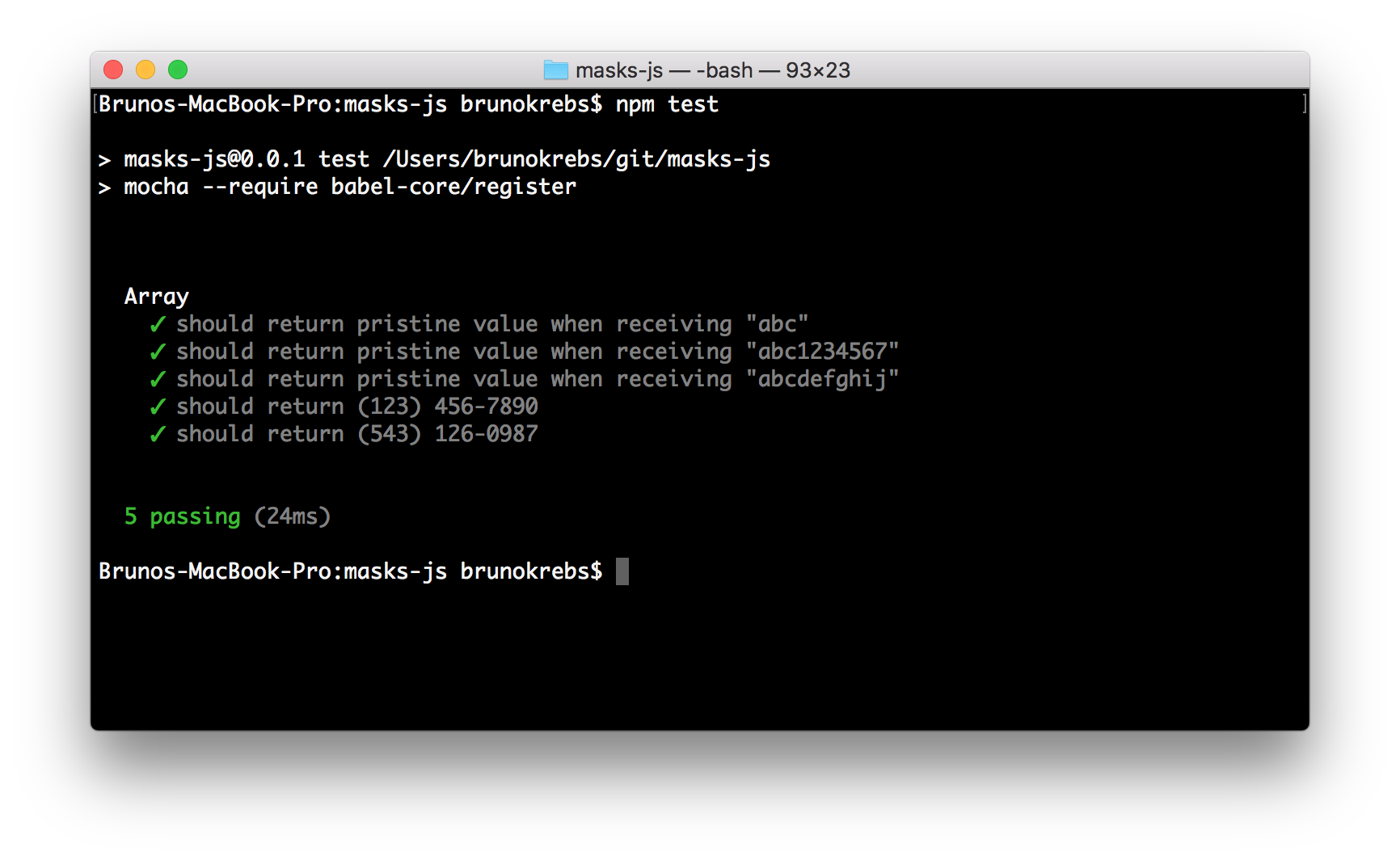
Let's commit and push our new code to GitHub:
```bash
git add src/index.js test/index.js
git commit -m 'developing the maskUSPhone feature and adding unit tests'
git push origin master
```
### Test Coverage
Feels good to have our code in place with some tests to prove its functionality, but how confident are we of our code and our tests? Are we sure that our tests are covering all the scenarios that we thought about? It's hard to affirm that even in a small package like ours. So, what can we do? The answer is simple, we can use a test coverage tool to see how much of our code we are covering with tests.
Test samples, like those showed in the previous section, exist to help us prove that our code handles all the scenarios that we thought about. Test coverage tools help the other way around. They show if we have enough test samples to cover all the scenarios that came to our mind when typing the code. Ok, we are convinced that we can take advantage of a test coverage tool, but which one?
After searching for ["javascript test coverage tools" on Google](https://www.google.com.br/search?q=javascript+test+coverage+tools), we find out that [Istanbul webpage](https://istanbul.js.org) appears in first place, it's [NPM page appears in second](https://www.npmjs.com/package/nyc), and Karma (the test runner) appears in third place saying that it can generate test coverage using the awesome Istanbul. Probably enough proof that we can trust this tool. So let's use it.
Instructions to use Istanbul are simple. First, we install Istanbul as a development dependency:
```bash
npm i -D nyc
```
After that, we just update the `test` script (in `package.json`) to make `nyc` (Istanbul's CLI) run Mocha for us:
```json
{
...
"scripts": {
...
"test": "nyc mocha --require babel-core/register"
}
...
}
```
Running `npm test` now will make Istanbul analyze how our tests are covering our source code.
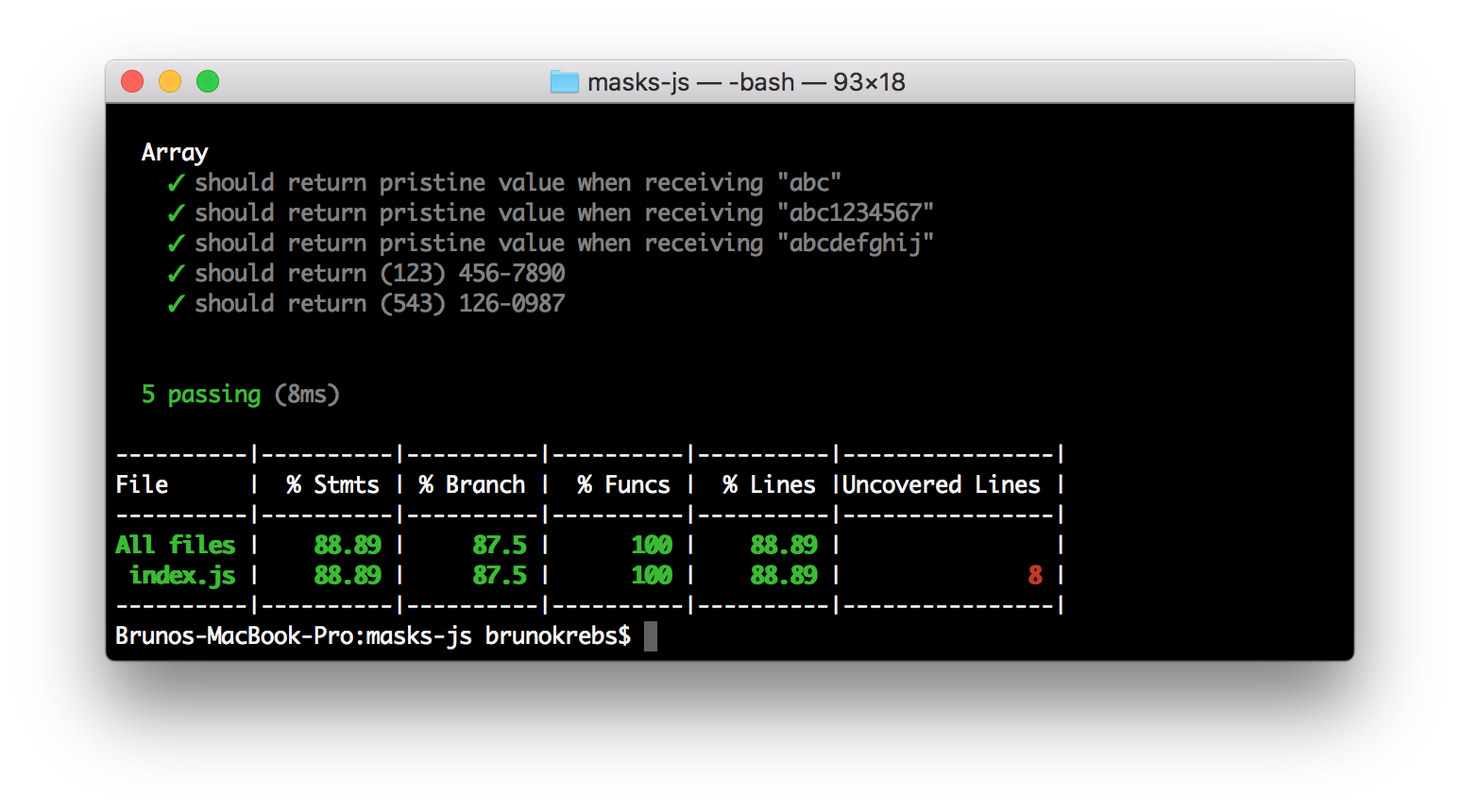
Cool, integrating Istanbul on our project was easy. But can Istanbul do more than just saying that we are covering X percent of our code? Sure! Istanbul can show what lines are covered, what lines are not. To get this information, we are going to configure on Istanbul [a reporter called `lcov`](http://gotwarlost.github.io/istanbul/public/apidocs/classes/LcovReport.html). This reporter will generate test data in two formats: one that is machine readable (`lcov` format), and one that is human readable (HTML in this case).
To configure `lcov` on Istanbul, we can simply add the following property to our `package.json` file:
```json
{
...
"nyc": {
"reporter": [
"lcov",
"text"
]
}
}
```
> __Note that__ we configured both `lcov` and `text` because we still want Istanbul to keep showing that nice summary that we saw before.
Running `npm test` now will generate, besides that colorful summary on the terminal, a directory called `coverage` in the project root. If we inspect this directory, we will see that it contains two things: a `lcov.info` file with some characters inside that look meaningless (they actually show what lines were executed and how many times); and another directory called `lcov-report` with an `index.html` file inside. This is where we will get more data about what lines our tests are covering and what lines are being ignored.
To see the report contained by the `lcov-report` directory in a browser, let's use a tool like [`http-server`](https://github.com/indexzero/http-server). In our project root, we can use it as follows:
```bash
# install (globally) http-server if needed
npm i -g http-server
http-server ./coverage/lcov-report/
```
Now we can browse to [`http://127.0.0.1:8080/`](http://127.0.0.1:8080/) and analyze what lines are being covered by our tests.
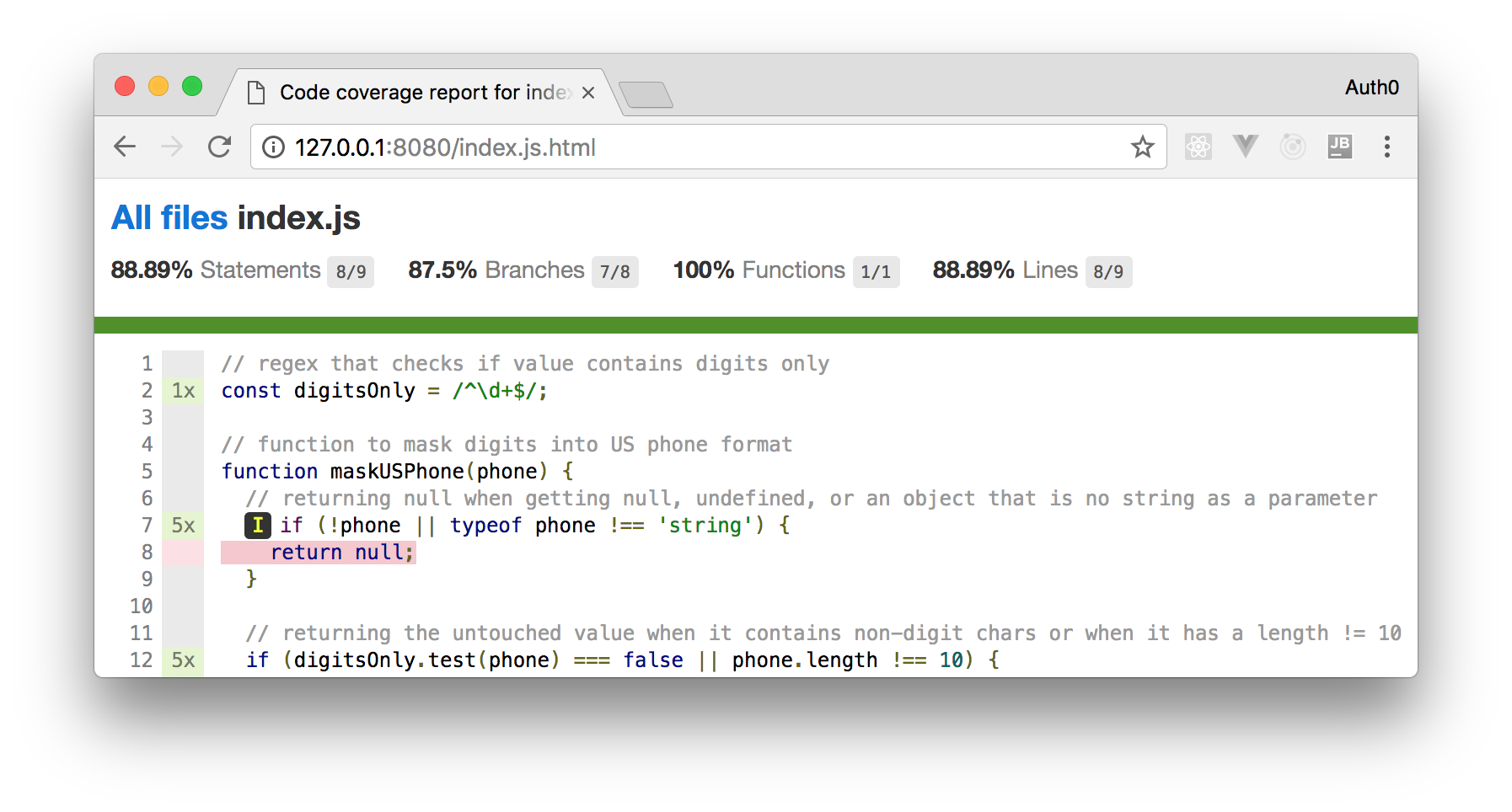
With Istanbul in place, let's commit and push it to GitHub:
```bash
git add package*.json
git commit -m 'test coverage with Istanbul'
git push origin master
```
### Publishing the NPM Package
After installing and checking our code coverage with Istanbul, we figure that we forgot to cover cases where no value (`null` or `undefined`) are passed into our function. Let's fix this by adding new test samples in the `./test/index.js` file:
```js
// ... imports stay untouched
const testSamples = [
{ input: null, expectedResult: null, description: 'should return null when null is passed' },
{ input: undefined, expectedResult: null, description: 'should return null when undefined is passed' },
// ... the initial samples stay untouched
];
// ... describe method stays untouched
```
If we ask Istanbul now (`npm test`), we will see that we managed to add enough scenarios to cover all our source lines of code. This is not a proof that our package contains no bug, but enough to make us confident to publish its initial version. So let's do it.
[Publishing NPM packages looks like a very simple process](https://docs.npmjs.com/getting-started/publishing-npm-packages). As described in the official documentation, all we need is to [create a user](https://docs.npmjs.com/getting-started/publishing-npm-packages#creating-a-user) (if we still don't have one) and then issue `npm publish` in the project root, right? Well, not so fast. Indeed, is not hard to publish a NPM package, but we always want to distribute an ES5 version of our package for maximum compatibility. We could leave this as a manual process (that is, expect the developer to run `npm run build` before publishing a new version), but this is too error-prone.
What we want instead is to automatically tie the `build` script to `publish`. Luckily for us, when NPM is publishing a new version of a package, it checks the `package.json` file to see if there is a script called `prepublishOnly`. If NPM finds this script, it runs whatever command is inside it. Therefore, what we have to do is to configure `prepublishOnly` in our `package.json` file as follows:
```json
{
...
"scripts": {
...
"prepublishOnly": "npm run build"
},
...
}
```
Hurray! Looks like we are ready to publish our package. Let's run `npm publish` and make it available to the world. Note that, before publishing, we might need to [create a NPM user](https://www.npmjs.com/signup) and to login to our NPM CLI (`npm login`).
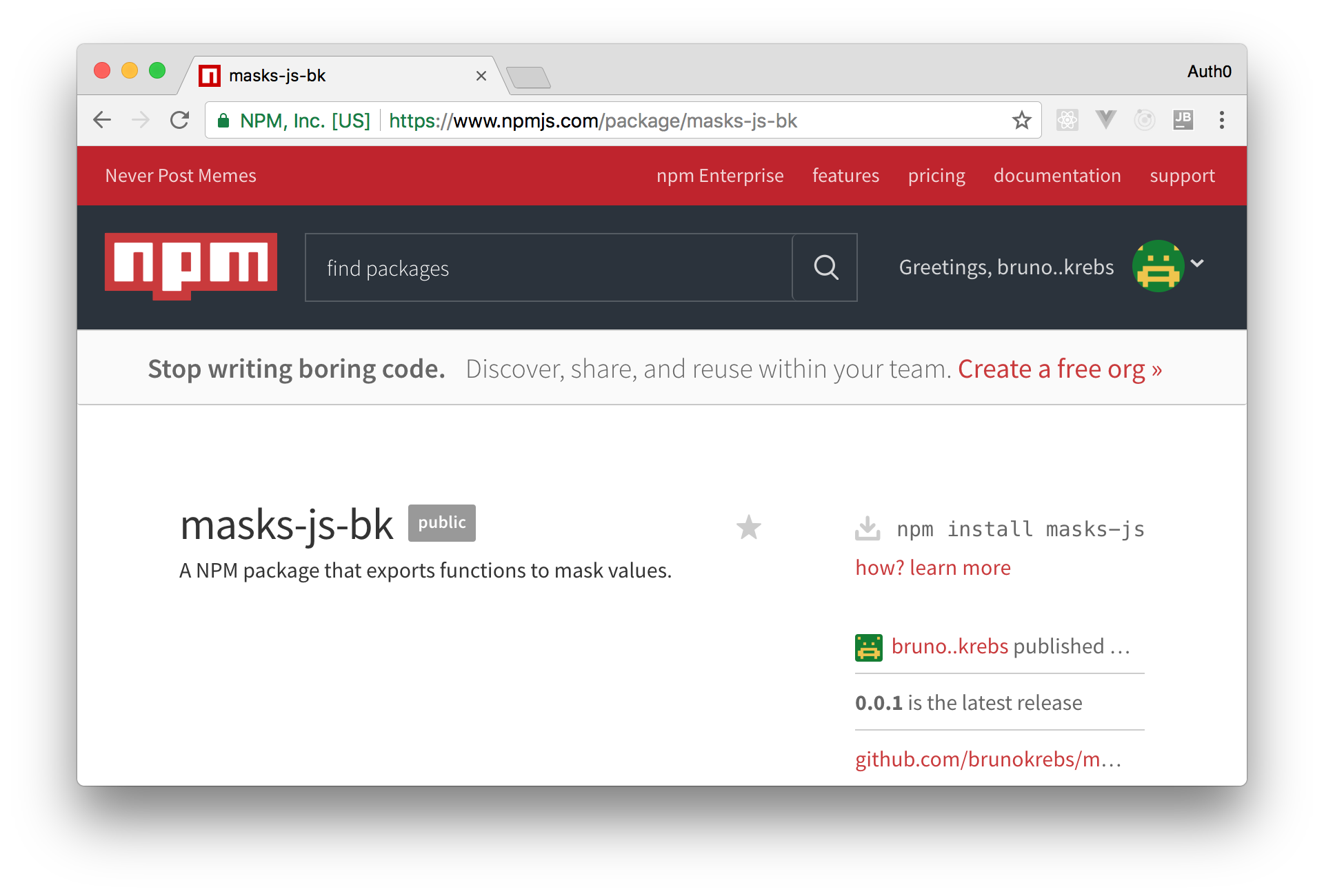
> It's important to note that the `name` property on `package.json` is the name that our package will get after we publish it. If someone else tries to publish a package with the same name as ours, they will get an error and will have to choose another name. (Hint: [I left the `masks-js` namespace available on NPM](https://www.npmjs.com/package/masks-js) to see who will be the first one to finish this tutorial)
Let's commit and push changes to GitHub:
```bash
git add package.json test/index.js
git commit -m 'covering 100%'
git push origin master
```
### Continuous Integration
Well, well. We have published the first version of our NPM package. This is amazing. Looks like all we need to do to publish a new version is to write some code, cover it with tests, and issue `npm publish`. But, can we do better? Of course! We can use a continuous integration tool to automate the NPM publishing process.
In this case, we will use [Travis CI](https://www.travis-ci.com), one of the most popular and OSS-friendly (Open Source Software friendly) continuous integration tools around. This tool is totally integrated with GitHub and, as such, configuring it in our project is straightforward.
First, we need to head to our [profile on Travis CI](https://travis-ci.org/profile/) and turn on the switch shown in the left of our project's name.
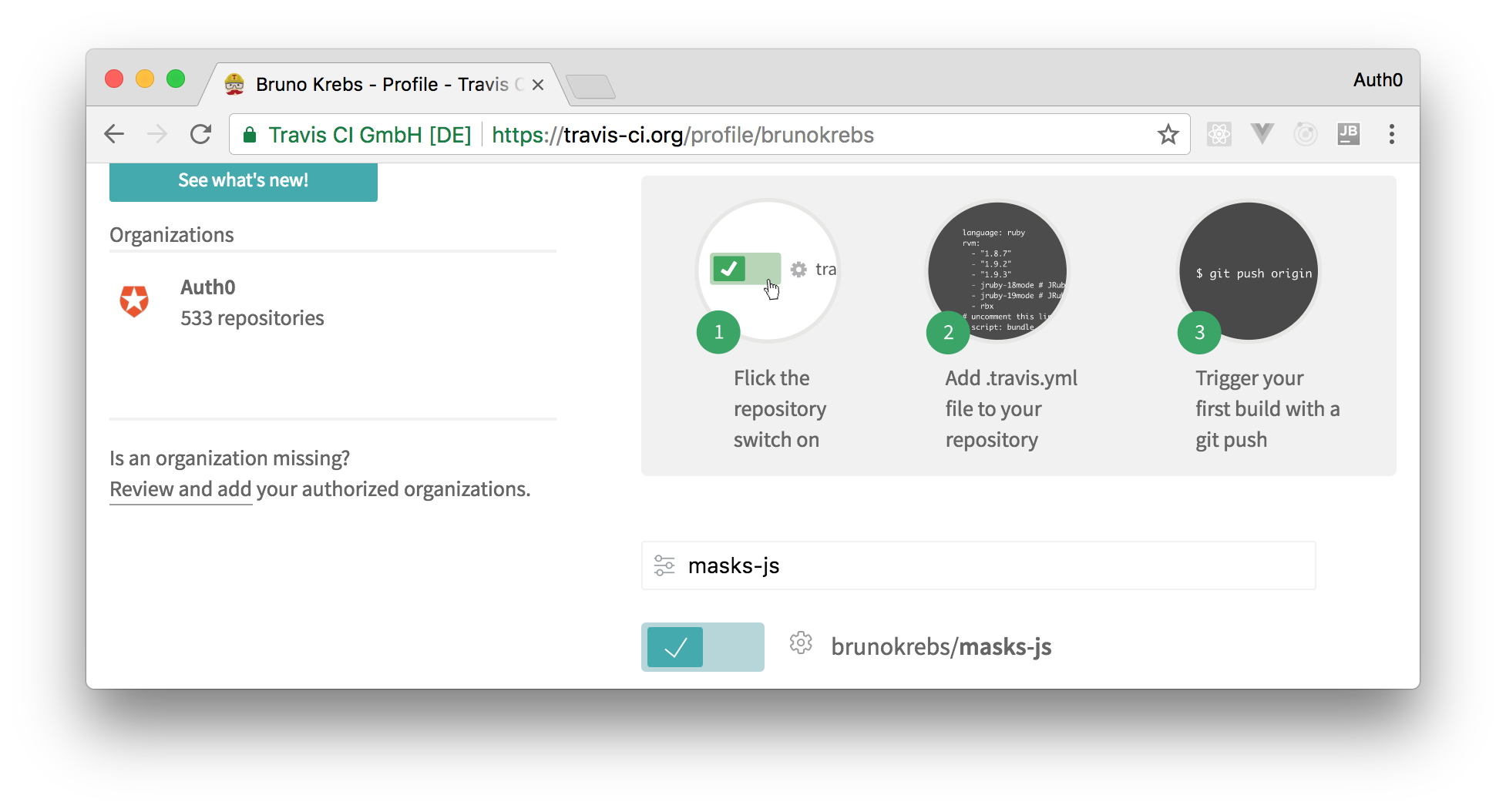
Then, back into our project root, we need to create a file called `.travis.yml` with the following properties:
```yml
language: node_js
node_js:
- node
before_deploy:
- npm run build
```
> __Note__ that, from now on, we will count on Travis to generate builds for us. This means that we have to remove the `prepublishOnly` script from the `package.json` file.
The properties in the `.travis.yml` file will tell Travis that our repository contains a `node_js` project. Besides that, Travis will also use this file to identify which Node.js versions it should use to build our package. In our case, we tell Travis to use only the latest version (`node_js: node`). We could also add other Node.js versions in there, but as we are using Babel to generate ES5 compatible JavaScript, this is not necessary.
Having this file in place, we can install [Travis CLI](https://github.com/travis-ci/travis.rb#installation) to help us with the last step. After installing it, let's open a file called `.npmrc` from our user's home directory (`~/.npmrc`) and copy the token from it ([if needed, keep in mind that there are other ways to get a token](https://docs.travis-ci.com/user/deployment/npm/#NPM-auth-token)). This file will probably have a content similar to:
```bash
//registry.npmjs.org/:_authToken=1a14bf9b-7c33-303c-b2f8-38e15c31dfee
```
In this case, we are interested in copying the `1a14bf9b-7c33-303c-b2f8-38e15c31dfee` value. After that, we have to issue `travis setup npm --org` back on our project root. This will make NPM ask six questions. The following code snippet shows these questions and possible answers:
```bash
Detected repository as brunokrebs/masks-js, is this correct? |yes|
# use your own email address, of course
NPM email address: bruno.krebs@auth0.com
NPM api key: ************************************
release only tagged commits? |yes|
Release only from brunokrebs/masks-js? |yes|
Encrypt API key? |yes|
```
We also have to [prevent Travis CI from deleting the `./lib` directory created during the build process, otherwise it wouldn't be uploaded to NPM when publishing](https://docs.travis-ci.com/user/deployment#Uploading-Files-and-skip_cleanup). In the end, our `.travis.yml` file will look similar to this:
```yml
language: node_js
node_js:
- node
- '6'
deploy:
# add this line after travis setup
skip_cleanup: true
provider: npm
email: bruno.krebs@auth0.com
api_key:
secure: PjDqlAfbsL5i8...
on:
tags: true
repo: brunokrebs/masks-js
```
That's it, we can now count on Travis CI to release new versions of our package. So, let's test this integration.
> Travis will also execute `npm test` whenever we push a new commit to GitHub and it won't release new versions if our tests fail.
To simulate a real-world scenario, let's make a small patch to our code. Let's make it support one more fictitious digit on US phones. To do that, we will update the `./src/index.js` as follows:
```js
// regex that checks if value contains digits only
const digitsOnly = /^\d+$/;
// function to mask digits into US phone format
function maskUSPhone(phone) {
// returning null when getting null, undefined, or an object that is no string as a parameter
if (!phone || typeof phone !== 'string') {
return null;
}
// returning the untouched value when it contains non-digit chars
// or when it has a length lower than 10 or greater than 11
if (digitsOnly.test(phone) === false || phone.length < 10 || phone.length > 11) {
return phone;
}
// returning the masked value
const codeArea = phone.substring(0, 3);
const prefix = phone.substring(3, 6);
const sufix = phone.substring(6, phone.length);
return `(${codeArea}) ${prefix}-${sufix}`;
}
export default maskUSPhone;
```
And we will also add one more test sample to `./test/index.js` to cover the new scenario:
```js
// .. imports
const testSamples = [
// ... other scenarios
{ input: '54312609876', expectedResult: '(543) 126-09876', description: 'should return (543) 126-09876' },
];
// ... describe and it
```
Now we just need to commit the new code, use [`npm` to bump our package version](https://docs.npmjs.com/cli/version), and push these changes to GitHub.
```bash
# add and commit new code
git add package.json src/ test/ .travis.yml
git commit -m 'supporting one more digit and adding Travis'
# bump patch to 0.0.2 (this also generates a tag called v0.0.2)
npm version patch
# push code and tag to GitHub
git push --follow-tags origin
```
This will make Travis CI build our project and release its second version.
## Conclusion
In this article we have covered a good amount of topics and tools that will help us develop NPM packages. We have talked about _Semantic Versioning_, configured _EditorConfig_, set up _Babel_ to use _ES6+ syntax_, used _Automated Tests_, and so on. Setting up these tools, and being mindful while developing code, will make us better developers. With these tools to hold our back, we will even feel more confident to release new versions of our packages. So, now that we learned about these topics, it's time to get our hands dirty and contribute back to the OSS (Open Source Software) world. Have fun!