---
title: "Full-Stack TypeScript Apps - Part 1: Developing Backend APIs with Nest.js"
description: "This series shows how to create a simple, full-stack web application with Angular, TypeScript, and Nest.js. Part 1: Developing the backend API with Nest.js."
authors:
- name: "Ana Ribeiro"
url: "https://auth0.com/blog/authors/ana-ribeiro/"
date: "May 27, 2019"
category: "Developers,Tutorial,Nest"
tags: ["typescript", "angular", "nest", "auth0", "full-stack", "frontend", "backend"]
url: "https://auth0.com/blog/full-stack-typescript-apps-part-1-developing-backend-apis-with-nestjs/"
---
# Full-Stack TypeScript Apps - Part 1: Developing Backend APIs with Nest.js
**TL;DR:** This is a series on how to build a full-stack TypeScript web application using Angular and Nest.js. In this first part, you are going to learn how to build a simple backend API with Nest.js. [The second part of this series is about the frontend application using Angular](https://auth0.com/blog/full-stack-typescript-apps-part-2-developing-frontend-angular-apps/). You can find [the final code developed throughout this article in this GitHub repository](https://github.com/auth0-blog/nest-restaurant-api).
## What Is Nest.Js and Why Use It with Angular?
[Nest.js](https://docs.nestjs.com/) is a framework for building Node.js server-side web applications. What makes it special is that it addresses a problem that no other framework does: the architecture of a Node.js project. If you have ever tried to build a project using Node.js, you may have realized that you can do a lot with one module (for example, an Express middleware can do everything from authentication to validation) which can lead to unorganized and hard-to-support projects. As you will see through this article, Nest.js helps developers keeping their code organized by providing different classes that specialize in different problems.
Besides that, what makes combining Nest.js and [Angular](https://angular.io/) a good idea is that Nest.js is heavily inspired by Angular. For example, you will find that both frameworks use guards to allow or prevent access to some parts of your apps and that both frameworks provide the `CanActivate` interface to implement these guards. Nevertheless, it is important to notice that, although sharing some similar concepts, both frameworks are independent of each other. That is, in this article, you will build a front-end-agnostic API. So, after building the API, you will be able to use it with other frameworks and libraries like React, Vue.js, and so on.
## Restaurant Ordering Web App
The app that you are going to create in this tutorial is a simple app for restaurants where users will be able to order items online. There are some business rules for this app:
* any user can see the items of this menu;
* only identified users may add items to a shop cart (order food online);
* and only admin users may add new items to the menu.
To keep things simple, you are not going to interact with any external database, nor implement the shop cart functionality.
## Getting Started with Nest.js
To install Nest.js, first, you will need to install Node.js (`v.8.9.x` or newer) and NPM. So, go to [the Node.js download website](https://nodejs.org/en/download/) and follow the instructions to download and install Node.js to your operating system (NPM comes with Node.js). When done, you can check if everything went well by running the following commands:
```bash
node -v # v.8.9.0
npm -v # 5.6.0
```
There are a few ways to start a Nest.js project; you may check all of them in [the Nest.js documentation](https://docs.nestjs.com/first-steps). Here, you are going to use `nest-cli` to do so. To install this tool, run the following command:
```bash
npm i -g @nestjs/cli # it will install the nest command
```
Then, you can create a new project by running a single command. This command will trigger some questions about the project, such as version and project name, but you can stick with default options:
```bash
nest new nest-restaurant-api # nest-restaurant-api
```
This command will ask you the following question: "Which package manager would you ❤️ to use?". You can choose the option you prefere, but keep in mind that if you choose Yarn, you will have to adjust the commands on this article accordingly.
If everything went well, you will get by the end of this process a directory called `nest-restaurant-api` with the following structure:
```bash
nest-restaurant-api
├── src
│ ├── app.controller.spec.ts
│ ├── app.controller.ts
│ ├── app.module.ts
│ ├── app.service.ts
│ └── main.ts
├── test
│ ├── app.e2e-spec.ts
│ └── jest-e2e.json
├── .gitignore
├── .prettierrc
├── nest-cli.json
├── nodemon.json
├── nodemon-debug.json
├── package.json
├── package-lock.json
├── README.md
├── tsconfig.build.json
├── tsconfig.json
└── tslint.json
```
Now, you can navigate to this directory and type the following command to start the API:
```bash
# move into the project
cd nest-restaurant-api
# start the development server
npm run start:dev
```
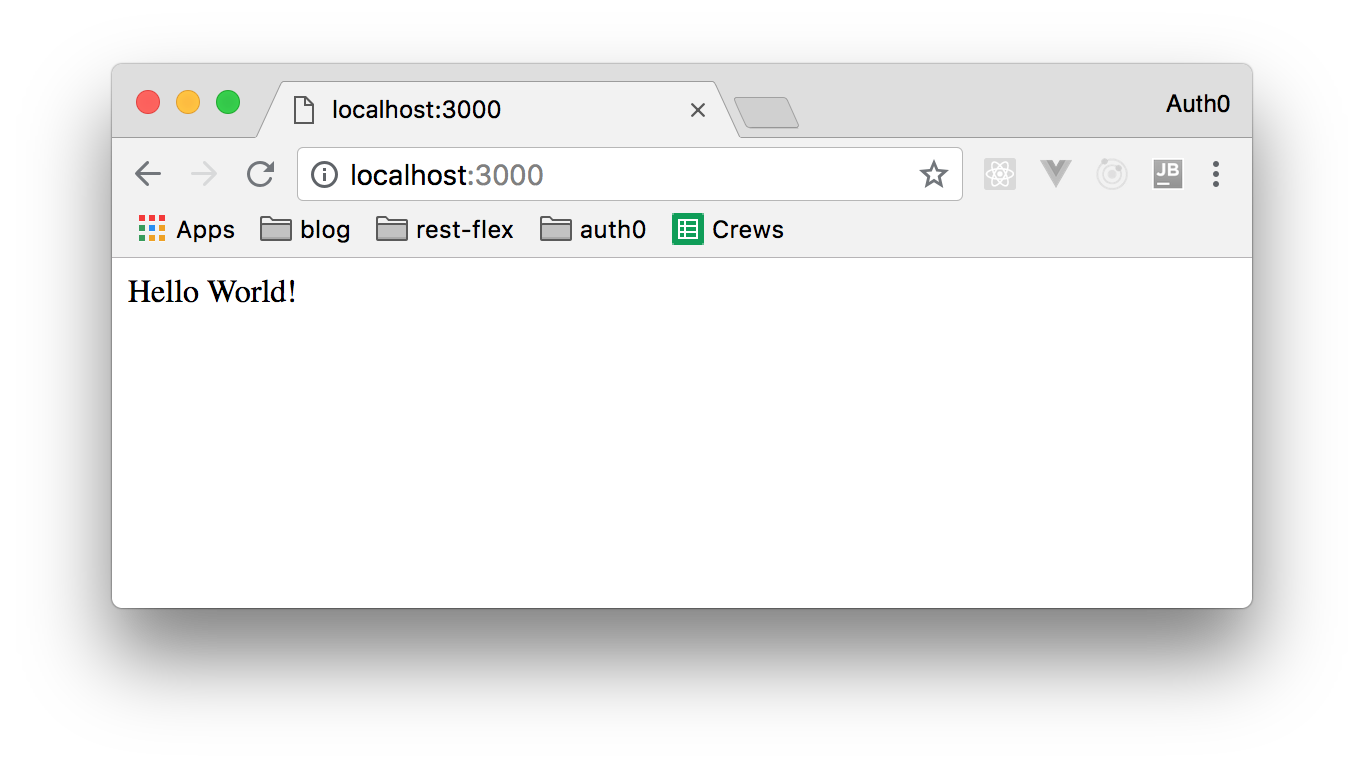
Then, if you head to [`http://localhost:3000`](http://localhost:3000) in your browser, you will see a _"Hello World!"_ page like the following one:
To avoid adding more complexity, this article is not going to teach you how to write automated tests for your API (though you should write them for any production-ready app). As such, you can go ahead and delete the `test` directory and the `src/app.controller.spec.ts` file (which is test relate). After that, the remaining files inside the `src` directory will be:
* `app.controller.ts` and `app.service.ts`: those files are responsible for generating the message _Hello world_ when the endpoint `/` is accessed through the browser. Because this endpoint is not important to this application, you may delete these files as well. Soon you are going to learn in more details what **controllers** and **services** are.
* `app.module.ts`: this is a class of the type **module** that is responsible for declaring imports, exports, controllers, and providers to a Nest.js application. Every application has at least one module but you may create more than one module for more complex applications (more details on [Nest.js documentation](https://docs.nestjs.com/modules)). The application of this tutorial will have only one module.
* `main.ts`: this is the file responsible for starting the server.
> **Note:** after removing `app.controller.ts` and `app.service.ts` you won't be able to start your app. Don't worry; you will fix this soon.
## Creating Nest.js Endpoints
The most important endpoint of this app will be `/items` because, from there, users will be able to retrieve the items available and admins will be able to manage these items. So, this is the first endpoint that you are going to implement.
To do so, you will have to create a directory called `items` inside `src`. You will store all files related to the `/items` endpoint in this new directory.
### Creating a Nest.js Controller
In Nest.js, like in many other frameworks out there, [controllers](https://docs.nestjs.com/controllers) are responsible for mapping endpoints to functionalities. To create a controller in Nest.js, you can use the `@Controller` decorator, as follows: `@Controller(${ENDPOINT})`. Then, to map different HTTP methods like GET and POST, you would use decorators like: `@Get`, `@Post`, `@Delete`, etc.
So, as in your case you will need to create a controller that returns items available on a restaurant and that admins can use to manage these items, you can create a file called `items.controller.ts` inside the `items` directory and add the following code into it:
```typescript
import { Get, Post, Controller } from '@nestjs/common';
@Controller('items')
export class ItemsController {
@Get()
async findAll(): Promise {
return ['Pizza', 'Coke'];
}
@Post()
async create() {
return 'Not yet implemented';
}
}
```
Then, to make your controller available in your module (and in your app), you will have to replace the code on `app.module.ts` with the following:
```typescript
import { Module } from '@nestjs/common';
import { ItemsController } from './items/items.controller';
@Module({
imports: [],
controllers: [ItemsController],
providers: [],
})
export class AppModule {}
```
Now, you can head to [http://localhost:3000/items](http://localhost:3000/items) (you might need to restart your app: `npm run start:dev`) and you will get the following response: `['Pizza', 'Coke']`.
### Adding a Nest.js Service
For now, the array returned by the `/items` endpoint is just a static array that is recreated for every request and that cannot be changed. As the handling of structures that persist data should not be addressed by controllers, you will create a service to do that.
Services, in Nest.js, are classes marked with the `@Injectable` decorator. As the name states, adding this decorator to classes makes them injectable in other components, like controllers.
So, to create this service, you can create a new file called `items.service.ts` in the `./src/items` directory, and add the following code:
```typescript
import { Injectable } from '@nestjs/common';
@Injectable()
export class ItemsService {
private readonly items: string[] = ['Pizza', 'Coke'];
findAll(): string[] {
return this.items;
}
create(item: string) {
this.items.push(item);
}
}
```
Then, you will need to change `ItemsController` (which you declared on the `items.controller.ts` file) to use this service:
```typescript
import { Get, Post, Body, Controller } from '@nestjs/common';
import { ItemsService } from './items.service';
@Controller('items')
export class ItemsController {
constructor(private readonly itemsService: ItemsService) {}
@Get()
async findAll(): Promise {
return this.itemsService.findAll();
}
@Post()
async create(@Body() item: string) {
this.itemsService.create(item);
}
}
```
In the new version of your controller, you are defining a parameter decorated with `@Body()` in the `create` method. This parameter is used to automatically map data sent through `req.body['item']` to the parameter itself (`item` in this case).
Also, your controller now gets an instance of the `ItemsService` class injected through the `constructor`. The `private readonly` that accompanies the `ItemsService` declaration makes this instance unchangeable and only visible inside this class.
Now, to make `ItemsService` available in your app, you will need to update `app.module.ts` as follows:
```typescript
import { Module } from '@nestjs/common';
import { ItemsController } from './items/items.controller';
import { ItemsService } from './items/items.service';
@Module({
imports: [],
controllers: [ItemsController],
providers: [ItemsService],
})
export class AppModule {}
```
With these changes in place, you can issue HTTP POST requests to the menu:
```bash
curl -X POST -H 'content-type: application/json' -d '{
"item": "Salad"
}' localhost:3000/items
```
After that, you will be able to see this new item in your menu by issuing the following GET request (or by heading to [http://localhost:3000/items](http://localhost:3000/items) in your browser):
```bash
curl localhost:3000/items
```
### Creating a Nest.js Route for the Shop Cart
Now that you have the first version of your `/items` endpoint, you can start creating the shopping cart feature. As you will see, the process will be similar to the process of creating the `/items` endpoint. Therefore, to keep the article easier to grasp, this feature will only acknowledge with an OK status when triggered.
So, first, create a directory called `shopping-cart` alongside the `items` directory. Then, create a new file called `shopping-cart.controller.ts` inside it and add the following code:
```typescript
import { Post, Controller } from '@nestjs/common';
@Controller('shopping-cart')
export class ShoppingCartController {
@Post()
async addItem() {
return 'This is a fake service :D';
}
}
```
Then, add this controller to your module (`app.module.ts`):
```typescript
import { Module } from '@nestjs/common';
import { ItemsController } from './items/items.controller';
import { ShoppingCartController } from './shopping-cart/shopping-cart.controller';
import { ItemsService } from './items/items.service';
@Module({
imports: [],
controllers: [ItemsController, ShoppingCartController],
providers: [ItemsService],
})
export class AppModule {}
```
To test this endpoint, make sure your app is running, and issue the following command:
```bash
curl -X POST localhost:3000/shopping-cart
```
### Adding a Typescript Interface for Items
Back to the items service, imagine that you want to keep more than just the name of the items (for instance, its prices too). Do you agree that an array of strings may not be the ideal structure to handle this data?
To solve this problem, you could create an array of objects, but it would be hard to keep all items coherent (i.e., with similar structures). As such, the best approach is to create a TypeScript interface to define the structure of your items. To do this, create a new file called `item.interface.ts` inside the `src/items` directory and add the following code to it:
```typescript
export class Item {
readonly name: string;
readonly price: number;
}
```
Then, change the `items.service.ts` file to use this interface:
```typescript
import { Injectable } from '@nestjs/common';
import { Item } from './item.interface';
@Injectable()
export class ItemsService {
private readonly items: Item[] = [];
findAll(): Item[] {
return this.items;
}
create(item: Item) {
this.items.push(item);
}
}
```
And the `items.controller.ts` file as well:
```typescript
import { Get, Post, Body, Controller } from '@nestjs/common';
import { ItemsService } from './items.service';
import { Item } from './item.interface';
@Controller('items')
export class ItemsController {
constructor(private readonly itemsService: ItemsService) {}
@Get()
async findAll(): Promise {
return this.itemsService.findAll();
}
@Post()
async create(@Body() item: Item) {
this.itemsService.create(item);
}
}
```
### Adding Validation on Nest.js with DTOs and Pipes
Even though you created an interface to define the structure of items, the application won't return an error status if you post any data other than the one defined in the interface. For example, the following request should return a 400 (bad request) status, but instead, it returns a 200 (all good) status:
```bash
curl -H 'Content-Type: application/json' -d '{
"name": 3,
"price": "any"
}' http://localhost:3000/items
```
To solve this problem, you are going to create a [DTO (Data Transfer Object)](https://en.wikipedia.org/wiki/Data_transfer_object) together with a Pipe. A DTO, as the name states, is an object that defines how data must be transferred among processes. To create a DTO to your items, add a new file called `create-item.dto.ts` in the `src/items` directory and add the following code to it:
```typescript
import { IsString, IsInt } from 'class-validator';
export class CreateItemDto {
@IsString() readonly name: string;
@IsInt() readonly price: number;
}
```
[Pipes](https://docs.nestjs.com/pipes) are Nest.js components that are used for validation. For your API, you are going to create a pipe that verifies if the data sent to a method matches its DTO. As pipes can be used by several controllers, you will create a directory called `common` inside `src` and a file called `validation.pipe.ts` inside it that looks like this:
```typescript
import {
ArgumentMetadata,
BadRequestException,
Injectable,
PipeTransform,
} from '@nestjs/common';
import { validate } from 'class-validator';
import { plainToClass } from 'class-transformer';
@Injectable()
export class ValidationPipe implements PipeTransform {
async transform(value, metadata: ArgumentMetadata) {
const { metatype } = metadata;
if (!metatype || !this.toValidate(metatype)) {
return value;
}
const object = plainToClass(metatype, value);
const errors = await validate(object);
if (errors.length > 0) {
throw new BadRequestException('Validation failed');
}
return value;
}
private toValidate(metatype): boolean {
const types = [String, Boolean, Number, Array, Object];
return !types.find(type => metatype === type);
}
}
```
**Note**: You will have to install `class-validator` and `class-transformer` modules. To do so, just type `npm install class-validator class-transformer` on the terminal inside your project's directory and restart the server.
Now, you will have to adapt the `items.controller.ts` file to use this new pipe and the DTO. After doing that, this is how the code of the controller should like:
```typescript
import { Get, Post, Body, Controller, UsePipes } from '@nestjs/common';
import { CreateItemDto } from './create-item.dto';
import { ItemsService } from './items.service';
import { Item } from './item.interface';
import { ValidationPipe } from '../common/validation.pipe';
@Controller('items')
export class ItemsController {
constructor(private readonly itemsService: ItemsService) {}
@Get()
async findAll(): Promise {
return this.itemsService.findAll();
}
@Post()
@UsePipes(new ValidationPipe())
async create(@Body() createItemDto: CreateItemDto) {
this.itemsService.create(createItemDto);
}
}
```
Now, running your code again, the `/item` endpoint will only accept data as defined in the DTO, such as in the following example:
```bash
curl -H 'Content-Type: application/json' -d '{
"name": "Salad",
"price": 3
}' http://localhost:3000/items
```
Inserting invalid data (data that does not pass the checks on the `ValidationPipe`) will result in the following response:
```bash
{"statusCode":400,"error":"Bad Request","message":"Validation failed"}
```
## Managing Identity with Auth0
One of the requirements for this project is that only identified users could add something to the shopping carts and only admin users could add a new product. To easily and securely achieve that, you are going to use Auth0.
First, you have to create a free Auth0 account if you don't have one yet.
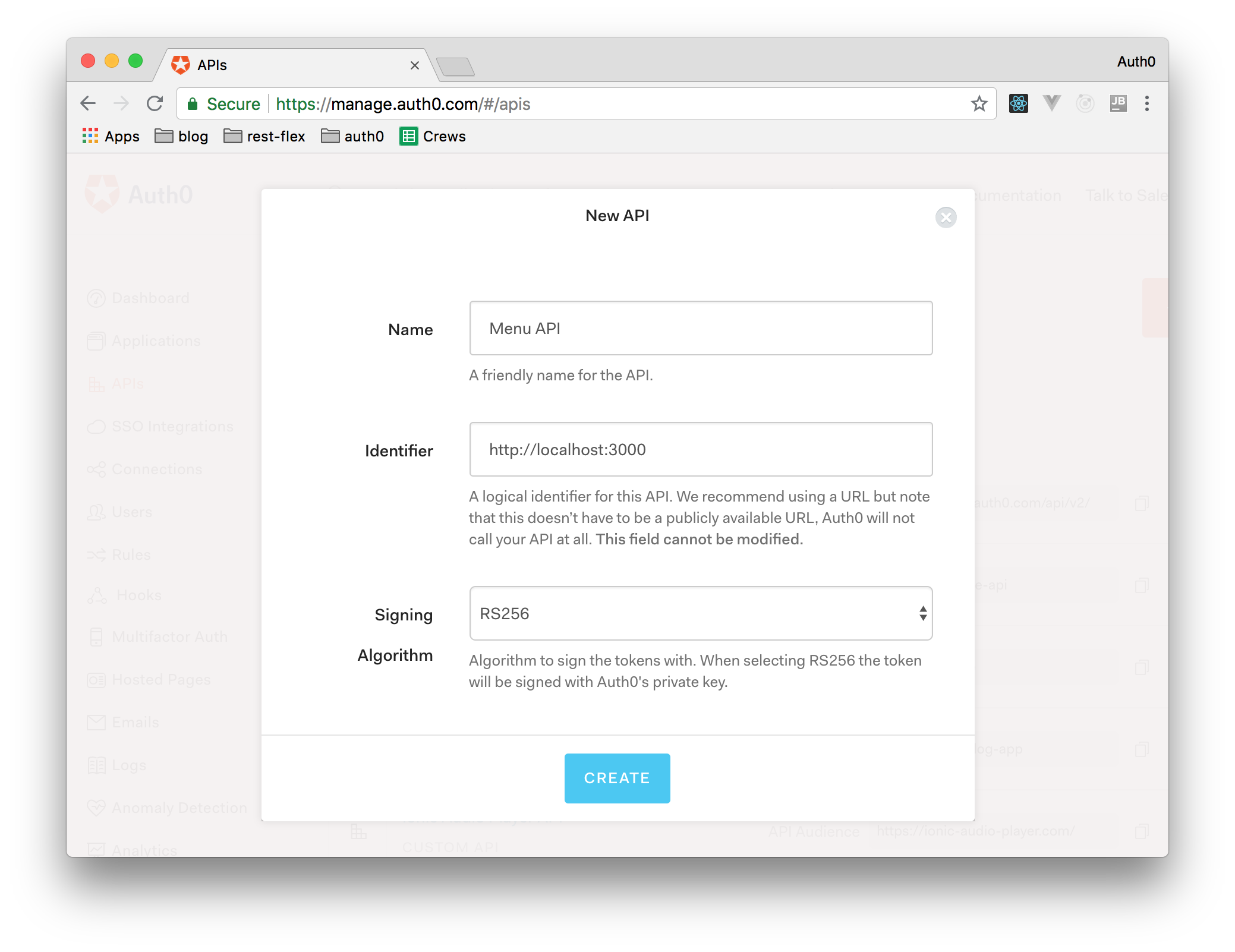
After creating your account, log in to it, head to [the APIs section in your Auth0 dashboard](https://manage.auth0.com/#/apis), and hit the _Create API_ button. Then, in the form that Auth0 shows, add a name to your API (something like _Menu API_), set its identifier to `http://localhost:3000`, and hit the _Create_ button.
> Don't change the signing algorithm (leave it as `RS256`) as it is the best option from the security point of view.
Then you should visit the [_Applications_ section](https://manage.auth0.com/#/applications) of your Auth0 management dashboard to create an Auth0 Application to represent the front-end Angular app you will create in the next part of this series.
In this page, click on _Create Application_. Auth0 will show you a form where you will need to define a _Name_ to your application (e.g., _Menu Angular App_) and you will have to select _Single Page Web Application_ as its type. Then, after clicking on the _Create_ button to conclude the process, Auth0 will take you to the _Quick Start_ section of your new application.
From there, go to the _Settings_ section of your Auth0 Application. In this section, you will have to add `http://localhost:4200/login` (you are going to use it in the next article) to the _Allowed Callback URLs_ field and save the changes. Then, leave this page open as you will need to copy _Domain_, _Client ID_, and _Client Secret_ to configure your API.
Now, you can generate an access token with Auth0 (you will use this token soon, after securing your API). To do this, head to the following address in your browser:
```bash
AUTH0_DOMAIN=${AUTH0_DOMAIN}
AUTH0_CLIENT_ID=${AUTH0_CLIENT_ID}
open https://$AUTH0_DOMAIN/authorize?audience=http://localhost:3000&scope=SCOPE&response_type=code&client_id=$AUTH0_CLIENT_ID&redirect_uri=http://localhost:4200/login&state=STATE?prompt=none
```
> **Note:** You will need to replace `${AUTH0_DOMAIN}` and `${AUTH0_CLIENT_ID}` in the URL above with the values retrieved from your Auth0 Application.
If everything is correct, you should get the following page:
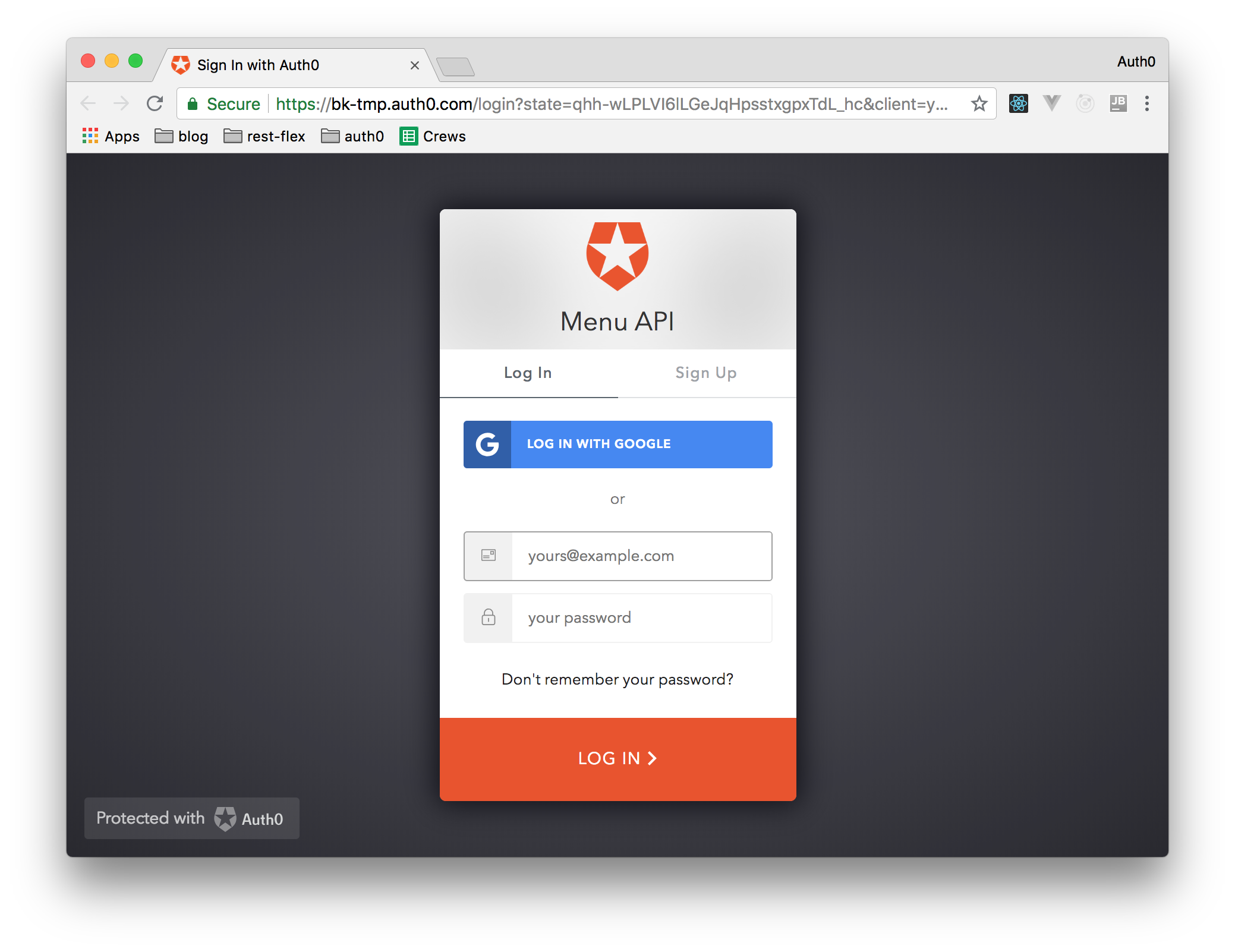
Then, you can proceed to login as you would do in any application secured with Auth0 (you may create a new account or use your Google Account) and then the page will return to the following address:
```bash
http://localhost:4200/login?code=${CODE}&state=${SOME_STATE}
```
You will get an error page saying that the connection was refused. Don't worry, this is expected. From there, copy the value returned in the place of `${CODE}` and run the following in a terminal:
```bash
AUTH0_DOMAIN=${AUTH0_DOMAIN}
AUTH0_CLIENT_ID=${AUTH0_CLIENT_ID}
AUTH0_CLIENT_SECRET=${AUTH0_CLIENT_SECRET}
CODE=${CODE}
curl -X POST -H 'content-type: application/json' -d '{
"grant_type": "authorization_code",
"client_id": "'$AUTH0_CLIENT_ID'",
"client_secret": "'$AUTH0_CLIENT_SECRET'",
"code": "'$CODE'",
"redirect_uri": "http://localhost:4200"
}' https://$AUTH0_DOMAIN/oauth/token
```
> **Note:** You will need to replace `${AUTH0_DOMAIN}`, `${AUTH0_CLIENT_ID}`, `${AUTH0_CLIENT_SECRET}`, and `${CODE}` in the snippet above.
You will get back a JSON object containing the token, the expiration (`86400` seconds), and the token type (bearer). Keep this token around as you are going to use it soon.
### Defining a Nest.js Middleware
According to [Auth0 quick start guide page](https://auth0.com/docs/quickstart/backend/nodejs#configure-the-middleware), the recommended way to verify a JWT token issued by Auth0 is through an [Express middleware](http://expressjs.com/pt-br/guide/using-middleware.html) provided by `express-jwt`. This middleware will automate a huge part of the work.
To do this, you will need to create a file named `authentication.middleware.ts` inside the `src/common` directory with the following code:
```typescript
import { NestMiddleware } from '@nestjs/common';
import * as jwt from 'express-jwt';
import { expressJwtSecret } from 'jwks-rsa';
export class AuthenticationMiddleware implements NestMiddleware {
use(req, res, next) {
jwt({
secret: expressJwtSecret({
cache: true,
rateLimit: true,
jwksRequestsPerMinute: 5,
jwksUri: 'https://${DOMAIN}/.well-known/jwks.json',
}),
audience: 'http://localhost:3000',
issuer: 'https://${DOMAIN}/',
algorithms: ['RS256'],
})(req, res, err => {
if (err) {
const status = err.status || 500;
const message =
err.message || 'Sorry, we were unable to process your request.';
return res.status(status).send({
message,
});
}
next();
});
};
}
```
Then, you will need to change the `${DOMAIN}` placeholder with the domain found in your Auth0 Application's settings.
Also, you will have to install the `express-jwt` and `jwks-rsa` libraries. To do so, type `npm install express-jwt jwks-rsa`) and restart the development server (`npm run start:dev`).
After that, you will have to open the `./src/app.module.ts` and replace its contents with this:
```typescript
import { Module, MiddlewareConsumer, RequestMethod } from '@nestjs/common';
import { AuthenticationMiddleware } from './common/authentication.middleware';
import { ItemsController } from './items/items.controller';
import { ShoppingCartController } from './shopping-cart/shopping-cart.controller';
import { ItemsService } from './items/items.service';
@Module({
imports: [],
controllers: [ItemsController, ShoppingCartController],
providers: [ItemsService],
})
export class AppModule {
public configure(consumer: MiddlewareConsumer) {
consumer
.apply(AuthenticationMiddleware)
.forRoutes(
{ path: '/items', method: RequestMethod.POST },
{ path: '/shopping-cart', method: RequestMethod.POST },
);
}
}
```
With this code in place, both POST methods of the `/items` and `/shopping-cart` routes will be protected by the Express middleware that verifies if requests include access tokens.
To test this, you can try calling your Nest.js API with this:
```bash
# this will not work
curl -X POST http://localhost:3000/shopping-cart
# so you have to define a variable to your access token
TOKEN="eyJ0eXAiO...Mh0dpeNpg"
# and issue a POST request with it
curl -X POST -H 'authorization: Bearer '$TOKEN http://localhost:3000/shopping-cart
```
> **Note:** you have to define `TOKEN` with your own access token retrieved previously.
### Managing Roles with Auth0
Currently, any user that has a verified token can post an item in your API. However, as described before, you want to restrict this operation to admin users only. To implement this feature, you are going to use [Auth0 rules](https://auth0.com/docs/rules/current).
So, go to your Auth0 dashboard and navigate to [the rules section](https://manage.auth0.com/#/rules). There, you can hit the button to create a new rule, and select "Set roles to a user" as the rule model.
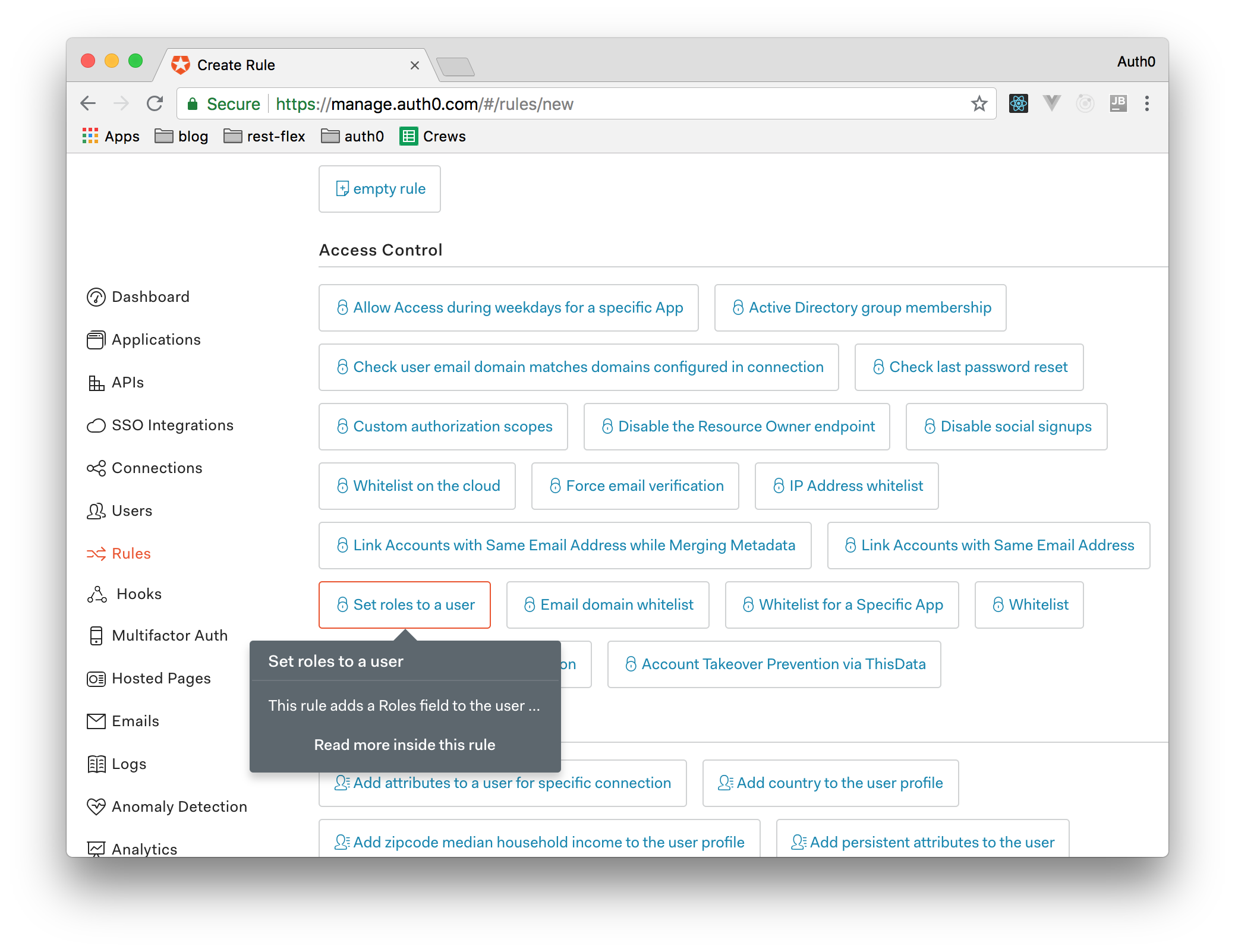
By doing that, you will get a JavaScript file with a rule template that adds the admin role to any user who has an email provided by some domain. You should change a few details in this template to get a functional example. For your app, you may choose to give admin access only to your own email address. You also will need to change where the information about the admin status is saved.
For now, this information is saved in an identification token (used to provide information about the user) but, to access resources in an API, you should use an access token. The code after the changes should look like the following one:
```javascript
function (user, context, callback) {
user.app_metadata = user.app_metadata || {};
if (user.email && user.email === '${YOUR_EMAIL}') {
user.app_metadata.roles = ['admin'];
} else {
user.app_metadata.roles = ['user'];
}
auth0.users
.updateAppMetadata(user.user_id, user.app_metadata)
.then(function() {
context.accessToken['http://localhost:3000/roles'] =
user.app_metadata.roles;
callback(null, user, context);
})
.catch(function(err) {
callback(err);
});
}
```
> **Note:** You will have to replace `${YOUR_EMAIL}` with your own email address. Another thing that is important to note is that, usually, when you are dealing with emails in Auth0 Rules, the ideal is to [_force email verification_](https://auth0.com/rules/email-verified). In this case, this is not required because you are using your own email address and you will sign up (i.e., take ownership of the email address) as soon as you deploy your app, right?
To check if the token passed to your API has an `admin` role, you will have to create a Nest.js guard. To do so, create a file called `admin.guard.ts` inside the `src/common` directory and add the following code to it:
```typescript
import { Injectable, CanActivate, ExecutionContext } from '@nestjs/common';
@Injectable()
export class AdminGuard implements CanActivate {
canActivate(context: ExecutionContext): boolean {
const user = context.getArgs()[0].user['http://localhost:3000/roles'] || '';
return user.indexOf('admin') > -1;
}
}
```
Now, if you go through the login process described before and use the email address defined in the rule, you will get an `access_token` with a new claim. To check the contents of this `access_token`, copy and paste the token in the [`https://jwt.io/`](https://jwt.io/) website. Pasting it there, you will be able to see that the payload section of this token contains the following array:
```json
"http://localhost:3000/roles": [
"admin"
]
```
If your token does include this claim, you can go ahead and wrap up the integration with Auth0. So, open the `items.controller.ts` file to use this new guard:
```typescript
import {
Get,
Post,
Body,
Controller,
UsePipes,
UseGuards,
} from '@nestjs/common';
import { CreateItemDto } from './create-item.dto';
import { ItemsService } from './items.service';
import { Item } from './item.interface';
import { ValidationPipe } from '../common/validation.pipe';
import { AdminGuard } from '../common/admin.guard';
@Controller('items')
export class ItemsController {
constructor(private readonly itemsService: ItemsService) {}
@Get()
async findAll(): Promise {
return this.itemsService.findAll();
}
@Post()
@UseGuards(new AdminGuard())
@UsePipes(new ValidationPipe())
async create(@Body() createItemDto: CreateItemDto) {
this.itemsService.create(createItemDto);
}
}
```
Now, with your new token, you should be able to add new items to your backend API:
```bash
# run the development server
npm run start:dev
# issue the POST request
curl -X POST -H 'Content-Type: application/json' \
-H 'authorization: Bearer '$TOKEN -d '{
"name": "Salad",
"price": 3
}' http://localhost:3000/items
```
## Conclusion
Congratulations! You just finished building your Nest.js API and can now focus on the development of the frontend app! Be sure to check out the second part of this series: [Full-Stack TypeScript Apps - Part 2: Developing Frontend Angular Apps](https://auth0.com/blog/full-stack-typescript-apps-part-2-developing-frontend-angular-apps/).
To recapitulate, in this article, you had the chance to use Nest.js/TypeScript features like _modules_, _controllers_, _services_, _interfaces_, _pipes_, _middleware_, and _guard_ to build an API. Hopefully, you had a great experience and are ready to keep evolving your application. If you have any doubts, a good resource to rely on is [the official Nest.js documentation](https://docs.nestjs.com).