---
title: "Hosting Applications using DigitalOcean and Dokku"
description: "Let's create some simple Node applications, and host them on our own DigitalOcean server using Dokku"
authors:
- name: "Steve Hobbs"
url: "https://auth0.com/blog/authors/steve-hobbs/"
date: "Nov 29, 2018"
category: "Developers,Deep Dive,Dokku"
tags: ["dokku", "digital-ocean", "dev-ops", "hosting", "cloud", "vue.js", "docker", "node", "express", "git"]
url: "https://auth0.com/blog/hosting-applications-using-digitalocean-and-dokku/"
---
# Hosting Applications using DigitalOcean and Dokku
**TL;DR:** In this article, we're going to be creating a couple of very simple Node applications and hosting them on a [DigitalOcean](https://www.digitalocean.com/) droplet using [Dokku](http://dokku.viewdocs.io/dokku/), an open-source PaaS. We'll also be looking at how to optimize the deployment using Docker.
## Prerequisites
You do not strictly need any software other than Git and a text editor to follow along with this article, as most of the work is done on the Dokku server. As long as you have cloned the sample application, you can perform most of the steps in this tutorial.
However, installing Node and Docker is _highly recommended_ as we're going to be doing some local testing before deployment to make sure that everything is working as it should.
If you would like to follow along, you should have the [latest version of Node](https://nodejs.org/en/download/) installed.
You should also install [Docker for Developers](https://www.docker.com/get-started) for your operating system. Docker is a container platform that allows us to package up applications and services, distribute them and run them in a consistent environment. We're going to be using it in conjunction with Dokku to package up a Vue.js application and run it on a remote server.
As the process of deploying applications to a Dokku server revolves around Git, make sure you have [Git installed on your system](https://git-scm.com/downloads) before you start.
## Introduction to Dokku
[Dokku](http://dokku.viewdocs.io/dokku/) — _The smallest PaaS implementation you've ever seen_ — is a piece of open-source software that "helps you build and manage the lifecycle of applications". It uses Docker under the hood to create and run applications inside containers. Dokku supports Ubuntu 14.04/16.04, Debian 8.2 and CentOS 7 platforms, and has a very small team of core maintainers. They have a variety of ways you can get in touch if you need help, including [IRC](https://webchat.freenode.net/?channels=dokku) and [Slack](https://glider-slackin.herokuapp.com/).
They also have [complete documentation](http://dokku.viewdocs.io/dokku/getting-started/installation/) available online.
### How it works
In essence, it allows you as a developer to push applications to it using [Git](https://git-scm.com/) where it will build those applications for you, package them into a Docker container, and then manage the lifetime of that container on your behalf. It will also automatically configure Nginx so that your application can be reached, with its [virtual hostname support](https://github.com/dokku/dokku/blob/master/docs/configuration/domains.md).
When you push an application, it builds the app using [the official Heroku Buildpacks](https://devcenter.heroku.com/articles/buildpacks#officially-supported-buildpacks), and so if your app already works on Heroku, it's probably going to work here.
If the buildpacks don't cater to your needs, you can customize the build process by providing your own [Dockerfile](https://docs.docker.com/engine/reference/builder/), and Dokku will use that instead.
We're going to see both of these approaches to working with Dokku in this article.
### Why use Dokku
Dokku provides a nice balance between cost (Dokku itself is open-source and free), features and control. With Dokku, you get a generously-featured platform on which to install your apps that supports Git deployment and lifetime management out-of-the-box. All of the configuration that enables those two things to work is taken care of for you. Dokku can be hosted on a $5 DigitalOcean droplet, and so the more apps you can host on this box, the more cost-effective it will be when compared to hosting them on other big-brand platforms.
To highlight some of the core features:
* Git deployment
* Customize the deployment with Dockerfiles
* Tarball deployment support
* Custom domain name support
* Configurable zero-downtime checks
* Rich command-line interface
* Customizable proxy management and Nginx config
* Nice abstraction over the Docker CLI
* Rich set of plugins that add much more capability to the platform, including [Let's Encrypt](https://github.com/dokku/dokku-letsencrypt), [Slack](https://github.com/ribot/dokku-slack), and for various database platforms such as [MongoDB](https://github.com/dokku/dokku-mongo) and [PostgreSQL](https://github.com/dokku/dokku-postgres)
Bear in mind that you do not have to use DigitalOcean to host your Dokku server — if you have an existing compatible Linux server that's not doing much, you could put it to good use by installing Dokku on it!
### Gotchas
For Dokku, there is no official web interface for managing through a browser - it's command-line only. For some people, that may be a turn-off. Community attempts have been made to establish a web front-end for Dokku but none have really broken through as being _the_ application to use. That being said, the Dokku CLI is very simple to learn.
Also, the plugin system heavily uses Bash which may or may not be your cup of tea. For authoring plugins, it would be much nicer if they could be written in a more friendly scripting language.
But don't let those things put you off — let's get started!
## Setting Up a DigitalOcean Droplet
Now that we have our app, let's create our platform. If you already have a DigitalOcean account, log in now. Otherwise, [register for a free DigitalOcean account](https://m.do.co/c/6c113d6c4f8c) now. By registering using this link, you automatically get $10 worth of credit added to your account, meaning that you won't have to pay to complete this tutorial.
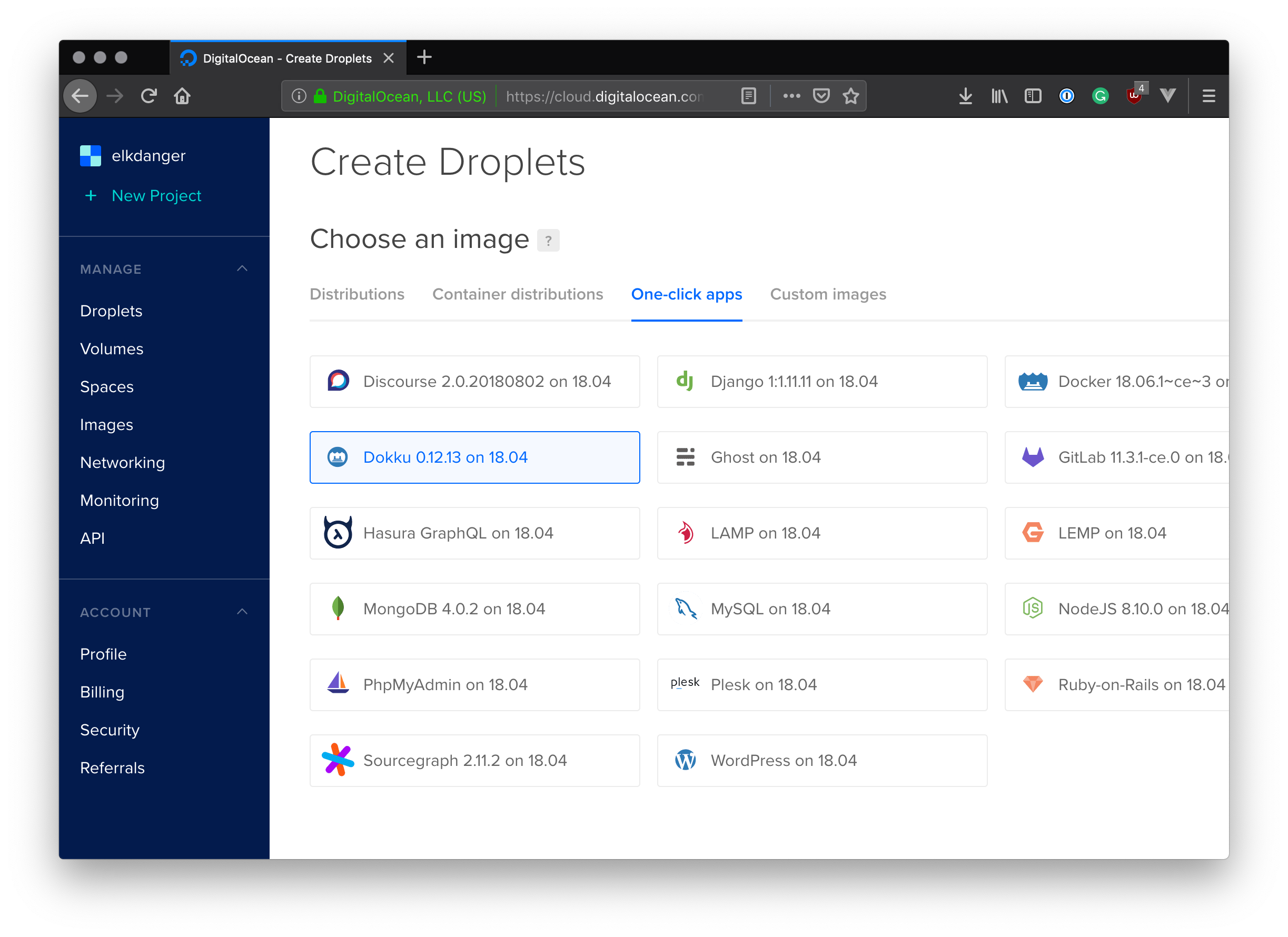
Once you are into your control panel, click the 'Create' button at the top of the screen and choose 'Droplets'.
On this screen, we need to select "One-click apps" and choose "Dokku 0.12.13 on 18.04" (the actual version numbers may vary).
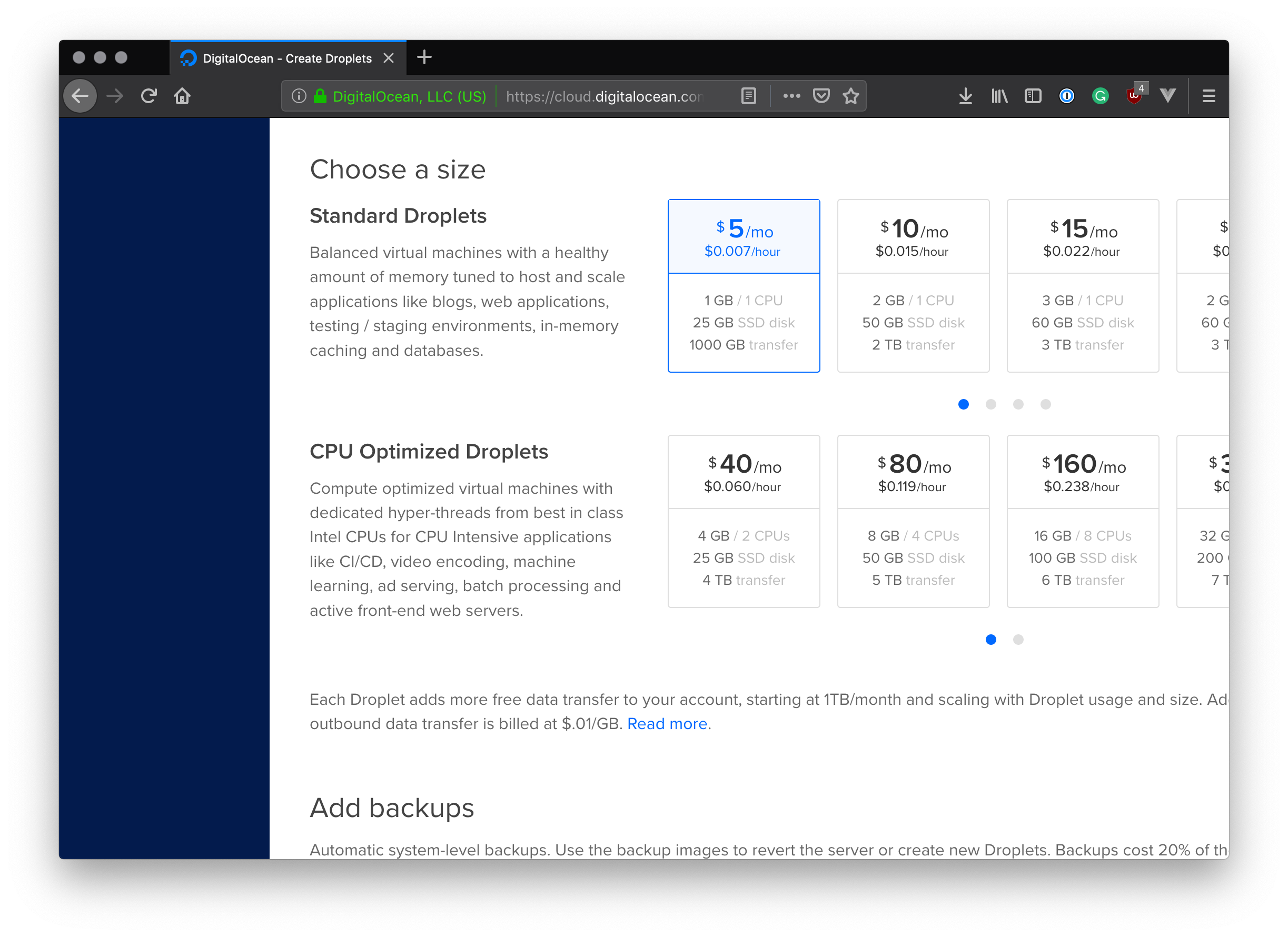
Next, scroll down a bit to the next section which asks for the size. A small, $5 per month instance is fine for this example. Later, if you decide to host more apps, you may need to increase the size of a droplet to accommodate them
> **Note:** You may need to scroll to the left to see the $5 option. With this option, we get a machine that has a 1GB of memory and a 25GB SSD hard-drive, which is enough to host a few small apps. To put that into context, after deploying the basic Express application below, I still had 621MB of RAM and 21GB of disk space available. After deploying the Vue.js application, the available RAM reduced to 586MB, while the available disk space only reduced by a small amount. The amount of applications you can fit on a $5 DigitalOcean droplet will vary depending on the size and complexity of the applications you want to host. Fortunatly, in most cases you can [upgrade a Droplet at any time](https://www.digitalocean.com/docs/droplets/how-to/resize/) should you need more resources!
The next thing you'll be asked when you scroll down is what region you want your droplet to be in. Select any region that makes sense for you.
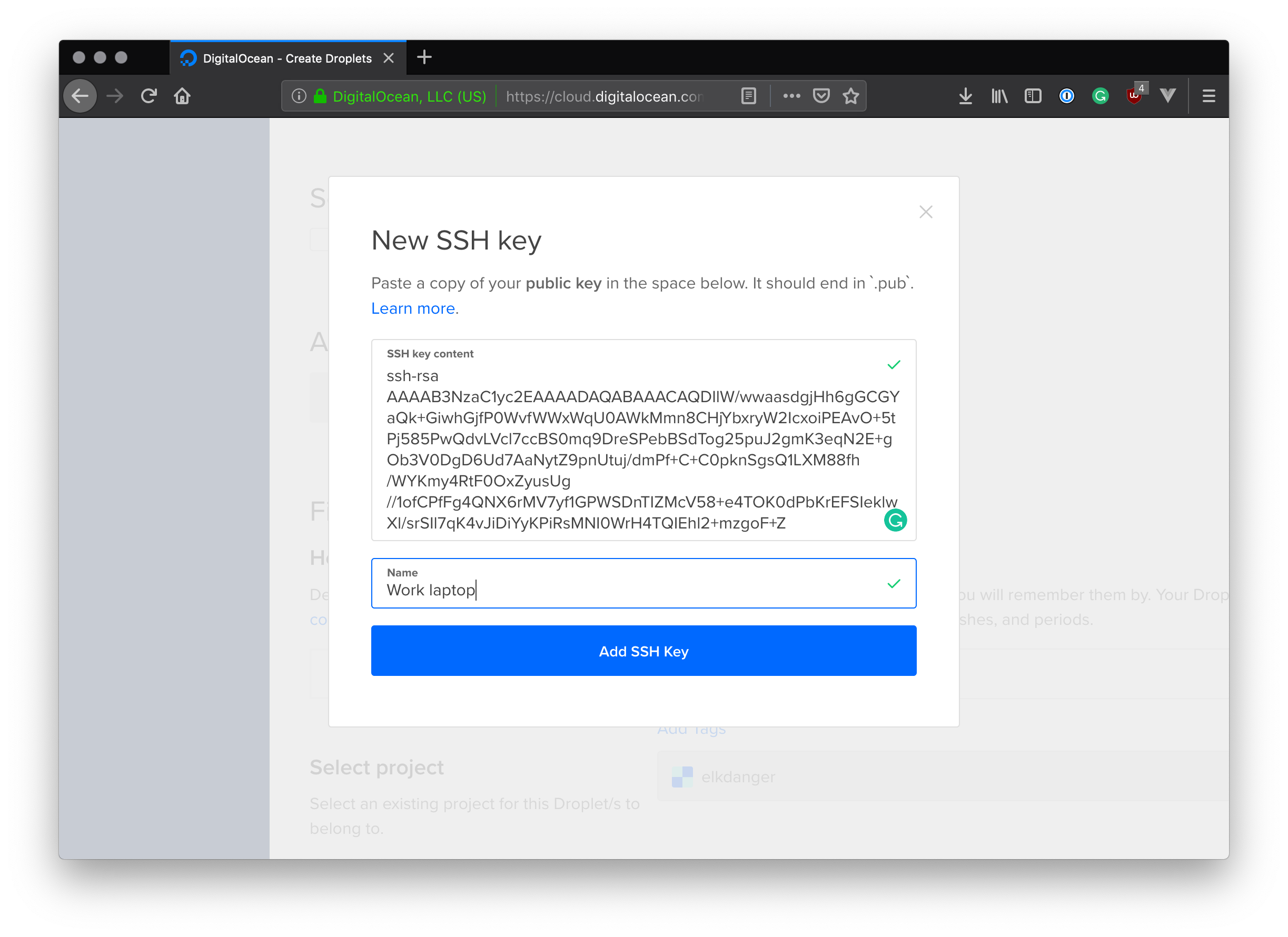
Finally, we need to add an SSH key so that we can log in to the server. Scroll to "Add your SSH keys" and click the "New SSH key" button. Copy and paste your machine's public key into this box, give it a name and press "Add SSH key" to finish.
> **Note:** Your public SSH key is usually available in the `.ssh` folder inside your home directory. On Linux and MacOS, this is usually `~/.ssh/id_rsa.pub`. On Windows, try `C:\Users\\.ssh\id_rsa.pub`. If you have not previously generated an SSH key pair, follow the instructions on GitHub.com to [generate a new SSH key and add it to the ssh-agent](https://help.github.com/articles/generating-a-new-ssh-key-and-adding-it-to-the-ssh-agent/). Once the public key has been created, try the previous step again.
Finally, press the "Create" button at the bottom to create the droplet. It will take a few minutes for it to be available.
### Logging in and setting up
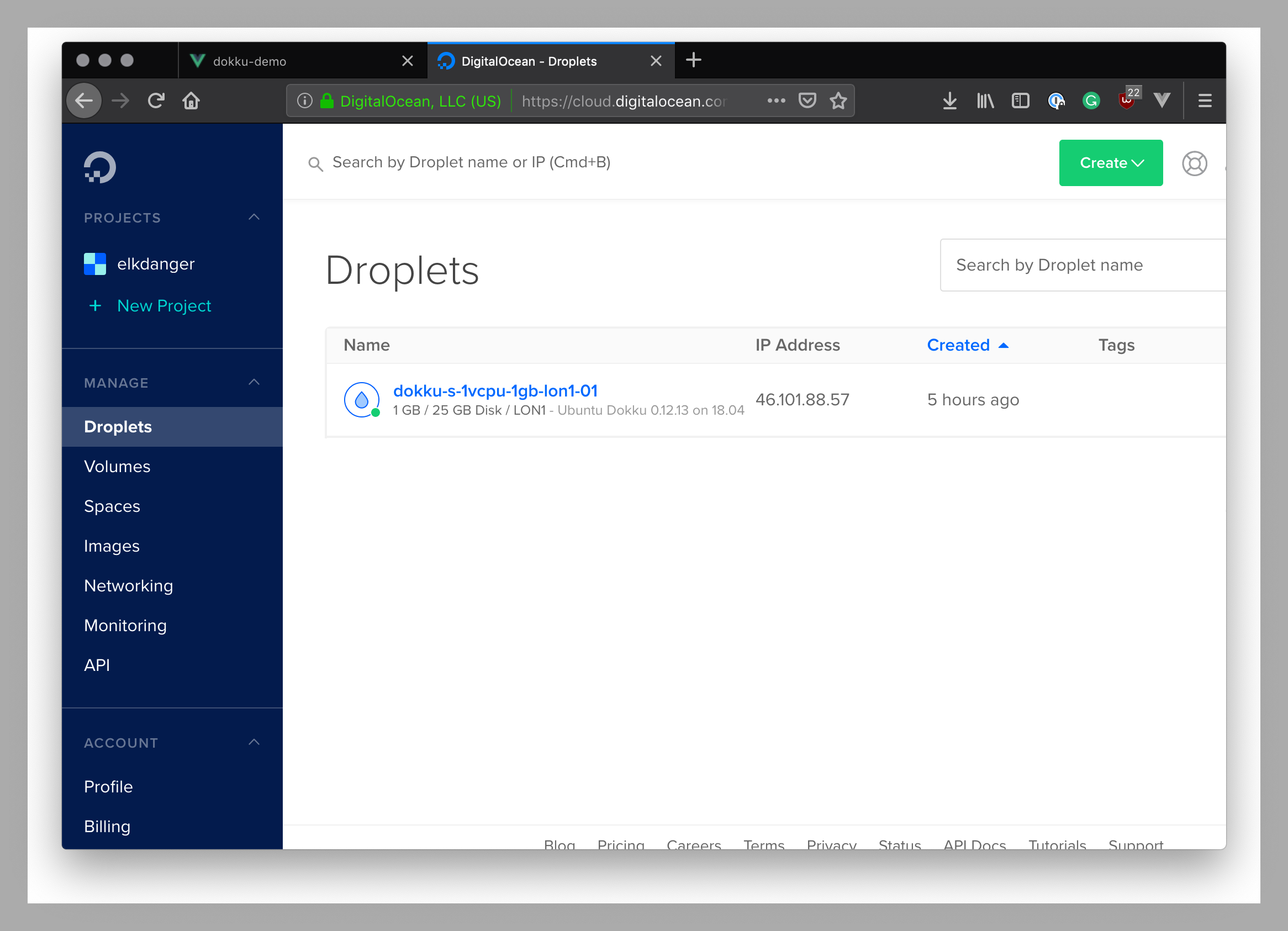
Once the Droplet has been created, it will have an IP address. Copy the IP address into your clipboard, and open a terminal. We're going to use SSH to connect to our Droplet.
Inside the terminal:
```bash
ssh root@46.101.88.57
```
> **Note:** Your IP address will be different to mine, so make sure you use the one that you copied from the DigitalOcean Droplets panel.
If the login is successful, you should see some output similar to this as part of Ubuntu's Message of the Day:
```bash
Welcome to DigitalOcean's One-Click Dokku Droplet.
To keep this Droplet secure, the UFW firewall is enabled.
All ports are BLOCKED except 22 (SSH), 80 (HTTP), 443 (HTTPS),
2375 (Docker) and 2376 (Docker).
In a web browser, you can view:
* The Dokku One-Click Quickstart guide: http://do.co/dokku1804#start
* Your Dokku setup page: http://46.101.88.57
For help and more information, visit http://do.co/dokku1804
```
> **Note:** You may find that your SSH connection will drop with the message "Please wait while we get your droplet ready...". If that's the case, your Droplet may still be performing some initialization steps, even though the Droplets panel said it was ready. Just try again in a few minutes.
As instructed in the terminal, in order to complete the setup we need to access the Dokku setup page. Open a web browser and access your server using the `http://`:
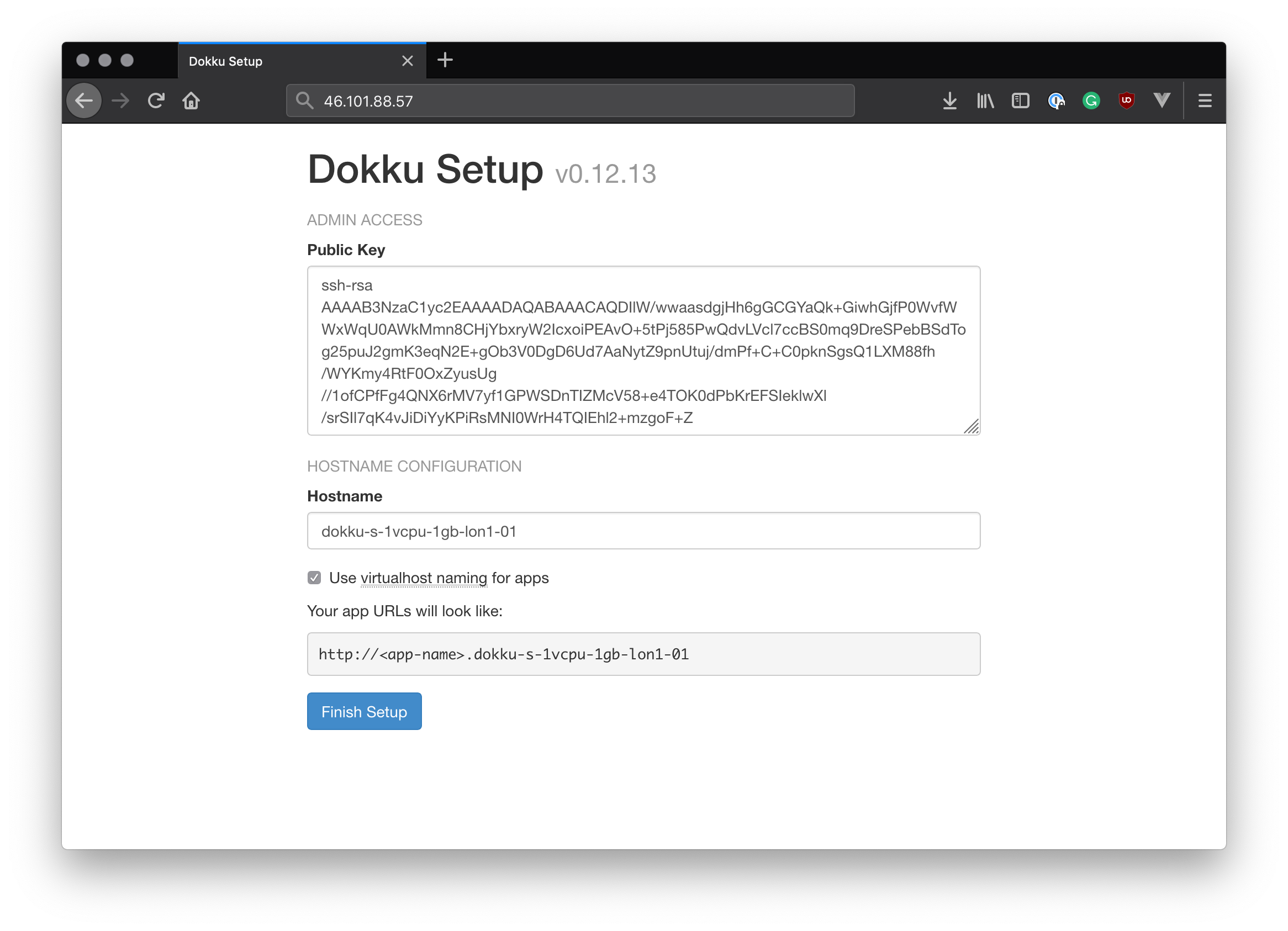
Here you are asked to provide your SSH key. Since we have already provided it in a previous step when we initially set up the droplet, this should be pre-filled.
The next thing you need to do is decide whether or not to use virtualhost naming for your apps.
* If you have a domain that you want to use with this box (e.g. `example.com`), then you can turn on virtualhost naming so that your apps are accessed as subdomains. For example, creating an app called "Demo" will mean that you will be to access your application at `http://demo.example.com`
* If you do not have a domain that you wish to use for your Dokku server, then you should leave this box unticked. This will mean that your apps would become available on a specific port number, e.g. `http://46.101.88.57:3000`. You will need to configure the firewall to open specific application ports
I have a domain I'm going to use for this example, so I will tick the box.
> **Note:** For this to work, you must configure your domain's DNS with an A record that points to your Dokku server. In my example, I'm using a domain `simplicode.co.uk` with an A record of `*` that points to my server at `46.101.88.57`. This means that any traffic that goes to a subdomain e.g. `http://my-app.simplicode.co.uk` will be routed to my Dokku server and Nginx will route it to the correct place. Also, note that changing your DNS settings may require a bit of time for the changes to fully take effect.
With that done, click "Finish Setup" to proceed. Your Dokku server is now ready to go!
## Deploying an Application
Let's try deploying a simple [Express](https://expressjs.com/) application and see if we can reach it on the internet.
To create this application, you can follow the steps below, or you can [clone the demo repository](https://github.com/auth0-blog/express-dokku-sample) to get a head start.
### Creating a simple Express app
Using the terminal, find a location on your hard-drive to place a new project, and create a new folder. Then `cd` into it:
```bash
# Create a new folder for our app
mkdir express-dokku
# Move into it
cd express-dokku
```
Next, initialize the Node project using `npm` and initialize `git`:
```bash
# Initialize as a new Git repository
git init
# Initialize the npm project
npm init -y
```
Then, we want to exclude the `node_modules` folder so that we don't commit it along with the rest of our files. We can do this by creating a `.gitignore` file in the root of the project:
```bash
echo node_modules/ > .gitignore
```
Now install `express` as a dependency:
```bash
npm install express
```
Create a new file called `server.js` and populate it with the following content:
```js
const express = require('express');
const app = express();
app.get('/', (req, res) => {
res.send('Hello, Dokku!');
});
// Port 5000 is the default Dokku application port
app.listen(5000, () => console.log('Listening on port 5000'));
```
Finally, modify `package.json` so that it includes a `start` script that runs our server:
```json
{
"name": "express-dokku-sample",
"version": "1.0.0",
"description": "",
"main": "index.js",
"scripts": {
"start": "node server.js"
},
"repository": {
"type": "git",
"url": "git+https://github.com/auth0-blog/express-dokku-sample.git"
},
"dependencies": {
"express": "^4.16.4"
}
}
```
To test it, run `npm start` from the terminal. Then, browse to [`http://localhost:3000`](http://localhost:3000) in the browser, and you should see the words "Hello, Dokku!" on the screen.
### Using Git deployment
Now that we have our simple application, we'll create a new Git commit so that it can be pushed up to the Dokku server. Since Dokku uses Git to deploy applications, every change you make that you want to deploy to the server must exist in Git at some stage. Otherwise, the changes won't be pushed.
```bash
git add . && git commit -am "Initial commit"
```
The last thing we need to do is add a Git remote that points to our Dokku instance. You can do this with the following command in the terminal:
```bash
# With a domain name (replace example.com with your domain)
git remote add dokku dokku@example.com:express-demo
# Without a domain name (replace the IP address with that of your server)
git remote add dokku dokku@123.456.789.012:express-demo
```
The remote URL `dokku@example.com:express-demo` contains the application name we want to use (the `express-demo`) part. If you are using virtualhost naming, this name will form the subdomain part of the URL that you use to access the application. i.e. `http://express-demo.example.com`.
Finally, use `git push` to push your application to the server. This will kick off the build process using the Node buildpack and — if all goes well — deploy it!
```bash
git push dokku master
```
You will start to see a lot of logging information spill out into the terminal, telling you how the build process is going. After a couple of minutes, the build should finish and your site should be available. To test this, try to access the application in your browser. If you are using virtualhost naming and a domain, you should be able to reach it at `http://express-demo.`, or `http://` if not using a domain.
There are some useful Dokku commands we can use now that we have an application up and running. Log into your server using `ssh`:
```bash
ssh root@
```
Once you're logged in, use the `dokku` command to show the available commands that Dokku has to offer.
For example, use the following to get a report of the application we've just deployed:
```bash
dokku apps:report express-demo
# Output
=====> demo app information
App dir: /home/dokku/express-demo
Git sha: 205bd10
Deploy source: git
Locked: false
```
Or to see the port mapping for the Docker container:
```bash
dokku proxy:ports express-demo
# Output
-----> Port mappings for express-demo
-----> scheme host port container port
http 80 5000
```
Or even run commands against the running container:
```bash
dokku run express-demo ls
# Output
Procfile node_modules package-lock.json package.json server.js
```
Using `dokku enter express-demo`, you can step into the running container and run commands that way too — give it a try!
### Using Dockerfile deployment
What we did in the previous step was to deploy an application to the server using Git, which uses the Heroku Node buildpack to build our application using established Node conventions. This works great for a simple Node app like the one we created in the previous section, but what about a more complex application?
[Vue.js](https://vuejs.org/) applications created using [Vue CLI 3](https://cli.vuejs.org/) pose a couple of special problems:
* There is no `npm start` script available out-of-the-box, so the buildpack doesn't know how to run it
* Most of the dependencies live in the `devDependencies` node inside `package.json`. This means that when the buildpack tries to install the dependencies using `npm install --production`, it misses out on the important ones we need to run the application
* We would have to have some configuration to [disable Webpack Dev Server's host check](https://webpack.js.org/configuration/dev-server/#devserver-disablehostcheck) once the application has been deployed. This is a good measure to help prevent [DNS rebinding attacks](https://en.wikipedia.org/wiki/DNS_rebinding) but doesn't work for us if we want to deploy the application
* Last but not least, if we just deployed the Vue.js app as-is, we'd be packaging up all the source files and node modules that we don't really need to, which will bloat the size of the Docker image with unnecessary files
To get around these issues, let's use a Dockerfile to customize our own build steps and cast aside the Heroku buildpack entirely!
Again, you can either follow the following steps to create the Vue.js application and add the Dockerfile, or you can [clone the example repository](https://github.com/auth0-blog/vuejs-dokku-sample) with all of this stuff in it.
### Creating the Vue.js application
First of all, find a new place on your hard-drive to create a new project. Next, run the following command to create a new boilerplate Vue.js project. When it asks you questions about how the project is to be created, just accept all the defaults:
```bash
# Create the project
npx @vue/cli create vue-demo
# Move into the project folder
cd vue-demo
```
### Adding the Dockerfile script
Then, add a new file in the root of the project called `Dockerfile` and populate it with the following content:
```Dockerfile
# Use Node 10
FROM node:10-slim AS build
# Create a folder for our app
RUN mkdir /app
# Set up the working directory
WORKDIR /app
# Copy our package.json file first, then run `npm install`.
# This is an optimization we can make, as this layer will be
# cached, meaning that if we don't change the package.json file,
# this step doesn't need to be performed again
COPY package.json .
# Note that we're installing all dependencies, unlike the buildpack
RUN npm install
# Copy the rest of the application
COPY . .
# Build the Vue.js application. It will output static files
# Into the /dist folder
RUN npm run build
# ---------------
# Create a second-stage which copies the /dist folder
# and uses http-server to host the application
FROM node:10-slim
# Create an app folder
RUN mkdir /app
# Set /app as the working directory
WORKDIR /app
# Initialize a new node app and
# install http-server
RUN npm init -y && \
npm install http-server
# Copy the built artifacts from the build stage
COPY --from=build /app/dist /app
# Expose port
EXPOSE 8080
# Set the startup command
CMD ["./node_modules/.bin/http-server"]
```
This is basically the "script" that Docker will use in order to build our application image. This particular Dockerfile is based on the Node 10 (Slim) image and already contains the tools we need to build Node apps. It first builds the Node application using `npm run build`, which creates the HTML, JavaScript and CSS files, and puts them into the `/dist` folder.
The Dockerfile contains a [second stage](https://docs.docker.com/develop/develop-images/multistage-build/) which takes these static assets and copied them into a new container. The app is then served using [`http-server`](https://github.com/indexzero/http-server), which is a Node application that can serve static assets from a folder using sensible defaults. The reason we use these two stages is so that the resulting Docker image is much smaller and efficient. There's no point in including all of the source files and Node packages in the image when they're not going to be used!
We should also add a `.dockerignore` file so that it doesn't try to copy in the `node_modules` folder when the whole application is copied. For this simple example, it probably won't matter too much, but it's [a good habit to get into](https://codefresh.io/docker-tutorial/not-ignore-dockerignore/):
```bash
echo node_modules/ > .dockerignore
```
> **Note:** `.dockerignore` files work in a very similar fashion to `.gitignore` files. Docker ignores files that match items in this file when performing COPY operations.
Finally — as long as you have Docker installed — you can test the build locally using the following terminal command:
```bash
docker build -t vue-demo .
```
This will create a new Docker image from the Dockerfile in the current directory. Docker will execute all the steps inside the Dockerfile, including downloading the Node 10 image, copying the files and running `npm install`. Do not forget the period on the end, as that is a pointer to the current directory.
Once the image has been built, we can ask Docker to create a new container from this image and run your application, using the following command. Note that this can be done from _any_ directory where the `docker` command is available:
```bash
docker run -p 8080:8080 vue-demo
```
> **Note:** The `-p` switch specifies the port mapping. Even though the application starts up on port 8080, it can be mapped to another port when the container is started. Without this though, the application won't be visible in the browser, as Docker will not forward the port.
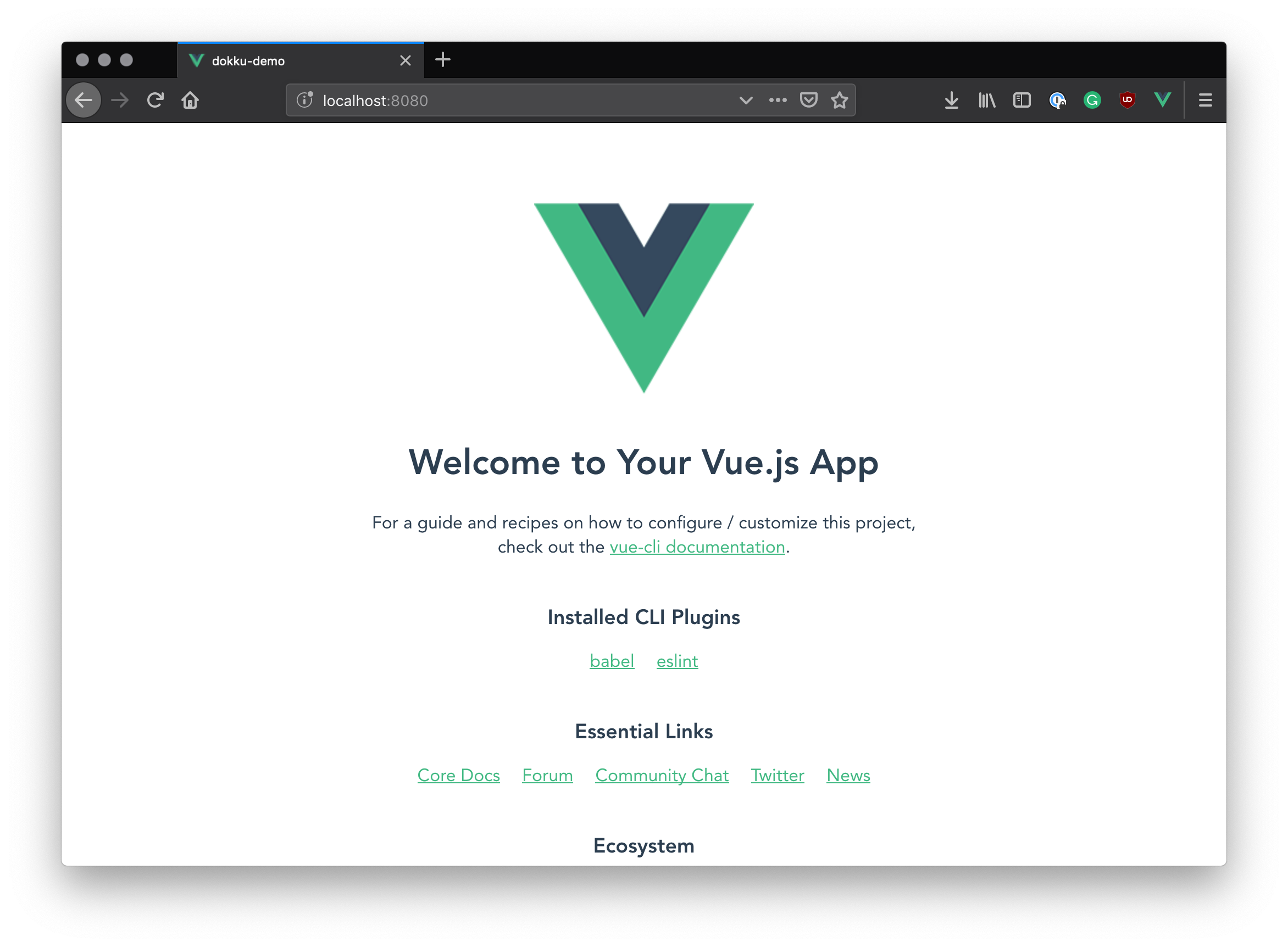
The application will spin up in the same way as if it had been started using `npm run serve`. Test this in the browser by browsing to `http://localhost:8080` — you should see your application running!
### Deploying the application
If all is well, we can now deploy this to our Dokku server. First, create a new commit with the Docker file in it, then push it to the server:
```bash
# Commit the change
git add . && git commit -m "Added a Dockerfile"
# Add in our remote Dokku repository
git remote add dokku dokku@:vue-demo
# Push the changes
git push dokku master
```
This time, Dokku will detect that a Dockerfile is present and use that to build the image containing your application.
Note that when using Dockerfile deployment, Dokku will try and set up the proxy with the same port that has been exposed in the Dockerfile (port 8080 in our case). Unfortunately, this means that by default, the application will only be available on port 8080 when it is deployed. We may find that when we try to access the application now, that we won't be able to see it. Or, we will see "Hello, Dokku!" being displayed from the Express application we created earlier.
To change the port mapping so that it maps to port 80, `ssh` into the Dokku server once again and run the following commands:
```bash
dokku proxy:ports-add vue-demo http:80:8080
```
This will add a mapping on the `http` scheme from host port 80 to container port 8080.
Now we should be able to see the application when we browse to `http://vue-demo.`, or `http://` if not using virtualhost names.
## Adding SSL Support with Let's Encrypt
To demonstrate how easy it is to get up an running with SSL and make your Dokku apps more secure (free of charge!), let's add the [Let's Encrypt](https://letsencrypt.org/) [plugin](https://github.com/dokku/dokku-letsencrypt) and set our application up with an SSL certificate.
> **Note:** If you are not using virtualhost naming with your Dokku server, you *will not* be able to complete this step, as [Let's Encrypt do not offer SSL certificates for IP addresses](https://community.letsencrypt.org/t/certificate-for-public-ip-without-domain-name/6082).
Log into your Dokku server using `ssh`, and install the plugin using the following command:
```bash
sudo dokku plugin:install https://github.com/dokku/dokku-letsencrypt.git
```
Next, we need to add in an email address to the application's configuration so that the Let's Encrypt plugin can use it to request a certificate from the Let's Encrypt server. This can be done with the following command:
```bash
dokku config:set --no-restart DOKKU_LETSENCRYPT_EMAIL=
```
Here you should swap `` for your own email address. This is used by Let's Encrypt to notify you when the certificate is about to expire.
> **Note:** Normally when you add in configuration, Dokku will automatically restart the application for you. We don't need that in this case, so the `no-restart` flag prevents that from happening.
Finally, to install an SSL certificate into our application, we can run this command:
```bash
dokku letsencrypt vue-demo
```
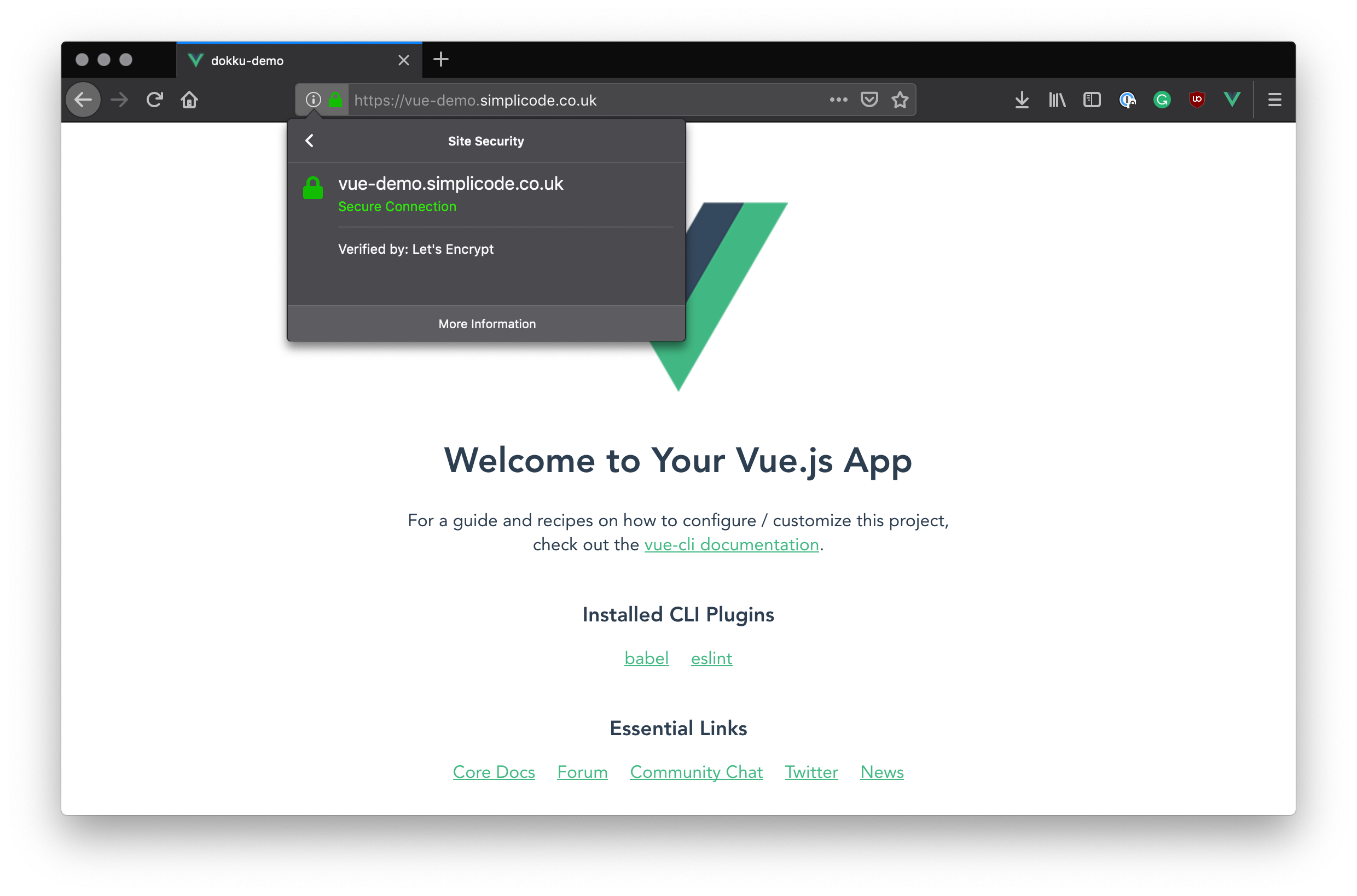
The plugin will request and retrieve the SSL certificate from Let's Encrypt, store it on the server and then configure the SSL port for your application. It will then reconfigure Nginx to automatically use SSL when accessing your app.
As a result, you should now have an SSL-enabled app!
## Summary
In this article, we saw how to set up a new Dokku server using a DigitalOcean Droplet, and then deploy a simple Express application to it using Git Deployment. We then added a Dockerfile to customize the build process for a Vue.js application, creating a multi-stage build that used Vue's built static assets to create a small, optimized Docker image.
We also learned some of the basic Dokku commands, such as `dokku apps`, `dokku proxy` and ran the `ls` command from inside the app container.
Finally, we used the Let's Encrypt dokku plugin to SSL-enable our Vue app.
---