---
title: "How to Sign Up and Log In with Passkeys in Android Using Auth0's Native Login"
description: "Native login with passkeys is now available, so let’s take a look at how to sign up and log in on Android using Auth0’s Native Login."
authors:
  - name: "Carla Urrea Stabile"
    url: "https://auth0.com/blog/authors/carla-stabile/"
date: "Dec 30, 2024"
category: "Developers,Tutorial,passkeys"
tags: ["passkeys", "android", "authentication"]
url: "https://auth0.com/blog/how-to-signup-and-login-with-passkeys-android/"
---

# How to Sign Up and Log In with Passkeys in Android Using Auth0's Native Login

We recently announced the [Limited EA for Native Login with passkeys for Android applications](https://auth0.com/blog/native-login-with-passkeys-is-now-in-limited-early-access-for-android/), which you can request in your Auth0 tenant by reaching out to your account manager. 

In this blog post, you'll learn how to implement signup, login, and logout in your Android application using Auth0's Native Login with passkeys.  

## Passkeys on Android

Google has extensive documentation on how passkeys should be implemented in its ecosystem, and it's recommended that you always follow their advice and best practices. 
On Android, creating and signing in with passkeys happens using the [`Credential Manager API`](https://developer.android.com/reference/androidx/credentials/CredentialManager), which is a Jetpack API that manages user authentication flows and supports multiple sign-in methods, such as username and password, passkeys, and federated sign-in solutions.

Let's look at what the signup and login ceremonies look like in general in an Android app using Auth0.

### Sign Up 

To create a new account and your passkey, you have to go through the sign up process:

![Android Diagram with passkeys](https://images.ctfassets.net/23aumh6u8s0i/7jDpAVV78D6MI2J5vm21ub/81f2608b556d8cbcaf9dbdbe9395d4ea/diagramv2.png)

As you see, Auth0 acts as the relying party, your Android app is the client, and what you see as "passkey provider" is the authenticator, but what does that mean? Well, you can have more than one passkey provider; for example, in a Samsung device, you could choose to use Google Password Manager or Samsung Pass, which often come pre-installed, or you could use another provider such as Bitwarden; in each case, Credential Manager will rely on the selected provider to create your credential (as the provider is a passkey authenticator).

Let's analyze the order of events in the diagram above. The first thing that happens **(1)** is your app calls the `POST /passkey/register` endpoint via the [Android SDK](https://github.com/auth0/Auth0.Android). When successful, Auth0 responds with a challenge and registration options as specified in the [WebAuthn Standard](https://www.w3.org/TR/webauthn-3/#dictdef-publickeycredentialcreationoptions).

Then, in **(2)** your app will create a new credential using Android's CredentialManager. Note this happens entirely in the device. Once you've created the credentials, you'll send the registration response back to Auth0 **(3)** using the `POST oauth/token` endpoint to retrieve your ID Token, Access Token, etc. 

### Login 

Similarly to sign up, the login process looks as follows: 

![Android login with passkeys](https://images.ctfassets.net/23aumh6u8s0i/3ulO3ncZy5MyY9J3eoRctk/29944a35acf9cd6d1530865eda874ee0/logindiamdramv1.png)

In this case, the first thing to do **(1)** is to request a challenge to Auth0. To do so, you'll call the `POST passkey/challenge` endpoint via the Android SDK. Auth0 will return the [PublicKeyCredentialRequestOptions](https://www.w3.org/TR/webauthn-3/#dictdef-publickeycredentialrequestoptions). Once again, in **(2)** your Android app needs to call `Credential Manager`, but this time to look for the credential in the device instead of the creating a new one. Finally, you'll send the response back to Auth0 **(3)** for verification and to retrieve your tokens (access token, ID token, etc) using the `POST oauth/token` endpoint. 

You can get started now that you have some context on signup and login!

## Get the Starter App  

The following code sample is available for this tutorial. It's a straightforward Android app that allows you to create a new passkey, authenticate with it, and log out. 

```bash
git clone https://github.com/oktadev/auth0-android-native-login-passkeys.git 
```

> Note that this sample app does not manage passwords; it is only used to demonstrate passkey ceremonies. 
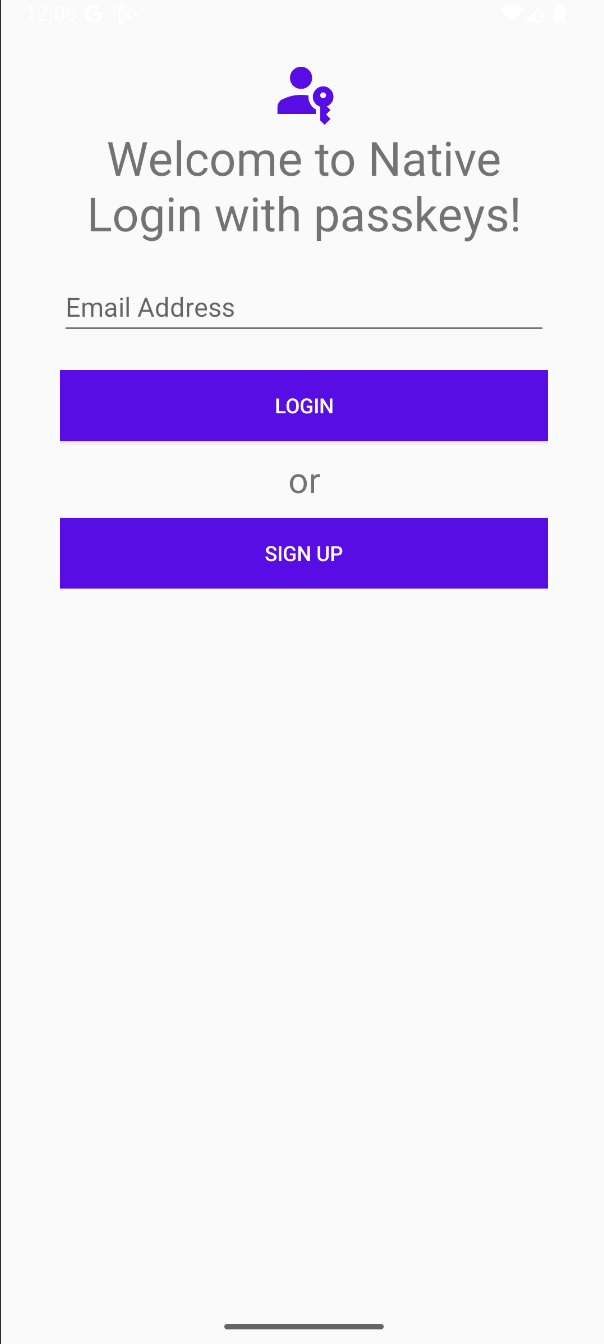
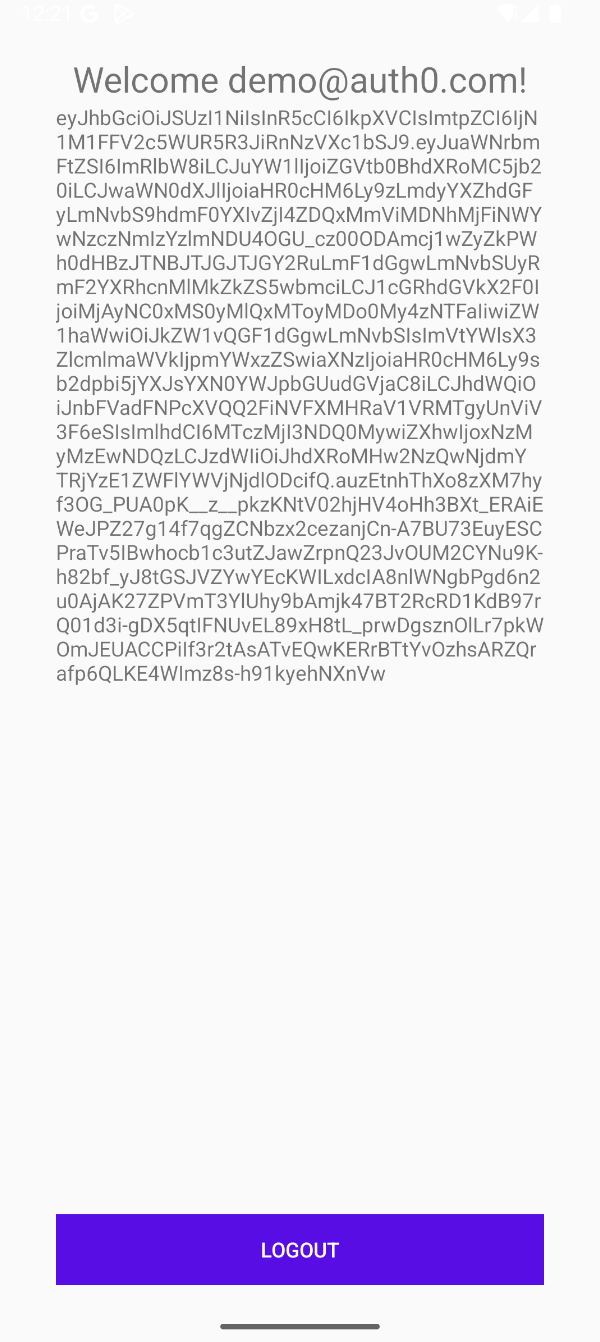
The app consists of two activities: the `MainActivity`, where you'll see an email input field and signup or login buttons, and the `HomeActivity`, where you'll see a welcome message, your user's ID token, and a logout button. 

<table>
<tr>
<th> MainActivity </th>
<th> HomeActivity </th>
</tr>
<tr>
<td>

![MainActivity screenshot](https://images.ctfassets.net/23aumh6u8s0i/b1LxCw6bPhNzFZpv1h3iC/f1ab67e1c19cd69b31035a3dbd0b7845/Screenshot_2024-11-22_at_12.08.34_PM.png)

</td>
<td>

![homeActivity screenshot](https://images.ctfassets.net/23aumh6u8s0i/3VP2xwkUGJRMRA6oG0MmE2/63a631fb5d19fe002c8a0fc75c5fee69/Screenshot_2024-11-22_at_12.21.20_PM.png)

</td>
</tr>
</table>

At the end of this tutorial, your app will sign up and login using Auth0's Native Login, and it will look as follows:

![Android App Video](https://images.ctfassets.net/23aumh6u8s0i/6yeXOViJOZODDPDXzvpz74/f425d5f89e1e3aaad06ae7de5d8399a5/nativelogin_720px_86c.gif)

> Note: if you want the complete code from this tutorial, you can check out the [`add-auth0` branch in the Github repository.](https://github.com/oktadev/auth0-android-native-login-passkeys/tree/add-auth0)


### Pre-requisites


To make the demo app work, you need to have the following:

- An Auth0 Account
- An [Auth0 Native Application](https://auth0.com/docs/get-started/auth0-overview/create-applications/native-apps)

<include src="SignupCTA" text="Try out Auth0 authentication for free." linkText="Get started →" />

Now, let's configure Auth0 to work with your Android app and, most importantly, support passkeys! 🚀

## Configure Auth0 with your Android App 

You have to do a few things in your Auth0 Tenant to make this work, so let's go through it: 

### Enable Passkeys in Auth0

You must enable passkeys in your database connection if you haven't already. 

![Enable passkey dashboard](https://images.ctfassets.net/23aumh6u8s0i/6ApYxla0hbMtXy6gEVwEpV/a2328b46620c5d74ad44d5b7b4294783/passkeys-rb-1.png)

To learn more how to do this, take a look at [our docs](https://auth0.com/docs/authenticate/database-connections/passkeys/configure-passkey-policy) or [this step-by-step tutorial.](https://auth0.com/blog/activate-passkeys-let-users-log-in-without-password/)

### Enable Passkey Grant 

You need to let your native application in Auth0 know it can grant passkeys to your users. To do so, from the sidebar, go to **Applications > Your Native Application > Settings**, then scroll to the bottom to **Advanced Settings > Grant Types** and check for the `Passkey` grant. Finally, click on **Save Changes**.

![enable passkey grant](https://images.ctfassets.net/23aumh6u8s0i/5oLpUnUudzdH5HdcRWNDTF/e37a2dc3389ed2df3203c8620193aa24/Screenshot_2024-11-21_at_1.28.13_PM.png)

### Configure Android App Links Support

You must add support for [Digital Assets Links](https://developer.android.com/identity/sign-in/credential-manager#add-support-dal), which means associating your app with a website your app owns. This allows your app to create and use passkeys in the context of your web domain. To do that, you can follow the steps in [the docs to Enable Android App Links Support.](https://auth0.com/docs/get-started/applications/enable-android-app-links-support)

### Configure a Custom Domain 

You may remember that passkeys are bound to a specific replying party (RP), which uses the RP's domain as the identifier, so you'll need to configure your custom domain to use it with your Android app (you should configure a custom domain in general when using passkeys). The good news is this is also [included in the free plan](https://auth0.com/blog/auth0-plans-got-an-upgrade/#Here-s-All-the-Changes-on-Our-New-Free-Plan)😜

To configure a [custom domain, you can follow the docs](https://auth0.com/docs/customize/custom-domains/auth0-managed-certificates)

You're all set from the Auth0 side! Now, let's start implementing signup in your Android app.

## Sign Up with a Passkey in Auth0
Let's add the Android SDK and Credential Manager dependency to the project. In your `app/build.gradle.kts` add the following:

```kotlin
// ...

dependencies {
  // ... 

  // Auth0
    implementation(libs.auth0.v320)
    implementation(libs.jwtdecode)

    // gson converter
    implementation(libs.converter.gson)

    // credential manager 
    implementation(libs.androidx.credentials)

    // optional - needed for credentials support from play services, for devices running
    // Android 13 and below.
    implementation(libs.androidx.credentials.play.services.auth)
}
```

Next, in your `AndroidManifest.xml` file, add internet permissions with the following code: 

```xml
<?xml version="1.0" encoding="utf-8"?>
<manifest xmlns:android="http://schemas.android.com/apk/res/android"
    xmlns:tools="http://schemas.android.com/tools">
    xmlns:tools="http://schemas.android.com/tools" >

    <uses-permission android:name="android.permission.INTERNET" />

    <application
        android:allowBackup="true"
    ... 
    />
```

Next, add the information about your Auth0 Native Application to your `strings.xml` file as environment variables and also add some strings your app will use:

```xml
<string name="auth0_domain">YOUR CUSTOM DOMAIN</string>
<string name="auth0_scheme">demo</string>
<string name="auth0_client_id">YOUR CLIENT ID</string>
<string name="main_welcome">Welcome to Native Login with passkeys!</string>
<string name="email_hint">Email Address</string>
<string name="login">Login</string>
<string name="sign_up">Sign Up</string>
<string name="logout">Logout</string>
<string name="home_welcome">Welcome %1$s!</string>
```

### Add the layout file for the MainActivity

In the `MainActivity`, you want to have an input field and two buttons, along with some image and text, so go ahead and create the following file `app/src/main/res/layout/activity_main.xml` and add this code:

```xml
<?xml version="1.0" encoding="utf-8"?>
<LinearLayout xmlns:android="http://schemas.android.com/apk/res/android"
    xmlns:app="http://schemas.android.com/apk/res-auto"
    android:orientation="vertical"
    android:id="@+id/main_view"
             android:layout_width="match_parent"
             android:padding="40dp"
             android:layout_height="match_parent">

    <ImageView
        android:id="@+id/main_header_image"
        android:layout_width="match_parent"
        android:layout_height="wrap_content"
        android:src="@drawable/ic_passkey" />

    <TextView
        android:id="@+id/main_welcome_textview"
        android:layout_width="match_parent"
        android:layout_height="wrap_content"
        android:textAlignment="center"
        android:textSize="32dp"
        android:text="@string/main_welcome" />

    <EditText
        android:id="@+id/main_email_edittext"
        android:layout_width="match_parent"
        android:layout_height="wrap_content"
        android:ems="10"
        android:isCredential="true"
        android:layout_marginTop="20dp"
        android:hint="@string/email_hint"
        android:inputType="textEmailAddress" />

    <LinearLayout
        android:layout_width="match_parent"
        android:layout_height="wrap_content"
        android:id="@+id/main_buttons_container"
        android:layout_marginTop="20dp"
        android:orientation="vertical">
    <Button
        android:id="@+id/main_login_btn"
        android:layout_width="match_parent"
        android:layout_height="wrap_content"
        android:background="@color/purple_500"
        android:textColor="@color/white"
        android:text="@string/login" />

        <TextView
            android:layout_width="match_parent"
            android:layout_height="match_parent"
            android:text="or"
            android:layout_margin="10dp"
            android:textAlignment="center"
            android:textSize="24dp"
            />

    <Button
        android:id="@+id/main_signup_btn"
        android:layout_width="match_parent"
        android:layout_height="wrap_content"
        android:background="@color/purple_500"
        android:textColor="@color/white"
        android:text="@string/sign_up" />
    </LinearLayout>

    <ProgressBar
        android:id="@+id/main_progress_bar"
        android:layout_width="match_parent"
        android:layout_height="wrap_content"
        android:indeterminateTint="@color/purple_200"
        android:visibility="gone" />
</LinearLayout>
```

> Note: you can get the passkey icon from [this file](https://github.com/oktadev/auth0-android-native-login-passkeys/blob/add-auth0/app/src/main/res/drawable/ic_passkey.xml)
You'll end up with a layout like the one shown at the beginning of the blog post. Let's add some functionality!

### Implement `signUpWithPasskey`

The first thing to implement is signup with a passkey. For that, you'll use the method [`signUpWithPasskey` available in the Android SDK under the AuthenticationAPIClient](https://javadoc.io/doc/com.auth0.android/auth0/latest/auth0/com.auth0.android.authentication/-authentication-a-p-i-client/signup-with-passkey.html) 

At the moment, your `MainActivity` is either non-existent or has the Android template for an activity, so let's replace the code with the following in your `app/src/main/java/.../activities/MainActivity.kt` file: 

```kotlin
package com.example.nativepasskeys.activities // this is my package name, yours might be different

// here you'll have a bunch of imports Android Studio will import for you 😜
import ...

class MainActivity : ComponentActivity() {
  private val TAG: String = "MainActivity"
  private val DB_CONNECTION: String = "Username-Password-Authentication" // 👈 the name of your DB connection

  // Instantiate Auth0 Client 
  private val auth0: Auth0 by lazy {
    val account = Auth0.getInstance(
      getString(R.string.auth0_client_id),
      getString(R.string.auth0_domain)
    )
    account
  }

  // Instantiate the AuthenticationAPIClient
  private val apiClient: AuthenticationAPIClient by lazy {
    AuthenticationAPIClient(auth0)
  }

  override fun onCreate(savedInstanceState: Bundle?) {
    super.onCreate(savedInstanceState)

    setContentView(R.layout.activity_main)

    initWidgets()
  }

  private fun initWidgets(){
    val signUpBtn: Button = findViewById(R.id.main_signup_btn)
    val email: EditText = findViewById(R.id.main_email_edittext)

    signUpBtn.setOnClickListener {
      if (TextUtils.isEmpty(email.text.toString())){
        email.error = "Email is mandatory"
      } else {
        email.error = null
        signUpWithNativePasskey(email.text.toString())
      }
    }

  }

  // This is where the fun begins!
  // 👇
  private fun signUpWithNativePasskey(email: String){
    Log.d(TAG, "calling signUpWithNativePasskey!")

    val userData = UserData(email = email)

    apiClient.signupWithPasskey(
      userData, DB_CONNECTION
    ).start(object : Callback<PasskeyRegistrationChallenge, AuthenticationException> {

      override fun onSuccess(result: PasskeyRegistrationChallenge) {
        // fun stuff will happen here 
      }

      override fun onFailure(error: AuthenticationException) {
        Log.d(TAG, "Failure creating passkey " + error.getDescription())
      }
    })

  }
}
```

So far, you're initializing the `Auth0` Client using your Auth0 application's Client ID that you previously added to your `strings.xml` file. Then, you're initializing the `AuthenticationAPIClient` where the passkey endpoints live. I've also added a helper function, `initWidgets,` to initialize the buttons and input text views. 

The fun begins with the function `signUpWithNativePasskey`. This function receives the user's email and builds a `UserData` object. It calls `signUpWithPasskey` and passes the `userData` along with the database connection name, which you can find in your **Auth0 Dashboard > Authentication > Database**; if you didn't change anything, the name should be `Username-Password-Authentication`. The `signupWithPasskey` has a callback with a `PasskeyRegistrationChallenge` and an `AuthenticationException` for the `onSuccess` and `onFailure` methods. If you remember from the diagram at the beginning of this blog post, when you start to register a passkey with Auth0, you'll get back some registration options along with a challenge; this is all contained in the `PasskeyRegistrationChallenge`, and all you have to do is pass that information to Android's Credential Manager. 

### Using Android's CredentialManagerAPI 

At this point, Auth0 gave you the passkey registration options, but now you have to tell [Android's Credential Manager that it's time to create a new credential](https://developer.android.com/identity/sign-in/credential-manager#create-passkey). 

First, you need a new instance of the CredentialManager, so let's initialize it with the following code in your `MainActivity`: 

```kotlin
class MainActivity : ComponentActivity() {
  private val TAG: String = "MainActivity"
  private val DB_CONNECTION: String = "Username-Password-Authentication"

  private val auth0: Auth0 by lazy {
    val account = Auth0.getInstance(
      getString(R.string.auth0_client_id),
      getString(R.string.auth0_domain)
    )
    account
  }

  private val apiClient: AuthenticationAPIClient by lazy {
    AuthenticationAPIClient(auth0)
  }

  // 👇 new code
  private val credentialManager: CredentialManager by lazy {
    CredentialManager.create(this@MainActivity)
  }
  // 👆

  override fun onCreate(savedInstanceState: Bundle?) { 
    // ...
  }
  // ...
}
```

Then, once Auth0 has responded with registration options, you'll tell the Credential Manager it's time to create a new credential. Let's do that in the `onSuccess` method by adding the following code: 

```kotlin
private fun signUpWithNativePasskey(email: String){
    Log.d(TAG, "calling signUpWithNativePasskey!")

    val userData = UserData(email = email)

    apiClient.signupWithPasskey(
      userData, DB_CONNECTION
    ).start(object : Callback<PasskeyRegistrationChallenge, AuthenticationException> {

      override fun onSuccess(result: PasskeyRegistrationChallenge) {
        // 👇 new code 
        val passKeyRegistrationChallenge = result
        val request = CreatePublicKeyCredentialRequest(
          Gson().toJson(
            passKeyRegistrationChallenge.authParamsPublicKey
          )
        )
        var response: CreatePublicKeyCredentialResponse?

        credentialManager.createCredentialAsync(
          this@MainActivity,
          request,
          CancellationSignal(),
          Executors.newSingleThreadExecutor(),
          object :
            CredentialManagerCallback<CreateCredentialResponse, CreateCredentialException> {

            override fun onError(e: CreateCredentialException) {
              Log.e(TAG, "Error creating credential, " + e.message)
            }

            override fun onResult(result: CreateCredentialResponse) {

              response = result as CreatePublicKeyCredentialResponse
              val authRequest = Gson().fromJson(
                response?.registrationResponseJson,
                PublicKeyCredentials::class.java
              )

              Log.d(TAG, "Starting signin...")
              handleSignIn(passKeyRegistrationChallenge.authSession,
                authRequest)
            }
          })
        // 👆 new code 
      }

      override fun onFailure(error: AuthenticationException) {
        Log.d(TAG, "Failure creating passkey " + error.getDescription())
      }
    })

  }
```

Let's break this code down a bit, starting with:

```kotlin
val passKeyRegistrationChallenge = result
val request = CreatePublicKeyCredentialRequest(
  Gson().toJson(
    passKeyRegistrationChallenge.authParamsPublicKey
  )
)
var response: CreatePublicKeyCredentialResponse?
```

First, you're storing the `PasskeyRegistrationChallenge` Auth0 returned in a new variable called `passkeyRegistrationChallenge`. Then, you're formatting the request to match the format Credential Manager requires, and that is a [`CreatePublicKeyCredentialRequest`](https://developer.android.com/reference/androidx/credentials/CreatePublicKeyCredentialRequest). Using the `Gson` library, you're formatting the response Auth0 gave you, which contains the request in JSON format that uses the [standard JSON payload defined in WebAuthn](https://w3c.github.io/webauthn/#dictdef-publickeycredentialcreationoptionsjson). The last thing that happens is that you're creating a new variable, `response,` to get the result of creating the credential with the Credential Manager. 

Now, let's look at the actual call to the Credential Manager:

```kotlin
credentialManager.createCredentialAsync(
          this@MainActivity,
          request,
          CancellationSignal(),
          Executors.newSingleThreadExecutor(), // or another executor
          object :
            CredentialManagerCallback<CreateCredentialResponse, CreateCredentialException> {

            override fun onError(e: CreateCredentialException) {
              Log.e(TAG, "Error creating credential, " + e.message)
            }

            override fun onResult(result: CreateCredentialResponse) {

              response = result as CreatePublicKeyCredentialResponse
              val authRequest = Gson().fromJson(
                response?.registrationResponseJson,
                PublicKeyCredentials::class.java
              )

              Log.d(TAG, "Starting verification and sign in...")
              // not giving any spoilers, you gotta go to the login section now
            }
          })
```

When you call `createCredentialAsync`, you're now delegating the credential creation to your passkey provider. Depending on your Android device, you might use the Google Password Manager or something like 1Password; either way, now your passkey provider is in charge of the credential creation, which is why this is running asynchronously. If everything goes well, you'll land in `onResult,` and have your credential response ready; this will include information about your passkey, like the public key, for example. Otherwise, you'll land in `onError` and have to handle the error appropriately. 

At this point, your passkey provider has created the credential in your device and signed the challenge, but now you have to send that back to the relying party (Auth0) so it can verify it, and that will happen when you call `signinWithPasskey`. The `handleSignIn` method will do exactly what you need, but before we implement it, let's talk about login because you'll reuse this method for both flows.

> If you have more questions on how the [credential creation works in Android, look at their docs.](https://developer.android.com/identity/sign-in/credential-manager#registration-flows) 

## Login with a Passkey in Auth0

After creating a new passkey and any time you'd like to log in, you'll need to start the login flow by requesting a challenge to Auth0; for that you'll use the method [`passkeyChallenge` from the `AuthenticationAPIClient` class from the SDK](https://github.com/auth0/Auth0.Android/blob/main/auth0/src/main/java/com/auth0/android/authentication/AuthenticationAPIClient.kt#L267). 

Let's create a new method called `loginWithPasskey` in your `MainActivity`, that is in the `app/src/main/java/.../activities/MainActivity.kt` file: 

```kotlin
private fun loginWithNativePasskey() {
    Log.d(TAG, "Starting signin...")

    apiClient.passkeyChallenge(DB_CONNECTION)
      .start(object : Callback<PasskeyChallenge, AuthenticationException> {
        override fun onSuccess(result: PasskeyChallenge) {
          //handle success
        }

        override fun onFailure(error: AuthenticationException) {
          Log.d(TAG, "error on signin: " + error.getDescription())
        }
      })

  }
```

Again, let's break it down. Let's begin with the endpoint. You're calling `apiClient.passkeyChallenge`, which is calling `POST passkey/challenge` under the hood. So you're initiating the passkey login flow by requesting a challenge from Auth0. You're also passing the database connection name `DB_CONNECTION`. 

In the `passkeyChallenge` callback, you'll get a `PasskeyChallenge` and an `AuthenticationException` as possible responses depending on the case. If everything goes well and you get a `PasskeyChallenge` response, then the `onSuccess` method will be called, and you need to get the response and build the credential request:

```kotlin
override fun onSuccess(result: PasskeyChallenge) {
  // 👇 new code 
  val passkeyChallengeResponse = result
  val request =
    GetPublicKeyCredentialOption(Gson().toJson(passkeyChallengeResponse.authParamsPublicKey))
  //...
}
```

Similarly to sign up, you're storing the `result` and formatting it into a [`GetPublicKeyCredentialOption` object from a JSON that complies with the WebAuthn stardard](https://w3c.github.io/webauthn/#dictdef-publickeycredentialrequestoptionsjson). 

Next, you're going to use Android's [`GetCredentialRequest`](https://developer.android.com/reference/androidx/credentials/GetCredentialRequest), which encapsulates a request to get a user credential. 

```kotlin
override fun onSuccess(result: PasskeyChallenge) {
  val passkeyChallengeResponse = result
  val request =
    GetPublicKeyCredentialOption(Gson().toJson(passkeyChallengeResponse.authParamsPublicKey))
  // 👇 new code 
  val getCredRequest = GetCredentialRequest(
    listOf(request)
  )
}

```

> Note you're passing a `listOf`, that's because if you support password and passkeys, for example, you can delegate both to the Credential Manager like so:
`GetCredentialRequest(listOf(getPasswordOption, getPublicKeyCredentialOption))`. [More info on this on Android's docs.](https://developer.android.com/identity/sign-in/credential-manager#sign-in)

### Get a Credential from `CredentialManager` 

You already used the Credential Manager to create a credential; now you want to retrieve a previously created one. For that, you could use the `getCredentialAsync` method, so in the `onSuccess` callback method, add the following code:

```kotlin
private fun loginWithNativePasskey() {
    Log.d(TAG, "Starting signin...")

    apiClient.passkeyChallenge(DB_CONNECTION)
      .start(object : Callback<PasskeyChallenge, AuthenticationException> {
        override fun onSuccess(result: PasskeyChallenge) {
          val passkeyChallengeResponse = result
          val request =
            GetPublicKeyCredentialOption(Gson().toJson(passkeyChallengeResponse.authParamsPublicKey))
          val getCredRequest = GetCredentialRequest(
            listOf(request)
          )

          // 👇 new code
          credentialManager.getCredentialAsync(this@MainActivity,
            getCredRequest,
            CancellationSignal(),
            Executors.newSingleThreadExecutor(),
            object :
              CredentialManagerCallback<GetCredentialResponse, GetCredentialException> {

              override fun onResult(result: GetCredentialResponse) {
                when (val credential = result.credential) {
                  is PublicKeyCredential -> { // passkey
                    val authRequest = Gson().fromJson(
                      credential.authenticationResponseJson,
                      PublicKeyCredentials::class.java
                    )
                    handleSignIn(passkeyChallengeResponse.authSession, authRequest)
                  }

                  else -> { // different credential type you don't support 
                    // Catch any unrecognized custom credential type here.
                    Log.e(TAG, "Unexpected type of credential")
                  }
                }
              }

              override fun onError(e: GetCredentialException) {
                Log.d(TAG, "error getting credential: " + error.getDescription())
                // handle error
              }
            })
            // 👆 new code 
        }

        override fun onFailure(error: AuthenticationException) {
          Log.d(TAG, "error on signin: " + error.getDescription())
        }
      })

  }
```

Now you're calling the [`getCredentialAsync`](https://developer.android.com/reference/androidx/credentials/CredentialManager#getCredentialAsync%28Android.content.Context,androidx.credentials.PrepareGetCredentialResponse.PendingGetCredentialHandle,android.os.CancellationSignal,java.util.concurrent.Executor,androidx.credentials.CredentialManagerCallback%29) method of the CredentialManager and passing the credential request you built above. When successful, you'll land in the `onResult` callback, and you'll need to handle the scenario depending on the type of credential; for the sake of this code sample, you're only using passkeys (`PublicKeyCredential`). In this case, you'll get the authentication response JSON, which Auth0 will use to validate. 

You've reached the same point as with the signup scenario: you've created or retrieved a passkey, but now you need Auth0 to verify it and this is where that `handleSignIn` method comes into play, so in your `MainAcitivity`, let's add the following code:

```kotlin
private fun handleSignIn(authSession: String, authRequest: PublicKeyCredentials){
  apiClient.signinWithPasskey(
    authSession,
    authRequest,
    DB_CONNECTION
  )
    .validateClaims()
    .start(object :
      Callback<Credentials, AuthenticationException> {
      override fun onSuccess(result: Credentials) {
        credentialsManager.saveCredentials(result)
        Log.d(TAG, "SUCCESS: " + result.idToken)
        navigateToHomeActivity()
      }

      override fun onFailure(error: AuthenticationException) {
        Log.d(TAG, "error on signin: " + error.getDescription())
      }
    })
}
```

In both flows, after signup and after login, you'll need to verify the response the Credential Manager gave you and the `authSession`, which corresponds to the session ID. This verification happens when you call `signinWithPasskey` and pass an `authSession`, an `authRequest`, which is a `PublicKeyCredentials` object, and the database connection name `DB_CONNECTION`. 

When successful, you'll land in the `onSuccess` callback where you can store the [Auth0 Credentials](https://auth0.com/docs/libraries/auth0-android/auth0-android-save-and-renew-tokens#credentials-manager) using the `credentialsManager`, you'll need to declare this variable at the beginning of the class like so: 

```kotlin
class MainActivity : ComponentActivity() {
  private val TAG: String = "MainActivity"
  private val DB_CONNECTION: String = "Username-Password-Authentication"

  private val auth0: Auth0 by lazy {
    val account = Auth0.getInstance(
      getString(R.string.auth0_client_id),
      getString(R.string.auth0_domain)
    )
    account
  }

  private val apiClient: AuthenticationAPIClient by lazy {
    AuthenticationAPIClient(auth0)
  }

  // 👇 new code 
  private val credentialsManager: CredentialsManager by lazy {
    val storage = SharedPreferencesStorage(this@MainActivity)
    val manager = CredentialsManager(apiClient, storage)
    manager
  }
  // 👆 new code 

  private val credentialManager: CredentialManager by lazy {
    CredentialManager.create(this@MainActivity)
  }

  override fun onCreate(savedInstanceState: Bundle?) {
    super.onCreate(savedInstanceState)
    // ... 
  }
  //...
}
```

> [Auth0. Android's CredentialManager](https://auth0.com/docs/auth0-android-save-and-renew-tokens) provides a utility class to streamline the process of storing and renewing credentials. You can access the `accessToken` or `idToken` properties from the Credentials instance, which is the preferred method of managing user credentials.

Finally, you can optionally implement a helper function `navigateToHomeActivity` like so: 

```kotlin
fun navigateToHomeActivity(){
  val intent = Intent(this, HomeActivity::class.java)
  startActivity(intent)
}
```

### Implement HomeActivity

The `HomeActivity` is a straightforward screen with a greeting message, your user's ID Token, and a logout button. For the layout, you can create a new file, `app/src/main/res/layout/activity_home.xml` and add the following code: 

```xml
<?xml version="1.0" encoding="utf-8"?>
<LinearLayout xmlns:android="http://schemas.android.com/apk/res/android"
    android:orientation="vertical"
    android:layout_width="match_parent"
    android:layout_height="match_parent"
    android:padding="40dp">

    <TextView
        android:id="@+id/home_greeting_txt"
        android:layout_width="match_parent"
        android:layout_height="wrap_content"
        android:text="@string/home_welcome"
        android:textSize="24sp"
        android:textAlignment="center"/>

    <ScrollView
        android:layout_width="match_parent"
        android:layout_height="0dp"
        android:fillViewport="true"
        android:layout_weight="1">

        <TextView
            android:id="@+id/home_token"
            android:layout_width="match_parent"
            android:layout_height="wrap_content"
            android:text="ID TOKEN" />
    </ScrollView>

    <Button
        android:id="@+id/home_logout_btn"
        android:layout_width="match_parent"
        android:layout_height="wrap_content"
        android:background="@color/purple_500"
        android:textColor="@color/white"
        android:layout_marginTop="50dp"
        android:text="@string/logout" />

</LinearLayout>
```

Then, create a `HomeActivity` class in `app/src/main/java/.../activities/HomeActivity.kt`

```kotlin
package com.example.nativepasskeys.activities //your package name 

import android.os.Bundle
//... more imports 

class HomeActivity : ComponentActivity() {
    private val TAG = "HomeActivity"

    // initialize Auth0 client 
    private val auth0: Auth0 by lazy {
        val account = Auth0.getInstance(
            getString(R.string.auth0_client_id),
            getString(R.string.auth0_domain)
        )
        account
    }

    // initialize Authentication API Client 
    private val apiClient: AuthenticationAPIClient by lazy {
        AuthenticationAPIClient(auth0)
    }

    // Initialize Auth0 Credential Manager 
    private val credentialsManager: CredentialsManager by lazy {
        val storage = SharedPreferencesStorage(this@HomeActivity)
        val manager = CredentialsManager(apiClient, storage)
        manager
    }

    override fun onCreate(savedInstanceState: Bundle?) {
        super.onCreate(savedInstanceState)

        setContentView(R.layout.activity_home)
    }
}
```

### Retrieve Auth0 Credentials 

In your `MainActivity`, you used Auth0. Android's Credential Manager `saveCredentials` method to store the credentials. Similarly, you can retrieve those credentials using the `getCredentials` method, so in the `onCreate` method of your `HomeActivty`, add the following code: 

```kotlin
override fun onCreate(savedInstanceState: Bundle?) {
        super.onCreate(savedInstanceState)

        setContentView(R.layout.activity_home)

        // 👇 new code 
        val greeting = findViewById<TextView>(R.id.home_greeting_txt)
        val idToken = findViewById<TextView>(R.id.home_token)

        credentialsManager.getCredentials(object: Callback<Credentials, CredentialsManagerException> {
            override fun onSuccess(credentials: Credentials) {
                val jwt = JWT(credentials.idToken)
                greeting.text = (getString(R.string.home_welcome, jwt.claims["name"]?.asString()))
                idToken.text = credentials.idToken
            }

            override fun onFailure(error: CredentialsManagerException) {
                Log.d(TAG, "No credentials were previously saved or they couldn't be refreshed")
                // handle error, you could send the user back to the MainActivity, or such depending on your business case 
            }
        })
        // 👆 new code 
    }
```

When successful, you'll land in the `onSuccess` callback because you want to get some of the user's information from the ID Token you're using the [JWTDecode.Android](https://github.com/auth0/JWTDecode.Android) library to decode the ID token and get the `name` from it so you can set it into the corresponding views.

> Note: If the `accessToken` has expired, the manager automatically uses the `refreshToken` and renews the credentials for you. New credentials will be stored for future access. 
## Logout

You can now sign up and log in using a passkey, but now you need to log out. Let's create a logout method in the `HomeActivity`:

```kotlin
override fun onCreate(savedInstanceState: Bundle?) {
  super.onCreate(savedInstanceState)

  setContentView(R.layout.activity_home)

  Log.d(TAG, credentialsManager.hasValidCredentials().toString())
  val greeting = findViewById<TextView>(R.id.home_greeting_txt)
  val idToken = findViewById<TextView>(R.id.home_token)

  credentialsManager.getCredentials(object: Callback<Credentials, CredentialsManagerException> {
      override fun onSuccess(credentials: Credentials) {
          val jwt = JWT(credentials.idToken)
          greeting.text = (getString(R.string.home_welcome, jwt.claims["name"]?.asString()))
          idToken.text = credentials.idToken
      }

      override fun onFailure(error: CredentialsManagerException) {
          // No credentials were previously saved or they couldn't be refreshed
          Log.d(TAG, "")
      }
  })

  val logoutBtn = findViewById<Button>(R.id.home_logout_btn)
  logoutBtn.setOnClickListener {
      logout()
  }

}

private fun logout(){
  credentialsManager.clearCredentials()
  finish()
}
```

To log the user out of your application, you can remove the stored credentials and, in this case, finish the `HomeActivity` so the user will land on `MainActivity`, the login screen in our case. [You can read more on getting the current state of authentication in the docs.](https://auth0.com/docs/libraries/auth0-android/auth0-android-save-and-renew-tokens#current-state-of-the-authentication)

## Summary 

In this blog post, you learned how passkeys work in an Android application and how to integrate it with Auth0 using Native Login. You learned how to create a new passkey using Android's Credential Manager and retrieve an existing credential. You also learned to validate this credential against Auth0 and to logout the user from your application. 

Native login with passkeys is still in Limited EA, so if you want to use this feature, please get in touch with your account manager.