---
title: "Kubernetes Tutorial - Step by Step Introduction to Basic Concepts"
description: "Learn about the basic Kubernetes concepts while deploying a sample application on a real cluster."
authors:
- name: "Bruno Krebs"
url: "https://auth0.com/blog/authors/bruno-krebs/"
date: "Apr 23, 2019"
category: "Developers,Tutorial,Kubernetes"
tags: ["kubernetes", "docker", "containers", "digital-ocean", "cluster", "minikube", "google-kubernetes-engine", "gke", "amazon-elastic-kubernetes-service", "eks", "amazon-eks"]
url: "https://auth0.com/blog/kubernetes-tutorial-step-by-step-introduction-to-basic-concepts/"
---
# Kubernetes Tutorial - Step by Step Introduction to Basic Concepts
## Preface
In this article, you will learn about Kubernetes and develop and deploy a sample application. To avoid being repetitive and to avoid conflicting with other resources, instead of addressing theoretical topics first, this article will focus on showing you what you need to do to deploy your first application on a Kubernetes cluster. The article will not avoid the theoretical topics though; you will learn about them on the fly when needed. This approach will prevent abstract discussions and explanations that might not make sense if introduced prematurely.
At the end of this article, you will have learned how to spin up a Kubernetes cluster (on [DigitalOcean](https://www.digitalocean.com/)), and you will have an application up and running in your cluster. If you find this topic interesting, keep reading!
---
## Quick Introduction to Kubernetes
Kubernetes, if you are not aware, is [an open-source system for automating deployment, scaling, and managing containerized applications](https://kubernetes.io/). With this platform, you can decompose your applications into smaller systems (called microservices) while developing; then you can compose (or orchestrate) these systems together while deploying. As you will learn, Kubernetes provides you different _objects_ that help you organize your applications' microservices into logical units that you can easily manage.
The explanation above, while correct, is probably too vague and too abstract if you are not familiar with Kubernetes and microservices. So, as the goal of this article is to avoid this kind of introduction, you will be better off getting started soon.
## How to Spin Up a Kubernetes Cluster
Currently, several services around the globe provide different Kubernetes implementations. Among the most popular ones, you will find:
- [Minikube](https://kubernetes.io/docs/setup/minikube/): An open-source tool that you can install in your local machine to use Kubernetes locally. This tool uses a virtualization solution (like [VirtualBox](https://www.virtualbox.org/) or similar) to set up a local Kubernetes cluster.
- [Google Kubernetes Engine (GKE)](https://cloud.google.com/kubernetes-engine/): Google's solution that manages production-ready Kubernetes clusters for you.
- [Amazon Elastic Kubernetes Service (EKS)](https://cloud.google.com/kubernetes-engine/): Amazon's solution that manages production-ready Kubernetes clusters for you.
- [Azure Kubernetes Service (AKS)](https://azure.microsoft.com/en-us/services/kubernetes-service/): Azure's solution that provides you managed, production-ready Kubernetes clusters.
- [OpenShift Kubernetes](https://www.openshift.com/learn/topics/kubernetes/): Red Hat's solution that handles Kubernetes clusters for you.
> **Note:** Minikube is the only solution that is _free forever_ (but it is also not that useful, as it runs locally only). Although some of the other solutions offer free tiers that will allow you to get started without paying a dime, they _will_ charge you money to keep your clusters running eventually.
### Why Choose DigitalOcean
You might have noticed that the list above did not mention DigitalOcean, even though this article stated that you will use it. The thing is, [DigitalOcean just launched its _Managed Kubernetes Service_](https://www.infoq.com/news/2018/12/digitalocean-managed-kubernetes), and this service is still on a _limited availability_ mode.
What this means is that DigitalOcean Kubernetes provides full functionality, offers ample support, but that this service is _partially production-ready_ (errors might occur). For this article, though, the current offering is robust enough. Besides that, you will see a [referral link in this article that will give you a $100 USD, 60-day credit on DigitalOcean](https://m.do.co/c/5c07f2e48a4d) so you can spin up your cluster without paying anything.
### Installing Kube Control (kubectl)
Before spinning up a Kubernetes cluster, you will need a tool called `kubectl`. This tool, popularly known as "Kube Control", is a command-line interface that will allow you to manage your Kubernetes cluster with ease from a terminal. Soon, you will get quite acquainted with `kubectl`.
To install `kubectl`, you can [head to this resource](https://kubernetes.io/docs/tasks/tools/install-kubectl/) and choose, from the list shown, the instructions for your operating system. In this list, you will see instructions for:
- [Linux](https://kubernetes.io/docs/tasks/tools/install-kubectl/#install-kubectl-binary-using-native-package-management) (and some of its variations, like [Ubuntu](https://kubernetes.io/docs/tasks/tools/install-kubectl/#install-with-snap-on-ubuntu));
- macOS (which can be accomplished by using [Homebrew](https://kubernetes.io/docs/tasks/tools/install-kubectl/#install-with-homebrew-on-macos) or [Macports](https://kubernetes.io/docs/tasks/tools/install-kubectl/#install-with-macports-on-macos));
- and Windows (which you will find instructions for [PowerShell](https://kubernetes.io/docs/tasks/tools/install-kubectl/#install-with-powershell-from-psgallery) and [Chocolatey](https://kubernetes.io/docs/tasks/tools/install-kubectl/#install-with-chocolatey-on-windows)).
After following these instructions and installing `kubectl` in your machine, you can issue the following command to confirm that the tool is indeed available:
```bash
kubectl version
```
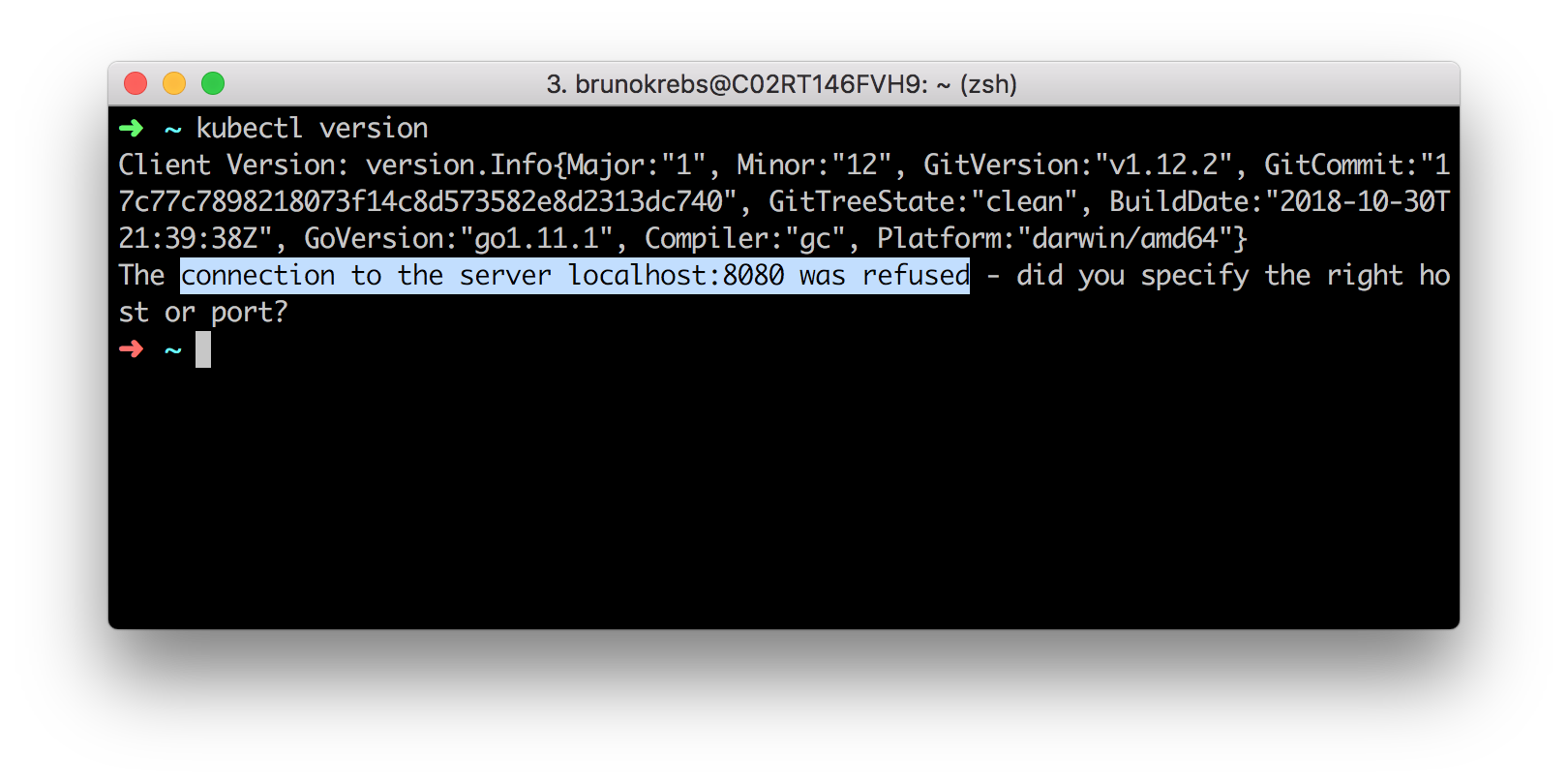
The output of the above command will show the client version (i.e., the release of `kubectl`) and a message saying that the "connection to the server localhost:8080 was refused." What this means is that you do have `kubectl` properly installed, but that you don't have a cluster available yet (expected, right?). In the next sections, you will learn how to spin up a Kubernetes cluster.
### How to Create a Kubernetes Cluster on DigitalOcean
If you already have a Kubernetes cluster that you will use, you can skip this section. Otherwise, please, follow the instructions here to create your Kubernetes cluster on DigitalOcean. For starters, as mentioned before, [you will have to use this referral link](https://m.do.co/c/5c07f2e48a4d). If you don't use a referral link, you will end up paying for your cluster from the very begin.
After using this link to create your account on DigitalOcean, you will get an email confirmation. Use the link sent to you to confirm your email address. Confirming your address will make DigitalOcean ask you for a credit card. Don't worry about this. If you don't spend more than $100 USD, they won't charge you anything.
After inputting a valid credit card, you can use the next screen to create a _project_, or you can [use this link to skip this unnecessary step and to head to the Kubernetes dashboard](https://cloud.digitalocean.com/kubernetes/clusters).
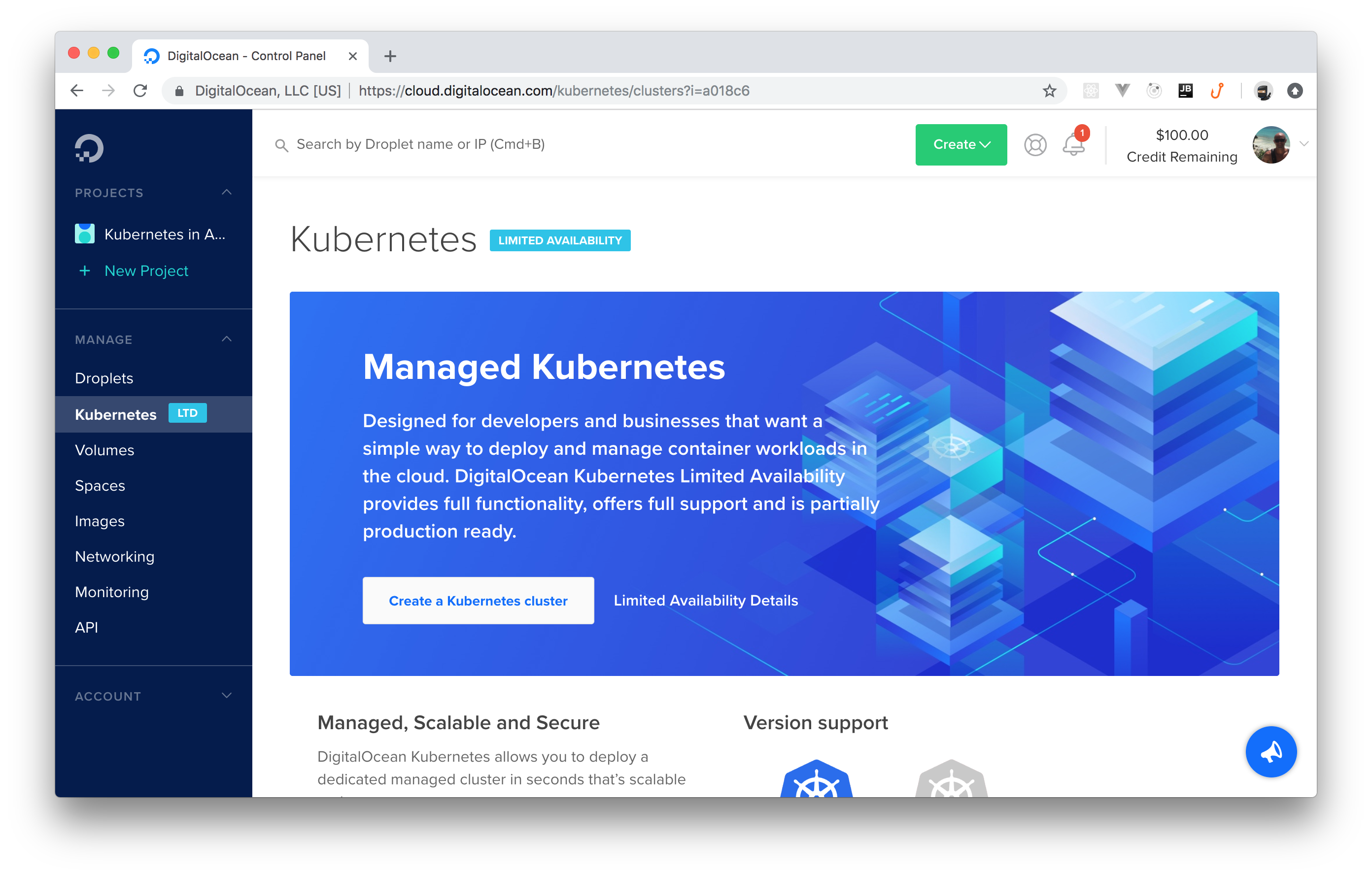
From the Kubernetes dashboard, you can hit the _Create a Kubernetes cluster_ button (you might have to click on _Enable Limited Access_ first). Then, DigitalOcean will show you a new page with a form that you can fill in as follows:
- _Select a Kubernetes version_: The instructions on this article were tested with the `1.13.5-do.1` version. If you feel like testing other versions, feel free to go ahead. Just let us know how it went.
- _Choose a datacenter region_: Feel free to choose whatever region you prefer.
- _Add node pool(s)_: Make sure you have just one _node pool_, that you choose the `$10/Month per node` option, and that you have at least three nodes.
- _Add Tags_: Don't worry about tagging anything.
- _Choose a name_: You can name your cluster whatever you want (e.g., "kubernetes-tutorial"). Just make sure DigitalOcean accepts the name (e.g., names can't contain spaces).
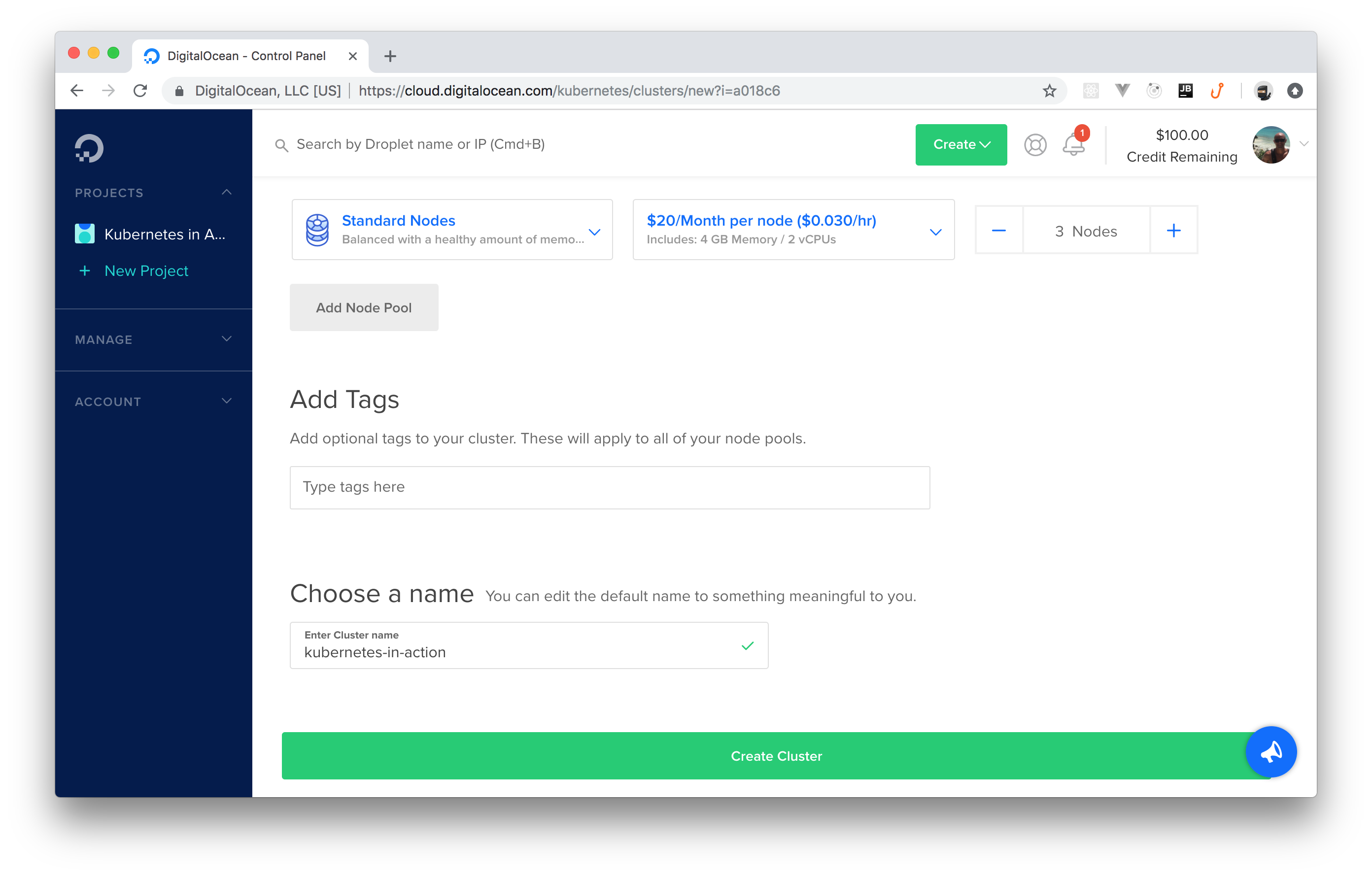
After filling in this form, you can click on the _Create Cluster_ button. It will take a few minutes (roughly 4 mins) before DigitalOcean finishes creating your cluster for you. However, you can already download the cluster's config file.
This file contains the credentials needed for you to act as the admin of the cluster, and you can find it on the cluster's dashboard. After you clicked on the _Create Cluster_ button, DigitalOcean redirected you to your cluster's dashboard. From there, if you scroll to the bottom, you will see a button called _Download Config File_. Click on this button to download the config file.
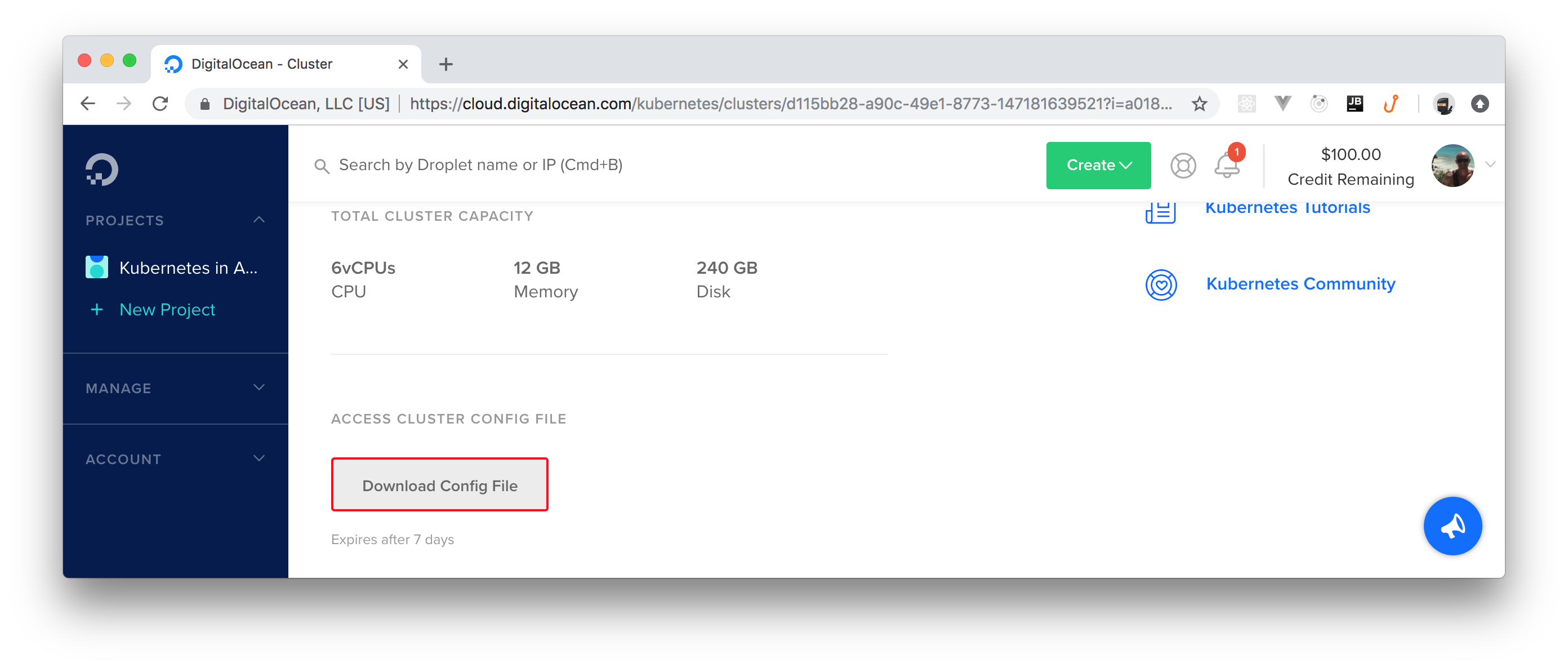
When you finish downloading this file, open a terminal and move the file to the `.kube` directory in your home dir (you might have to create it):
```bash
# make sure .kube exists
mkdir ~/.kube
# move the config file to it
mv ~/Downloads/kubernetes-tutorial-kubeconfig.yaml ~/.kube
```
If needed, adjust the last command with the correct path of the downloaded file.
The `~/.kube` directory is a good place to keep your Kubernetes credentials. By default, `kubectl` will use a file named `config` (if it finds one inside the `.kube` dir) to communicate with clusters. To use a different file, you have three alternatives:
- First, you can specify another file by using the `--kubeconfig` flag in your `kubectl` commands, but this is too cumbersome.
- Second, you can define the `KUBECONFIG` environment variable to avoid having to type `--kubeconfig` all the time.
- Third, you can merge contexts in the same `config` file and then [you can switch contexts](https://kubernetes.io/docs/tasks/access-application-cluster/configure-access-multiple-clusters/#define-clusters-users-and-contexts).
The second option (setting the `KUBECONFIG` environment variable) is the easiest one, but feel free to choose another approach if you prefer. To set this environment, you can issue the following command:
```bash
export KUBECONFIG=~/.kube/kubernetes-tutorial-kubeconfig.yaml
```
> **Note:** Your file path might be different. Make sure the command above contains the right path.
Keep in mind that this command will set this environment only on this terminal's session. If you open a new terminal, you will have to execute this command again.
### How to Check the Nodes of Your Kubernetes Cluster
Now that you got yourself a Kubernetes cluster and that you defined what credentials `kubectl` will use, you can start communicating with your cluster. For starters, you can issue the following command to check the _nodes_ that compose your cluster:
```bash
kubectl get nodes
```
After running this command, you will get a list with three or more _nodes_ (depending on how many nodes you chose while creating your cluster). [A _node_, in the context of Kubernetes, is a _worker machine_](https://kubernetes.io/docs/concepts/architecture/nodes/) (virtual or physical, both apply) that Kubernetes uses to run applications (yours and those that Kubernetes needs to stay up and running).
No matter how many nodes you have in your cluster, the list that the command above outputs will show the name of these nodes, their statuses (which, hopefully, will be _ready_), their roles, ages, and versions. Don't worry about this information now; you will learn more about nodes in a Kubernetes cluster later.
If you are seeing the list of nodes and all of them are on the _ready_ status, you are good to go.
## How to Deploy Your First Kubernetes Application
After all this setup, now it is time to deploy your first Kubernetes application. As you will see, doing so is not hard, but it does involve a good number of steps. As such, to speed up the process, instead of deploying some application that you might have around (which would need some preparation to run on Kubernetes) and instead of creating a brand new one for that, you will deploy a sample application that already exists. More specifically, you will deploy an app that allows users to share what they are thinking. Similar to what people can do on Twitter, but without authentication and _way_ simpler.
### How to Create Kubernetes Deployments
Back in the terminal, the first thing you will do is to create a directory that you will use to save a bunch of [YAML files](https://yaml.org/) (you can name this directory anything you like, for example, `kubernetes-tutorial`). While using Kubernetes, you will often use this "markup language" to describe the resources that you will orchestrate in your clusters.
After creating a directory, create a file called `deployment.yaml` inside it and add the following code to it:
```yaml
apiVersion: apps/v1
kind: Deployment
metadata:
name: kubernetes-tutorial-deployment
spec:
replicas: 2
selector:
matchLabels:
app: kubernetes-tutorial-deployment
template:
metadata:
labels:
app: kubernetes-tutorial-deployment
spec:
containers:
- name: kubernetes-tutorial-application
image: auth0blog/kubernetes-tutorial
ports:
- containerPort: 3000
```
This configuration file is not hard to understand. Basically, this file is defining a _deployment_ object (`kind: Deployment`) that creates a _container_ named `kubernetes-tutorial-application`. This container uses an image called [`auth0blog/kubernetes-tutorial`](https://cloud.docker.com/u/auth0blog/repository/docker/auth0blog/kubernetes-tutorial) to run the sample application.
> In Kubernetes, to tell your cluster what to run, you usually use images from a _registry_. By default, Kubernetes will try to fetch images from the public [Docker Hub](https://hub.docker.com/) registry. However, you can also [use private registries](https://kubernetes.io/docs/tasks/configure-pod-container/pull-image-private-registry/) if you prefer keeping your images, well, private.
Don't worry about the other properties of this file now; you will learn about them when the time comes. However, note that the sentences in the last paragraph introduced two new concepts:
- [Deployment](https://kubernetes.io/docs/concepts/workloads/controllers/deployment/): Basically speaking, in the context of Kubernetes, a deployment is a description of the desired state of the system. Through a deployment, you inform your Kubernetes cluster how many _pods_ of a particular application you want running. In this case, you are specifying that you want two pods (`replicas: 2`).
- [Container](https://en.wikipedia.org/wiki/Kubernetes#Container): Containers are the lowest level of a microservice that holds running applications, their libraries, and their dependencies. Containers can be exposed to the world through an external IP address and are usually part of a _pod_.
Another important thing to learn about is what a _pod_ is. A _pod_, [as defined by the official documentation](https://kubernetes.io/docs/concepts/workloads/pods/pod/), is the smallest deployable unit of computing that can be created and managed in Kubernetes. For now, think of pods as groups of microservices (containers) that are so tightly related they cannot be deployed separately. In this case, your pods contain a single container, the sample application.
> **Note:** Nowadays, _deployments_ are the preferred way to orchestrate _pods_ and replication. However, not that long ago, Kubernetes experts used to use _Replication Controllers_ and _Replication Sets_. You don't need to learn about these other objects to follow along with this tutorial. However, if you are curious, you can [read about their differences in this nice resource](https://www.mirantis.com/blog/kubernetes-replication-controller-replica-set-and-deployments-understanding-replication-options/).
Then, to run this deployment in your Kubernetes cluster, you will have to issue the following command:
```bash
# make sure you are inside the kubernetes-tutorial directory
kubectl apply -f deployment.yaml
```
After running this command, your cluster will start working to make sure that it reaches the desired state. That is, the cluster will make an effort to run both pods (`replicas: 2`) on your cluster's nodes.
After that, you might be thinking, "cool, I just deployed a sample application into my cluster, now I can start using it through a browser". Well, things are not that simple. The problem is that pods are _unreliable_ units of work that come and go all the time. As such, due to its ephemeral nature, a pod by itself is not accessible by the outside world.
In the previous command, you informed your cluster that you want _two_ instances (pods) of the same application running. Each one of these pods has a different IP address inside your cluster and, if one of them stops working (for whatever reason), Kubernetes will launch a brand new pod that will get yet another IP address. Therefore, it would be difficult for you to keep track of these IP addresses manually. To solve this problem, you will use Kubernetes' _services_.
> **Note:** Another situation that might make Kubernetes launching new pods for your deployments is if you ask your cluster to scale your application (to be able to support more users, for example).
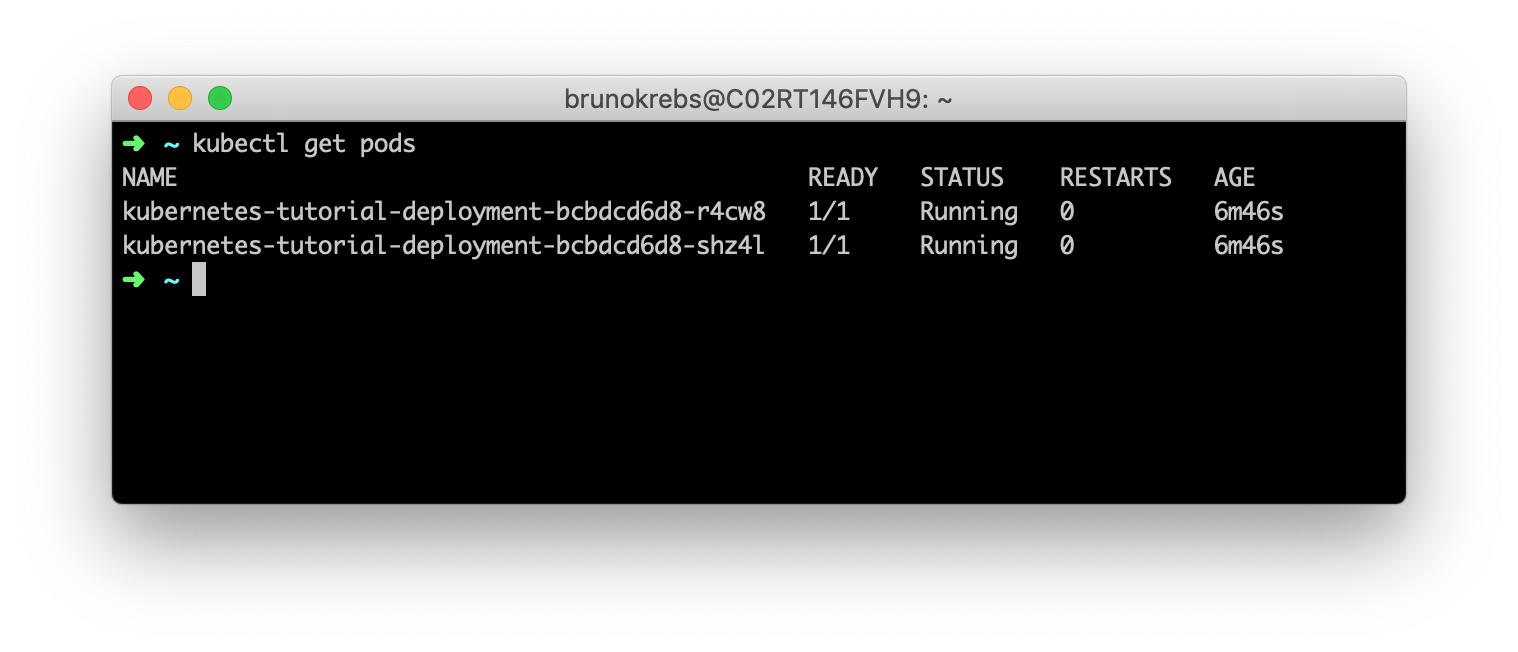
However, before learning about _services_, issue the following command to confirm that your pods are indeed up and running:
```bash
kubectl get pods
```
By issuing this command, you will get a list of the available pods in your Kubernetes cluster. On that list, you can see that you have two pods (two rows) and that each pod contains one container (the `1/1` on the _Ready_ column). You can also see their statuses, how many times they restarted (hopefully, zero), and their age.
### Using Services and Ingresses to Expose Deployments
After learning about pods, deployments, and containers, you probably want to consume your new deployment, right? To do so, you will need to create _ingress_ rules that expose your deployment to the external world. [Kubernetes _ingress_ is an "object that manages external access to services in a cluster, typically through HTTP"](https://kubernetes.io/docs/concepts/services-networking/ingress/). With an _ingress_, you can support load balancing, TLS termination, and name-based virtual hosting from within your cluster.
To configure ingress rules in your Kubernetes cluster, first, you will need an _ingress controller_. As you can see [here](https://kubernetes.io/docs/concepts/services-networking/ingress/#ingress-controllers), there are many different ingress controllers that you can use. In this tutorial, you will use one of the most popular, powerful, and easy-to-use ones: [the NGINX ingress controller](https://kubernetes.github.io/ingress-nginx/).
The process to install this controller in your cluster is quite simple. The first thing you will have to do is to run the following command to install some mandatory resources:
```bash
kubectl apply -f https://raw.githubusercontent.com/kubernetes/ingress-nginx/master/deploy/static/mandatory.yaml
```
Then, you will have to issue this command to install another set of resources needed for the controller:
```bash
kubectl apply -f https://raw.githubusercontent.com/kubernetes/ingress-nginx/master/deploy/static/provider/cloud-generic.yaml
```
> **Note:** If you are running your Kubernetes cluster on a service other than DigitalOcean, you will probably need to run a different set of commands. Please, [check out this resource](https://kubernetes.github.io/ingress-nginx/deploy/) to learn more about the differences.
To confirm that the above commands worked, you can issue the following command:
```bash
kubectl get pods -n ingress-nginx
```
This command should list a pod called `nginx-ingress-controller-...` with the status equals to _running_. The `-n ingress-nginx` flag passed to this command states that you want to list pods on the `ingress-nginx` namespace. Namespaces are an excellent way to organize resources in a Kubernetes cluster. You will learn more about this Kubernetes feature in another opportunity.
Having configured the ingress controller in your cluster, the next thing you will do is to create a _service_. Wait, a _service_? Why not an _ingress_?
The thing is, as your pods are ephemeral (they can die for whatever reason or Kubernetes can spin new ones based on replication rules), you need a static resource that represents all the related pods as a single element (or, in this case, that represents the deployment responsible for these pods). When you define a _service_ for your pods, you will be able to create ingress rules that point to this service.
What you will need now is a _ClusterIP_ service that opens a port for your deployment. To create one, create a file called `service.yaml` and add the following code to it:
```yaml
apiVersion: v1
kind: Service
metadata:
name: kubernetes-tutorial-cluster-ip
spec:
ports:
- port: 80
protocol: TCP
targetPort: 3000
selector:
app: kubernetes-tutorial-deployment
type: ClusterIP
```
> **Note:** There are many different types of services available on Kubernetes. _ClusterIP_, the type you are using, helps you expose your deployments inside the cluster only. That is, this kind of service does not expose deployments to the outside world. There are other types that do that for you ([you can learn about them here](https://kubernetes.io/docs/concepts/services-networking/service/#publishing-services-service-types)) but, on this series, you will be not using them.
Then, you can issue the following command to create this service in your cluster:
```bash
kubectl apply -f service.yaml
```
After running this command, Kubernetes will create a service to represent your deployment in your cluster. To know that this service works as a broker for this deployment in particular (or for its _pods_, actually), you added the `selector.app` property on the service description (`service.yaml`) pointing to `kubernetes-tutorial-deployment`. If you take a look again on the `deployment.yaml` file, you will notice that you have there a property called `labels.app` with the same value (`kubernetes-tutorial-deployment`). Kubernetes will use these properties to tie this service to the deployment's pods.
Another important thing to notice about the service you are creating is that you are defining that this service will listen on `port: 80` and that it will `targetPort: 3000` on pods. If you check your deployment file, you will see that you defined that your containers will use this port (`containerPort: 3000`). As such, you must make sure that your service will target the correct port when redirecting requests to your pods.
> **Note:** If you run `kubectl get svc` now, your cluster will list two services. The first one, called `kubernetes`, is the main service used by Kubernetes itself. The other one is the one you created: `kubernetes-tutorial-cluster-ip`. As you can see, both of them have internal IP addresses (`CLUSTER-IP`). But you won't need to know these addresses. As you will see, ingresses allow you to reference services more cleverly.
After creating your service, you can finally define an ingress (and some rules) to expose this service (and the deployment that it represents) to the outside world. To do this, create a file called `ingress.yaml` with the following code:
```yaml
apiVersion: extensions/v1beta1
kind: Ingress
metadata:
name: kubernetes-tutorial-ingress
spec:
rules:
- http:
paths:
- path: /
backend:
serviceName: kubernetes-tutorial-cluster-ip
servicePort: 80
```
In this file, you are defining an ingress resource with a single rule (`spec.rules`). This rule tells Kubernetes that you want requests pointing to the root path (`path: /`) to be redirected to the `kubernetes-tutorial-cluster-ip` service (this is the name of the service that you created before) on port `80` (`servicePort: 80`).
To deploy the new ingress in your cluster, you can issue the following command:
```bash
kubectl apply -f ingress.yaml
```
Then, to see the whole thing in action, you will need to grab the public IP address of your Kubernetes cluster. To do so, you can issue the following command:
```bash
kubectl get svc \
-n ingress-nginx ingress-nginx \
-o=jsonpath='{.status.loadBalancer.ingress[0].ip}'
```
> **Note:** On the command above, you are using a Kubernetes feature called _JSONPath_ to extract the exact property you want from the `ingress-nginx` service (in this case, its public IP address). [Learn more about the JSONPath feature here](https://kubernetes.io/docs/reference/kubectl/jsonpath/).
This command will output an IP address (e.g., `104.248.109.181`) that you can use in your browser to see your application. So, if you open your browser and navigate to this IP address, you will see the sample application you just deployed.
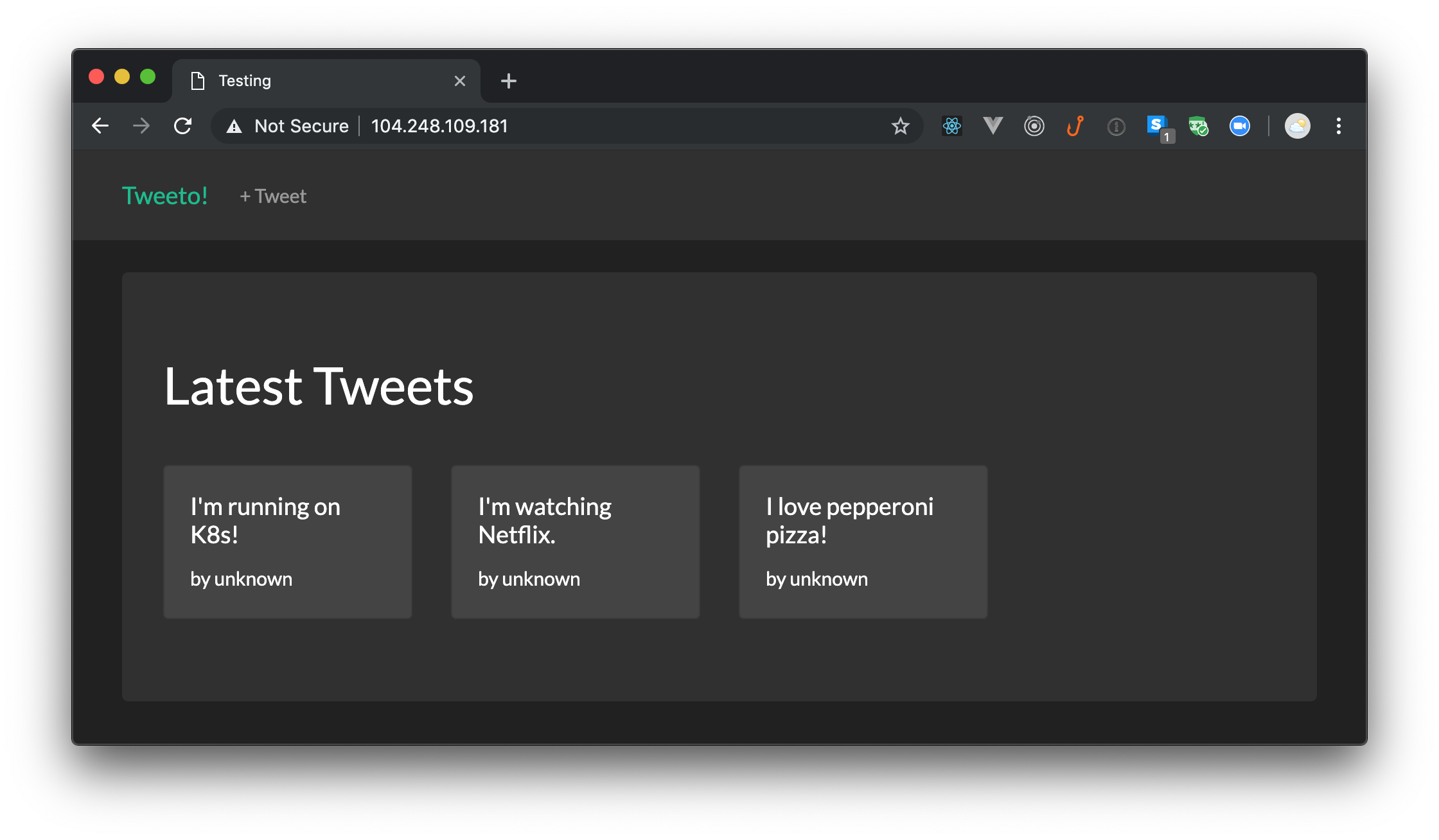
> **Note:** This application is not very useful, it just emulates a _much simpler_ Twitter application where users can share their thoughts. The app doesn't even have an identity management (user authentication) system.
That's it! You just finished configuring your local machine to start working with Kubernetes, and you just deployed your first application on Kubernetes. How cool is that?
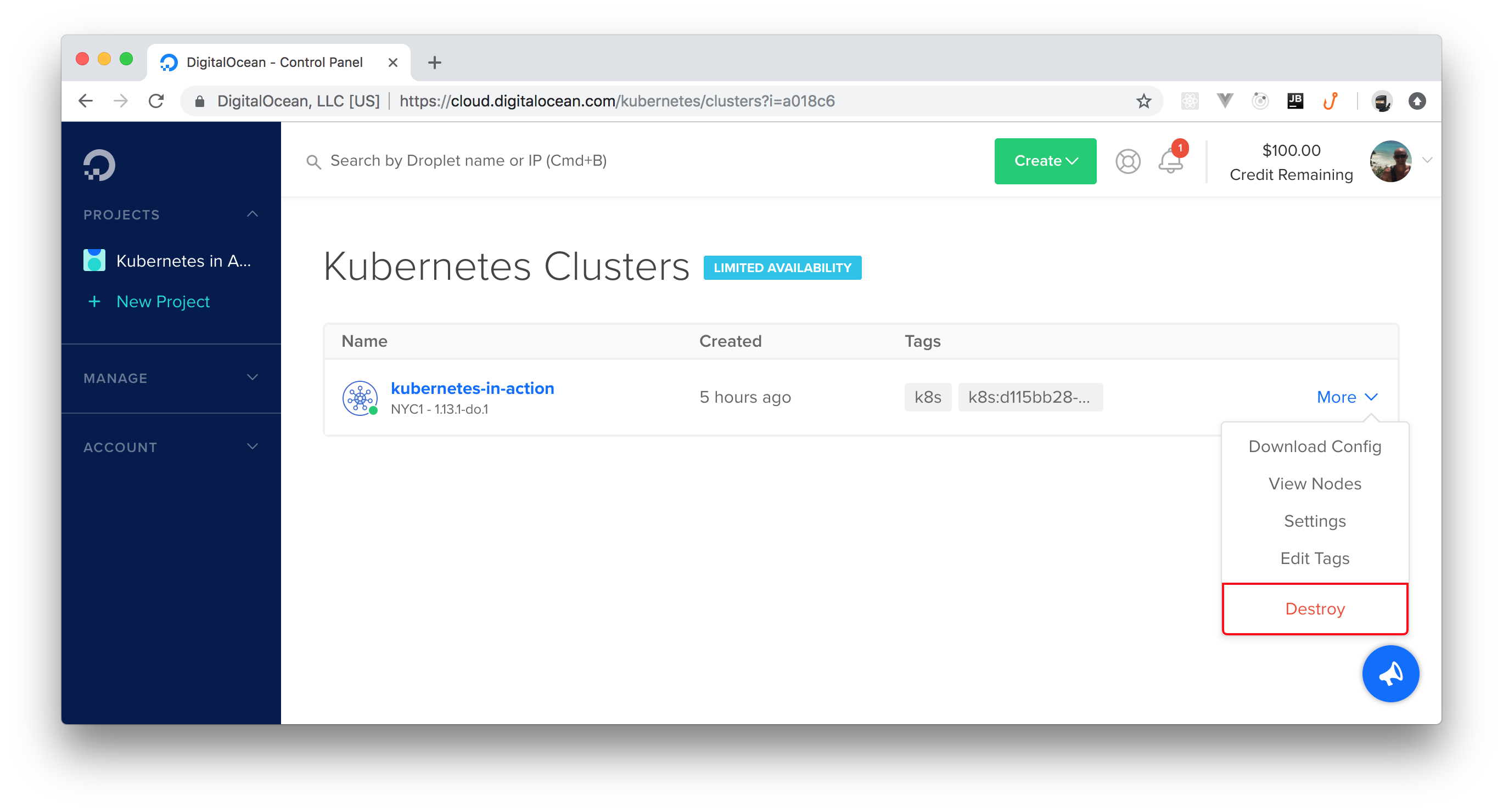
> **Note:** To avoid spending the whole credit DigitalOcean gave you, you might want to delete your cluster soon. To do so, head to [the Kubernetes section of your DigitalOcean dashboard](https://cloud.digitalocean.com/kubernetes/clusters), click on the _More_ button on the right-hand side of the screen and click on _Destroy_. DigitalOcean will ask you to confirm the process.
## Conclusion
In this article, you created a Kubernetes cluster on DigitalOcean; then you used it to spin up a sample application. In deploying this app, you learned basic Kubernetes concepts like _deployments_, _pods_, _containers_, _services_, and _ingresses_. With this knowledge, you are now ready to move on and start learning about more advanced concepts that will let you orchestrate microservices application on Kubernetes. If you enjoyed the article (and if you want more content about this topic), let us know on the discussion section below.