---
title: "Next.js Practical Introduction: Pages and Layout"
description: "Learn how to use Next.js to create server-side rendered React applications."
authors:
- name: "Dan Arias"
url: "https://auth0.com/blog/authors/dan-arias/"
date: "Nov 12, 2021"
category: "Developers,Deep Dive,Next"
tags: ["nextjs", "next", "react", "ssr", "server-side-rendering", "node", "express", "front-end", "zeit"]
url: "https://auth0.com/blog/next-js-practical-introduction-for-react-developers-part-1/"
---
# Next.js Practical Introduction: Pages and Layout
In this tutorial series, you'll be provided with a practical introduction to how Next.js can help you build web applications.
Created by [Vercel, a cloud company for hosting frontends and serverless functions](https://vercel.com/home), Next.js is a React framework capable of creating applications that run both on the client and the server, otherwise known as Universal JavaScript applications. This framework helps you build universal apps faster by streamlining basic features like client-side routing and page layout while simplifying advance features like server-side rendering and code splitting.
In this first part of the series, you'll learn how to create pages and a page layout [using Next.js 9](https://nextjs.org/blog/next-9), the most recent framework version at the time of writing. [Familiarity with the React library](https://auth0.com/blog/react-tutorial-building-and-securing-your-first-app/) is recommended.
## Getting Started
To start, you need to bootstrap a React project with `next` as a dependency. Anywhere in your system, create a folder named `whatabyte` and make it your current directory:
```bash
mkdir whatabyte
cd whatabyte
```
Then, initialize a default Node.js project under the `whatabyte` directory and install core dependencies by issuing these commands:
```bash
npm init -y
npm install --save react react-dom next
```
As the name suggests, `next` is the package that will allow you to use the Next.js framework in your project with all of its modules, components, and dependencies.
Next.js is flexible but has one major structural requirement for it to work. Every Next.js project needs to have a `pages` subdirectory child to the project directory. Therefore, create a new `pages` subdirectory like so:
```bash
mkdir pages
```
Every page of your web app will be defined as a React component in a JavaScript file under the `pages` subdirectory. For example, the file `index.js` represents the root path, `/` and a file named `user.js` represents the `/user` path. You'll get a more detailed explanation of these mechanics in the next section.
To make running and building your Next.js application easy, replace the NPM scripts of your `package.json` with the following:
```json
{
//...
"scripts": {
"dev": "next",
"build": "next build",
"start": "next start"
},
//...
}
```
Save the changes made to `package.json`. To run the project, execute this command in the terminal:
```bash
npm run dev
```
Head to [`http://localhost:3000/`](http://localhost:3000/) and bask in the glory of a `404` error. You haven't done anything wrong. This error shows up because the `pages` directory is empty. It needs an `index.js` file inside to render the default `/` home route. You'll do that... Next!
## Creating Your First Next.js Page
To understand how Next.js works, it helps to think about creating websites the classical way using HTML pages. The `index.html` file is the entry point of a website and it contains logic that takes the visitor to any other pages, like `about.html` and `profile.html`.
With Next.js, each page is represented by a JavaScript file under the `pages` subdirectory. Each file, instead of having HTML templates, exports a React component that is used by Next.js to render the page with the default root route being `index.js`. Go ahead and create this file under `pages` subdirectory:
```bash
touch pages/index.js
```
* Windows PowerShell:
```bash
ni pages/index.js
```
Populate `index.js` with this code:
```javascript
// pages/index.js
const Index = () => (
);
export default Index;
```
Without having to restart the app, Next.js detects the new `index.js` and the exported `Index` component and updates the view in the browser automatically.
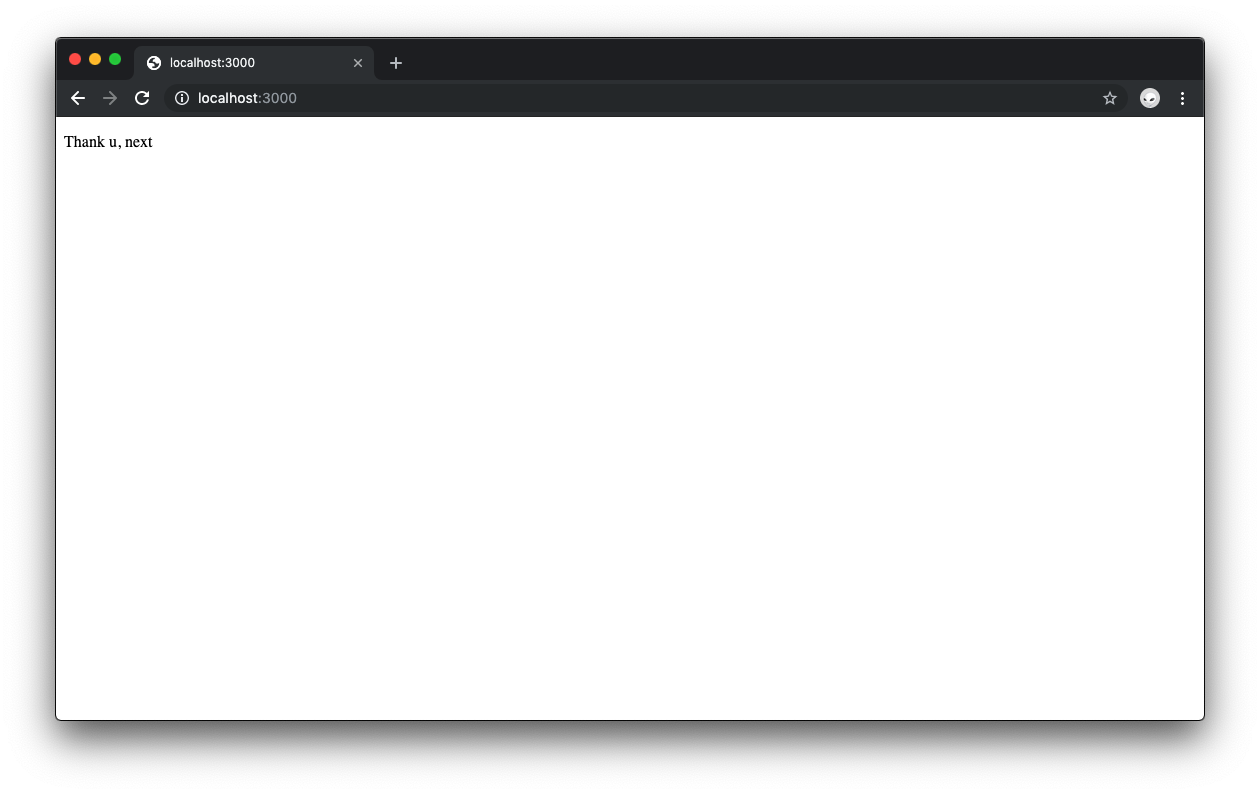
If you were using `create-react-app` to build your React application, you'd be looking here at rendering an `App` component instead. The `App` component is the parent or shell component for the whole application. With Next.js, you can think of that component as being implied through the `pages` subdirectory and hierarchy.
To achieve a uniform core interface for each page, you'd want to have a common layout that includes a header, a content container, and a navigation bar. This can be easily done with Next just like you'd do it with `create-react-app`: using components.
## Creating a Next.js Layout Using React Components
Under the `whatabyte` root directory, create a `components` directory:
```bash
mkdir components
```
The name of this directory could be really anything, but it makes sense to stick with well-understood file structure names that make it easier for anyone else to understand the structure of your application.
You need three components for creating a layout:
* `Layout` to hold the core view in place
* `Header` to provide a standard header to all views
* `NavBar` to provide navigation buttons
Thus, create the following files under the `components` directory:
* `Layout.js`
* `Header.js`
* `NavBar.js`
```bash
touch components/Layout.js components/Header.js components/NavBar.js
```
* Windows PowerShell:
```bash
ni components/Layout.js, components/Header.js, components/NavBar.js
```
Open `Header.js` and add the following code to it:
```javascript
// components/Header.js
const headerStyle = {
backgroundColor: "blue",
color: "white",
width: "100%",
height: "50px"
};
const Header = () => (
HEADER
);
export default Header;
```
In `NavBar.js` add the following:
```javascript
// components/NavBar.js
const navBarStyle = {
backgroundColor: "red",
color: "white",
width: "100%",
height: "60px"
};
const NavBar = () => (
NAVBAR
);
export default NavBar;
```
In `Layout.js`, use the `Header` and `NavBar` components to render any content passed through `props.children` within a `Content` container:
```javascript
// components/Layout.js
import Header from "./Header";
import NavBar from "./NavBar";
const layoutStyle = {
display: "flex",
flexDirection: "column",
height: "100%",
width: "100%"
};
const contentStyle = {
flex: 1,
display: "flex",
flexDirection: "column"
};
const Layout = props => (
);
export default Layout;
```
These three components use inline CSS styling to give improve their structure and presentation.
Finally, update `index.js` to use the `Layout` component:
```javascript
// pages/index.js
import Layout from "../components/Layout";
const Index = () => Welcome to WHATABYTE!;
export default Index;
```
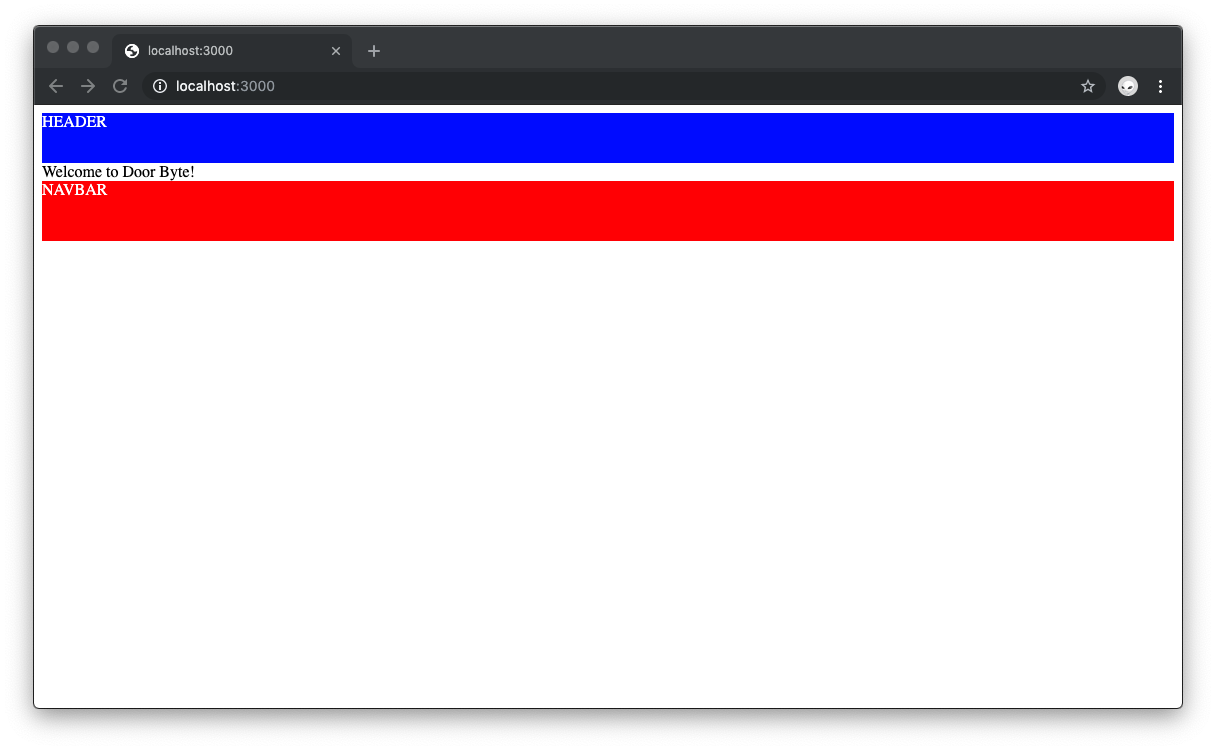
> The look and feel of the interface will improve in the next part of this tutorial.
In the browser, the index page now shows a blue box serving as a header, a white box with a message serving as content, and a red box serving as the navigation bar. With a layout in place, you are ready to create more pages with a consistent structure.
## Creating More Pages Using Next.js
The _WHATABYTE_ app has four core views:
* Explore: To show trending restaurants and dishes
* Near Me: To show restaurants near the user
* My Cart: To show the orders of the user
* Profile: To show the user information such as name, address, and billing data
As you may be thinking, you'll need to add new files under the `pages` directory to represent each of these pages. You are right. The plan here is to create a route for each view:
* `/explore`
* `/nearme`
* `/mycart`
* `/profile`
To create these views, create the following files under the `pages` directory and add their respective content:
```bash
touch pages/explore.js pages/nearme.js pages/mycart.js pages/profile.js
```
* Windows PowerShell:
```bash
ni pages/explore.js, pages/nearme.js, pages/mycart.js, pages/profile.js
```
- `explore.js`:
```javascript
// pages/explore.js
import Layout from "../components/Layout";
const ExploreView = props => {`Explore View`};
export default ExploreView;
```
- `nearme.js`:
```javascript
// pages/nearme.js
import Layout from "../components/Layout";
const NearMeView = props => {`Near Me View`};
export default NearMeView;
```
- `mycart.js`:
```javascript
// pages/mycart.js
import Layout from "../components/Layout";
const MyCartView = props => {`My Cart View`};
export default MyCartView;
```
- `profile.js`:
```javascript
// pages/profile.js
import Layout from "../components/Layout";
const ProfileView = props => {`Profile View`};
export default ProfileView;
```
In the browser, you can visit [`http://localhost:3000/explore`](http://localhost:3000/explore) and see the new Explore page up and running! You can try any of the other paths as well.
## Get Your Head In the Next.js Game
Your Next.js pages need to have a document title shown on the page tab or window title bar of the browser. To add a document title, you need to use the [``](https://developer.mozilla.org/en-US/docs/Web/HTML/Element/title) HTML element which can only be used within a web page's `<head>` block.
Next.js pages are created with a `<head>` block that has sensible defaults such as the following:
```html
<head>
<title class="next-head">
```
However, notice that the `title` tag is empty. To modify the `head` block, Next.js offers a [built-in `Head` component](https://github.com/zeit/next.js/#populating-head) in the `next/head` module which appends elements to the `` block of a page. To modify the document title, you'd nest a `title` HTML element within the `Head` component.
Since you need the document title to be present on every page, the `` block should be modified within the `Layout` component template. Open `components/Layout.js` and update its content as follows:
```javascript
// components/Layout.js
import Head from "next/head";
// Component imports remain the same
// Style objects already defined
const Layout = props => (
WHATABYTE
{props.children}
);
export default Layout;
```
The browser tab or window hosting your page should now reflect the "WHATABYTE" title.
The `` block can also contain other important metadata (data that describes data) like scripts, stylesheets, character encoding, name, and much more.
> For more information, visit the [`` block](https://developer.mozilla.org/en-US/docs/Web/HTML/Element/head) and [metadata](https://developer.mozilla.org/en-US/docs/Web/HTML/Element/meta#Attributes) MDN docs.
## Next Steps
The current layout of the application is not working as it should. The `.Content` container, within the `Layout` component, is expected to stretch out to fill the space left by the `Header` and `NavBar` components as its `contentStyle` object specifies the `flex: 1` CSS property. However, this flexible property depends on the height value of the its parent, the `.Layout` container.
Despite the `height` of the `.Layout` container being specified in its `layoutStyle` object as `100%`, this container is not filling out the full height of the viewport. In turn, this could only mean that its parent doesn't have a definite height.
If you open the browser Dev Tools and look at the structure of the Index page, you'll notice that the parent container for the app is a `div` element with the ID `__next`. Clicking on that element shows that it has no height or width; therefore, its descendant containers have no height value to inherit and use for dynamic sizing.
To fix this, you'd need to give the `__next` container a `height` and `width` of `100%`. But Next.js doesn't come with a default global index stylesheet like with `create-react-app`. The solution is to style components in the "Next.js way" or to use custom SCSS, which is the topic of the next second part of this tutorial.
## Recap
In this first part, you have learned how to use Next.js to create pages that integrate a page layout. Using a page layout gives your pages consistent high-level structure. To give the elements within each page better styling and positioning, you need to rely on CSS.
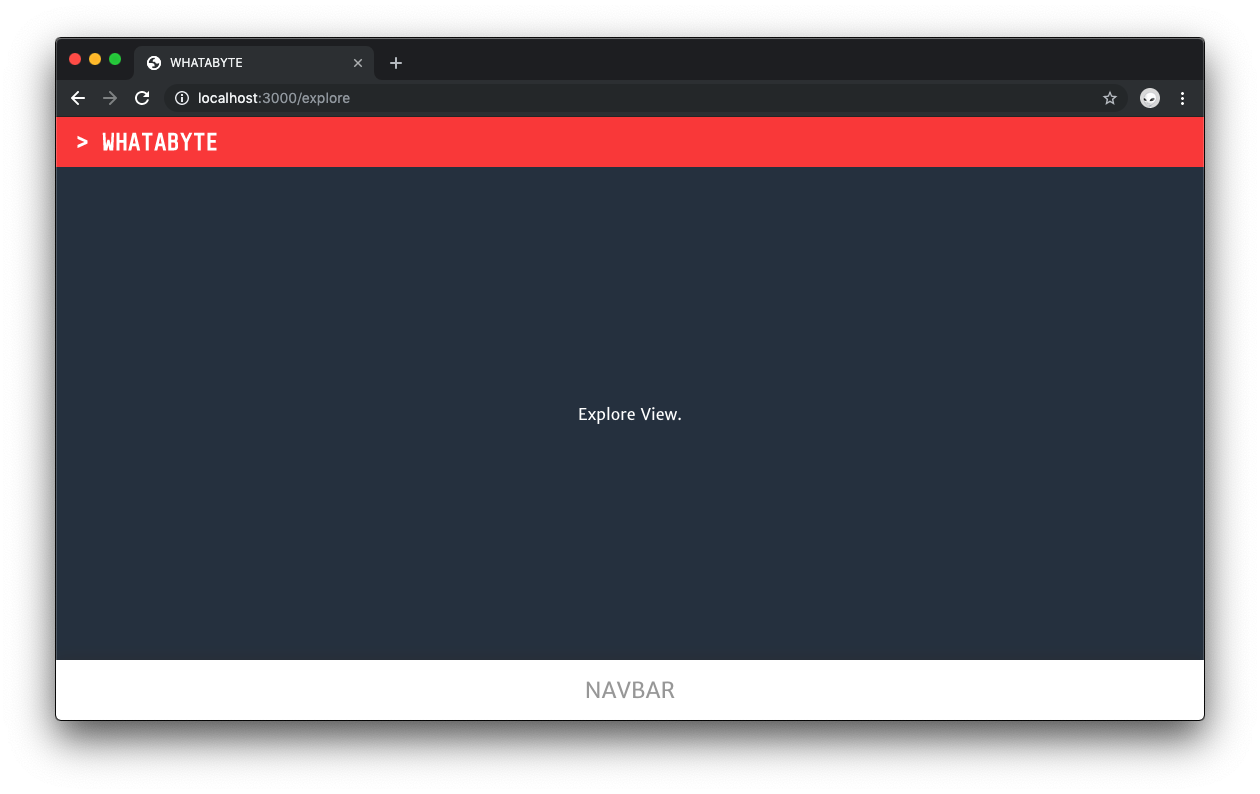
So far, you applied basic styling to your pages using inline style objects. However, Next.js offers more scalable and powerful mechanisms to apply styles to your pages. In the next part of this tutorial, your pages will go from this...
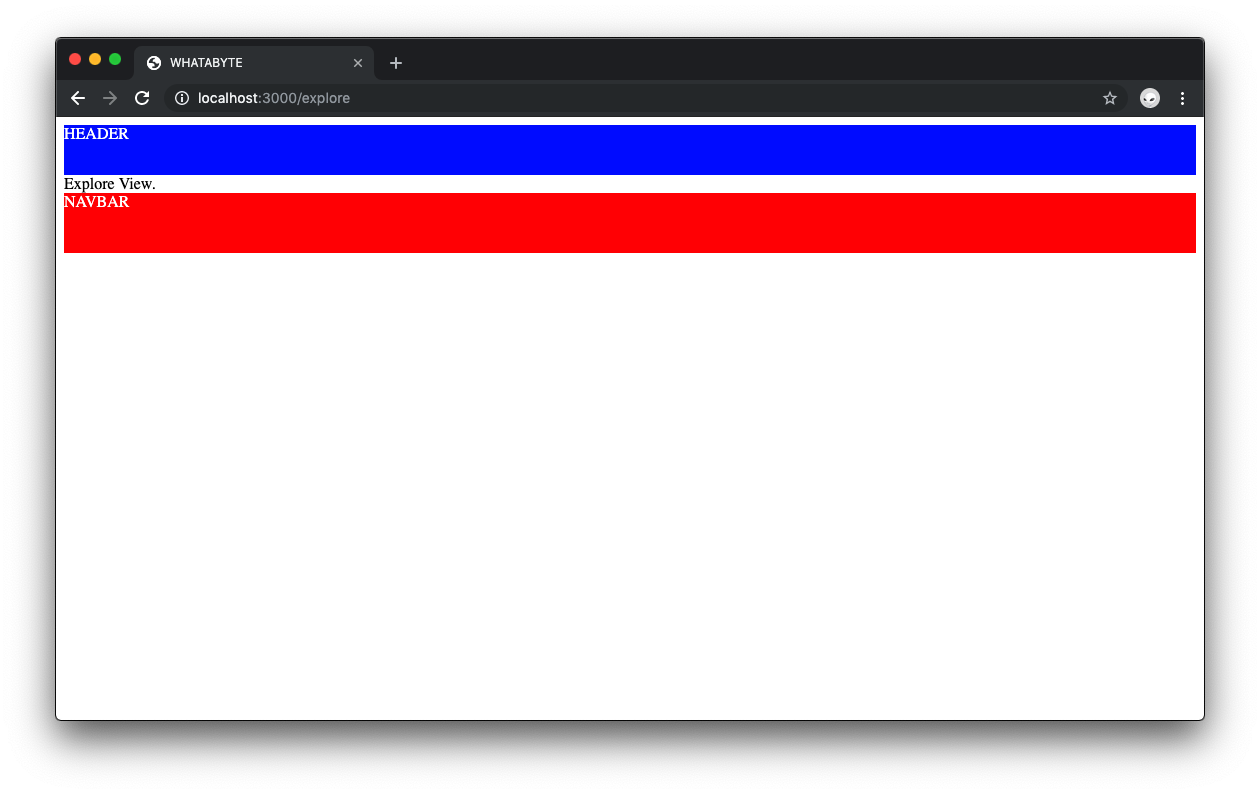
... to this!
### [Continue to Part 2: Next.js Styling and Theming](https://auth0.com/blog/next-js-practical-introduction-for-react-developers-part-2/)