---
title: "Next.js Practical Introduction: Navigation and Routing"
description: "Learn how to use Next.js to add navigation and routing to server-side rendered React applications."
authors:
- name: "Dan Arias"
url: "https://auth0.com/blog/authors/dan-arias/"
date: "Jul 30, 2019"
category: "Developers,Deep Dive,Next"
tags: ["nextjs", "next", "react", "ssr", "server-side-rendering", "node", "express", "front-end", "zeit"]
url: "https://auth0.com/blog/next-js-practical-introduction-for-react-developers-part-3/"
---
# Next.js Practical Introduction: Navigation and Routing
In this tutorial series, you'll be provided with a practical introduction to how Next.js can help you build web applications.
Created by [ZEIT, a cloud company for hosting frontends and serverless functions](https://zeit.co/), Next.js is a React framework capable of creating applications that run both on the client and the server, otherwise known as Universal JavaScript applications. This framework helps you build universal apps faster by streamlining basic features like client-side routing and page layout while simplifying advance features like server-side rendering and code splitting.
Part one of this Nextjs series shows developers [how to create pages and layouts](https://auth0.com/blog/next-js-practical-introduction-for-react-developers-part-1/). In the second part of the series, you learned [how to add styling and create themes](https://auth0.com/blog/next-js-practical-introduction-for-react-developers-part-2/). In this third part of the series, you'll learn how to navigate to pages and implement routing using [using Next.js 9](https://nextjs.org/blog/next-9), the most recent framework version at the time of writing. [Familiarity with the React library](https://auth0.com/blog/react-tutorial-building-and-securing-your-first-app/) is recommended.
## Setting Up the Project
If you are starting from this part, you can get the app that was built in the previous, second part by cloning the repo and checking out the `part-2` branch:
```bash
git clone git@github.com:auth0-blog/whatabyte-next-intro.git whatabyte
cd whatabyte
git checkout part-2
```
If you haven't [connected to GitHub using SSH](https://help.github.com/en/articles/connecting-to-github-with-ssh), please clone the repo with the HTTPS URL:
```bash
git clone https://github.com/auth0-blog/whatabyte-next-intro.git whatabyte
cd whatabyte
git checkout part-2
```
The repository is cloned into the directory called `whatabyte` on your local machine. If the directory doesn't exist, it is created.
With the branch checked out, proceed to install the project dependencies:
```bash
npm install
```
Finally, execute the following command in your terminal to run the app:
```bash
npm run dev
```
To see the app in action and start following the tutorial, visit [`http://localhost:3000`](http://localhost:3000) on your browser.
## Understanding Next.js Routing
The _WHATABYTE_ app has four core routes:
* `/explore`: To show trending restaurants and dishes
* `/nearme`: To show restaurants near the user
* `/mycart`: To show the orders of the user
* `/profile`: To show the user information such as name, address, and billing data
From these four core routes, the `/explore` route will be the main route. Thus, the root path, `/`, should redirect to `/explore`.
First, to get familiar with navigation in Next.js, you'll navigate to the Explore page from the Index page by adding a hyperlink inside the content container of the Index page. You can do this easily by using the [Next.js `Link` component](https://nextjs.org/docs#with-link) inside `index.js` as follows:
```javascript
// pages/index.js
import Link from "next/link";
import Layout from "../components/Layout";
const Index = () => (
Welcome to WHATABYTE! Start Exploring Now
);
export default Index;
```
The Next.js `Link` component takes a route or navigation path as the value of its `href` property. You can embed any other component within `Link` as long as that component can take an `href` prop.
After the view updates in the browser, visit [`http://localhost:3000/`](http://localhost:3000/) and click on the link. It will take you to the Explore page.
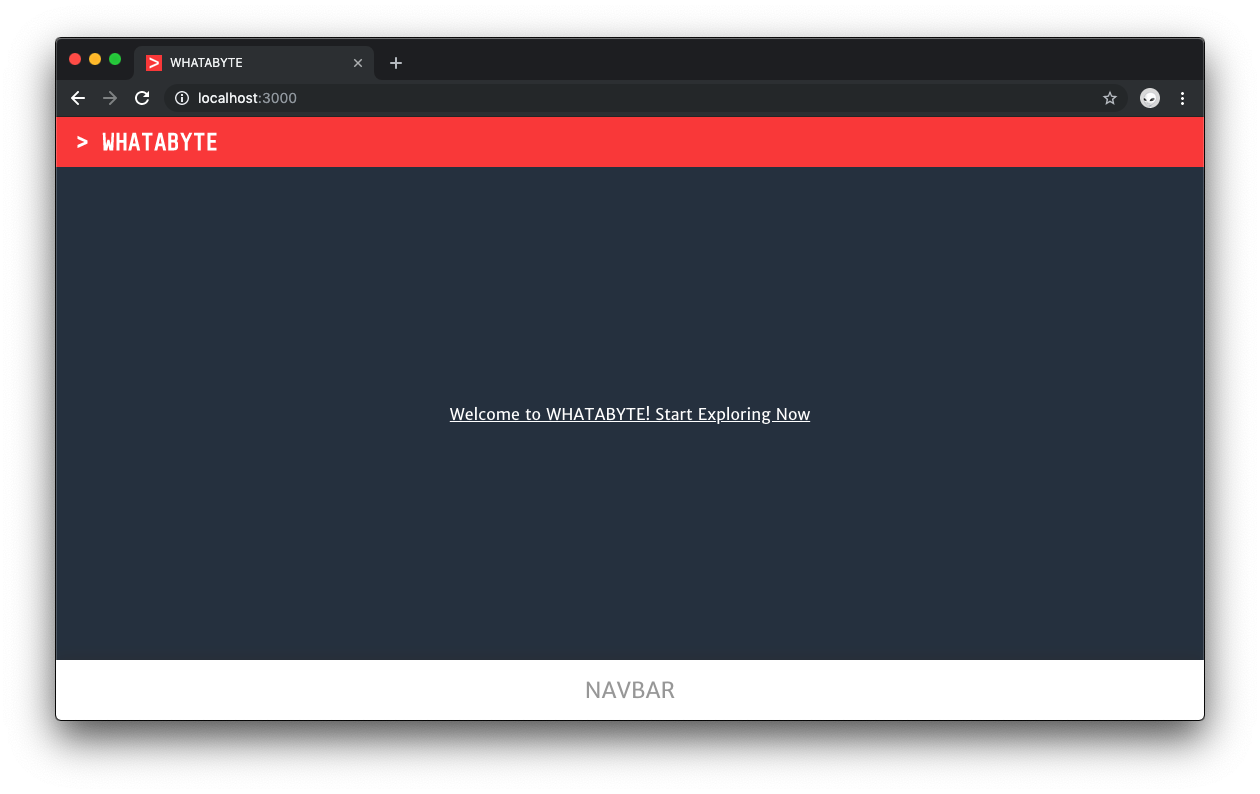
Using this link to navigate to another page is good for testing but what the app needs is navigation through the `NavBar` component. To do so, you'd need a `NavButton` component to make the creation of four navigation buttons standard and easy to maintain.
To make the buttons look nice, you'll use the [FontAwesome icons](https://fontawesome.com/icons?d=gallery). Using another console window or tab, install the following packages:
```bash
npm i @fortawesome/fontawesome-svg-core \
@fortawesome/free-solid-svg-icons \
@fortawesome/react-fontawesome
```
* Windows PowerShell:
```bash
npm i @fortawesome/fontawesome-svg-core `
@fortawesome/free-solid-svg-icons `
@fortawesome/react-fontawesome
```
Creating the navigation bar dynamically would be much easier if you can encapsulate all of its configuration in a file. Under the `whatabyte` directory, create a `config` subdirectory:
```bash
mkdir config
```
Within that new subdirectory, create a `buttons.js` file within it:
```bash
touch config/buttons.js
```
* Windows PowerShell:
```bash
ni config/buttons.js
```
Then, populate `buttons.js` as follows:
```javascript
// config/buttons.js
import React from "react";
import { FontAwesomeIcon } from "@fortawesome/react-fontawesome";
import {
faCompass,
faMapMarkerAlt,
faUser,
faShoppingCart
} from "@fortawesome/free-solid-svg-icons";
const navButtons = [
{
label: "Explore",
path: "/explore",
icon:
},
{
label: "Near Me",
path: "/nearme",
icon:
},
{
label: "My Cart",
path: "/mycart",
icon:
},
{
label: "Profile",
path: "/profile",
icon:
}
];
export default navButtons;
```
Then, under the `components` directory, create a `NavButton.js` file that exports the `NavButton` component:
```bash
touch components/NavButton.js
```
* Windows PowerShell:
```bash
ni components/NavButton.js
```
Then, populate `NavButton.js` with the following:
```javascript
// components/NavButton.js
import Link from "next/link";
import "./NavButton.scss";
const NavButton = props => (
{props.icon}
{props.label}
);
export default NavButton;
```
The `NavButton` needs its proper styling. Create `NavButton.scss` as a sibling file:
```bash
touch components/NavButton.scss
```
* Windows PowerShell:
```bash
ni components/NavButton.scss
```
Then, populate `NavButton.scss` with the following [style rules](https://sass-lang.com/documentation/style-rules):
```scss
// components/NavButton.scss
.NavButton {
display: flex;
flex-direction: column;
justify-content: space-around;
align-items: center;
height: 100%;
cursor: pointer;
.Icon {
font-size: 20px;
}
.Label {
font-size: 12px;
text-transform: capitalize;
}
}
```
Import the button configuration file in the `Layout` component and pass its data as the `navButtons` props to the `NavBar` component:
```javascript
// components/Layout.js
import Head from "next/head";
import Header from "./Header";
import NavBar from "./NavBar";
import "./Layout.scss";
import "./index.scss";
import navButtons from "../config/buttons";
const Layout = props => {
const appTitle = `> WHATABYTE`;
return (
WHATABYTE
{props.children}
);
};
export default Layout;
```
It's better for the `Layout` component to be the one responsible for passing the button configuration to the `NavBar` component as it is in charge of enforcing a consistent structure for each page of the application. If you wanted to keep `Layout` as a presentational component, then you could wrap it into a container component that passes it the button configuration data.
To render the buttons within the `NavBar` component, update the content of the `NavBar.js` file as follows:
```javascript
// components/NavBar.js
import "./NavBar.scss";
import NavButton from "./NavButton";
const NavBar = props => (
{props.navButtons.map(button => (
))}
);
export default NavBar;
```
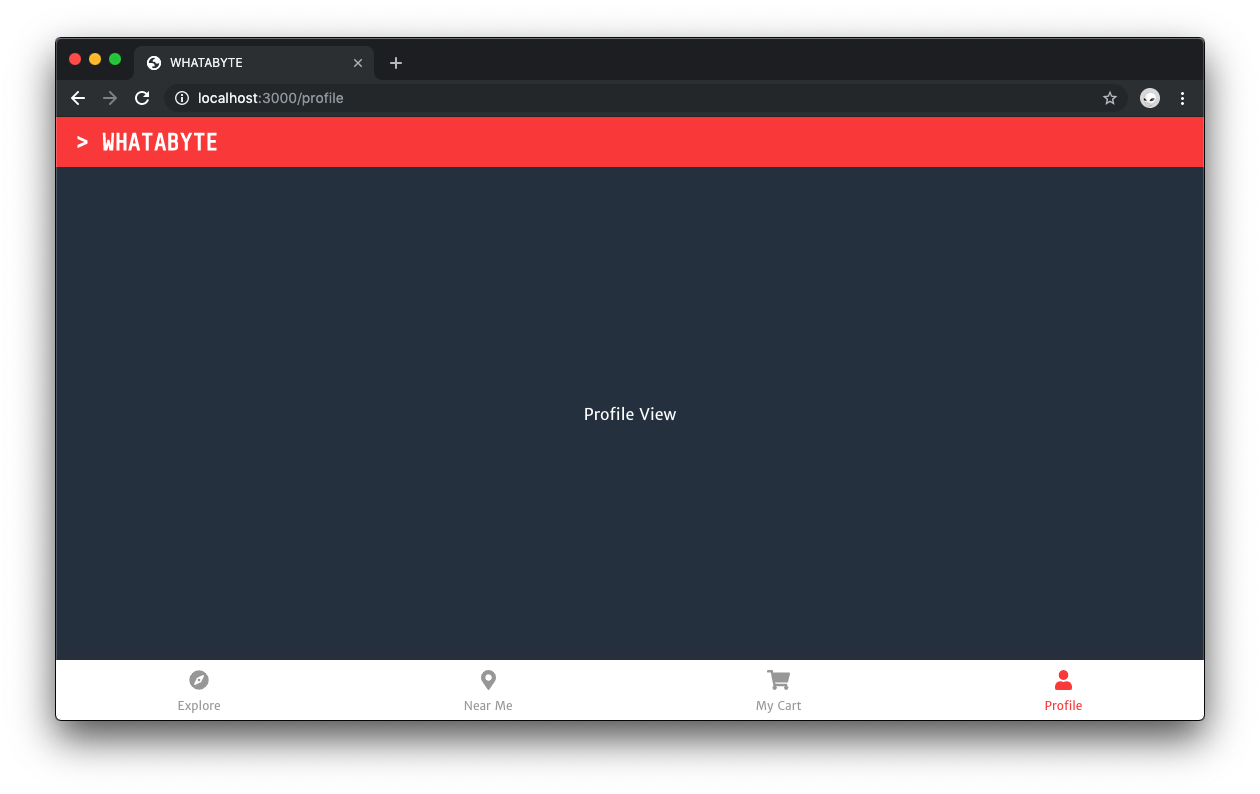
If your app is not running, execute `npm run dev` in the terminal. Otherwise, visit [`http://localhost:3000/`](http://localhost:3000/) directly and then click on the Profile button. You'll be taken to the Profile page. Try using the other navigation buttons.
> If the labels and icons of the buttons look too big, refresh the page.
Did you notice a bit of delay when you navigated from page to page? If you look at the terminal window or tab where the server is running, you may see a message from Next.js explaining that the pages need to be compiled when you first load them, causing a small delay:
```bash
Note that pages will be compiled when you first load them.
```
The navigation bar becomes much more functional and expressive by having those buttons with icons and labels on them. However, adding a visual indicator of what view is active by looking at the navbar would further improve the user experience. You'll learn how to do that in the next section by applying the `.active` CSS class to `NavButton` components dynamically.
## Using High-Order Components with Next.js
The Next.js `Link` component has two main props:
- `href` specifies a path inside the `pages` directory to use as a route.
- `as` is used to customize the path rendered in the browser URL bar.
There's no "active" class prop that we can pass to it. To style it, you need to do so within its underlying components.
The Next.js router keeps track of the active page through a `router.pathname` property. To inject the `pathname` prop in your component, you can use the [`withRouter` higher-order component](https://nextjs.org/docs#using-a-higher-order-component). Using this prop with conditional styling will let you have a distinctive style for the active page button.
Open `components/NavButton.js` and update its content to this:
```javascript
// components/NavButton.js
import Link from "next/link";
import { withRouter } from "next/router";
import "./NavButton.scss";
const NavButton = props => (
{props.icon}
{props.label}
);
export default withRouter(NavButton);
```
If the `path` prop matches the `router.pathname` prop, the `active` class is added to the `NavButton` class name. Save your changes and test the navigation buttons in the browser. Once you click on a button, its icon lights up into an orange-red-like color.
## Recap
In this part of the tutorial, you have learned how to use Next.js built-in components to navigate to pages within your app and to represent the state of the router through navigation UI elements.
You've done a lot so far throughout this tutorial and there is a lot more than could be done using Next.js! The last part of this practical introduction to Next.js will teach you how to create a login page and add user authentication to your app using Passport.js and Auth0.
Again, you can reference [Part 2 for adding styling and creating themes, here](https://auth0.com/blog/next-js-practical-introduction-for-react-developers-part-2/) and [Part 1 for creating pages and a page layout](https://auth0.com/blog/next-js-practical-introduction-for-react-developers-part-1/)
> Can't wait to learn about Next.js authentication? Feel free to read Bruno's [Next.js Authentication Tutorial](https://auth0.com/blog/next-js-authentication-tutorial/).