---
title: "Real-Time Charts using Angular, D3, and Socket.IO"
description: "Learn how to use Angular, D3, and Socket.IO to build an application that provides real-time charts to its users."
authors:
  - name: "Ravi Kiran"
    url: "https://auth0.com/blog/authors/ravi-kiran/"
date: "Jun 3, 2021"
category: "Developers,Tutorial,Angular"
tags: ["angular", "d3", "real-time", "socketio", "frontend", "guest-author"]
url: "https://auth0.com/blog/real-time-charts-using-angular-d3-and-socket-io/"
---

# Real-Time Charts using Angular, D3, and Socket.IO


**TL;DR:** Charts create some of the most catchy sections on any business applications. A chart that updates in real time is even more catchy/useful and adds huge value to users. Here, you will see how to create real-time charts using [Angular](https://angular.io/), [D3](https://d3js.org/), and [Socket.IO](https://socket.io/). You can find the final code produced throughout this article in [this GitHub repository](https://github.com/auth0-blog/angular-d3-socketio).

## Introduction

With the evolution of the web, the needs of users are also increasing. The capabilities of the web in the present era can be used to build very rich interfaces. The interfaces may include widgets in the dashboards, huge tables with incrementally loading data, different types of charts and anything that you can think of. Thanks to the technologies like [WebSockets](https://ably.com/topic/websockets), users want to see the UI updated as early as possible. This is a good problem for you to know how to deal with.

In this article, you will build a virtual market application that shows a D3 multi-line chart. That chart will consume data from a Node.js backend consisting of an Express API and a SocketIO instance to get this data in real time.

<include src="TweetQuote" quoteText="Learn how to create real-time @Angular apps with D3 and Socket.IO"/>

## Creating a Virtual Market Server

The demo app you are going to build consists of two parts. One is a Node.js server that provides market data and the other is an Angular application consuming this data. As stated, the server will consist of an Express API and a SocketIO endpoint to serve the data continuously.

So, to create this server and this Angular application, you will a directory to hold the source code. As such, create a new directory called `virtual-market` and, inside this folder, create a sub-directory called `server`. In a terminal (e.g. Bash or PowerShell), you can move into the `server` directory and run the following command:

```bash
# move into the server directory
cd virtual-market/server/

# initialize it as an NPM project
npm init -y
```

This command will generate the `package.json` file with some default properties. After initializing this directory as an NPM project, run the following command to install some dependencies of the server:

```bash
npm install express moment socket.io
```

Once they are installed, you can start building your server.

### Building the Express API

First, create a new file called `market.js` inside the `server` directory. This file will be used as a utility. It will contain the data of a virtual market and it will contain a method to update the data. For now, you will add the data alone and the method will be added while creating the Socket.IO endpoint. So, add the following code to this file:

```js
const marketPositions = [
  {"date": "10-05-2012", "close": 68.55, "open": 74.55},
  {"date": "09-05-2012", "close": 74.55, "open": 69.55},
  {"date": "08-05-2012", "close": 69.55, "open": 62.55},
  {"date": "07-05-2012", "close": 62.55, "open": 56.55},
  {"date": "06-05-2012", "close": 56.55, "open": 59.55},
  {"date": "05-05-2012", "close": 59.86, "open": 65.86},
  {"date": "04-05-2012", "close": 62.62, "open": 65.62},
  {"date": "03-05-2012", "close": 64.48, "open": 60.48},
  {"date": "02-05-2012", "close": 60.98, "open": 55.98},
  {"date": "01-05-2012", "close": 58.13, "open": 53.13},
  {"date": "30-04-2012", "close": 68.55, "open": 74.55},
  {"date": "29-04-2012", "close": 74.55, "open": 69.55},
  {"date": "28-04-2012", "close": 69.55, "open": 62.55},
  {"date": "27-04-2012", "close": 62.55, "open": 56.55},
  {"date": "26-04-2012", "close": 56.55, "open": 59.55},
  {"date": "25-04-2012", "close": 59.86, "open": 65.86},
  {"date": "24-04-2012", "close": 62.62, "open": 65.62},
  {"date": "23-04-2012", "close": 64.48, "open": 60.48},
  {"date": "22-04-2012", "close": 60.98, "open": 55.98},
  {"date": "21-04-2012", "close": 58.13, "open": 53.13}
];

module.exports = {
  marketPositions,
};
```

Now, add another file and name it `index.js`. This file will do all the Node.js work required. For now, you will add the code to create an Express REST API to serve the data. So, add the following code to the file `index.js`:

```js
const app = require('express')();
const http = require('http').Server(app);
const market = require('./market');

const port = 3000;

app.use((req, res, next) => {
  res.header('Access-Control-Allow-Origin', '*');
  res.header('Access-Control-Allow-Headers', 'Origin, X-Requested-With, Content-Type, Accept');
  next();
});

app.get('/api/market', (req, res) => {
  res.send(market.marketPositions);
});

http.listen(port, () => {
  console.log(`Listening on *:${port}`);
});
```

After saving this file, you can check if everything is going well. Run the following command to start your Express REST API:

```bash
# from the server directory, run the server
node index.js
```

As this command starts your Node.js server on port `3000`, you can visit the [`http://localhost:3000/api/market`](http://localhost:3000/api/market) URL to see the market updates on the last few days.

![Fake market data to show on the real-time Angular application.](https://images.ctfassets.net/23aumh6u8s0i/2nEvLBTGFYprWgTnEEkfbv/f1a1f9e031a058454daf3c0401b40f3a/market-data-v2)

### Adding Socket.IO to Serve Data in Real Time

To show a real-time chart, you will need to simulate a real-time market data by updating it every 5 seconds. For this, you will add a new method to the `market.js` file. This method will be called from a Socket.IO endpoint that you will add to your `index.js` file. So, open the file `market.js` and add the following code to it:

```js
const moment = require('moment');

// const marketPositions ...

let counter = 0;

function updateMarket() {
  const diff = Math.floor(Math.random() * 1000) / 100;
  const lastDay = moment(marketPositions[0].date, 'DD-MM-YYYY').add(1, 'days');
  let open;
  let close;

  if (counter % 2 === 0) {
    open = marketPositions[0].open + diff;
    close = marketPositions[0].close + diff;
  } else {
    open = Math.abs(marketPositions[0].open - diff);
    close = Math.abs(marketPositions[0].close - diff);
  }

  marketPositions.unshift({
    date: lastDay.format('DD-MM-YYYY'),
    open,
    close
  });
  counter++;
}

module.exports = {
  marketPositions,
  updateMarket,
};
```

The `updateMarket` method generates a random number every time it is called and adds it to (or subtracts it from) the last market value to generate some randomness in the figures. Then, it adds this entry to the `marketPositions` array.

Now, open the `index.js` file, so you can create a Socket.IO connection to it. This connection will call the `updateMarket` method after every 5 seconds to update the market data and will emit an update on the Socket.IO endpoint to update the latest data for all listeners. In this file, make the following changes:

```js
// ... other import statements ...
const io = require('socket.io')(http);

// ... app.use and app.get ...

setInterval(function () {
  market.updateMarket();
  io.sockets.emit('market', market.marketPositions[0]);
}, 5000);

io.on('connection', function (socket) {
  console.log('a user connected');
});

// http.listen(3000, ...
```

With these changes in place, you can start building the Angular client to use this.

## Building the Angular Application

To generate your Angular application, you can use [Angular CLI](https://cli.angular.io/). There are two ways to do it. One is to install a local copy of the CLI globally in your machine and the other is to use a tool that comes with NPM that is called `npx`. Using `npx` is better because it avoids the need to install the package locally and because you always get the latest version. If you want to use `npx`, make sure that you have npm 5.2 or above installed.

Then, go back to the main directory of your whole project (i.e. the `virtual-market` directory) and run the following command to generate the Angular project:

```bash
npx @angular/cli new angular-d3-chart
```

Once the project is generated, you need to install both the D3 and Socket.IO NPM libraries. So, move to the `angular-d3-chart` directory and run the following command to install these libraries:

```bash
npm install d3 socket.io-client
```

As you will use these libraries with TypeScript, it is good to have their typings installed. So, run the following command to install the typings:

```bash
npm i @types/d3 @types/socket.io-client -D
```

Now that the setup process is done, you can run the application to see if everything is fine:

```bash
# from the angular-d3-chart directory
npm start
```

To see the default Angular application, just point your browser to the [`http://localhost:4200`](http://localhost:4200) URL.

### Building a Component to Display the D3 Chart

Now that your Angular application setup is ready, you can start writing its code. First, you will add a component to display the multi-line D3 chart. Second, you will create a service to fetch the data. For now, this service will consume static data from the REST API then, in no time, you will add real-time capabilities to your app.

So, run the following command to add a file for this service:

```bash
npx ng generate service market-status
```

To consume the REST APIs, you need to use the `HttpClient` service from the `HttpClientModule` module. This module has to be imported into the application's module for this. As such, open the `app.module.ts` file and replace its code with this:

```typescript
import {BrowserModule} from '@angular/platform-browser';
import {NgModule} from '@angular/core';
import {HttpClientModule} from '@angular/common/http';

import {AppComponent} from './app.component';

@NgModule({
  declarations: [
    AppComponent
  ],
  imports: [
    BrowserModule,
    HttpClientModule
  ],
  providers: [],
  bootstrap: [AppComponent]
})
export class AppModule {}
```

As you can see, the new version of this file does nothing besides adding the `HttpClientModule` to the `imports` section of the `AppModule` module.

Now, open the `market-status.service.ts` file and add the following code to it:

```typescript
import {Injectable} from '@angular/core';
import {HttpClient} from '@angular/common/http';

import {MarketPrice} from './market-price';

@Injectable({
  providedIn: 'root'
})
export class MarketStatusService {

  private baseUrl =  'http://localhost:3000';
  constructor(private httpClient: HttpClient) { }

  getInitialMarketStatus() {
    return this.httpClient.get<MarketPrice[]>(`${this.baseUrl}/api/market`);
  }
}
```

This service uses the `MarketPrice` class to structure the data received from your backend API (`baseUrl =  'http://localhost:3000'`). To add this class to your project, create a new file named `market-price.ts` in the `app` folder and add the following code to it:

```typescript
export  class MarketPrice {
  open: number;
  close: number;
  date: string | Date;
}
```

Now, add a new component to the application, so you can show the multi-line D3 chart. The following command adds this component:

```bash
npx ng g c market-chart
```

Then, open the `market-chart.component.html` file and replace its default content with this:

``` html  

<div #chart></div>

```

The D3 chart will be rendered inside this `<div #chart>` element. As you can see, you created a local reference for the div element (`#chart`). You will use this reference in your component class while configuring D3.

This component will not use the `MarketStatusService` to fetch data. Instead, it will accept the data as input. The goal of this approach is to make the `market-chart` component reusable. For this, the component will have an `Input` field and the value to this field will be passed from the `app-root` component. The component will use the `ngOnChanges` lifecycle hook to render the chart whenever there is a change in the data. It will also use the `OnPush` change detection strategy to ensure that the chart is re-rendered only when the input changes.

So, open the file `market-chart.component.ts` and add the following code to it:

```typescript
import {ChangeDetectionStrategy, Component, ElementRef, Input, OnChanges, ViewChild} from '@angular/core';
import * as d3 from 'd3';

import {MarketPrice} from '../market-price';

@Component({
  selector: 'app-market-chart',
  templateUrl: './market-chart.component.html',
  styleUrls: ['./market-chart.component.css'],
  changeDetection: ChangeDetectionStrategy.OnPush
})
export class MarketChartComponent implements OnChanges {
  @ViewChild('chart')
  chartElement: ElementRef;

  parseDate = d3.timeParse('%d-%m-%Y');

  @Input()
  marketStatus: MarketPrice[];

  private svgElement: HTMLElement;
  private chartProps: any;

  constructor() { }

  ngOnChanges() { }

  formatDate() {
    this.marketStatus.forEach(ms => {
      if (typeof ms.date === 'string') {
        ms.date = this.parseDate(ms.date);
      }
    });
  }
}
```

Now, the `MarketChartComponent` class has everything required to render the chart. In addition to the local reference for the div (`chartElement`) and the lifecycle hook, the class has a few fields that will be used while rendering the chart. The `parseDate` method converts string values to Date objects and the private fields `svgElement` and `chartProps` will be used to hold the reference of the SVG element and the properties of the chart respectively. These fields will be quite useful to re-render the chart.

Now, the most complex part of the tutorial. Add the following method to the `MarketChartComponent` class:

```typescript
 buildChart() {
  this.chartProps = {};
  this.formatDate();

  // Set the dimensions of the canvas / graph
  var margin = { top: 30, right: 20, bottom: 30, left: 50 },
    width = 600 - margin.left - margin.right,
    height = 270 - margin.top - margin.bottom;

  // Set the ranges
  this.chartProps.x = d3.scaleTime().range([0, width]);
  this.chartProps.y = d3.scaleLinear().range([height, 0]);

  // Define the axes
  var xAxis = d3.axisBottom(this.chartProps.x);
  var yAxis = d3.axisLeft(this.chartProps.y).ticks(5);

  let _this = this;

  // Define the line
  var valueline = d3.line<MarketPrice>()
    .x(function (d) {
      if (d.date instanceof Date) {
        return _this.chartProps.x(d.date.getTime());
      }
    })
    .y(function (d) { console.log('Close market'); return _this.chartProps.y(d.close); });

  // Define the line
  var valueline2 = d3.line<MarketPrice>()
    .x(function (d) {
      if (d.date instanceof Date) {
        return _this.chartProps.x(d.date.getTime());
      }
    })
    .y(function (d) { console.log('Open market'); return _this.chartProps.y(d.open); });

  var svg = d3.select(this.chartElement.nativeElement)
    .append('svg')
    .attr('width', width + margin.left + margin.right)
    .attr('height', height + margin.top + margin.bottom)
    .append('g')
    .attr('transform', `translate(${margin.left},${margin.top})`);

  // Scale the range of the data
  this.chartProps.x.domain(
    d3.extent(_this.marketStatus, function (d) {
      if (d.date instanceof Date)
        return (d.date as Date).getTime();
    }));
  this.chartProps.y.domain([0, d3.max(this.marketStatus, function (d) {
    return Math.max(d.close, d.open);
  })]);

  // Add the valueline2 path.
  svg.append('path')
    .attr('class', 'line line2')
    .style('stroke', 'green')
    .style('fill', 'none')
    .attr('d', valueline2(_this.marketStatus));

  // Add the valueline path.
  svg.append('path')
    .attr('class', 'line line1')
    .style('stroke', 'black')
    .style('fill', 'none')
    .attr('d', valueline(_this.marketStatus));


  // Add the X Axis
  svg.append('g')
    .attr('class', 'x axis')
    .attr('transform', `translate(0,${height})`)
    .call(xAxis);

  // Add the Y Axis
  svg.append('g')
    .attr('class', 'y axis')
    .call(yAxis);

  // Setting the required objects in chartProps so they could be used to update the chart
  this.chartProps.svg = svg;
  this.chartProps.valueline = valueline;
  this.chartProps.valueline2 = valueline2;
  this.chartProps.xAxis = xAxis;
  this.chartProps.yAxis = yAxis;
}
```

Refer to the comments added before every section in the above method to understand what the code is doing. Also, if you have any specific doubt, just leave a comment.

Now, you will have to change the `ngOnChanges` function (still in your `MarketChartComponent` class) to call this method:

```typescript
ngOnChanges() {
  if (this.marketStatus) {
    this.buildChart();
  }
}
```

Now, you need to insert this component in the `app-root` component to see the chart. So, open the `app.component.html` file and replace its content with:

``` html  

<app-market-chart [marketStatus]="marketStatusToPlot"></app-market-chart>

```

Then, you have to replace the content of the `app.component.ts` file with the following code:

```typescript
import {Component} from '@angular/core';
import {MarketStatusService} from './market-status.service';
import {Observable} from 'rxjs';
import {MarketPrice} from './market-price';

@Component({
  selector: 'app-root',
  templateUrl: './app.component.html',
  styleUrls: ['./app.component.css']
})
export class AppComponent {
  title = 'app';
  marketStatus: MarketPrice[];
  marketStatusToPlot: MarketPrice[];

  set MarketStatus(status: MarketPrice[]) {
    this.marketStatus = status;
    this.marketStatusToPlot = this.marketStatus.slice(0, 20);
  }

  constructor(private marketStatusSvc: MarketStatusService) {

    this.marketStatusSvc.getInitialMarketStatus()
      .subscribe(prices => {
        this.MarketStatus = prices;
      });
  }
}
```

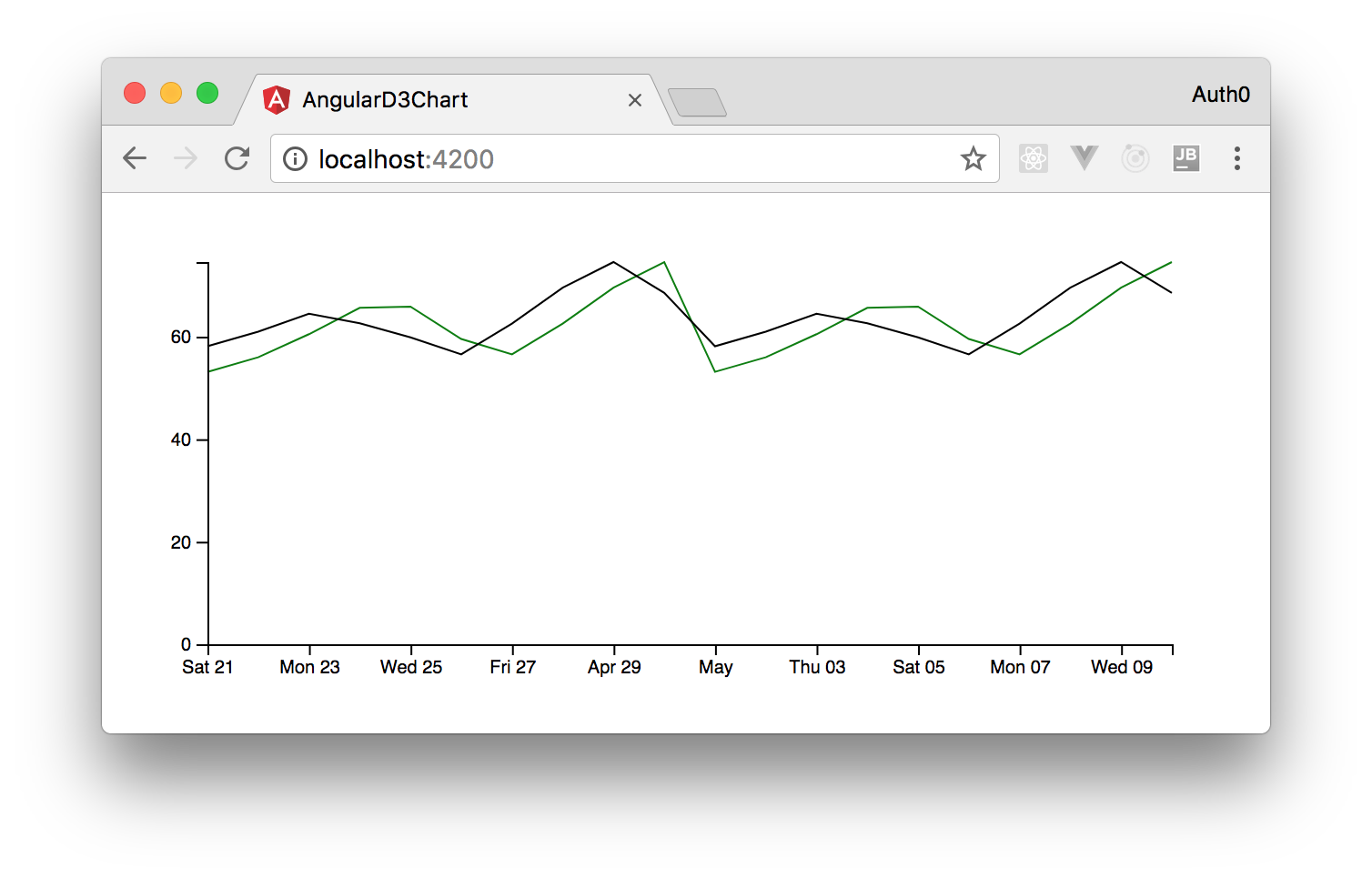
Save these changes and run the application using the `ng serve` command (or `npm start`). Now, head to the [http://localhost:4200/](http://localhost:4200) URL and you will see a page with a chart similar to the following image:
![Showing a D3 chart with static data in an Angular application.](https://images.ctfassets.net/23aumh6u8s0i/5KHFbR84G0MCW5LuWqjRkl/0eef204a5b72bb81cf017ed7c08766b2/d3-charts-with-static-data)

### Adding Real-Time Capabilities to the D3 Chart

Now that you have the chart rendered on the page, you can make it receive the market updates from Socket.IO to make it real-time. To receive these updates, you need to add a listener to the Socket.IO endpoint in the `market-status.service.ts` file. So, open this file and replace its code with:

```typescript
import {Injectable} from '@angular/core';
import {HttpClient} from '@angular/common/http';

import {MarketPrice} from './market-price';
import { Subject, from } from  'rxjs';
import * as socketio from 'socket.io-client';

@Injectable({
  providedIn: 'root'
})
export class MarketStatusService {

  private baseUrl =  'http://localhost:3000';
  constructor(private httpClient: HttpClient) { }

  getInitialMarketStatus() {
    return this.httpClient.get<MarketPrice[]>(`${this.baseUrl}/api/market`);
  }

  getUpdates() {
    let socket = socketio(this.baseUrl);
    let marketSub = new Subject<MarketPrice>();
    let marketSubObservable = from(marketSub);

    socket.on('market', (marketStatus: MarketPrice) => {
      marketSub.next(marketStatus);
    });

    return marketSubObservable;
  }
}
```

The new method, `getUpdates`, does three important things:

 - it creates a manager for the Socket.IO endpoint at the given URL;
 - it creates a RxJS `Subject` and gets an `Observable` from this subject. This observable is returned from this method so consumers can listen to the updates;
 - The call to the `on` method on the Socket.IO manager adds a listener to the `market` event. The callback passed to this method is called whenever the Socket.IO endpoint publishes something new.

Now, you have to make the `AppComponent` class consume the `getUpdates()` method. So, open the `app.component.ts` file and modify the constructor as shown below:

```typescript
constructor(private marketStatusSvc: MarketStatusService) {
  this.marketStatusSvc.getInitialMarketStatus()
    .subscribe(prices => {
      this.MarketStatus = prices;

      let marketUpdateObservable =  this.marketStatusSvc.getUpdates();  // 1
      marketUpdateObservable.subscribe((latestStatus: MarketPrice) => {  // 2
        this.MarketStatus = [latestStatus].concat(this.marketStatus);  // 3
      });  // 4
    });
}
```

In the above snippet, the statements marked with the numbers are the new lines added to the constructor. Observe the statement labeled with 3. This statement creates a new array instead of updating the field `marketStatus`. This is done to let the consuming `app-market-chart` component know about the change when you have an update.

The last change you will need to do to see the chart working in real time is to make the flowing data hit the chart. To do this, open the `market-chart.component.ts` file and add the following method to the `MarketChartComponent` class:

```typescript
updateChart() {
  let _this = this;
  this.formatDate();

  // Scale the range of the data again
  this.chartProps.x.domain(d3.extent(this.marketStatus, function (d) {
    if (d.date instanceof Date) {
      return d.date.getTime();
    }
  }));

  this.chartProps.y.domain([0, d3.max(this.marketStatus, function (d) { return Math.max(d.close, d.open); })]);

  // Select the section we want to apply our changes to
  this.chartProps.svg.transition();

  // Make the changes to the line chart
  this.chartProps.svg.select('.line.line1') // update the line
    .attr('d', this.chartProps.valueline(this.marketStatus));

  this.chartProps.svg.select('.line.line2') // update the line
    .attr('d', this.chartProps.valueline2(this.marketStatus));

  this.chartProps.svg.select('.x.axis') // update x axis
    .call(this.chartProps.xAxis);

  this.chartProps.svg.select('.y.axis') // update y axis
    .call(this.chartProps.yAxis);
}
```

The comments added in the snippet explain what you are doing in this method. Now, you have to make the `ngOnChanges` method call this new method. So, change the `ngOnChanges()` method in the `MarketChartComponent` class as shown below:

```typescript
ngOnChanges() {
  if (this.marketStatus &&  this.chartProps) {
    this.updateChart();
  } else if (this.marketStatus) {
    this.buildChart();
  }
}
```

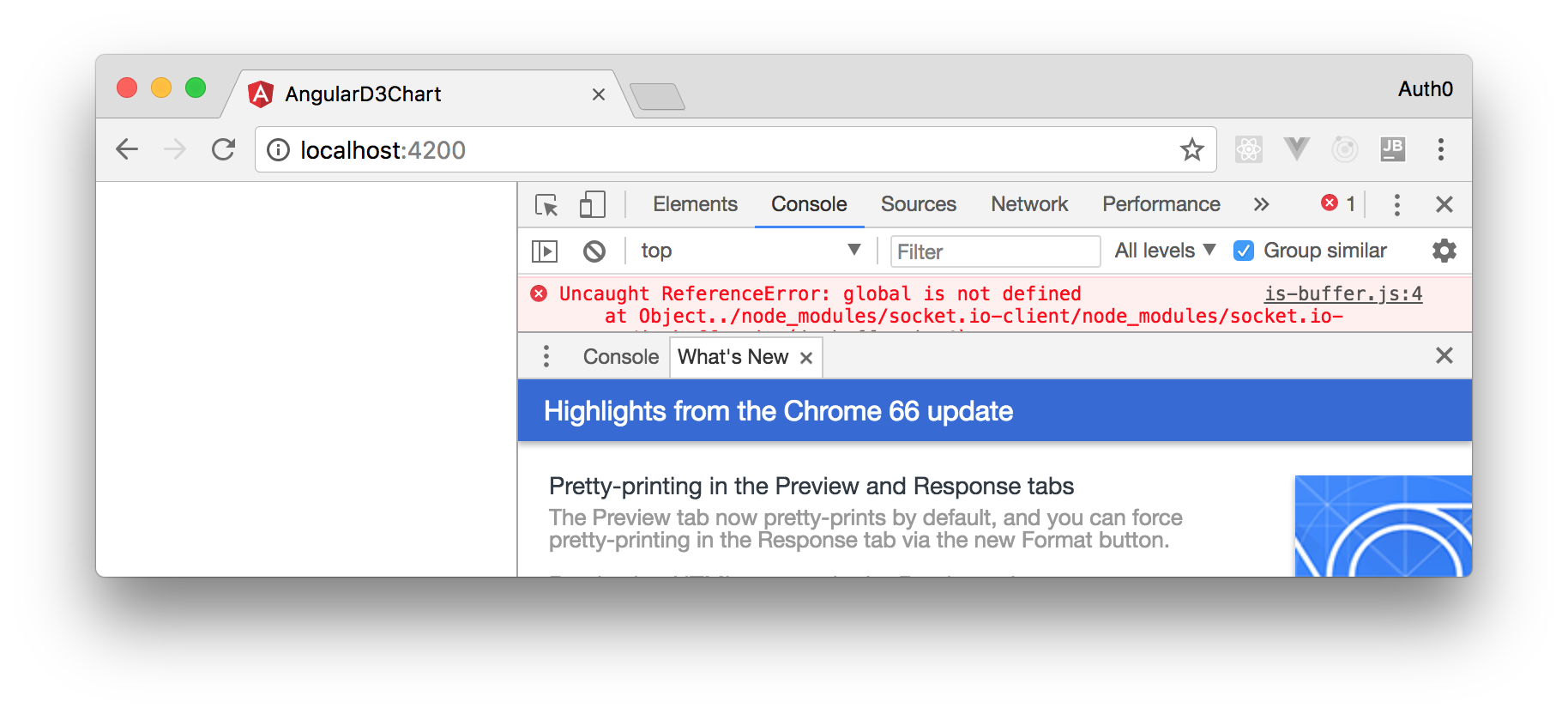
Now, if you run the application, you will see an error on the browser console saying `global is not defined`.
![Console error saying global is not defined.](https://images.ctfassets.net/23aumh6u8s0i/7pkHR3Df1UNlo9t9Pwh8Sb/b34242ba6b25182aa737ed06ce9cb501/global-error)

This is because Angular CLI 6 removed the global object and SocketIO uses it. To fix this problem, add the following statement to the `polyfills.ts` file:

```typescript
(window as any).global = window;
```

With this, all the changes are done. Save all your files and run the applications again. You can move into the `server` directory in one terminal and issue `node index.js` to run your backend API, then move to the `angular-d3-chart` directory and issue `npm start` to run the Angular application.

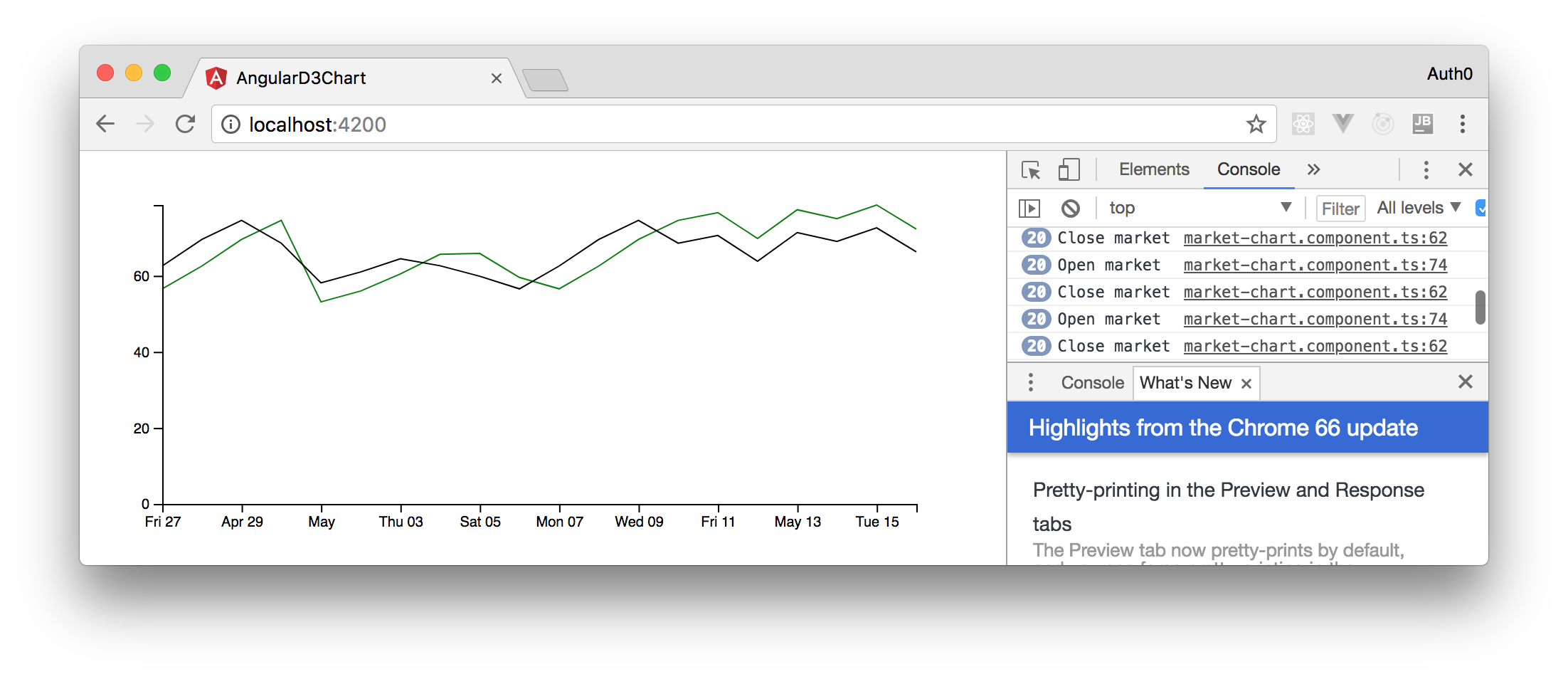
Now, if you head to (`http://localhost:4200`)[http://localhost:4200], you will see your nice chart with real-time data flowing into it every 5 seconds.
![Real-time chart with Angular, D3, and SocketIO.](https://images.ctfassets.net/23aumh6u8s0i/5tp88aWoNMInqOn2VAUgYF/136fd9d8ebaf67c7cb731f9d426750f7/chart-with-real-time-data)

Awesome, right?

<include src="TweetQuote" quoteText="Adding real-time capabilities to @Angular is easy with D3 and Socket.IO"/>

<include src="asides/Angular" />

## Conclusion

As you saw in this tutorial, the web has capabilities that allow you to build very rich applications. Your real-time chart, for example, adds a huge value to your app because there the user knows that they will have the latest data without having to refresh the page or performing any action. This kind of interactivity improves your users' experiences and will contribute to their happiness.

WDYT? Ready to add some real-time data to the web?
