---
title: "Securing Gatsby with Auth0"
description: "Learn how to set up Auth0 for identity management in a Gatsby static site."
authors:
  - name: "Sam Julien"
    url: "https://auth0.com/blog/authors/sam-julien/"
  - name: "Will Johnson"
    url: "https://auth0.com/blog/authors/will-johnson/"
date: "Jun 13, 2022"
category: "Developers,Tutorial,Gatsby"
tags: ["javascript", "react", "gatsby", "graphql", "auth0"]
url: "https://auth0.com/blog/securing-gatsby-with-auth0/"
---

# Securing Gatsby with Auth0

**TL;DR**: In this article, you'll learn how to secure a basic Gatsby static site with Auth0. The finished code for this tutorial is at the [`gatsby-auth0-sample-app` repository](https://github.com/auth0-blog/gatsby-auth0-sample-app).

Gatsby beautifully merges technologies like [GraphQL](https://graphql.org/) and [MDX](https://github.com/mdx-js/mdx) with concepts like [progressive web apps](https://developers.google.com/web/progressive-web-apps/) and [server-side rendering](https://reactjs.org/docs/react-dom-server.html). There's even an easy-to-use command line interface (the Gatsby CLI) to make developing, building, and deploying your static site virtually painless. To me, it is the most intuitive [JAM stack](https://jamstack.org/) (JavaScript + APIs + Markup) solution out there.

<include src= "TweetQuote" quoteText= "@GatsbyJS is a powerful static site generator combining React, GraphQL, and many other modern web technologies."/>

As wonderful as this is, many static sites still need authentication. Stores, member areas, or admin dashboards can all be built as static sites, and all require either a protected route or a persisted user profile. Luckily, Auth0 is here to help.

This article will take a slightly different path than our typical authentication tutorial. Ordinarily, I would have you build a sample application that includes styling and a source of data. Because Gatsby orchestrates things like GraphQL, CSS-in-JS, API data, and much more, it's incredibly easy to get lost in the weeds in a tutorial and lose track of what is specific to Gatsby.

For that reason, I'm going to have you build the absolute simplest (and, well, ugliest) sample application possible so you can focus solely on learning how to set up authentication in that app. I won't be covering any data sources, GraphQL, or styling strategies. Keeping this tutorial super-simple means that this strategy will work for you whether you're building a blog, a store, or anything else your heart desires.

## Prerequisites

To go through this tutorial, you will need Node.js 16 and NPM installed. You should [download and install them](https://nodejs.org/en/download/) before continuing. 

You'll also need some basic knowledge of React. You only need to know the basic scaffolding of components and JSX to follow along, but it will be difficult if you're a total beginner. If that's you, you can read our article on [building and securing your first React app](https://auth0.com/blog/react-tutorial-building-and-securing-your-first-app/) before continuing.

## Gatsby Basics

To get started with Gatsby, you'll first need to install the Gatsby CLI globally on your machine. You can do that by running the command:

```bash
npm install -g gatsby-cli
```

The Gatsby CLI has some built-in commands like `develop` to run a development server, `build` to generate a production build, and `serve` to serve the production build. There are many other options and commands that you can check out in the [Gatsby CLI docs](https://www.gatsbyjs.org/docs/gatsby-cli/).

One cool feature of the CLI is the ability to use a *starter* as the template for a new project. You can use either an official Gatsby starter or any other Gatsby repository. For this tutorial, you'll use `gatsby-starter-hello-world` by running the following command:

```bash
gatsby new gatsby-auth0 gatsbyjs/gatsby-starter-hello-world
```

Note that the first argument (`gatsby-auth0`) is just the name of the new project. You can call it whatever you'd like.

Gatsby will automatically run `npm install` for you, so once that's done, open the project in your preferred editor. You'll see the simplest possible Gatsby project, which includes one file inside of the `src/pages/` folder called `index.js`. Open that file and replace it with the following:

```jsx
// ./src/pages/index.js
import React from "react";
import { Link } from "gatsby";

export default () => (
  <div>
   <p>Hello Gatsby!</p>
   <Link to="/account">Go to your account</Link>
 </div>
);
```

You can see that this is a super simple React component written in JSX. It imports Gatsby's `Link` function to navigate to an `account` route. You'll create that route in the next section. For now, run the command `gatsby develop` in your terminal and navigate to [`localhost:8000`](http://localhost:8000). You should see "Hello Gatsby!" with a link to go to the account page.

## Create an Account Route

You've now created your first static site with Gatsby &mdash; congratulations! You're ready to create an `account` route that you'll protect with Auth0 in just a bit. 

To start, create a new file called `account.js` in the `src/pages/` folder and paste in the following code:

```javascript
// src/pages/account.js
import React from "react";

const Account = () => (
 <div>
  <p>This is going to be a protected route.</p>
 </div>
);

export default Account;
```

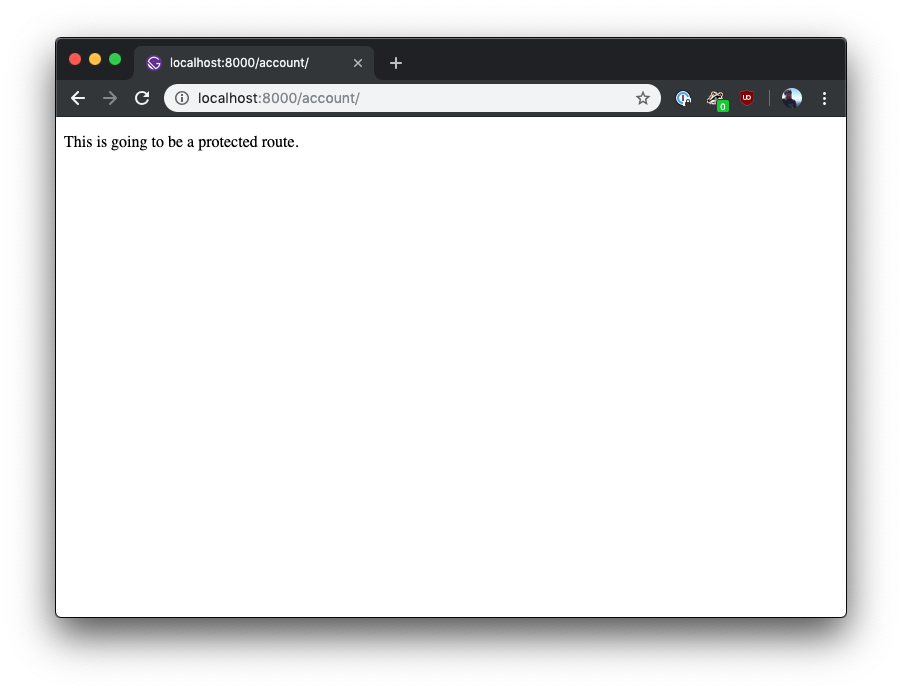
The above code is another super simple React component. Gatsby will automatically turn this file (and any file in this folder that exports a React component) into a route. Start the development server again with `gatsby develop` if it's not already running. You should see the following if you navigate to [`localhost:8000/account`](http://localhost:8000/account):
![Gatsby basic account route.](https://images.ctfassets.net/23aumh6u8s0i/2PNsLedqq159RzdEbyT5If/58d4e9731fbfd16f6045b9967fbc7399/gatsby-account-route)


## Add Auth0 to Your Gatsby Site

You're now ready to protect the entire `account` route with Auth0. Auth0 handles identity features like user registration, email confirmation, and password reset, so you don't have to build them yourself.

### Sign up for Auth0

If you don't have one yet, you will have to <a href="https://a0.to/blog_signup" data-amp-replace="CLIENT_ID" data-amp-addparams="anonId=CLIENT_ID(cid-scope-cookie-fallback-name)">create a free Auth0 account</a> now. After creating your account, go to [the _Applications_ section of your Auth0 dashboard](https://manage.auth0.com/#/applications) and click on the _Create Application_ button. Then, fill the form as follows:

- Application Name: "Gatsby App"
- Application Type: "Single Page Web Applications"

<include src="SignupCTA" text="Try out the most powerful authentication platform for free." linkText="Get started →" />

When you click on the _Create_ button, Auth0 will redirect you to your new application's _Quick Start_ tab. From there, head to the _Settings_ tab and make two changes:

1. Add `http://localhost:8000` to the _Allowed Callback URLs_ field.
2. Add `http://localhost:8000` to _Allowed Logout URLs_ and _Allowed Web Origins_.

> For security reasons, after the login and logout processes, Auth0 will only redirect users to the URLs you register in these fields.

After updating the configuration, scroll to the bottom of the page, and click _Save Changes_. For now, leave this page open.

### Set up Gatsby with Auth0

To get started with adding Auth0 to your Gatsby app, you'll need to install [Auth0's SDK for React Single Page Applications](https://github.com/auth0/auth0-react) in your app. Back in the terminal, stop the development server (`Ctrl` + `C`), and issue the following command:

```bash
npm install @auth0/auth0-react
```

> **Note:** This tutorial follows the [Authorization Code Flow with Proof Key for Code Exchange](https://auth0.com/docs/get-started/authentication-and-authorization-flow/authorization-code-flow-with-proof-key-for-code-exchange-pkce). The Auth0 React SDK uses this under the hood. You can read more about these changes in [this article](https://auth0.com/blog/oauth2-implicit-grant-and-spa/) by Auth0 Principal Architect [Vittorio Bertocci](https://auth0.com/blog/authors/vittorio-bertocci/).

### Add Gatsby Auth env config

While you could manually update the variables `AUTH0_DOMAIN`, `AUTH0_CLIENTID`, and `AUTH0_CALLBACK`, it's a much better practice to create a separate environment file that's not checked in to source control.

Luckily, Gatsby ships with the library [`dotenv`](https://github.com/motdotla/dotenv), so you can provide the values to the authentication service by creating a file at the root of the project called `.env.development`. Paste in the following:

```env
# ./.env.development
# Get these values at https://manage.auth0.com
AUTH0_DOMAIN=<value>
AUTH0_CLIENTID=<value>
AUTH0_CALLBACK=http://localhost:8000/callback
```

Replace the placeholders with your Auth0 domain (e.g. `yourtenant.auth0.com`) and client ID. You can find both in your application's settings page.

![Auth0 Dashboard Application Settings Page](https://images.ctfassets.net/23aumh6u8s0i/5vasoZZii3Pxzo5UnC2Q3b/3a6ee748f58141de78edb2bd2dd1c3ba/auth0-dashboard-application-settings-screen.png)

You can do the same thing with production values by creating `.env.production`. Don't forget to change `AUTH0_CALLBACK` to whatever your production server is and add it to your application settings in Auth0.

## Add Login to a Gatsby App with Auth0

Auth0 is now ready to use. The first step to using Auth0 is to wrap your root element in the `Auth0Provider` component. Create a `gatsby-browser.js` file at the root of your project. This file is the behind-the-scenes root component for Gatsby.


Paste in the following code:

```js
//gatsby-browser.js
import React from 'react';
import { Auth0Provider } from '@auth0/auth0-react';
import { navigate } from 'gatsby';

const onRedirectCallback = (appState) => {
 // Use Gatsby's navigate method to replace the url
 navigate(appState?.returnTo || '/', { replace: true });
};

export const wrapRootElement = ({ element }) => {
 return (
  <Auth0Provider
   domain={process.env.AUTH0_DOMAIN}
   clientId={process.env.AUTH0_CLIENTID}
   redirectUri={window.location.origin}
   onRedirectCallback={onRedirectCallback}
   >
    {element}
 </Auth0Provider>
 );
}; 
```
Here's what's happening in this code:

* The `wrapRootElement` hook from the [Gatsby Browser API](https://www.gatsbyjs.com/docs/reference/config-files/gatsby-browser/#wrapRootElement) sets up the use of Provider components.

* Wrap the root element in the `<Auth0Provider>`

* Pass in the `AUTH0_DOMAIN` and `AUTH0_CLIENTID` into the `domain` and `clientId` props

* Pass in `window.location.origin` to the `redirectUri` prop, which is the URL Auth0 will redirect your browser to with the authentication result. 

* `onRedirectCallback` removes the code and state parameters from the URL when you are redirected from the authorize page.

> In this sample application, you won't be using the access token to access an API. Suppose your Gatsby application gets data using a secure API. In that case, you will use the access token stored here to access those protected resources (for example, by adding it as an `Authorization` header). Check out the Gatsby documentation on [Sourcing from Private APIs](https://www.gatsbyjs.org/docs/sourcing-from-private-apis/) to learn more about how to use private API data in your Gatsby site.


## Protect a Gatsby Route with Auth0

Now that `Auth0Provider` is set up and ready to be used in Gatsby. You're going to protect the `/account` route. When logged-out users try to visit, they're redirected to the Auth0 login.

Add the new code indicated by the 👇 emojis to `account.js`

```jsx
// src/pages/account.js
import React from "react";
/* 👇 New code 👇 */ 
import { Link } from "gatsby";
import { useAuth0 } from "@auth0/auth0-react";
/* 👇 Import the withAuthenticationRequired HOC 👇 */ 
import { withAuthenticationRequired } from '@auth0/auth0-react';


const Account = () => {
/* 👇 Access user from the useAuth0 hook 👇 */
 const { user } = useAuth0();
  return (
  <>
   <nav>
    {/* 👇 Link to homepage */} 👇
    <Link to="/">Home</Link>
    {/* 👇 Display users email */} 👇
    <p>Email: {user.email}</p>
  </nav>
 </>
 );
};

/* 👇 Wrap the component in the withAuthenticationRequired handler 👇 */
export default withAuthenticationRequired(Account);
```
What's happening in this code?

* You accessed the `user` object from the `useAuth0` hook

* Added a link to the home page with the Gatsby `Link` component

* Displayed the users' email address stored in the `user` object

* Wrapped the exported `account` component in `withAuthenticationRequired()`

Wrapping `account` in `withAuthenticationRequired()` makes it so that when anonymous users visit the `/account` route, they will be redirected to the login page. The user will also return to the page they were visiting after successful login.

With the server running, visit [http://localhost:8000/account](http://localhost:8000/account), and you'll be redirected to the Auth0 log in.

Instead of making the user visit the `/account` path to log in, which is inconvenient. In the next section, you'll use Auth0 to allow users to choose when they want to log in with a login button.

### Create a login button component

The next thing to do is to create a login button. When the user clicks this button, they will be redirected to [Auth0's Universal Login](https://auth0.com/docs/authenticate/login/auth0-universal-login) page and authenticated after successful login. Inside the `src` directory, create a `components` directory, and then create a file called `LoginButton.js` in `src/components/` and paste in the code below:

```jsx
// src/components/LoginButton.js
import React from "react";
import { useAuth0 } from "@auth0/auth0-react";

function LoginButton() {
 const {
  isAuthenticated,
  loginWithRedirect,
   } = useAuth0();

   return !isAuthenticated && (
    <button onClick={loginWithRedirect}>Log in</button>
  );
};

export default LoginButton;
```
Here's a breakdown of this code:

* The `useAuth0` hook gives you access auth state and methods. In this example, you get the `isAuthenticated` auth state and the `loginWithRedirect` method from the `useAuth0` hook. 

* The auth state `isAuthenticated` checks if Auth0 has authenticated the user before React renders any component. 

* Pass `loginWithRedirect` to the `onClick` handler to redirect your users to the Auth0 Universal Login Page, where they can get authenticated.

With this component created, the next step is to add it to the index page.

Add the LoginButton component to index.js

So far, there isn't a way for the user to actually log in and get redirected to Auth0 for login and authentication. Let's import and add the `LoginButton` component to `index.js`.

Update `index.js` with the new code shown below:

```jsx
// src/pages/index.js
import React from "react";
import { Link } from "gatsby";
/* 👇 New Code */ 
import LoginButton from "../components/LoginButton";


export default function Home() {
 return (
   <div>
   {/* 👇 New Code */}
    <LoginButton />
    <p><Link to="/account">Visit Your Account</Link></p>
   </div>
  );
};
```

Restart the Gatsby development server and navigate to [`localhost:8000/account`](http://localhost:8000). You should now see a button labeled login, click it, and you're directed to Auth0 to log in to your application (you will need to authorize the application the first time you log in). You'll also see your email address on the account page.

## Add Logout to a Gatsby App with Auth0

Finally, you'll need a way for users to log out of your application. Inside `src/components` create a new file called `LogoutButton.js`.

Then add the following code:

```javascript
// src/components/LogoutButton.js
import React from "react";
import { useAuth0 } from "@auth0/auth0-react";

function LogoutButton() {
 const {
   isAuthenticated,
   logout,
   } = useAuth0();

   return isAuthenticated && (
     <button onClick={() => {
     logout({ returnTo: window.location.origin });
    }}>Log out</button>
 );
};

export default LogoutButton;
```

Here is a quick recap of this code:

* Access the `isAuthticated` auth state and the `logout` method from the `useAuth0` hook. 
* The `logout()` method redirects your users to your Auth0 logout endpoint (https://YOUR_DOMAIN/v2/logout) and then immediately redirects them to your application.

### Update the account component

Now you can add a `LogoutButton` to the navigation section of the `Account` component. The finished `Account` component code will look like this:

```javascript
// src/pages/account.js
import React from "react";
import { Link } from "gatsby";
import { useAuth0 } from "@auth0/auth0-react";
import { withAuthenticationRequired } from "@auth0/auth0-react";
/* 👇 New Code */ 
import LogoutButton from "../components/LogoutButton";

const Account = () => {
 const { user } = useAuth0();
 return (
  <>
   <nav>
    <Link to="/">Home</Link>
    <p>Email: {user.email}</p>
    {/* 👇 New Code */}
    <LogoutButton />
  </nav>
 </>
 );
};

export default withAuthenticationRequired(Account);
```

Running `gatsby develop` again, you should now be able to log in, refresh your application, and log out successfully. Congratulations!

Remember, the finished code for this tutorial is at the [`gatsby-auth0` repository](https://github.com/auth0-blog/gatsby-auth0-sample-app).

## Conclusion

You now know how to implement authentication using Auth0 in virtually any Gatsby application. Feel free to explore the [excellent Gatsby docs](https://www.gatsbyjs.org/docs/) and learn more about [sourcing and querying data with GraphQL](https://www.gatsbyjs.org/docs/sourcing-from-the-filesystem/), styling your application using [CSS modules](https://www.gatsbyjs.org/docs/css-modules/) or [CSS-in-JS](https://www.gatsbyjs.org/docs/emotion/), and much, much more. Most importantly, I hope you have as much fun as I do developing with Gatsby!