---
title: "Serverless REST API with Angular, Persistence and Security"
description: "Develop an Angular app from scratch, with serverless REST API, security and persistence and deploy it to GitHub Pages in no time."
authors:
- name: "Bruno Krebs"
url: "https://auth0.com/blog/authors/bruno-krebs/"
date: "Feb 22, 2017"
category: "Developers,Tutorial,Angular"
tags: ["angular", "serverless", "faas", "webtask", "github", "mongodb"]
url: "https://auth0.com/blog/serverless-angular-app-with-persistence-and-security/"
---
# Serverless REST API with Angular, Persistence and Security
**TL;DR**
Using the right tools, you can create an application from scratch and release it to production very quickly. In this post, I will show you how to develop a task list application, with Angular, that consumes a serverless REST API and persists data to a MongoDB database hosted by mLab. This application will also focus on security, with Auth0, and will be deployed to GitHub Pages.
## Overview
In this post I will show you that, with the right tools, it is possible to start a **full stack** app—task list application in this case—from scratch, and release it to production in a short time. Our full stack app will support static file hosting, a secure REST API, and a robust persistence layer. This is how we will manage all the moving parts:
- **Identity management and security** supported by [Auth0](https://auth0.com) and JSON Web Tokens (JWT)
- **Serverless REST API** provided by an [Express](https://expressjs.com/) app with [Webtask](https://webtask.io)
- **Persistence layer** with a [MongoDB database](https://www.mongodb.com/) hosted by [mLab](https://mlab.com/)
- **Static file hosting** via deployment to [GitHub Pages](https://pages.github.com/)
Since the app that we are going to develop is quite simple in terms of features, it won't be necessary to have MongoDB running on our local environment. We will use mLab during development as well as production. The only tools that are expected to be installed are [NodeJS and NPM](https://docs.npmjs.com/getting-started/installing-node).
Our application will have the following features:
- Sign in and sign out
- List that shows tasks from a user
- Form that allows users to add new tasks
- A button for each task, to enable users to remove these tasks
## Creating a New Angular App
We are going to create our new Angular app with [Angular CLI](https://github.com/angular/angular-cli). Actually, we will be using this tool during the whole process to create components/services and build our app for production.
Here is a list of a few commands that we will have to issue to install Angular CLI and to create our app skeleton:
```bash
# install Angular CLI globally
npm install -g @angular/cli
# create skeleton
ng new task-list && cd task-list
# serve the skeleton on our dev env
ng serve
```
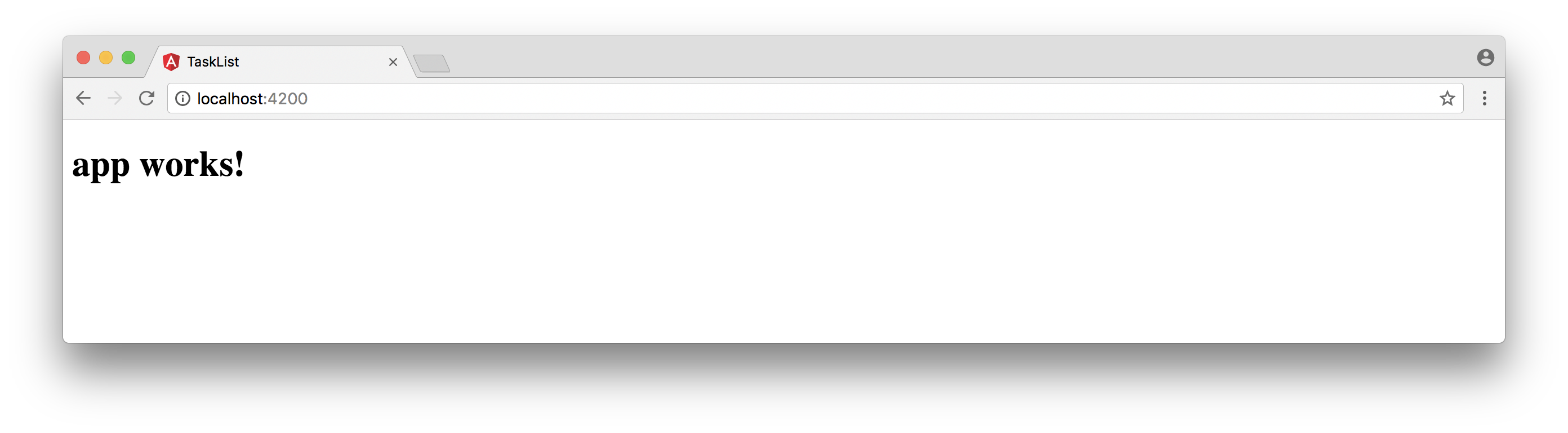
The last command is responsible for packaging our application with the development profile, and for serving it locally with [Webpack Development Server](https://webpack.github.io/docs/webpack-dev-server.html). After executing all these commands, navigate to `http://localhost:4200/` to see it up and running.
## Securing Angular with Auth0
The first thing that we are going to take care of in our application is security. Security must be a first priority in any application that handles sensitive, third party data like the task list that we are about to develop.
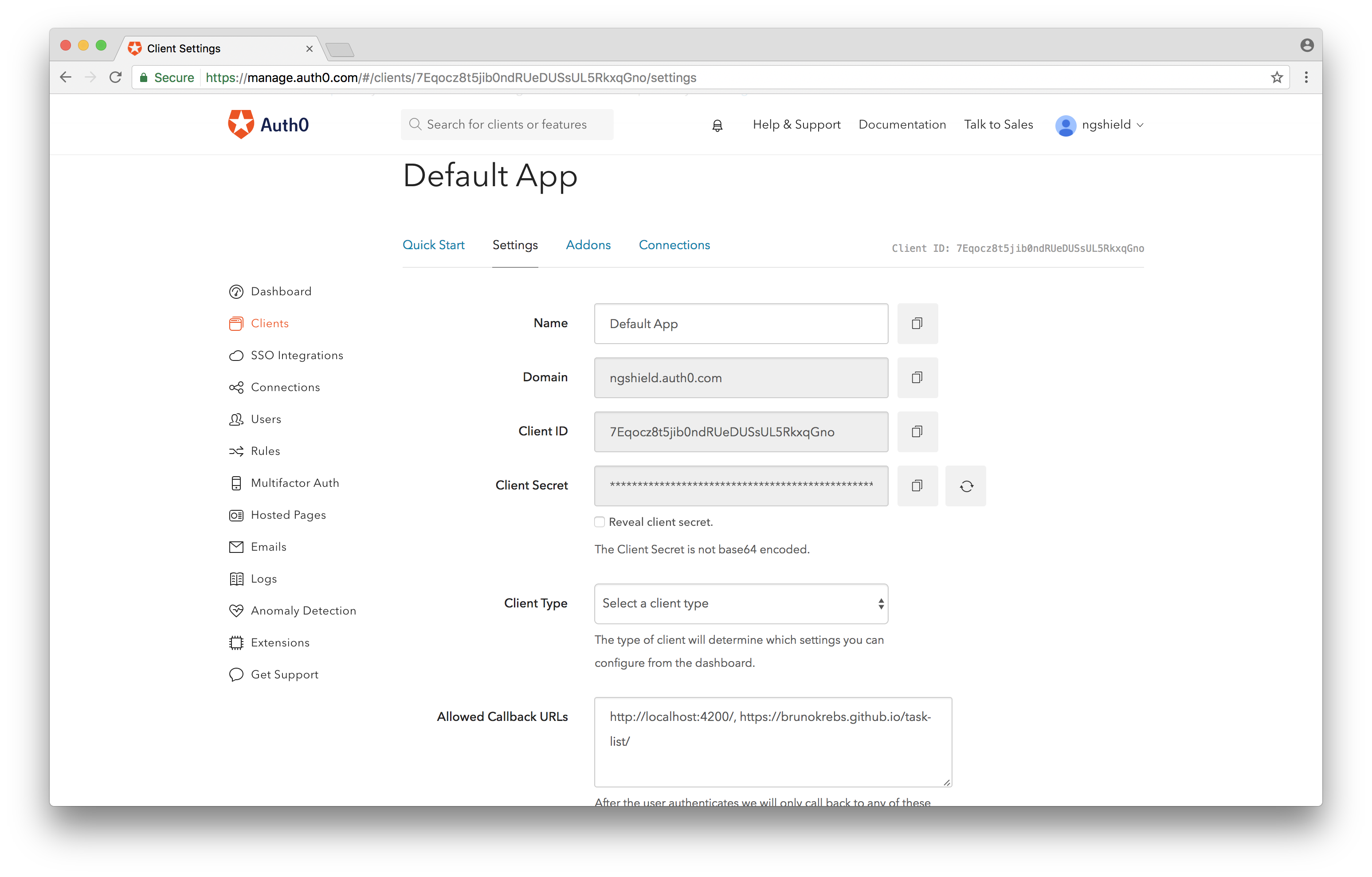
To start, sign up for a free Auth0 account and take note of `Client ID` and `Domain`. Both values are going to be used to configure [Lock](https://auth0.com/lock): an embeddable login system.
> [Auth0 offers a generous **free tier**](https://auth0.com/pricing) to get started with modern authentication.
**Important**: Auth0 requires a list of *Allowed Callback URLs*. This list contains all the URLs to which Auth0 can redirect a user to after issuing a JWT. Therefore we must configure at least two URLs: `http://localhost:4200/` and the URL where our app will be exposed, something like: `https://brunokrebs.github.io/task-list/`. This URL will be defined when we release to GitHub Pages.
To use Lock, we must install two libraries in our application: `auth0-lock` and `angular2-jwt`. Since we are using TypeScript with Angular, we will also install the `@types/auth0-lock` library, which provides TypeScript definitions for Lock. Also, since we want to provide our users a good looking interface, we are going to install [Angular Material](https://github.com/angular/material2). These dependencies are installed with the following commands:
```bash
# Auth0 Lock and Angular 2 JWT runtime deps
npm install --save auth0-lock angular2-jwt @angular/material
# Types definitions for Auth0 Lock
npm install --save-dev @types/auth0-lock
```
Let's use Angular CLI to create a `NavBarComponent`. This component will have *Sign in* and *Sign out* buttons. We will also create a `AuthService` that will be responsible for `sign in`, `sign out` and to validate if the user is `authenticated` or not.
```bash
# generates NavBarComponent files under src/app/nav-bar
ng g component nav-bar
# generates AuthService under src/app/auth.service.ts
ng g service auth
```
After executing these commands, Angular CLI will have created the following file structure:
```
src
|-app
|-nav-bar
|-nav-bar.component.ts
|-nav-bar.component.html
|-nav-bar.component.css]
|-auth.service.ts
```
> Actually two extra files were created: `src/app/auth.service.spec.ts` and `src/app/nav-bar/nav-bar.component.spec.ts`. We would use these files to write tests for both the component and the service. However, for the sake of simplicity, we won't address testing in this post. You can check the following references to read about testing in Angular: [Angular 2 Testing In Depth: Services](https://auth0.com/blog/angular-2-testing-in-depth-services/); [Angular Testing](https://angular.io/docs/ts/latest/guide/testing.html); [Testing Components in Angular 2 with Jasmine](https://semaphoreci.com/community/tutorials/testing-components-in-angular-2-with-jasmine)
To integrate with Lock, let's first implement `src/app/auth.service.ts` with the following code:
```typescript
import { Injectable } from '@angular/core';
import Auth0Lock from 'auth0-lock';
import { tokenNotExpired } from 'angular2-jwt';
// FIXME: replace these with your own Auth0 'Client ID' and 'Domain'
const AUTH0_CLIENT_ID = 'YOUR_AUTH0_CLIENT_ID';
const AUTH0_DOMAIN = 'YOUR_AUTH0_DOMAIN';
// this is the key to the JWT in the browser localStorage
const ID_TOKEN = 'id_token';
@Injectable()
export class AuthService {
lock = new Auth0Lock(AUTH0_CLIENT_ID, AUTH0_DOMAIN, {});
constructor() {
// listening to 'authenticated' events
this.lock.on('authenticated', (authResult) => {
localStorage.setItem(ID_TOKEN, authResult.idToken);
});
}
signIn() { this.lock.show(); }
signOut() { localStorage.removeItem(ID_TOKEN); }
authenticated() { return tokenNotExpired(); }
}
```
In the code above, there are three things that worth mentioning. First, we must replace `AUTH0_CLIENT_ID` and `AUTH0_DOMAIN` with the values that we noted previously. Second, the `ID_TOKEN` references the key were the JWT will be saved (on the user's browser `localStorage`). And third, the constructor of this service adds a callback listener to the `authenticated` event on Lock. This callback saves the token issued by Auth0 in `localStorage`. To sign out a user, it is just a matter of removing this token from `localStorage`.
Our `AuthService` class is good to go, but unlike `components`, Angular CLI does not add `services` to our `@NgModule` definition by default. To do this, open the `src/app/app.module.ts` file, add this `service` as a `provider` and add Angular Material in the `imports` array:
```typescript
// ... other imports
import { AuthService } from './auth.service';
import { MaterialModule } from '@angular/material';
@NgModule({
// ... other properties
imports: [
// ... other imports
MaterialModule.forRoot(),
],
providers: [ AuthService ],
// ... other properties
})
export class AppModule { }
```
We can now focus on implementing our `NavBarComponent`. First, we will inject `AuthService` and add three public methods that will be used by our HTML interface. Then we will implement the interface and add some CSS rules to improve it.
Let's open the `src/app/nav-bar/nav-bar.component.ts` file and implement the following code:
```typescript
import { Component } from '@angular/core';
import { AuthService } from '../auth.service';
@Component({
selector: 'app-nav-bar',
templateUrl: './nav-bar.component.html',
styleUrls: ['./nav-bar.component.css']
})
export class NavBarComponent {
constructor(private authService: AuthService) { }
}
```
This component simply gets `AuthService` injected and nothing else. Injecting a service like this allows the user interface to call its methods, as we will see. Now, let's open `src/app/nav-bar/nav-bar.component.html` and implement it as follows:
``` html
Task List
```
Our `NavBar` exposes our application's title along with two buttons. At any given time, only one button is truly visible to the user. The *Sign In* button is going to be visible when the user is not yet `authenticated` and the *Sign Out* will be visible otherwise. To make our interface look better, we have also added a `span.fill-space` element. This element will be responsible to push both buttons to the right border. To accomplish this, we need to add the CSS rule that follows to the `src/app/nav-bar/nav-bar.component.css` file:
```css
.fill-space {
flex: 1 1 auto;
}
```
Good, we now have both the `NavBarComponent` and the `AuthService` fully implemented and integrated. But we still need to add this component to our `src/app/app.component.html` file, otherwise it will never get rendered. To do this, just replace the content of this file with the following line of code: ``.
If we run our application now, it wouldn't look neat because most major browsers come with an `8px` margin on `body` elements and because we haven't configured any [Angular Material Theme](https://github.com/angular/material2/blob/master/guides/theming.md). We will fix both issues by updating our `src/styles.css` file to look like:
```css
@import '~@angular/material/core/theming/prebuilt/indigo-pink.css';
body {
margin: 0;
}
```
We are now good to go, so let's start our development server, by issuing `ng serve`, and head to `http://localhost:4200` to look how things are. You can even *sign in* and *sign out*, although there won't be much to see.

### Adding a Welcome Message to Visitors
To make our application a friendly place, let's add a welcoming message. To do that, first we will add two methods and inject `AuthService` in the `src/app/app.component.ts` file, making it look like this:
```typescript
import { Component } from '@angular/core';
import { AuthService } from './auth.service';
@Component({
selector: 'app-root',
templateUrl: './app.component.html',
styleUrls: ['./app.component.css']
})
export class AppComponent {
constructor(private authService: AuthService) { }
}
```
After that we are going to add the message, as a `md-card` component from [Angular Material](https://material.angular.io/components/component/card), to `src/app/app.component.html`:
``` html
Hello, visitor.
Please sign in to manage your task list.
```
And last, we are going to make a fix to the interface by adding a rule to `src/app/app.component.css`:
```css
.app-container {
padding: 20px;
}
```
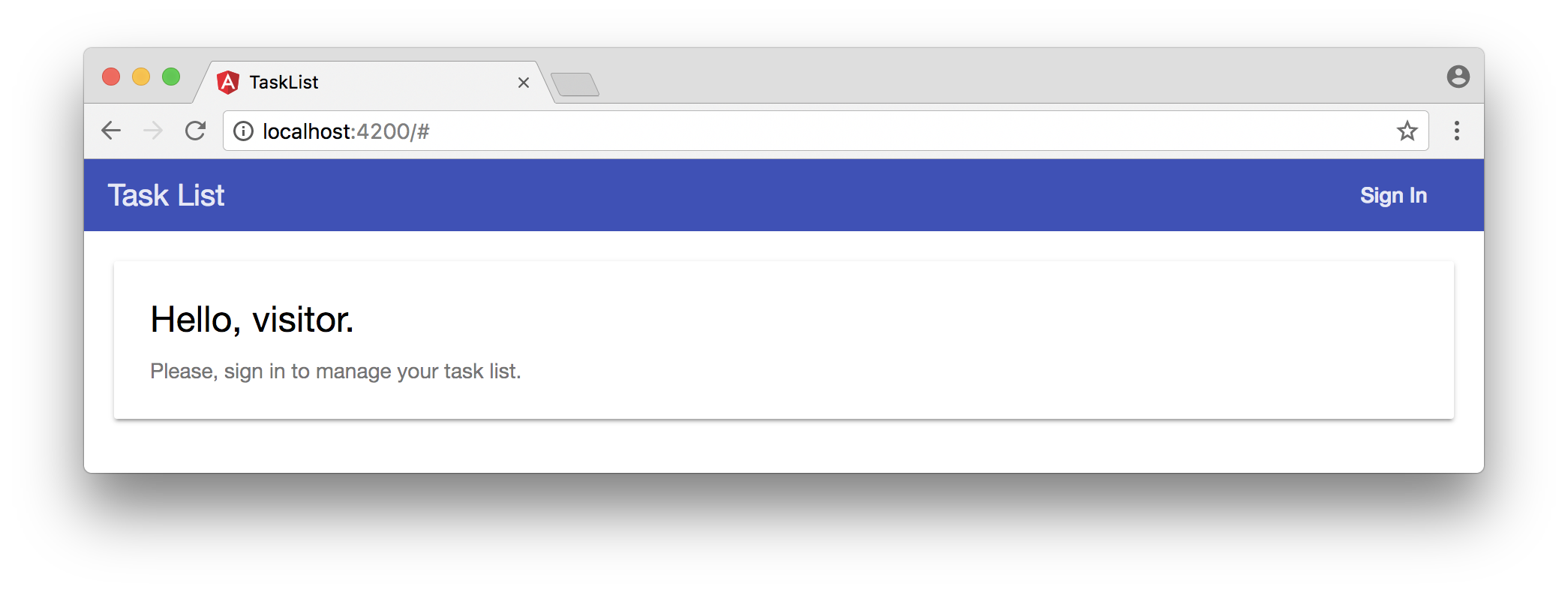
Heading to our app, `http://localhost:4200/`, we can see our new welcome message (if we are not authenticated).
## Implementing Serverless REST API
Now that we have our application integrated with Auth0, which allows our users to sign in and sign out, let's create our serverless REST API. This API will handle `POST` requests (to persist new tasks), `GET` requests (to retrieve tasks from a user) and `DELETE` requests (to remove tasks).
We will first create a file called `tasks.js` in a new folder called `webtask`, and then we will add the following code to it:
```js
'use strict';
// imports node modules
const express = require('express');
const mongojs = require('mongojs');
const bodyParser = require('body-parser');
const jwt = require('jsonwebtoken');
// creates Express app with JSON body parser
const app = new express();
app.use(bodyParser.json());
// defines REST API (HTTP methods)
app.get('/', getTasks);
app.post('/', addTask);
app.delete('/', deleteTask);
// exports REST API
module.exports = app;
function addTask(req, res) {
let userCollection = loadUserCollection(req.webtaskContext);
// save new task to user collection
userCollection.save({
createdAt: new Date(),
description: req.body.description
}, () => res.end())
}
function getTasks(req, res) {
let userCollection = loadUserCollection(req.webtaskContext);
// retrieves all tasks sorting by descending creation date
userCollection.find().sort({ createdAt: -1 }, (err, data) => {
res.status(err ? 500 : 200).send(err || data);
});
}
function deleteTask(req, res) {
let userCollection = loadUserCollection(req.webtaskContext);
// removes a task based on its id
userCollection.remove({ _id: mongojs.ObjectId(req.query.id) }, () => res.end());
}
function loadUserCollection(webtaskContext) {
// this secrets are configured when creating the Webtask
const AUTH0_SECRET = webtaskContext.secrets.AUTH0_SECRET;
const MONGO_USER = webtaskContext.secrets.MONGO_USER;
const MONGO_PASSWORD = webtaskContext.secrets.MONGO_PASSWORD;
const MONGO_URL = webtaskContext.secrets.MONGO_URL;
// removes the 'Bearer ' prefix that comes in the authorization header,
let authorizationHeader = webtaskContext.headers.authorization;
authorizationHeader = authorizationHeader.replace('Bearer ', '');
// verifies token authenticity
let token = jwt.verify(authorizationHeader, AUTH0_SECRET);
// connects to MongoDB and returns the user collection
let mongodb = mongojs(`${MONGO_USER}:${MONGO_PASSWORD}@${MONGO_URL}`);
return mongodb.collection(token.sub);
}
```
The code is quite simple and easy to understand, but an overall explanation might come in handy. The main purpose of this file is to export an [Express app](https://expressjs.com/en/starter/hello-world.html) that handles three HTTP methods for a single route, the main `/` route. These three methods, as explained before, allow users to create, retrieve and delete tasks from collections on a MongoDB database.
Every user will have their own collection—not the best approach, since [MongoDB can handle a maximum of 24,000 collections](https://docs.mongodb.com/manual/reference/limits/#namespaces), but good enough to start. This collection is based on the `sub` claim, [which identifies user](https://tools.ietf.org/html/rfc7519#section-4.1.2), present in the JWT issued by Auth0.
The last function definition in the `tasks.js` file, `loadUserCollection`, is actually responsible for two things: security and MongoDB connection. When a user issues any request to our API, the function verifies if the `authorization` header sent was actually signed by Auth0. If none is sent, a non-user-friendly error is generated. This is done through the `jwt.verify` function with the help if `AUTH0_SECRET` key. The second responsibility, connecting to MongoDB, is handled by the `mongojs` module and depends on three configuration variables: `MONGO_USER`, `MONGO_PASSWORD`, `MONGO_URL`.
All these configuration variables—three to connect to MongoDB and one to verify Auth0 tokens—are passed to Webtask when creating the serverless function. We will see how this is done soon.
This is the **whole REST API implementation**, with this code we are ready to handle users requests that will be sent by the components that we are about to create on our Angular app. But there are a few more steps that we need to perform.
### Creating a MongoDB Database
To make our lives easier and to avoid heaving to install and support MongoDB by ourselves, we are going to use [mLab](https://mlab.com), a cloud-hosted MongoDB. The first thing that we have to do is to [head to their website](https://mlab.com/) and sign up for a free account. After verifying our email address, we have to [create a new deployment](https://mlab.com/create). Since we are just starting our app and we won't get too much traffic, let's choose the ***Single Node*** plan and the ***Sandbox*** type, which provides us 500 MB of DB storage for free. You will also need to type a database name, choose something like `task-list`.
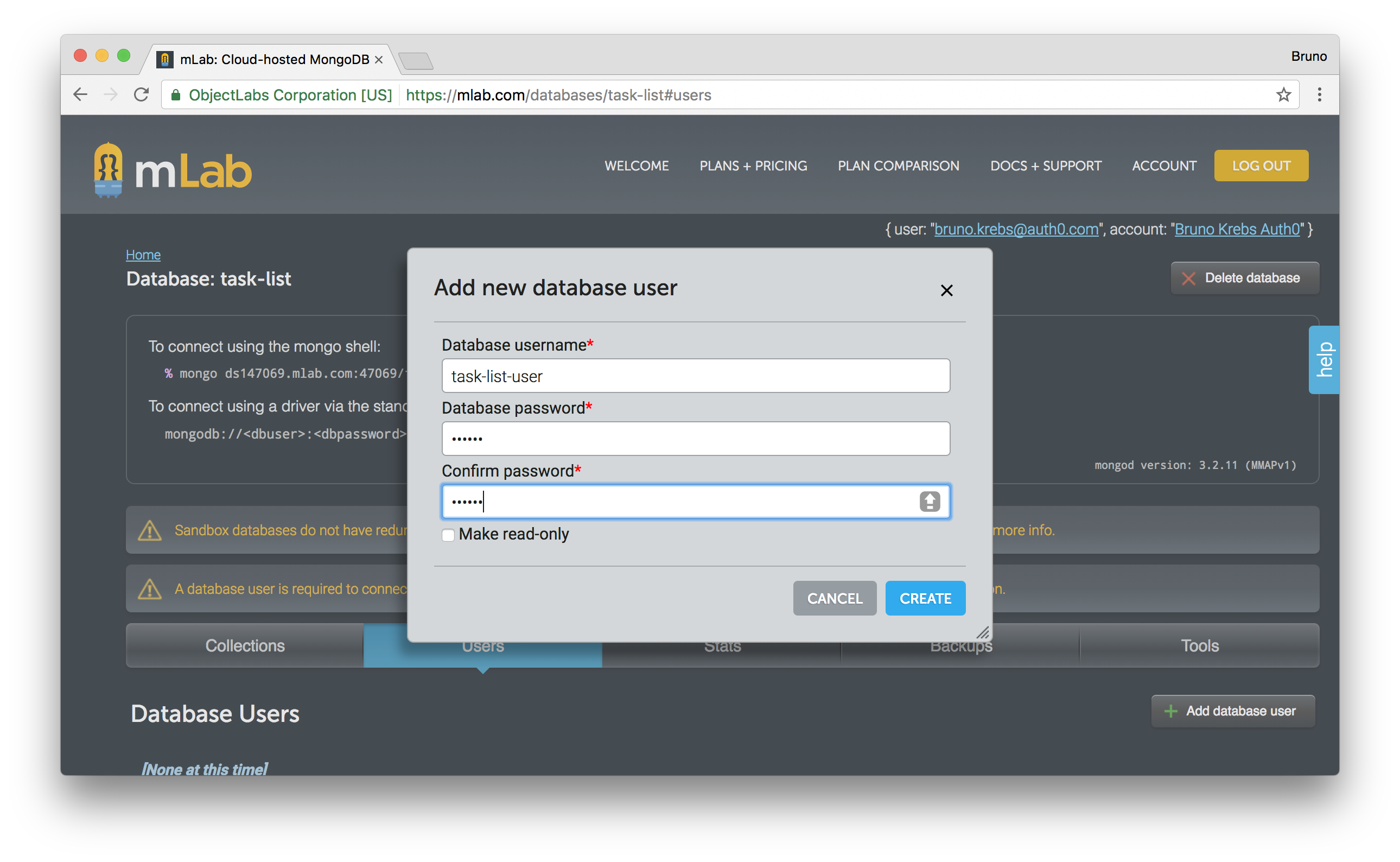
The last thing that we will have to do is to create a user to connect to this database. If you choose `task-list` as the name of your database, [this is the link to create users](https://mlab.com/databases/task-list#users).
### Configuring Webtask Account
We will also need to create a [Webtask account](https://webtask.io), but this as easy as it can be. Webtask, being a product of Auth0, relies on Lock and enables us to create an account with one of the following identity providers (IdP): Facebook, GitHub, Google or Microsoft. It is just a matter of hitting a button to create an account.
After choosing an IdP, we are presented with a succinct, three-step process demonstrating how to create a *Hello World* serverless function. We already have a Webtask to deploy, so let's follow only the first two steps in order to configure the CLI tool in our computer:
```bash
# install Webtask CLI tool
npm install wt-cli -g
# initialize it with our email address
wt init me@somewhere.com
```
You will be asked to enter the verification code that was sent to your email address. This is the final step in the Webtask account configuration.
> Recently, we have released a product called [Auth0 Extend](https://auth0.com/extend/) (which is backed by the Webtask engine). This product enables companies to provide an easy extension point where customers can run arbitrary JavaScript code. With [Auth0 Extend](https://auth0.com/extend/), customers can create custom business rules, scheduled jobs, or connect to the ecosystem by integrating with other SaaS systems, like Marketo, Salesforce, and Concur. All using plain JavaScript and NPM modules.
### Deploying Our Serverless REST API
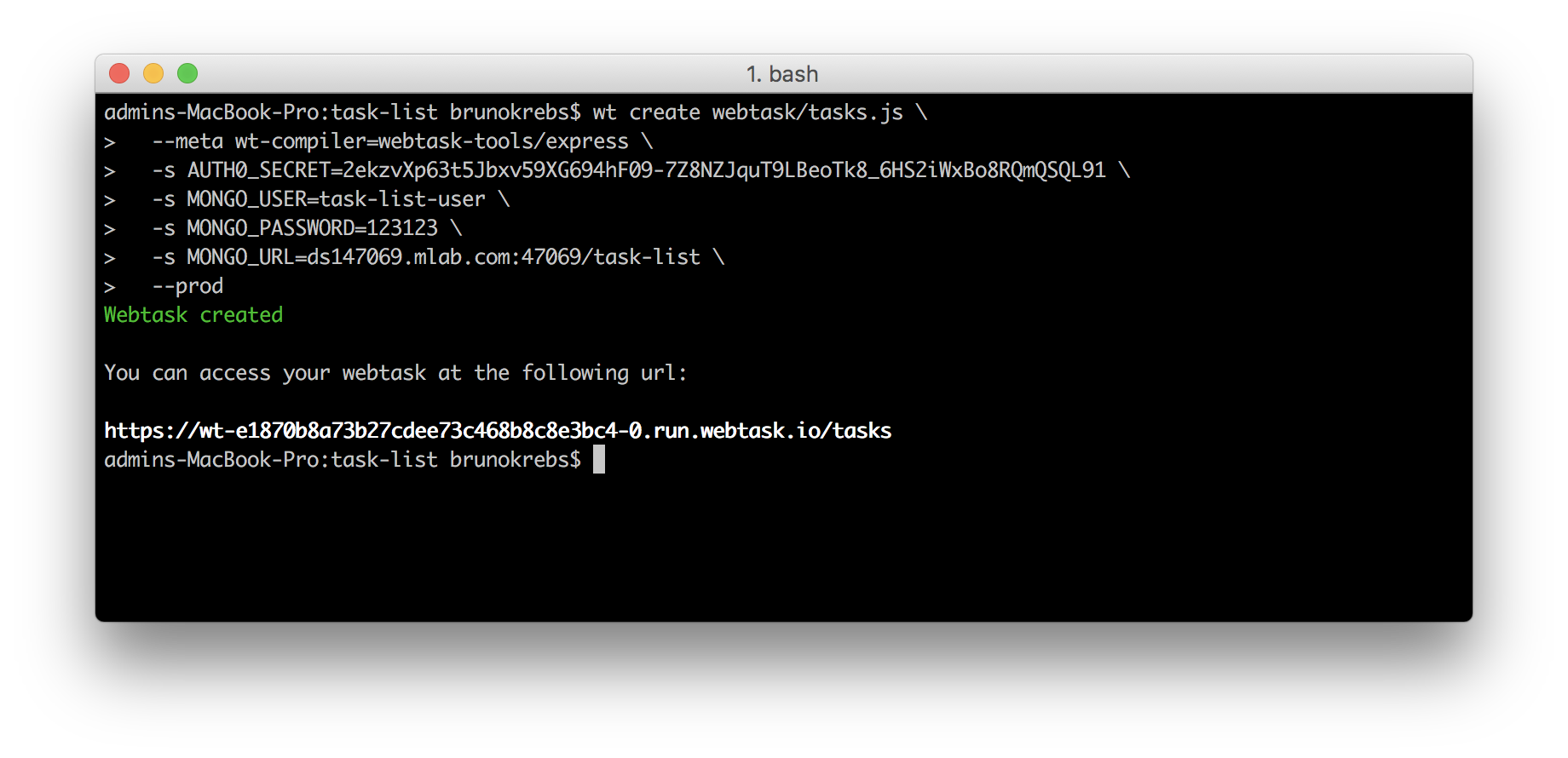
With mLab and Webtask accounts created and having Webtask CLI tool correctly configured, we can now deploy our serverless REST API to production. This is done with the following code:
```bash
wt create webtask/tasks.js \
--meta wt-compiler=webtask-tools/express \
-s AUTH0_SECRET=secret-from-auth0.com \
-s MONGO_USER=task-list-user \
-s MONGO_PASSWORD=111222 \
-s MONGO_URL=ds147069.mlab.com:47069/task-list \
--prod
```
The first option passed to the `wt` tool specifies that we want to `create` a Webtask based on our `webtask/tasks.js` file. The second parameter identifies our code as being an Express app, which needs to be pre-compiled by Webtask with the help of `webtask-tools/express` tool. The following four parameters are the `secrets` that we use in our Webtask (`-s` prefix denotes them as `secrets`). The last parameter creates our Webtask in `production` mode, which makes it faster.
Be aware that the values above have to be replaced with values that come from our Auth0 account and from our mLab account. `AUTH0_SECRET` value can be found at the same place of `Client ID` and `Domain`. And the last three values, related to MongoDB, can be found at mLab's dashboard.
Having successfully issued the Webtask creation command, we can now focus on working on the main feature of our Angular application, the task list component.
## Building our Angular Interface
There are two components that we will need to create to allow users to interact with their task lists. We will create a `TaskListComponent`, to expose the task list, and a `TaskFormComponent`, that will allow the user to create new tasks. Besides these components, we will create a `TaskListService` that will handle all AJAX requests. We will use Angular CLI to create them to us:
```bash
# creates the main component that lists tasks
ng g component task-list
# creates a component to hold a form to add tasks
ng g component task-list/task-form
# creates a service to handle all interaction with our REST API
ng g service task-list/task-list
```
### Integrating Angular with Serverless REST API
Both `TaskListComponent` and `TaskFormComponent` will depend on `TaskListService` to communicate with our serverless REST API, so let's handle the service implementation first.
Open the recently created service file, `src/app/task-list/task-list.service.ts`, and insert the following code:
```typescript
import { Injectable } from '@angular/core';
import { Observable } from 'rxjs';
import { AuthHttp } from 'angular2-jwt';
@Injectable()
export class TaskListService {
private static TASKS_ENDPOINT =
'https://wt-e1870b8a73b27cdee73c468b8c8e3bc4-0.run.webtask.io/tasks';
constructor(private authHttp: AuthHttp) { }
loadTasks$(): Observable {
return this.authHttp.get(TaskListService.TASKS_ENDPOINT);
}
addTask$(task) : Observable {
return this.authHttp.post(TaskListService.TASKS_ENDPOINT,
{ description: task });
}
deleteTask$(task): Observable {
return this.authHttp.delete(TaskListService.TASKS_ENDPOINT +
'?id=' + task._id);
}
}
```
There are three important things to note in this code. First, the `TASKS_ENDPOINT` constant. This constant must reference the *URL* returned by the `wt create` command above.
Second, this class is not using `Http` from `@angular/http`. It is using `AuthHttp`, which is provided by `angular2-jwt` and which integrates gracefully with `auth0-lock`. Instances of this class automatically send an `authorization` header with whatever content it finds on `id_token` key on the user browser `localStorage`. As you may have noted, this is the same place where we stored tokens when configuring `AuthService`.
Third, all methods in `TaskListService` return `Observables`, leaving the caller to decide what to do with the response sent by our serverless REST API.
To inject `TaskListService` in our components, we need to make a few changes in our main `@NgModule`, located in `src/app/app.module.ts`:
```typescript
// ... other imports
import { Http, RequestOptions } from '@angular/http';
import { AuthHttp, AuthConfig } from 'angular2-jwt';
import { TaskListService } from './task-list/task-list.service';
// creates a factory to AuthHttp
export function authHttpFactory(http: Http, options: RequestOptions) {
return new AuthHttp(new AuthConfig(), http, options);
}
@NgModule({
// ... other properties
providers: [
AuthService,
TaskListService, // adds new service
{
provide: AuthHttp,
useFactory: authHttpFactory, // defines how to provide AuthHttp
deps: [ Http, RequestOptions ]
}
],
bootstrap: [AppComponent]
})
```
The first change that we made to our module was to add `TaskListService` as a provider, just like we did before with `AuthService`. The second change also added a provider, but in a more complex form.
The `AuthHttp` provider needed help from a factory - declared as `authHttpFactory` - to be created. This factory has `Http` and `RequestOptions ` as dependencies, so we needed to define the provider as a literal object, passing this dependencies explicitly.
### Listing Tasks with Angular
Our `TaskListComponent` can now be implemented. We will now open the `src/app/task-list/task-list.component.ts` file and apply the code below:
```typescript
import { Component, OnInit } from '@angular/core';
import { TaskListService } from './task-list.service';
@Component({
selector: 'app-task-list',
templateUrl: './task-list.component.html',
styleUrls: [ './task-list.component.css' ]
})
export class TaskListComponent implements OnInit {
private tasks: String[];
constructor(private taskListService: TaskListService) { }
ngOnInit() { this.loadTasks(); }
private loadTasks() {
this.taskListService.loadTasks$().subscribe(
response => this.tasks = response.json(),
error => console.log(error)
);
}
taskAddedHandler(task) {
this.taskListService.addTask$(task).subscribe(
response => this.loadTasks(),
error => console.log()
);
}
deleteTask(task) {
this.taskListService.deleteTask$(task).subscribe(
response => this.loadTasks(),
error => console.log()
);
}
}
```
This class gets `TaskListService` injected and add a few callback methods to the `Observables` responses. Both `taskAdded$` and `deleteTask$` triggers a call to `loadTasks` method when the `Observables` respond without errors. `console.log` is triggered by these methods to handle cases where errors are issued by the serverless REST API.
The `loadTasks` method calls `taskListService.loadTasks$` to assign the result to `tasks` property.
With the three exposed methods and the `task` property filled, we can now implement the `TaskListComponent` interface, which resides in the `src/app/task-list/task-list.component.html` file.
This is what this file should look like:
``` html
Task ListAll your tasks in one place.
{{ task.createdAt | date: 'short' }}
{{ task.description }}
You have no pending tasks.
```
Here we added a `md-list` component, [provided by Angular Material](https://material.angular.io/components/component/list), that iterates through the `tasks`, showing their creation date and their description. Also, each task got a `button` that enables users to delete them.
To make our interface better, let's add two CSS rules to the `src/app/task-list/task-list.component.css` file:
```css
.task-item {
padding: 10px;
margin-bottom: 10px;
background-color: #eee;
}
button.delete {
float: right;
top: -60px;
}
```
This will make different tasks distinguishable with a gray background color, and push the delete button to the right, aligning it vertically to the task.
Now our interface is ready to list tasks, so we need to make it visible by adding it to the `src/app/app.component.html` file. Open it and the `TaskListComponent` as follows:
``` html
```
If we open our application in a browser, by accessing `http://localhost:4200`, we would see the following screen.

Our app's completion now depends on implementing the last component, `TaskFormComponent`, to allow users to add tasks to their lists.
### Adding Tasks with Angular
To enable a user to add tasks, we need to open the `src/app/task-list/task-form/task-form.component.ts` file and implement it as follows:
```typescript
import { Component, EventEmitter, Output } from '@angular/core';
@Component({
selector: 'app-task-form',
templateUrl: './task-form.component.html',
styleUrls: ['./task-form.component.css']
})
export class TaskFormComponent {
@Output()
taskAdded = new EventEmitter();
public task: String = null;
addTask() {
this.taskAdded.emit(this.task);
this.task = null;
}
}
```
This component accepts a user's task input and emits a `taskAdded` event with the data. This component's HTML, located in the `src/app/task-list/task-form/task-form.component.html` file, is also really simple:
``` html
```
When clicked, the *Add* button triggers the `addTask` method in the component. This method then triggers the `taskAdded` event emitter. `TaskListComponent` is the component that will listen to these events. We already implemented a method, called `taskAdded`, that can handle such events. We just need to update this component's HTML to add `TaskFormComponent` and register the event handler.
To do that, let's open `src/app/task-list/task-list.component.html` and add the `app-task-form` tag just before our list, as follows:
``` html
```
And here we go. Our app is now fully implemented and ready to go to production.

Or is it? If we play a little with the application we will see that under some conditions the user experience is not that good. The app takes a while to update the task list when a new task is added or an existing one gets deleted. So there is room for improvement.
### Adding an AJAX Loading Indicator
To solve this issue let's use a small module called [Angular 2 Slim Loading Bar](https://github.com/akserg/ng2-slim-loading-bar). To install it run `npm install --save ng2-slim-loading-bar` and then open the `src/app/app.module.ts` file to import it:
```typescript
// ... other module imports
import { SlimLoadingBarModule } from 'ng2-slim-loading-bar';
@NgModule({
// ... declarations
imports: [
// ... other imports
SlimLoadingBarModule.forRoot()
],
// ... providers and bootstrap
})
export class AppModule { }
```
We will also import its CSS rules by adding the following line to the top of our `src/styles.css` file:
```css
@import '~ng2-slim-loading-bar/bundles/style.css';
/* ... everything else ... */
```
After that we need to make our `AppComponent` use `SlimLoadingBarService`. To do that let's open `src/app/app.component.ts` and edit as follows:
```typescript
// ... other imports
import { SlimLoadingBarService } from 'ng2-slim-loading-bar';
// ... component definition
export class AppComponent {
constructor(private authService: AuthService, private slimLoading: SlimLoadingBarService) { }
// ... method definitions
}
```
`SlimLoadingBarService` contains two methods that we will use: `start`, which starts the loading bar; and `complete`, which ends the loading indicator. These methods will be registered as event listeners on `TaskListComponent`. We still didn't create event emitters in this component, but we can configure the listeners in advance. Let's open `src/app/app.component.html` and edit like this:
``` html
```
The last thing we will have to do is edit the `src/app/task-list/task-list.component.ts` file to create and use both `startAjaxRequest` and `completeAjaxRequest` event emitters on `TaskListComponent`:
```typescript
// ... other imports
import { EventEmitter, Output } from '@angular/core';
// ... component definition
export class TaskListComponent implements OnInit {
@Output()
startAjaxRequest = new EventEmitter();
@Output()
completeAjaxRequest = new EventEmitter();
// ... properties, constructor and ngOnInit definitions
private loadTasks() {
this.startAjaxRequest.emit();
this.taskListService.loadTasks$().subscribe(
response => this.tasks = response.json(),
error => console.log(error),
() => this.completeAjaxRequest.emit()
);
}
taskAddedHandler(task) {
this.startAjaxRequest.emit();
this.taskListService.addTask$(task).subscribe(
response => this.loadTasks(),
error => console.log()
);
}
deleteTask(task) {
this.startAjaxRequest.emit();
this.taskListService.deleteTask$(task).subscribe(
response => this.loadTasks(),
error => console.log()
);
}
}
```
Here we have create both event emitters and have added them to the three methods that depend on AJAX request. Whenever one of these methods gets called we emit an event, through `this.startAjaxRequest.emit()`, to make the *Slim Loading Bar* start running the loading bar indicator. After getting a response back from the AJAX requests sent by the `loadTasks` method, that updates the task list, we tell *Slim Loading Bar* to complete its progress through `this.completeAjaxRequest.emit()`.
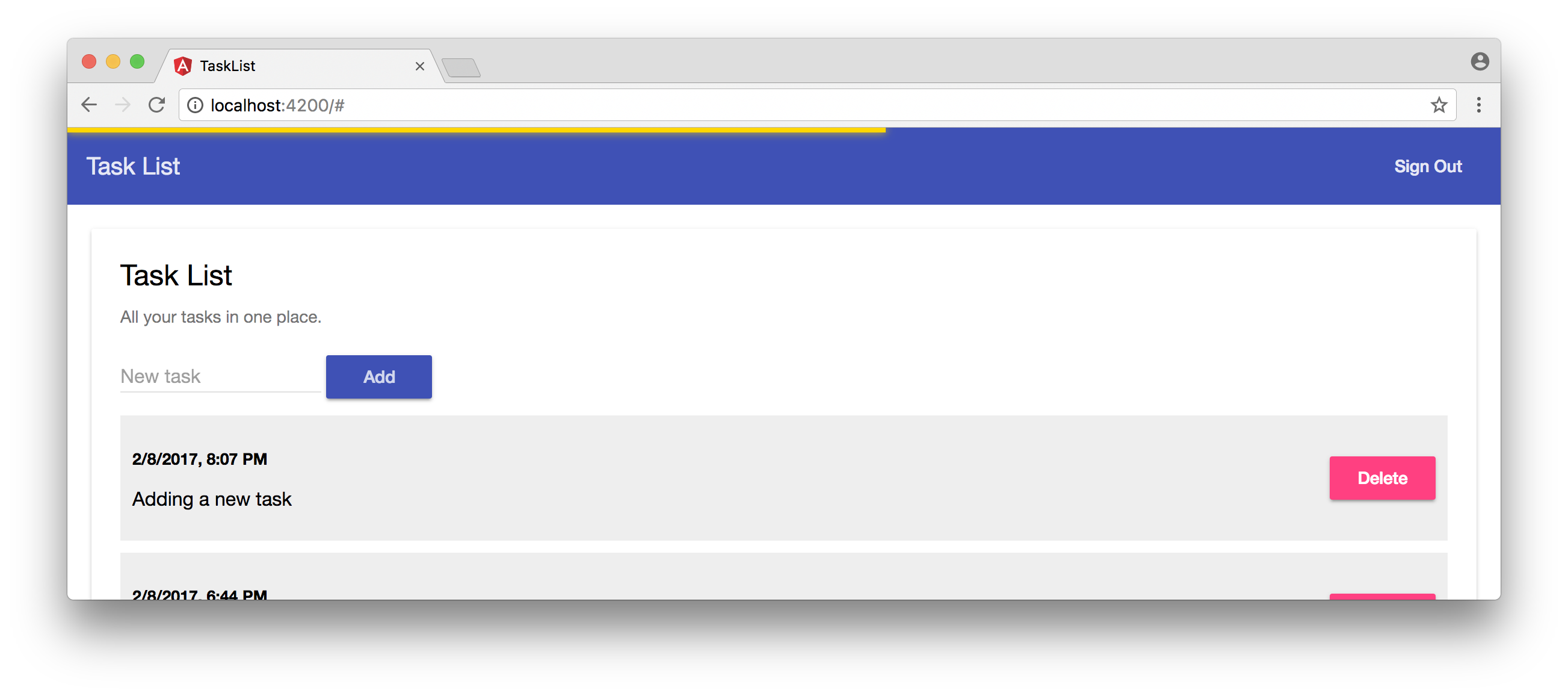
If we run our development server by issuing `ng serve` and heading to `http://localhost:4200/`, we will see our application with a better user experience:
## Going Live with GitHub Pages
Our application is ready to be deployed to production. We have a persistence layer that saves all users' tasks. We have a serverless REST API that accepts `GET`, `POST` and `DELETE` requests to manipulate tasks. We have security, provided by Auth0. And we have a good looking Angular single page application interface. The only thing that is missing is a place to host our static (HTML, CSS and JavaScript) files.
That is exactly what [GitHub Pages provides](https://pages.github.com/). To use it is simple. We just need to create a repository and push our work to a branch called `gh-pages`. This branch should contain only our production bundles.
To create a GitHub repository go to [GitHub](https://github.com/), sign in (or sign up if you don't have an account) and choose the *Create a New Repository* option. Create your new repository naming it as *task-list*. Note that if you choose another name, you will have to adjust the `base-href` parament of the `ng build` command that we will run later.

Now we have to add this repository as a remote to our application. When we created our project with Angular CLI, it already came with [Git](https://git-scm.com/). We just have to add this remote, commit all our changes and push to its master:
```bash
# adds new repo as a remote
git remote add origin git@github.com:YOUR-USERNAME/YOUR-REPO.git
# commits our code
git add .
git commit -m "Task List Angular app with a secure serverless REST API."
# push work to new repo
git push origin master
```
Having our code safe, we can now work on the *going live* task. Two steps are needed here. The first one is to prepare our code for production and package it. Again Angular CLI comes in handy. To do that we just have to issue `ng build --prod --base-href=/task-list/`. Note that we have to set `base-href` to the exact same name of our GitHub repository, otherwise our application won't be able to load all the resources and it won't work.
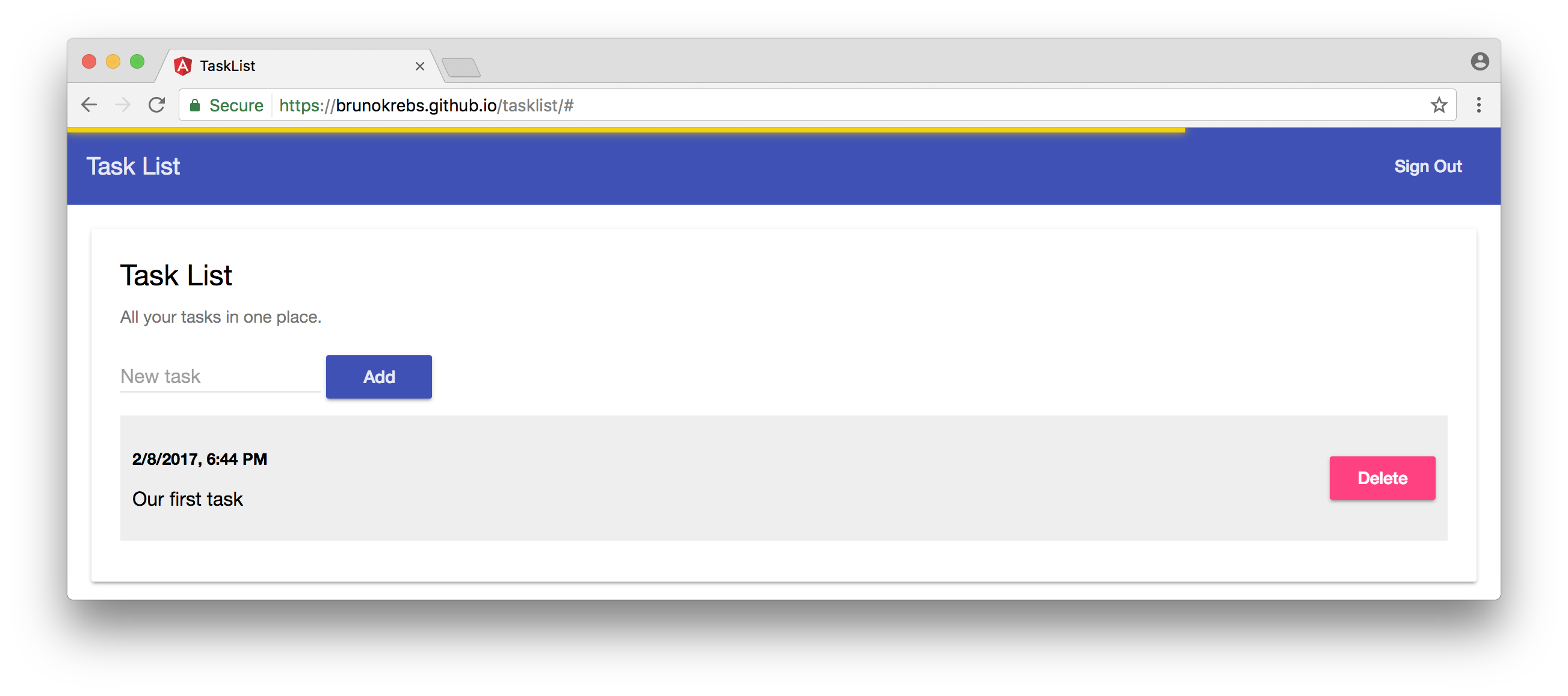
The second step used to be handled by Angular CLI, but [this command has been removed in the latest release](https://github.com/angular/angular-cli/pull/4385), so we will need a third party tool to help us here. Fortunately, there is one that is very easy to use called `angular-cli-ghpages`. To install it issue `npm install -g angular-cli-ghpages`. After that we just have to execute `angular-cli-ghpages` (yep, without any parameters) and voilà. Our app is up and running on GitHub Pages.
**Important**: do not forget to update the *Allowed Callback URLs* on your Auth0 account. The list of allowed URLs must have the URL where our app was exposed. This should be something like `https://brunokrebs.github.io/task-list/`.
## Conclusion
As we could see, when we choose the right tools, it gets easy to achieve great accomplishments. We started with nothing, just an idea to develop a task list application, and managed to create and release it to the internet with not that much effort.
We didn't even have to worry about building, supporting and securing servers to host our web application or our database. If we had to manage these tasks by ourselves, we would take much more time and wouldn't be as confident about our app's security, fault tolerance and scalability.
And this is just the beginning. Freeing ourselves from all these issues enables us to focus 100% on our ideas and on what makes our applications unique.
> Auth0 provides the simplest and easiest to use [User interface tools to help administrators manage user identities](https://auth0.com/user-management) including password resets, creating and provisioning, blocking and deleting users.