---
title: "State Management with Vuex: a Practical Tutorial"
description: "Learn, through a practical tutorial, how to use Vuex to manage the state of your Vue.js apps the right way."
authors:
- name: "Fikayo Adepoju"
url: "https://auth0.com/blog/authors/fikayo-adepoju/"
date: "Nov 13, 2018"
category: "Developers,Tutorial,Vue"
tags: ["vuex", "vuejs", "single-page-apps", "frontend", "javascript", "es6", "state-management", "tutorial", "vue", "spa"]
url: "https://auth0.com/blog/state-management-with-vuex-a-practical-tutorial/"
---
# State Management with Vuex: a Practical Tutorial
**TL;DR:** As [Single-Page Applications (SPAs)](https://en.wikipedia.org/wiki/Single-page_application) are fast becoming the de-facto way of developing frontend applications, one of the major issues that developers are facing is how they manage state between all the components spread around their applications. Vuejs apps are not an exception to this. To solve this problem, you will learn, through a practical guide, how to use [Vuex](https://vuex.vuejs.org/) to manage the state of your Vue.js apps with ease. [Check out this article if you need the reference implementation of the app discussed here](https://github.com/auth0-blog/vuex-practical-tutorial).
## Prerequisites
Before you begin going through this article, there are two technologies that you should already be familiar with: [JavaScript](https://en.wikipedia.org/wiki/JavaScript), and [Vue.js](https://vuejs.org/). You might be able to follow along without having ever used Vue.js before. However, if you don't know JavaScript, you will have a hard time (most likely).
Besides this knowledge, you will need Node.js and NPM installed in your machine. Please, [check out this resource to install these tools if you don't have them already](https://nodejs.org/en/download/) (by the way, NPM comes bundled into Node.js).
## Vuex in Action
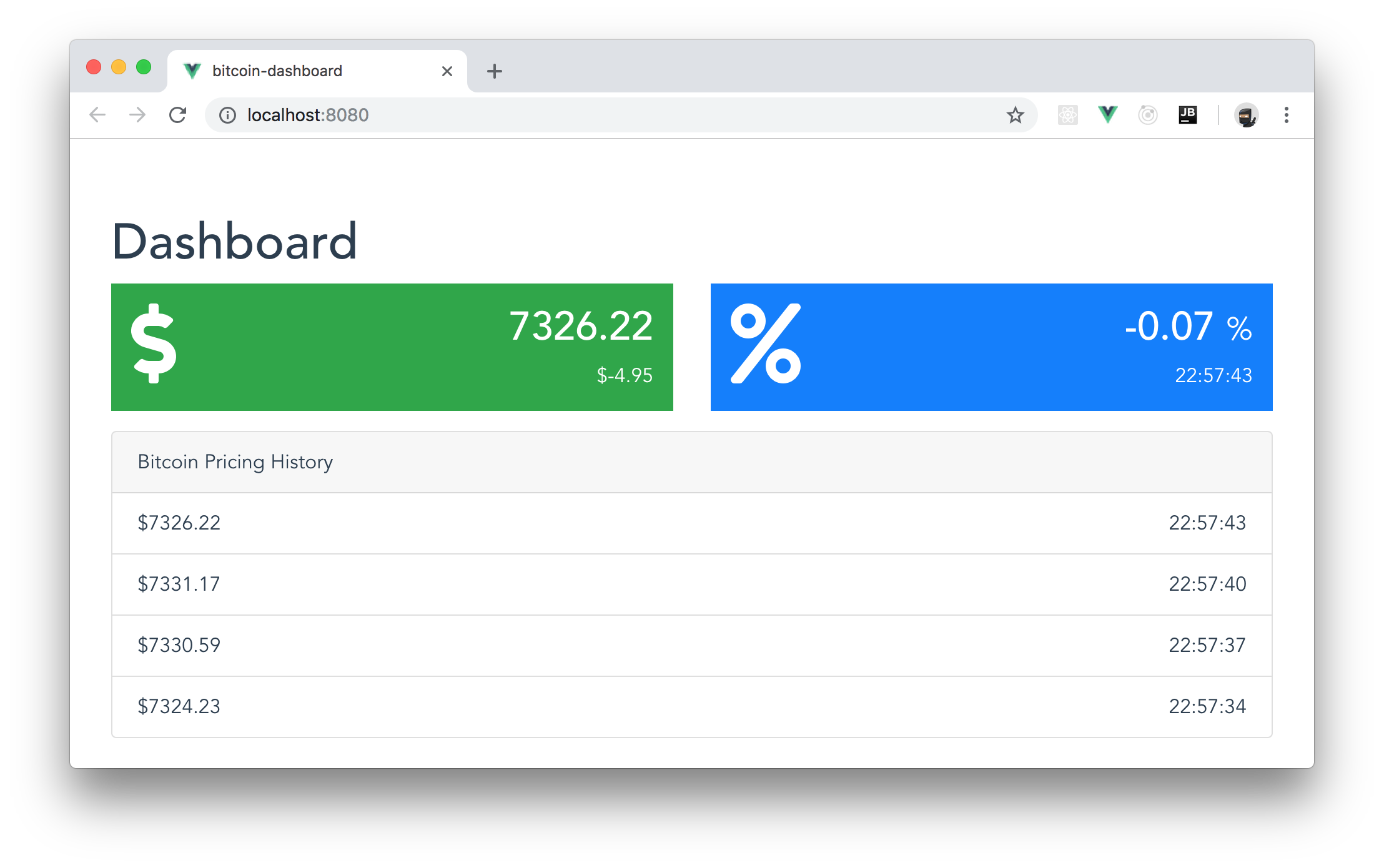
In this section, you learn, through a practical guide, how to use Vuex to build a simple Bitcoin dashboard simulation that shows the current price of Bitcoin and updates it as the time passes. Besides the price, your app will also show the percentage increase and the price difference in real-time. Lastly, your app will show the history of the previous four prices for reference.
To make things organized, you will break your app into four components:
1. The main component: this one already exists and it is called `App`.
2. A component that shows the current Bitcoin price and how it differs from the previous one (this one is the green box in the image below).
3. A component that shows the percentage change between the current price and the last one, and the time when the update occurred (this one is the blue box in the image below).
4. A component that shows the Bitcoin pricing history (this one is the table below the blue and the green boxes).
In the end, you will get an app that looks like this:
> **Note:** You won't use real Bitcoin prices here. You will code some fake sample and then generate random values based on this sample.
### Scaffolding a new Vue.js App
To scaffold your new Vue.js app with ease, you will use the [Vue CLI](https://cli.vuejs.org/) tool. As such, if you don't have this CLI already installed in your development environment, open a terminal and run the following command:
```bash
npm install -g @vue/cli
```
After a successful installation, navigate to the directory in which you want to keep your project and run the command below to create a new Vue.js app:
```bash
vue create bitcoin-dashboard
```
Running this command will prompt you to select a preset and, if you have [Yarn](https://yarnpkg.com/) installed, will ask you if you prefer to use it instead of NPM. Feel free to choose the answers that you prefer, but this article will use `default` for the preset and NPM as the dependency management tool.
After making your choices, the Vue CLI tool will scaffold your app and install the basic dependencies. When done, you can move into your new project and run it to see if everything is working properly:
```bash
# move into your new app
cd bitcoin-dashboard
# run it with NPM
npm run serve
```
Now, if you open [`http://localhost:8080/`](http://localhost:8080/) in your browser, you will see the following screen:
Then, to shut down your server, you can hit the following keys: `Ctrl` + `C`.
### Installing Vuex and Other Dependencies
Alongside with the basic dependencies in your Vue.js app, you will also need to install three other dependencies: [Bootstrap](https://getbootstrap.com), Vuex itself, and [Font Awesome](https://fontawesome.com/) (the free version).
To install them, make sure you are on the project root and run the command below:
```bash
npm install --save \
bootstrap vuex @fortawesome/fontawesome-free
```
### Creating the Vuex Store
To begin setting up your Vuex store, you will create a new directory called `store` inside `src`. You will use this directory to hold all files related to your Vuex store.
Then, as mentioned before, you will start your Bitcoin app with a fake sample. So, for that, you will need to create a file called `prices.js` inside the `store` directory and add the following code to it:
```javascript
const now = Date.now();
const twoSeconds = 2000;
const prices = [
{
amount: 7322.89,
timestamp: now
},
{
amount: 6322.02,
timestamp: now - twoSeconds,
},
{
amount: 5222.64,
timestamp: now - (twoSeconds * 2),
},
{
amount: 5242.61,
timestamp: now - (twoSeconds * 3),
}
];
export default prices;
```
As you can see, in the file that you just created, you are defining and exporting an array of historical Bitcoin prices and the time each one was created. Note that you extract the exact date (`Date.now()`) that your app starts running to define the time that the last price was created. Also, you create a constant called `twoSeconds` and use it to calculate the time the other fake prices were created. In other words, you are creating a module that defines an array with four prices:
- `7322.89`: the most recent price that gets the date when the app starts running;
- `6322.02`: the second most recent price that gets the date when the app starts running minus two seconds;
- `5222.64`: the third most recent price that gets the date when the app starts running minus four seconds;
- and `5242.61`: the oldest price that gets the date when the app starts running minus six seconds.
With this file in place, the next thing you will need to do is to create a file where you define the Vuex _actions_ available in your application. To do so, create a file called `actions.js` inside the `store` directory and add the following code to it:
```javascript
const actions = {
UPDATE_PRICE: 'UPDATE_PRICE'
};
export default actions;
```
This file only contains a single action because that is the only thing you will need in your application. Having your actions in a separate file this way helps organize your code better and prevents duplicating string names across your app.
Now, you can finally create your store. For that, create a file called `index.js` inside `src` and add the following code into it:
```javascript
import Vue from 'vue';
import Vuex from 'vuex';
import prices from './prices';
// configure Vuex for modules
Vue.use(Vuex);
const store = new Vuex.Store({
state: {
prices: prices
},
getters: {
currentPrice: state => {
return state.prices[0];
},
previousPrice: state => {
return state.prices[1];
},
percentageIncrease: (state, getters) => {
const currentAmount = getters.currentPrice.amount;
const previousAmount = getters.previousPrice.amount;
return (
((currentAmount - previousAmount) / previousAmount) *
100
).toFixed(2);
},
difference: (state, getters) => {
const currentAmount = getters.currentPrice.amount;
const previousAmount = getters.previousPrice.amount;
return (currentAmount - previousAmount).toFixed(2);
}
},
mutations: {
UPDATE_PRICE(state, newPricing) {
// remove the oldest price
state.prices.pop();
// add the new price
state.prices = [newPricing, ...state.prices];
}
}
});
export default store;
export {default as actions} from './actions';
```
As a lot going on in this file, you will be better off learning it gradually. First, you are importing all modules required:
```javascript
import Vue from 'vue';
import Vuex from 'vuex';
import prices from './prices';
```
After that, you are configuring your Vue.js to use Vuex:
```javascript
Vue.use(Vuex);
```
Then, you are creating a new instance of a Vuex store (`new Vuex.Store`) with the configuration object where all your settings are declared. In the configuration object passed to Vuex, the first thing you are defining is the default `state` object with your fake prices:
```javascript
state: {
prices: prices;
}
```
Then, you are creating a `getter` to compute and return the current Bitcoin price (`currentPrice`):
```javascript
currentPrice: state => {
return state.prices[0];
},
```
After that, you are creating another `getter` for the previous bitcoin price (`previousPrice`):
```javascript
previousPrice: state => {
return state.prices[1];
},
```
The, you are creating the third `getter` for the percentage difference between the current price and the previous one (`percentageIncrease`):
```javascript
percentageIncrease: (state, getters) => {
const currentAmount = getters.currentPrice.amount;
const previousAmount = getters.previousPrice.amount;
return (
((currentAmount - previousAmount) / previousAmount) *
100
).toFixed(2);
},
```
And, finally, you are creating the last `getter` for the difference between the current and previous price (`difference`):
```javascript
difference: (state, getters) => {
const currentAmount = getters.currentPrice.amount;
const previousAmount = getters.previousPrice.amount;
return (currentAmount - previousAmount).toFixed(2);
}
```
Next, you are defining the `mutations` of your Vue.js app. In this application, you only need one mutation which updates the price of Bitcoin:
```javascript
mutations: {
UPDATE_PRICE(state, newPricing) {
// remove the oldest price
state.prices.pop();
// add the new price
state.prices = [newPricing, ...state.prices];
}
}
```
As you can see, the `UPDATE_PRICE` mutation receives the new price data in its payload, removes the oldest price from the prices array, and inserts a new one at the beginning of the array.
Lastly, you are exporting your `store` and also your `actions` so other component components can use it:
```javascript
export default store;
export { default as actions } from './actions';
```
And that's it! Your Vuex store is fully complete.
### Defining your Vue.js Components
Now that your store is all set and ready to go, you will start defining your application components. As mentioned before, your app will contain three components (besides the main one that is called `App`). One to show the current Bitcoin price and the difference between the previous and current price. One to show the percentage difference between the current and previous Bitcoin prices and that also display when the last update occurred. One component to show the details of a Bitcoin price.
The first one that you will define is the one that will display the current Bitcoin price and the difference between the previous and current price. To define this component, create a file called `CoinPrice.vue` inside the `src/components` directory and add the following code to it:
``` html
{{format(price.amount)}}
${{difference}}
```
> **Note:** You can also remove the `HelloWorld.vue` file that Vue.js created by default for you. You won't use the component defined in this file.
As you can see in the `` section, the file you just created defines a component called `CoinPrice`. This component uses two `computed` properties that retrieve state from the Vuex store: `price`, which gets the value from `$store.getters.currentPrice`; and `difference`, which gets the value from `$store.getters.difference`. Besides these properties, the file also defines a method called `format` to return a cleaner price for display in the component template.
Now, in relation to the `` area, this file is defining a main `` element (with the `bg-success` and `text-white` Bootstrap classes to make it look better) with a single child that is [a Bootstrap row](https://getbootstrap.com/docs/4.1/layout/grid/#how-it-works) and then it is splitting the content of this element into two sections:
- `col-2`: a section that shows a big (`fa-4x`) Dollar sign icon (`fa-dollar-sign`);
- `col-10`: a section that will show the current Bitcoin price (`amount`) and the `difference` between the current the last price.
After defining this component, you will create a similar one that will show the percentage change between the current and the last price and when this change occurred. To define this one, create a file called `PercentChange.vue` inside the `src/components` directory and add the following code to it:
``` html
{{percentageIncrease}}
%
{{formatTimestamp(currentPrice.timestamp)}}
```
The component you just defined is quite similar to the previous one. The `` structure is basically the same: one big icon (a `fa-percent` icon in this case) and two values (the `percentageIncrease` and the `timestamp` now). Also, the `` section is similar, the difference is that now it is showing other relevant data.
Now, the last component you will define is the one that will show some historical Bitcoin price. To define this one, create a file called `PriceItem.vue` inside the `src/components` directory and add the following code into it:
``` html
${{formatPrice(price.amount)}}
{{formatTimestamp(price.timestamp)}}
```
This component is even simpler than the other two. All this one is doing is defining a `` element with the formatted price of some historical value (it can be the current price or an older one) and the time it was created. You will see how to use this component in the next section.
### Wrapping Up
You are almost done. Now it is just a matter of opening the `App.vue` file and replace its code with this:
``` html
```
The new version of the `App` component, although lengthy, is quite simple. The `` section starts by defining a title (`Dashboard
`). After that, it defines a row where it displays two components: `` and ``. Lastly, it defines a [Bootstrap card](https://getbootstrap.com/docs/4.0/components/card/) (``) where it shows the _Bitcoin Pricing History_. To create this history, the component iterates over each price (`v-for="price in prices"`) to create multiple `PriceItem` elements.
Then, the `` section starts by importing all the components you defined in the previous section alongside with your Vuex `store` and the `actions` you created for it. After that, you make your components available to your app by adding them to the `components` property of your app. You also make your `store` available by adding it to the `App` component definition. By importing your store this way, you make it automatically available to all child components of your `App` component.
After that, three things occur:
1. You add a `computed` property called `prices` to return all the prices available in your Vuex store.
2. You add a hook into the `created` event of the lifecycle of your `App` component to trigger a repetitive task that runs every three seconds. This task starts the creation of new random prices: `setInterval(this.triggerNewPrice, 3000);`.
3. You define the `triggerNewPrice` inside the `methods` property of your `App` component to make the function available to it. This function simply generates a random new price and calls the store's `commit` method with the action to mutate the price (`UPDATE_PRICE`) issuing with it the new random price as a payload.
Lastly, in the `` section, you make your app import the css files of Bootstrap and Font Awesome for use in your application. Oh, and you also add a few custom styles for aesthetics.
Great! With these changes, you are done with your new Vuex app. Time to test it.
To run the application, issue the following command in a terminal (just make sure you are in your project root):
```bash
# from the project root
npm run serve
```
Then, open up your browser and point it to [`http://localhost:8080/`](http://localhost:8080/). There, you should see the app running successfully and the prices updating every three seconds. The percentage difference and price difference should also update:

Cool, isn't it!?
## Conclusion
In this article, you learned, through a practical guide, how easy it is to use Vuex to manage the state of Vue.js apps.
What is cool about Vuex is that, just like Vue.js, it offers a very clean, easy to use, and declarative API for managing state in your applications. Its simplicity does not take anything away from its effectiveness in managing state, regardless of how complex the application is.
What is your opinion about Vuex? Are you planning on using it in your next production-ready app? Besides that, what is your opinion about the article itself? Let us know!