---
title: "Vue.js, Spring Boot, Kotlin, and GraphQL: Building Modern Apps - Part 1"
description: "Learn how to build modern web apps using Vue.js for the frontend and a Spring Boot, Kotlin, GraphQL API for the backend."
authors:
- name: "Vladimir Fomene"
url: "https://auth0.com/blog/authors/vladimir-fomene/"
date: "Aug 13, 2019"
category: "Developers,Tutorial,Vue.js"
tags: ["vue", "vue.js", "spring", "spring-boot", "web", "web-development", "spa", "single-page-apps", "graphql", "kotlin"]
url: "https://auth0.com/blog/vuejs-spring-boot-kotlin-and-graphql-building-modern-apps-part-1/"
---
# Vue.js, Spring Boot, Kotlin, and GraphQL: Building Modern Apps - Part 1
**TL;DR:** This article is the first part of a two-part series tutorial in which you will learn how to build modern web apps using Vue.js, Spring Boot, Kotlin, and GraphQL. In addition, you will also learn how to secure your backend and frontend apps using [Auth0](https://auth0.com/). For a quick glance at the application you will be building in this series, [check this GitHub repository](https://github.com/vladimirfomene/MovieReviewBoard-Part-1).
## Prerequisites
To effectively follow this tutorial, you will need the following tools installed on your system:
* JDK: Since [Kotlin](https://kotlinlang.org/) is a JVM based language and you will bootstrap Spring Boot with JDK 8, you need to have installed JDK 8 or above. If you don't have it installed, you can get it [here](https://www.oracle.com/technetwork/java/javase/downloads/jdk8-downloads-2133151.html)
* Node.js and NPM for your frontend development. If you don't have Node.js installed, [checkout this resource](https://nodejs.org/en/download/). To check if you have it installed run `node -v` in your command line and you should see the version of Node.js that was installed. Don't worry about NPM, most Node.js installations come with NPM.
* Vue CLI: Install it using this [resource](https://cli.vuejs.org/guide/installation.html) if you don't already have it. This page also shows you how to inspect which version of Vue is installed on your system. Vue CLI is a command line tool for scaffolding Vue.js apps. It is Vue's equivalent of [Create React App](https://facebook.github.io/create-react-app/) for React.js.
* Finally, any text editor or IDE of your choice, though I will recommend [VSCode](https://code.visualstudio.com/) or [IntelliJ IDEA](https://www.jetbrains.com/idea/).
In addition to these tools, this tutorial assumes beginner knowledge in [Spring Boot and Kotlin](https://spring.io/guides/tutorials/spring-boot-kotlin/), [Vue.js](https://vuejs.org/), [Vuex](https://vuex.vuejs.org/), and [Vue Router](https://router.vuejs.org/).
## Modern Web App Architecture
Most modern web apps are built as Single Page Applications (SPA) which communicate with a backend API. Why SPA? SPAs are broswer-based apps where the server provides a single template to the browser and JavaScript is used to dynamically render other pages. Although SPAs usually take some time on initial page load, they provide a sleek user experience after the initial page load. For content updates, SPAs rely on querying a backend API with JavaScript. Traditionally, APIs have been designed following the [REST pattern](https://restfulapi.net/), nowadays many people build their APIs using [GraphQL](https://graphql.org/) mostly because its efficiency compared to REST. This is because GraphQL can convert multiple back-to-back REST API request into one API request.
Why Kotlin and Vue.js?
* Kotlin because it provides great developer productivity.
* Vue.js because of its good documentation.
## What You Will Build
In this series, you will be building a "Movie Review Board" app which will be an application where users can see their favorite movies with their directors and rate them. As you might have guessed from the title of series, you will build a SPA with Vue.js, Vuex, Vue Router, Vue's Event Bus and a backend API with Spring Boot, Kotlin and GraphQL.
## Bootstrap Your Spring Boot Application
Now that you have an idea on what you will build, head to [Spring Initializr](https://start.spring.io/) and select the tools and libraries you will need. On the Spring Initializr page, the form should have the following items selected:
* Project: Gradle Project
* Language: Kotlin
* Spring Boot: 2.1.5
* Group: com.example
* Artifact: MovieReviewBoard
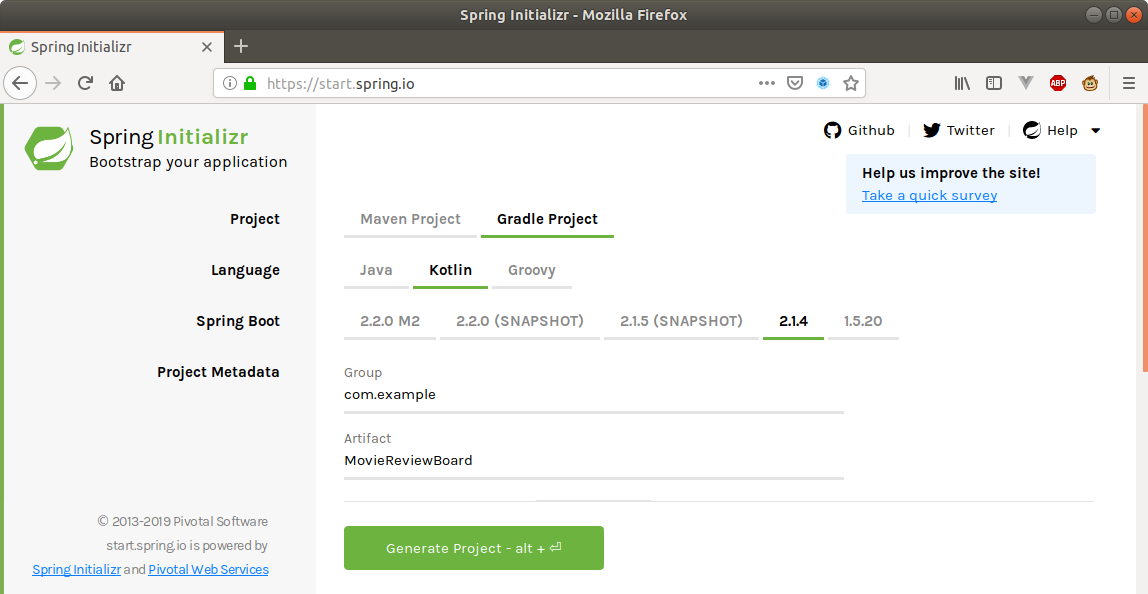
Then, in the "Dependencies" section, use the search box to include: the `Web`, `H2` and `JPA` libraries.
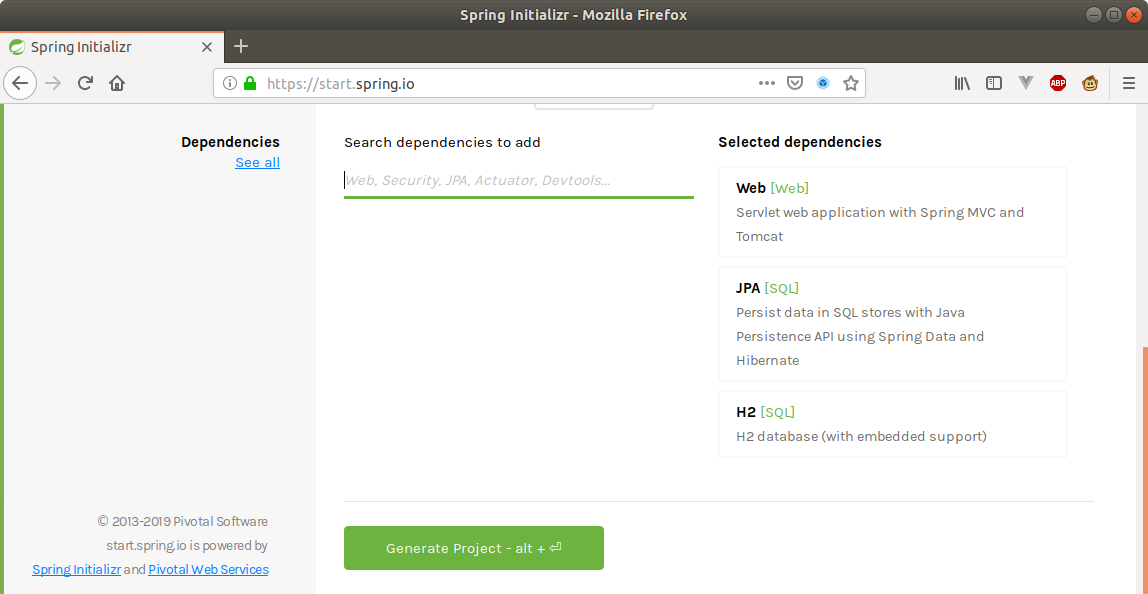
Now, go ahead and generate your project. This will download a .zip file in your browser. Unzip this folder and create a **backend** folder in it. The path to this backend folder should be `MovieReviewBoard/backend`. Then put all the content of your **MovieReviewBoard** folder in the backend folder. You can now load the content of the backend folder into your favorite Spring Boot IDE.
>**Note:** By default, the servlet container in Spring Boot listens on port 8080, therefore your system will not allow any other program to listen on that port. Unfortunately, Webpack (the server used by Vue.js) also runs on port 8080 so your system will not allow you to run both programs at the same time. To solve this problem, go to `/MovieReviewBoard/backend/src/main/resources/application.properties` file in your app and add `server.port=8888` to it. Now Spring Boot will listen on port 8888 instead of 8080.
Next, create a helloworld endpoint in your Spring Boot app by creating a `HelloWorldController.kt` in your `com.example.MovieReviewBoard` package. After adding the line `package com.example.MovieReviewBoard` to the top of that new file, add in the following code:.
```kotlin
import org.springframework.boot.web.servlet.FilterRegistrationBean
import org.springframework.context.annotation.Bean
import org.springframework.core.Ordered
import org.springframework.web.bind.annotation.GetMapping
import org.springframework.web.bind.annotation.RestController
import org.springframework.web.cors.CorsConfiguration
import org.springframework.web.cors.UrlBasedCorsConfigurationSource
import org.springframework.web.filter.CorsFilter
import java.util.*
import javax.servlet.Filter
@RestController
class HelloWorldController {
@GetMapping("/helloworld")
fun greet(): String {
return "helloworld!"
}
@Bean
fun simpleCorsFilter(): FilterRegistrationBean<*> {
val source = UrlBasedCorsConfigurationSource()
val config = CorsConfiguration()
config.allowCredentials = true
// *** URL below needs to match the Vue client URL and port ***
config.allowedOrigins = Collections.singletonList("http://localhost:8080")
config.allowedMethods = Collections.singletonList("*")
config.allowedHeaders = Collections.singletonList("*")
source.registerCorsConfiguration("/**", config)
val bean = FilterRegistrationBean(CorsFilter(source))
bean.setOrder(Ordered.HIGHEST_PRECEDENCE)
return bean
}
}
```
>**Note:** The `simpleCorsFilter()` method adds cross-origin support to your backend API. This method sets the `Access-Control-Allow-Origin` header on HTTP responses sent by your server. Setting the value of this header to `http://localhost:8080` signals the browser that it is okay for this domain to make a request to your server.
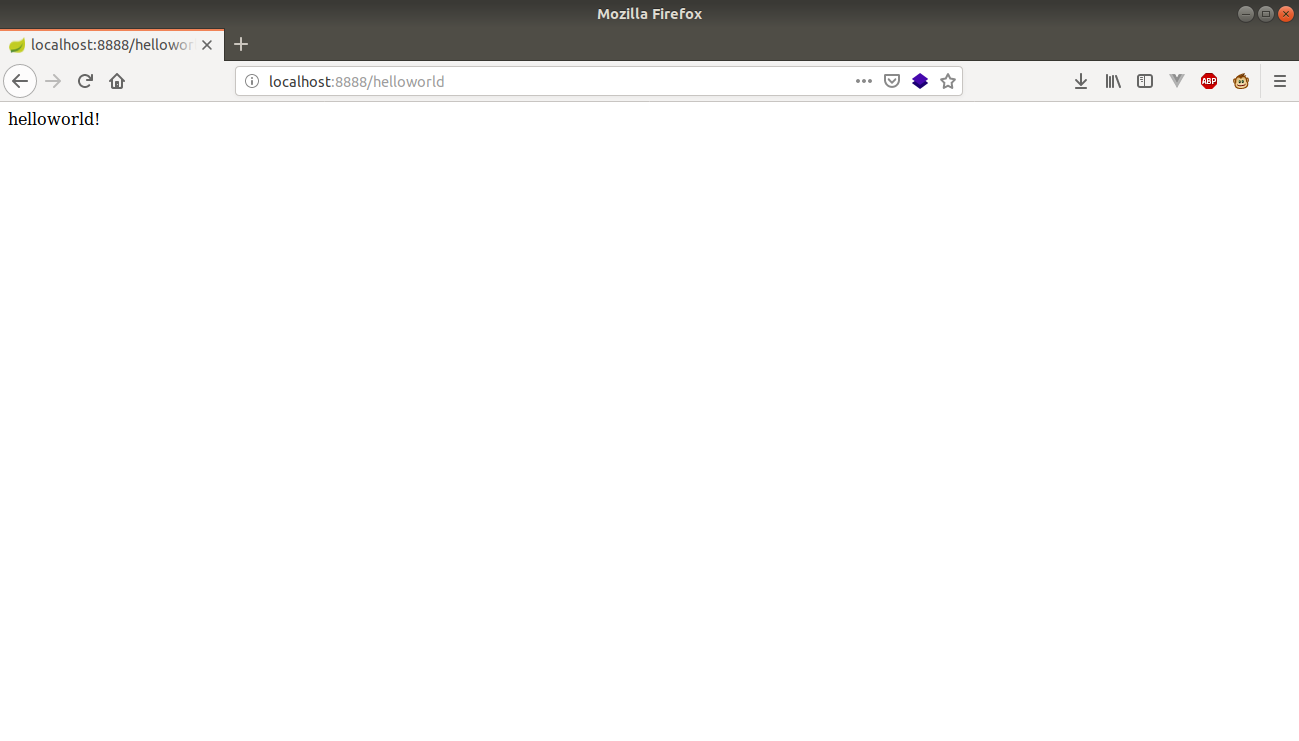
With that in place, run your backend server by executing `./gradlew bootRun` in `MovieReviewBoard/backend/` via the command line or running it in your IDE. If you now visit [http://localhost:8888/helloworld](http://localhost:8888/helloworld) in your browser you should see the following page.
## Bootstrap Your Vue.js App
Now that you have the building blocks of your backend, you have to scaffold your frontend application with Vue CLI. Make sure you have Vue CLI installed as per the instructions in the prerequisites section above. To scaffold the app, open your terminal and navigate to the **MovieReviewBoard** directory and execute the following command:
```bash
vue create frontend
```
This will create a dialog in your terminal with setup questions which you should answer as follows:
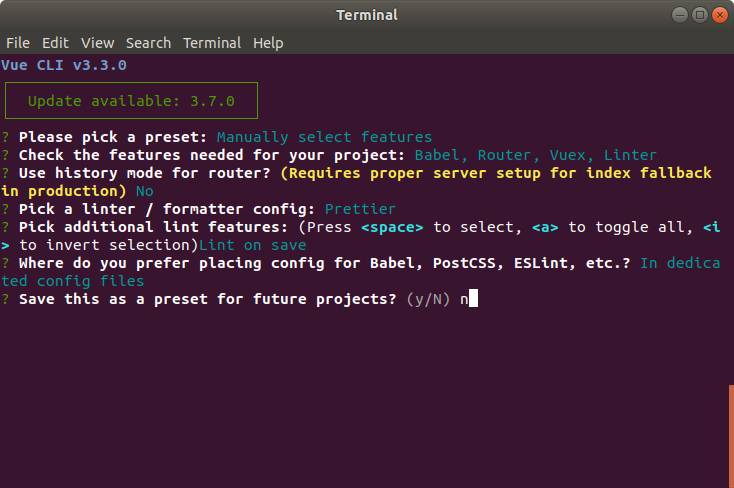
Once you validate the answer to the last question, the Vue CLI will generate a **frontend** folder with your Vue app in it. Now, go ahead and add a button that consumes the helloworld endpoint of your backend API. To do this, you need to change the `MovieReviewBoard/frontend/src/views/About.vue` page as follows:
This is an about page
{{ greeting }}
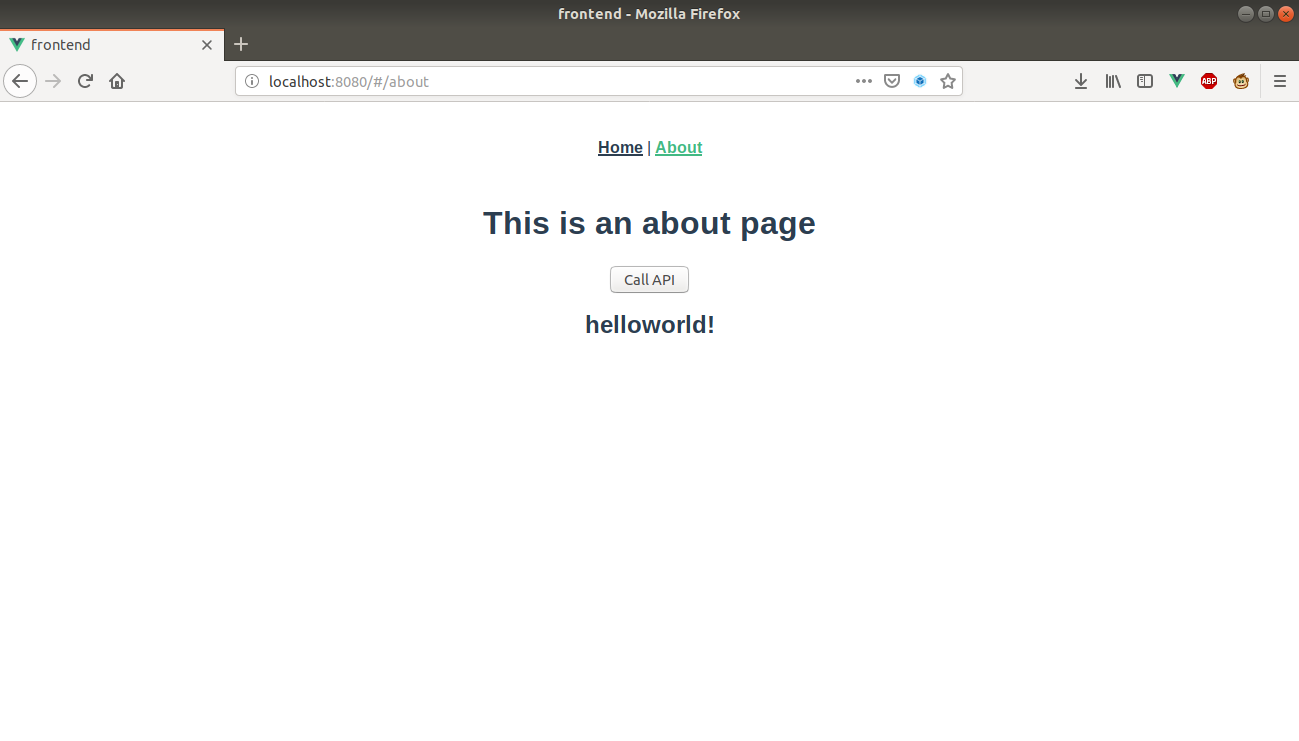
The .vue file above adds a button to the template of the **About** page and it also adds the `callAPI()` method as an onClick event handler for this button when it sets the `@click` attribute to `callAPI`. When the **callAPI** method is called, it calls your helloworld endpoint from your backend and updates the greeting data attribute which reactively updates your template with the **helloworld!** message. Before you test this, add `axios` (the HTTP client module used in `callAPI()` to make calls to your backend API). Move to your `MovieReviewBoard/frontend/` directory on your command line and run:
```bash
npm install axios --save
```
With these changes in place, start your frontend server by running `npm run serve` in `MovieReviewBoard/frontend/` and your backend server by executing `./gradlew bootRun` in `MovieReviewBoard/backend/` via the command line or running it in your IDE. Once both servers are running, navigate to your browser at [http://localhost:8080/#/about](http://localhost:8080/#/about) and click on the **Call API** button and you will see the helloworld message from the server.
## Securing Spring Boot and Vue.js Applications
Now, you need to secure your API because as it stands anyone can access your backend and this is not good for your business. To secure your API you will need an identity provider like [Auth0](https://auth0.com/). In order to use Auth0 for security, you will need to [create an account](https://auth0.com/signup) if you don't already have one or [log in](https://auth0.com/auth/login) if you have one.
After signing up for your Auth0 account, you will need to create an API with Auth0 to represent your backend API and configure it to authenticate requests. To do this, head to the [APIs section on your Auth0 dashboard](https://manage.auth0.com/#/apis) and click on the **Create API** button. After that, the dashboard will show you a form where you will have to enter:
* Name: This is just a label for your API (this could be something like **Spring Boot Kotlin**);
* Identifier: This is the URL identifier of your API (in this case, it can be http://localhost:8888 or anything that resembles a valid URL);
* Signing Algorithm: choose RS256 for this field.
Then finalize the API creation by clicking the **Create** button. Next, open your `backend/build.gradle` file and add the following code to it.
```gradle
// ...
dependencies {
// ...
implementation 'org.springframework.security.oauth.boot:spring-security-oauth2-autoconfigure:2.1.3.RELEASE'
}
// ...
```
This dependency will add functionality for you to secure your API with OAuth 2.0. To add the configuration necessary for using this library you have to do two things, first create a `security` package in `com.example.MovieReviewBoard` package and create a `SecurityConfig.kt` file in it. Then, copy the following code into your `SecurityConfig.kt` file in `com.example.MovieReviewBoard.security`.
```kotlin
package com.example.MovieReviewBoard.security
import org.springframework.beans.factory.annotation.Value
import org.springframework.context.annotation.Configuration
import org.springframework.security.config.annotation.web.builders.HttpSecurity
import org.springframework.security.oauth2.config.annotation.web.configuration.EnableResourceServer
import org.springframework.security.oauth2.config.annotation.web.configuration.ResourceServerConfigurerAdapter
import org.springframework.security.oauth2.config.annotation.web.configurers.ResourceServerSecurityConfigurer
@Configuration
@EnableResourceServer
class SecurityConfig : ResourceServerConfigurerAdapter() {
@Value("\${security.oauth2.resource.id}")
private lateinit var resourceId: String
@Throws(Exception::class)
override fun configure(http: HttpSecurity) {
http.authorizeRequests()
.mvcMatchers("/helloworld").authenticated()
.anyRequest().permitAll()
}
@Throws(Exception::class)
override fun configure(resources: ResourceServerSecurityConfigurer) {
resources.resourceId(resourceId)
}
}
```
The `@EnableResourceServer` annotation above is convenient for resource servers secured with OAuth 2.0. It automatically enables a Spring Security filter that authenticates incoming requests. For Spring Boot to do this, you need to register your Auth0 API identifier aka `resourceId` and specify which endpoint you want to secure (in this case `/helloworld`).
Secondly, you need to define the `resourceId` and an endpoint for your API to get public keys in order to validate access token sent to your API. To do this, open `MovieReviewBoard/backend/src/main/resources/application.properties` and add the following configuration:
```java
# ...
security.oauth2.resource.id=
security.oauth2.resource.jwk.keySetUri=https:///.well-known/jwks.json
```
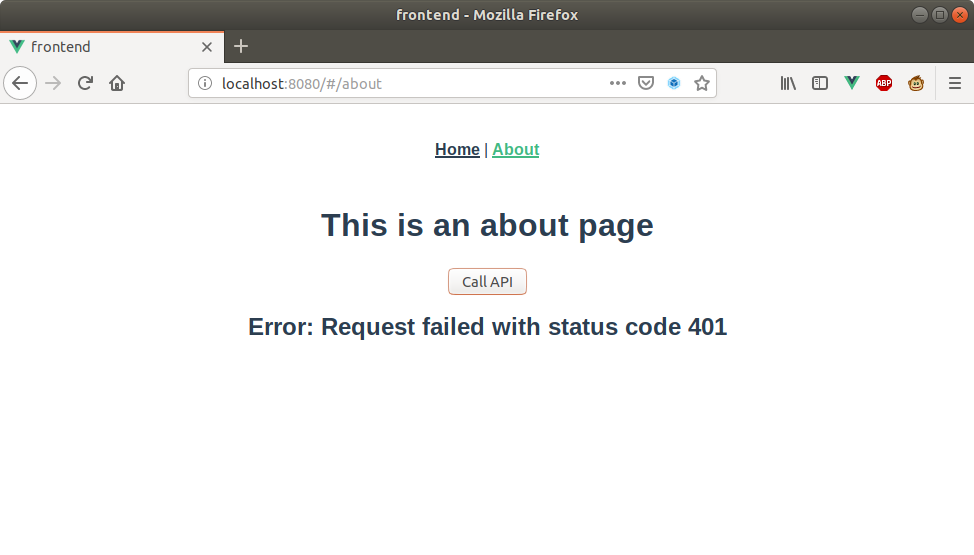
With that covered, the **helloworld** endpoint of your API is now secured. If you run both applications and then visit [http://localhost:8080/#/about](http://localhost:8080/#/about) in your browser and click on the **Call API** button, you should see the page display an error message with a 401 status which means you are not authorized to see the content at the **helloworld** endpoint. Now, your about page should look like the following:
Having secured your API with Auth0, you now need an access token from Auth0 to make any request to your API. To get an access token in your SPA, you also need to secure it with Auth0. To implement authentication in your SPA with Auth0 you need to start by creating an Auth0 application. To do so, head to the Applications page in your Auth0 dashboard and click on **Create Application**. After clicking on it, Auth0 will show a dialog where you have to input a name for your app (you can call it "MovieReviewBoard" or anything like that) and select SPA for the type of the application.
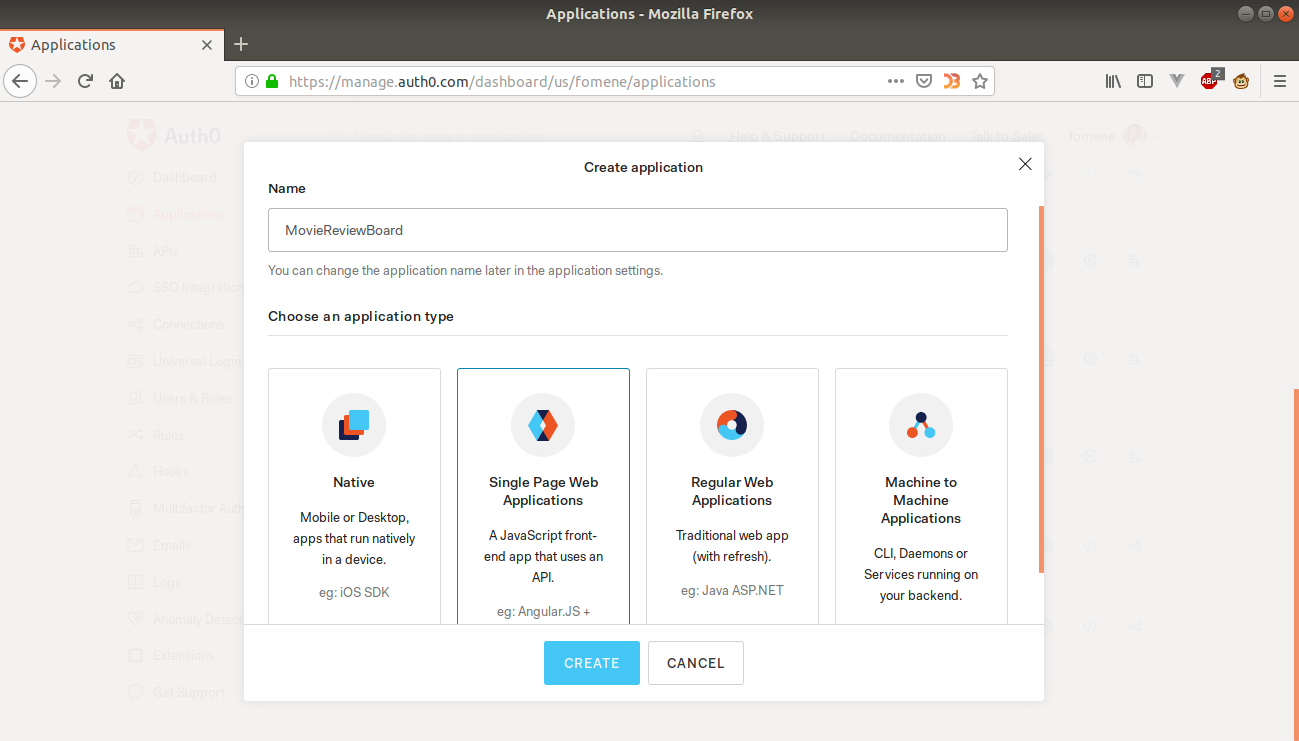
Now, click on the **Create** button and then Auth0 will redirect you to the Quick Start section of your new app. From there, click on the Settings tab and add `http://localhost:8080/callback` to the **Allowed Callback URLs** field and `http://localhost:8080` to the **Allowed Web Origins**, **Allowed Logout URLs** and **Allowed Origins (CORS)** fields. Now, click on **Save Changes** to save your settings. Next, you need to integrate Auth0 in your SPA. To do this, start by installing `auth0.js` into your application by running the following command in your project's frontend directory.
```bash
npm install --save auth0-js
```
Now that you have the auth0.js dependency in your project, you need to create an authentication service using it. To do that, create an `auth` directory in `MovieReviewBoard/frontend/` then create an `authService.js` file in it. Finally, add the following code to `authService.js`:
```js
import auth0 from "auth0-js";
import authConfig from "../auth_config.json";
import eventBus from "../event-bus";
const webAuth = new auth0.WebAuth({
domain: authConfig.domain,
redirectUri: `${window.location.origin}/callback`,
clientID: authConfig.clientId,
audience: authConfig.audience,
responseType: "token id_token",
scope: "openid profile email"
});
class AuthService {
accessToken = null;
idToken = null;
profile = null;
tokenExpiry = null;
// Starts the user login flow
login(customState) {
webAuth.authorize({
appState: customState
});
}
// Handles the callback request from Auth0
handleAuthentication() {
return new Promise((resolve, reject) => {
webAuth.parseHash((err, authResult) => {
if (err) {
reject(err);
} else {
this.localLogin(authResult);
resolve(authResult.idToken);
}
});
});
}
localLogin(authResult) {
this.idToken = authResult.idToken;
this.profile = authResult.idTokenPayload;
this.accessToken = authResult.accessToken;
// Convert the JWT expiry time from seconds to milliseconds
this.tokenExpiry = new Date(this.profile.exp * 1000);
localStorage.setItem("loggedIn", "true");
eventBus.$emit("login");
}
}
export default new AuthService();
```
As of now, this code might seem like gibberish but let me walk you through it. The above file starts by importing `auth0-js` authentication library, then a JSON file `auth_config.json` which contains some of your Auth0 application's settings (don't worry, I will show you how to create this file) and a Vue event bus. Then it creates an Auth0 web authentication instance using the settings in `auth_config.json` and signals Auth0 to return the **id_token**, **access token** and **user profile**. Here are the functionalities of each method above:
* `login`: Contacts Auth0 to start the login flow.
* `handleAuthentication()`: Once Auth0 authenticates you, you will be redirected to the `redirectUri` which was set in your Auth0 web authentication instance and your `id_token`, `access_token` and `expires_in` (expiration time for the access token) will be provided in your browser's URL. This method will get these values from your URL, parse them and call `localLogin` to save them to memory.
Ouf!, that was a lot. Now, go ahead and create `auth_config.json` in `MovieReviewBoard/frontend/` and add your Auth0 application settings to it like this:
```json
{
"domain": "",
"clientId": "",
"audience": ""
}
```
Next, create `event-bus.js` file in `MovieReviewBoard/frontend/` and add the following code to it.
```js
import Vue from "vue";
const EventBus = new Vue();
export default EventBus;
```
With this in place, your application will be able to create and handle events using Vue's event bus. In your `authService.js` file, you defined a `redirectUri` property in your Auth0 web authentication instance but you haven't created a route and component for this redirect url. To fix this issue, start by creating a route for it in your `MovieReviewBoard/frontend/src/router.js` file as below.
```js
// ..................
import Callback from "./components/Callback.vue";
export default new Router({
mode: "history",
routes: [
//..............
{
path: "/callback",
name: "callback",
component: Callback
},
//.....................
]
});
```
This file will add a route for the **Callback** component to your app and change the routing mode to history mode([Read more about routing modes here](https://router.vuejs.org/guide/essentials/history-mode.html)). Next, create a `Callback.vue` file in your `MovieReviewBoard/frontend/src/components` directory and add the following code to it.
Loading.............
When this component is created after authentication with Auth0, you will have your Auth0's tokens in the URL which will be parsed by the `handleAuthentication()` method on your authentication service. `handleAuthentication()` will emit a **login** event through `locallogin()`. This event will then be handled above in the `created()` method by calling `handlelogin()` which redirects you to the about page. Now that you are on the about page and you have been authenticated you can now make authorized requests to your Spring Boot API by changing your `About.vue` page like so.
Notice that with HTTP calls to your API you set an authorization header with your token. With that covered, your app should now be able to authenticate users, right? Well, not quite yet. You haven't added the login button that will kickstart the authentication process. To do this modify your `Home.vue` page as follows.
Notice the addition of the break and button tag in the template. The button tag has an event listener `@click` which listens for a click event on the button and calls the `login()` method which kickstarts the authentication process for your application. If you run both of your servers, authenticate and click on the **Call API** button, you should see the following.

## Conclusion
This marks the end of the first part of this series. In this part, you were able to lay the groundwork for part 2 of this series by bootstrapping both your frontend and backend. Securing them with Auth0 and showing how your frontend consumes data from your backend. In part 2, your focus will be on building a GraphQL API, managing state with Vuex, routing with Vue-Router and polishing your UI with Bootstrap, Google Fonts, and Font Awesome.
