---
title: "Zero Config JavaScript App Prototyping with Webpack"
description: "Learn how to easy prototype JavaScript apps using the zero config feature of Webpack 4."
authors:
- name: "Dan Arias"
url: "https://auth0.com/blog/authors/dan-arias/"
date: "Nov 21, 2018"
category: "Developers,Deep Dive,Webpack"
tags: ["javascript", "frontend", "bundlers", "projects", "webpack"]
url: "https://auth0.com/blog/zero-config-javascript-app-prototyping-with-webpack/"
---
# Zero Config JavaScript App Prototyping with Webpack
Sometimes you don't need a framework like Angular or React to demonstrate an idea or concept in JavaScript. You just want a framework-agnostic, plain JavaScript development environment to play around with things like [web workers](https://auth0.com/blog/speedy-introduction-to-web-workers/), [service workers](https://auth0.com/blog/creating-offline-first-web-apps-with-service-workers/), new JavaScript constructs, or IndexedDB, for example. In this blog post, you are going to learn how to quickly prototype plain JavaScript apps using webpack 4 to create such environment with zero config and low development overhead.
[Webpack](https://webpack.js.org/) is a leading static module bundler for frontend apps. It is used by tools such as `create-react-app` to quickly scaffold frontend projects. According to the [webpack documentation](https://webpack.js.org/concepts/), since version `4.0.0`, webpack doesn't require a configuration file to bundle your projects; however, the module bundler remains highly configurable to meet the increasing complexity of your projects down the line.
You can find the final version of this exercise on the [`webpack-prototype` repo on GitHub](https://github.com/auth0-blog/webpack-prototype). However, I encourage you to read on and build the webpack app prototype gradually to better understand the heavy lifting that webpack is doing for you.

## Setting Up Zero Config Webpack 4
Head to your terminal and make a directory where you want to store your learning project your current working directory. Then, create a folder named `webpack-prototype` and make it your current working directory. You can do this easily with the following command:
```bash
mkdir webpack-prototype && cd webpack-prototype
```
> This line of commands creates the `webpack-prototype` directory and then makes it the current working directory.
Once there, create a new NPM project and install [`webpack`](https://www.npmjs.com/package/webpack) locally along with the [`webpack-cli`](https://webpack.js.org/api/cli/):
```bash
npm init -y
npm install webpack webpack-cli --save-dev
```
> `webpack-cli` is the tool used to run webpack on the command line.
Next, create a simple file structure under this directory that resembles the following:
```bash
webpack-prototype
|- package.json
|- /dist
|- index.html
|- /src
|- index.js
```
`package.json` is already provided to you when you created the NPM project.
By default, webpack 4 will look for a `src/index.js` file to use as an entry point. The [entry point](https://webpack.js.org/concepts/#entry) tells webpack which module it should use to start building its internal dependency graph. From this module, webpack can infer which other modules or libraries the application depends on and include them in your bundle.
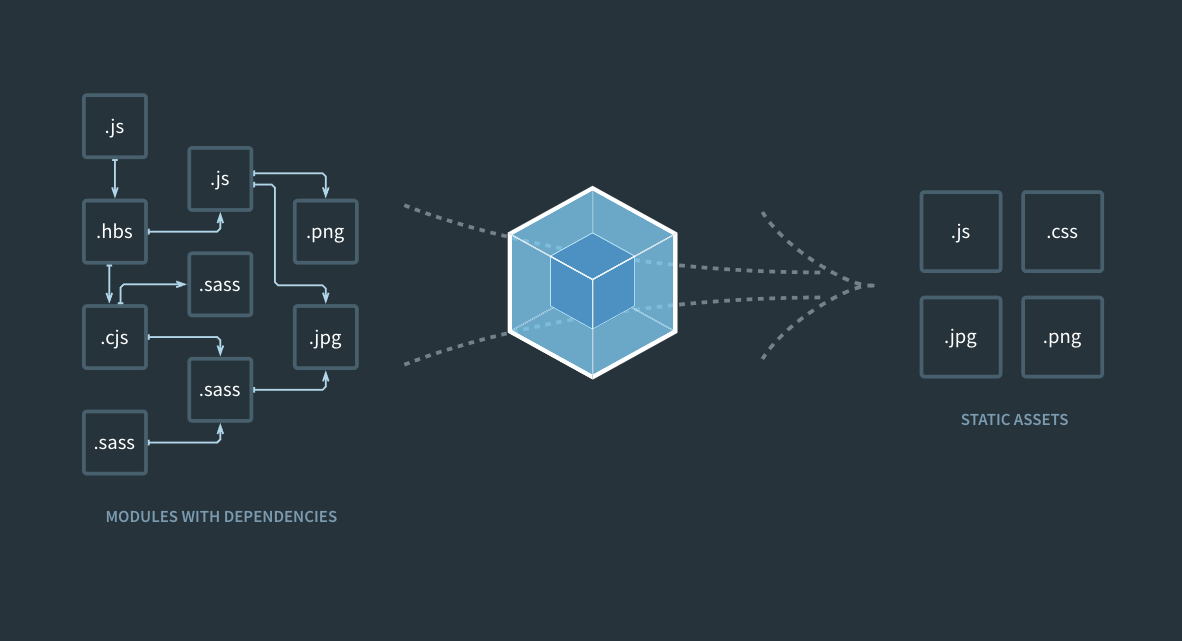
[Source](https://webpack.js.org/)
Also, webpack uses `dist/index.html` as the default main HTML file for your application where the generated bundle will be automatically injected.
Thus, the `src` directory holds all of your application source code (the code that you'll create from scratch, write, delete, edit, and so on). The `dist` directory is the distribution directory for the application. This directory holds code that has been minimized and optimized by webpack. In essence, the `dist` directory holds the webpack output that will be loaded in the browser once the application is run.
You can create these files quickly by issuing the following commands:
**macOS / Linux:**
```bash
mkdir src dist && touch dist/index.html src/index.js
```
**Windows:**
```bash
mkdir src dist && echo.> dist/index.html && echo.> src/index.js
```
`mkdir` is used to create directories across operating systems. However, [`touch`]() is only available in Unix and Unix-like operating systems. `echo` is [a Windows equivalent of `touch`](https://stackoverflow.com/a/37756874). `echo.` creates a file with one empty line in it.
Open the project in your preferred IDE or code editor.
> You can run `code .` or `webstorm .` to open the current working directory if you have installed the command line tools for [Visual Studio Code](https://code.visualstudio.com/) or [WebStorm](https://www.jetbrains.com/help/webstorm/working-with-the-ide-features-from-command-line.html).
Give some life to `dist/index.html` by adding the following code:
```html
Webpack Prototype
```
Within the `` tag, you load a `main.js` file through a `
```
No worries. `main.js` will be created automatically for you by webpack once it creates your project bundle.
As a precaution, to prevent publishing your code to NPM by accident, open `package.json` and do the following:
- Add `"private": true,` as a property.
- Delete the `"main": "index.js",` line.
`package.json` should look like this:
```json
{
"name": "webpack-prototype",
"version": "1.0.0",
"description": "",
"private": true,
"scripts": {
"test": "echo \"Error: no test specified\" && exit 1"
},
"keywords": [],
"author": "",
"license": "ISC",
"devDependencies": {
"webpack": "^4.25.1",
"webpack-cli": "^3.1.2"
}
}
```
Now, give some life to `src/index.js`. For now, add a simple message on the screen:
```javascript
// src/index.js
const createElement = message => {
const element = document.createElement("div");
element.innerHTML = message;
return element;
};
document.body.appendChild(createElement("Webpack lives."));
```
Finally, to test everything is working as intended, you need to create a bundle. This can be done by issuing the following command:
```bash
npx webpack
```
Using `npx`, you can emulate the same behavior of the global installation of `webpack` but without the actual global installation. `npx` uses the local version of `webpack` you installed earlier.
> If you have `npm >= 5.2` installed in your system, you have `npx` available.
However, running this command from the command line is not efficient or too memorable. A better approach is to create a `build` NPM script in `package.json` which does the same thing as `npx webpack`:
```json
{
"name": "webpack-prototype",
"version": "1.0.0",
"description": "",
"private": true,
"scripts": {
"test": "echo \"Error: no test specified\" && exit 1",
"build": "webpack"
},
"keywords": [],
"author": "",
"license": "ISC",
"devDependencies": {
"webpack": "^4.25.1",
"webpack-cli": "^3.1.2"
}
}
```
Now, you can run `npm run build` instead which is a more familiar command for JavaScript developers.
Running `webpack` does the following:
- Use `src/index.js` as the entry point.
- Generate `dist/main.js` as the webpack output.
> Notice that there is a warning when you build your app: `WARNING in configuration. The 'mode' option has not been set`. You'll learn soon about this in this blog post.
Verify that the bundle was created correctly by doing the following:
- Open the `dist` directory. Do you see the `main.js` file there? If yes, the output worked.
- If you are curious, open `main.js`. Observe the file consists of a highly minimized one-line of JavaScript code.
- Open `dist/index.html` in the browser. You should see `Webpack lives.` printed on the screen.
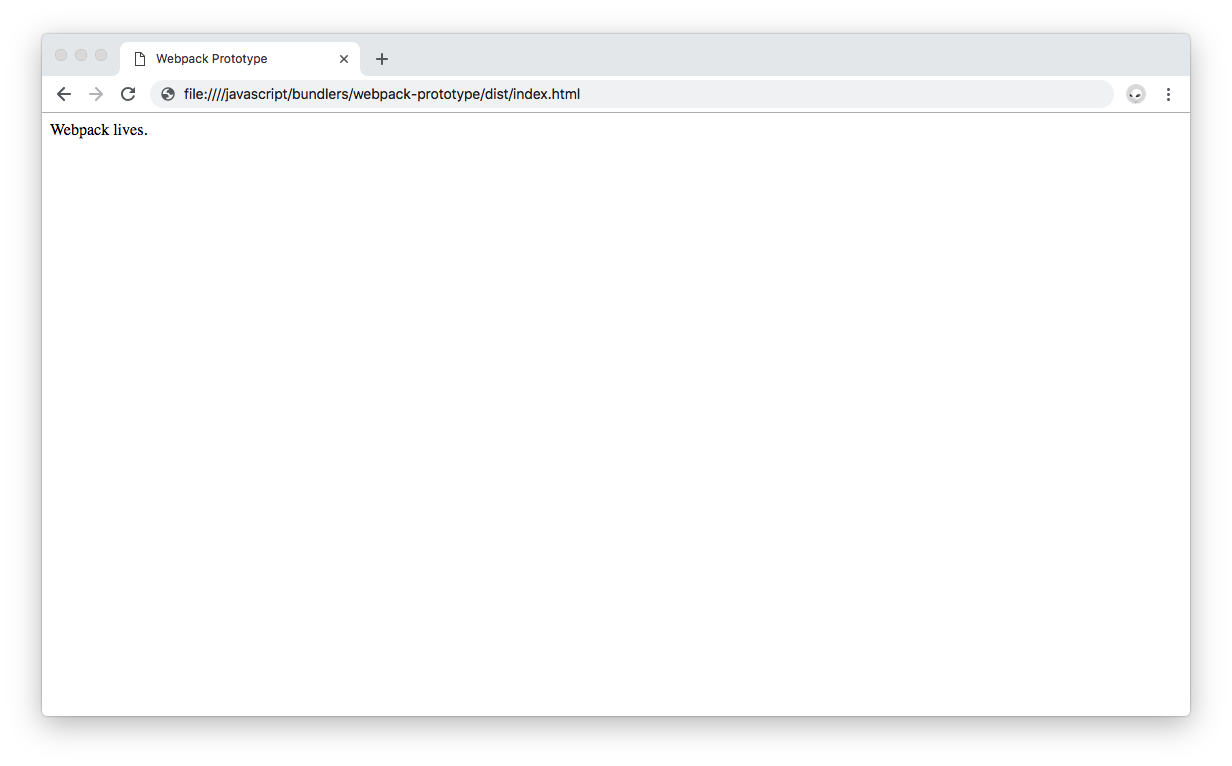
> To open `dist/index.html`, find the file through the file system and double-click it. Your default browser should then open the file.
Change the message string in `src/index.js` to the following:
```javascript
// src/index.js
const createElement = message => {
const element = document.createElement("div");
element.innerHTML = message;
return element;
};
document.body.appendChild(
createElement("Webpack lives by the love of Open Source.")
);
```
Reload the browser tab presenting `index.html`. Notice that the printed message doesn't change. For it to change, you need to update your output bundle. To do this, you'll need to execute `npm run build` again to re-create the bundle and then refresh the page. Run the command and refresh the page. `Webpack lives by the love of Open Source.` should now be shown on the screen.
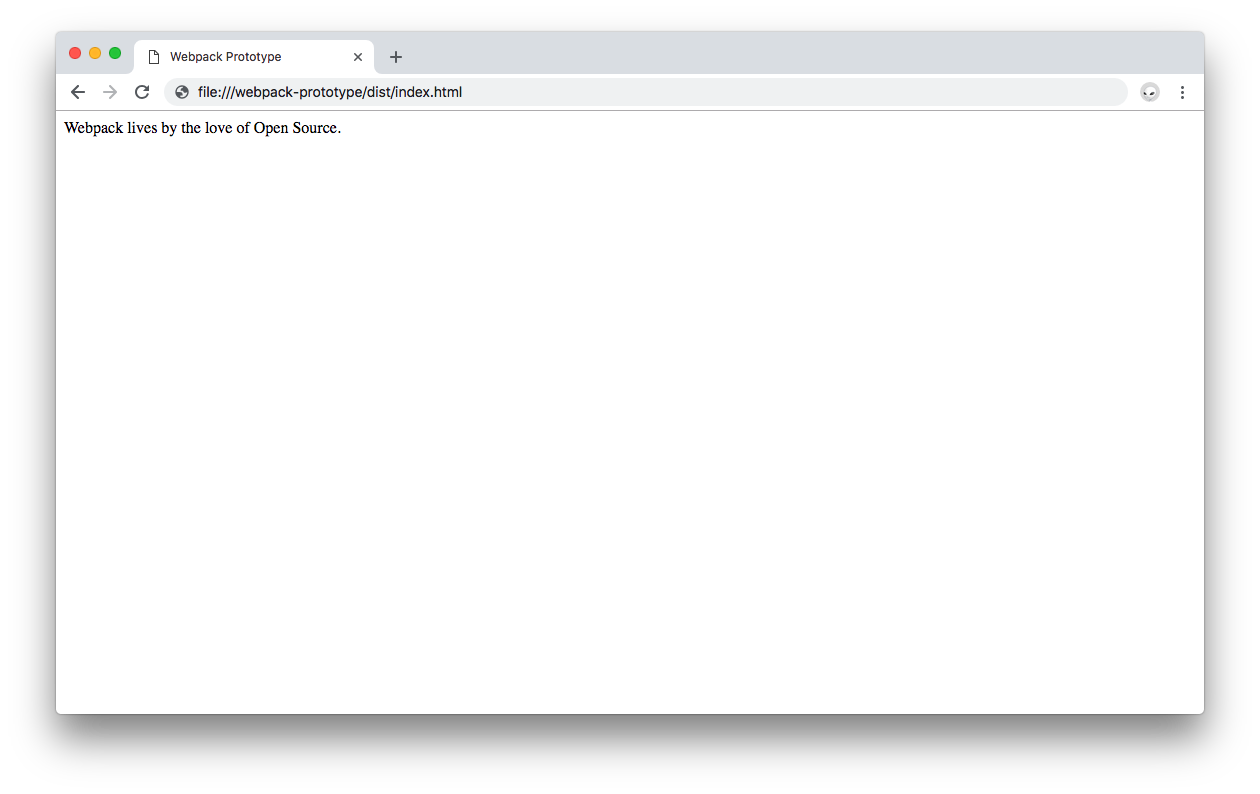
This is not optimal. What you want is [Hot Module Replacement](https://webpack.js.org/concepts/hot-module-replacement/) to exchange, add, or remove modules while an application is running and without requiring a full reload.
What are the benefits of enabling Hot Module Replacement for you as a developer?
- During a full reload, the state of your application is lost. HRM lets you retain your app state.
- By only updating what has changed in the app, you can save time.
- Changes in your source CSS and JavaScript files are shown in the browser instantaneously which closely resembles an update done directly through the browser's dev tools.
To enable HRM, follow this steps:
- Install [`webpack-dev-server`](https://webpack.js.org/guides/development/#using-webpack-dev-server) which provides you with a simple web server with the ability to live-reload your app:
```bash
npm install webpack-dev-server --save-dev
```
- Create a `start:dev` NPM script within `package.json`:
```json
{
"name": "webpack-prototype",
"version": "1.0.0",
"description": "",
"private": true,
"scripts": {
"test": "echo \"Error: no test specified\" && exit 1",
"build": "webpack",
"start:dev":
"webpack-dev-server --mode development --content-base dist/ --open --hot"
},
"keywords": [],
"author": "",
"license": "ISC",
"devDependencies": {
"webpack": "^4.25.1",
"webpack-cli": "^3.1.2",
"webpack-dev-server": "^3.1.10"
}
}
```
That `start:dev` NPM script is a mouthful. What's it doing?
```json
{
// ...
"scripts": {
// ...
"start:dev":
"webpack-dev-server --mode development --content-base dist/ --open --hot"
}
// ...
}
```
`webpack-dev-server`: Runs the webpack dev server.
`--mode development`: The [`mode`](https://webpack.js.org/concepts/mode/) configuration option tells webpack to use its built-in optimizations accordingly. `development` produces a much more readable output than `production`. If you leave this option out, the default option is `production`. You may also set it to `none` which disables any default behavior.
> Learn more about the differences between [the webpack `development` and `production` modes here](https://webpack.js.org/concepts/mode/).
`--content-base dist/`: Tells the dev server from where to serve your static content. By default, `webpack-dev-server` will serve the files in the current directory. However, in this case, you want the content to be served from `dist/` where your `index.html` file is.
`--open`: Opens the default app url in the system's default browser. Here, it's `http://localhost:8080/`.
`--hot`: Enables Hot Module Replacement by adding the [`HotModuleReplacementPlugin`](https://webpack.js.org/plugins/hot-module-replacement-plugin/) and switching the server to `hot` mode.
- Run the webpack dev server:
```bash
npm run start:dev
```
Your default browser will open up, load `http://localhost:8080/`, and present you with your app again.
Do something crazy: stop the `webpack-dev-server`, delete the `main.js` file that was created earlier under the `dist` directory, and execute `npm run start:dev` again. The default browser will open again and you will see the message printed on the screen. How is that possible if you deleted `main.js`?
`webpack-dev-server` watches your source files and re-compiles your bundle when those file change. However, this [modified bundle is served from memory](https://github.com/webpack/docs/wiki/webpack-dev-server#content-base) at the relative path specified in [`publicPath`](https://github.com/webpack/docs/wiki/webpack-dev-server#api). It is not written under your `dist` directory. If a bundle already exists at the same URL path, by default, the in-memory bundle takes precedence. This is all taken care of automagically by specifying this line on your `index.html`:
``` html
```
That's it! You can now add more complex code to `src/index.js` or `import` other modules to it. Webpack will build its internal dependency graph and include all these in your final bundle. Try that out!
## Importing Modules Using Zero Config Webpack
Create another module that adds another element to the DOM. Under `src`, create `banner.js`:
macOS / Linux:
```bash
touch src/banner.js
```
Windows:
```bash
echo.> src/banner.js
```
Open this file and populate it with this:
```javascript
// src/banner.js
const createBanner = () => {
const link = document.createElement("a");
link.innerHTML = "Learn Webpack with Sean.";
link.href = "https://webpack.academy/";
link.target = "_blank";
return link;
};
export default createBanner;
```
Save the changes made to `src/banner.js`.
Then update `src/index.js` as follows:
```javascript
// src/index.js
import createBanner from "./banner.js";
const createElement = message => {
const element = document.createElement("div");
element.innerHTML = message;
return element;
};
document.body.appendChild(
createElement("Webpack lives by the love of Open Source.")
);
document.body.appendChild(createBanner());
```
Save the changes made to `src/index.js`. Look at the browser. You'll now see the message `Webpack lives by the love of Open Source.` and a `Learn Webpack with Sean` hyperlink under it which on click takes you to the [Webpack Learning Academy](https://webpack.academy/), a comprehensive webpack learning resource by [Sean Larkin](https://twitter.com/thelarkinn).
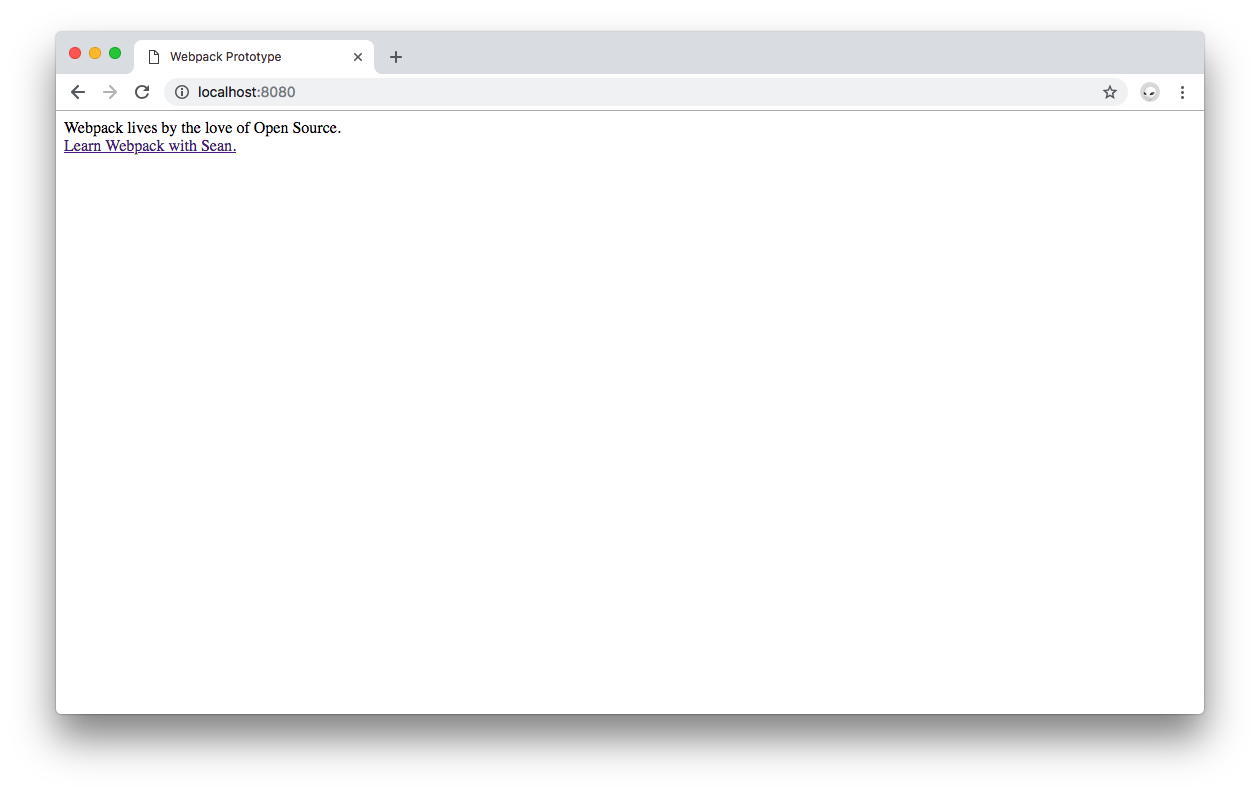
The same principle can be applied to any modules installed in your project through `npm`. For example, if you want to use `lodash`, simply execute `npm install --save lodash` and `import` it in any file that needs it:
```bash
npm install --save lodash
```
Update `src/banner.js` as follows:
```javascript
// src/banner.js
import _ from "lodash";
const createBanner = () => {
const link = document.createElement("a");
link.innerHTML = _.join(["Learn", "Webpack", "Today"], "*");
link.href = "https://webpack.academy/";
link.target = "_blank";
return link;
};
export default createBanner;
```
> Recall that when importing local modules you use `./relative-path-to-module` as the module path. When importing NPM modules you use `npm-module-name` as the module path.
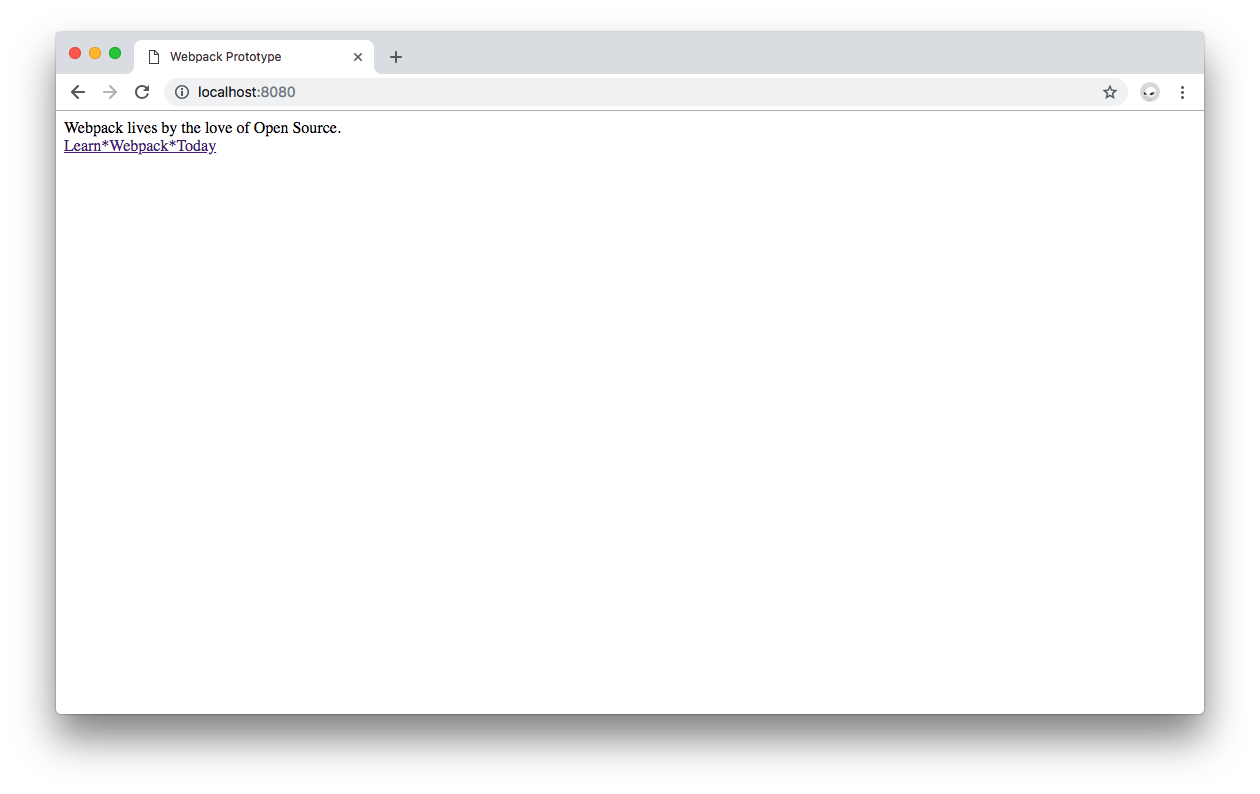
Save the changes on `src/banner.js` and look at the hyperlink in the browser update itself to look very 90's Retro: `Learn*Webpack*Today`.
What about CSS?
## Adding CSS Stylesheets to Zero Config Webpack
Does adding CSS files work the same as adding JavaScript modules? Find out! You can make the current page look prettier as follows:
- Under `src`, create `banner.css`:
macOS / Linux:
```bash
touch src/banner.css
```
Windows:
```bash
echo.> src/banner.css
```
- Open `src/banner.css` and populate it with the following:
```css
/* src/banner.css */
.banner {
position: fixed;
background: #1a6db9;
color: white;
padding: 25px;
}
```
Save the changes made to `src/banner.css`.
Next update `src/banner.js` to import `banner.css` and add the `banner` class to the `` banner element:
```javascript
// src/banner.js
import _ from "lodash";
import "./banner.css";
const createBanner = () => {
const link = document.createElement("a");
link.innerHTML = _.join(["Learn", "Webpack", "Today"], "*");
link.href = "https://webpack.academy/";
link.target = "_blank";
link.classList = "banner";
return link;
};
export default createBanner;
```
Save `src/banner.js` and... you get the following error in the command line:
```bash
ERROR in ./src/banner.css 3:0
Module parse failed: Unexpected token (3:0)
You may need an appropriate loader to handle this file type.
```
A solution could be to move `banner.css` to the `dist` folder and call it from `index.html` using a `` tag:
```html
Webpack Prototype
```
This certainly works but you'll lose live reloading for that CSS file. Any changes made to `dist/banner.css` would require you to refresh the browser. As discussed earlier, that's not optimal. What can be done? Create a minimal configuration file to use a webpack loader to handle loading CSS files.
## Extending Zero Config Webpack with Minimal Configuration
Under the root directory, create a `webpack.config.js` file:
macOS / Windows:
```bash
touch webpack.config.js
```
Windows:
```bash
echo.> webpack.config.js
```
In order to [import a CSS file from within a JavaScript module using webpack](https://webpack.js.org/guides/asset-management/#loading-css), you need to install and add the `style-loader` and `css-loader` to the module configuration that will live within `webpack.config.js`. You can do that by following these steps:
- Install `style-loader` and `css-loader`:
```bash
npm install --save-dev style-loader css-loader
```
- Once those two packages are installed, update `webpack.config.js`:
```javascript
// webpack.config.js
module.exports = {
module: {
rules: [
{
test: /\.css$/,
use: ["style-loader", "css-loader"]
}
]
}
};
```
> The `module` `rules` use a regular expression to test which files it should look for and provide to the loaders specified under `use`. Any file that has a `.css` extension is served to the `style-loader` and the `css-loader`.
- Save the changes on `webpack.config.js`.
- Finally, you need to tell `webpack-dev-server` to use `webpack.config.js` as the configuration file through the `--config` option. You do that by adding the `--config webpack.config.js` option to the `start:dev` NPM script present in `package.json`:
```json
{
"name": "webpack-prototype",
"version": "1.0.0",
"description": "",
"private": true,
"scripts": {
"test": "echo \"Error: no test specified\" && exit 1",
"build": "webpack",
"start:dev":
"webpack-dev-server --mode development --content-base dist/ --open --hot --config webpack.config.js"
},
"keywords": [],
"author": "",
"license": "ISC",
"devDependencies": {
"css-loader": "^1.0.1",
"style-loader": "^0.23.1",
"webpack": "^4.25.1",
"webpack-cli": "^3.1.2",
"webpack-dev-server": "^3.1.10"
},
"dependencies": {
"lodash": "^4.17.11"
}
}
```
- Save the changes made on `package.json`.
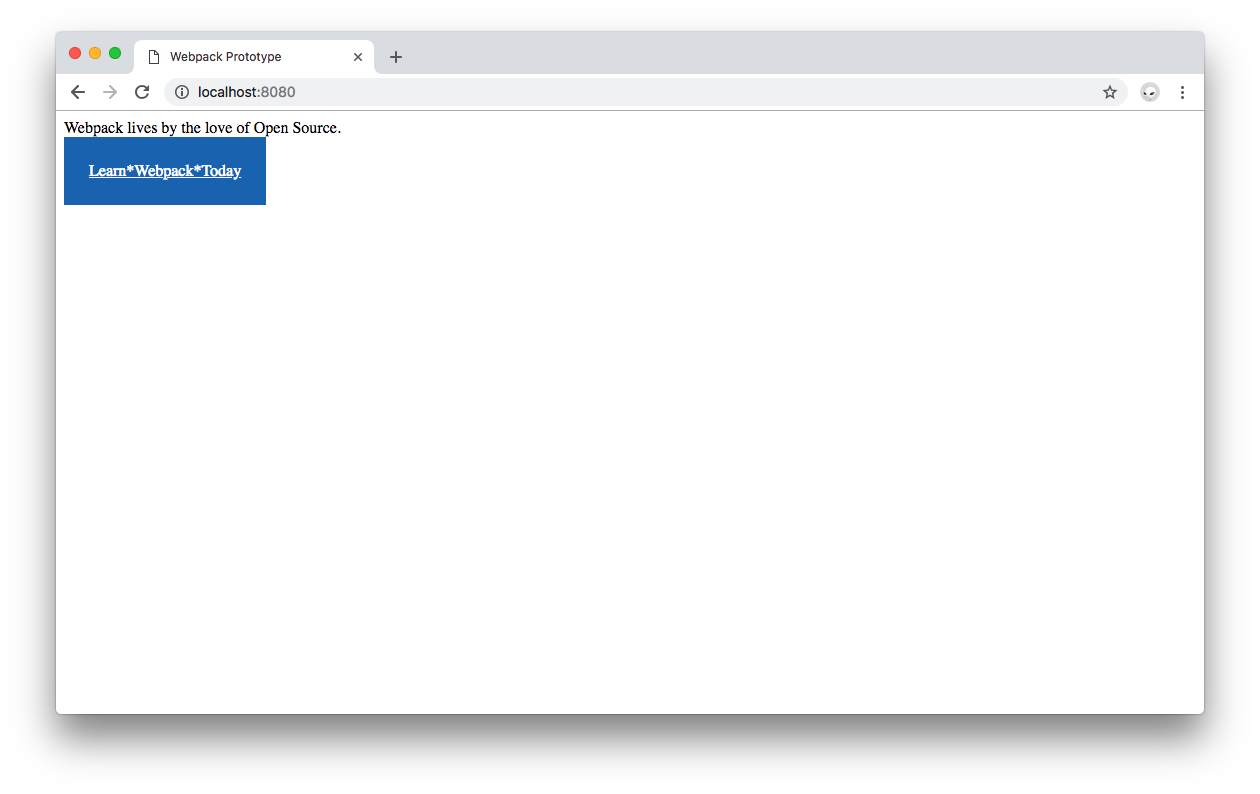
Stop the `webpack-dev-server` and execute `npm run start:dev` again. Observe that now the 90's Retro banner has a blue background, padding, and white text:
You can use this configuration file to add any other loaders you may need to address needs such as compiling SCSS to CSS, transpiling JavaScript, loading image assets, and many more. There are lots of webpack loaders to address different project tasks. Check the full [webpack loader list](https://webpack.js.org/loaders/).
For good measure, let's try loading images into our files as they are oftentimes part of a prototype.
> A much better approach is to use images from a CDN.
## Loading Images Using Webpack 4
Start by downloading the [logo of webpack available here](https://raw.githubusercontent.com/webpack/media/master/logo/icon-square-small.png). Save it as `webpack-logo.png` and move it to the `src` directory.
Update `src/index.js` to import the image as follows:
```javascript
// src/index.js
import createBanner from "./banner.js";
import WebpackImg from "./webpack-logo.png";
const createElement = message => {
const element = document.createElement("div");
element.innerHTML = message;
return element;
};
document.body.appendChild(
createElement("Webpack lives by the love of Open Source.")
);
document.body.appendChild(createBanner());
```
Save the file. As you may be thinking, an error is shown in the command line about this type of file, a PNG image, not being able to be loaded:
```bash
ERROR in ./src/webpack-logo.png 1:0
Module parse failed: Unexpected character '�' (1:0)
You may need an appropriate loader to handle this file type.
```
As with CSS, you need an image loader. Follow these steps to add it to your webpack module:
- Install the `file-loader` webpack loader:
```bash
npm install --save-dev file-loader
```
- Add a new rule to `module` `rules` within `webpack.config.js`:
```javascript
// webpack.config.js
module.exports = {
module: {
rules: [
{
test: /\.css$/,
use: ["style-loader", "css-loader"]
},
{
test: /\.(png|svg|jpg|jpeg|gif)$/,
use: ["file-loader"]
}
]
}
};
```
This time the regular expression in the rule `test` is looking for files that have popular image file extensions, such as `.png` and `.jpeg`.
- Restart the webpack dev server.
The file loading error is now gone.
- Update `src/index.js` to make use the of the image:
```javascript
// src/index.js
import createBanner from "./banner.js";
import WebpackImg from "./webpack-logo.png";
const createElement = message => {
const element = document.createElement("div");
element.innerHTML = message;
return element;
};
const createImage = image => {
const element = document.createElement("div");
const imageElement = new Image();
imageElement.src = image;
element.appendChild(imageElement);
return element;
};
document.body.appendChild(
createElement("Webpack lives by the love of Open Source.")
);
document.body.appendChild(createBanner());
document.body.appendChild(createImage(WebpackImg));
```
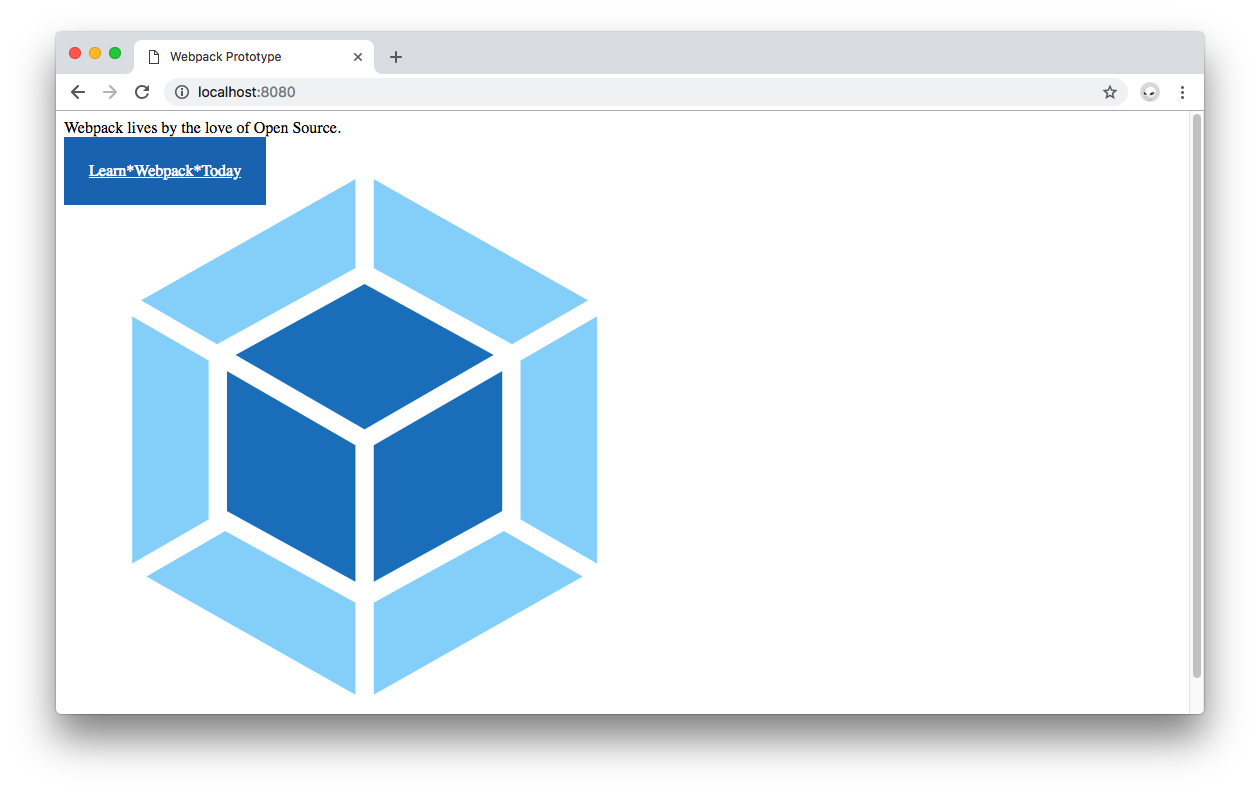
Take a look at the browser. The webpack logo now loads on the screen:
Your Webpack Zero Config configuration extension now includes the ability to load images. The config file still remains minimal, lightweight, and easy to understand.
## Building a JavaScript App with Webpack 4
As a final note of this process, once you want to build your app again, simply execute `npm run build`.
The images imported into JavaScript modules will be processed and added to the `dist` output directory. Any image variables will have the final URL of that post-processing image, which may look like this:
```bash
dist/e5e245191fd9c9812bc78bd0cea9a12c.jpeg
```
You can also use your images within CSS files to add them as element backgrounds, for example.
## Conclusion
For a simple and quick JavaScript prototype, JavaScript, CSS, and image assets are plenty to get a lot done. You are now empowered with knowledge on how to use webpack 4 to create a development environment for JavaScript projects with zero config needed. If the project requires CSS, you can extend the zero config to use CSS and file loaders to create beautiful JavaScript apps fast. As an alternative, if you prefer to, feel free to use cloud environments that use webpack 4 such as [StackBlitz](https://stackblitz.com/).
You can find a polished version of this exercise on the [`webpack-prototype` repo on GitHub](https://github.com/auth0-blog/webpack-prototype). The final version uses Google Fonts and an improved structure to create a much better looking webpack banner using webpack!
