> ## Documentation Index
> Fetch the complete documentation index at: https://auth0.com/llms.txt
> Use this file to discover all available pages before exploring further.
> Learn how to create a database connection.
# Create Custom Database Connections
If you have your own user database, you can use it as an identity provider in Auth0 to authenticate users. Follow the process to create the custom database connection, create database action scripts, and add configuration parameters.
Make sure that your database has the appropriate fields to store [user profiles attributes](/docs/manage-users/user-accounts/user-profiles/user-profile-structure#user-profile-attributes), such as `id`, `nickname`, `email`, and `password`. To learn about Auth0's user profile schema, read [Normalized User Profiles](/docs/manage-users/user-accounts/user-profiles/normalized-user-profiles). To learn more about updating user profiles, read [Update User Profiles Using Your Database](/docs/manage-users/user-accounts/user-profiles/update-user-profiles-using-your-database).
Auth0 allows you to create connections and scripts for most of the commonly-used databases, including:
* ASP.NET Identity
* MongoDB
* MySQL
* PostgreSQL
* SQLServer
* Windows Azure SQL Database
* Web services accessed via Basic Auth
You can connect to any kind of database or web service with a properly-configured custom script. Note that input sanitization must be completed on the customer end; Auth0 does not sanitize or validate any username/password combination passed by a custom database. Custom Database scripts are subject to Auth0's [Rate Limit Policy](/docs/troubleshoot/customer-support/operational-policies/rate-limit-policy).
If you are behind a firewall, this feature may require that you add the appropriate Auth0 IP addresses to the Allow List to work properly.
## Create the connection in the Auth0 Dashboard
1. Navigate to [Auth0 Dashboard > Authentication > Database](https://manage.auth0.com/#/connections/database), and select **Create DB Connection**.
2. Configure the connection's settings, and select **Create**:
| Parameter | Definition |
| ----------------------------------------------------- | ---------------------------------------------------------------------------------------------------------------------------------------------------------------------- |
| **Name** | The name of the connection. The name must start and end with an alphanumeric character, contain only alphanumeric characters and dashes, and not exceed 35 characters. |
| **Choose one or more attributes as user identifiers** | Choose the [identifier attribute(s)](/docs/authenticate/database-connections/activate-and-configure-attributes-for-flexible-identifiers) for the connection. |
| **Choose one or more authentication methods** | Choose an authentication method to challenge users. |
| **Use my own database** | Toggle on if you have a database you want to connect with Auth0. |
| **Disable Sign Ups** | Prevents new user signups from public endpoints. |
| **Promote Connection to Domain Level** | Promote this connection to domain level to be used with third-party applications. |
Once Auth0 creates your connection, you'll have the following views (in addition to the **Settings** view):
* Attributes
* Authentication Methods
* Custom Database
* Applications
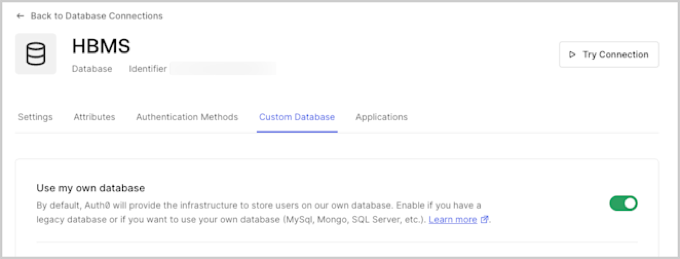
3. Select the **Custom Database** view, and enable the **Use my own database** switch.
 ## Create database action scripts
Toggling the **Use my own database** switch enables the **Database Action Scripts** area where you will create scripts to configure how authentication works when using your database. You can write your database action scripts, or you can select a template from the **Templates** dropdown and modifying it as necessary.
You **must** configure a `login` script; additional scripts for user functionality are optional.
The available database action scripts are:
| Name | Description | Parameters |
| ----------------------- | ------------------------------------------------------------------------------------ | ---------------------- |
| **Login**
## Create database action scripts
Toggling the **Use my own database** switch enables the **Database Action Scripts** area where you will create scripts to configure how authentication works when using your database. You can write your database action scripts, or you can select a template from the **Templates** dropdown and modifying it as necessary.
You **must** configure a `login` script; additional scripts for user functionality are optional.
The available database action scripts are:
| Name | Description | Parameters |
| ----------------------- | ------------------------------------------------------------------------------------ | ---------------------- |
| **Login**
Required | Executes each time a user attempts to log in. | `email`, `password` |
| **Create** | Executes when a user signs up. | `user` |
| **Verify** | Executes after a user follows the verification link. | `email` |
| **Change Password** | Executes when a user clicks on the confirmation link after a reset password request. | `email`, `newPassword` |
| **Get User** | Retrieves a user profile from your database without authenticating the user. | `email` |
| **Delete** | Executes when a user is deleted using the API or Auth0 Dashboard. | `id` |
To learn more about the scripts, read [Custom Database Action Script Templates](/docs/authenticate/database-connections/custom-db/templates) and [Custom Database Action Script Execution Best Practices](/docs/authenticate/database-connections/custom-db/custom-database-connections-scripts/execution).
### Create a Login script
The `id` (or alternatively `user_id`) property in the returned user profile will be used by Auth0 to identify the user.
If you are using multiple custom database connections, then `id` value must be unique across all the custom database connections to avoid user ID collisions. Our recommendation is to prefix the value of `id` with the connection name (omitting any whitespace). To learn more about user IDs, read [Identify Users](/docs/manage-users/user-accounts/identify-users).
The following steps use an example for a MySQL database login script
1. After toggling the **Use my own database** switch, the **Database Action Scripts** area is enabled. Make sure you are on the **Login** tab.
2. Use the **Templates** dropdown to select the MySQL database script template.
```javascript lines expandable theme={null}
function login(email, password, callback) {
var bcrypt = require('bcrypt');
var mysql = require('mysql');
var connection = mysql.createConnection({
host: 'localhost',
user: 'me',
password: 'secret',
database: 'mydb'
});
connection.connect();
var query = "SELECT id, nickname, email, password " +
"FROM users WHERE email = ?";
connection.query(query, [email], function (err, results) {
if (err) return callback(err);
if (results.length === 0) return callback(new WrongUsernameOrPasswordError(email));
var user = results[0];
bcrypt.compare(password, user.password, function (err, isValid) {
if (err) {
callback(err);
} else if (!isValid) {
callback(new WrongUsernameOrPasswordError(email));
} else {
callback(null, {
// This prefix (replace with your own custom DB name)
// ensure uniqueness across different custom DBs if there's the
// possibility of collisions (e.g. if the user ID is an email address or an integer)
id: 'MyConnection1|' + user.id.toString(),
nickname: user.nickname,
email: user.email
});
}
});
});
}
```
The above script connects to a MySQL database and executes a query to retrieve the first user with `email == user.email`.
With the `bcrypt.compareSync` method, it then validates that the passwords match, and if successful, returns an object containing the user profile information including `id`, `nickname`, and `email`.
This script assumes that you have a `users` table containing these columns. The `id` returned by Login script is used to construct the user ID attribute of the user profile.
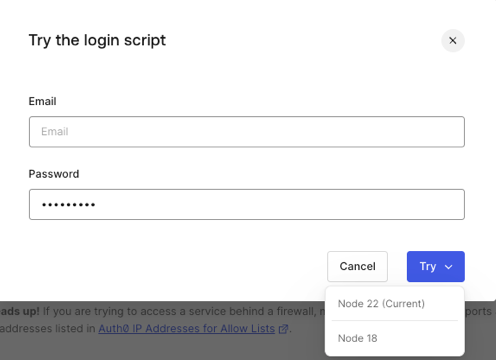
3. Select **Save and Try**.
4. In the pop-up modal, enter your email and password and click **Try**. This provides a dropdown to select from a list of available runtimes, with your current runtime on top.
 Script templates are not used by Auth0 until you select **Save** or **Try**. This is true even if you only modify one script and haven't made changes to any others. You must choose **Save** at least once for all the scripts to be in place.
## Custom database support for Organizations
If you use custom database connections in conjunction with Organizations, you can use the `context` parameter in the script signature to make Organization details like `id`, `name`, and `metadata` available to your custom database action scripts. Organization data is passed in the context object when the associated action happens in the context of an organization; for example, when a user authenticates on an organization’s login prompt, the login action script is passed. To learn more, read [Database Connections](/docs/authenticate/database-connections).
### Enable context object
1. Navigate to [Auth0 Dashboard > Authentication > Database](https://manage.auth0.com/dashboard/us/#/connections/database/).
2. Select your database connection.
3. Under the **Custom Database** tab, find **Context objects in database scripts** and select **Enable**.
This feature cannot be disabled once toggled.
4. On the confirmation prompt, select **Confirm**.
### Use Organization context
Once the context object is enabled in Dashboard, you can add a `context` object to your custom database action scripts, inserted directly preceding the callback parameter. When events are triggered with Organization context, the corresponding data is made available to your custom database action scripts in the format below:
```json lines theme={null}
{
"organization": {
"display_name": "My Organization",
"id": "org_XXXXXX",
"metadata": {
"example": "value"
},
"name": "my-organization"
}
}
```
```json lines theme={null}
{
"organization": {
"display_name": "My Organization",
"id": "org_XXXXXX",
"metadata": {
"example": "value"
},
"name": "my-organization"
}
}
```
```json lines theme={null}
{
"organization": {
"display_name": "My Organization",
"id": "org_XXXXXX",
"metadata": {
"example": "value"
},
"name": "my-organization"
}
}
```
```json lines theme={null}
{
"organization": {
"display_name": "My Organization",
"id": "org_XXXXXX",
"metadata": {
"example": "value"
},
"name": "my-organization"
}
}
```
```json lines theme={null}
{
"organization": {
"display_name": "My Organization",
"id": "org_XXXXXX",
"metadata": {
"example": "value"
},
"name": "my-organization"
}
}
```
An empty context will always be passed to the `delete` script.
## Add configuration parameters
You can store parameters, like the credentials required to connect to your database, in the **Settings** section below the script editor. These will be available for all of your scripts, and you can access the parameter values using the `configuration` object in your database action scripts (i.e., `configuration.MYSQL_PASSWORD`).
Use the added parameters in your scripts to configure the connection. For example, you might add the following to the MySQL Login script:
```javascript lines theme={null}
function login (username, password, callback) {
var mysql = require('mysql');
var connection = mysql.createConnection({
host : configuration.MYSQL_HOST,
user : 'me',
password : configuration.MYSQL_PASSWORD,
database : 'mydb'
});
}
```
## Learn more
* [Custom Database Connection and Action Script Best Practices](/docs/authenticate/database-connections/custom-db/custom-database-connections-scripts)
* [Troubleshoot Custom Databases](/docs/authenticate/database-connections/custom-db/error-handling)
* [Import and Export Users](/docs/manage-users/user-migration)
Script templates are not used by Auth0 until you select **Save** or **Try**. This is true even if you only modify one script and haven't made changes to any others. You must choose **Save** at least once for all the scripts to be in place.
## Custom database support for Organizations
If you use custom database connections in conjunction with Organizations, you can use the `context` parameter in the script signature to make Organization details like `id`, `name`, and `metadata` available to your custom database action scripts. Organization data is passed in the context object when the associated action happens in the context of an organization; for example, when a user authenticates on an organization’s login prompt, the login action script is passed. To learn more, read [Database Connections](/docs/authenticate/database-connections).
### Enable context object
1. Navigate to [Auth0 Dashboard > Authentication > Database](https://manage.auth0.com/dashboard/us/#/connections/database/).
2. Select your database connection.
3. Under the **Custom Database** tab, find **Context objects in database scripts** and select **Enable**.
This feature cannot be disabled once toggled.
4. On the confirmation prompt, select **Confirm**.
### Use Organization context
Once the context object is enabled in Dashboard, you can add a `context` object to your custom database action scripts, inserted directly preceding the callback parameter. When events are triggered with Organization context, the corresponding data is made available to your custom database action scripts in the format below:
```json lines theme={null}
{
"organization": {
"display_name": "My Organization",
"id": "org_XXXXXX",
"metadata": {
"example": "value"
},
"name": "my-organization"
}
}
```
```json lines theme={null}
{
"organization": {
"display_name": "My Organization",
"id": "org_XXXXXX",
"metadata": {
"example": "value"
},
"name": "my-organization"
}
}
```
```json lines theme={null}
{
"organization": {
"display_name": "My Organization",
"id": "org_XXXXXX",
"metadata": {
"example": "value"
},
"name": "my-organization"
}
}
```
```json lines theme={null}
{
"organization": {
"display_name": "My Organization",
"id": "org_XXXXXX",
"metadata": {
"example": "value"
},
"name": "my-organization"
}
}
```
```json lines theme={null}
{
"organization": {
"display_name": "My Organization",
"id": "org_XXXXXX",
"metadata": {
"example": "value"
},
"name": "my-organization"
}
}
```
An empty context will always be passed to the `delete` script.
## Add configuration parameters
You can store parameters, like the credentials required to connect to your database, in the **Settings** section below the script editor. These will be available for all of your scripts, and you can access the parameter values using the `configuration` object in your database action scripts (i.e., `configuration.MYSQL_PASSWORD`).
Use the added parameters in your scripts to configure the connection. For example, you might add the following to the MySQL Login script:
```javascript lines theme={null}
function login (username, password, callback) {
var mysql = require('mysql');
var connection = mysql.createConnection({
host : configuration.MYSQL_HOST,
user : 'me',
password : configuration.MYSQL_PASSWORD,
database : 'mydb'
});
}
```
## Learn more
* [Custom Database Connection and Action Script Best Practices](/docs/authenticate/database-connections/custom-db/custom-database-connections-scripts)
* [Troubleshoot Custom Databases](/docs/authenticate/database-connections/custom-db/error-handling)
* [Import and Export Users](/docs/manage-users/user-migration)