> ## Documentation Index
> Fetch the complete documentation index at: https://auth0.com/llms.txt
> Use this file to discover all available pages before exploring further.
> Describes the different ways to reset users' passwords for your Auth0 applications.
# Change Users' Passwords
export const AuthCodeGroup = ({children, dropdown}) => {
const [processedChildren, setProcessedChildren] = useState(children);
useEffect(() => {
let unsubscribe = null;
function init() {
unsubscribe = window.autorun(() => {
const processChildren = node => {
if (typeof node === "string") {
let processedNode = node;
for (const [key, value] of window.rootStore.variableStore.values.entries()) {
const escapedKey = key.replaceAll(/[.*+?^${}()|[\]\\]/g, (String.raw)`\$&`);
processedNode = processedNode.replaceAll(new RegExp(escapedKey, "g"), value);
}
return processedNode;
} else if (Array.isArray(node)) {
return node.map(processChildren);
} else if (node && node.props && node.props.children) {
return {
...node,
props: {
...node.props,
children: processChildren(node.props.children)
}
};
}
return node;
};
setProcessedChildren(processChildren(children));
});
}
if (window.rootStore) {
init();
} else {
window.addEventListener("adu:storeReady", init);
}
return () => {
window.removeEventListener("adu:storeReady", init);
unsubscribe?.();
};
}, [children]);
return {processedChildren};
};
export const AuthCodeBlock = ({filename, icon, language, highlight, children}) => {
const [displayText, setDisplayText] = useState(children);
const [copyText, setCopyText] = useState(children);
const wrapperRef = React.useRef(null);
useEffect(() => {
let unsubscribe = null;
function init() {
if (!window.autorun || !window.rootStore) {
return;
}
unsubscribe = window.autorun(() => {
let processedChildrenForDisplay = children;
let processedChildrenForCopy = children;
for (const [key, value] of window.rootStore.variableStore.values.entries()) {
const escapedKey = key.replaceAll(/[.*+?^${}()|[\]\\]/g, (String.raw)`\$&`);
let displayValue = value;
if (key === "{yourClientSecret}" && value !== "{yourClientSecret}") {
displayValue = value.substring(0, 3) + "*****MASKED*****";
}
processedChildrenForDisplay = processedChildrenForDisplay.replaceAll(new RegExp(escapedKey, "g"), displayValue);
processedChildrenForCopy = processedChildrenForCopy.replaceAll(new RegExp(escapedKey, "g"), value);
}
setDisplayText(processedChildrenForDisplay);
setCopyText(processedChildrenForCopy);
});
}
if (window.rootStore) {
init();
} else {
window.addEventListener("adu:storeReady", init);
}
return () => {
window.removeEventListener("adu:storeReady", init);
unsubscribe?.();
};
}, [children]);
useEffect(() => {
if (!wrapperRef.current) return;
const originalWriteText = navigator.clipboard.writeText.bind(navigator.clipboard);
let isOverriding = false;
const handleClick = e => {
const button = e.target.closest('[data-testid="copy-code-button"]');
if (!button || !wrapperRef.current.contains(button)) return;
isOverriding = true;
navigator.clipboard.writeText = text => {
if (isOverriding) {
isOverriding = false;
navigator.clipboard.writeText = originalWriteText;
return originalWriteText(copyText);
}
return originalWriteText(text);
};
setTimeout(() => {
if (isOverriding) {
isOverriding = false;
navigator.clipboard.writeText = originalWriteText;
}
}, 100);
};
const wrapper = wrapperRef.current;
wrapper.addEventListener('click', handleClick, true);
return () => {
wrapper.removeEventListener('click', handleClick, true);
if (navigator.clipboard.writeText !== originalWriteText) {
navigator.clipboard.writeText = originalWriteText;
}
};
}, [copyText]);
return
{displayText}
;
};
Key Concepts
* Trigger a password reset using Auth0 Dashboard or the Management API.
This topic describes different ways to reset the password for a user in your database. You can change passwords for users in your [database connections](/docs/authenticate/database-connections) only. Users signing in with [social](/docs/authenticate/identity-providers/social-identity-providers) or [enterprise](/docs/authenticate/identity-providers/enterprise-identity-providers) connections must reset their passwords with the identity provider (such as Google or Facebook), and the following instructions work only if the user's email address is known.
There are two basic methods for changing a user's password:
* [Trigger an interactive password reset flow](#trigger-an-interactive-password-reset-flow) that sends the user a link through email. The link opens the Auth0 password reset page where the user can enter a new password.
* [Directly set the new password](#directly-set-the-new-password) using the Auth0 Management API or the Auth0 Dashboard.
Resetting a user's password makes their session expire.
* To configure the custom Password Reset page, read [Customize Password Reset Page](/docs/customize/login-pages/classic-login/customize-password-reset-page).
* To implement custom behavior after a successful password change, read [Actions Triggers: post-change-password](/docs/customize/actions/explore-triggers/password-reset-triggers/post-change-password-trigger).
* To reset the password to your personal Auth0 user account, read [Reset Account Passwords](/docs/troubleshoot/customer-support/reset-account-passwords).
## Trigger an interactive password reset flow
There are two ways to trigger an interactive password reset flow, depending on your use case: through the Universal Login page or the Authentication API.
### Universal Login page
If your application uses Universal Login, the user can use the Lock widget on the Login screen to trigger a password reset email. With Universal Login, the user can click the **Don't remember your password?** link and then enter their email address. This fires off a POST request to Auth0 that triggers the password reset process. The user [receives a password reset email](#password-reset-email).
### Authentication API
If your application uses an interactive password reset flow through the Authentication API, make a `POST` call. In the `email` field, provide the email address of the user who needs to change their password. If the call is successful, the user [receives a password reset email](#password-reset-email).
If you call the API from the browser, be sure the origin URL is allowed:
Go to [Auth0 Dashboard > Applications > Applications](https://manage.auth0.com/#/applications/\{yourClientId}/settings), and add the URL to the **Allowed Origins (CORS)** list.
If your connection is a custom database, check to see if the user exists in the database before you invoke the Authentication API for `changePassword`.
```bash cURL theme={null}
curl --request POST \
--url 'https://{yourDomain}/dbconnections/change_password' \
--header 'content-type: application/json' \
--data '{"client_id": "{yourClientId}","email": "","connection": "Username-Password-Authentication"}'
```
```csharp C# theme={null}
var client = new RestClient("https://{yourDomain}/dbconnections/change_password");
var request = new RestRequest(Method.POST);
request.AddHeader("content-type", "application/json");
request.AddParameter("application/json", "{"client_id": "{yourClientId}","email": "","connection": "Username-Password-Authentication"}", ParameterType.RequestBody);
IRestResponse response = client.Execute(request);
```
```go Go theme={null}
package main
import (
"fmt"
"strings"
"net/http"
"io/ioutil"
)
func main() {
url := "https://{yourDomain}/dbconnections/change_password"
payload := strings.NewReader("{"client_id": "{yourClientId}","email": "","connection": "Username-Password-Authentication"}")
req, _ := http.NewRequest("POST", url, payload)
req.Header.Add("content-type", "application/json")
res, _ := http.DefaultClient.Do(req)
defer res.Body.Close()
body, _ := ioutil.ReadAll(res.Body)
fmt.Println(res)
fmt.Println(string(body))
}
```
```java Java theme={null}
HttpResponse response = Unirest.post("https://{yourDomain}/dbconnections/change_password")
.header("content-type", "application/json")
.body("{"client_id": "{yourClientId}","email": "","connection": "Username-Password-Authentication"}")
.asString();
```
```javascript Node.JS theme={null}
var axios = require("axios").default;
var options = {
method: 'POST',
url: 'https://{yourDomain}/dbconnections/change_password',
headers: {'content-type': 'application/json'},
data: {
client_id: '{yourClientId}',
email: '',
connection: 'Username-Password-Authentication'
}
};
axios.request(options).then(function (response) {
console.log(response.data);
}).catch(function (error) {
console.error(error);
});
```
```php PHP theme={null}
$curl = curl_init();
curl_setopt_array($curl, [
CURLOPT_URL => "https://{yourDomain}/dbconnections/change_password",
CURLOPT_RETURNTRANSFER => true,
CURLOPT_ENCODING => "",
CURLOPT_MAXREDIRS => 10,
CURLOPT_TIMEOUT => 30,
CURLOPT_HTTP_VERSION => CURL_HTTP_VERSION_1_1,
CURLOPT_CUSTOMREQUEST => "POST",
CURLOPT_POSTFIELDS => "{"client_id": "{yourClientId}","email": "","connection": "Username-Password-Authentication"}",
CURLOPT_HTTPHEADER => [
"content-type: application/json"
],
]);
$response = curl_exec($curl);
$err = curl_error($curl);
curl_close($curl);
if ($err) {
echo "cURL Error #:" . $err;
} else {
echo $response;
}
```
```python Python theme={null}
import http.client
conn = http.client.HTTPSConnection("")
payload = "{"client_id": "{yourClientId}","email": "","connection": "Username-Password-Authentication"}"
headers = { 'content-type': "application/json" }
conn.request("POST", "/{yourDomain}/dbconnections/change_password", payload, headers)
res = conn.getresponse()
data = res.read()
print(data.decode("utf-8"))
```
```ruby Ruby theme={null}
require 'uri'
require 'net/http'
require 'openssl'
url = URI("https://{yourDomain}/dbconnections/change_password")
http = Net::HTTP.new(url.host, url.port)
http.use_ssl = true
http.verify_mode = OpenSSL::SSL::VERIFY_NONE
request = Net::HTTP::Post.new(url)
request["content-type"] = 'application/json'
request.body = "{"client_id": "{yourClientId}","email": "","connection": "Username-Password-Authentication"}"
response = http.request(request)
puts response.read_body
```
### Password reset email
Regardless of how the password reset process was triggered, the user receives email containing a link to reset their password.
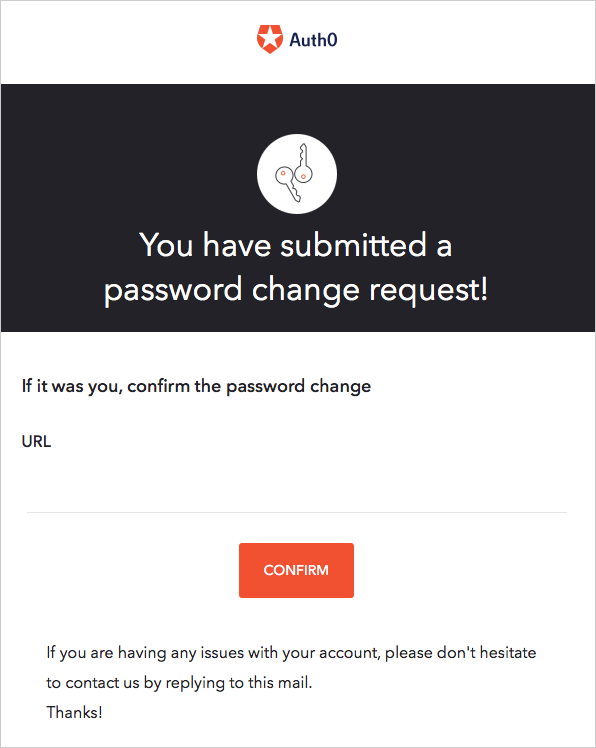 Clicking the link sends the user to the [password reset page](/docs/customize/login-pages/classic-login/customize-password-reset-page).
After submitting the new password, the user sees confirmation that they can now log in with their new credentials.
Notes on password resets:
* The reset password link in the email is valid for one use only.
* If the user receives multiple password reset emails, only the password link in the most recent email is valid.
* The **URL Lifetime** field determines how long the link is valid. From the Auth0 dashboard, you can [customize the Change Password email](/docs/customize/email/email-templates) and [modify the link's lifetime](https://auth0.com/docs/api/authentication/reference#change-password).
* You can extend the password reset flow to include another factor with Auth0 Actions. To learn more, read [Password Reset Flow](/docs/customize/actions/explore-triggers/password-reset-triggers).
With [Classic Login](/docs/authenticate/login/auth0-universal-login/universal-login-vs-classic-login/classic-experience), you can configure a URL to redirect users to after completing the password reset. The URL receives a success indicator and a message. To learn more, read the "Configuring the Redirect-To URL" section in [Customize Email Templates](/docs/customize/email/email-templates).
[Universal Login](/docs/authenticate/login/auth0-universal-login/universal-login-vs-classic-login/universal-experience) redirects the user to the [default login route](/docs/authenticate/login/auth0-universal-login/configure-default-login-routes) when it succeeds, and handles the error cases as part of the Universal Login flow. This experience ignores the Redirect URL in the email template.
The Management API provides the [Create a Password Change Ticket](https://auth0.com/docs/api/management/v2#!/Tickets/post_password_change) endpoint, which generates a URL like the one in the password reset email. You can use the generated URL when the email delivery method is not appropriate. Keep in mind that in the default flow, the email delivery verifies the identity of the user. (An impostor wouldn't have access to the email inbox.) If you use the ticket URL, your application is responsible for verifying the identity of the user in some other way.
## Directly set the new password
To directly set a new password for the user without sending a password reset email, use either the [Management API](#use-the-management-api) or the [Auth0 Dashboard](#manually-set-users-passwords-using-the-auth0-dashboard).
Users do not receive notification when you change their password.
### Use the Management API
If you want to implement your own password reset flow, you can directly change a user's password from a server request to the Management API: make a `PATCH` call to the [Update a User endpoint](https://auth0.com/docs/api/management/v2#!/Users/patch_users_by_id).
If you use Management API to set or update a user's password via the [Update a User endpoint](https://auth0.com/docs/api/management/v2#!/Users/patch_users_by_id), the strength policy you set in Auth0 Dashboard applies.
```bash cURL theme={null}
curl --request PATCH \
--url 'https://{yourDomain}/api/v2/users/%7BuserId%7D' \
--header 'authorization: Bearer {yourMgmtApiAccessToken}' \
--header 'content-type: application/json' \
--data '{"password": "newPassword","connection": "connectionName"}'
```
```csharp C# theme={null}
var client = new RestClient("https://{yourDomain}/api/v2/users/%7BuserId%7D");
var request = new RestRequest(Method.PATCH);
request.AddHeader("content-type", "application/json");
request.AddHeader("authorization", "Bearer {yourMgmtApiAccessToken}");
request.AddParameter("application/json", "{"password": "newPassword","connection": "connectionName"}", ParameterType.RequestBody);
IRestResponse response = client.Execute(request);
```
```go Go theme={null}
package main
import (
"fmt"
"strings"
"net/http"
"io/ioutil"
)
func main() {
url := "https://{yourDomain}/api/v2/users/%7BuserId%7D"
payload := strings.NewReader("{"password": "newPassword","connection": "connectionName"}")
req, _ := http.NewRequest("PATCH", url, payload)
req.Header.Add("content-type", "application/json")
req.Header.Add("authorization", "Bearer {yourMgmtApiAccessToken}")
res, _ := http.DefaultClient.Do(req)
defer res.Body.Close()
body, _ := ioutil.ReadAll(res.Body)
fmt.Println(res)
fmt.Println(string(body))
}
```
```java Java theme={null}
HttpResponse response = Unirest.patch("https://{yourDomain}/api/v2/users/%7BuserId%7D")
.header("content-type", "application/json")
.header("authorization", "Bearer {yourMgmtApiAccessToken}")
.body("{"password": "newPassword","connection": "connectionName"}")
.asString();
```
```javascript Node.JS theme={null}
var axios = require("axios").default;
var options = {
method: 'PATCH',
url: 'https://{yourDomain}/api/v2/users/%7BuserId%7D',
headers: {
'content-type': 'application/json',
authorization: 'Bearer {yourMgmtApiAccessToken}'
},
data: {password: 'newPassword', connection: 'connectionName'}
};
axios.request(options).then(function (response) {
console.log(response.data);
}).catch(function (error) {
console.error(error);
});
```
```php PHP theme={null}
$curl = curl_init();
curl_setopt_array($curl, [
CURLOPT_URL => "https://{yourDomain}/api/v2/users/%7BuserId%7D",
CURLOPT_RETURNTRANSFER => true,
CURLOPT_ENCODING => "",
CURLOPT_MAXREDIRS => 10,
CURLOPT_TIMEOUT => 30,
CURLOPT_HTTP_VERSION => CURL_HTTP_VERSION_1_1,
CURLOPT_CUSTOMREQUEST => "PATCH",
CURLOPT_POSTFIELDS => "{"password": "newPassword","connection": "connectionName"}",
CURLOPT_HTTPHEADER => [
"authorization: Bearer {yourMgmtApiAccessToken}",
"content-type: application/json"
],
]);
$response = curl_exec($curl);
$err = curl_error($curl);
curl_close($curl);
if ($err) {
echo "cURL Error #:" . $err;
} else {
echo $response;
}
```
```python Python theme={null}
import http.client
conn = http.client.HTTPSConnection("")
payload = "{"password": "newPassword","connection": "connectionName"}"
headers = {
'content-type': "application/json",
'authorization': "Bearer {yourMgmtApiAccessToken}"
}
conn.request("PATCH", "/{yourDomain}/api/v2/users/%7BuserId%7D", payload, headers)
res = conn.getresponse()
data = res.read()
print(data.decode("utf-8"))
```
```ruby Ruby theme={null}
require 'uri'
require 'net/http'
require 'openssl'
url = URI("https://{yourDomain}/api/v2/users/%7BuserId%7D")
http = Net::HTTP.new(url.host, url.port)
http.use_ssl = true
http.verify_mode = OpenSSL::SSL::VERIFY_NONE
request = Net::HTTP::Patch.new(url)
request["content-type"] = 'application/json'
request["authorization"] = 'Bearer {yourMgmtApiAccessToken}'
request.body = "{"password": "newPassword","connection": "connectionName"}"
response = http.request(request)
puts response.read_body
```
### Manually set users' passwords using the Auth0 Dashboard
Anyone with administrative privileges to your Auth0 tenant can manually change a user's password at [Auth0 Dashboard > User Management > Users](https://manage.auth0.com/#/users).
1. Select the name of the user whose password you want to change.
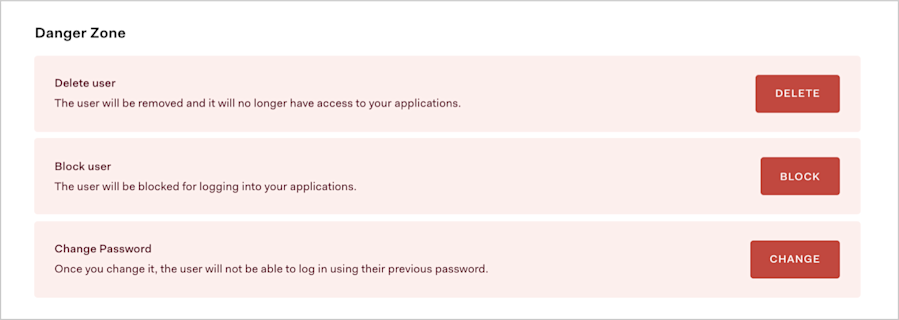
2. Locate the **Danger Zone** at the bottom of the page.
3. In the red **Change Password** box, select **Change**.
Clicking the link sends the user to the [password reset page](/docs/customize/login-pages/classic-login/customize-password-reset-page).
After submitting the new password, the user sees confirmation that they can now log in with their new credentials.
Notes on password resets:
* The reset password link in the email is valid for one use only.
* If the user receives multiple password reset emails, only the password link in the most recent email is valid.
* The **URL Lifetime** field determines how long the link is valid. From the Auth0 dashboard, you can [customize the Change Password email](/docs/customize/email/email-templates) and [modify the link's lifetime](https://auth0.com/docs/api/authentication/reference#change-password).
* You can extend the password reset flow to include another factor with Auth0 Actions. To learn more, read [Password Reset Flow](/docs/customize/actions/explore-triggers/password-reset-triggers).
With [Classic Login](/docs/authenticate/login/auth0-universal-login/universal-login-vs-classic-login/classic-experience), you can configure a URL to redirect users to after completing the password reset. The URL receives a success indicator and a message. To learn more, read the "Configuring the Redirect-To URL" section in [Customize Email Templates](/docs/customize/email/email-templates).
[Universal Login](/docs/authenticate/login/auth0-universal-login/universal-login-vs-classic-login/universal-experience) redirects the user to the [default login route](/docs/authenticate/login/auth0-universal-login/configure-default-login-routes) when it succeeds, and handles the error cases as part of the Universal Login flow. This experience ignores the Redirect URL in the email template.
The Management API provides the [Create a Password Change Ticket](https://auth0.com/docs/api/management/v2#!/Tickets/post_password_change) endpoint, which generates a URL like the one in the password reset email. You can use the generated URL when the email delivery method is not appropriate. Keep in mind that in the default flow, the email delivery verifies the identity of the user. (An impostor wouldn't have access to the email inbox.) If you use the ticket URL, your application is responsible for verifying the identity of the user in some other way.
## Directly set the new password
To directly set a new password for the user without sending a password reset email, use either the [Management API](#use-the-management-api) or the [Auth0 Dashboard](#manually-set-users-passwords-using-the-auth0-dashboard).
Users do not receive notification when you change their password.
### Use the Management API
If you want to implement your own password reset flow, you can directly change a user's password from a server request to the Management API: make a `PATCH` call to the [Update a User endpoint](https://auth0.com/docs/api/management/v2#!/Users/patch_users_by_id).
If you use Management API to set or update a user's password via the [Update a User endpoint](https://auth0.com/docs/api/management/v2#!/Users/patch_users_by_id), the strength policy you set in Auth0 Dashboard applies.
```bash cURL theme={null}
curl --request PATCH \
--url 'https://{yourDomain}/api/v2/users/%7BuserId%7D' \
--header 'authorization: Bearer {yourMgmtApiAccessToken}' \
--header 'content-type: application/json' \
--data '{"password": "newPassword","connection": "connectionName"}'
```
```csharp C# theme={null}
var client = new RestClient("https://{yourDomain}/api/v2/users/%7BuserId%7D");
var request = new RestRequest(Method.PATCH);
request.AddHeader("content-type", "application/json");
request.AddHeader("authorization", "Bearer {yourMgmtApiAccessToken}");
request.AddParameter("application/json", "{"password": "newPassword","connection": "connectionName"}", ParameterType.RequestBody);
IRestResponse response = client.Execute(request);
```
```go Go theme={null}
package main
import (
"fmt"
"strings"
"net/http"
"io/ioutil"
)
func main() {
url := "https://{yourDomain}/api/v2/users/%7BuserId%7D"
payload := strings.NewReader("{"password": "newPassword","connection": "connectionName"}")
req, _ := http.NewRequest("PATCH", url, payload)
req.Header.Add("content-type", "application/json")
req.Header.Add("authorization", "Bearer {yourMgmtApiAccessToken}")
res, _ := http.DefaultClient.Do(req)
defer res.Body.Close()
body, _ := ioutil.ReadAll(res.Body)
fmt.Println(res)
fmt.Println(string(body))
}
```
```java Java theme={null}
HttpResponse response = Unirest.patch("https://{yourDomain}/api/v2/users/%7BuserId%7D")
.header("content-type", "application/json")
.header("authorization", "Bearer {yourMgmtApiAccessToken}")
.body("{"password": "newPassword","connection": "connectionName"}")
.asString();
```
```javascript Node.JS theme={null}
var axios = require("axios").default;
var options = {
method: 'PATCH',
url: 'https://{yourDomain}/api/v2/users/%7BuserId%7D',
headers: {
'content-type': 'application/json',
authorization: 'Bearer {yourMgmtApiAccessToken}'
},
data: {password: 'newPassword', connection: 'connectionName'}
};
axios.request(options).then(function (response) {
console.log(response.data);
}).catch(function (error) {
console.error(error);
});
```
```php PHP theme={null}
$curl = curl_init();
curl_setopt_array($curl, [
CURLOPT_URL => "https://{yourDomain}/api/v2/users/%7BuserId%7D",
CURLOPT_RETURNTRANSFER => true,
CURLOPT_ENCODING => "",
CURLOPT_MAXREDIRS => 10,
CURLOPT_TIMEOUT => 30,
CURLOPT_HTTP_VERSION => CURL_HTTP_VERSION_1_1,
CURLOPT_CUSTOMREQUEST => "PATCH",
CURLOPT_POSTFIELDS => "{"password": "newPassword","connection": "connectionName"}",
CURLOPT_HTTPHEADER => [
"authorization: Bearer {yourMgmtApiAccessToken}",
"content-type: application/json"
],
]);
$response = curl_exec($curl);
$err = curl_error($curl);
curl_close($curl);
if ($err) {
echo "cURL Error #:" . $err;
} else {
echo $response;
}
```
```python Python theme={null}
import http.client
conn = http.client.HTTPSConnection("")
payload = "{"password": "newPassword","connection": "connectionName"}"
headers = {
'content-type': "application/json",
'authorization': "Bearer {yourMgmtApiAccessToken}"
}
conn.request("PATCH", "/{yourDomain}/api/v2/users/%7BuserId%7D", payload, headers)
res = conn.getresponse()
data = res.read()
print(data.decode("utf-8"))
```
```ruby Ruby theme={null}
require 'uri'
require 'net/http'
require 'openssl'
url = URI("https://{yourDomain}/api/v2/users/%7BuserId%7D")
http = Net::HTTP.new(url.host, url.port)
http.use_ssl = true
http.verify_mode = OpenSSL::SSL::VERIFY_NONE
request = Net::HTTP::Patch.new(url)
request["content-type"] = 'application/json'
request["authorization"] = 'Bearer {yourMgmtApiAccessToken}'
request.body = "{"password": "newPassword","connection": "connectionName"}"
response = http.request(request)
puts response.read_body
```
### Manually set users' passwords using the Auth0 Dashboard
Anyone with administrative privileges to your Auth0 tenant can manually change a user's password at [Auth0 Dashboard > User Management > Users](https://manage.auth0.com/#/users).
1. Select the name of the user whose password you want to change.
2. Locate the **Danger Zone** at the bottom of the page.
3. In the red **Change Password** box, select **Change**.
 4. Enter the new password, and select **Save**.