> ## Documentation Index
> Fetch the complete documentation index at: https://auth0.com/llms.txt
> Use this file to discover all available pages before exploring further.
> Describes how to monitor the AD/LDAP Connector with System Center Operations Manager (SCOM).
# Monitor AD/LDAP Connector with System Center Operations Manager
The Auth0 AD/LDAP connector can run as a service on Windows-based machines.
You can monitor the service status using System Center as you would do with any other service.
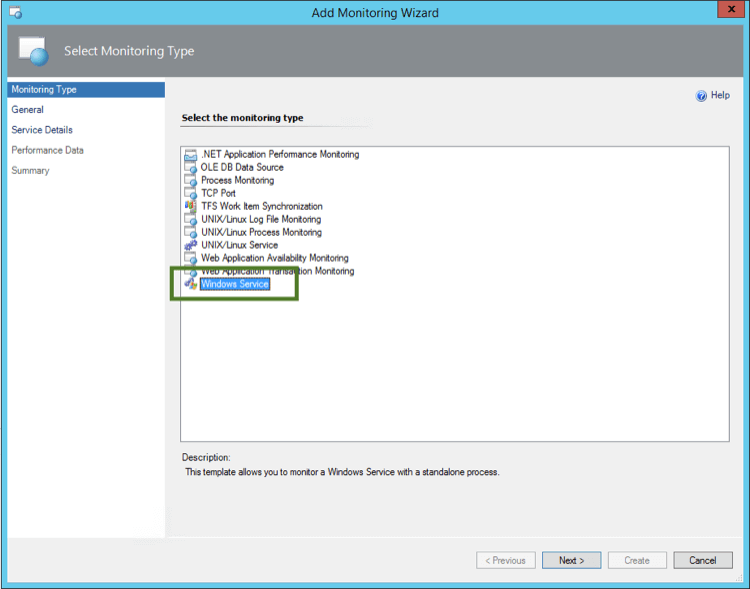
1. Open the **Add Monitoring Wizard** and select the **Monitoring Type: Windows Service**:
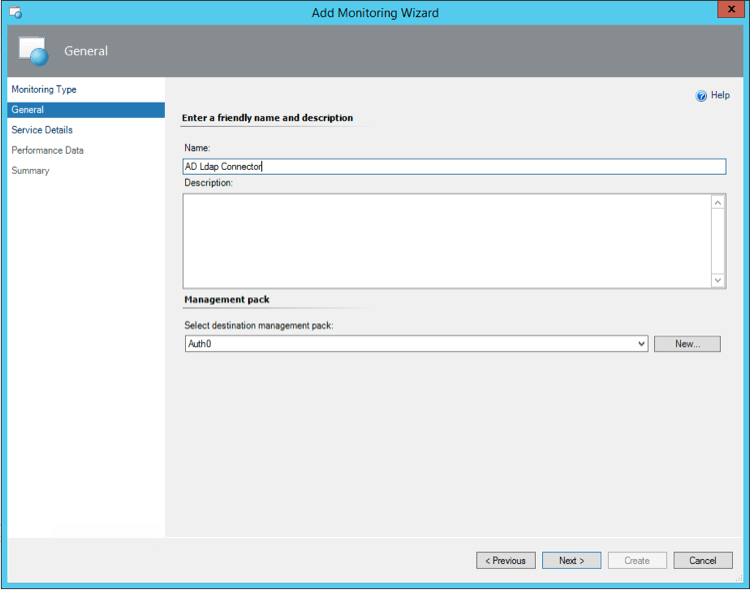
 2. Enter a name and description:
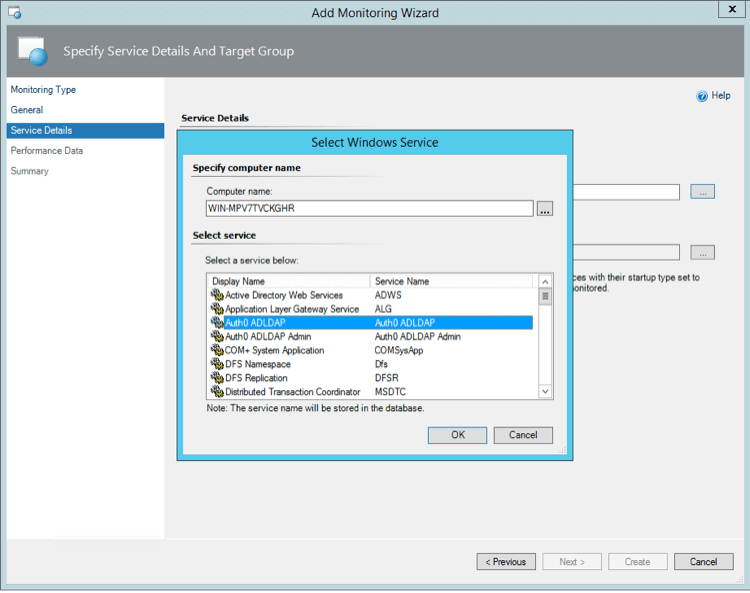
 3. Select the Server in which the AD/LDAP Connector is installed and then choose **Auth0 ADLDAP**:
 4. Select the limits of **CPU** and **Memory limits**. For example, 10% of CPU and 200MB of RAM are good limits to trigger alerts.
We also recommend that you set up a synthetic transaction to monitor end-to-end authentication.
To learn more, see [Monitor Auth0 Using SCOM](/docs/deploy-monitor/monitor/monitor-using-scom).
## Learn more
* [Monitor Auth0 Using System Center Operations Manager](/docs/deploy-monitor/monitor/monitor-using-scom)
4. Select the limits of **CPU** and **Memory limits**. For example, 10% of CPU and 200MB of RAM are good limits to trigger alerts.
We also recommend that you set up a synthetic transaction to monitor end-to-end authentication.
To learn more, see [Monitor Auth0 Using SCOM](/docs/deploy-monitor/monitor/monitor-using-scom).
## Learn more
* [Monitor Auth0 Using System Center Operations Manager](/docs/deploy-monitor/monitor/monitor-using-scom)