> ## Documentation Index
> Fetch the complete documentation index at: https://auth0.com/llms.txt
> Use this file to discover all available pages before exploring further.
> Describes how to control how the `email_verified` field is set for Azure AD and ADFS.
# Email Verification for Azure AD and ADFS
Auth0 user's profile has an `email_verified` field, which can be set in different ways depending on the connection type. For database connections, users must go through an email validation flow to get the email verified. For federated connections, identity providers can return the `email_verified` field based on their own criteria.
Azure AD and ADFS cannot guarantee that the emails they return have been verified:
* In ADFS, the ADFS administrator can configure any email they want.
* In Azure AD, depending on how the Azure AD tenant is configured, email addresses returned by Azure AD may or may not correspond to Office mailboxes. Auth0 can't know whether they do or not.
However, if you know how an Azure AD or ADFS is configured and managed, you can decide to trust that the emails from those accounts are verified.
To accommodate both needs, Azure AD and ADFS connections have an **Email Verification** property with two values:
* Always set `email_verified` to `true`
* Always set `email_verified` to `false`
The Azure AD connection also has a **Use Common Endpoint** property. When it's enabled, the user can authenticate with any Azure AD tenant. Given it's not possible to trust that any Azure AD tenant will return verified emails, the **Email Verification** property will need to be set to **Always set** `email_verified` **to** `false`.
When the property is set to **Always set** `email_verified` **to** `false`, users will get `email_verified` set to `false` the next time they log in, unless [syncing user profile attributes at each login](/docs/manage-users/user-accounts/user-profiles/configure-connection-sync-with-auth0) is disabled.
## Azure AD/ADFS Email Verification Migration setting
In previous versions, Auth0 always set the `email_verified` field to `true` in Azure AD and ADFS connections. If you were using Azure AD and ADFS connections in the past, you will have a tenant setting that will override the Connection Setting for **Email Verification** and keep the previous behavior.
You can find the new tenant setting in the [Auth0 Dashboard > Settings > Advanced](https://manage.auth0.com/#/tenant/advanced). Locate the **Migrations** section, then find **Default to** `Email Verification` **setting for Azure AD/ADFS connections**.
This setting is only available if:
* the tenant is older than the date the migration was introduced
* the tenant has one or more active ADFS or Azure AD connection
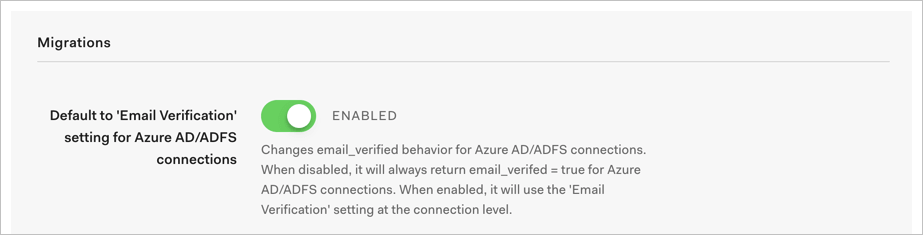 When this setting is disabled, `email_verified` will always be `true` for Azure AD/ADFS connections. When enabled, it will use the `Email Verification` setting at the connection level.
## Email Verification Flow for Azure AD/ADFS connections
If your application requires that the emails from an Azure AD/ADFS connection's users are always verified, you can enable the **Enable email verification flow during login for Azure AD and ADFS connections** option in the tenant's **Advanced Settings** section.
After the user authenticates for the first time with a non-verified email, Auth0 will ask the user to verify their email by entering a one-time-use code that will be sent to their email account:
When this setting is disabled, `email_verified` will always be `true` for Azure AD/ADFS connections. When enabled, it will use the `Email Verification` setting at the connection level.
## Email Verification Flow for Azure AD/ADFS connections
If your application requires that the emails from an Azure AD/ADFS connection's users are always verified, you can enable the **Enable email verification flow during login for Azure AD and ADFS connections** option in the tenant's **Advanced Settings** section.
After the user authenticates for the first time with a non-verified email, Auth0 will ask the user to verify their email by entering a one-time-use code that will be sent to their email account:
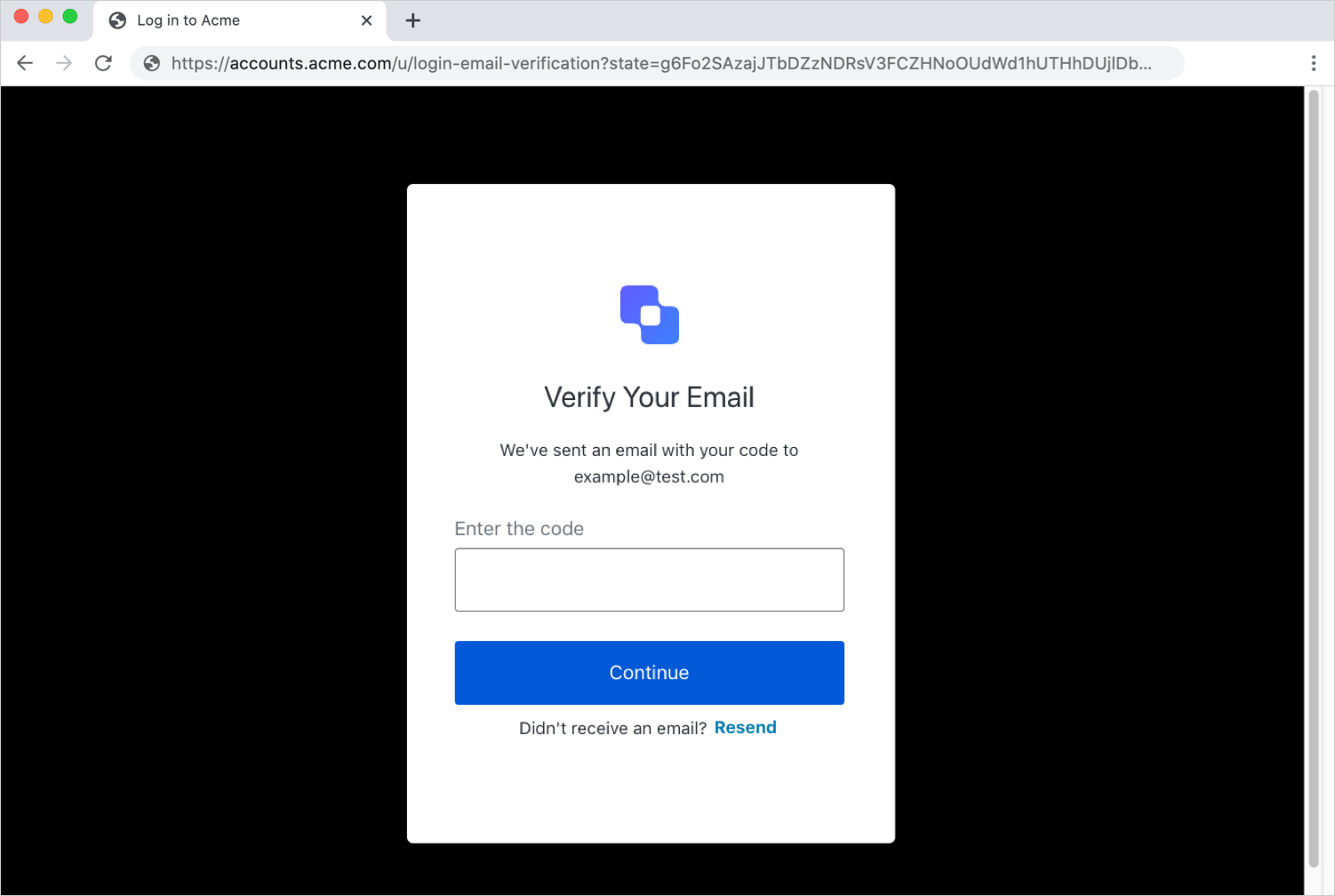 If the user completes this step, the `email_verified` field will be set to `true`, and users will not be prompted again for email verification, unless Azure AD or ADFS return a different email for the user.
This new screen is rendered using the Universal Login experience, even if you are using Classic Login. To learn how to customize it, read [Customize Universal Login Pages](/docs/customize/login-pages/universal-login/customize-templates).
To learn how to customize the email that is sent to users, read [Verify Emails using Auth0](/docs/manage-users/user-accounts/verify-emails).
When Azure AD does not return an `email` claim, Auth0 maps the [Azure UserPrincipalName](https://docs.microsoft.com/en-us/azure/active-directory/hybrid/plan-connect-userprincipalname) as the email. There is no guarantee that the `UserPrincipalName` value is a mailbox, so Auth0 will **not** display the email verification prompt and the user will have the field `email_verified` set to `false`.
If the user completes this step, the `email_verified` field will be set to `true`, and users will not be prompted again for email verification, unless Azure AD or ADFS return a different email for the user.
This new screen is rendered using the Universal Login experience, even if you are using Classic Login. To learn how to customize it, read [Customize Universal Login Pages](/docs/customize/login-pages/universal-login/customize-templates).
To learn how to customize the email that is sent to users, read [Verify Emails using Auth0](/docs/manage-users/user-accounts/verify-emails).
When Azure AD does not return an `email` claim, Auth0 maps the [Azure UserPrincipalName](https://docs.microsoft.com/en-us/azure/active-directory/hybrid/plan-connect-userprincipalname) as the email. There is no guarantee that the `UserPrincipalName` value is a mailbox, so Auth0 will **not** display the email verification prompt and the user will have the field `email_verified` set to `false`.