> ## Documentation Index
> Fetch the complete documentation index at: https://auth0.com/llms.txt
> Use this file to discover all available pages before exploring further.
# How to Connect Auth0 Apps to Google Workspace using Enterprise Connections
> Let your users log in using Google Workspace by configuring a Google Workspace enterprise connection for your Auth0 app.
Connecting your Auth0 application to Google Workspace lets your users log in using their Google credentials. To enable this, you need to first register your application with Google and then configure a Google Workspace enterprise connection in Auth0.
## Prerequisites
Before you begin, you need:
* To [register your application with Auth0](/docs/get-started/auth0-overview/create-applications).
* Select an appropriate **Application Type**.
* Add an **Allowed Callback URL** of `{https://yourApp/callback}`.
* Make sure your application's [Grant Types](/docs/get-started/applications/update-grant-types) include the appropriate flows.
* A valid Google Workspace account and your own Google Workspace organization.
* Administrator privileges on the Google Workspace organization.
## Register your application with Google
To allow users to log in using Google Workspace, you must register your application in the Google Cloud console.
If your application requests sensitive OAuth scopes, it may be [subject to review by Google](https://developers.google.com/apps-script/guides/client-verification).
Follow Google's [Setting up OAuth 2.0](https://support.google.com/googleapi/answer/6158849) doc and use the following settings:
* On the **OAuth consent screen**, under **Authorized domains**, add `auth0.com`.
* When asked to select an application type, choose **Web application** and set the following parameters:
| Field | Description |
| ----------------------------- | ------------------------------------- |
| Name | The name of your application. |
| Authorized JavaScript origins | `https://{yourDomain}` |
| Authorized redirect URIs | `https://{yourDomain}/login/callback` |
Unless you're using a [custom domain](/docs/customize/custom-domains), your tenant's domain name is `..auth0.com`. For example, the domain name of a US region tenant named `example-name` is `example-name.us.auth0.com`). Tenants created before June 2020 omit the regional subdomain.
* If you plan to connect to Google Workspace enterprise domains, you need to [enable the **Admin SDK API**](https://support.google.com/googleapi/answer/6158841).
Save the **Client ID** and **Client Secret** that Google generates for your application. You need these values to create an Auth0 enterprise connection in the next step.
## Configure a Google Workspace enterprise connection in Auth0
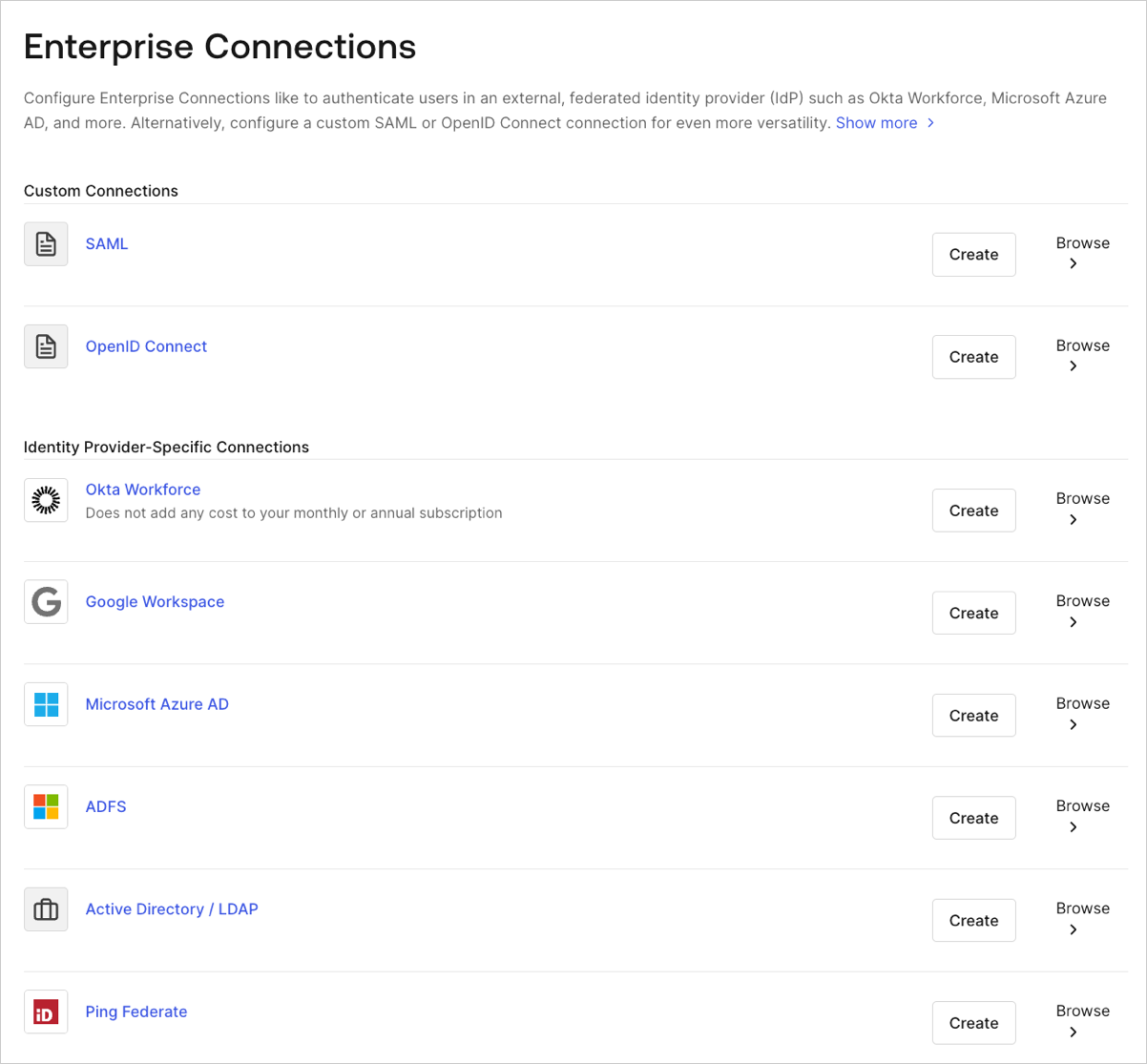
From [**Auth0 Dashboard > Authentication > Enterprise**](https://manage.auth0.com/#/connections/enterprise), find **Google Workspace** and select **Create**.
 On the creation page for a new Google Workspace enterprise connection, configure its settings:
| Field | Description |
| -------------------------------------- | ----------------------------------------------------------------------------------------------------------------------------------------------------------------------------------------------------------------------------------------------------------------------------------------------------------------------------------------------------------------------------------------------------------------------------------------------------------------------------------------------------------------------------------------- |
| **Purpose** | The use for the connection: login, connected accounts, or both. To learn more, read [User authentication vs Connected Accounts](/docs/secure/tokens/token-vault/connected-accounts-for-token-vault#user-authentication-vs-connected-accounts). |
| **Connection name** | A logical identifier for your connection. It must be unique for your tenant and cannot be changed. |
| **Google Workspace Domain** | The Google Workspace domain name for your organization. |
| **Client ID** | A unique identifier for your registered Google application. Enter the client ID for the app you registered in the Google Cloud console. |
| **Client Secret** | A string used to access your registered Google application. Enter the client secret for the app you registered in the Google Cloud console. |
| **Attributes** | The attributes of the signed-in user that your app can access and that Auth0 stores in the user profile:
On the creation page for a new Google Workspace enterprise connection, configure its settings:
| Field | Description |
| -------------------------------------- | ----------------------------------------------------------------------------------------------------------------------------------------------------------------------------------------------------------------------------------------------------------------------------------------------------------------------------------------------------------------------------------------------------------------------------------------------------------------------------------------------------------------------------------------- |
| **Purpose** | The use for the connection: login, connected accounts, or both. To learn more, read [User authentication vs Connected Accounts](/docs/secure/tokens/token-vault/connected-accounts-for-token-vault#user-authentication-vs-connected-accounts). |
| **Connection name** | A logical identifier for your connection. It must be unique for your tenant and cannot be changed. |
| **Google Workspace Domain** | The Google Workspace domain name for your organization. |
| **Client ID** | A unique identifier for your registered Google application. Enter the client ID for the app you registered in the Google Cloud console. |
| **Client Secret** | A string used to access your registered Google application. Enter the client secret for the app you registered in the Google Cloud console. |
| **Attributes** | The attributes of the signed-in user that your app can access and that Auth0 stores in the user profile: - **Basic Profile**: `email`, `email verified` flag
- **Extended Profile**: name, public profile URL, photo, gender, birth date, country, language, and timezone)
|
| **Extended Attributes** (optional) | Additional attributes for the signed-in user that your app can access and that Auth0 stores in the user profile: - **Groups**: the user's distribution list(s), in either simplified format (group names) or extended format (group objects with `name`, `id`, and `email`)
- **Is Domain Administrator**: whether the user is a domain administrator
- **Is Account Suspended**: whether the user's account is suspended
- **Agreed to Terms**: whether the user has agreed to the terms of service
|
| **Use Admin Directory API** (optional) | Enabling this setting allows the connection to make calls to the Google Directory API. Choose **Users** or **Users and Groups** scopes as required. |
| **Auth0 User ID** (optional) | By default, the Auth0 `user_id` maps to `email`. By enabling **Use ID instead of Email for Auth0 User ID**, `user_id` instead maps to `id`. You can only set this for new connections and cannot change it once configured. |
When you finish choosing your settings, click **Create**.
On the **Login Experience** tab, configure how users log in with this connection:
| Field | Description |
| ------------------------ | -------------------------------------------------------------------------------------------------------------------------------------------------------------------------------------------------------------------------------------------------------------------------------------------------------------------------------------------------------------------------------------------------------- |
| **Home Realm Discovery** | Compares a user's email domain with the provided **Identity Provider domains**. For more information, read [Configure Identifier First Authentication](/docs/authenticate/login/auth0-universal-login/identifier-first) |
| **Connection button** | Check **Display connection as a button** to enable a button on the application login page for this connection. When you do, you can customize two options: - **Button display name** (Optional): The text displayed on the button after "Continue with".
- **Button logo URL** (Optional): The URL of an image to display as a 20px by 20px square to the left of the button text.
|
After entering your settings, click **Save**.
On the **Setup** tab, either:
* Follow the **Continue** link if you have admin permissions to configure your Google Workspace settings to use Google's Admin APIs, or
* Provide the given URL to your administrator so that they can adjust the required settings
If a Google Workspace admin is deleted, any Google Workspace enterprise connections they authorized must be reauthorized by a different Google Workspace admin to avoid login failures. To reauthorize, have a current admin use the link in the Google Workspace enterprise connection's **Setup** tab.
[Enable the connection](/docs/authenticate/identity-providers/enterprise-identity-providers/enable-enterprise-connections) for your Auth0 applications, then [test the connection](/docs/authenticate/identity-providers/enterprise-identity-providers/test-enterprise-connections) to verify it works.
## Next steps
### Customize or automate user profile synchronization
On the **Provisioning** tab of the connection, you can configure how user profiles are updated:
* Enable **Sync User Profile Attributes at Login** to allow Google to sync user profiles when the user logs in.
When enabled, you can choose the **Sync Frequency**. By default, Auth0 refreshes user profiles on each login. You can also choose to sync on first login only.
* Enable **Provision Users and Groups Using Directory Sync** to automatically sync users and groups from Google Workspace to Auth0. To learn more, read [Sync Google Workspace Users to Auth0 with Google Directory Sync](/docs/authenticate/identity-providers/enterprise-identity-providers/google-directory-sync).
### Get access and refresh tokens
After a user authenticates, Google issues an access token. You can [use this access token](/docs/secure/tokens/access-tokens/identity-provider-access-tokens) to call Google's APIs.
To additionally request a Refresh Token from Google, add `access_type=offline&approval_prompt=force` to the authorization request.
For Google Workspace, Auth0 stores access and refresh tokens in the `user` object for individual users and in the `connection` object for workspace admins. You can access them using the Management API's [Get a connection endpoint](https://auth0.com/docs/api/management/v2/connections/get-connections-by-id).
### Retrieve additional user and group details
To retrieve additional user and group details beyond what Auth0 retrieves by default, you can use Google's Directory Admin API to get a user's extended group properties.
1. On the **Settings** tab of your enterprise connection, in the **General** section, under **Extended Attributes**, enable the **Groups**.
2. On the **Setup** tab, complete administrator consent using the provided link.
3. Retrieve the admin access token stored in the `connection` object using the Management API's [Get a connection endpoint](https://auth0.com/docs/api/management/v2/connections/get-connections-by-id).
4. Use the access token to call [Google's Manage Groups endpoint](https://developers.google.com/admin-sdk/directory/v1/guides/manage-groups#get_all_member_groups). For example:
```bash wrap theme={null}
curl -H "Authorization: OAuth {admin_access_token}" \
https://admin.googleapis.com/admin/directory/v1/groups\?userKey={user_key}
```
### Validate authentication with Actions
Validating that authentication events are from legitimate users who are members of your Google organization can help prevent unauthorized access to your applications by users who are no longer part of your organization.
To verify Google authentications, you can [use a post-login Action](/docs/customize/actions/explore-triggers/signup-and-login-triggers/login-trigger) to validate that the `idp_tenant_domain` claim associated with the user matches the expected organization. For example:
```js Example post-login Action code to validate Google authentications theme={null}
exports.onExecutePostLogin = async (event, api) => {
if (event.connection.strategy === 'google-oauth2') {
// Block social (non-organization) accounts
if (!event.user.idp_tenant_domain) {
api.access.deny('Social accounts are not allowed to log in');
}
// Only permit allowlisted organization accounts
if (event.user.idp_tenant_domain != 'example.com') {
api.access.deny('Your Google Organization is not allowed to log in');
}
}
};
```
You can only verify `idp_tenant_domain` for users who authenticate with the following connection types:
* Google Social
* Google Workspace
* Google OIDC
### More information
* [Read more about the authentication flow](/docs/get-started/authentication-and-authorization-flow)
* [Pass additional parameters to the identity provider](/docs/authenticate/identity-providers/pass-parameters-to-idps)
* [Re-prompt users for permissions](/docs/authenticate/identity-providers/social-identity-providers/reprompt-permissions)
## Limits
* If you have an existing [Google social connection](https://marketplace.auth0.com/integrations/google-social-connection) for your application and you create a new Google Workspace enterprise connection for the same domain, users affiliated with the social connection will be logged in with the enterprise connection (even if you don't enable it).
* The Google Workspace enterprise connection allows Auth0 user profiles to have up to 200 groups. If a user profile has more than 200 groups, these results may not be shown. If you use Google groups for authorization, you must secure the workspace to prevent unauthorized users from modifying groups.
* The connection button is not available for Classic Login. To enable and customize the connection button, use Universal Login.