> ## Documentation Index
> Fetch the complete documentation index at: https://auth0.com/llms.txt
> Use this file to discover all available pages before exploring further.
> Walkthrough for Azure Connection Setup via OpenID SCIM
# Inbound SCIM for Azure AD Connections
Ensure your Auth0 tenant is connected to Azure AD using the [Microsoft Azure AD connection type](/docs/authenticate/identity-providers/enterprise-identity-providers/azure-active-directory/v2).
This integration will require two applications to be registered in Azure AD: the OpenID Connect integration and the SCIM integration. To streamline this setup process for your customers, consider [publishing your app in the Azure Active Directory app gallery](https://learn.microsoft.com/en-us/entra/identity/enterprise-apps/v2-howto-app-gallery-listing#submit-your-application).
Auth0 can be integrated with Microsoft Azure Active Directory (now known as Microsoft Entra ID) with the [Microsoft Azure AD connection type](/docs/authenticate/identity-providers/enterprise-identity-providers/azure-active-directory/v2), which uses the OpenID Connect (OIDC) protocol for user authentication. These instructions are for new Azure AD connections; for older connections using pairwise user identifiers (`sub)`, read [Older Connections](/docs/authenticate/protocols/scim/inbound-scim-for-older-azure-ad-connections).
## Configure SCIM settings in Auth0
1. Launch the [Auth0 Dashboard](https://manage.auth0.com/#/), go to **Authentication > Enterprise > Microsoft Azure AD > \[your-connection] > Settings.**
2. Ensure that **User ID Attribute Type** is set to **User Object Identifier (oid)** and **Use Common Endpoint** toggle is **Disabled**.
3. Select the **Provisioning tab** and disable **Sync user profile attributes at each login** unless you want to [sync additional attributes at login](/docs/authenticate/protocols/scim/configure-inbound-scim).
4. In the same section, enable **Sync user profiles using SCIM**.
5. Under the **Mapping** tab, ensure the **SCIM attribute containing the User ID** setting is set to **externalId**.
6. Review the **Additional Mappings** to ensure the extended SCIM attributes are mapped to your preferred Auth0 attributes. See [attribute mapping](/docs/authenticate/protocols/scim/configure-inbound-scim#attribute-mapping) for details.
## Retrieve SCIM endpoint URL and token
This section uses the Auth0 Dashboard, but these steps can also be managed with the Management API. See the [Deployment Guidelines](/docs/authenticate/protocols/scim/configure-inbound-scim#deployment-guidelines) section for best practices.
1. In the [Auth0 dashboard](https://manage.auth0.com/#/), browse to the SCIM **Setup** tab, then copy the **SCIM Endpoint URL** and paste it somewhere safe.
2. Generate SCIM token by clicking **Generate New Token** and set an expiration date for the token if you wish.
3. Select the scopes you want to allow. The default scopes required by Azure AD are `get:users`, `post:users`, `patch:users`, and `delete:users`. You may optionally select `get:groups`, `post:groups`, `patch:groups`, and `delete:groups` to provision groups.
## Configure SCIM in Azure AD for OIDC Apps
1. Confirm that an OpenID Connect application has already been registered to handle user authentication in the **Microsoft Entra ID > App registrations** section of the [Azure portal](https://portal.azure.com).
2. Confirm that your OpenID Connect application has **Assignment Required** set to **Yes** in the **Microsoft Entra ID > Enterprise applications > \[your-oidc-app] > Manage > Properties** section, and has users assigned in the **Users and Groups** tab.
3. Next, register a new **Non-gallery** application in the [Azure portal](https://portal.azure.com) by browsing to **Microsoft Entra ID > Enterprise applications > New application > Create your own application,** entering an application name, and selecting **Create**.
4. Go to the **Users and Groups** tab and assign the same Azure AD users and groups that are assigned to the registered OpenID Connect app.
5. Select the **Provisioning** tab, select **Get started**, and choose **Automatic** as the **Provisioning Mode.**
6. Select **Admin Credentials**, then enter the **SCIM Endpoint URL** value you saved earlier as the **Tenant URL**. At the end of the URL, add `?aadOptscim062020` query parameter to fix [known Azure AD issues described here.](https://learn.microsoft.com/en-us/azure/active-directory/app-provisioning/application-provisioning-config-problem-scim-compatibility)
7. Paste the token value into the **Secret Token** field and select **Save.**
8. Go to **Mappings**.
9. To optionally provision groups, confirm that **Provision Entra ID Groups** is set to **Enabled**. Otherwise set this to **Disabled**.
10. Select **Provision Microsoft Entra ID Users,** then go to **Attribute Mappings** and edit the attributes of the line containing `externalId` and `mailNickname`.
11. In the **Edit Attribute** screen, change **Source attribute** to **objectId,** then choose **OK**.
12. Go back to **Attribute Mappings** and select the line containing `emails[type eq "work"].value and mail`.
13. In the **Edit Attribute** screen, change **Match objects using this attribute** to **Yes**,thenset **Matching precedence** to **2** and choose **OK.** The attribute mapping screen looks like this as you continue to use the **Attribute Mappings** section to configure additional SCIM attributes:
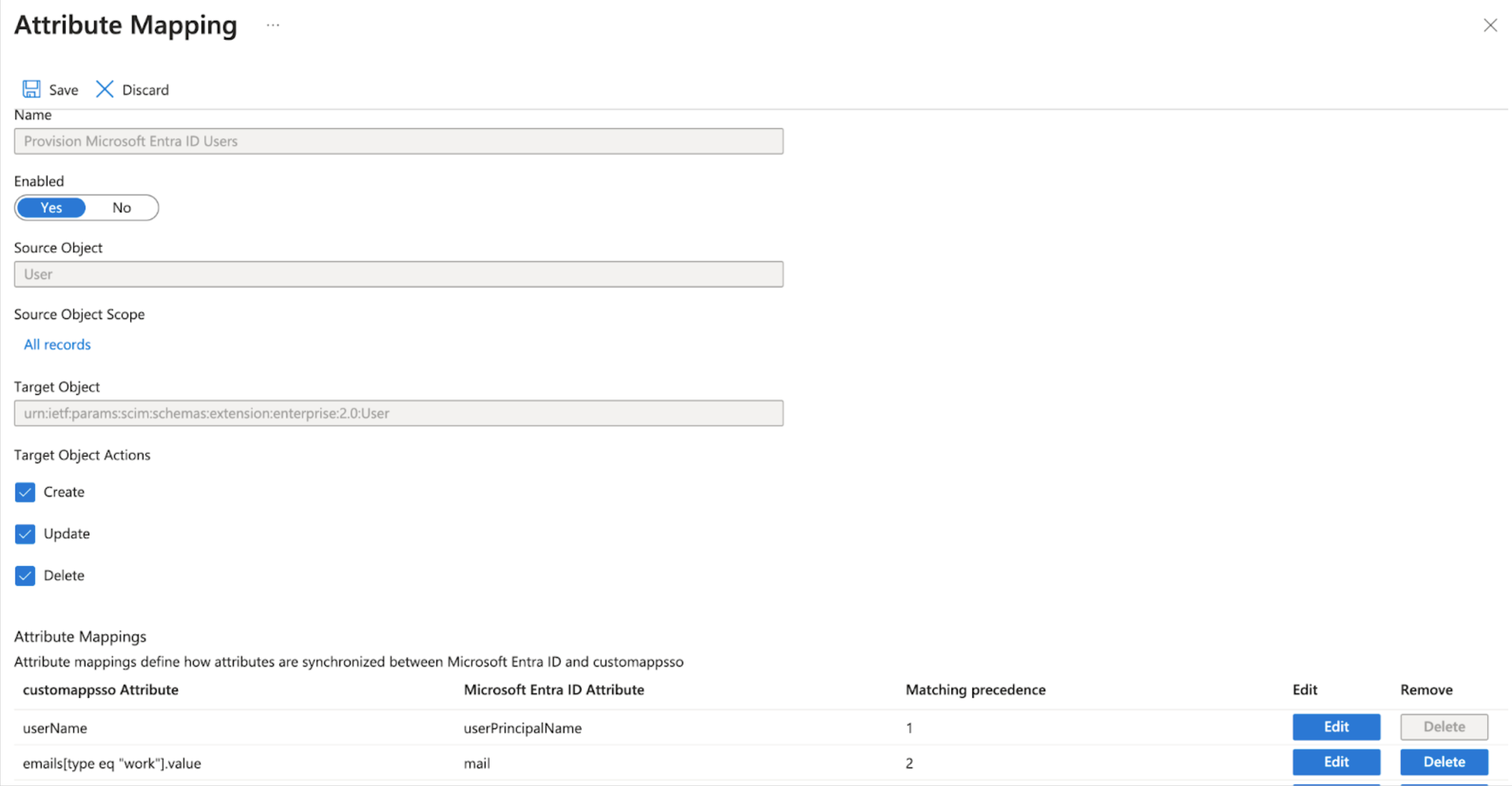 **Save** the attribute mappings, then select **X** in the upper-right corner to return to the **Provisioning** screen.
## Testing
1. On the Enterprise application overview screen, go to **Manage > Provisioning > Provision on Demand** to test the SCIM connection.
2. Go to **Select a user or group** and enter the name of a user or group that you assigned to the application, then select the item and choose **Provision**. This creates the user or group in the Auth0 tenant.
3. Set the **Provisioning Status** to **On** in order to [provision all assigned users and groups](https://learn.microsoft.com/en-us/entra/identity/app-provisioning/configure-automatic-user-provisioning-portal#provisioning-status).
**Save** the attribute mappings, then select **X** in the upper-right corner to return to the **Provisioning** screen.
## Testing
1. On the Enterprise application overview screen, go to **Manage > Provisioning > Provision on Demand** to test the SCIM connection.
2. Go to **Select a user or group** and enter the name of a user or group that you assigned to the application, then select the item and choose **Provision**. This creates the user or group in the Auth0 tenant.
3. Set the **Provisioning Status** to **On** in order to [provision all assigned users and groups](https://learn.microsoft.com/en-us/entra/identity/app-provisioning/configure-automatic-user-provisioning-portal#provisioning-status).