> ## Documentation Index
> Fetch the complete documentation index at: https://auth0.com/llms.txt
> Use this file to discover all available pages before exploring further.
> Describes how to install the Delegated Administration Extension, which allows you to expose the Users section of the Auth0 Dashboard to a select group of users without allowing them access to the rest of the Dashboard.
# Install Delegated Admin Extension
You can install the [Delegated Admin Extension](/docs/customize/extensions/delegated-administration-extension), which allows you to expose the **Users** section of the Auth0 Dashboard to a select group of users without allowing them access to the rest of the Dashboard.
## Prerequisite
[Create a Delegated Admin Dashboard application](/docs/customize/extensions/delegated-administration-extension/create-delegated-admin-applications) in Auth0.
## Install extension
1. Go to [Auth0 Dashboard > Extensions](https://manage.auth0.com/#/extensions), and filter for **Delegated Admin**.
2. Select **Delegated Administration Dashboard** in the list of provided extensions. The **Install Extension** window will open.
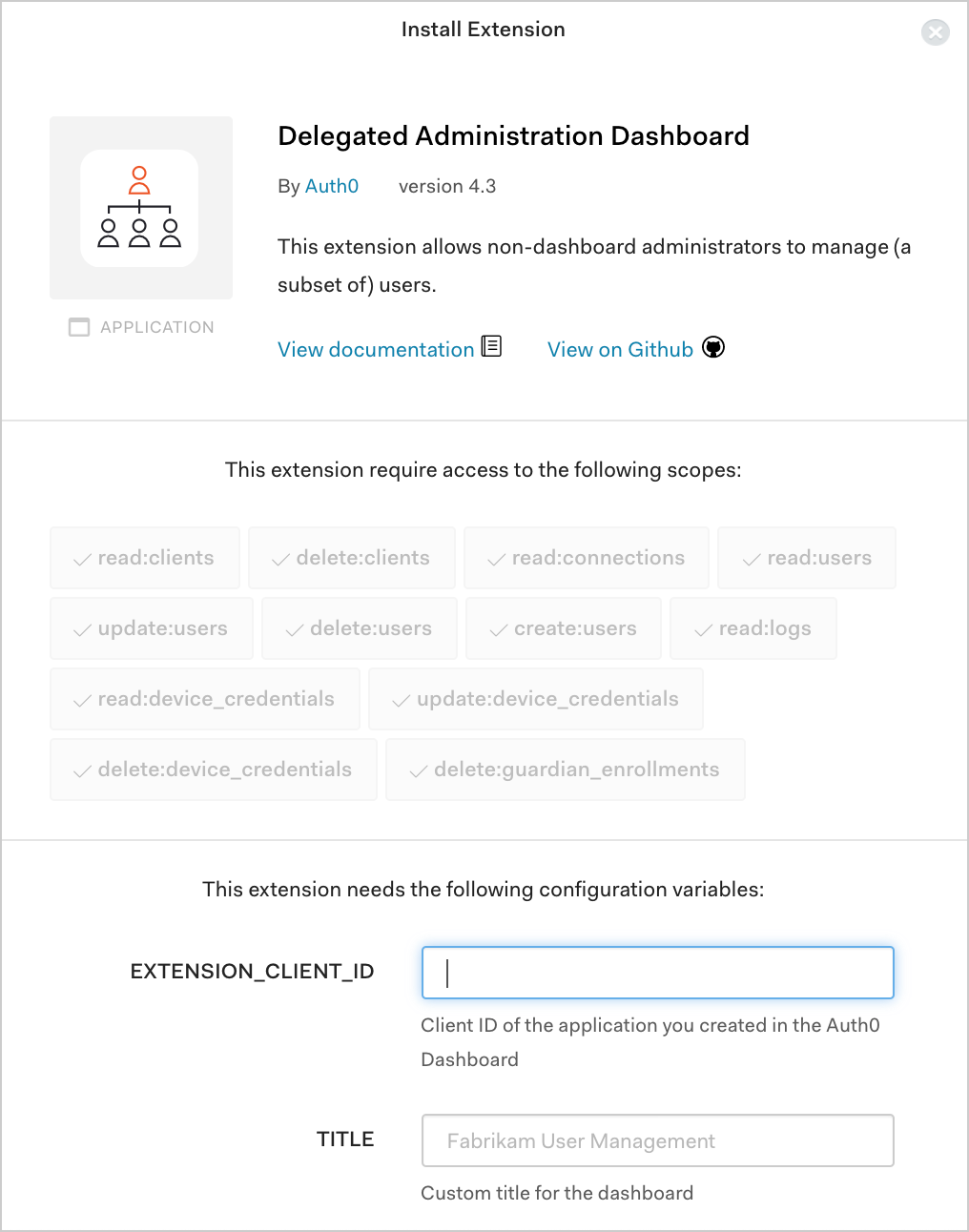 3. Set the following configuration variables, and select **Install**:
| Variable | Description |
| ------------------------- | -------------------------------------------------------------------------------------------------------------------------------------------------------------------------------------- |
| **EXTENSION\_CLIENT\_ID** | **Client ID** of the application with which you plan to use this extension. |
| **TITLE** | Custom title that will appear at the top of the Delegated Administration Dashboard page. |
| **CUSTOM\_CSS** | (*Optional*) Link to a custom CSS you can use to style the look of your Delegated Administration Dashboard page. |
| **FAVICON\_PATH** | (*Optional*) Path to custom favicon. |
| **AUTH0\_CUSTOM\_DOMAIN** | (*Optional*) If you have a custom domain name configured, enter it here (e.g., `login.example.com`). This will change the authorization endpoint to `https://login.example.com/login`. |
| **FEDERATED\_LOGOUT** | (*Optional*) Indicates whether to sign out from the connection when users log out. |
Setting the `AUTH0_CUSTOM_DOMAIN` variable does not affect the extension URL; it only changes the authorization endpoint. When a custom domain is used, users that are logging into the extension will be navigated to `https://AUTH0_CUSTOM_DOMAIN/login` instead of the default `https://tenant-name.us.auth0.com/login`.
If you navigate to [Auth0 Dashboard > Applications > Applications](https://manage.auth0.com/#/applications), you will see that the extension created an additional application. This application is authorized to access the Management API, so you shouldn't modify it.
## Add callback URLs to Application
1. Navigate to [Auth0 Dashboard > Applications > Applications](https://manage.auth0.com/#/applications), and select the name of the application with which you plan to use this extension. This should be the application with the Client ID you entered earlier when setting the configuration variables for the Delegated Administration Dashboard.
2. Locate **Allowed Callback URLs**, and add the appropriate callback URL for your region and your tenant's extensibility runtime.
| Location | Name | Allowed Callback URL for Node.js 12 |
| --------- | ---- | ------------------------------------------------------------------ |
| USA | US-1 | `https://{yourTenant}.us12.webtask.io/auth0-delegated-admin/login` |
| USA | US-3 | `https://{yourTenant}.us.webtask.run/auth0-delegated-admin/login` |
| Australia | AU | `https://{yourTenant}.au12.webtask.io/auth0-delegated-admin/login` |
| Europe | EU | `https://{yourTenant}.eu12.webtask.io/auth0-delegated-admin/login` |
| Japan | JP-1 | `https://{yourTenant}.jp.webtask.run/auth0-delegated-admin/login` |
| Location | Name | Allowed Callback URL for Node.js 8 |
| --------- | ---- | ---------------------------------------------------------------- |
| USA | US-1 | `https://YOUR_TENANT.us8.webtask.io/auth0-delegated-admin/login` |
| Europe | EU | `https://YOUR_TENANT.eu8.webtask.io/auth0-delegated-admin/login` |
| Australia | AU | `https://YOUR_TENANT.au8.webtask.io/auth0-delegated-admin/login` |
3. Select **Save Changes**.
## Use extension
1. Go to [Auth0 Dashboard > Extensions](https://manage.auth0.com/#/extensions), and select the **Installed Extensions** view.
2. Select **Delegated Administration Dashboard**. A new tab will open to display the login prompt.
Because we disabled signups for the database connection while configuring it, the login screen will not display a Sign Up option.
Once you provide valid credentials, you will be directed to your custom **Delegated Administration Dashboard** page, which will have the **Title** you provided at the top of the page, and if you provided a custom CSS file, that styling will be applied.
## Learn more
* [Create Delegated Admin Applications](/docs/customize/extensions/delegated-administration-extension/create-delegated-admin-applications)
3. Set the following configuration variables, and select **Install**:
| Variable | Description |
| ------------------------- | -------------------------------------------------------------------------------------------------------------------------------------------------------------------------------------- |
| **EXTENSION\_CLIENT\_ID** | **Client ID** of the application with which you plan to use this extension. |
| **TITLE** | Custom title that will appear at the top of the Delegated Administration Dashboard page. |
| **CUSTOM\_CSS** | (*Optional*) Link to a custom CSS you can use to style the look of your Delegated Administration Dashboard page. |
| **FAVICON\_PATH** | (*Optional*) Path to custom favicon. |
| **AUTH0\_CUSTOM\_DOMAIN** | (*Optional*) If you have a custom domain name configured, enter it here (e.g., `login.example.com`). This will change the authorization endpoint to `https://login.example.com/login`. |
| **FEDERATED\_LOGOUT** | (*Optional*) Indicates whether to sign out from the connection when users log out. |
Setting the `AUTH0_CUSTOM_DOMAIN` variable does not affect the extension URL; it only changes the authorization endpoint. When a custom domain is used, users that are logging into the extension will be navigated to `https://AUTH0_CUSTOM_DOMAIN/login` instead of the default `https://tenant-name.us.auth0.com/login`.
If you navigate to [Auth0 Dashboard > Applications > Applications](https://manage.auth0.com/#/applications), you will see that the extension created an additional application. This application is authorized to access the Management API, so you shouldn't modify it.
## Add callback URLs to Application
1. Navigate to [Auth0 Dashboard > Applications > Applications](https://manage.auth0.com/#/applications), and select the name of the application with which you plan to use this extension. This should be the application with the Client ID you entered earlier when setting the configuration variables for the Delegated Administration Dashboard.
2. Locate **Allowed Callback URLs**, and add the appropriate callback URL for your region and your tenant's extensibility runtime.
| Location | Name | Allowed Callback URL for Node.js 12 |
| --------- | ---- | ------------------------------------------------------------------ |
| USA | US-1 | `https://{yourTenant}.us12.webtask.io/auth0-delegated-admin/login` |
| USA | US-3 | `https://{yourTenant}.us.webtask.run/auth0-delegated-admin/login` |
| Australia | AU | `https://{yourTenant}.au12.webtask.io/auth0-delegated-admin/login` |
| Europe | EU | `https://{yourTenant}.eu12.webtask.io/auth0-delegated-admin/login` |
| Japan | JP-1 | `https://{yourTenant}.jp.webtask.run/auth0-delegated-admin/login` |
| Location | Name | Allowed Callback URL for Node.js 8 |
| --------- | ---- | ---------------------------------------------------------------- |
| USA | US-1 | `https://YOUR_TENANT.us8.webtask.io/auth0-delegated-admin/login` |
| Europe | EU | `https://YOUR_TENANT.eu8.webtask.io/auth0-delegated-admin/login` |
| Australia | AU | `https://YOUR_TENANT.au8.webtask.io/auth0-delegated-admin/login` |
3. Select **Save Changes**.
## Use extension
1. Go to [Auth0 Dashboard > Extensions](https://manage.auth0.com/#/extensions), and select the **Installed Extensions** view.
2. Select **Delegated Administration Dashboard**. A new tab will open to display the login prompt.
Because we disabled signups for the database connection while configuring it, the login screen will not display a Sign Up option.
Once you provide valid credentials, you will be directed to your custom **Delegated Administration Dashboard** page, which will have the **Title** you provided at the top of the page, and if you provided a custom CSS file, that styling will be applied.
## Learn more
* [Create Delegated Admin Applications](/docs/customize/extensions/delegated-administration-extension/create-delegated-admin-applications)