> ## Documentation Index
> Fetch the complete documentation index at: https://auth0.com/llms.txt
> Use this file to discover all available pages before exploring further.
> Learn how to configure a log stream using a custom webhook to stream log events to the URL of your choice.
# Create Custom Log Streams Using Webhooks
Webhooks allow events to be delivered to an external web server. Auth0 offers several integrations that automatically push events to third-party log management and analysis systems. If however your third-party system isn't supported, you can set up a custom webhook integration.
You can only subscribe one payload URL per webhook configuration, but you can use the same URL for multiple streams. The payload will be delivered in JSON lines format. Keep that in mind while consuming the logs in your webhook configuration.
## Configure API endpoint
You'll build an API that serves a single route (such as `/api/logs`) that accepts `HTTP POST` requests.
Self-signed HTTP certificates are not supported.
## Configure log stream
1. Go to [Dashboard > Monitoring > Streams](https://manage.auth0.com/#/log-streams) and click **Create Stream**.
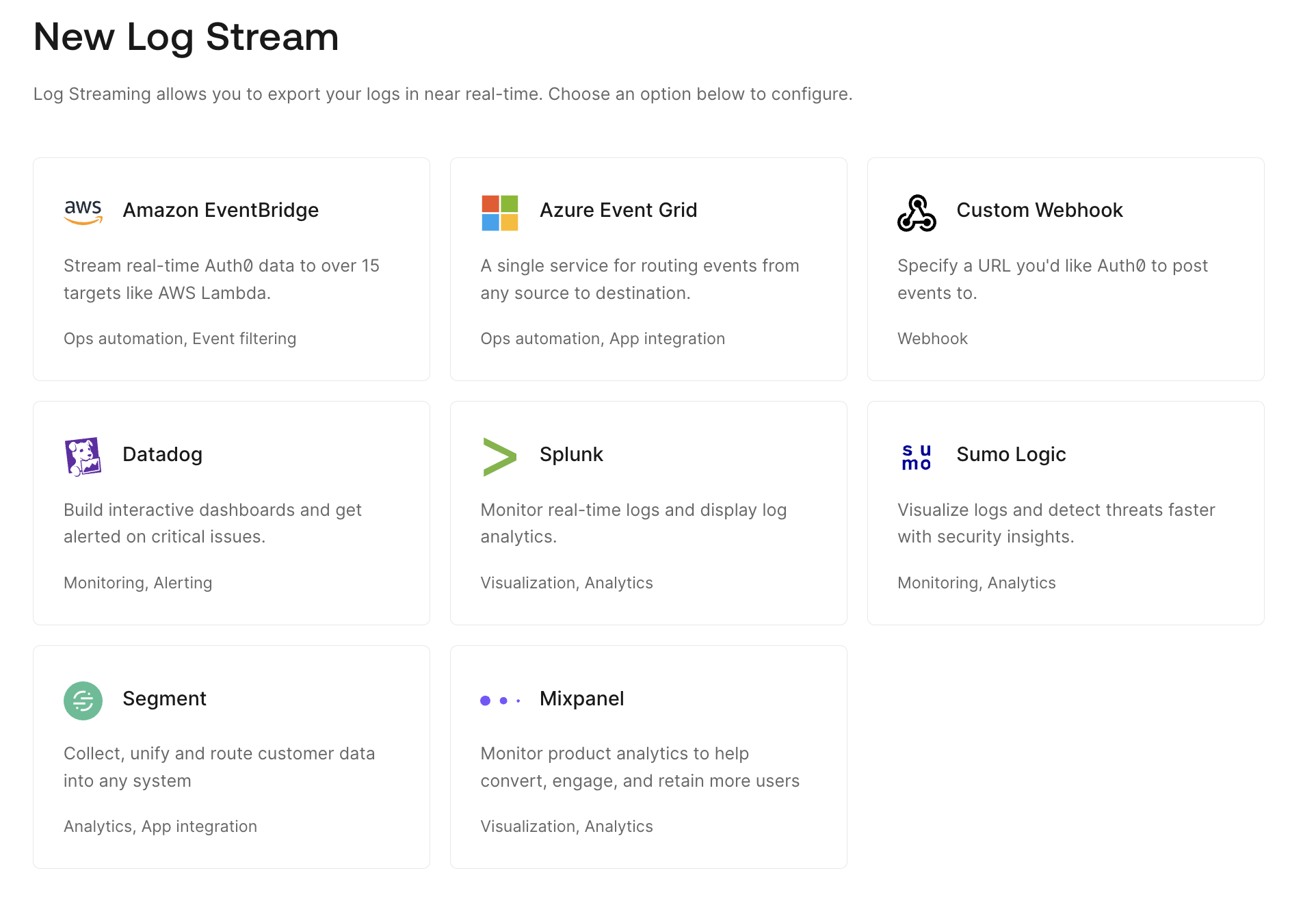 2. Select **Custom Webhook** and enter a unique name for your new stream.
3. Configure the following settings:
2. Select **Custom Webhook** and enter a unique name for your new stream.
3. Configure the following settings:
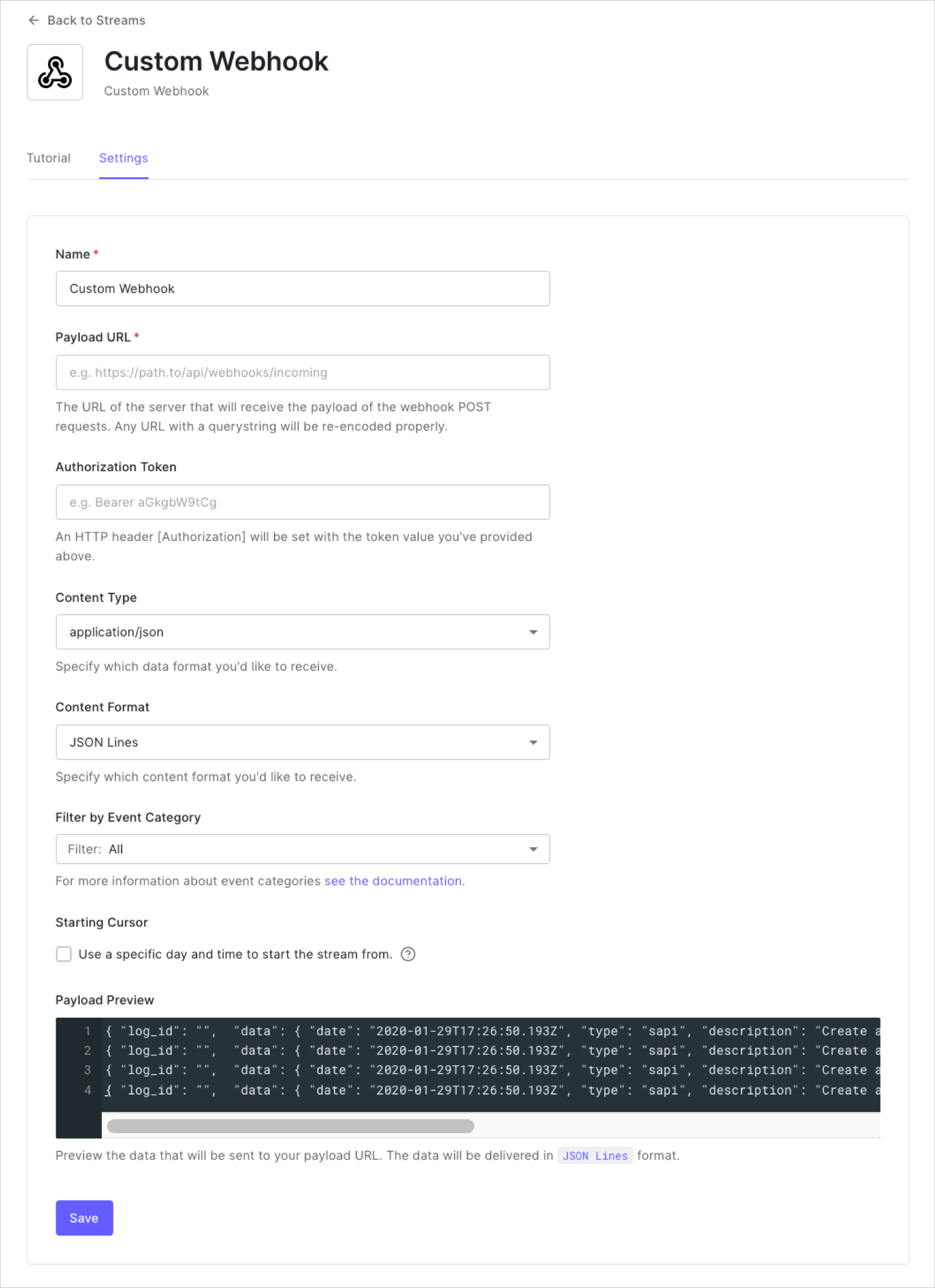 | Setting | Description |
| ---------------------------- | ------------------------------------------------------------------------------ |
| **Name** | A unique display name to distinguish this integration from other integrations. |
| **Payload URL** | The URL where the event payloads are sent as HTTP POST requests. |
| **Authorization Token** | (Optional) The value in the Authorization header of the request. |
| **Content Type** | The media type of the payload that will be delivered to the webhook. |
| **Content Format** | Receive data in JSON lines, arrays, or objects. |
| **Filter by Event Category** | List of log stream filters. |
| **Starting Cursor** | (Optional) Specific day and time to start the stream from. |
4. Click **Save**.
## Test configuration
1. Switch to the **Health** view and confirm that the **Stream Status** is **Active.**
2. Perform an action that creates a tenant log event, like a login, token exchange, or Auth0 Management API call.
3. Confirm that the event was created in your tenant logs.
4. Confirm that your API received an `HTTP POST` request with the event data.
5. Go to the **Health** view and confirm that no errors occurred.
## Troubleshoot Webhooks
If your webhook isn't working, it can be difficult to troubleshoot and determine what is causing the issue. Webhooks are asynchronous, so testing them can involve you triggering the webhook, waiting, and then checking the response (assuming that you did receive a response).
However, there are certainly alternatives to the inefficient process we detailed above. While full details of how to troubleshoot a particular webhook is outside the scope of this article, here are some steps you can take to debug:
1. Check [Auth0 Dashboard > Monitoring > Logs](/docs/deploy-monitor/logs) for helpful messages.
2. Analyze the requests your webhook is making using a tool like [Mockbin](http://mockbin.io/), [Beeceptor](https://beeceptor.com/), or (self-hosted) [RequestBin](https://github.com/RonTt/Requestbin).
3. Mock requests using cURL or [Postman](https://www.getpostman.com/).
4. Test your webhook code locally using something like [localtunnel](https://github.com/localtunnel/localtunnel) or [ngrok](https://ngrok.com/).
5. Use a tool like [Runscope](https://www.runscope.com/) or [Assertible](https://assertible.com/) to watch the whole execution flow.
## Learn more
* [Check Log Stream Health](/docs/customize/log-streams/check-log-stream-health)
* [Filter Log Events](/docs/deploy-monitor/logs/log-event-filters)
* [Log Type Codes](/docs/deploy-monitor/logs/log-event-type-codes)
| Setting | Description |
| ---------------------------- | ------------------------------------------------------------------------------ |
| **Name** | A unique display name to distinguish this integration from other integrations. |
| **Payload URL** | The URL where the event payloads are sent as HTTP POST requests. |
| **Authorization Token** | (Optional) The value in the Authorization header of the request. |
| **Content Type** | The media type of the payload that will be delivered to the webhook. |
| **Content Format** | Receive data in JSON lines, arrays, or objects. |
| **Filter by Event Category** | List of log stream filters. |
| **Starting Cursor** | (Optional) Specific day and time to start the stream from. |
4. Click **Save**.
## Test configuration
1. Switch to the **Health** view and confirm that the **Stream Status** is **Active.**
2. Perform an action that creates a tenant log event, like a login, token exchange, or Auth0 Management API call.
3. Confirm that the event was created in your tenant logs.
4. Confirm that your API received an `HTTP POST` request with the event data.
5. Go to the **Health** view and confirm that no errors occurred.
## Troubleshoot Webhooks
If your webhook isn't working, it can be difficult to troubleshoot and determine what is causing the issue. Webhooks are asynchronous, so testing them can involve you triggering the webhook, waiting, and then checking the response (assuming that you did receive a response).
However, there are certainly alternatives to the inefficient process we detailed above. While full details of how to troubleshoot a particular webhook is outside the scope of this article, here are some steps you can take to debug:
1. Check [Auth0 Dashboard > Monitoring > Logs](/docs/deploy-monitor/logs) for helpful messages.
2. Analyze the requests your webhook is making using a tool like [Mockbin](http://mockbin.io/), [Beeceptor](https://beeceptor.com/), or (self-hosted) [RequestBin](https://github.com/RonTt/Requestbin).
3. Mock requests using cURL or [Postman](https://www.getpostman.com/).
4. Test your webhook code locally using something like [localtunnel](https://github.com/localtunnel/localtunnel) or [ngrok](https://ngrok.com/).
5. Use a tool like [Runscope](https://www.runscope.com/) or [Assertible](https://assertible.com/) to watch the whole execution flow.
## Learn more
* [Check Log Stream Health](/docs/customize/log-streams/check-log-stream-health)
* [Filter Log Events](/docs/deploy-monitor/logs/log-event-filters)
* [Log Type Codes](/docs/deploy-monitor/logs/log-event-type-codes)