> ## Documentation Index
> Fetch the complete documentation index at: https://auth0.com/llms.txt
> Use this file to discover all available pages before exploring further.

> Learn how to customize signup and login prompts for Universal Login

# Customize Signup and Login Prompts

<Card title="Before you start">
  1. Make sure your tenant has a [**Custom Domain**](/docs/customize/custom-domains) configured.
  2. Confirm you are using [**Universal Login**](/docs/authenticate/login/auth0-universal-login/universal-login-vs-classic-login/universal-experience) for all signup and login prompts, and ensure the **Customize Login Page** toggle has been disabled for Login Prompts.
  3. Check that you have a [Custom Page Template](/docs/customize/login-pages/universal-login/customize-templates#custom-sign-up-prompts) configured.
</Card>

**Customize Signup and Login Prompts** is a feature that allows customers with <Tooltip tip="Custom Domain: Third-party domain with a specialized, or vanity, name." cta="View Glossary" href="/docs/glossary?term=Custom+Domain">Custom Domain</Tooltip> and Custom Page Template enabled to add custom fields and content to their app’s signup and login prompts.

## Use cases

Customize Signup and Login Prompts supports two use cases: **custom content** and **data capture.**

**Custom content** is static content like text, links, or images placed directly on the signup and login prompts.

**Data capture** uses form elements dynamically added to the Signup and Login prompts, which is useful for collecting and validating user consent or user-produced data like surname.

<Callout icon="file-lines" color="#0EA5E9" iconType="regular">
  Only use Signup and Login Prompt Customizations to convey or collect sensitive or regulated data as permitted under your agreement with Okta.
</Callout>

## Terminology

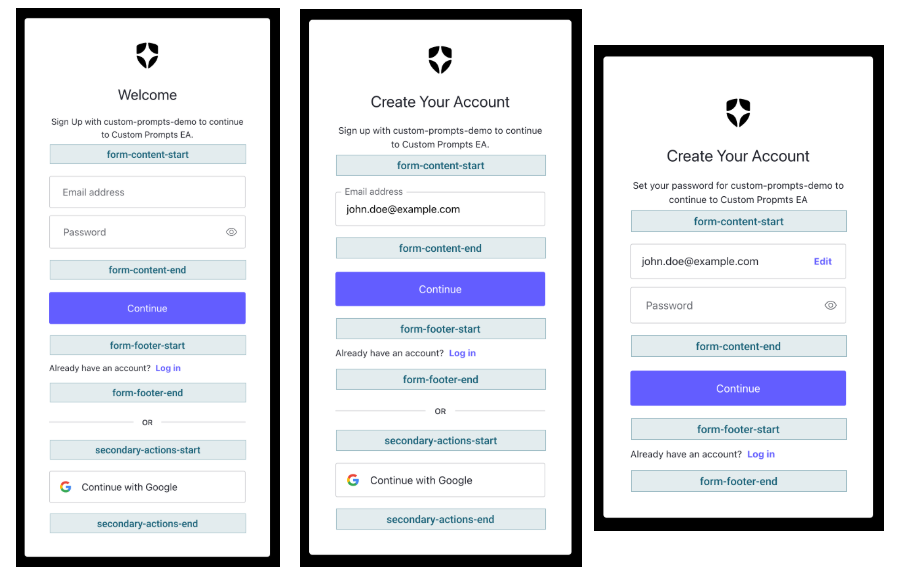
A **prompt** is a specific step in a given authentication flow. Each prompt has at least one **screen** and, depending on tenant configuration, each supported screen has either four or six **entry points,** which are locations in the screen where custom code (**partials**) can be inserted.

The following prompts can be customized:

**Login screens**

* `login`
* `login-id`
* `login-password`
* `login-passwordless-sms-otp`
* `login-passwordless-email-code`
* `passkey-enrollment`
* `passkey-enrollment-local`

**Signup screens**

* `signup`
* `signup-id`
* `signup-password`
* `passkey-enrollment`
* `passkey-enrollment-local`

Partials support HTML, CSS, JavaScript, and [Liquid syntax](https://github.com/Shopify/liquid/wiki/Liquid-for-Designers) to power conditional logic and dynamic variables. In addition, any Liquid variable that is available to the [Page Template](/docs/customize/login-pages/universal-login/customize-templates) is also supported.

These entry points are available when a database or passwordless connection is enabled:

* `form-content-start`
* `form-content-end`
* `form-footer-start`
* `form-footer-end`

The following entry points are available when at least one social or enterprise connection is enabled:

* `secondary-actions-start`
* `secondary-actions-end`

<Frame>
  <img src="https://mintlify.s3.us-west-1.amazonaws.com/auth0/docs/images/cdy7uua7fh8z/7sQVWVbaTp4VMW4nJjsn2G/74d0b30da7b034bd695274dbd146964b/Custom_Prompts.png" alt="Screenshots of each Custom Prompt option and their partials" />
</Frame>

## Use the Auth0 Dashboard to manage Partials

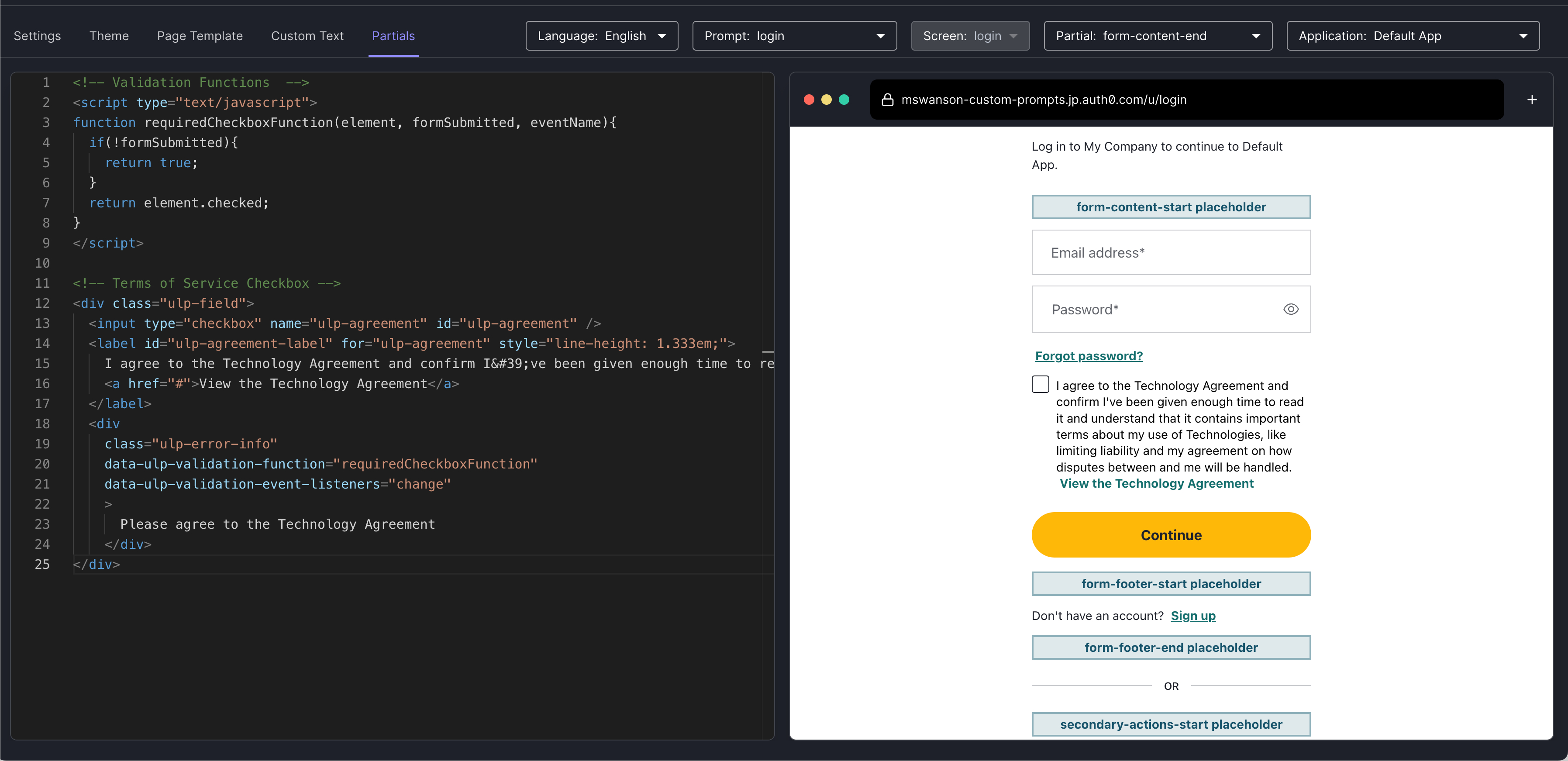
Use the Dashboard to insert custom fields and content into Login and Signup screens using partials.

1. Navigate to [Auth0 Dashboard > Branding > Universal Login](https://manage.auth0.com/#/universal-login/customize-partials), and select **Enhance screens with partials**.
2. Select the **Screen** to customize with the partials editor.

<Callout icon="file-lines" color="#0EA5E9" iconType="regular">
  **Screens** can have the following **Rendering modes**:

  * **STANDARD**: The `screen` is rendered using the default [Universal Login](/docs/customize/login-pages/universal-login) UI; you can use partials to insert code snippets and [template variables](/docs/customize/login-pages/universal-login/customize-templates#page-template-variables).
  * **ADVANCED**: The `screen` is rendered using [ACUL](/docs/customize/login-pages/advanced-customizations) and partials do not apply.
  * **ADVANCED (FILTERED)**: The `screen` is rendered with ACUL applied to specific applications and organizations; partials only apply to `screens` excluded from ACUL filters.
</Callout>

3. Select **<svg style={{ display: 'inline' }} width="20" height="20" viewBox="0 0 24 24" fill="currentColor" xmlns="http://www.w3.org/2000/svg" class="sc-ezjryM"><path fill-rule="evenodd" clip-rule="evenodd" d="M5 6a2 2 0 11-4 0 2 2 0 014 0zM3 14a2 2 0 100-4 2 2 0 000 4zM3 20a2 2 0 100-4 2 2 0 000 4zM8 13h15v-2H8v2zM23 7H8V5h15v2zM8 19h15v-2H8v2z" fill="inherit" /></svg>** **ENTRY POINTS** to insert code snippets and template variables.

4. Select **<svg style={{ display: 'inline' }} width="20" height="20" viewBox="0 0 24 24" fill="currentColor" xmlns="http://www.w3.org/2000/svg" class="sc-bQCGiA"><path fill-rule="evenodd" clip-rule="evenodd" d="M9.457 6.207L3.664 12l5.793 5.793-1.414 1.414-6.5-6.5a1 1 0 010-1.414l6.5-6.5 1.414 1.414zM14.543 6.207L20.336 12l-5.793 5.793 1.414 1.414 6.5-6.5a1 1 0 000-1.414l-6.5-6.5-1.414 1.414z" fill="inherit" /></svg>** to add **CODE SNIPPETS** to the selected entry point.

5. Select **\{ }** to add **TEMPLATE VARIABLES** to the selected entry point.

6. Select **<svg style={{ display: 'inline' }} width="20" height="20" viewBox="0 0 24 24" fill="currentColor" xmlns="http://www.w3.org/2000/svg" class="sc-hKiGeM"><path fill-rule="evenodd" clip-rule="evenodd" d="M15.152 3a1 1 0 011-1H21a1 1 0 011 1v5.078a1 1 0 01-1 1h-4.848a1 1 0 01-1-1V3zm2 1v3.078H20V4h-2.848z" fill="currentColor" /><path d="M8.554 5.75c-1.265 0-2.369 1.089-2.369 2.53v5.28h-2V8.28c0-2.457 1.913-4.53 4.37-4.53 2.455 0 4.368 2.073 4.368 4.53v7.478c0 1.416 1.085 2.484 2.327 2.484 1.241 0 2.326-1.068 2.326-2.484v-5.324h2v5.324c0 2.432-1.894 4.484-4.326 4.484-2.433 0-4.327-2.052-4.327-4.484V8.28c0-1.441-1.104-2.53-2.369-2.53z" fill="currentColor" /><path fill-rule="evenodd" clip-rule="evenodd" d="M2 15.922a1 1 0 011-1h4.848a1 1 0 011 1V21a1 1 0 01-1 1H3a1 1 0 01-1-1v-5.078zm2 1V20h2.848v-3.078H4z" fill="inherit" /></svg>** **ACTIONS** to add [Actions](/docs/customize/actions/actions-overview) and apply custom logic using your partials fields and content.

7. Select **Save and Publish** to update your **Screen**.

<Frame>
  <img src="https://mintlify.s3.us-west-1.amazonaws.com/auth0/docs/images/universal-login/partials-editor.png" alt="[partials]" />
</Frame>

## Manage Partials programmatically

You can manage Partials using the [Auth0 Management API](https://auth0.com/docs/api/management/v2/prompts/put-partials) (`GET /prompts/{prompts_name}/partials`). Every prompt must specify the `screen` when adding, updating, or deleting a partial. Partials can be a maximum of 10,000 characters.

Partials can also be managed using Auth0 CLI’s <Tooltip tip="Universal Login: Your application redirects to Universal Login, hosted on Auth0's Authorization Server, to verify a user's identity." cta="View Glossary" href="/docs/glossary?term=Universal+Login">Universal Login</Tooltip> Customize Interface by running `auth0 ul customize` in your terminal.
<Frame>
  <img src="https://mintlify.s3.us-west-1.amazonaws.com/auth0/docs/images/cdy7uua7fh8z/KxWfVAMkumyI2jrUqkEp8/b9315709899864a2f8758ad7f5a4f5b2/Partials_CLI_Image.jpg" alt="An image showing the command-line interface for Partials. " />
</Frame>

## Style and validate Form Inputs

Customize Signup and Login Prompts offers pre-built styles and support for client-side validations for certain HTML form elements. The following elements are supported:

* `<input type="text">`
* `<input type="number">`
* `<input type="checkbox">`
* `<input type="password">`
* `<input type="email">`
* `<input type="tel">`
* `<input type="url">`
* `<select>`
* `<textarea>`

To use pre-built input styles, wrap your form element of choice in a `<div>` with the `ulp-field` class. Similarly, add the `ulp-error` class to the same `<div>` to use pre-built error styles. If the `ulp-error-info` element is present, a styled error message will also be displayed.

You can find pre-built code snippets when using the [partials](#use-the-auth0-dashboard-to-manage-partials) editor.

### Client-side validation

The feature's client-side validation framework allows customers to validate user input using HTML attributes to execute one or more custom validation functions. Validation functions can be included directly in the Partial or included in the `<head>` of the page template.

To add client-side validation to a form element:

* Reference the validation function using the `data-ulp-validation-function` attribute on the `<div class="ulp-error-info">` element.
* Declare which DOM events the validation function should be run on using the `data-ulp-validation-event-listeners` attribute on the `<div class="ulp-error-info">` element, noting that validations run automatically on submission.
* For WCAG compliance, inputs must be programmatically linked to their error messages - for example, by using `aria-describedby="error-id"` and `aria-invalid="true"` - to ensure screen readers announce validation errors.

<Callout icon="file-lines" color="#0EA5E9" iconType="regular">
  Be cautious when using third-party JavaScript on your signup page. Sensitive security-related information often flows through the signup page, leaving it vulnerable to cross-site scripting.

  Whenever possible, Auth0 recommends validating user-provided data before submitting.
</Callout>

## Localize content

Partial content can be localized by defining new custom text variables using the [Custom Text API](/docs/api/management/v2/prompts/put-custom-text-by-language). Up to thirty custom text variables can be defined per screen/language combination.

### Create or update a custom text variable

Manage custom text variables with the [Custom Text API](/docs/api/management/v2/prompts/get-custom-text-by-language). Calls must specify the `screen` when adding, updating, or deleting a custom text variable. Custom text variables follow the `var-<name>` naming convention. Markdown links are supported and are converted to HTML `<a>` elements before being displayed to users.

Below is an example call to add a variable for the text of a terms of service checkbox label in English and Spanish. See the <Tooltip tip="Management API: A product to allow customers to perform administrative tasks." cta="View Glossary" href="/docs/glossary?term=Management+API">Management API</Tooltip> to learn more.

```json lines theme={null}
# PUT /api/v2/prompts/signup-id/custom-text/en
{
  "signup": {
    "var-tos": "I agree with the [Terms of Service](https://en.example.com/tos)"
  }
}

# PUT /api/v2/prompts/signup-id/custom-text/es
{
  "signup": {
    "var-tos": "Estoy de acuerdo con los [Términos de Servicio](https://es.example.com/tos)"
  }
}
```

### Use a custom text variable in a Partial

Custom text variables are referenced in partials using the `prompts.screen.text` object; the reference for the `var-tos` example in the previous section is `prompt.screen.text.varTos`. See below for an example of how to use a previously created variable in a partial on the Signup ID Prompt, noting that the Management API's `var-tos` variable is referenced as `varTos` in the partial.

```html theme={null}
# PUT api/v2/prompts/signup/partials
<div class='ulp-field'>
  <input type='checkbox' name='ulp-terms-of-service' id='terms-of-service'>
  <label for='terms-of-service'>{{ prompt.screen.text.varTos }}</label>
</div>
```

## Validate and save captured data

Data captured by custom form elements is available in Actions, and Auth0 recommends validating the data collected before saving or submitting it.

<Callout icon="file-lines" color="#0EA5E9" iconType="regular">
  When using custom form elements, you must include the `ulp-` prefix with any input names to ensure the data is available to [Actions](/docs/customize/actions/actions-overview).
</Callout>

Each Action receives the captured data as an object on the `event.request.body`. Customers can return a validation error by using the `api.validation.error` function.

When using a [database connection](/docs/authenticate/database-connections#use-auth0-user-store):

* Data from the Signup Prompts is accessible on the [`pre-user-registration`](/docs/customize/actions/explore-triggers/signup-and-login-triggers/pre-user-registration-trigger) trigger. A validation error from the trigger prevents the user from registering.
* Data from Login Prompts is accessible on the [`post-login`](/docs/customize/actions/explore-triggers/signup-and-login-triggers/login-trigger) trigger. Validation errors are forwarded to the customer’s application error page.

When using a [custom database connection](/docs/authenticate/database-connections/custom-db):

* Data from the Signup Prompts is accessible on the [`pre-user-registration`](/docs/customize/actions/explore-triggers/signup-and-login-triggers/pre-user-registration-trigger) trigger with the following custom database action scripts: [Create User](/docs/authenticate/database-connections/custom-db/templates/create) and [Login](/docs/authenticate/database-connections/custom-db/templates/login).

* Data from Login Prompts is accessible on the [`post-login`](/docs/customize/actions/explore-triggers/signup-and-login-triggers/login-trigger) trigger with the following custom database action scripts: [Login](/docs/authenticate/database-connections/custom-db/templates/login) and [Change Password](/docs/authenticate/database-connections/custom-db/templates/change-password).

<Callout icon="file-lines" color="#0EA5E9" iconType="regular">
  To use custom database action scripts, enable **Context objects in database scripts** in your custom database connection. To learn more, read [Enable context object](https://auth0.com/docs/authenticate/database-connections/custom-db/create-db-connection#enable-context-object).
</Callout>

When using a [Passwordless connection](/docs/authenticate/passwordless/passwordless-with-universal-login):

* Data from both the Signup and Login Prompts is accessible on the [`post-login`](/docs/customize/actions/explore-triggers/signup-and-login-triggers/login-trigger) trigger. Validation errors are forwarded to the customer’s application error page.

When using [`passkey`](/docs/authenticate/database-connections/passkeys) prompts:

* Data from the `passkey-enrollment` prompt is accessible on the [`pre-user-registration`](/docs/customize/actions/explore-triggers/signup-and-login-triggers/pre-user-registration-trigger) trigger. A validation error from the trigger prevents the user from registering.
* The `passkey-enrollment` and `passkey-enrollment-local` prompts never capture data on the Post Login trigger.
* Data from the `passkey-enrollment-local` prompt is not accessible since it is always displayed after the [`post-login`](/docs/customize/actions/explore-triggers/signup-and-login-triggers/login-trigger) trigger is run.

When using social or enterprise connections:

* Data is *not* captured when a user logs in with either a [social](/docs/authenticate/identity-providers/social-identity-providers) or an [enterprise](/docs/authenticate/enterprise-connections) connection.

<Callout icon="file-lines" color="#0EA5E9" iconType="regular">
  Sanitize any data that you collect on the form before saving or rendering it.

  * Ensure any data being saved has passed through [Liquid’s `{{escape}}` helper function](https://shopify.github.io/liquid/filters/escape/)
  * If you render data in an Email Template, remove Liquid syntax
  * If you render data on a webpage, escape HTML entities
  * If you save data to a database, use parameterized queries
  * If you pass data into query string, encode with eg: `{{encodeURI}}` or `{{encodeURIParam}}`

  For more information regarding risk mitigation and best practices for securely storing data see [this cheatsheet](https://cheatsheetseries.owasp.org/cheatsheets/Input_Validation_Cheat_Sheet.html).
</Callout>

### Save to user metadata

From the Action, captured data can be sent to an external API for validation and storage or saved in `user_metadata` on the user via `api.user.setUserMetadata`.

```js lines theme={null}
// Given this code in the signup form
// <div class="ulp-field">
//   <label for="full-name">Full Name</label>
//   <input type="text" name="ulp-full-name" id="full-name">
// </div>

exports.onExecutePreUserRegistration = async (event, api) => {
  const fullName = event.request.body['ulp-full-name'];
  if(!fullName) {
    api.validation.error("invalid_payload", "Missing Name");
    return;
  }

  api.user.setUserMetadata("fullName", fullName);
};
```

## Learn more

* [Use Dynamic Variables to Internationalize Custom Form Elements](/docs/customize/login-pages/universal-login/customize-signup-and-login-prompts/use-dynamic-variables-to-internationalize-custom-form-elements)