> ## Documentation Index
> Fetch the complete documentation index at: https://auth0.com/llms.txt
> Use this file to discover all available pages before exploring further.
> Learn how to use Auth0 Actions to validate and store end-user data.
# Use Actions to Validate and Store End-user Data Gathered By Signup Prompt Customizations
You can use [Signup Prompt Customization](/docs/customize/login-pages/universal-login/customize-signup-and-login-prompts) along with the `pre-user-registration` trigger to add end-user supplied data (like a user's phone number or location) from the signup prompt to `user_metadata`. Optionally, you can validate this data and show a validation error in the prompt.
### Prerequisites
* Tenant has a [Custom Domain](/docs/customize/custom-domains) verified
* Tenant has a [Page Template](/docs/customize/login-pages/universal-login/customize-templates) set
### Add A Field To The Signup Prompt
Use the [Management API](https://auth0.com/docs/api/management/v2/prompts/put-custom-text-by-language) to insert a custom field into a prompt using one of the [Entry Points](/docs/customize/login-pages/universal-login/customize-signup-and-login-prompts#-signup-prompt-entry-points). This example adds the following content to the `ulp-container-form-content-start` insertion point:
```html lines theme={null}
```
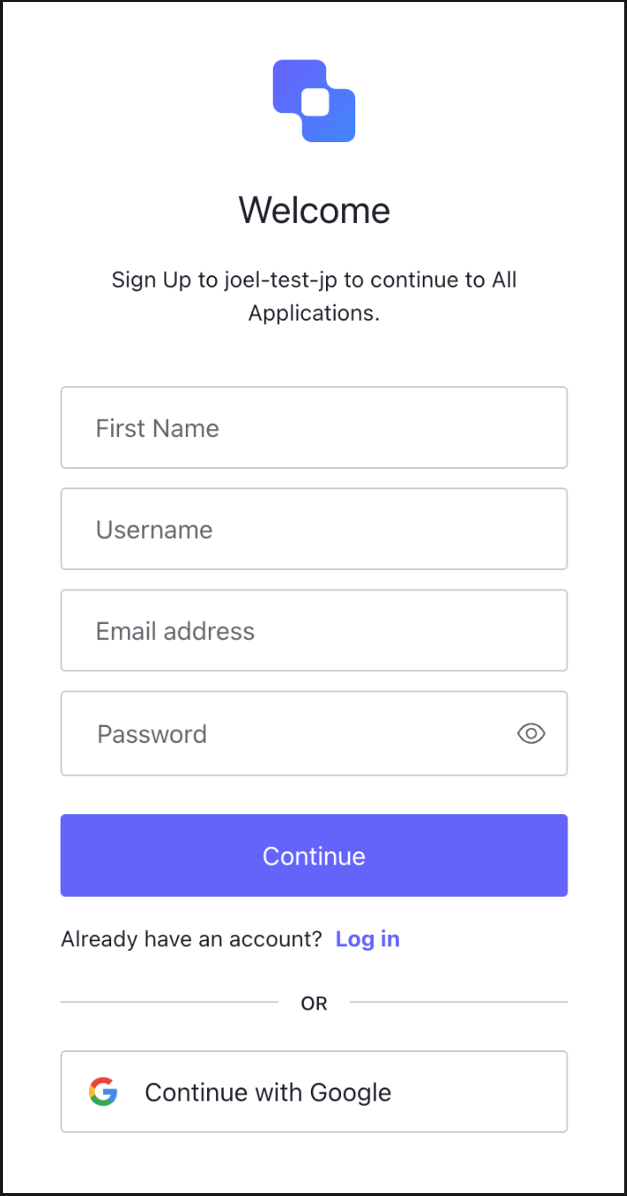
The result is a First Name section in the signup prompt:
### Create An Action In The Pre-User Registration Trigger
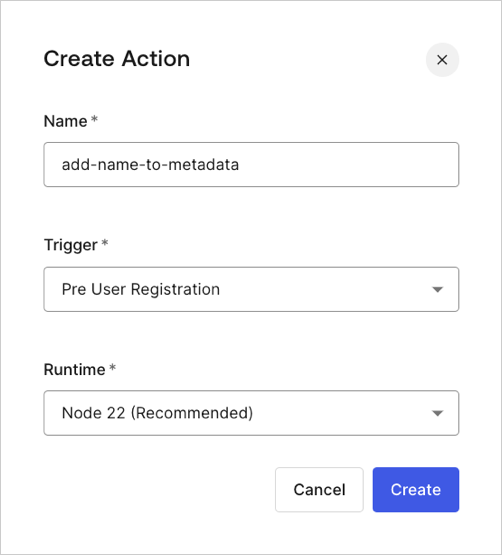
You can build a custom pre-user registration action by going to [**Actions > Library > Build Custom**](https://manage.auth0.com/dashboard/us/dev-6endizjt/actions/library)**.**
Inside the code editor, update the `onExecutePreUserRegistration` handler:
```js lines theme={null}
exports.onExecutePreUserRegistration = async (event, api) => {
const firstName = event.request.body['ulp-first-name'];
api.user.setUserMetadata("firstName", firstName);
};
```
Optionally, you can validate the user input and send a validation error by calling the `api.validation.error` method, then deploy the action:
```js lines theme={null}
exports.onExecutePreUserRegistration = async (event, api) => {
const firstName = event.request.body['ulp-first-name'];
if(!firstName) {
api.validation.error("invalid_payload", "Missing first name");
return;
}
api.user.setUserMetadata("firstName", firstName);
};
```
### Add The Action To The Flow
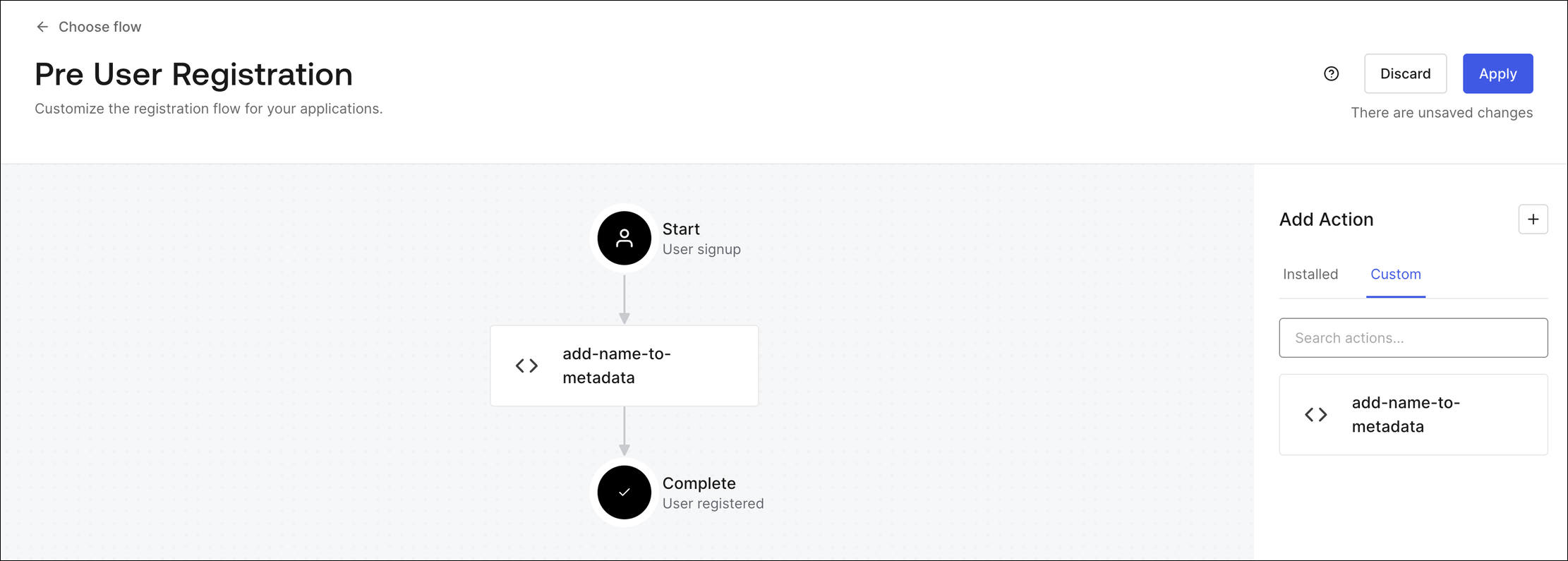
Navigate to [**Actions > Flows > Pre User Registration > Add Action > Custom**](https://manage.auth0.com/dashboard/us/dev-6endizjt/actions/flows/pre-user-signup/), then drag and drop your new action into the registration flow and select **Apply**.
### Test The Action
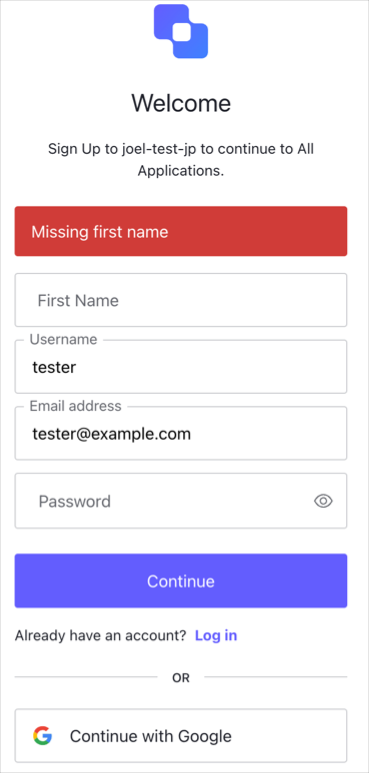
Sign up for an account in your test flow and leave the **First Name** field blank. You will see an error on submit:
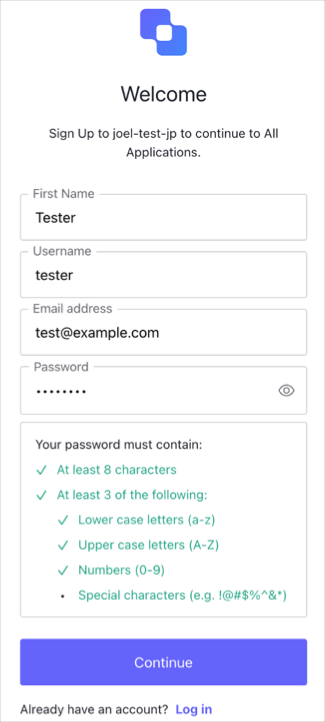
After you enter a name in the **First Name** field, you are able to submit successfully:
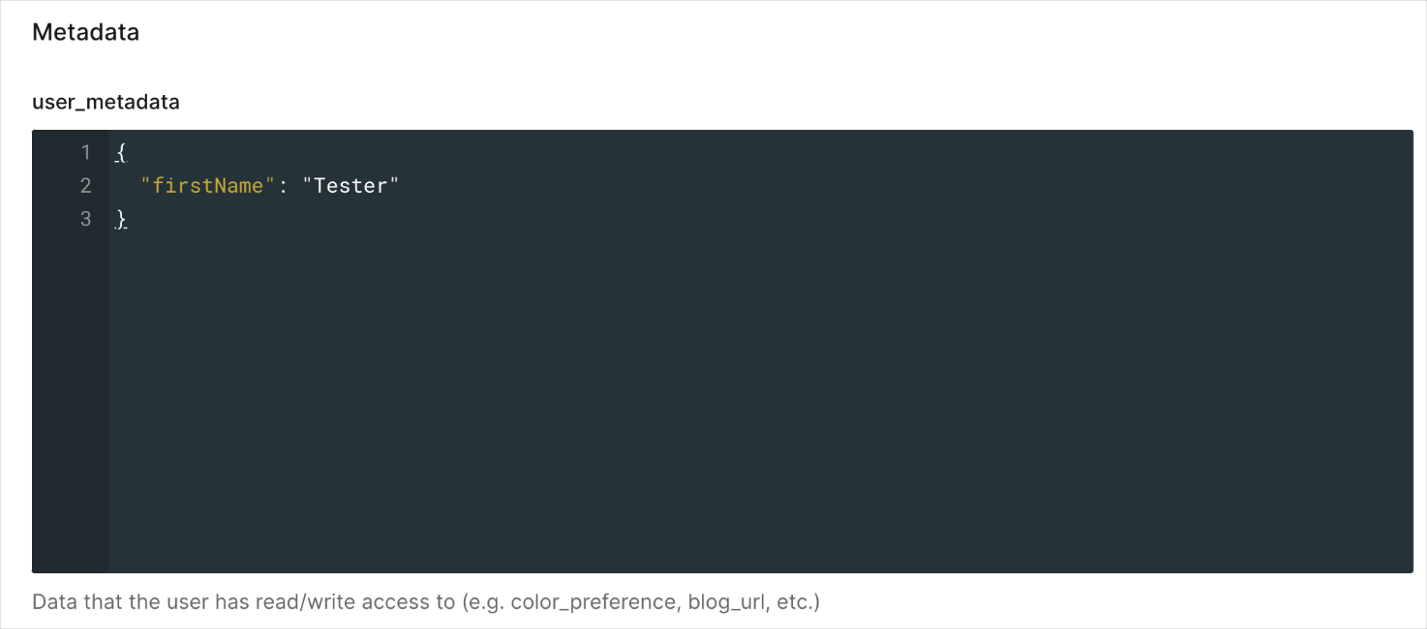
### Verify That The Data Was Saved On user\_metadata
Navigate to [**User Management > Users**](https://manage.auth0.com/dashboard/us/dev-6endizjt/users), then confirm the data has been saved by viewing the Details tab:
 ### Create An Action In The Pre-User Registration Trigger
You can build a custom pre-user registration action by going to [**Actions > Library > Build Custom**](https://manage.auth0.com/dashboard/us/dev-6endizjt/actions/library)**.**
### Create An Action In The Pre-User Registration Trigger
You can build a custom pre-user registration action by going to [**Actions > Library > Build Custom**](https://manage.auth0.com/dashboard/us/dev-6endizjt/actions/library)**.**
 Inside the code editor, update the `onExecutePreUserRegistration` handler:
```js lines theme={null}
exports.onExecutePreUserRegistration = async (event, api) => {
const firstName = event.request.body['ulp-first-name'];
api.user.setUserMetadata("firstName", firstName);
};
```
Optionally, you can validate the user input and send a validation error by calling the `api.validation.error` method, then deploy the action:
```js lines theme={null}
exports.onExecutePreUserRegistration = async (event, api) => {
const firstName = event.request.body['ulp-first-name'];
if(!firstName) {
api.validation.error("invalid_payload", "Missing first name");
return;
}
api.user.setUserMetadata("firstName", firstName);
};
```
### Add The Action To The Flow
Navigate to [**Actions > Flows > Pre User Registration > Add Action > Custom**](https://manage.auth0.com/dashboard/us/dev-6endizjt/actions/flows/pre-user-signup/), then drag and drop your new action into the registration flow and select **Apply**.
Inside the code editor, update the `onExecutePreUserRegistration` handler:
```js lines theme={null}
exports.onExecutePreUserRegistration = async (event, api) => {
const firstName = event.request.body['ulp-first-name'];
api.user.setUserMetadata("firstName", firstName);
};
```
Optionally, you can validate the user input and send a validation error by calling the `api.validation.error` method, then deploy the action:
```js lines theme={null}
exports.onExecutePreUserRegistration = async (event, api) => {
const firstName = event.request.body['ulp-first-name'];
if(!firstName) {
api.validation.error("invalid_payload", "Missing first name");
return;
}
api.user.setUserMetadata("firstName", firstName);
};
```
### Add The Action To The Flow
Navigate to [**Actions > Flows > Pre User Registration > Add Action > Custom**](https://manage.auth0.com/dashboard/us/dev-6endizjt/actions/flows/pre-user-signup/), then drag and drop your new action into the registration flow and select **Apply**.
 ### Test The Action
Sign up for an account in your test flow and leave the **First Name** field blank. You will see an error on submit:
### Test The Action
Sign up for an account in your test flow and leave the **First Name** field blank. You will see an error on submit:
 After you enter a name in the **First Name** field, you are able to submit successfully:
 ### Verify That The Data Was Saved On user\_metadata
Navigate to [**User Management > Users**](https://manage.auth0.com/dashboard/us/dev-6endizjt/users), then confirm the data has been saved by viewing the Details tab:
### Verify That The Data Was Saved On user\_metadata
Navigate to [**User Management > Users**](https://manage.auth0.com/dashboard/us/dev-6endizjt/users), then confirm the data has been saved by viewing the Details tab: