> ## Documentation Index
> Fetch the complete documentation index at: https://auth0.com/llms.txt
> Use this file to discover all available pages before exploring further.
# エンタープライズ接続をテストする
> Auth0 Dashboardでアプリケーションのデータベース接続をテストする方法について説明します。
アプリケーションのデータベース接続はAuth0のDashboardを使ってテストできます。
適切にテストするには、先に[エンタープライズ接続をセットアップ](/docs/ja-jp/authenticate/identity-providers/enterprise-identity-providers/enable-enterprise-connections)しておく必要があります。
1. [[Auth0 Dashboard]>[Authentication(認証)]>[Enterprise(エンタープライズ)]](https://manage.auth0.com/#/connections/enterprise)に移動し、接続タイプを選択して表示します。
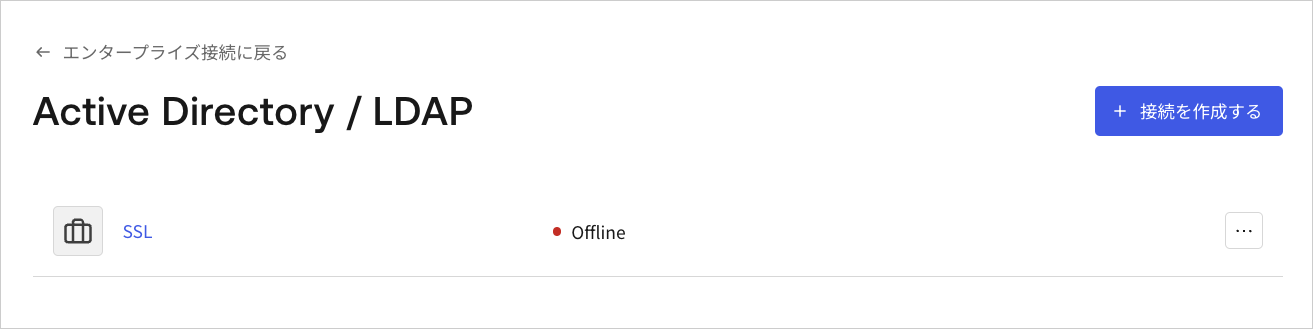
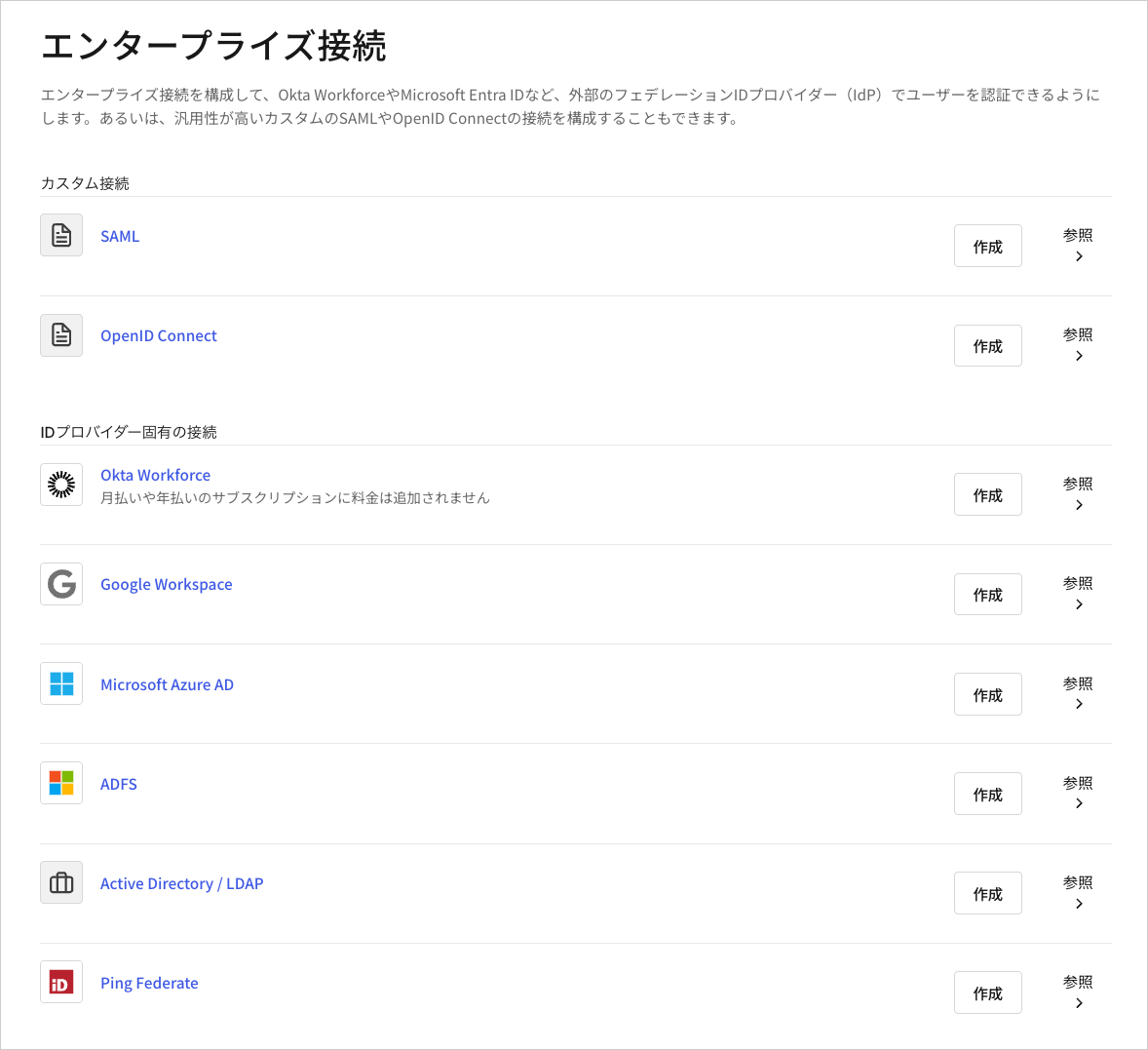 2. テストしたい接続の横にある **試す** の矢印を選択します。
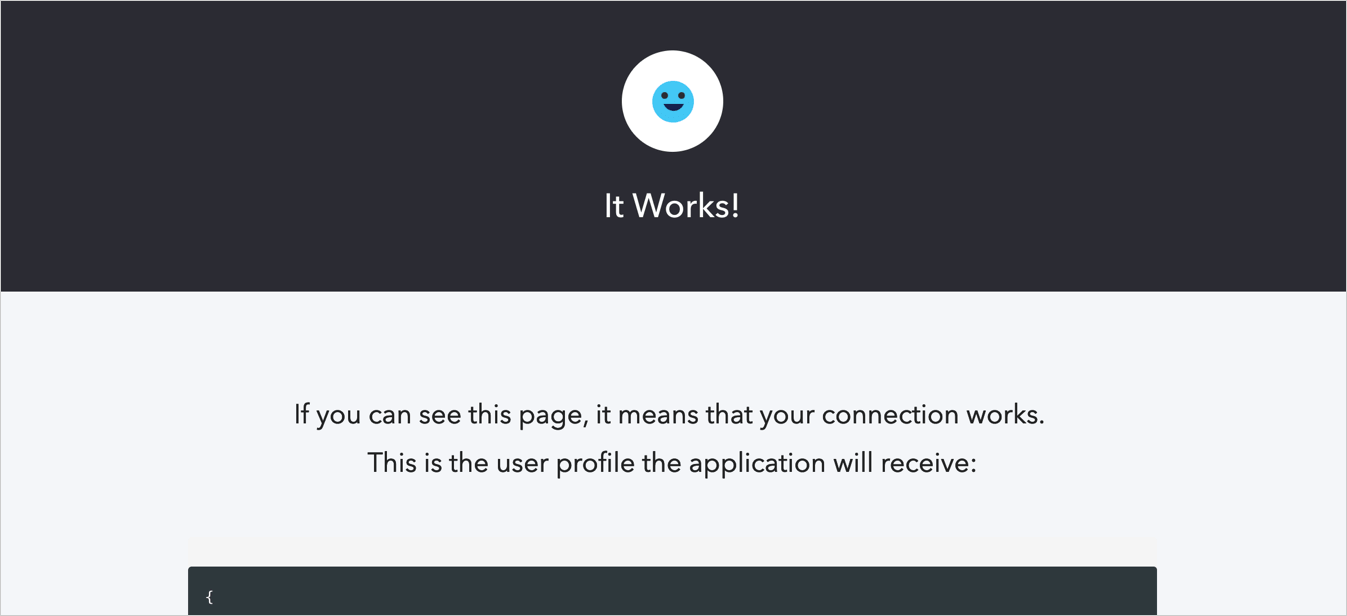
 3. ログインして、アプリへのアクセスを許可することに同意します。すべて正しく構成すると、 **[It Works!(機能します!)]** ページが表示されます。