> ## Documentation Index
> Fetch the complete documentation index at: https://auth0.com/llms.txt
> Use this file to discover all available pages before exploring further.
# Tableau OnlineをSAMLサービスプロバイダーとして構成する
> Tableau Online用のSAML2 Webアプリアドオンを使用して、Auth0をIDプロバイダーとして構成する方法を説明します。
以下のTableau Online用SAML構成を使用します。
1. [[Dashboard]>[Applications(アプリケーション)]>[Applications(アプリケーション)]](https://manage.auth0.com/#/applications)の順に移動し、新しいアプリケーションを作成するか、更新するアプリケーションの名前をクリックします。
2. **[Addons(アドオン)]** タブに移動し、 **[SAML2 Web App(SAML2 Webアプリ)]** トグルを有効にします。
3. **[Settings(設定)]** タブで、 **[Application CallbackURL(アプリケーションのコールバックURL)]** を`https://sso.online.tableau.com/public/sp/SSO/{yourTableauAlias}`.
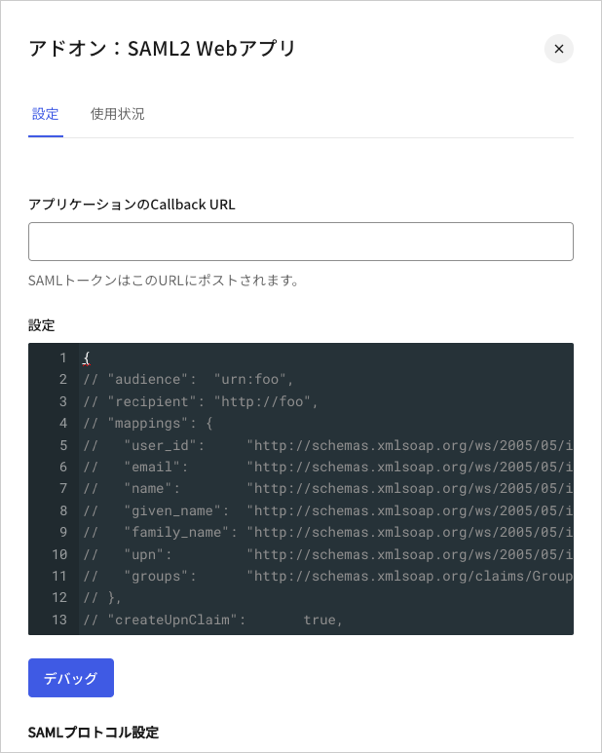 4. 以下のコードを **[Settings(設定)]** テキストボックスに貼り付け、 **[Debug(デバッグ)]** をクリックします。
```json lines theme={null}
{
"audience": "https://sso.online.tableau.com/public/sp/metadata?alias={yourTableauAlias}",
"recipient": "https://sso.online.tableau.com/public/sp/SSO/{yourTableauAlias}",
"mappings": {
"email": "Email"
},
"createUpnClaim": false,
"passthroughClaimsWithNoMapping": false,
"mapUnknownClaimsAsIs": false,
"mapIdentities": false,
"signatureAlgorithm": "rsa-sha256",
"digestAlgorithm": "sha256",
"destination": "https://sso.online.tableau.com/public/sp/SSO/{yourTableauAlias}",
"lifetimeInSeconds": 3600,
"signResponse": false,
"nameIdentifierFormat": "urn:oasis:names:tc:SAML:2.0:attrname-format:basic",
"nameIdentifierProbes": [
"http://schemas.xmlsoap.org/ws/2005/05/identity/claims/name"
]
}
```
5. ページの最後までスクロールし、 **[Enable(有効)]** をクリックします。
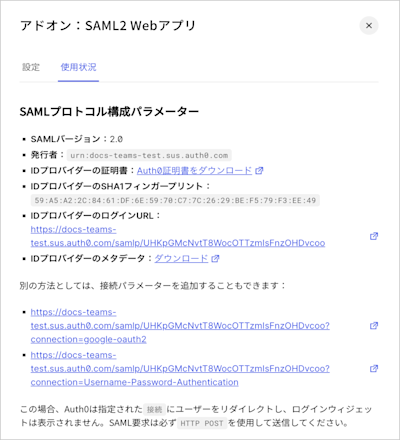
6. **[Usage(使用状況)]** タブで **[Identity Provider Metadata(IDプロバイダーのメタデータ)]** を見つけ、 **[Download(ダウンロード)]** をクリックしてメタデータファイルをダウンロードします。これは、Auth0をIDプロバイダーとして構成する際に必要になります。
4. 以下のコードを **[Settings(設定)]** テキストボックスに貼り付け、 **[Debug(デバッグ)]** をクリックします。
```json lines theme={null}
{
"audience": "https://sso.online.tableau.com/public/sp/metadata?alias={yourTableauAlias}",
"recipient": "https://sso.online.tableau.com/public/sp/SSO/{yourTableauAlias}",
"mappings": {
"email": "Email"
},
"createUpnClaim": false,
"passthroughClaimsWithNoMapping": false,
"mapUnknownClaimsAsIs": false,
"mapIdentities": false,
"signatureAlgorithm": "rsa-sha256",
"digestAlgorithm": "sha256",
"destination": "https://sso.online.tableau.com/public/sp/SSO/{yourTableauAlias}",
"lifetimeInSeconds": 3600,
"signResponse": false,
"nameIdentifierFormat": "urn:oasis:names:tc:SAML:2.0:attrname-format:basic",
"nameIdentifierProbes": [
"http://schemas.xmlsoap.org/ws/2005/05/identity/claims/name"
]
}
```
5. ページの最後までスクロールし、 **[Enable(有効)]** をクリックします。
6. **[Usage(使用状況)]** タブで **[Identity Provider Metadata(IDプロバイダーのメタデータ)]** を見つけ、 **[Download(ダウンロード)]** をクリックしてメタデータファイルをダウンロードします。これは、Auth0をIDプロバイダーとして構成する際に必要になります。