> ## Documentation Index
> Fetch the complete documentation index at: https://auth0.com/llms.txt
> Use this file to discover all available pages before exploring further.
# Lock.swiftでの国際化
> Lock.swiftでの国際化対応について説明します。
デフォルトで、**Lock v2 for iOS**は英語のテキストを表示します。テキストを別の言語で表示したい、または、アプリケーションのテキスト値を変えたい場合には、`Lock.strings`ファイルを提供して、Lockが表示するかもしれない各種のテキスト項目に使用する値を定義することができます。
言語の扱い方については、Appleのドキュメンテーションにある[国際化とローカリゼーション](https://developer.apple.com/library/content/documentation/MacOSX/Conceptual/BPInternational/Introduction/Introduction.html#//apple_ref/doc/uid/10000171i-CH1-SW1)
## Lock文字列値
Lockが使用する用語の全リストについては、Lock.swiftリポジトリにある[Lock.strings](https://raw.githubusercontent.com/auth0/Lock.swift/master/Lock/Base.lproj/Lock.strings)ベースファイルを参照してください。
### 英語の代替文字列を提供する
既存の用語の一部や全部を変更したい場合には、[Lock.strings](https://raw.githubusercontent.com/auth0/Lock.swift/master/Lock/Base.lproj/Lock.strings)ファイルをダウンロードして、プロジェクトに追加します。
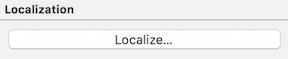
**Lock.strings**ファイルを選択し、`File inspector`の[`Localize...`(ローカライズ...)]をクリックします。
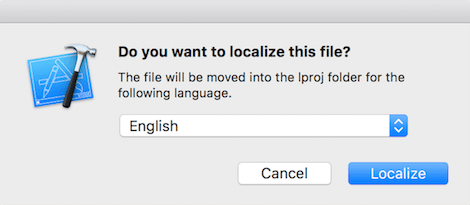
 そして、[`English`(英語)]を選択します。
 ここで、以下のように、**Lock.strings**にあるいくつかの用語を代替のテキストで更新します。
`// Forgot password
"com.auth0.lock.database.button.forgot_password" = "Did you forget your password?";
// tos & privacy
"com.auth0.lock.database.button.tos" = "Signing up is an indication of your agreement to our terms of\n service and privacy policy";`
### 他の言語に対応する
別の言語を追加するには、まず、`Project/Info`に新しい言語を追加する必要があります。
ここで、以下のように、**Lock.strings**にあるいくつかの用語を代替のテキストで更新します。
`// Forgot password
"com.auth0.lock.database.button.forgot_password" = "Did you forget your password?";
// tos & privacy
"com.auth0.lock.database.button.tos" = "Signing up is an indication of your agreement to our terms of\n service and privacy policy";`
### 他の言語に対応する
別の言語を追加するには、まず、`Project/Info`に新しい言語を追加する必要があります。
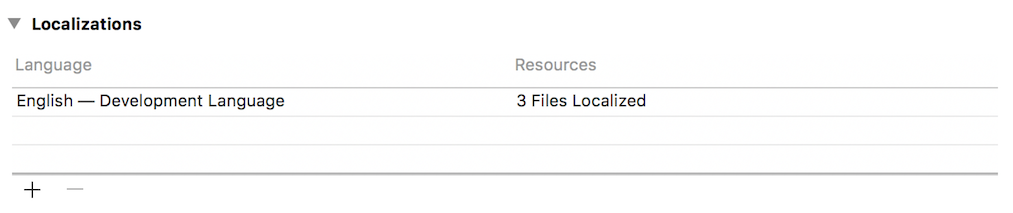 新しい言語を追加して、**Lock.strings**が選択されていることを確認します。
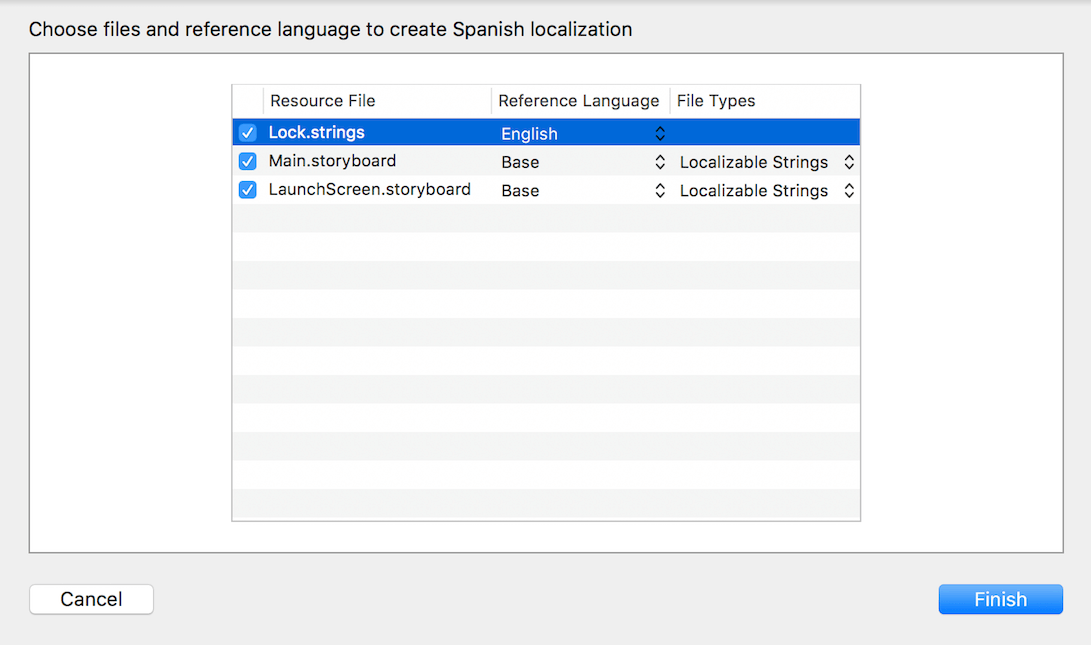 **Lock.strings**の下に、選択した**Reference Language**に基づいて、指定した言語の新しいファイルが作成されます。
これで、希望の言語に翻訳する準備が整いました。
### 注意
用語によってはパラメーターを伴うため、翻訳する際にはそれらの配置を考慮することが重要です。特に、以下のように、複数のパラメーターがある用語には注意してください。
`// No more than %@{count} identical characters in a row (such as, \"%@{identical sample}\" not allowed)
"com.auth0.lock.error.password.no_more_identical" = "No more than %1$d identical characters in a row (such as, \"%2$@\" not allowed)";`
**Lock.strings**の下に、選択した**Reference Language**に基づいて、指定した言語の新しいファイルが作成されます。
これで、希望の言語に翻訳する準備が整いました。
### 注意
用語によってはパラメーターを伴うため、翻訳する際にはそれらの配置を考慮することが重要です。特に、以下のように、複数のパラメーターがある用語には注意してください。
`// No more than %@{count} identical characters in a row (such as, \"%@{identical sample}\" not allowed)
"com.auth0.lock.error.password.no_more_identical" = "No more than %1$d identical characters in a row (such as, \"%2$@\" not allowed)";`