> ## Documentation Index
> Fetch the complete documentation index at: https://auth0.com/llms.txt
> Use this file to discover all available pages before exploring further.
# M2Mアクセスを監査する
> アプリケーションのM2Mアクセスを監査する方法を説明します。
export const AuthCodeBlock = ({filename, icon, language, highlight, children}) => {
const [displayText, setDisplayText] = useState(children);
const [copyText, setCopyText] = useState(children);
const wrapperRef = React.useRef(null);
useEffect(() => {
let unsubscribe = null;
function init() {
if (!window.autorun || !window.rootStore) {
return;
}
unsubscribe = window.autorun(() => {
let processedChildrenForDisplay = children;
let processedChildrenForCopy = children;
for (const [key, value] of window.rootStore.variableStore.values.entries()) {
const escapedKey = key.replaceAll(/[.*+?^${}()|[\]\\]/g, (String.raw)`\$&`);
let displayValue = value;
if (key === "{yourClientSecret}" && value !== "{yourClientSecret}") {
displayValue = value.substring(0, 3) + "*****MASKED*****";
}
processedChildrenForDisplay = processedChildrenForDisplay.replaceAll(new RegExp(escapedKey, "g"), displayValue);
processedChildrenForCopy = processedChildrenForCopy.replaceAll(new RegExp(escapedKey, "g"), value);
}
setDisplayText(processedChildrenForDisplay);
setCopyText(processedChildrenForCopy);
});
}
if (window.rootStore) {
init();
} else {
window.addEventListener("adu:storeReady", init);
}
return () => {
window.removeEventListener("adu:storeReady", init);
unsubscribe?.();
};
}, [children]);
useEffect(() => {
if (!wrapperRef.current) return;
const originalWriteText = navigator.clipboard.writeText.bind(navigator.clipboard);
let isOverriding = false;
const handleClick = e => {
const button = e.target.closest('[data-testid="copy-code-button"]');
if (!button || !wrapperRef.current.contains(button)) return;
isOverriding = true;
navigator.clipboard.writeText = text => {
if (isOverriding) {
isOverriding = false;
navigator.clipboard.writeText = originalWriteText;
return originalWriteText(copyText);
}
return originalWriteText(text);
};
setTimeout(() => {
if (isOverriding) {
isOverriding = false;
navigator.clipboard.writeText = originalWriteText;
}
}, 100);
};
const wrapper = wrapperRef.current;
wrapper.addEventListener('click', handleClick, true);
return () => {
wrapper.removeEventListener('click', handleClick, true);
if (navigator.clipboard.writeText !== originalWriteText) {
navigator.clipboard.writeText = originalWriteText;
}
};
}, [copyText]);
return
{displayText}
;
};
export const codeExample1 = `curl -X GET --location "https://{yourDomain}/api/v2/organizations/{ORG_id}/client-grants/" \
--header 'authorization: Bearer MGMT_API_ACCESS_TOKEN'`;
export const codeExample2 = `curl -X GET --location "https://{yourDomain}/api/v2/clients?q=client_grant.organization_id%3Aorganization_id" \
--header 'authorization: Bearer MGMT_API_ACCESS_TOKEN'`;
export const codeExample3 = `curl -X GET --location "https://{yourDomain}/api/v2/client-grants?allow_any_organization=true" \
--header 'authorization: Bearer MGMT_API_ACCESS_TOKEN'`;
export const codeExample4 = `curl -X GET --location "https://{yourDomain}/api/v2/clients?q=client_grant.allow_any_organization%3Atrue" \
--header 'authorization: Bearer MGMT_API_ACCESS_TOKEN'`;
組織へのマシンツーマシンアクセスは、クライアント権限付与を組織に直接関連付けるか、クライアント権限付与設定で任意の組織へのアクセスを許可することで付与できます。どちらのシナリオも、Auth0 DashboardまたはManagement APIから監査でき、アプリケーションに対して組織に関連付けられたクライアント権限付与のリストを表示または取得できます。組織へのM2Mアクセス権限の仕組みの詳細については、「[M2Mアクセスのアプリケーションを構成する](/docs/ja-jp/manage-users/organizations/organizations-for-m2m-applications/configure-your-application-for-m2m-access)」および「[M2Mアクセスを認可する](/docs/ja-jp/manage-users/organizations/organizations-for-m2m-applications/authorize-m2m-access)」をお読みください。
## 直接関連付けによって付与されるアクセス
[Auth0 Dashboard](https://manage.auth0.com/)と[Management API](https://auth0.com/docs/api/management/v2)を使用して、組織に直接関連付けられているクライアント許可のM2Mアクセスを監査します。
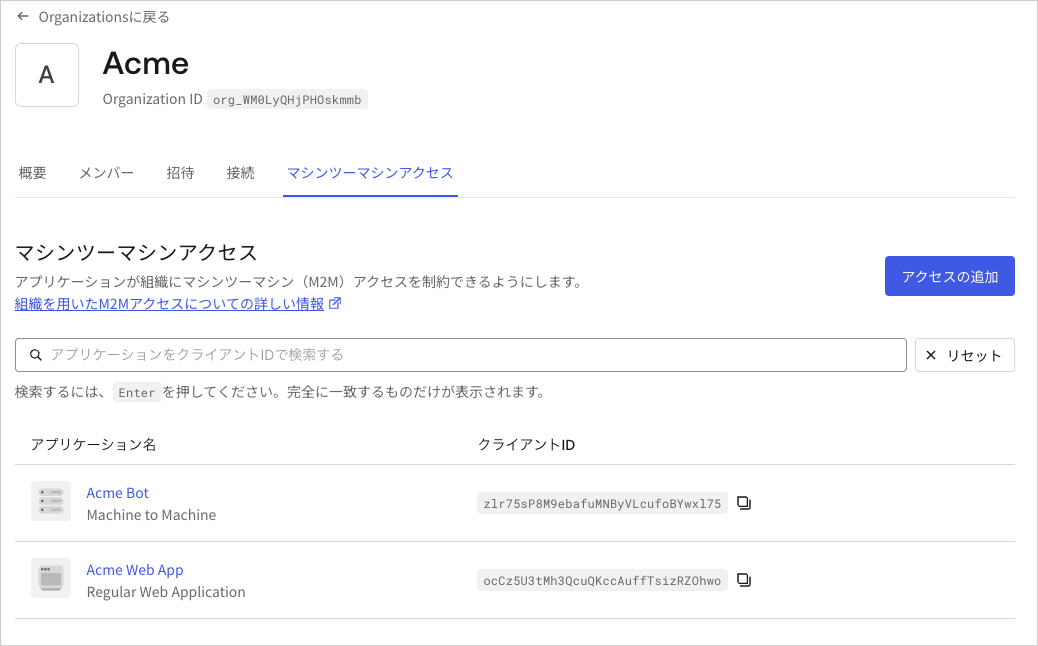
特定のOrganizationに対して認可されたアプリケーションクライアントの許可をAuth0 Dashboardで表示するには:
1. **[Organizations(組織)]** に移動して、調査したい組織を選択します。
2. **[Machine-to-Machine Access(マシンツーマシンアクセス)]** タブを選択します。このOrganizationで直接の関連付けを介してAPIにアクセスできる、すべてのアプリケーションのページネーションされたリストを取得できます。
3. アプリケーションを選択して、そのアプリケーションに認可されたAPIリストを確認します。
 Organizationに関連付けられたクライアントの許可は、[Organization Client Grants(Organizationのクライアントの許可)](/docs/ja-jp/api/management/v2/organizations/get-organization-client-grants)APIエンドポイントを介して取得できます:
または、Organizationの少なくとも1つのAPIにアクセスできるアプリケーションについての情報を取得したい場合は、[Get Client Grants(クライアントの取得)APIエンドポイント](/docs/ja-jp/api/management/v2/clients/get-clients)で検索語句に`client_grant.organization_id:{organization_id}`を使用し、`q`クエリパラメーターを使用できます。Lucene構文を使用します。この構文は、[ユーザー検索のクエリ構文](/docs/ja-jp/manage-users/user-search/user-search-query-syntax)に類似しています。
## 任意の組織に付与されるアクセス
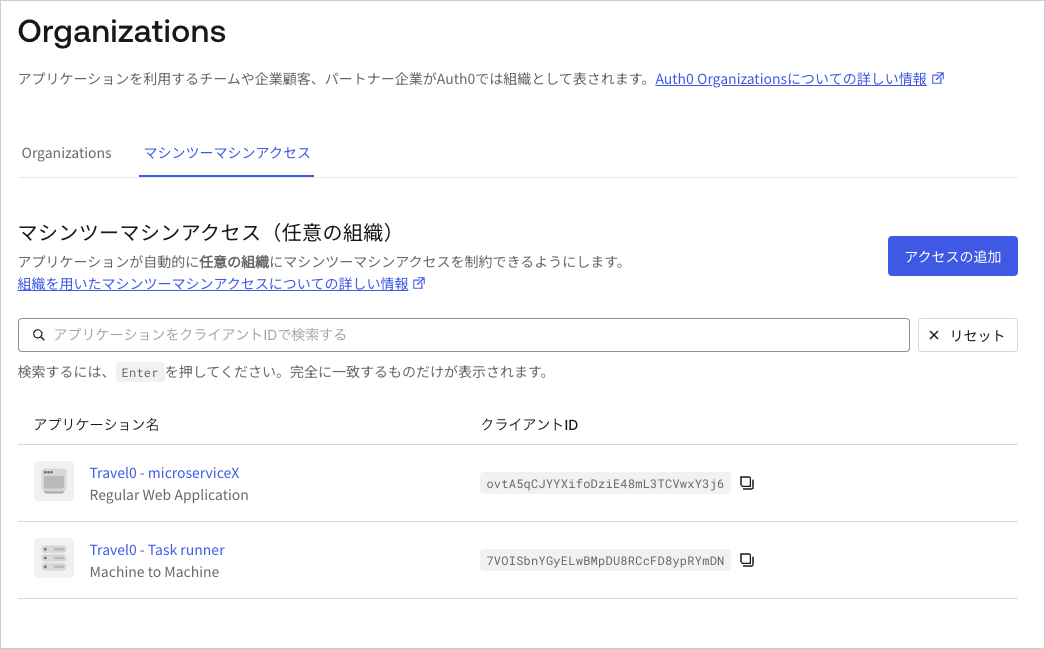
[Auth0 Dashboard](https://manage.auth0.com/)と[Management API](https://auth0.com/docs/api/management/v2)を使用して、任意の組織にアクセス権が付与されているアプリケーションのM2Mアクセスを監査します。
1. **[Organizations(組織)]** に移動します。
2. **[Machine to Machine Access(マシン間アクセス)]** タブを選択します。組織のAPIの少なくとも1つにアクセスできる、すべてのアプリケーションのページ番号付きリストが表示されます。
3. アプリケーションを選択すると、そのアプリケーションに許可されているAPIの一覧が表示されます。
Organizationに関連付けられたクライアントの許可は、[Organization Client Grants(Organizationのクライアントの許可)](/docs/ja-jp/api/management/v2/organizations/get-organization-client-grants)APIエンドポイントを介して取得できます:
または、Organizationの少なくとも1つのAPIにアクセスできるアプリケーションについての情報を取得したい場合は、[Get Client Grants(クライアントの取得)APIエンドポイント](/docs/ja-jp/api/management/v2/clients/get-clients)で検索語句に`client_grant.organization_id:{organization_id}`を使用し、`q`クエリパラメーターを使用できます。Lucene構文を使用します。この構文は、[ユーザー検索のクエリ構文](/docs/ja-jp/manage-users/user-search/user-search-query-syntax)に類似しています。
## 任意の組織に付与されるアクセス
[Auth0 Dashboard](https://manage.auth0.com/)と[Management API](https://auth0.com/docs/api/management/v2)を使用して、任意の組織にアクセス権が付与されているアプリケーションのM2Mアクセスを監査します。
1. **[Organizations(組織)]** に移動します。
2. **[Machine to Machine Access(マシン間アクセス)]** タブを選択します。組織のAPIの少なくとも1つにアクセスできる、すべてのアプリケーションのページ番号付きリストが表示されます。
3. アプリケーションを選択すると、そのアプリケーションに許可されているAPIの一覧が表示されます。
 `allow_any_organization`パラメーターのあるクライアントの許可は、[Get Client Grants(クライアントの許可の取得)](https://auth0.com/docs/api/management/v2/client-grants/get-client-grants)APIエンドポイントを介して取得できます:
または、任意のOrganizationの少なくとも1つのAPIにアクセスできるアプリケーションについての情報を取得したい場合は、[Get Client Grants(クライアントの許可の取得)](https://auth0.com/docs/api/management/v2/client-grants/get-client-grants)APIエンドポイントで検索語句に`client_grant.allow_any_organization:true`を使用し、`q`クエリパラメーターを使用できます。Lucene構文を使用します。この構文は、[ユーザー検索のクエリ構文](https://auth0.com/docs/manage-users/user-search/user-search-query-syntax)に類似しています。
## 組織のアクセスに基づいてアプリケーションを検索する
検索結果は最終的に矛盾しない
次の表は、`/clients`エンドポイントで`q`パラメータを使用してアプリケーションをクエリするためにサポートされている検索用語を示しています。
| フィールド | 説明 |
| ------------------------------------------------ | ---------------------------------------- |
| `client_grant.organization_id:{organization_id}` | 1つの組織のAPIの1つ以上にアクセスできるアプリケーションの検索に使用します。 |
| `client_grant.allow_any_organization:true` | 任意の組織のAPIの1つ以上にアクセスできるアプリケーションの検索に使用します。 |
## テナントログ
Organizationsのマシンツーマシンアクセスもテナントログに反映されます。要求に関連付けられている`organization`は、対応する`seccft`テナントログで確認できます。
次のコードサンプルは、組織情報を含む`seccft`テナントログの例です。
```json lines theme={null}
{
"date": "2024-10-24T19:06:17.460Z",
"type": "seccft",
"description": "Client Credentials for Access Token",
"connection_id": "",
"client_id": "qoQKtXuhdSibs1jUeXk3mmCwXoAafGnO",
"client_name": "jwt.io (Test Application)",
"ip": "130.41.219.72",
"user_agent": "Other 0.0.0 / Other 0.0.0",
"hostname": "david-test.test-aws-abundant-lobster-6004.auth0c.com",
"user_id": "",
"user_name": "",
"organization_id": "org_mPdwToiiHHOtz0SH",
"organization_name": "cc_test",
"audience": "https://jwt.io.com",
"scope": "read:data",
"$event_schema": {
"version": "1.0.0"
},
"log_id": "90020241024190617517817000000000000001223372036854775862",
"tenant_name": "david-test",
"_id": "90020241024190617517817000000000000001223372036854775862",
"isMobile": false,
"id": "90020241024190617517817000000000000001223372036854775862"
}
```
`allow_any_organization`パラメーターのあるクライアントの許可は、[Get Client Grants(クライアントの許可の取得)](https://auth0.com/docs/api/management/v2/client-grants/get-client-grants)APIエンドポイントを介して取得できます:
または、任意のOrganizationの少なくとも1つのAPIにアクセスできるアプリケーションについての情報を取得したい場合は、[Get Client Grants(クライアントの許可の取得)](https://auth0.com/docs/api/management/v2/client-grants/get-client-grants)APIエンドポイントで検索語句に`client_grant.allow_any_organization:true`を使用し、`q`クエリパラメーターを使用できます。Lucene構文を使用します。この構文は、[ユーザー検索のクエリ構文](https://auth0.com/docs/manage-users/user-search/user-search-query-syntax)に類似しています。
## 組織のアクセスに基づいてアプリケーションを検索する
検索結果は最終的に矛盾しない
次の表は、`/clients`エンドポイントで`q`パラメータを使用してアプリケーションをクエリするためにサポートされている検索用語を示しています。
| フィールド | 説明 |
| ------------------------------------------------ | ---------------------------------------- |
| `client_grant.organization_id:{organization_id}` | 1つの組織のAPIの1つ以上にアクセスできるアプリケーションの検索に使用します。 |
| `client_grant.allow_any_organization:true` | 任意の組織のAPIの1つ以上にアクセスできるアプリケーションの検索に使用します。 |
## テナントログ
Organizationsのマシンツーマシンアクセスもテナントログに反映されます。要求に関連付けられている`organization`は、対応する`seccft`テナントログで確認できます。
次のコードサンプルは、組織情報を含む`seccft`テナントログの例です。
```json lines theme={null}
{
"date": "2024-10-24T19:06:17.460Z",
"type": "seccft",
"description": "Client Credentials for Access Token",
"connection_id": "",
"client_id": "qoQKtXuhdSibs1jUeXk3mmCwXoAafGnO",
"client_name": "jwt.io (Test Application)",
"ip": "130.41.219.72",
"user_agent": "Other 0.0.0 / Other 0.0.0",
"hostname": "david-test.test-aws-abundant-lobster-6004.auth0c.com",
"user_id": "",
"user_name": "",
"organization_id": "org_mPdwToiiHHOtz0SH",
"organization_name": "cc_test",
"audience": "https://jwt.io.com",
"scope": "read:data",
"$event_schema": {
"version": "1.0.0"
},
"log_id": "90020241024190617517817000000000000001223372036854775862",
"tenant_name": "david-test",
"_id": "90020241024190617517817000000000000001223372036854775862",
"isMobile": false,
"id": "90020241024190617517817000000000000001223372036854775862"
}
```