> ## Documentation Index
> Fetch the complete documentation index at: https://auth0.com/llms.txt
> Use this file to discover all available pages before exploring further.
# Bulk Export User Data
> Export supported user profile data from Auth0 into a JSON-compatible or CSV format file.
export const AuthCodeGroup = ({children, dropdown}) => {
const [processedChildren, setProcessedChildren] = useState(children);
useEffect(() => {
let unsubscribe = null;
function init() {
unsubscribe = window.autorun(() => {
const processChildren = node => {
if (typeof node === "string") {
let processedNode = node;
for (const [key, value] of window.rootStore.variableStore.values.entries()) {
const escapedKey = key.replaceAll(/[.*+?^${}()|[\]\\]/g, (String.raw)`\$&`);
processedNode = processedNode.replaceAll(new RegExp(escapedKey, "g"), value);
}
return processedNode;
} else if (Array.isArray(node)) {
return node.map(processChildren);
} else if (node && node.props && node.props.children) {
return {
...node,
props: {
...node.props,
children: processChildren(node.props.children)
}
};
}
return node;
};
setProcessedChildren(processChildren(children));
});
}
if (window.rootStore) {
init();
} else {
window.addEventListener("adu:storeReady", init);
}
return () => {
window.removeEventListener("adu:storeReady", init);
unsubscribe?.();
};
}, [children]);
return {processedChildren};
};
export const AuthCodeBlock = ({filename, icon, language, highlight, children}) => {
const [displayText, setDisplayText] = useState(children);
const [copyText, setCopyText] = useState(children);
const wrapperRef = React.useRef(null);
useEffect(() => {
let unsubscribe = null;
function init() {
if (!window.autorun || !window.rootStore) {
return;
}
unsubscribe = window.autorun(() => {
let processedChildrenForDisplay = children;
let processedChildrenForCopy = children;
for (const [key, value] of window.rootStore.variableStore.values.entries()) {
const escapedKey = key.replaceAll(/[.*+?^${}()|[\]\\]/g, (String.raw)`\$&`);
let displayValue = value;
if (key === "{yourClientSecret}" && value !== "{yourClientSecret}") {
displayValue = value.substring(0, 3) + "*****MASKED*****";
}
processedChildrenForDisplay = processedChildrenForDisplay.replaceAll(new RegExp(escapedKey, "g"), displayValue);
processedChildrenForCopy = processedChildrenForCopy.replaceAll(new RegExp(escapedKey, "g"), value);
}
setDisplayText(processedChildrenForDisplay);
setCopyText(processedChildrenForCopy);
});
}
if (window.rootStore) {
init();
} else {
window.addEventListener("adu:storeReady", init);
}
return () => {
window.removeEventListener("adu:storeReady", init);
unsubscribe?.();
};
}, [children]);
useEffect(() => {
if (!wrapperRef.current) return;
const originalWriteText = navigator.clipboard.writeText.bind(navigator.clipboard);
let isOverriding = false;
const handleClick = e => {
const button = e.target.closest('[data-testid="copy-code-button"]');
if (!button || !wrapperRef.current.contains(button)) return;
isOverriding = true;
navigator.clipboard.writeText = text => {
if (isOverriding) {
isOverriding = false;
navigator.clipboard.writeText = originalWriteText;
return originalWriteText(copyText);
}
return originalWriteText(text);
};
setTimeout(() => {
if (isOverriding) {
isOverriding = false;
navigator.clipboard.writeText = originalWriteText;
}
}, 100);
};
const wrapper = wrapperRef.current;
wrapper.addEventListener('click', handleClick, true);
return () => {
wrapper.removeEventListener('click', handleClick, true);
if (navigator.clipboard.writeText !== originalWriteText) {
navigator.clipboard.writeText = originalWriteText;
}
};
}, [copyText]);
return
{displayText}
;
};
You can bulk export user data out of Auth0. For a list of user profile fields that can be exported, read [User Profile Structure](/docs/manage-users/user-accounts/user-profiles/user-profile-structure).
## Supported file formats
We support user data exports in JSON-compatible and CSV formats.
* Our JSON-compatible export files are in [NDJSON format](https://github.com/ndjson/ndjson-spec) due to the large size of the export files.
* In CSV export files, we escape string data types in conformance with OWASP standards for CSV injection mitigation.
* Double-quote characters are prepended with a double-quote character.
* Each string is prepended with a single-quote character.
* Each string is wrapped in double quotes.
This does not apply to Auth0-generated dates in ISO 8601 format.
## Prerequisites
* You must have one of the following [tenant member roles](/docs/get-started/manage-dashboard-access/feature-access-by-role):
* **Admin**
* **Editor - Users**
* **Dashboard Viewer - Users**
* You must have or create a [Management API token](/docs/secure/tokens/access-tokens/management-api-access-tokens) for job endpoint requests with the necessary scopes for the [Create export users job endpoint](/docs/api/management/v2/jobs/post-users-exports).
## 1. Submit export users job
To export user data using the Auth0 Dashboard:
1. Go to [**Dashboard > User Management > Users**](https://manage.auth0.com/#/users).
2. In the top right corner of the page, select **Import/Export Users** to go to the **Import/Export Users** page.
3. Select **Export Users** to go to the **Export Users** page.
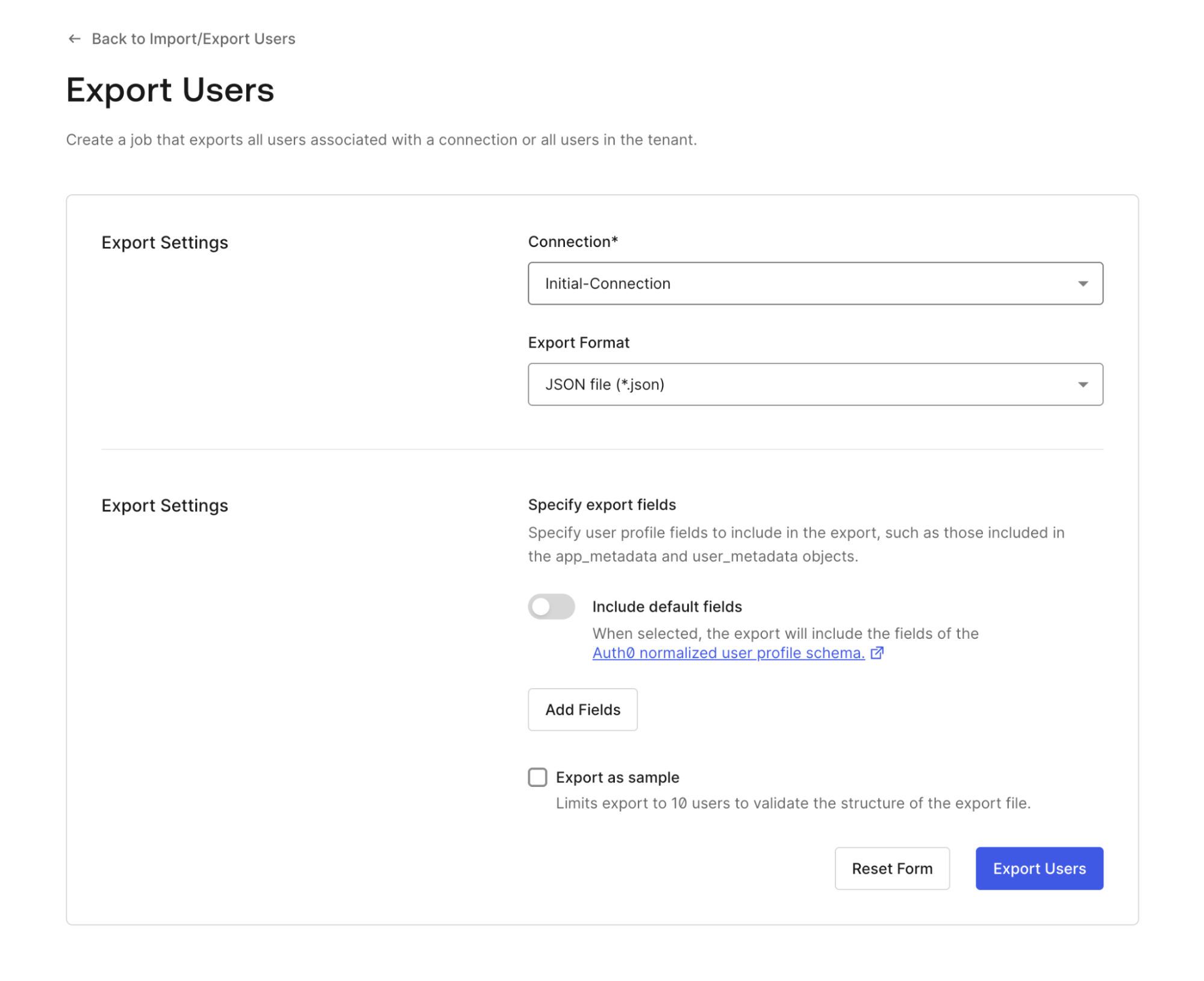 4. In the **Export Settings** section:
* Under **Connection**, open the drop-down menu and select the database connection where you want to export the user data.
* Under **Export Format**, open the drop-down menu and select the format you want the data to be in (JSON or CSV).
5. In the **Export Fields** section, choose the fields you want the export to include:
* Toggle **Include default fields** to add the fields in the [Auth0 normalized user profile schema](/docs/manage-users/user-accounts/user-profiles/normalized-user-profile-schema).
* Select **Add Fields** and enter a **User Attribute** and **Field Name** to add specific fields.
6. Optionally, in the **Export Fields** section, check **Export as Sample** to limit the export to 10 users. This can be helpful to validate the structure of the export file.
7. To submit the job, select **Export Users**.
To export user data using the Management API, call the [Create export users job endpoint](/docs/api/management/v2/jobs/post-users-exports) (`POST /jobs/users-exports`). View the endpoint documentation for details about the body parameters and response schemas.
If you omit the `connection_id`, the endpoint exports data for users from all connections on the tenant.
You can [view the database connection's ID in the Dashboard](/docs/authenticate/identity-providers/locate-the-connection-id) or get it with the Management API's [Get all connections endpoint](/docs/api/management/v2/connections/get-connections).
To use the examples below, replace the placeholder variables with your own values.
```bash cURL theme={null}
curl --request POST \
--url 'https://{yourDomain}/api/v2/jobs/users-exports' \
--header 'authorization: Bearer {yourMgmtAPIAccessToken}' \
--header 'content-type: application/json' \
--data '{"connection_id": "{yourConnectionId}", "format": "csv", "limit": 5, "fields": [{"name": "email"}, { "name": "identities[0].connection", "export_as": "provider" }]}'
```
```csharp C# theme={null}
var client = new RestClient("https://{yourDomain}/api/v2/jobs/users-exports");
var request = new RestRequest(Method.POST);
request.AddHeader("authorization", "Bearer {yourMgmtAPIAccessToken}");
request.AddHeader("content-type", "application/json");
request.AddParameter("application/json", "{"connection_id": "{yourConnectionId}", "format": "csv", "limit": 5, "fields": [{"name": "email"}, { "name": "identities[0].connection", "export_as": "provider" }]}", ParameterType.RequestBody);
IRestResponse response = client.Execute(request);
```
```go Go theme={null}
package main
import (
"fmt"
"strings"
"net/http"
"io/ioutil"
)
func main() {
url := "https://{yourDomain}/api/v2/jobs/users-exports"
payload := strings.NewReader("{"connection_id": "{yourConnectionId}", "format": "csv", "limit": 5, "fields": [{"name": "email"}, { "name": "identities[0].connection", "export_as": "provider" }]}")
req, _ := http.NewRequest("POST", url, payload)
req.Header.Add("authorization", "Bearer {yourMgmtAPIAccessToken}")
req.Header.Add("content-type", "application/json")
res, _ := http.DefaultClient.Do(req)
defer res.Body.Close()
body, _ := ioutil.ReadAll(res.Body)
fmt.Println(res)
fmt.Println(string(body))
}
```
```java Java theme={null}
HttpResponse response = Unirest.post("https://{yourDomain}/api/v2/jobs/users-exports")
.header("authorization", "Bearer {yourMgmtAPIAccessToken}")
.header("content-type", "application/json")
.body("{"connection_id": "{yourConnectionId}", "format": "csv", "limit": 5, "fields": [{"name": "email"}, { "name": "identities[0].connection", "export_as": "provider" }]}")
.asString();
```
```javascript Node.JS theme={null}
var axios = require("axios").default;
var options = {
method: 'POST',
url: 'https://{yourDomain}/api/v2/jobs/users-exports',
headers: {
authorization: 'Bearer {yourMgmtAPIAccessToken}',
'content-type': 'application/json'
},
data: {
connection_id: '{yourConnectionId}',
format: 'csv',
limit: 5,
fields: [{name: 'email'}, {name: 'identities[0].connection', export_as: 'provider'}]
}
};
axios.request(options).then(function (response) {
console.log(response.data);
}).catch(function (error) {
console.error(error);
});
```
```php PHP theme={null}
$curl = curl_init();
curl_setopt_array($curl, [
CURLOPT_URL => "https://{yourDomain}/api/v2/jobs/users-exports",
CURLOPT_RETURNTRANSFER => true,
CURLOPT_ENCODING => "",
CURLOPT_MAXREDIRS => 10,
CURLOPT_TIMEOUT => 30,
CURLOPT_HTTP_VERSION => CURL_HTTP_VERSION_1_1,
CURLOPT_CUSTOMREQUEST => "POST",
CURLOPT_POSTFIELDS => "{"connection_id": "{yourConnectionId}", "format": "csv", "limit": 5, "fields": [{"name": "email"}, { "name": "identities[0].connection", "export_as": "provider" }]}",
CURLOPT_HTTPHEADER => [
"authorization: Bearer {yourMgmtAPIAccessToken}",
"content-type: application/json"
],
]);
$response = curl_exec($curl);
$err = curl_error($curl);
curl_close($curl);
if ($err) {
echo "cURL Error #:" . $err;
} else {
echo $response;
}
```
```python Python theme={null}
import http.client
conn = http.client.HTTPSConnection("")
payload = "{"connection_id": "{yourConnectionId}", "format": "csv", "limit": 5, "fields": [{"name": "email"}, { "name": "identities[0].connection", "export_as": "provider" }]}"
headers = {
'authorization': "Bearer {yourMgmtAPIAccessToken}",
'content-type': "application/json"
}
conn.request("POST", "/{yourDomain}/api/v2/jobs/users-exports", payload, headers)
res = conn.getresponse()
data = res.read()
print(data.decode("utf-8"))
```
```ruby Ruby theme={null}
require 'uri'
require 'net/http'
require 'openssl'
url = URI("https://{yourDomain}/api/v2/jobs/users-exports")
http = Net::HTTP.new(url.host, url.port)
http.use_ssl = true
http.verify_mode = OpenSSL::SSL::VERIFY_NONE
request = Net::HTTP::Post.new(url)
request["authorization"] = 'Bearer {yourMgmtAPIAccessToken}'
request["content-type"] = 'application/json'
request.body = "{"connection_id": "{yourConnectionId}", "format": "csv", "limit": 5, "fields": [{"name": "email"}, { "name": "identities[0].connection", "export_as": "provider" }]}"
response = http.request(request)
puts response.read_body
```
When you successfully create a job, the return value includes information about the job, including the job ID.
## 2. Check job status and download the export
To check the status of a job:
1. Go to [**Dashboard > User Management > Users**](https://manage.auth0.com/#/users).
2. In the top right corner of the page, select **Import/Export Users** to go to the **Import/Export Users** page. Once you start at least one job, this page lists your submitted jobs.
3. Next to each job, you can choose:
* **Check Status** to monitor job progress.
* **Download export** to retrieve the result.
* **More info** to review errors or job metadata.
To check the status of a job, call the [Get a job endpoint](/docs/api/management/v2/jobs/get-jobs-by-id) (`GET /jobs`) with the ID of the job. View the endpoint documentation for details about endpoint parameters and response schemas.
The name of your tenant is also the name of your file. For example, if your tenant name is `auth0docs`, then your file is `auth0docs.csv` or `auth0docs.json`.
You can access your export files using the URL provided as the value for the `location` parameter. When you navigate to the URL, you automatically begin downloading the file.
The download link is valid for 60 seconds. If this time period expires, you have 24 hours to call it again before the job expires.
## Limits
* All job-related data is automatically deleted after 24 hours.
* Data exports in CSV format are limited to 30 fields.
* Data exports in CSV format cannot include `app_metadata` or `user_metadata` as single objects. Instead, specify fields of metadata objects explicitly or export data in JSON-compatible format (which supports metadata as single objects):
```json JSON-compatible format request body theme={null}
{
"format": "json",
"fields": [
{ "name": "user_metadata.example" }
]
}
```
```json CSV format request body theme={null}
{
"format": "csv",
"fields": [
{ "name": "user_metadata.example.field_one" },
{ "name": "user_metadata.example.field_two" },
{ "name": "user_metadata.example.field_three" }
]
}
```
4. In the **Export Settings** section:
* Under **Connection**, open the drop-down menu and select the database connection where you want to export the user data.
* Under **Export Format**, open the drop-down menu and select the format you want the data to be in (JSON or CSV).
5. In the **Export Fields** section, choose the fields you want the export to include:
* Toggle **Include default fields** to add the fields in the [Auth0 normalized user profile schema](/docs/manage-users/user-accounts/user-profiles/normalized-user-profile-schema).
* Select **Add Fields** and enter a **User Attribute** and **Field Name** to add specific fields.
6. Optionally, in the **Export Fields** section, check **Export as Sample** to limit the export to 10 users. This can be helpful to validate the structure of the export file.
7. To submit the job, select **Export Users**.
To export user data using the Management API, call the [Create export users job endpoint](/docs/api/management/v2/jobs/post-users-exports) (`POST /jobs/users-exports`). View the endpoint documentation for details about the body parameters and response schemas.
If you omit the `connection_id`, the endpoint exports data for users from all connections on the tenant.
You can [view the database connection's ID in the Dashboard](/docs/authenticate/identity-providers/locate-the-connection-id) or get it with the Management API's [Get all connections endpoint](/docs/api/management/v2/connections/get-connections).
To use the examples below, replace the placeholder variables with your own values.
```bash cURL theme={null}
curl --request POST \
--url 'https://{yourDomain}/api/v2/jobs/users-exports' \
--header 'authorization: Bearer {yourMgmtAPIAccessToken}' \
--header 'content-type: application/json' \
--data '{"connection_id": "{yourConnectionId}", "format": "csv", "limit": 5, "fields": [{"name": "email"}, { "name": "identities[0].connection", "export_as": "provider" }]}'
```
```csharp C# theme={null}
var client = new RestClient("https://{yourDomain}/api/v2/jobs/users-exports");
var request = new RestRequest(Method.POST);
request.AddHeader("authorization", "Bearer {yourMgmtAPIAccessToken}");
request.AddHeader("content-type", "application/json");
request.AddParameter("application/json", "{"connection_id": "{yourConnectionId}", "format": "csv", "limit": 5, "fields": [{"name": "email"}, { "name": "identities[0].connection", "export_as": "provider" }]}", ParameterType.RequestBody);
IRestResponse response = client.Execute(request);
```
```go Go theme={null}
package main
import (
"fmt"
"strings"
"net/http"
"io/ioutil"
)
func main() {
url := "https://{yourDomain}/api/v2/jobs/users-exports"
payload := strings.NewReader("{"connection_id": "{yourConnectionId}", "format": "csv", "limit": 5, "fields": [{"name": "email"}, { "name": "identities[0].connection", "export_as": "provider" }]}")
req, _ := http.NewRequest("POST", url, payload)
req.Header.Add("authorization", "Bearer {yourMgmtAPIAccessToken}")
req.Header.Add("content-type", "application/json")
res, _ := http.DefaultClient.Do(req)
defer res.Body.Close()
body, _ := ioutil.ReadAll(res.Body)
fmt.Println(res)
fmt.Println(string(body))
}
```
```java Java theme={null}
HttpResponse response = Unirest.post("https://{yourDomain}/api/v2/jobs/users-exports")
.header("authorization", "Bearer {yourMgmtAPIAccessToken}")
.header("content-type", "application/json")
.body("{"connection_id": "{yourConnectionId}", "format": "csv", "limit": 5, "fields": [{"name": "email"}, { "name": "identities[0].connection", "export_as": "provider" }]}")
.asString();
```
```javascript Node.JS theme={null}
var axios = require("axios").default;
var options = {
method: 'POST',
url: 'https://{yourDomain}/api/v2/jobs/users-exports',
headers: {
authorization: 'Bearer {yourMgmtAPIAccessToken}',
'content-type': 'application/json'
},
data: {
connection_id: '{yourConnectionId}',
format: 'csv',
limit: 5,
fields: [{name: 'email'}, {name: 'identities[0].connection', export_as: 'provider'}]
}
};
axios.request(options).then(function (response) {
console.log(response.data);
}).catch(function (error) {
console.error(error);
});
```
```php PHP theme={null}
$curl = curl_init();
curl_setopt_array($curl, [
CURLOPT_URL => "https://{yourDomain}/api/v2/jobs/users-exports",
CURLOPT_RETURNTRANSFER => true,
CURLOPT_ENCODING => "",
CURLOPT_MAXREDIRS => 10,
CURLOPT_TIMEOUT => 30,
CURLOPT_HTTP_VERSION => CURL_HTTP_VERSION_1_1,
CURLOPT_CUSTOMREQUEST => "POST",
CURLOPT_POSTFIELDS => "{"connection_id": "{yourConnectionId}", "format": "csv", "limit": 5, "fields": [{"name": "email"}, { "name": "identities[0].connection", "export_as": "provider" }]}",
CURLOPT_HTTPHEADER => [
"authorization: Bearer {yourMgmtAPIAccessToken}",
"content-type: application/json"
],
]);
$response = curl_exec($curl);
$err = curl_error($curl);
curl_close($curl);
if ($err) {
echo "cURL Error #:" . $err;
} else {
echo $response;
}
```
```python Python theme={null}
import http.client
conn = http.client.HTTPSConnection("")
payload = "{"connection_id": "{yourConnectionId}", "format": "csv", "limit": 5, "fields": [{"name": "email"}, { "name": "identities[0].connection", "export_as": "provider" }]}"
headers = {
'authorization': "Bearer {yourMgmtAPIAccessToken}",
'content-type': "application/json"
}
conn.request("POST", "/{yourDomain}/api/v2/jobs/users-exports", payload, headers)
res = conn.getresponse()
data = res.read()
print(data.decode("utf-8"))
```
```ruby Ruby theme={null}
require 'uri'
require 'net/http'
require 'openssl'
url = URI("https://{yourDomain}/api/v2/jobs/users-exports")
http = Net::HTTP.new(url.host, url.port)
http.use_ssl = true
http.verify_mode = OpenSSL::SSL::VERIFY_NONE
request = Net::HTTP::Post.new(url)
request["authorization"] = 'Bearer {yourMgmtAPIAccessToken}'
request["content-type"] = 'application/json'
request.body = "{"connection_id": "{yourConnectionId}", "format": "csv", "limit": 5, "fields": [{"name": "email"}, { "name": "identities[0].connection", "export_as": "provider" }]}"
response = http.request(request)
puts response.read_body
```
When you successfully create a job, the return value includes information about the job, including the job ID.
## 2. Check job status and download the export
To check the status of a job:
1. Go to [**Dashboard > User Management > Users**](https://manage.auth0.com/#/users).
2. In the top right corner of the page, select **Import/Export Users** to go to the **Import/Export Users** page. Once you start at least one job, this page lists your submitted jobs.
3. Next to each job, you can choose:
* **Check Status** to monitor job progress.
* **Download export** to retrieve the result.
* **More info** to review errors or job metadata.
To check the status of a job, call the [Get a job endpoint](/docs/api/management/v2/jobs/get-jobs-by-id) (`GET /jobs`) with the ID of the job. View the endpoint documentation for details about endpoint parameters and response schemas.
The name of your tenant is also the name of your file. For example, if your tenant name is `auth0docs`, then your file is `auth0docs.csv` or `auth0docs.json`.
You can access your export files using the URL provided as the value for the `location` parameter. When you navigate to the URL, you automatically begin downloading the file.
The download link is valid for 60 seconds. If this time period expires, you have 24 hours to call it again before the job expires.
## Limits
* All job-related data is automatically deleted after 24 hours.
* Data exports in CSV format are limited to 30 fields.
* Data exports in CSV format cannot include `app_metadata` or `user_metadata` as single objects. Instead, specify fields of metadata objects explicitly or export data in JSON-compatible format (which supports metadata as single objects):
```json JSON-compatible format request body theme={null}
{
"format": "json",
"fields": [
{ "name": "user_metadata.example" }
]
}
```
```json CSV format request body theme={null}
{
"format": "csv",
"fields": [
{ "name": "user_metadata.example.field_one" },
{ "name": "user_metadata.example.field_two" },
{ "name": "user_metadata.example.field_three" }
]
}
```