> ## Documentation Index
> Fetch the complete documentation index at: https://auth0.com/llms.txt
> Use this file to discover all available pages before exploring further.
# ASP.NET Web API (OWIN): Authorization
> Add Auth0 JWT authorization to an ASP.NET OWIN API using the standard JWT middleware with protected endpoints
export const HowToSchema = () => ;
export const AuthCodeGroup = ({children, dropdown}) => {
const [processedChildren, setProcessedChildren] = useState(children);
useEffect(() => {
let unsubscribe = null;
function init() {
unsubscribe = window.autorun(() => {
const processChildren = node => {
if (typeof node === "string") {
let processedNode = node;
for (const [key, value] of window.rootStore.variableStore.values.entries()) {
const escapedKey = key.replaceAll(/[.*+?^${}()|[\]\\]/g, (String.raw)`\$&`);
processedNode = processedNode.replaceAll(new RegExp(escapedKey, "g"), value);
}
return processedNode;
} else if (Array.isArray(node)) {
return node.map(processChildren);
} else if (node && node.props && node.props.children) {
return {
...node,
props: {
...node.props,
children: processChildren(node.props.children)
}
};
}
return node;
};
setProcessedChildren(processChildren(children));
});
}
if (window.rootStore) {
init();
} else {
window.addEventListener("adu:storeReady", init);
}
return () => {
window.removeEventListener("adu:storeReady", init);
unsubscribe?.();
};
}, [children]);
return {processedChildren};
};
**New to Auth0?** Learn [how Auth0 works](/docs/get-started/auth0-overview) and read about [implementing API authentication and authorization](/docs/get-started/authentication-and-authorization-flow) using the OAuth 2.0 framework.
## Get Started
Auth0 allows you to add authorization to any kind of application. This guide demonstrates how to integrate Auth0 with any new or existing ASP.NET OWIN Web API application using the `Microsoft.Owin.Security.Jwt` package. Each Auth0 API uses the API Identifier, which your application needs to validate the access token.
This example demonstrates:
* How to check for a JSON Web Token (JWT) in the `Authorization` header of an incoming HTTP request.
* How to check if the token is valid, using the [JSON Web Key Set (JWKS)](/docs/secure/tokens/json-web-tokens/json-web-key-sets) for your Auth0 account. To learn more about validating Access Tokens, see [Validate Access Tokens](/docs/secure/tokens/access-tokens/validate-access-tokens).
In the [APIs](https://manage.auth0.com/#/apis) section of the Auth0 dashboard, click **Create API**. Provide a name and an identifier for your API, for example, `https://quickstarts/api`. You will use the identifier as an `audience` later, when you are configuring the Access Token verification. Leave the **Signing Algorithm** as **RS256**.
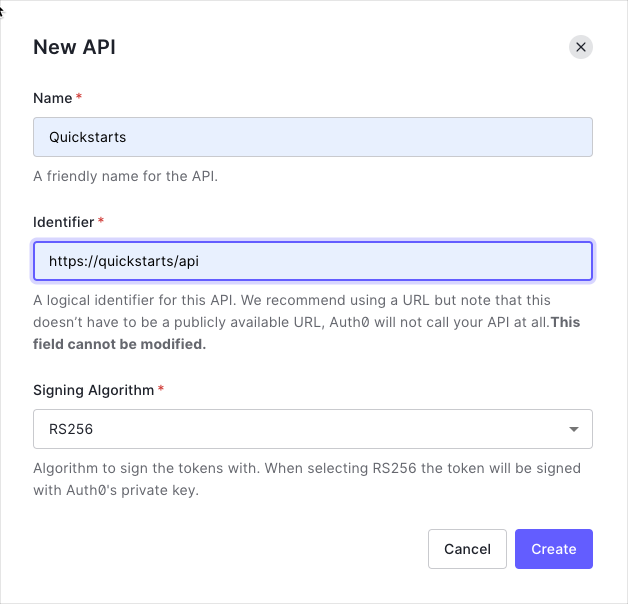
By default, your API uses RS256 as the algorithm for signing tokens. Since RS256 uses a private/public keypair, it verifies the tokens against the public key for your Auth0 account. The public key is in the [JSON Web Key Set (JWKS)](/docs/secure/tokens/json-web-tokens/json-web-key-sets) format, and can be accessed [here](https://\{yourDomain}/.well-known/jwks.json).
Permissions let you define how resources can be accessed on behalf of the user with a given access token. For example, you might choose to grant read access to the `messages` resource if users have the manager access level, and a write access to that resource if they have the administrator access level.
You can define allowed permissions in the **Permissions** view of the Auth0 Dashboard's [APIs](https://manage.auth0.com/#/apis) section.
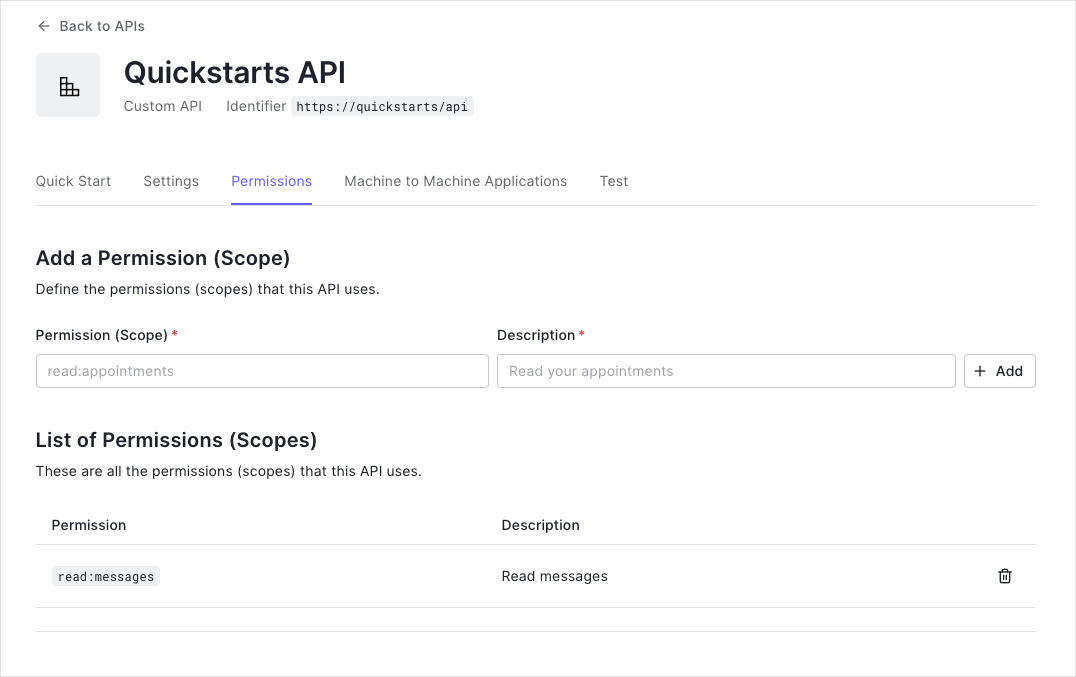
This example uses the `read:messages` scope.
The sample code has an `appsettings` section in `Web.config` which configures it to use the correct Auth0 **Domain** and **API Identifier** for your API. If you download the code from this page it will be automatically filled. If you use the example from Github, you will need to fill it yourself.
```xml web.config lines theme={null}
```
To use Auth0 Access Tokens with ASP.NET you will use the OWIN JWT Middleware which is available in the `Microsoft.Owin.Security.Jwt` NuGet package.
```bash lines theme={null}
Install-Package Microsoft.Owin.Security.Jwt
```
As the OWIN JWT middleware doesn't use Open ID Connect Discovery by default, you will need to provide a custom `IssuerSigningKeyResolver`. To do this, add the following to the `Support/OpenIdConnectSigningKeyResolver.cs` file:
Such a custom resolver was previously published as part of the `Auth0.OpenIdConnectSigningKeyResolver` package through Nuget. As [this package is not available anymore](https://github.com/auth0/auth0-aspnet-owin/blob/master/SECURITY-NOTICE.md), you will need to provide this yourself.
```cs OpenIdConnectSigningKeyResolver.cs lines theme={null}
public class OpenIdConnectSigningKeyResolver
{
private readonly OpenIdConnectConfiguration openIdConfig;
public OpenIdConnectSigningKeyResolver(string authority)
{
var cm = new ConfigurationManager($"{authority.TrimEnd('/')}/.well-known/openid-configuration", new OpenIdConnectConfigurationRetriever());
openIdConfig = AsyncHelper.RunSync(async () => await cm.GetConfigurationAsync());
}
public SecurityKey[] GetSigningKey(string kid)
{
return new[] { openIdConfig.JsonWebKeySet.GetSigningKeys().FirstOrDefault(t => t.KeyId == kid) };
}
}
```
The `OpenIdConnectSigningKeyResolver` will automatically download the JSON Web Key Set used to sign the RS256 tokens from the OpenID Connect Configuration endpoint (at `/.well-known/openid-configuration`). You can then use it subsequently to resolve the Issuer Signing Key, as will be demonstrated in the JWT registration code below.
Go to the `Configuration` method of your `Startup` class and add a call to `UseJwtBearerAuthentication` passing in the configured `JwtBearerAuthenticationOptions`.
The `JwtBearerAuthenticationOptions` needs to specify your Auth0 API Identifier in the `ValidAudience` property, and the full path to your Auth0 domain as the `ValidIssuer`. You will need to configure the `IssuerSigningKeyResolver` to use the instance of `OpenIdConnectSigningKeyResolver` to resolve the signing key:
```cs Startup.cs lines theme={null}
public void Configuration(IAppBuilder app)
{
var domain = $"https://{ConfigurationManager.AppSettings["Auth0Domain"]}/";
var apiIdentifier = ConfigurationManager.AppSettings["Auth0ApiIdentifier"];
var keyResolver = new OpenIdConnectSigningKeyResolver(domain);
app.UseJwtBearerAuthentication(
new JwtBearerAuthenticationOptions
{
AuthenticationMode = AuthenticationMode.Active,
TokenValidationParameters = new TokenValidationParameters()
{
ValidAudience = apiIdentifier,
ValidIssuer = domain,
IssuerSigningKeyResolver = (token, securityToken, kid, parameters) => keyResolver.GetSigningKey(kid)
}
});
// Configure Web API
WebApiConfig.Configure(app);
}
```
### Do not forget the trailing backslash
Please ensure that the URL specified for `ValidIssuer` contains a trailing backslash as this needs to match exactly with the issuer claim of the JWT. This is a common misconfiguration error which will cause your API calls to not be authenticated correctly.
The JWT middleware above verifies that the Access Token included in the request is valid; however, it doesn't yet include any mechanism for checking that the token has the sufficient **scope** to access the requested resources.
Create a class called `ScopeAuthorizeAttribute` which inherits from `System.Web.Http.AuthorizeAttribute`. This Authorization Attribute will check that the `scope` claim issued by your Auth0 tenant is present, and if so it will ensure that the `scope` claim contains the requested scope.
```cs ScopeAuthorizeAttribute.cs lines theme={null}
public class ScopeAuthorizeAttribute : AuthorizeAttribute
{
private readonly string scope;
public ScopeAuthorizeAttribute(string scope)
{
this.scope = scope;
}
public override void OnAuthorization(HttpActionContext actionContext)
{
base.OnAuthorization(actionContext);
// Get the Auth0 domain, in order to validate the issuer
var domain = $"https://{ConfigurationManager.AppSettings["Auth0Domain"]}/";
// Get the claim principal
ClaimsPrincipal principal = actionContext.ControllerContext.RequestContext.Principal as ClaimsPrincipal;
// Get the scope claim. Ensure that the issuer is for the correct Auth0 domain
var scopeClaim = principal?.Claims.FirstOrDefault(c => c.Type == "scope" && c.Issuer == domain);
if (scopeClaim != null)
{
// Split scopes
var scopes = scopeClaim.Value.Split(' ');
// Succeed if the scope array contains the required scope
if (scopes.Any(s => s == scope))
return;
}
HandleUnauthorizedRequest(actionContext);
}
}
```
The routes shown below are available for the following requests:
* `GET /api/public`: available for non-authenticated requests
* `GET /api/private`: available for authenticated requests containing an access token with no additional scopes
* `GET /api/private-scoped`: available for authenticated requests containing an access token with the `read:messages` scope granted
The JWT middleware integrates with the standard ASP.NET Authentication and Authorization mechanisms, so you only need to decorate your controller action with the `[Authorize]` attribute to secure an endpoint. To ensure that a scope is present in order to call a particular API endpoint, decorate the action with the `ScopeAuthorize` attribute and pass the name of the required `scope` in the `scope` parameter.
```cs ApiController.cs lines theme={null}
[RoutePrefix("api")]
public class ApiController : ApiController
{
[HttpGet]
[Route("public")]
public IHttpActionResult Public()
{
return Json(new
{
Message = "Hello from a public endpoint!"
});
}
[HttpGet]
[Route("private")]
[Authorize]
public IHttpActionResult Private()
{
return Json(new
{
Message = "Hello from a private endpoint! You need to be authenticated to see this."
});
}
[HttpGet]
[Route("private-scoped")]
[ScopeAuthorize("read:messages")]
public IHttpActionResult Scoped()
{
return Json(new
{
Message = "Hello from a private endpoint! You need to be authenticated and have a scope of read:messages to see this."
});
}
}
```
**Checkpoint**
Now that you have configured your application, run your application and verify that:
* `GET /api/public` is available for non-authenticated requests.
* `GET /api/private` is available for authenticated requests.
* `GET /api/private-scoped` is available for authenticated requests containing an access token with the `read:messages` scope.
## Additional Resources
Complete sample application for this quickstart
Configure other identity providers
Enable multifactor authentication
Learn about attack protection
Extend Auth0 with custom logic
Get help from the Auth0 community