> ## Documentation Index
> Fetch the complete documentation index at: https://auth0.com/llms.txt
> Use this file to discover all available pages before exploring further.
> Configure Token Vault to use Cross App Access (XAA) to store and reuse access tokens your application retrieves via XAA on a user's behalf.
# Cross App Access (XAA) with Token Vault
export const ReleaseStageNotice = ({feature, stage, plans, contact, terms}) => {
const stageTextMap = {
"beta": "Beta",
"ea": "Early Access"
};
const stageText = stageTextMap[stage] || "a product release stage";
const prsLink = "/docs/troubleshoot/product-lifecycle/product-release-stages";
const linkify = (text, url) => {
return {text};
};
const includeDetails = (plans, contact, terms) => {
const hasDetails = terms || plans || contact;
if (!hasDetails) return null;
return
{plans && <>This feature is available for {linkify(`${plans} plans`, "https://auth0.com/pricing")}. }
{contact && "To participate, contact " + contact + ". "}
{terms && <>By using this feature, you agree to the applicable Free Trial terms in Okta's {linkify("Master Subscription Agreement", "https://www.okta.com/legal")}.}
;
};
return
The {feature} feature is in {linkify(stageText, prsLink)}.
{includeDetails(plans, contact, terms)}
;
};
[Cross App Access (XAA)](https://datatracker.ietf.org/doc/draft-ietf-oauth-identity-assertion-authz-grant/) allows IT admins in an enterprise setting to centrally manage app-to-app and agent-to-app connections. Token Vault works with XAA to securely store and reuse the access tokens your application retrieves from a third-party API on a user's behalf.
With Token Vault, your application can exchange an Auth0 refresh token for a stored third-party access token in a single call without requiring the user to go through an OAuth 2.0 consent flow. Instead, that access is mediated by a centralized identity provider (IdP) that is trusted by both your organization and the third-party API. To learn more about XAA in Auth0, read [Cross App Access](/docs/ai-agents-mcp/cross-app-access).
**If you want to build and test the full XAA flow from the Requesting App side**: Complete [Environment Setup](/docs/ai-agents-mcp/cross-app-access/requesting-app/set-up-xaa-test-environment) and [Okta as OIDC IdP](/docs/ai-agents-mcp/cross-app-access/requesting-app/idp/okta-as-oidc-idp) first, then return here to [configure your test application](#configure-your-test-application).
**If you already have Token Vault set up and want to add XAA support**: Skip to [Add XAA to an existing Token Vault integration](#add-xaa-to-an-existing-token-vault-integration).
## What's different with XAA?
1. When using Token Vault with XAA, end users do not need to [connect their account](/docs/secure/call-apis-on-users-behalf/token-vault/connected-accounts-for-token-vault) with external applications. Your application does not need to provide a button to "Connect to \[Third-party Application]" that makes a `POST` request to the My Account API's `/me/v1/connected-accounts/connect` endpoint.
2. The end user needs to authenticate using a federated login with an Okta or OIDC connection that is configured for XAA. That connection must be configured as a Requesting App.
3. The third-party API being accessed must support XAA as a Resource App, meaning it can exchange an `ID-JAG` for access tokens.
4. A connection to the third-party application must exist with Connected Accounts for Token Vault and Cross App Access for Token Vault enabled.
## Add XAA to an existing Token Vault integration
If you already have Token Vault set up and want to add XAA support, you need to update two existing connections: the connection your users authenticate with (the Requesting App connection) and the connection to the third-party API (the Resource App connection).
This section covers only the Auth0-side changes needed to enable XAA on existing connections. If you are creating these connections for the first time, or need to configure the Okta side, follow [Okta as OIDC IdP](/docs/ai-agents-mcp/cross-app-access/requesting-app/idp/okta-as-oidc-idp) for the full end-to-end setup.
### Configure the Requesting App connection
The connection your users authenticate with must be configured to request an `ID-JAG` from the enterprise IdP on the user's behalf. This can be an Okta Workforce or OIDC connection.
1. Navigate to **Authentication > Enterprise**, select your connection, and open its settings.
2. Under **Credentials**, set **Communication Channel** to **Back Channel**. Token Vault cannot request an ID-JAG using the front channel.
3. Under **Settings > Scopes**, add `offline_access`.
4. Under **Mappings**, select **Okta Basic** and add `offline_access` to the `userinfo_scope` list in the JSON mapping. Select **Save**.
5. Under **Cross App Access > Cross App Access Role**, select **Requesting Application**.
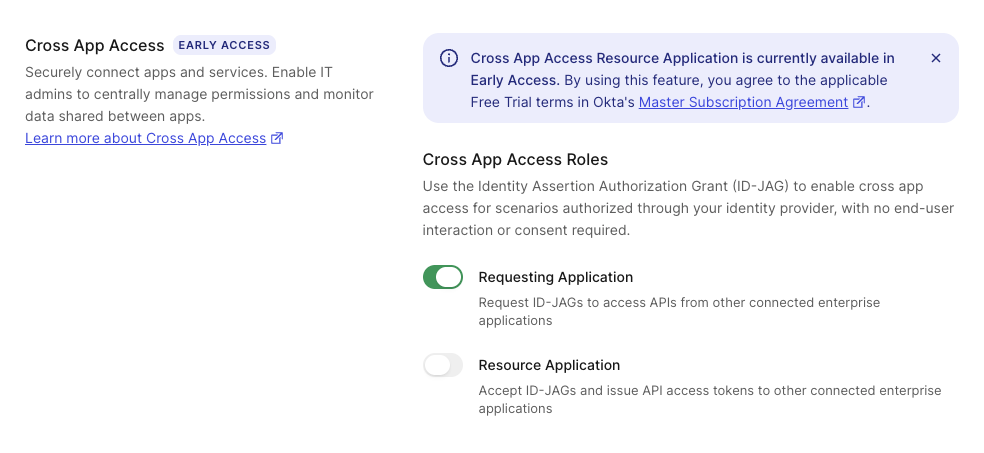 6. Select **Save**.
Make a `PATCH` call to the [Update a Connection](https://auth0.com/docs/api/management/v2/connections/patch-connections-by-id) endpoint:
```bash theme={null}
curl --request PATCH 'https://{yourDomain}/api/v2/connections/{yourConnectionId}' \
--header 'Content-Type: application/json' \
--header 'Authorization: Bearer ' \
--data '{
"cross_app_access_requesting_app": { "active": true },
"options": {
"scope": "openid profile email offline_access",
"type": "back_channel",
"attribute_map": {
"mapping_mode": "use_map",
"userinfo_scope": "openid email profile groups offline_access",
"attributes": {
"name": "${context.tokenset.name}",
"email": "${context.tokenset.email}",
"username": "${context.tokenset.preferred_username}",
"federated_groups": "${context.userinfo.groups}",
"federated_locale": "${context.userinfo.locale}",
"federated_zoneinfo": "${context.userinfo.zoneinfo}"
}
}
}
}'
```
The next time a user signs in using that connection, Token Vault will retain the refresh token and use it to request access to the third-party API.
### Configure the Resource App connection
The Resource App connection to the third-party API must be an OIDC connection with both Connected Accounts for Token Vault and Cross App Access for Token Vault enabled.
1. Navigate to **Authentication > Enterprise**, select the OIDC connection to the third-party API, and open its settings.
2. Under **Purpose**, select **Connected Accounts for Token Vault** or **Authentication and Connected Accounts for Token Vault**.
3. Under **Cross App Access**:
* For **Cross App Access Roles**, enable **Requesting Application**.
* Enable **Cross App Access for Token Vault**.
6. Select **Save**.
Make a `PATCH` call to the [Update a Connection](https://auth0.com/docs/api/management/v2/connections/patch-connections-by-id) endpoint:
```bash theme={null}
curl --request PATCH 'https://{yourDomain}/api/v2/connections/{yourConnectionId}' \
--header 'Content-Type: application/json' \
--header 'Authorization: Bearer ' \
--data '{
"cross_app_access_requesting_app": { "active": true },
"options": {
"scope": "openid profile email offline_access",
"type": "back_channel",
"attribute_map": {
"mapping_mode": "use_map",
"userinfo_scope": "openid email profile groups offline_access",
"attributes": {
"name": "${context.tokenset.name}",
"email": "${context.tokenset.email}",
"username": "${context.tokenset.preferred_username}",
"federated_groups": "${context.userinfo.groups}",
"federated_locale": "${context.userinfo.locale}",
"federated_zoneinfo": "${context.userinfo.zoneinfo}"
}
}
}
}'
```
The next time a user signs in using that connection, Token Vault will retain the refresh token and use it to request access to the third-party API.
### Configure the Resource App connection
The Resource App connection to the third-party API must be an OIDC connection with both Connected Accounts for Token Vault and Cross App Access for Token Vault enabled.
1. Navigate to **Authentication > Enterprise**, select the OIDC connection to the third-party API, and open its settings.
2. Under **Purpose**, select **Connected Accounts for Token Vault** or **Authentication and Connected Accounts for Token Vault**.
3. Under **Cross App Access**:
* For **Cross App Access Roles**, enable **Requesting Application**.
* Enable **Cross App Access for Token Vault**.
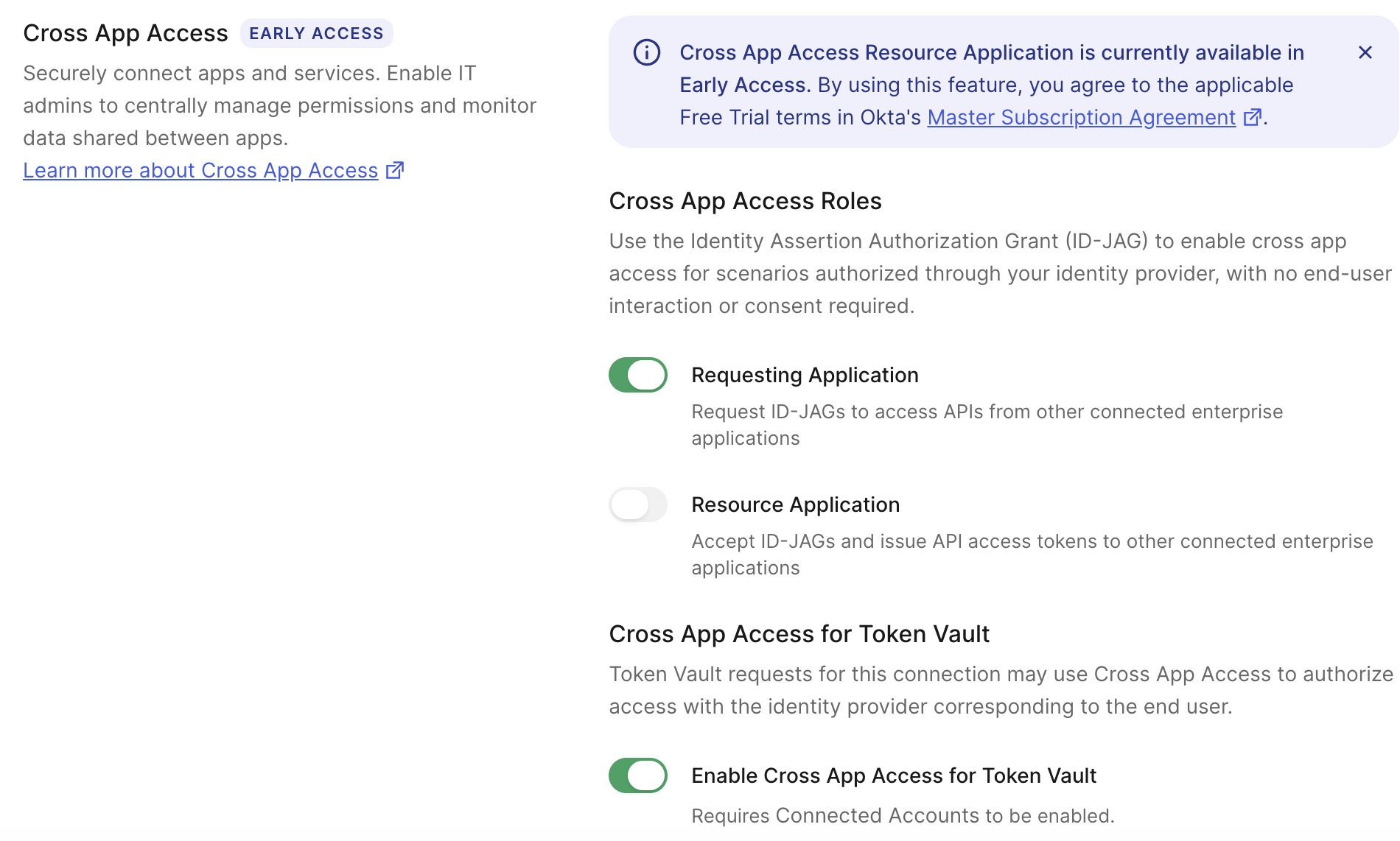 4. Select **Save**.
Make a `PATCH` call to the [Update a Connection](https://auth0.com/docs/api/management/v2/connections/patch-connections-by-id) endpoint:
```bash theme={null}
curl --request PATCH 'https://{yourDomain}/api/v2/connections/{yourConnectionId}' \
--header 'Content-Type: application/json' \
--header 'Authorization: Bearer ' \
--data '{
"cross_app_access_requesting_app": { "active": true },
"connected_accounts": {
"active": true,
"cross_app_access": true
}
}'
```
Once you've configured both connections, proceed to [Configure your test application](#configure-your-test-application) and [test the end-to-end flow](#test-the-end-to-end-flow).
## Configure your test application
In your Requesting App tenant, create or configure the application that will perform the Token Vault token exchange.
Only confidential, first-party, OIDC-conformant clients can use the Token Vault grant type. Regular Web Applications meet these requirements.
Navigate to **Applications > Applications** and select **Create Application**. Enter a name and select **Regular Web Application**.
1. Under **Application URIs**, add your application's callback URL (e.g. `https://localhost:3000/callback`) to **Allowed Callback URLs**.
2. Under **Cross App Access**, enable **Allow Cross App Access**.
3. Under **Advanced Settings > Grant Types**, enable **Authorization Code**, **Refresh Token**, and **Token Vault**.
4. Select **Save Changes**.
Make a `PATCH` call to the [Update a Client](https://auth0.com/docs/api/management/v2/clients/patch-clients-by-id) endpoint to add the required grant types and enable Cross App Access:
```bash theme={null}
curl --request PATCH 'https://{yourDomain}/api/v2/clients/{clientId}' \
--header 'Content-Type: application/json' \
--header 'Authorization: Bearer ' \
--data '{
"cross_app_access": { "active": true },
"grant_types": [
"authorization_code",
"refresh_token",
"urn:auth0:params:oauth:grant-type:token-exchange:federated-connection-access-token"
]
}'
```
Note the **Client ID** and **Client Secret** of the application. You'll need these when performing the token exchange.
### Enable Okta connections for the application
If you set up the XAA test environment from the Requesting App side from scratch: You need to enable the OIDC connection you configured in the [Environment Setup](/docs/ai-agents-mcp/cross-app-access/requesting-app/set-up-xaa-test-environment) between your Requesting App tenant and Resource App tenant and the Okta Workforce connection you configured in [Okta as OIDC IdP](/docs/ai-agents-mcp/cross-app-access/requesting-app/idp/okta-as-oidc-idp) for this application.
If you already have Token Vault set up and are adding XAA support: You need to enable the Requesting App connection and Resource App connection for the test application you just created. To learn more, read [Add XAA to an existing Token Vault integration](#add-xaa-to-an-existing-token-vault-integration).
To enable the Okta Workforce connection or the Requesting App connection:
1. Navigate to **Authentication > Enterprise > Okta Workforce**, select the Okta Workforce connection, and select the **Applications** tab. Then, enable it for the test application you just created.
To enable the OIDC connection or the Resource App connection:
1. Navigate to **Authentication > Enterprise > OpenID Connect (OIDC)**, select the OIDC connection, and select the **Applications** tab. Then, enable it for the test application you just created.
Make a `PATCH` call to the [Update a Connection](https://auth0.com/docs/api/management/v2/connections/patch-connections-by-id) endpoint for each connection to add the application's `client_id` to the `enabled_clients` array.
For the Okta Workforce connection:
```bash theme={null}
curl --request PATCH 'https://{yourDomain}/api/v2/connections/{oktaWorkforceConnectionId}' \
--header 'Content-Type: application/json' \
--header 'Authorization: Bearer ' \
--data '{
"enabled_clients": ["{yourApplicationClientId}"]
}'
```
For the OIDC connection:
```bash theme={null}
curl --request PATCH 'https://{yourDomain}/api/v2/connections/{oidcConnectionId}' \
--header 'Content-Type: application/json' \
--header 'Authorization: Bearer ' \
--data '{
"enabled_clients": ["{yourApplicationClientId}"]
}'
```
## Test the end-to-end flow
To test the XAA Token Vault flow, your application must:
1. [Obtain an Auth0 refresh token](#step-1-obtain-an-auth0-refresh-token) by completing an authorization code flow with the Okta Workforce connection or the Requesting App connection.
2. [Exchange the refresh token](#step-2-exchange-the-refresh-token-with-token-vault) for a Resource App access token with the OIDC connection using the Token Vault grant type or the Resource App connection.
Use the test application you configured in [Configure your test application](#configure-your-test-application) or an existing application with the Token Vault grant enabled.
### Step 1: Obtain an Auth0 refresh token
Your application uses the [authorization code flow](/docs/get-started/authentication-and-authorization-flow/authorization-code-flow) with the Okta Workforce connection to authenticate the user and obtain a refresh token.
#### Initiate the authorization request
Send the following `GET` request to the Auth0 `/authorize` endpoint, substituting your own values:
```bash theme={null}
GET https://{yourRequestingAppDomain}/authorize?
response_type=code&
client_id={yourApplicationClientId}&
redirect_uri={yourCallbackUrl}&
scope=offline_access&
connection={yourOktaWorkforceConnectionName} // or your Requesting App connection name
```
| Parameter | Description |
| --------------- | ------------------------------------------------------------------------------------------------------------------------------------------------------------------------------------------ |
| `response_type` | Set to `code` to use the authorization code flow. |
| `client_id` | The **Client ID** of the application you configured in [Configure your application](#configure-your-test-application). |
| `redirect_uri` | The callback URL of your application. Must match an **Allowed Callback URL** configured in the application settings. |
| `scope` | Set to `offline_access` to request a refresh token. |
| `connection` | The name of the Okta Workforce connection you configured in [Okta as OIDC IdP](/docs/ai-agents-mcp/cross-app-access/requesting-app/idp/okta-as-oidc-idp) or the Requesting App Connection. |
Your test user will be redirected to Okta to authenticate. After a successful login, Auth0 redirects back to your `redirect_uri` with an authorization `code` in the query string.
#### Exchange the authorization code for a refresh token
Send a `POST` request to the Auth0 `/oauth/token` endpoint to exchange the authorization code for tokens:
```bash theme={null}
curl -X POST 'https://{yourRequestingAppDomain}/oauth/token' \
--header 'Content-Type: application/json' \
--data '{
"grant_type": "authorization_code",
"code": "{authorizationCode}",
"client_id": "{yourApplicationClientId}",
"client_secret": "{yourApplicationClientSecret}",
"redirect_uri": "{yourCallbackUrl}"
}'
```
| Parameter | Description |
| --------------- | ---------------------------------------------------------------------- |
| `grant_type` | Set to `authorization_code`. |
| `code` | The authorization code returned by Auth0 after the user authenticated. |
| `client_id` | The **Client ID** of the application. |
| `client_secret` | The **Client Secret** of the application. |
| `redirect_uri` | The same callback URL used in the authorization request. |
A successful response includes a `refresh_token`:
```json theme={null}
{
"access_token": "eyJhbGciOiJSUzI1NiIsInR5...",
"refresh_token": "v1.MjzFJHdw...",
"id_token": "eyJhbGciOiJSUzI1NiIsInR5...",
"token_type": "Bearer",
"expires_in": 86400
}
```
### Step 2: Exchange the refresh token with Token Vault
Use the refresh token to call the Token Vault grant type endpoint and retrieve a Resource App access token.
```bash theme={null}
curl -X POST 'https://{yourRequestingAppDomain}/oauth/token' \
--header 'Content-Type: application/json' \
--data '{
"client_id": "{yourApplicationClientId}",
"client_secret": "{yourApplicationClientSecret}",
"subject_token": "{refreshToken}",
"grant_type": "urn:auth0:params:oauth:grant-type:token-exchange:federated-connection-access-token",
"subject_token_type": "urn:ietf:params:oauth:token-type:refresh_token",
"requested_token_type": "http://auth0.com/oauth/token-type/federated-connection-access-token",
"connection": "{yourOidcConnectionName}" // or your Resource App connection name
}'
```
| Parameter | Description |
| ---------------------- | ---------------------------------------------------------------------------------------------------------------------------------------------------------------------------------------------------------------------------------------- |
| `client_id` | The **Client ID** of the application. |
| `client_secret` | The **Client Secret** of the application. |
| `subject_token` | The Auth0 refresh token obtained in [Step 1](#step-1-obtain-an-auth0-refresh-token). |
| `grant_type` | The Token Vault grant type: `urn:auth0:params:oauth:grant-type:token-exchange:federated-connection-access-token`. |
| `subject_token_type` | Set to `urn:ietf:params:oauth:token-type:refresh_token` to indicate that a refresh token is being exchanged. |
| `requested_token_type` | Set to `http://auth0.com/oauth/token-type/federated-connection-access-token` to request a Resource App access token. |
| `connection` | The name of the OIDC connection you configured in [Environment Setup](/docs/ai-agents-mcp/cross-app-access/requesting-app/set-up-xaa-test-environment) with **Cross App Access for Token Vault** enabled or the Resource App connection. |
Token Vault uses the XAA flow to obtain an access token to the Resource App by looking for a stored refresh token from a valid Requesting App IdP, asking that IdP for an `ID-JAG` token on your behalf, and then presenting it to the Resource App in exchange for an access token, before returning the access token to your app.
A successful response returns a Resource App access token:
```json theme={null}
{
"access_token": "eyJhbGciOiJSUzI1NiIsInR5...",
"token_type": "Bearer",
"expires_in": 86400
}
```
Your application can now use this access token to call the Resource App's API on the user's behalf.
## Handle multiple Requesting App IdPs
An Auth0 tenant might have many connections configured to IdPs that support XAA as a Requesting App,
and which have XAA enabled (e.g. their `cross_app_access_requesting_app.active` property is set to
`true`).
When an application makes a token exchange request, Token Vault can only request an `ID-JAG` from an IdP that the user has already authenticated with. There must be exactly one valid user identity linked to the current
user's profile, where XAA is enabled on the connection authenticating the user, otherwise Token Vault will not know which IdP to request an `ID-JAG` from. If there are multiple valid identities, the request will fail with the following error:
```json theme={null}
{
"error": "invalid_request",
"error_description": "Multiple enterprise connections with XAA support enabled"
}
```
If the current user profile has more than 10 linked identities on connection types that support XAA
(i.e. Okta and OIDC connection types) *even if those connections do not have XAA enabled* Token
Vault will fail with the error:
```json theme={null}
{
"error": "invalid_request",
"error_description": "User can have a maximum of 10 linked accounts to use XAA"
}
```
This limits the number of connections that Token Vault must check in order to locate a valid XAA
connection.
## Use Auth0 Organizations with XAA
Token Vault will also filter the available Requesting App connections by those that are enabled for
the current user's organization. An Auth0 solution that uses Organizations can limit access to each
IdP by Organization in order to clarify which Requesting App connection should be used for each
user session.
Each `subject_token` that is used in a Token Vault exchange contains information about the
organization that the user logged into. This organization context will be used to find the correct
XAA Requesting App connection. However, if multiple valid connections are found, the request will
still fail.
4. Select **Save**.
Make a `PATCH` call to the [Update a Connection](https://auth0.com/docs/api/management/v2/connections/patch-connections-by-id) endpoint:
```bash theme={null}
curl --request PATCH 'https://{yourDomain}/api/v2/connections/{yourConnectionId}' \
--header 'Content-Type: application/json' \
--header 'Authorization: Bearer ' \
--data '{
"cross_app_access_requesting_app": { "active": true },
"connected_accounts": {
"active": true,
"cross_app_access": true
}
}'
```
Once you've configured both connections, proceed to [Configure your test application](#configure-your-test-application) and [test the end-to-end flow](#test-the-end-to-end-flow).
## Configure your test application
In your Requesting App tenant, create or configure the application that will perform the Token Vault token exchange.
Only confidential, first-party, OIDC-conformant clients can use the Token Vault grant type. Regular Web Applications meet these requirements.
Navigate to **Applications > Applications** and select **Create Application**. Enter a name and select **Regular Web Application**.
1. Under **Application URIs**, add your application's callback URL (e.g. `https://localhost:3000/callback`) to **Allowed Callback URLs**.
2. Under **Cross App Access**, enable **Allow Cross App Access**.
3. Under **Advanced Settings > Grant Types**, enable **Authorization Code**, **Refresh Token**, and **Token Vault**.
4. Select **Save Changes**.
Make a `PATCH` call to the [Update a Client](https://auth0.com/docs/api/management/v2/clients/patch-clients-by-id) endpoint to add the required grant types and enable Cross App Access:
```bash theme={null}
curl --request PATCH 'https://{yourDomain}/api/v2/clients/{clientId}' \
--header 'Content-Type: application/json' \
--header 'Authorization: Bearer ' \
--data '{
"cross_app_access": { "active": true },
"grant_types": [
"authorization_code",
"refresh_token",
"urn:auth0:params:oauth:grant-type:token-exchange:federated-connection-access-token"
]
}'
```
Note the **Client ID** and **Client Secret** of the application. You'll need these when performing the token exchange.
### Enable Okta connections for the application
If you set up the XAA test environment from the Requesting App side from scratch: You need to enable the OIDC connection you configured in the [Environment Setup](/docs/ai-agents-mcp/cross-app-access/requesting-app/set-up-xaa-test-environment) between your Requesting App tenant and Resource App tenant and the Okta Workforce connection you configured in [Okta as OIDC IdP](/docs/ai-agents-mcp/cross-app-access/requesting-app/idp/okta-as-oidc-idp) for this application.
If you already have Token Vault set up and are adding XAA support: You need to enable the Requesting App connection and Resource App connection for the test application you just created. To learn more, read [Add XAA to an existing Token Vault integration](#add-xaa-to-an-existing-token-vault-integration).
To enable the Okta Workforce connection or the Requesting App connection:
1. Navigate to **Authentication > Enterprise > Okta Workforce**, select the Okta Workforce connection, and select the **Applications** tab. Then, enable it for the test application you just created.
To enable the OIDC connection or the Resource App connection:
1. Navigate to **Authentication > Enterprise > OpenID Connect (OIDC)**, select the OIDC connection, and select the **Applications** tab. Then, enable it for the test application you just created.
Make a `PATCH` call to the [Update a Connection](https://auth0.com/docs/api/management/v2/connections/patch-connections-by-id) endpoint for each connection to add the application's `client_id` to the `enabled_clients` array.
For the Okta Workforce connection:
```bash theme={null}
curl --request PATCH 'https://{yourDomain}/api/v2/connections/{oktaWorkforceConnectionId}' \
--header 'Content-Type: application/json' \
--header 'Authorization: Bearer ' \
--data '{
"enabled_clients": ["{yourApplicationClientId}"]
}'
```
For the OIDC connection:
```bash theme={null}
curl --request PATCH 'https://{yourDomain}/api/v2/connections/{oidcConnectionId}' \
--header 'Content-Type: application/json' \
--header 'Authorization: Bearer ' \
--data '{
"enabled_clients": ["{yourApplicationClientId}"]
}'
```
## Test the end-to-end flow
To test the XAA Token Vault flow, your application must:
1. [Obtain an Auth0 refresh token](#step-1-obtain-an-auth0-refresh-token) by completing an authorization code flow with the Okta Workforce connection or the Requesting App connection.
2. [Exchange the refresh token](#step-2-exchange-the-refresh-token-with-token-vault) for a Resource App access token with the OIDC connection using the Token Vault grant type or the Resource App connection.
Use the test application you configured in [Configure your test application](#configure-your-test-application) or an existing application with the Token Vault grant enabled.
### Step 1: Obtain an Auth0 refresh token
Your application uses the [authorization code flow](/docs/get-started/authentication-and-authorization-flow/authorization-code-flow) with the Okta Workforce connection to authenticate the user and obtain a refresh token.
#### Initiate the authorization request
Send the following `GET` request to the Auth0 `/authorize` endpoint, substituting your own values:
```bash theme={null}
GET https://{yourRequestingAppDomain}/authorize?
response_type=code&
client_id={yourApplicationClientId}&
redirect_uri={yourCallbackUrl}&
scope=offline_access&
connection={yourOktaWorkforceConnectionName} // or your Requesting App connection name
```
| Parameter | Description |
| --------------- | ------------------------------------------------------------------------------------------------------------------------------------------------------------------------------------------ |
| `response_type` | Set to `code` to use the authorization code flow. |
| `client_id` | The **Client ID** of the application you configured in [Configure your application](#configure-your-test-application). |
| `redirect_uri` | The callback URL of your application. Must match an **Allowed Callback URL** configured in the application settings. |
| `scope` | Set to `offline_access` to request a refresh token. |
| `connection` | The name of the Okta Workforce connection you configured in [Okta as OIDC IdP](/docs/ai-agents-mcp/cross-app-access/requesting-app/idp/okta-as-oidc-idp) or the Requesting App Connection. |
Your test user will be redirected to Okta to authenticate. After a successful login, Auth0 redirects back to your `redirect_uri` with an authorization `code` in the query string.
#### Exchange the authorization code for a refresh token
Send a `POST` request to the Auth0 `/oauth/token` endpoint to exchange the authorization code for tokens:
```bash theme={null}
curl -X POST 'https://{yourRequestingAppDomain}/oauth/token' \
--header 'Content-Type: application/json' \
--data '{
"grant_type": "authorization_code",
"code": "{authorizationCode}",
"client_id": "{yourApplicationClientId}",
"client_secret": "{yourApplicationClientSecret}",
"redirect_uri": "{yourCallbackUrl}"
}'
```
| Parameter | Description |
| --------------- | ---------------------------------------------------------------------- |
| `grant_type` | Set to `authorization_code`. |
| `code` | The authorization code returned by Auth0 after the user authenticated. |
| `client_id` | The **Client ID** of the application. |
| `client_secret` | The **Client Secret** of the application. |
| `redirect_uri` | The same callback URL used in the authorization request. |
A successful response includes a `refresh_token`:
```json theme={null}
{
"access_token": "eyJhbGciOiJSUzI1NiIsInR5...",
"refresh_token": "v1.MjzFJHdw...",
"id_token": "eyJhbGciOiJSUzI1NiIsInR5...",
"token_type": "Bearer",
"expires_in": 86400
}
```
### Step 2: Exchange the refresh token with Token Vault
Use the refresh token to call the Token Vault grant type endpoint and retrieve a Resource App access token.
```bash theme={null}
curl -X POST 'https://{yourRequestingAppDomain}/oauth/token' \
--header 'Content-Type: application/json' \
--data '{
"client_id": "{yourApplicationClientId}",
"client_secret": "{yourApplicationClientSecret}",
"subject_token": "{refreshToken}",
"grant_type": "urn:auth0:params:oauth:grant-type:token-exchange:federated-connection-access-token",
"subject_token_type": "urn:ietf:params:oauth:token-type:refresh_token",
"requested_token_type": "http://auth0.com/oauth/token-type/federated-connection-access-token",
"connection": "{yourOidcConnectionName}" // or your Resource App connection name
}'
```
| Parameter | Description |
| ---------------------- | ---------------------------------------------------------------------------------------------------------------------------------------------------------------------------------------------------------------------------------------- |
| `client_id` | The **Client ID** of the application. |
| `client_secret` | The **Client Secret** of the application. |
| `subject_token` | The Auth0 refresh token obtained in [Step 1](#step-1-obtain-an-auth0-refresh-token). |
| `grant_type` | The Token Vault grant type: `urn:auth0:params:oauth:grant-type:token-exchange:federated-connection-access-token`. |
| `subject_token_type` | Set to `urn:ietf:params:oauth:token-type:refresh_token` to indicate that a refresh token is being exchanged. |
| `requested_token_type` | Set to `http://auth0.com/oauth/token-type/federated-connection-access-token` to request a Resource App access token. |
| `connection` | The name of the OIDC connection you configured in [Environment Setup](/docs/ai-agents-mcp/cross-app-access/requesting-app/set-up-xaa-test-environment) with **Cross App Access for Token Vault** enabled or the Resource App connection. |
Token Vault uses the XAA flow to obtain an access token to the Resource App by looking for a stored refresh token from a valid Requesting App IdP, asking that IdP for an `ID-JAG` token on your behalf, and then presenting it to the Resource App in exchange for an access token, before returning the access token to your app.
A successful response returns a Resource App access token:
```json theme={null}
{
"access_token": "eyJhbGciOiJSUzI1NiIsInR5...",
"token_type": "Bearer",
"expires_in": 86400
}
```
Your application can now use this access token to call the Resource App's API on the user's behalf.
## Handle multiple Requesting App IdPs
An Auth0 tenant might have many connections configured to IdPs that support XAA as a Requesting App,
and which have XAA enabled (e.g. their `cross_app_access_requesting_app.active` property is set to
`true`).
When an application makes a token exchange request, Token Vault can only request an `ID-JAG` from an IdP that the user has already authenticated with. There must be exactly one valid user identity linked to the current
user's profile, where XAA is enabled on the connection authenticating the user, otherwise Token Vault will not know which IdP to request an `ID-JAG` from. If there are multiple valid identities, the request will fail with the following error:
```json theme={null}
{
"error": "invalid_request",
"error_description": "Multiple enterprise connections with XAA support enabled"
}
```
If the current user profile has more than 10 linked identities on connection types that support XAA
(i.e. Okta and OIDC connection types) *even if those connections do not have XAA enabled* Token
Vault will fail with the error:
```json theme={null}
{
"error": "invalid_request",
"error_description": "User can have a maximum of 10 linked accounts to use XAA"
}
```
This limits the number of connections that Token Vault must check in order to locate a valid XAA
connection.
## Use Auth0 Organizations with XAA
Token Vault will also filter the available Requesting App connections by those that are enabled for
the current user's organization. An Auth0 solution that uses Organizations can limit access to each
IdP by Organization in order to clarify which Requesting App connection should be used for each
user session.
Each `subject_token` that is used in a Token Vault exchange contains information about the
organization that the user logged into. This organization context will be used to find the correct
XAA Requesting App connection. However, if multiple valid connections are found, the request will
still fail.