> ## Documentation Index
> Fetch the complete documentation index at: https://auth0.com/llms.txt
> Use this file to discover all available pages before exploring further.
> Customize MFA flows using post-login Actions to prompt users to enroll in specific factors.
# Customize MFA Enrollments for Universal Login
Auth0 supports a variety of factors for securing user access with [multi-factor authentication (MFA](/docs/secure/multi-factor-authentication/multi-factor-authentication-factors)). Using `post-login` Actions, you can customize your MFA flows to prompt users to enroll in specific factors. After a user enrolls in a factor, they can use that factor as a secondary method of authentication in future logins.
You can also use contextual information to further customize your MFA enrollment flows. For example, you can prompt users to enroll in SMS for one application while prompting them to enroll in push notifications or WebAuthN for a different application.
This feature allows you to customize your MFA enrollment flows. If you want to customize MFA flows for users who are already enrolled, review [Customize MFA Selection for Universal Login](/docs/secure/multi-factor-authentication/customize-mfa/customize-mfa-selection-universal-login).
## How it works
You can use [Actions](/docs/customize/actions) to customize your MFA enrollment flows. Specifically, you can modify the `post-login` trigger of the [Login Flow](/docs/customize/actions/explore-triggers/signup-and-login-triggers/login-trigger) with the following Authentication API methods:
* `enrollWith`: Specifies the default factor presented to users during enrollment. Optionally, you can provide an alternative list of factors for users to choose from. If provided, a Try Another Method link displays on the enrollment prompt.
* `enrollWithAny`: Specifies a set of factors users can choose from during enrollment. By default, this method presents a selection prompt that allows users to choose their desired factor. In some cases, the user experience may vary:
* If two or more factors have been specified, the selection prompt displays to the user.
* If the user has already enrolled in all specified factors except one, the selection prompt is skipped, and the user is prompted to enroll in the remaining factor.
* If the user has already enrolled in all specified factors, the command fails, and the login sequence continues.
You can use a combination of these methods to customize your MFA enrollment flows. You can also incorporate user metadata, such as roles or last login date, to create more tailored experiences.
Customized enrollment flows support the following factors:
* `otp`
* `recovery-code`
* `push-notification`
* `phone`
* `preferredMethod: voice`
* `preferredMethod: sms`
* `preferredMethod: both`
* `webauthn-platform`
* `webauthn-roaming`
After a user enrolls in a factor, its value is added to their `enrolledFactors`. This property represents the list of active factors associated with their user account.
The array `event.authentication.methods` includes a `type` field when the name of the method is set to `mfa`. This field contains factor values (string) that match those used by the `type` field from `enrolledFactors`.
When an MFA enrollment occurs, `methods` contains the object of `name:mfa` with `type` set to the factor used for that event. `methods` and `enrolledFactors` are only updated when an Action first begins. You can access the results of an enrollment event in the next Action of the flow.
To learn more, review the following resources:
* [Actions Triggers: post-login - Event Object](/docs/customize/actions/explore-triggers/signup-and-login-triggers/login-trigger/post-login-event-object)
* [Actions Triggers: post-login - API Object](/docs/customize/actions/explore-triggers/signup-and-login-triggers/login-trigger/post-login-api-object)
### Sequenced and contextual flows
With the `enrollWith` or `enrollWithAny` commands, you can use contextual information to determine the best enrollment or series of enrollments to present to users.
* The `enrollWith` command supports an initial or default factor and a list of alternatives. Users can only enroll in one factor per command.
* The `enrollWithAny` command supports a list of factors. The specified order of factors determines how the list displays to users. Users can only enroll in one factor per command.
With these commands, you can leverage the following:
* **Sequenced flows**: Enroll users with a series of factors in a specific order.
* **Contextual flows**: Determine which factor to prompt the user with based on metadata or previous commands in the flow.
To help illustrate these flows, consider the following example:
```javascript lines expandable theme={null}
// Action 1
exports.onExecutePostLogin = async (event, api) => {
if (event.user.enrolledFactors.length) {
// already enrolled, challenge
api.authentication.challengeWithAny(event.user.enrolledFactors.map(m => ({type: m.type})));
if (event.user.app_metadata.isAdmin &&
!event.user.enrolledFactors.some(m => m.type === 'webauthn-roaming')) {
// if is admin and doesn't have a security key, meaning a different factor was used, enroll now
api.authentication.enrollWith({type: 'webauthn-roaming'})
}
}
else {
// not enrolled; choose a factor to enroll now
api.authentication.enrollWithAny([{type: 'webauthn-roaming'}, {type: 'otp'}]);
if (event.user.app_metadata.isAdmin) {
// one more factor for admins
api.authentication.enrollWithAny([{type: 'webauthn-roaming'}, {type: 'otp'}]);
}
}
};
// Action 2
exports.onExecutePostLogin = async (event, api) => {
function performed(type) {
return event.authentication.methods.some(m => m.name === 'mfa' &&
m.type === type &&
Date.now() - new Date(m.timestamp).getTime() < 5000)
}
if (event.user.app_metadata.isAdmin) {
// enforce both factors are used by challenging the one that has not been used yet
if (!performed('webauthn-roaming')) {
api.authentication.challengeWith({type: 'webauthn-roaming'})
}
else if (!performed('otp')) {
api.authentication.challengeWith({type: 'otp'})
}
}
};
```
These two Actions combine to create a scenario where users **without** the admin role are required to enroll with either a one-time password (OTP) or a security key. Conversely, users **with** the admin role must enroll in both factors.
Action 1 reviews the `app_metadata` to determine if the user is an admin, then prompts them to enroll in specific factors. If an admin user has only enrolled in OTP, they are first challenged with OTP to complete their authentication. They are then prompted to enroll with security keys (`webauthn-roaming`).
To keep user accounts secure, users must complete an MFA challenge using one of their existing enrolledFactors before they can enroll in additional factors. This condition ensures you can safely implement a custom MFA enrollment policy after an application with different factors and configurations has already been used.
The flow pauses after Action 1 executes, and both `event.user.enrolledFactors` and `event.authentication.methods` will be updated when Action 2 runs. This allows the Action code to make decisions based on actual user data when users are given a choice to challenge or enroll in different factors.
**Note**: This method of executing Actions only applies to those containing `enrollWith` or `enrollWithAny` commands. Actions serving other purposes are not affected.
## Before you begin
Before you can customize your MFA flows, you must set up MFA in your tenant and enable the Customize MFA Factors using Actions setting. You can enable one or more factors and define your MFA policies on your Auth0 Dashboard under [Security > Multi-factor Auth](https://manage.auth0.com/#/security/mfa).
* To learn more about the setup process, review [Enable Multi-Factor Authentication](/docs/secure/multi-factor-authentication/enable-mfa).
* For information about configuring specific factors, review [Multi-factor Authentication Factors](/docs/secure/multi-factor-authentication/multi-factor-authentication-factors).
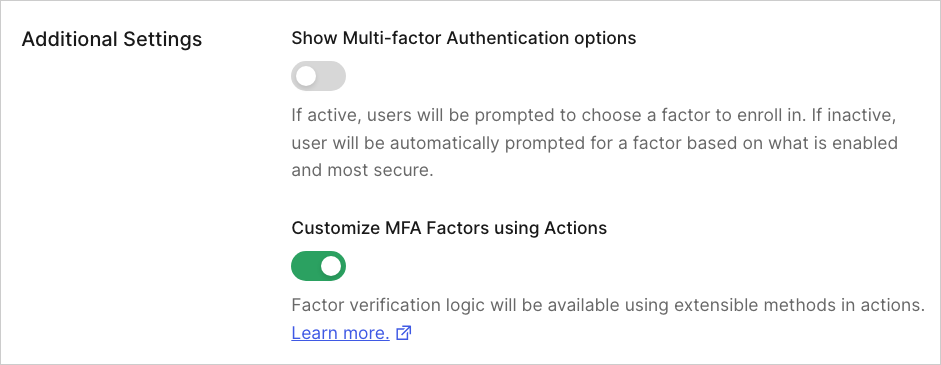
To customize your flows, you must enable the Customize MFA Factors using Actions toggle in the Additional Settings section. Your customized flows will not work properly if this setting is not enabled.
 **Note**: Actions with `enrollWith` or `enrollWithAny` commands override any existing policies or rules that enable or disable MFA in a tenant.
## Customize MFA enrollment flows
After setting up MFA for your tenant, you can create `post-login` Actions to customize your MFA enrollment flows.
Actions (or series of Actions) in a tenant can only execute **four** of the following commands per user flow:
* `enrollWith`
* `enrollWithAny`
* `challengeWith`
* `challengeWithAny`
If this limit is exceeded (i.e., a fifth command of this type attempts to execute), an authentication error will occur.
### Create your post-login Action
You can create Actions through the Auth0 Dashboard:
1. Navigate to [Actions > Flows](https://manage.auth0.com/#/actions/flows) and select **Login**.
2. In the Add Action panel, select the **plus sign (+)** icon and choose **Build from scratch**.
3. On the Create Action popup:
* Enter a name for your Action.
* Select **Login / Post-Login** as the trigger.
* Use **Node 22 (Recommended)** for the runtime.
4. Review the popup to ensure accuracy. Then, select **Create**.
5. In the code editor, add your custom code to the `onPostExecute` command.
6. When your command is ready, select **Deploy**.
7. Select **Add to Flow** on the successful deployment notification.
* **Note**: If the notification closes, choose **Back to Flow** above the code editor.
8. Drag and drop your new command from the Add Action panel into your Login flow. Then, select **Apply**.
To make additional changes after saving, navigate to [Actions > Library > Custom](https://manage.auth0.com/#/actions/library) and select your Action. You can then update and redeploy your code as needed.
### Test your post-login Action
To ensure your commands function appropriately, you can test your Action through the Auth0 Dashboard:
1. Navigate to [Authentication > Authentication Profile](https://manage.auth0.com/#/authentication-profiles).
2. Select **Try** to open a sample login prompt in a new tab.
3. Enter your credentials and test your new MFA flow.
If the flow is successful, a confirmation screen displays. If you encounter any issues, you can update your code by navigating to [Actions > Library > Custom](https://manage.auth0.com/#/actions/library) in your Auth0 Dashboard.
## Sample use case
The example below outlines a common use case for customizing MFA enrollment flows.
### Prompt users with MFA options for enrollment
The following sample challenges users with OTP by default. If desired, users can access the Try Another Method link to authenticate with email instead.
## Troubleshooting
In the event that you experience errors or unexpected results from your customized MFA enrollments, you can use the information below to help identify and resolve these issues.
### Tenant Logs
You can monitor your customized MFA enrollments through [tenant logs](/docs/deploy-monitor/logs).
Tenant logs are available in the Auth0 Dashboard under [Monitoring > Logs](https://manage.auth0.com/#/logs). Alternatively, you can retrieve logs using the [Management API](https://auth0.com/docs/api/management/v2/introduction).
If you or your users experience unexpected behavior, review tenant logs for the following event codes to learn more:
| Scenario | Event | Error Message |
| ---------------------------------------------------------------------------------------------------------------------------------------------------------------------------------------------------------------------------------------------------------------------------------------------------------------------------------------------------------------------------------------------------------- | ----- | ------------------------------------------------------------------------------------------------------------------------------------------------------------------------------------------------------ |
| A user is prompted to enroll with a specific factor. However, the requested factor meets one of the following conditions:
**Note**: Actions with `enrollWith` or `enrollWithAny` commands override any existing policies or rules that enable or disable MFA in a tenant.
## Customize MFA enrollment flows
After setting up MFA for your tenant, you can create `post-login` Actions to customize your MFA enrollment flows.
Actions (or series of Actions) in a tenant can only execute **four** of the following commands per user flow:
* `enrollWith`
* `enrollWithAny`
* `challengeWith`
* `challengeWithAny`
If this limit is exceeded (i.e., a fifth command of this type attempts to execute), an authentication error will occur.
### Create your post-login Action
You can create Actions through the Auth0 Dashboard:
1. Navigate to [Actions > Flows](https://manage.auth0.com/#/actions/flows) and select **Login**.
2. In the Add Action panel, select the **plus sign (+)** icon and choose **Build from scratch**.
3. On the Create Action popup:
* Enter a name for your Action.
* Select **Login / Post-Login** as the trigger.
* Use **Node 22 (Recommended)** for the runtime.
4. Review the popup to ensure accuracy. Then, select **Create**.
5. In the code editor, add your custom code to the `onPostExecute` command.
6. When your command is ready, select **Deploy**.
7. Select **Add to Flow** on the successful deployment notification.
* **Note**: If the notification closes, choose **Back to Flow** above the code editor.
8. Drag and drop your new command from the Add Action panel into your Login flow. Then, select **Apply**.
To make additional changes after saving, navigate to [Actions > Library > Custom](https://manage.auth0.com/#/actions/library) and select your Action. You can then update and redeploy your code as needed.
### Test your post-login Action
To ensure your commands function appropriately, you can test your Action through the Auth0 Dashboard:
1. Navigate to [Authentication > Authentication Profile](https://manage.auth0.com/#/authentication-profiles).
2. Select **Try** to open a sample login prompt in a new tab.
3. Enter your credentials and test your new MFA flow.
If the flow is successful, a confirmation screen displays. If you encounter any issues, you can update your code by navigating to [Actions > Library > Custom](https://manage.auth0.com/#/actions/library) in your Auth0 Dashboard.
## Sample use case
The example below outlines a common use case for customizing MFA enrollment flows.
### Prompt users with MFA options for enrollment
The following sample challenges users with OTP by default. If desired, users can access the Try Another Method link to authenticate with email instead.
## Troubleshooting
In the event that you experience errors or unexpected results from your customized MFA enrollments, you can use the information below to help identify and resolve these issues.
### Tenant Logs
You can monitor your customized MFA enrollments through [tenant logs](/docs/deploy-monitor/logs).
Tenant logs are available in the Auth0 Dashboard under [Monitoring > Logs](https://manage.auth0.com/#/logs). Alternatively, you can retrieve logs using the [Management API](https://auth0.com/docs/api/management/v2/introduction).
If you or your users experience unexpected behavior, review tenant logs for the following event codes to learn more:
| Scenario | Event | Error Message |
| ---------------------------------------------------------------------------------------------------------------------------------------------------------------------------------------------------------------------------------------------------------------------------------------------------------------------------------------------------------------------------------------------------------- | ----- | ------------------------------------------------------------------------------------------------------------------------------------------------------------------------------------------------------ |
| A user is prompted to enroll with a specific factor. However, the requested factor meets one of the following conditions:
- The factor is not enabled in your tenant.
- The factor is not supported by the user's browser.
- The user has already enrolled in the requested factor.
In this scenario, the user can complete the flow if alternative factors are available. | w | An MFA enrollment is used in a PostLogin action, but the requested factor `${factor.name}` is not properly set up. Enable the requested factor and ensure the user is not already enrolled with it. |
| A user is prompted to enroll with one or more factors, but the supplied factors cannot be used for enrollment. In this case, the user cannot complete the flow. | mfar | An MFA enrollment is used in a PostLogin action but the requested factors are not properly set up. To perform MFA, enable the requested factors and ensure the user is not already enrolled with them. |
| A user attempts to enroll in a new factor without completing at least one challenge using an existing enrollment. | mfar | An MFA enrollment was requested but the user is already enrolled in MFA. Challenge with at least one existing factor before enrolling a new one. |
### Troubleshooting checklist
The following checklist provides additional suggestions for identifying and resolving common issues with customized MFA flows.
1. The **Customize MFA factors with Actions** toggle must be enabled.
* Navigate to [Auth0 Dashboard > Security > Multi-factor Auth](https://manage.auth0.com/#/security/mfa) and ensure the toggle in the Additional Settings section is enabled.
2. Factors referenced in your Actions must be enabled in your tenant.
* **Review your code**: Navigate to [Auth0 Dashboard > Actions > Library > Custom](https://manage.auth0.com/#/actions/library) and review your Actions code. Ensure all factors referenced are applicable to your use cases.
* **Review your factors**: Navigate to [Auth0 Dashboard > Security > Multi-factor Auth](https://manage.auth0.com/#/security/mfa) and ensure all factors referenced in your Actions are enabled.
3. Ensure your Actions have been deployed and saved in your Pipeline.
1. Navigate to [Auth0 Dashboard > Actions > Library > Custom](https://manage.auth0.com/#/actions/library). Locate your Action in the list and ensure its status is **Deployed**. If a different status is listed, access your Action, review your code, and click **Deploy** to the top right.
2. Navigate to [Auth0 Dashboard > Actions > Library > Flows](https://manage.auth0.com/#/actions/flows) and select **Login**. Ensure your Action is listed in the flow. If not, access the **Custom tab** of the Add Action panel and drag and drop your Action into your Login flow. Then, select **Apply**.
4. Ensure you've upgraded to the latest version of `post-login` Actions.
* Navigate to [Auth0 Dashboard > Actions > Library > Custom](https://manage.auth0.com/#/actions/library) and select your Action. If your Action is out-of-date, you will see a yellow banner prompting you to update the Action. If the banner displays, select **Update**.
* You can also specify the latest version of `post-login` Actions for deployment when using the Deploy CLI. For more information, review [Configure the Deploy CLI](/docs/deploy-monitor/deploy-cli-tool/configure-the-deploy-cli).