> ## Documentation Index
> Fetch the complete documentation index at: https://auth0.com/llms.txt
> Use this file to discover all available pages before exploring further.
> Describes how to configure time-based one time passwords (OTP) notifications for MFA.
# Configure OTP Notifications for MFA
Auth0 supports one-time passwords (OTPs) as multi-factor authentication factors. In order for users to leverage OTPs, you first must [enable them as an MFA factor](/docs/secure/multi-factor-authentication/enable-mfa) in your Auth0 tenant.
Once enabled for your application, users can enroll in OTPs when accessing your application. To do so, they must install an authenticator application on their device, such as:
* Auth0 Guardian ([Google Play](https://play.google.com/store/apps/details?id=com.auth0.guardian) / [App Store](https://itunes.apple.com/us/app/auth0-guardian/id1093447833))
* Authy ([Google Play](https://play.google.com/store/apps/details?id=com.authy.authy) / [App Store](https://itunes.apple.com/us/app/authy/id494168017))
* Google Authenticator ([Google Play](https://play.google.com/store/apps/details?id=com.google.android.apps.authenticator2) / [App Store](https://itunes.apple.com/us/app/google-authenticator/id388497605))
* Microsoft Authenticator ([Google Play](https://play.google.com/store/apps/details?id=com.azure.authenticator) / [App Store](https://itunes.apple.com/us/app/microsoft-authenticator/id983156458))
## User OTP workflow
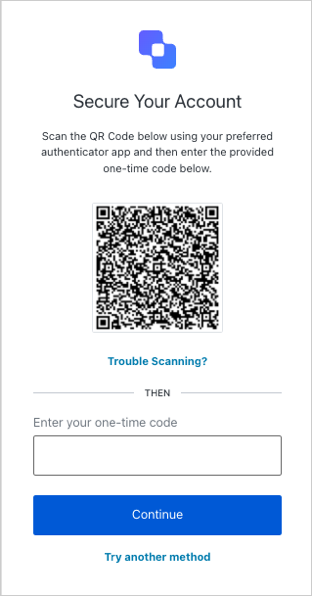
When a user attempts to sign up through a Universal Login prompt, they are prompted to scan a QR code to enroll in OTPs.
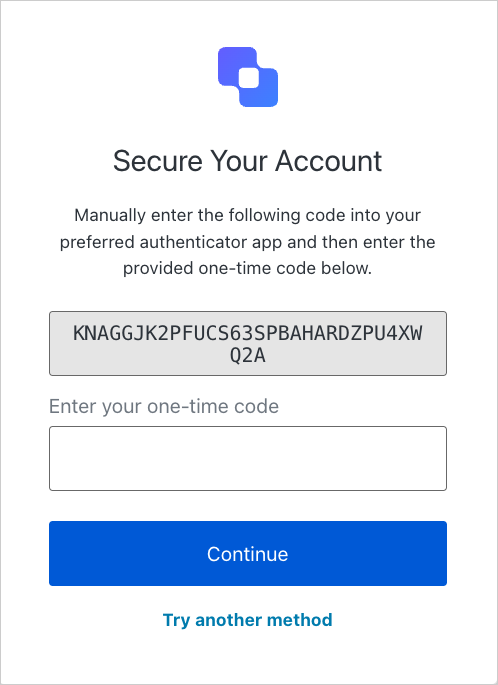
 If the user's device is detected as a mobile device, Universal Login skips the QR code screen and instead displays an enrollment code directly in the prompt.
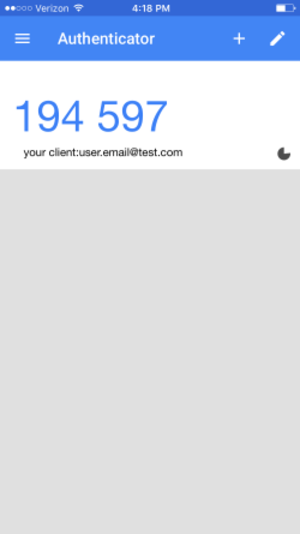
 After a user has enrolled in OTPs, they can use OTPs to log in to your application. To do so, they first retrieve a one-time code from their preferred authenticator app.
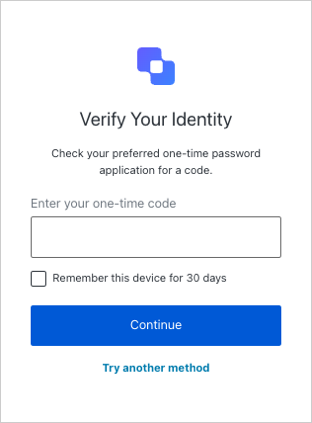
 Then, they enter the one-time code in the login prompt.
 ## Learn more
* [Enroll and Challenge OTP Authenticators](/docs/secure/multi-factor-authentication/authenticate-using-ropg-flow-with-mfa/enroll-and-challenge-otp-authenticators)
## Learn more
* [Enroll and Challenge OTP Authenticators](/docs/secure/multi-factor-authentication/authenticate-using-ropg-flow-with-mfa/enroll-and-challenge-otp-authenticators)