

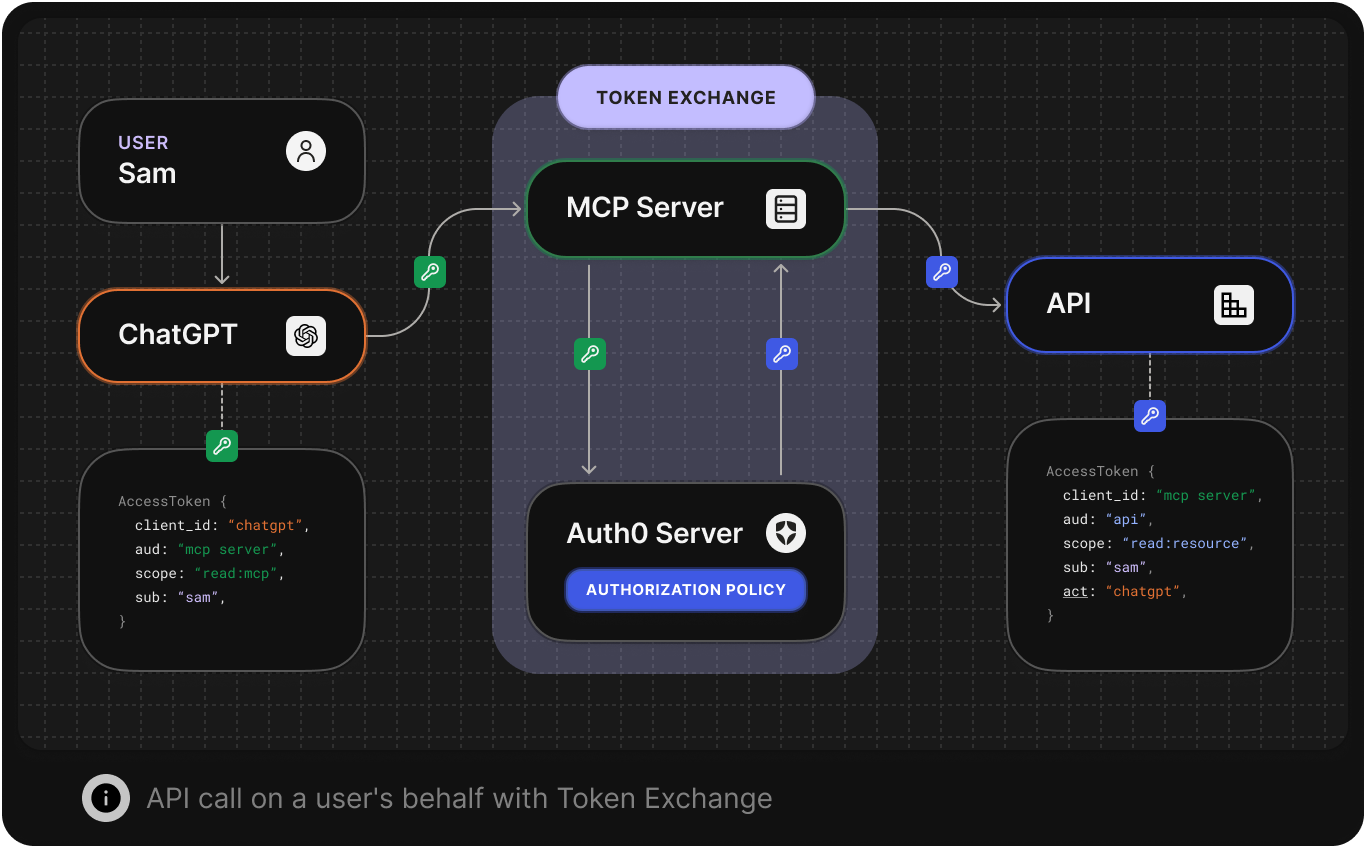
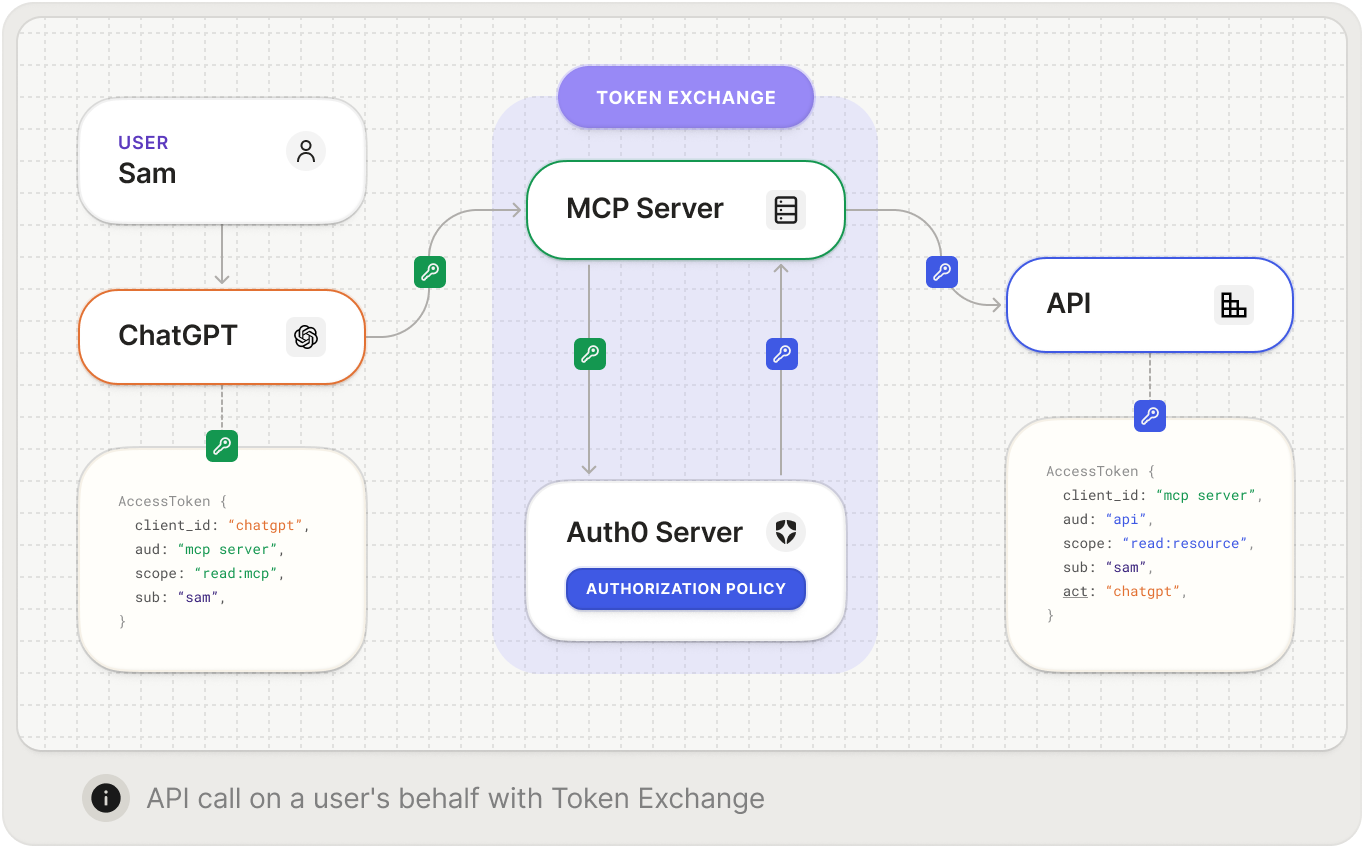
- OBO token exchangeを使用し、認証済みユーザーに代わって保護されたAPIを呼び出すMCPサーバー
@auth0/auth0-api-jsライブラリ (JavaScript) またはauth0-api-pythonライブラリ (Python) によるトークンの検証と交換- クライアントからMCPサーバー、そしてダウンストリームAPIに至るまで、エンドツーエンドのOBO token exchangeフローを実際に確認できる動作例
Prerequisites
1. Create or log in to your Auth0 account
1. Create or log in to your Auth0 account
To continue with this quickstart, you need to have an Auth0 account.
3. Install the Auth0 CLI
3. Install the Auth0 CLI
This guide uses Auth0 CLI to configure an Auth0 tenant for secure MCP tool access.Confirm you are in the correct tenant by double-checking the tenant domain in the terminal, or run the command below:If more than one tenant is configured, the default tenant will be indicated by an arrow.
- Follow the Auth0 CLI installation instructions.
- Log in to your account with the Auth0 CLI:
4. Install jq
4. Install jq
To simplify the process of interacting with the Auth0 CLI, we recommend installing jq. This will allow you to easily parse JSON responses from the CLI.
- macOS
- Linux
- Windows
テナント設定を構成する
1. Promote the connection to a domain-level connection
1. Promote the connection to a domain-level connection
To allow third-party clients like MCP Inspector to use a connection such as a username-and-password database or a social connection, you need to promote the connection to a domain-level connection. Learn more about configuring third-party applications.
1
List Your Connection
List your connections to get their IDs
2
Choose Your Connections
From the list, identify which connections you want to use for the MCP server and copy the ID.
- For the username-and-password database, look for the connection with the strategy
auth0. - For the Google social connection, look for the connection with the strategy
google-oauth2.
3
Upgrade the Connection to Domain-Level
For each of those specific connection IDs, run the following command to mark it as a domain-level connection. Replace
YOUR_CONNECTION_ID with the actual ID (e.g., con_XXXXXXXXXXXXXXXX).2. Create roles
2. Create roles
The sample application in this quickstart is prepared to show different tools depending on the role of a given user. For example, a Tool Administrator will have access to different tools than a Tool User.Let’s create roles that allow you to control which users can access which tools.For each role you need (e.g., “Tool Administrator”, “Tool User”), run the create command as below.Save the IDs from the output (they start with
rol_), as you’ll need them in a later step to assign permissions and users to these roles.3. Assign roles to users
3. Assign roles to users
Find users and assign them to the roles. You can search by their email address:Copy the user ID (
USERID) from the last command’s output, then assign the role to the user:Auth0アプリケーションとAPIをセットアップする
MCPサーバーは2つの役割を担うため、Auth0で2つの設定が必要です。- リソースサーバーとして:MCPクライアントから呼び出されるAPI
- クライアントとして:トークンを交換してダウンストリームAPIを呼び出すアプリケーション
MCPサーバーを表すAPIを作成する
An MCP server is treated just like any other API in your Auth0 tenant, which means you can use the same access control, scoping, and authorization features. The API (also known as a Resource Server) represents your protected MCP Server. Run the following command to create an API in Auth0:rfc9068_profile_authz is used as the token dialect to include the permissions claim in the access token, which can be useful for the API to check user permissions without making additional calls.
For more details on protecting APIs with Auth0, check our quickstarts.
Assign permissions to roles
Assign permissions to roles
After creating the API and roles, assign the API permissions to the roles.Replace
YOUR_ADMIN_ROLE_ID and YOUR_USER_ROLE_ID with the role IDs you saved when creating the roles.MCPサーバー用のアプリケーションを作成する
MCPサーバーがOBO token exchangeのクライアントとして動作できるよう、アプリケーションを作成します。このアプリケーションは、次の要件を満たす必要があります。- MCPサーバーのAPIと同じ識別子 (
resource_server_identifier) を持つこと app_type: resource_serverを使用してMCPサーバーにリンクすることtoken_exchange設定でOBO token exchangeを有効にすること
client_id と client_secret を控えておいてください。MCPサーバーの環境を設定する際に必要になります。
ダウンストリームAPIを作成する
MCPサーバーがユーザーに代わって呼び出す、保護されたAPIを作成します。このAPIは、ビジネスロジックを担うAPI (カレンダーAPIやドキュメントAPIなど) に相当します。 次のコマンドを実行すると、以下の設定でAPIが作成されます。- クライアントグラント:このAPIへのユーザー委任アクセスとクライアントアクセスをMCPサーバーに付与します
- スコープの適用:特定の権限 (
read:private) を必須とします - ファーストパーティ扱い:自社のアプリケーションではユーザーの同意をスキップします
API_AUTH0_AUDIENCE に設定します。
Assign permissions to roles
Assign permissions to roles
After creating the downstream API and roles, assign the Replace
read:private permission to the roles.YOUR_ADMIN_ROLE_ID and YOUR_USER_ROLE_ID with the role IDs you saved when creating the roles.サンプルアプリ
- Javascript
- Python
- サンプルアプリを使用する(推奨)
- GitHubリポジトリをクローンする
まず、このクイックスタート用のサンプルアプリをダウンロードします。サンプルには、Auth0と統合されたFastMCP MCPサーバーと、
Fastifyで構築された保護されたAPIが含まれています。ダウンロードしたらファイルを展開し、お好みのIDEでプロジェクトを開きます。
greetツールを使ってOBOフロー全体を実演します。このツールは次の処理を行います。- MCPクライアントから認証済みのリクエストを受け取る
- トークンを交換して、ダウンストリームAPIへのアクセス権を取得する
- ユーザーに代わって保護されたAPIを呼び出す
- 結果を返す
パッケージをインストールする
npmがインストールされていることを確認してください。次に、fastmcp-mcp-on-behalf-of-tokenexchange-jsディレクトリで必要なパッケージをインストールします。環境ファイルを作成する
From the root of your sample app directory, run the following command to create a new.env file populated with all the required environment variables:MCPサーバーとAPIを実行する
Run this command to start your server:アクセストークンを交換する
To call your APIs on a user’s behalf, the MCP server uses the OBO token exchange to exchange the Auth0 access token it received from the MCP client (with the audience set to the MCP server itself) for a new Auth0 access token with the audience set to your API.Token exchange implementation
The MCP server exchanges tokens in two steps:1. Wrapper function: bearerForUpstream()
This function safely handles the token exchange process and error handling:bearerForUpstream() calls exchangeTokenOnBehalfOf() and, upon a successful exchange, returns the new accessToken and its associated scope. If the exchange fails, it logs the error and re-throws it to be handled upstream.2. Exchange function: exchangeTokenOnBehalfOf()
This function, located in src/auth0.ts, calls Auth0’s OBO token exchange endpoint using the SDK.First, initialize the ApiClient with the credentials of the MCP server application:exchangeTokenOnBehalfOf() function uses the client’s getTokenOnBehalfOf() method to perform the token exchange.getTokenOnBehalfOf() implements the OBO token exchange flow, which allows the MCP server to obtain a new token to call the downstream API while preserving the user’s identity. It takes in the accessToken, audience, and scope parameters.Testing your MCP server
Now that your MCP server is up and running, you can test it by using tools like MCP Inspector.Learn how to test your Auth0-powered MCP server
次のステップ
- MCPサーバーの認可をセットアップするには、クイックスタート「Authorization for Your MCP Server」を実施してください。