Prerequisites
Before creating a third-party application, make sure you have:- An Auth0 tenant with at least one API (resource server) configured
- At least one connection promoted to the domain level (for user-facing flows)
Create a third-party application
Create a third-party application using the Auth0 Dashboard or Management API.- Auth0 Dashboard
- Management API
- Navigate to Applications > Applications.
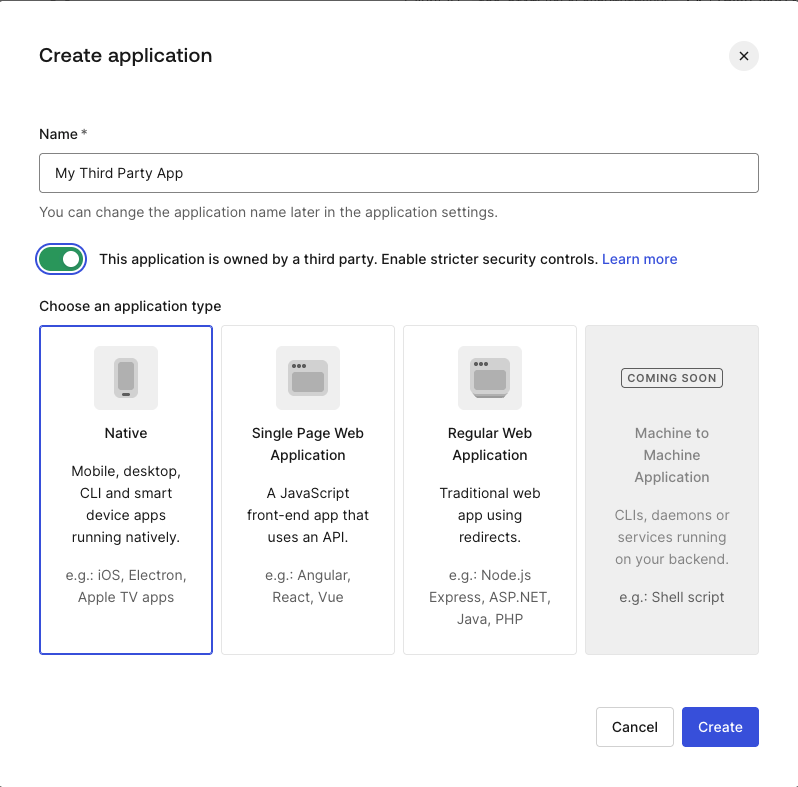
- Select Create Application.
- Enter a name for the application and select the application type:
- Regular Web App for server-side confidential clients
- Single Page App for browser-based public clients
- Native for mobile or desktop public clients
- Check the This application is owned by a third party toggle.
- Select Create.
The
third_party_security_mode property is set at creation and cannot be changed. To use a different security mode, create a new application.Configure API access policies
Third-party applications require explicit client grants to access APIs. You can configure API access policies in the following ways:- Per-application permissions: Apply granular permissions to each application in your tenant.
- Default permissions for all third-party applications: Apply default permissions to all third-party applications in your tenant.
Per-application permissions
To grant a specific third-party application broader or narrower access than the defaults, create a client grant for that application’sclient_id:
- Auth0 Dashboard
- Management API
- Navigate to Applications > APIs and select the API.
- Go to the Settings tab.
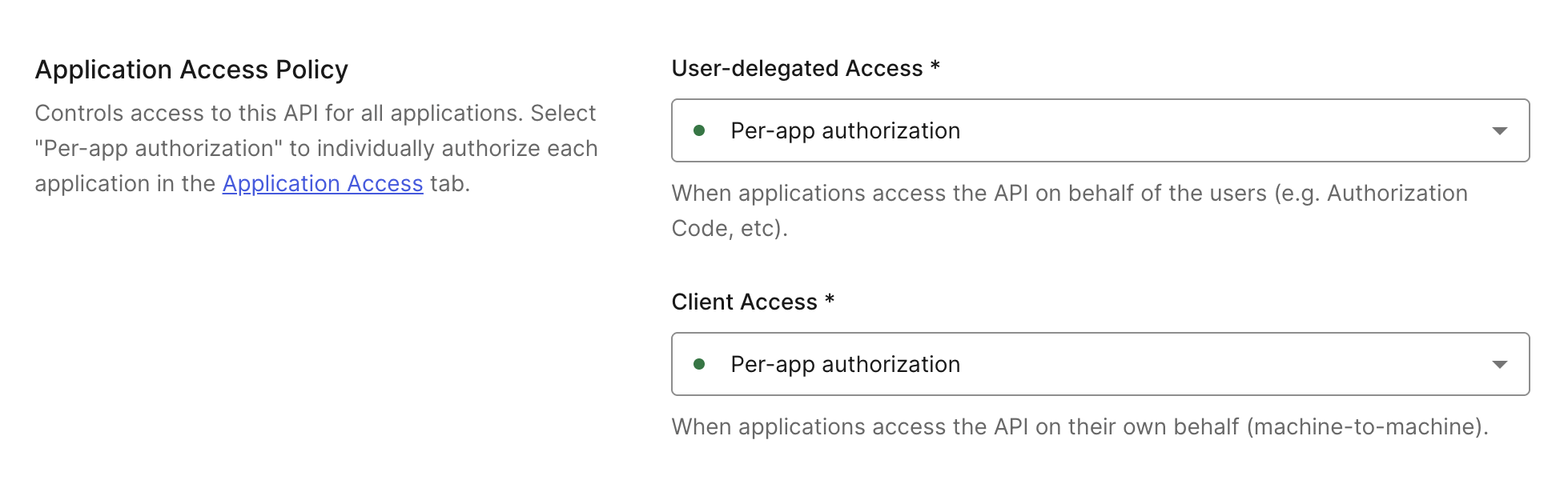
- Scroll to Application Access Policy and set User-Delegated Access and Client Access to Per-app authorization.
- Select Save.
- Navigate to Applications > APIs and select the API.
- Go to the Application Access tab.
- Scroll to the application, select Edit, and then Grant Access for User-Delegated Access and/or Client Access. Then, select your desired permissions.
- Select Save.

Default permissions for all third-party applications
Default permissions define a baseline set of APIs and scopes available to all third-party applications. This is required for Dynamic Client Registration, where you cannot configure access for each application individually.- Auth0 Dashboard
- Management API
- Navigate to Applications > APIs and select the API.
- Go to the Settings tab.
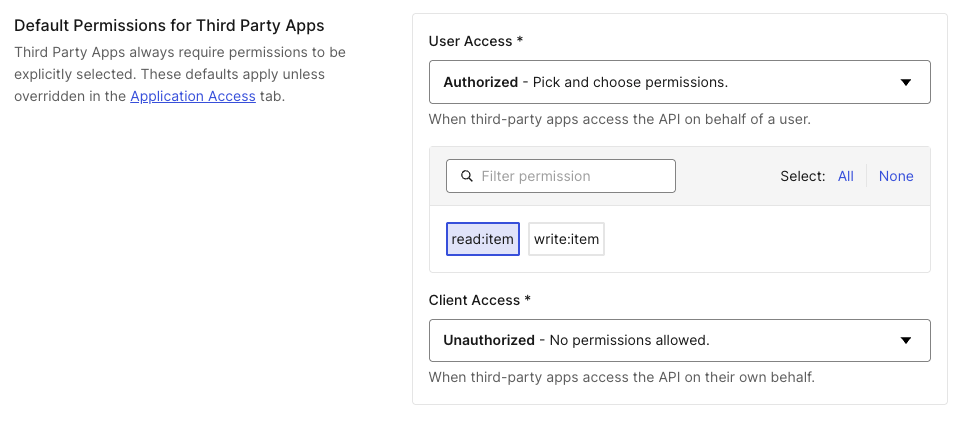
- Scroll to Default Permissions for Third Party Apps.
- Select Authorized for User-Delegated Access or Client Access.
- Select the scopes to grant, then select Save.
Configure connections
Third-party applications can only authenticate users through domain-level connections. Once a connection is promoted to the domain level, it becomes available to all third-party applications in the tenant. To promote a connection:- Navigate to Auth0 Dashboard > Authentication and select the connection type (Database, Social, Enterprise).
- Select the connection you want to use with third-party applications.
- Enable the Promote Connection to Domain Level toggle.
Third-party applications can access a connection that isn’t promoted to the domain level through Cross App Access (XAA), as long as access is authorized in the enterprise IdP. Only promote a connection to the domain level if you want any third-party application to access it through both standard login flows (
/authorize endpoint) and XAA. If you want XAA to be the only way third-party applications can get tokens through this connection, do not promote it to the domain level.Configure Organizations access
For users to authenticate through a third-party application in an Organization context, two conditions must both be met:- The connection must be promoted to the domain level, as described in the section above.
- The Organization must have
third_party_client_accessset toallow.
invalid_request. To enable third-party application access on an Organization, read Enable Third-Party Application Access for an Organization.
Organization Admins can also self-service configure third-party application access for their Organization by setting the third_party_client_access attribute through the My Organization API. To learn more, read Configure client application attributes.
Since third-party applications are controlled by external developers, you cannot guarantee they pass the
organization parameter in authorization requests. Configure Prompt for Credentials or Prompt for Organization on your application to ensure users are routed to the correct Organization context.organization_client_grant per Organization. allow_any_organization is not available. To learn more, read Organizations for M2M Applications.
User consent is scoped to the Organization context. A user who consents in one Organization must consent again if they access the same application through a different Organization. To learn more, read Consent with Organizations.
Behavior summary
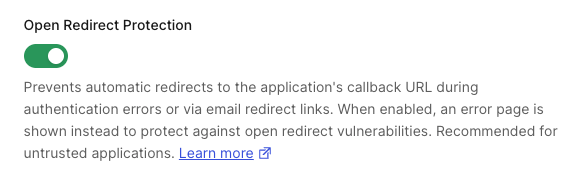
Configure open redirect protection
Third-party applications with enhanced security controls have Open Redirect Protection enabled by default. When enabled, Auth0 does not:- Redirect to the application’s callback URL on authentication errors
- Expose
application.callback_domainin email templates
- Auth0 Dashboard
- Management API
- Navigate to Applications > Applications and select the third-party application.
- Go to the Settings tab and scroll to Open Redirect Protection.
- Toggle the setting on or off.
- Select Save.