Build your first Auth0 Action Module in the Auth0 Dashboard by creating the module, adding secrets and NPM dependencies, publishing a version, and using it to send logs to an external service.
Auth0 returns the new Action Module, including its id, which you use to reference the module in later steps.
Actions Modules are not natively exposed by the auth0-cli command set, so use auth0 api to call the Management API directly. Some calls require additional scopes — run auth0 login --scopes create:actions,read:actions,update:actions first if needed.
Each Action Module can contain secret key/values pairs. Use these to hold sensitive information, such as API Keys, certificates, and values that may change across environments.
Dashboard
Management API
Auth0 CLI
Terraform
Auth0 Deploy CLI
Next, store the external service URL as a Secret.
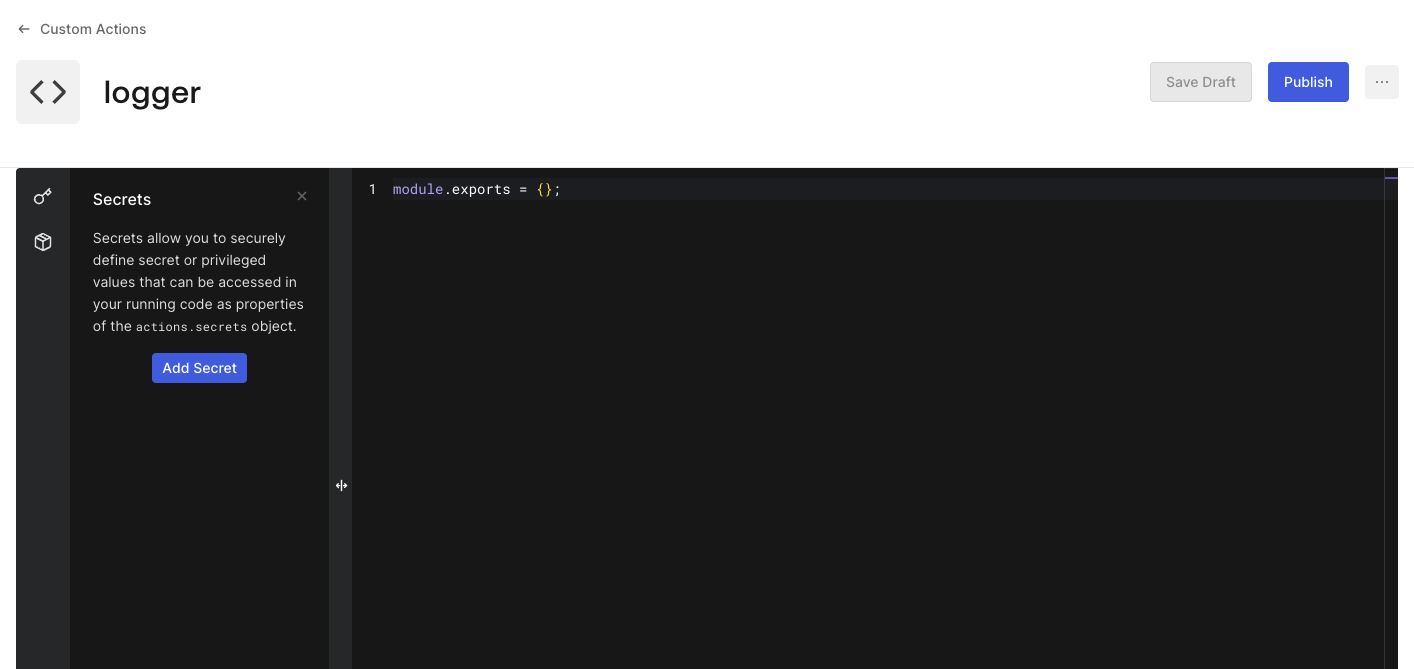
Select the icon from the code editor’s left sidebar.
Select Add Secret.
Enter the Name as SERVICE_URL.
Enter the external service URL at the Value field.
Select Create.
Auth0 adds the Secret to the Action Module Secret list.
Next, store the external service URL as a Secret. Call Update an Actions Module with the update:actions scope:
There is no separate “save” call. Every Update an Actions Module request in the previous steps already persisted your changes to the module’s draft. You can confirm this with Get an Actions Module:
The response’s all_changes_published field is false, confirming the draft has unpublished changes.
There is no separate “save” call. Every auth0 api patch actions/modules/{moduleId} request in the previous steps already persisted your changes to the module’s draft. You can confirm this with Get an Actions Module:
auth0 api get actions/modules/{moduleId}
The response’s all_changes_published field is false, confirming the draft has unpublished changes.
There is no separate “save” step. The terraform apply you ran in the previous steps already updated the module’s draft. The draft has no effect on Actions already using a published version of the module.
Set all_changes_published to false on the module’s entry.
curl -L -X POST 'https://{yourDomain}/api/v2/actions/modules/{moduleId}/versions' \
  -H 'Authorization: Bearer {yourMgmtApiAccessToken}'
Auth0 returns the new Action Module Version, including its id and version_number. You’ll reference this id as the module_version_id when adding the module to an Action.
auth0 api post actions/modules/{moduleId}/versions
Auth0 returns the new Action Module Version, including its id and version_number. You’ll reference this id as the module_version_id when adding the module to an Action.
Set publish to true on the resource, then run terraform apply:
action-modules/logger.tf
resource "auth0_action_module" "logger" { name = "logger" code = file("${path.module}/action-modules/logger/code.js") publish = true secrets { name = "SERVICE_URL" value = "https://example.com/logs" }}
Publishing creates a new Action Module Version from the current draft. Terraform exposes the published version’s ID as the version_id computed attribute, which you reference from auth0_action resources as module_version_id.
Set all_changes_published to true on the module’s entry.
auth0 actions update has no flag for Action Modules, so call Update an Action directly with auth0 api, using the module’s module_id and module_version_id from the previous step:
Add a modules block to the auth0_action resource, referencing the module and its published version. Keep the code attribute pointing at the Action’s own code file:
actions/my-action.tf
resource "auth0_action" "my_action" { name = "my-action" code = file("${path.module}/actions/my-action/code.js") modules { module_id = auth0_action_module.logger.id module_version_id = auth0_action_module.logger.version_id } supported_triggers { id = "post-login" version = "v3" }}
Add a modules array to the Action’s configuration, referencing the module by name and version number.
YAML
Directory (JSON)
Add the modules array to the Action’s entry in tenant.yaml:
{ "code": "const logger = require('actions:logger');\n\nexports.onExecutePostLogin = async (event, api) => {\n await logger.sendLog('logger_success', 'Your Action was able to use the Logger Action Module');\n};"}
curl -L -X POST 'https://{yourDomain}/api/v2/actions/actions/{actionId}/deploy' \
  -H 'Authorization: Bearer {yourMgmtApiAccessToken}'
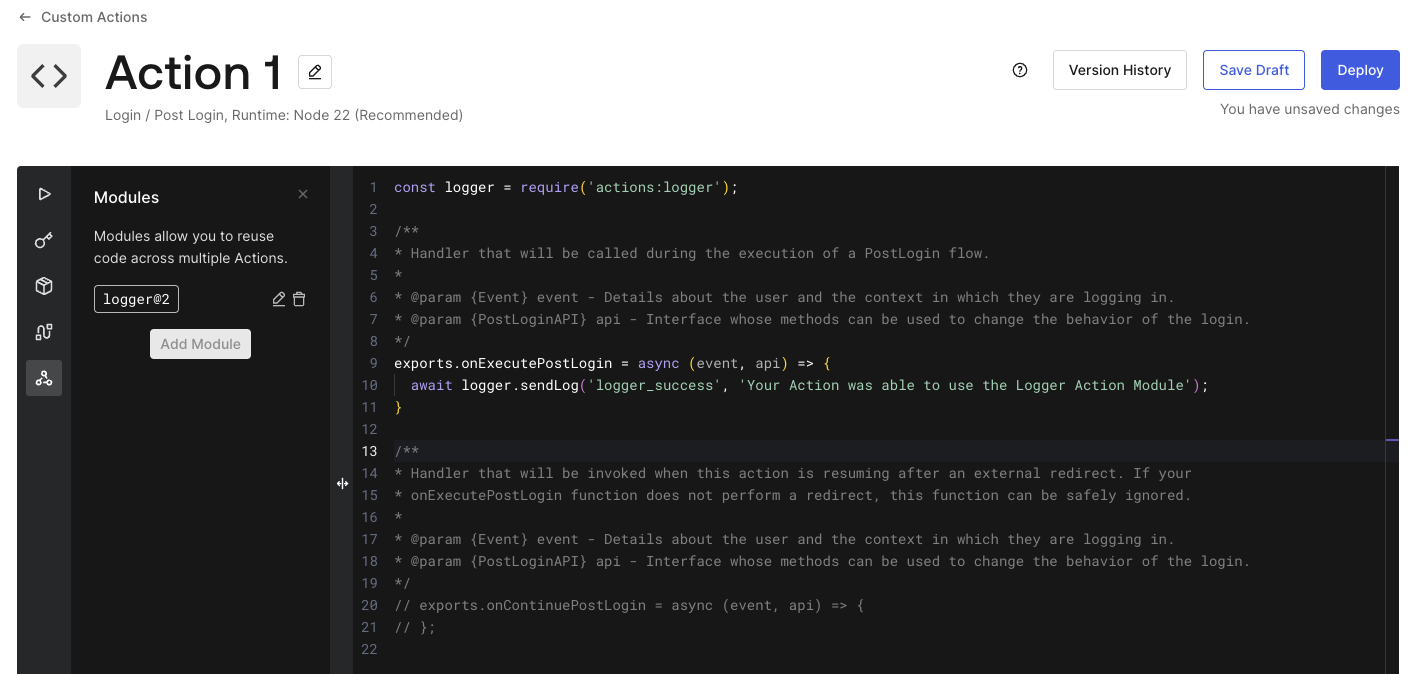
Update the Action’s code file at actions/my-action/code.js with the require statement and the call to logger.sendLog:
actions/my-action/code.js
const logger = require('actions:logger');exports.onExecutePostLogin = async (event, api) => { await logger.sendLog('logger_success', 'Your Action was able to use the Logger Action Module');};
Update the Action’s code file at actions/my-action/code.js with the require statement and the call to logger.sendLog:
actions/my-action/code.js
const logger = require('actions:logger');exports.onExecutePostLogin = async (event, api) => { await logger.sendLog('logger_success', 'Your Action was able to use the Logger Action Module');};
Set deploy to true on the auth0_action resource, then run terraform apply:
Setting deploy = true immediately creates a new, deployed version of the Action.
Add the require statement and the call to logger.sendLog to actions/my-action/code.js:
actions/my-action/code.js
const logger = require('actions:logger');exports.onExecutePostLogin = async (event, api) => { await logger.sendLog('logger_success', 'Your Action was able to use the Logger Action Module');};
Use the listed Dependencies at the Action Module by requiring them through require('[package-name]').
When you save this Action, Auth0 resolves the latest version of your dependency and replaces it with a specific version number to keep future updates to the package from breaking your Action.You can provide a specific version instead of latest.
Assistant
Responses are generated using AI and may contain mistakes.


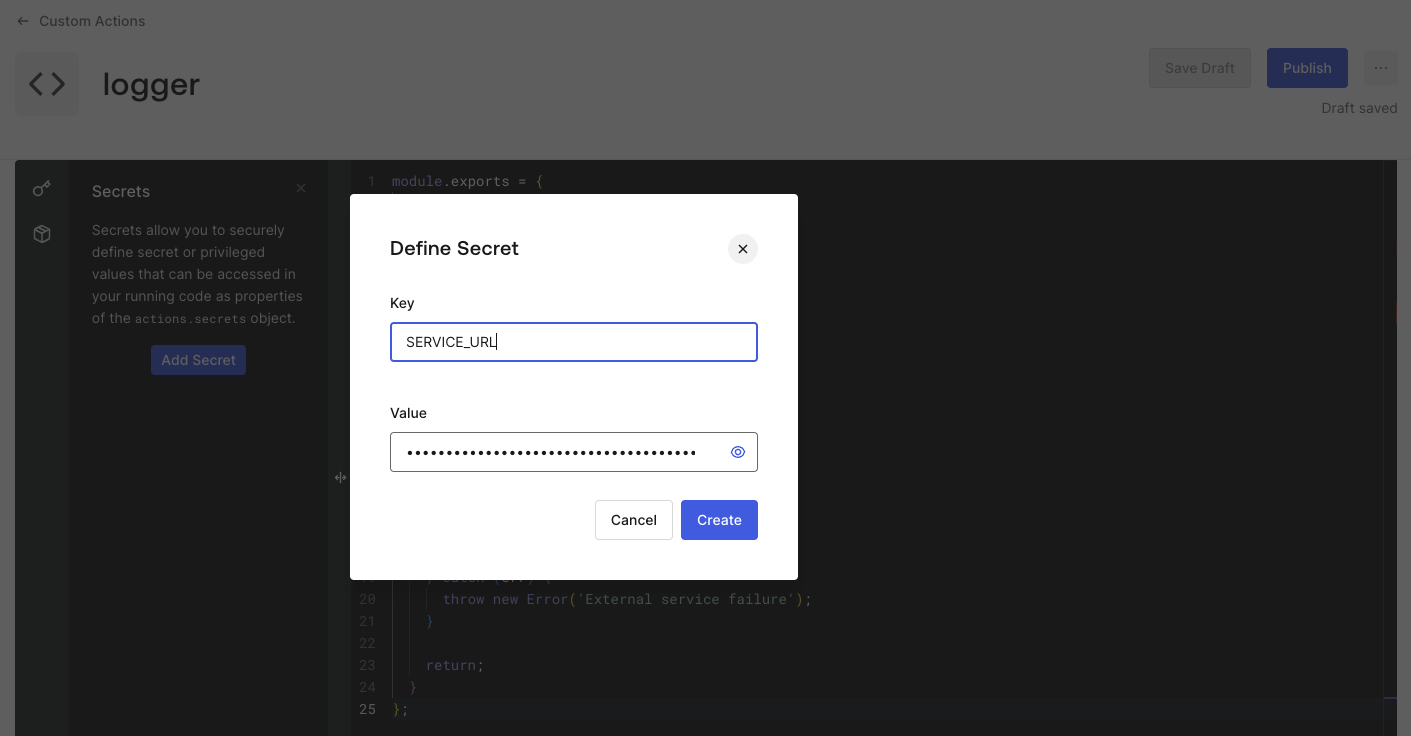 Auth0 adds the Secret to the Action Module Secret list.
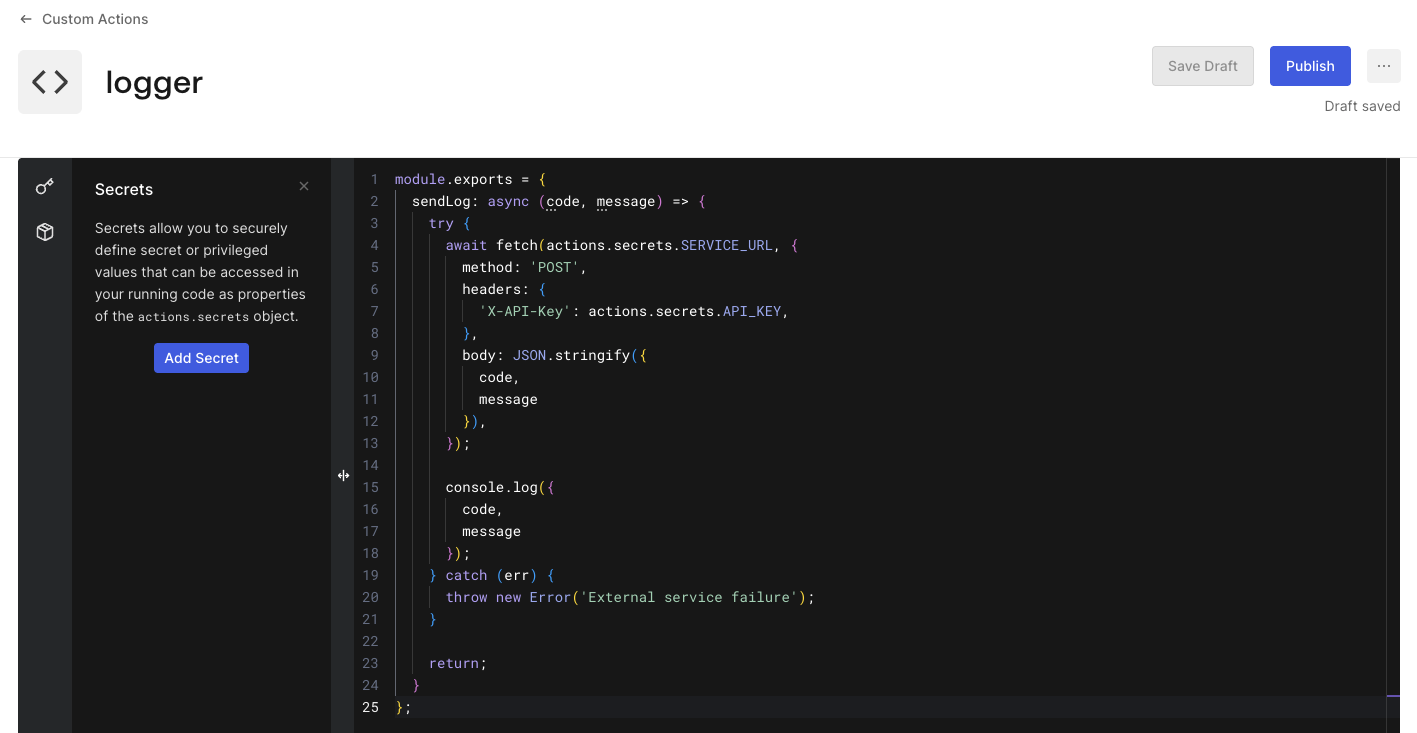 This saves your Action Module without publishing a new version, so it does not affect Actions using it.
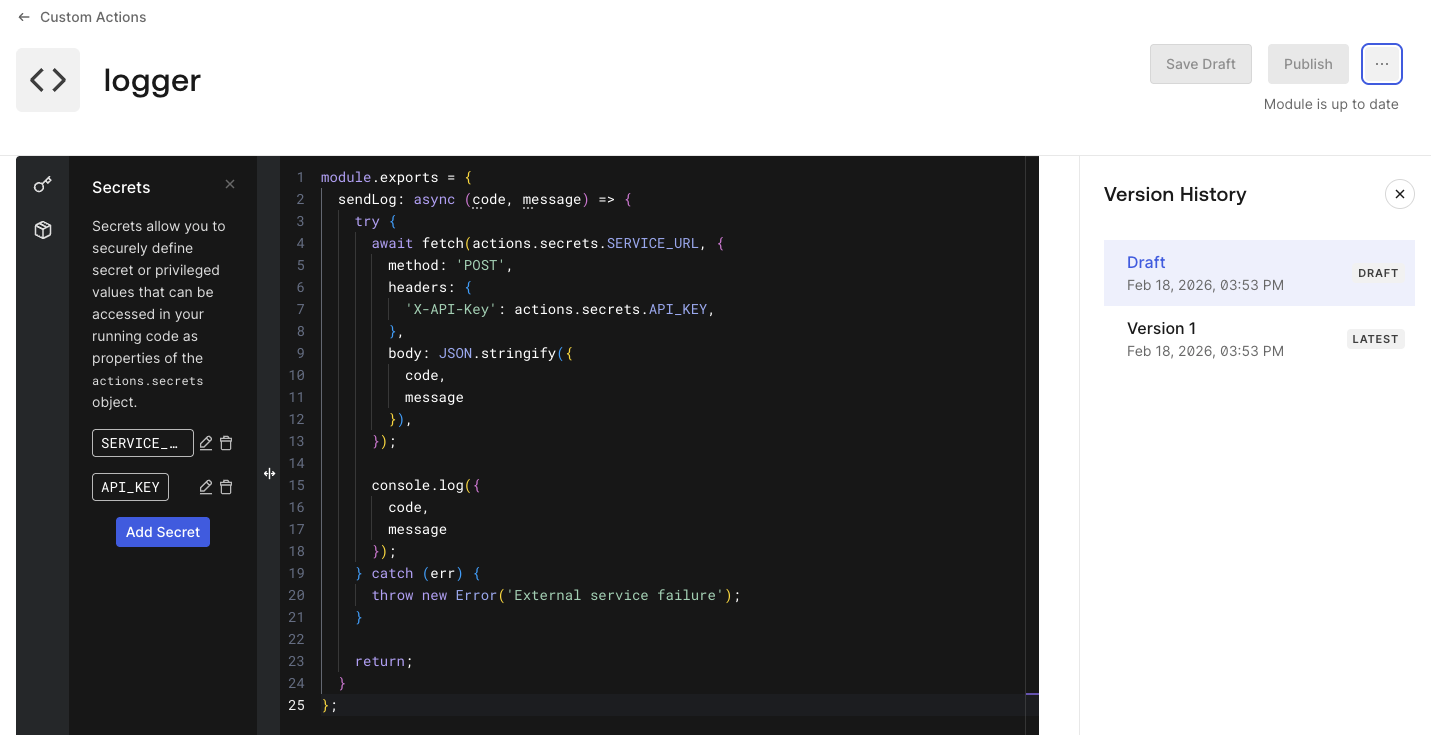 Auth0 displays the list of Action Module Versions including the draft.You are now able to start using the Action Module in an Action.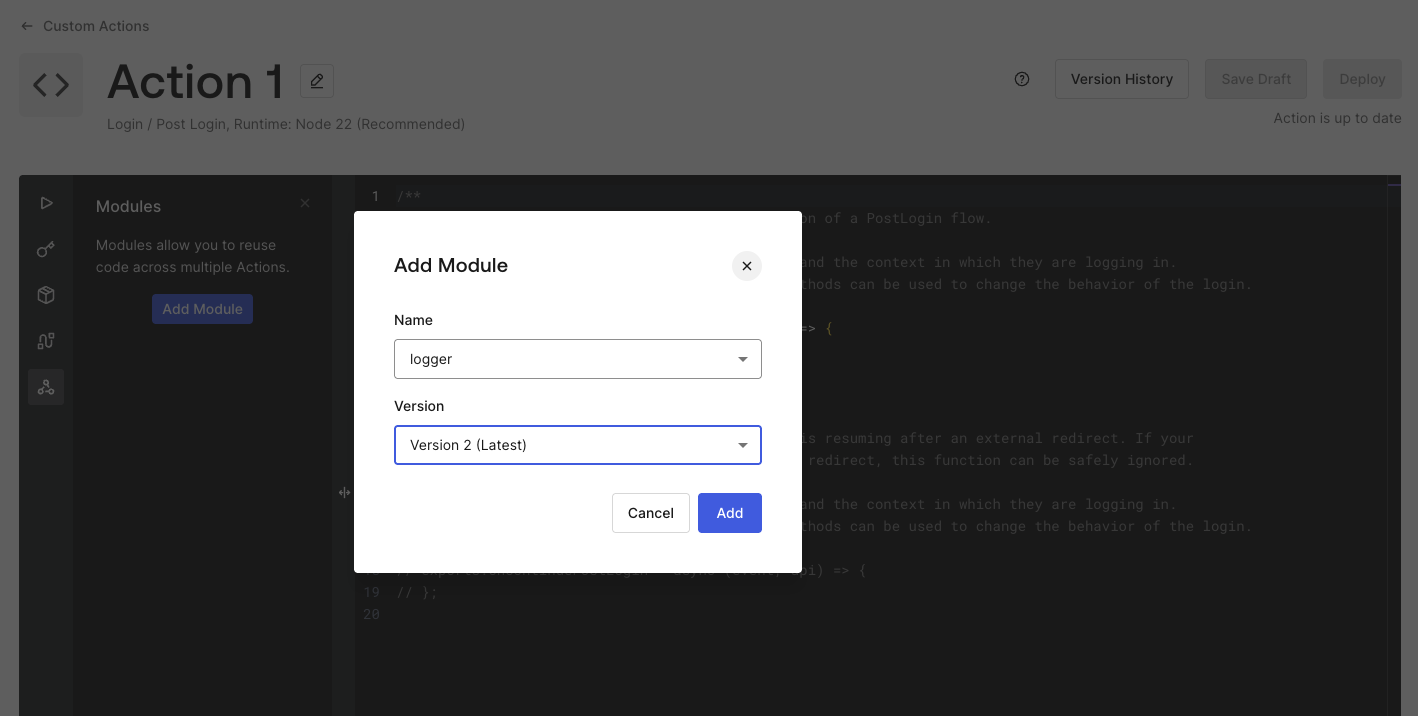
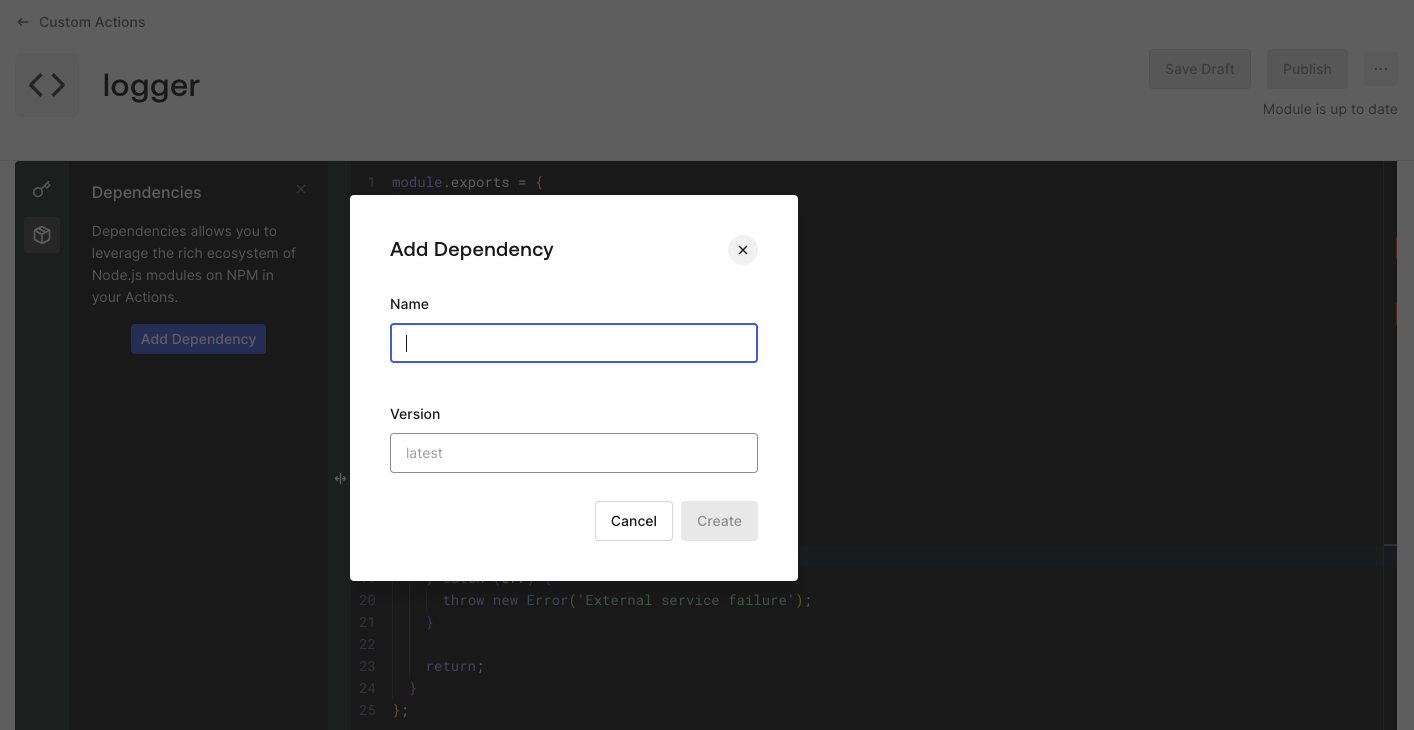 Auth0 adds the Dependency to the Action Module Dependency list.