

Prerequisites
- You must have a Resend account.
- You must verify at least one domain with Resend before you can send emails. To learn more, read Resend’s domain verification documentation.
- You must configure your provider to allow inbound connections from specific Auth0 IP addresses.
Configure Resend
- Log in to your Resend account.
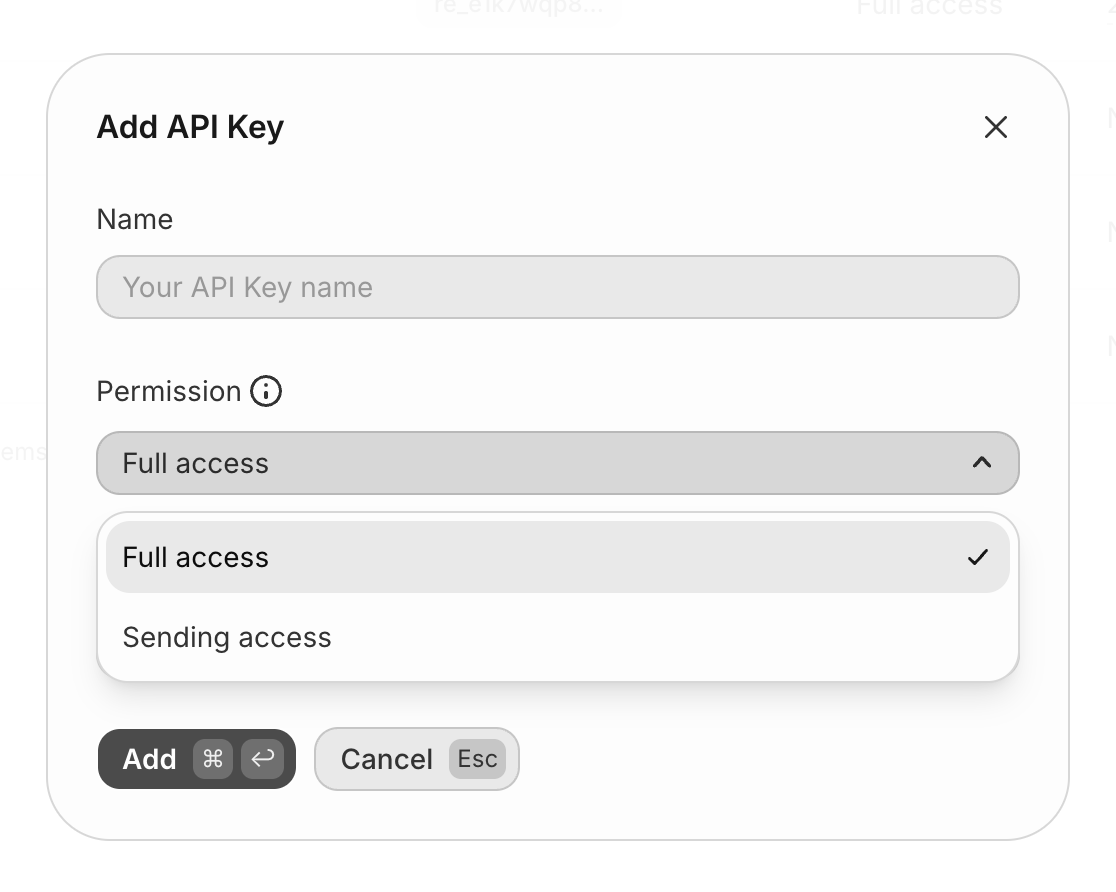
- Navigate to API Keys and click Create API Key.
- Type a name for your key, select the appropriate permission level and domain, and click Add.
- Copy the API key value. You will not be able to see it again.
- Navigate to Auth0 Dashboard > Branding > Email Provider.
- Activate the Use my own email provider toggle.
- Select the Resend logo.
- Type a From email address, paste the Resend API Key you copied, and click Save.