

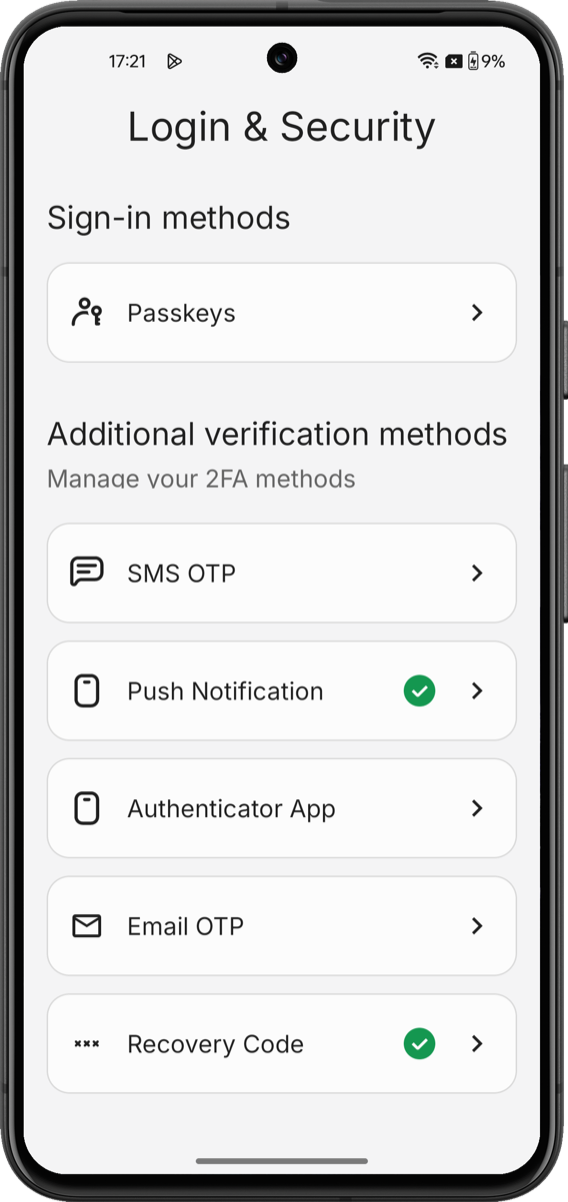
AuthenticatorSettingsComponent, a Jetpack Compose composable that handles every enrollment, verification, listing, and removal flow using the My Account API.
It uses the My Account API’s authentication methods management capabilities to render a complete UI for managing a user’s authentication methods.
With the AuthenticatorSettingsComponent, you do not need to orchestrate navigation, call endpoints, or manage state.
Setup requirements
Before renderingAuthenticatorSettingsComponent component, follow Build a Self-Service Account Security Interface to install the SDK, configure your Auth0 tenant, and initialize the SDK with a token provider.
The
AuthenticatorSettingsComponent component reads its configuration, token provider, and passkey settings from the initialized SDK singleton.Supported factors
The component handles every factor Auth0 supports with the My Account API. Each factor’s screens inherit the component’s active theme. To learn more, read Customize Style and Themes.Get started
Add theAuthenticatorSettingsComponent() from any composable. The SDK handles all internal navigation between enrollment, verification, and management screens.
LoginSecurityScreen.kt
Parameters
TheAuthenticatorSettingsComponent() component accepts the following modifier:
Customize
Theming is applied to the component as a whole; individual factor screens inherit the active theme. To learn more about the full token catalog and dark-mode patterns, read Customize Style and Themes.Advanced Compose NavHost integration
TheAuthenticatorSettingsComponent participates in Compose’s NavHost when present and does not need special wiring. Use it like any other composable. When it is a destination in your NavHost, back-navigation defers to the host’s NavController.
NavController, so it does not collide with your application’s routes.
Localization
All user-facing strings live in the SDK’svalues/strings.xml file. You can override any string in your application by redefining the same key in your own values/strings.xml file:
values-<locale>/strings.xml files that use the same keys.
Limitations
- No standalone factor components on Android. Every factor renders inside the Authentication Methods Management component. There is no public API to enroll, verify, or remove a single factor from a different part of your application.
- No standalone list/remove components. The SDK does not ship public components for listing enrolled factors or removing them outside the component. Use the Authentication Methods Management component for the full management experience.
- Post-login passkey prompts are not supported. Prompting a user to save a passkey immediately after sign-in (separate from the settings screen) is not covered by this SDK. You can track universal-components-android for updates.
Learn more
Build a Self-Service Account Security Interface
Initialize the SDK and wire the token provider to your Auth0 tenant.
Customize style and themes
Override colors, typography, spacing, radius, and size tokens using the Auth0 design-token system.