

Before you start
- Verify your account is on an Auth0 Enterprise plan with the Attack Protection enabled. To learn more, read Manage your Auth0 Subscription Plan.
- Ensure your organization has an active Slack workspace.
- If your organization enforces a Slack application approval policy, coordinate with your Slack administrator before starting. Approval can take several days.
- Create a dedicated Slack channel for security alerts before you begin (for example,
#auth0-security-alerts). Restrict access to this channel to your security team, as alert cards contain tenant-specific data including IP addresses and rate metrics. - Access Auth0 Dashboard > Security > Attack Protection > Security Agent to get the App Manifest you need to configure Slack.
For setup, you need owner or administrator permissions in both Slack and your Auth0 tenant.
Create the Slack application
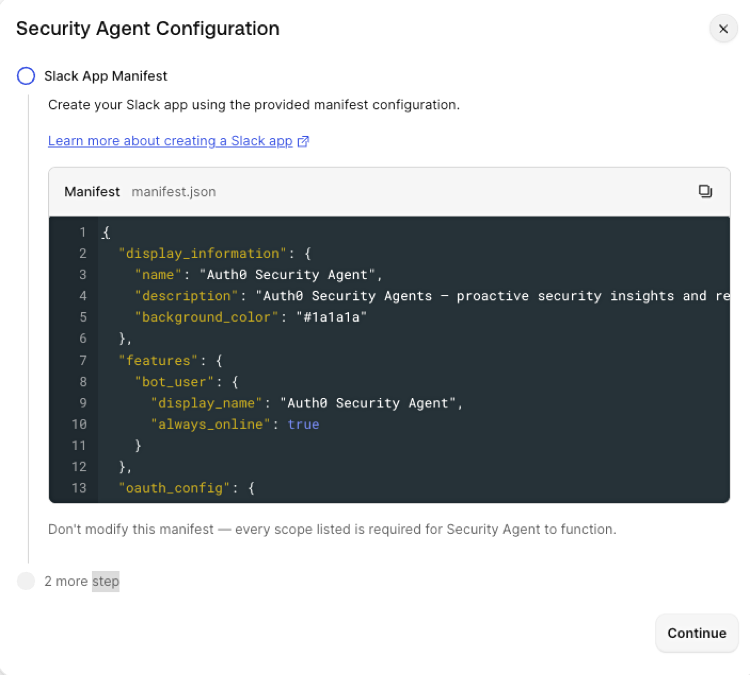
The configuration in Auth0 Dashboard requires fields you generate in Slack. Follow the process to create a new Slack application with an application manifest that preconfigures the application’s name, OAuth scopes, and the webhook endpoint used to communicate with Auth0. For this process, you need to navigate to Auth0 Dashboard > Security > Attack Protection, choose Security Agent and copy the JSON manifest. The manifest creates the Slack app, and defines the app’s name, permissions, and the webhook endpoint to communicate with Auth0.- Log in to api.slack.com/apps.
- Select Create New App.
- Select Paste a manifest.
- Paste the manifest you copied from Auth0 Dashboard, then choose your Slack workspace.
- Select Next.
- Review the configuration and select Create and Install.
- Select Allow to give Auth0 Security Agent access to Slack.
Install the application in your workspace
Before you can collect your Slack application credentials, you need to install the application in your workspace:- In the Slack application settings, navigate to Install App.
- Select Install to Workspace.
- Review the permission scopes and select Allow.
Collect application credentials
After you create the application, you need to collect four values from the Slack application settings page for configuring Security Agent in Auth0 Dashboard.- Navigate to Basic Information and copy the App ID and Signing Secret.
- Navigate to Install App and copy the Bot User OAuth Token.
Configure your Slack channel
- Invite the bot to your dedicated security channel using
/invite @[Security Agent]. - Collect the Channel ID: select the channel name, then select Settings > About, and scroll to the bottom to find the Channel ID (format:
C01234ABCDE). - Provide the Channel ID to your Auth0 administrator along with the credentials from the Collect application credentials step.
Configure Security Agent in the Auth0 Dashboard
The Auth0 administrator completes the remaining steps. This includes generating a machine-to-machine application with permissions Security Agent needs to access your Attack Protection settings, Tenant ACL rules, and the data used to generate recommendations.- Navigate to Auth0 Dashboard > Security > Attack Protection > Security Agent.
- Select Configure Now to start the Security Agent wizard.
-
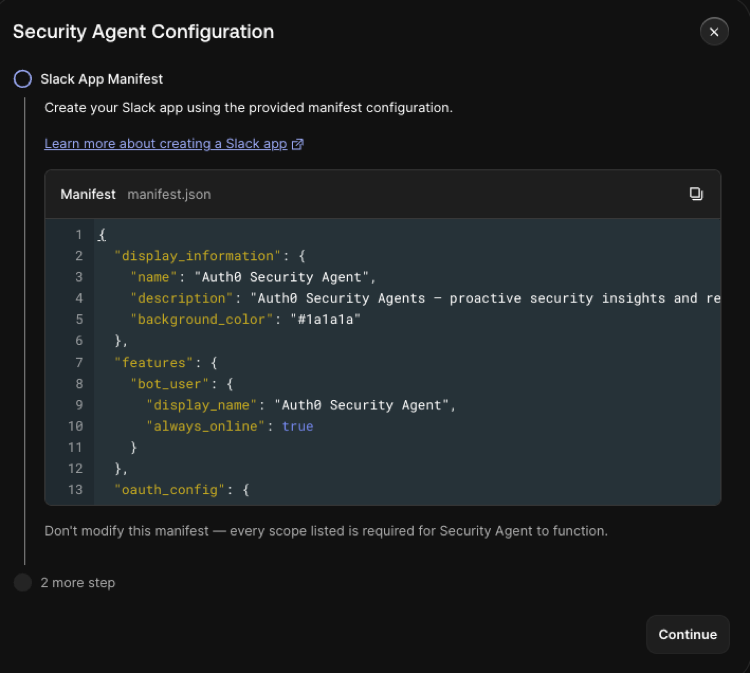
Create your Slack application using the provided Manifest.
-
Enter the four values collected by the Slack administrator:
- Slack App ID
- Slack Signing Secret
- Slack Bot Token
- Channel ID
- Select Continue.
-
Create the machine-to-machine application with the following scopes:
read:attack_protectionread:clientsread:connectionsread:logsread:network_aclsread:security_metricsread:usersupdate:connections
- Select Save And Enable.
If the M2M application is deleted from your tenant after setup, the configuration page shows an error. Return to the configuration page to recreate it.
Verify Auth0 in Slack
When you finish configuring Auth0, you need to trigger URL verification in Slack.- Navigate to api.slack.com/apps and log in to verify the Request URL.
- Select your Auth0 Security Agent Slack application.
- Select Event Subscription.
- Select Retry.
Verify setup
In your designated Slack channel, type@[bot-name] to mention the bot. If the bot responds with a help message, setup is complete.
If the bot does not respond, verify the following in Auth0 Dashboard > Security > Attack Protection > Security Agent:
- The App ID, Signing Secret, Bot User OAuth Token, and Channel ID are entered and saved correctly. A copy-paste error such as a trailing space is the most common cause.
- The Enable Security Agent toggle is on.
- The M2M application is active.
Security Agent anomaly alert
When anomalies are detected, such as a spike in traffic, the Slack channel you created generates a new message to prompt Slack administrators to investigate. Once the Security Agent anomaly alert triggers, the detection and response steps are:- Your team select Investigate with Agent.
- The Security Agent compiles threat intelligence and correlated signals to generate a summary triage report.
- Your team reviews the summary triage and chooses either View Full Triage Report or View Recommendations.
- If your team selects:
- View Full Triage Report: Security Agent generates a complete timeline with details including Agent analysis of the incident. Administrators can then select View Recommendations.
- View Recommendations: Authenticated administrators can take immediate action by reviewing Security Agent’s mitigation strategies.