

Before you start
Before you enable DPoP in Auth0:
- Your upstream identity provider must support DPoP according to specification RFC-9449.
- You must have an existing OIDC or Okta Enterprise connection or be able to create one. To learn how to create an Enterprise connection in Auth0, read Enterprise Connections.
- The connection must not be configured to use Token Vault.
- The connection should use Proof Key for Code Exchange (PKCE) Authorization Code Flow + PKCE, which is enabled upstream if your identity provider supports PKCE.
- The connection must be type
back_channel.
Verify upstream IdP support
Examine your IdP’s OIDC discovery document to determine the DPoP support:dpop_signing_alg_values_supported.
Example
Choose a signing algorithm
Before you configure DPoP, choose a supported signing algorithm from the options:
Choose ES256 unless your identity provider specifically requires a different algorithm.
Enable DPoP
To enable DPoP and choose an algorithm, use the Auth0 Dashboard or Management API.- Auth0 Dashboard
- Management API
In Auth0 Dashboard:
- Navigate to Authentication > Enterprise. Select the connection you want to configure.
- Select the Credentials tab.
- Select the checkbox for Enable Demonstrating Proof of Possession (DPoP).
- Select the menu under Signing Algorithms for DPoP and choose your algorithm.
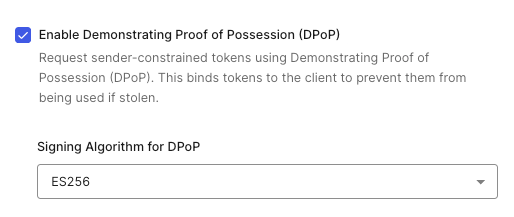
- Select Save.
Test DPoP
After enabling DPoP, test the configuration by initiating a login flow:- Navigate to your application.
- Start the login flow using your configured Enterprise connection.
- Complete login with your upstream identity provider.
- Check Auth0 logs by navigating to Auth0 Dashboard > Monitoring > Logs for confirmation.
dpop_signing_alg and idp_token_type: "dpop" confirm Auth0 sent a DPoP proof using the configured algorithm and your IdP issued DPoP-bound tokens. The upstream_userinfo_fetch object is only present if the User Information endpoint is called. The dpop_bound field is only present if the GET request to the /userinfo endpoint is successfully DPoP-bound.
Disable DPoP
You can disable DPoP using the Auth0 Dashboard or the Management API.- Auth0 Dashboard
- Management API
- Navigate to Authentication > Enterprise. Select the connection you want to configure.
- Select the Credentials tab.
- Clear the Enable Demonstrating Proof of Possession (DPoP) checkbox.
- Select Save.
Troubleshoot
Use the following recommendations to help diagnose and resolve issues with DPoP configuration for OIDC and Okta enterprise connections.Check Auth0 configuration
Before you start to troubleshoot, verify your DPoP configuration in Auth0:- Navigate to Auth0 Dashboard > Authentication > Enterprise.
- Select your Okta or OIDC connection.
- Verify the connection is not configured with Token Vault by navigating to Advanced Settings > Grant Types. Make sure Token Vault is not selected.
- Use Management API’s Update a connection endpoint to check the
dpop_signing_algsetting:
dpop_signing_alg response, check for the following:
- Verify the algorithm is one of the supported values: ES256, ES384, ES512, or Ed25519.
- Verify that the connection uses back-channel token exchange using Authorization Code Flow + PKCE. DPoP is not supported for front-channel communications as in Implicit Flow and is silently disabled when the connection uses the front-channel.
DPoP fields missing in tenant logs
If Auth0 success (s) or failure (f) logs for the enterprise connection do not contain dpop_signing_alg or idp_token_type fields, it could be due to one of the following causes:
- DPoP is not configured. Verify
dpop_signing_algis set in the connectionoptionsobject using the Management API’s Update a connection endpoint as described above. - Unsupported algorithm. Auth0 supports ES256, ES384, ES512, and Ed25519. If
dpop_signing_algis set to an unsupported value (for example, RS256), DPoP is silently disabled. No error is logged. Update the connection to use ES256, ES384, ES512, or Ed25519. - Front-channel connection. DPoP requires a connection type of
back_channeltoken exchange. You may need to update the grant type to a back-channel flow like Authorization Code Flow or Authorization Code Flow + PKCE.
Authentication fails after enabling DPoP
Review the following troubleshooting techniques if your users cannot complete authentication after you have enabled DPoP on your Okta or OIDC enterprise connection. Tenant logs should display a failure (f) event with dpop_signing_alg similar to:
idp_token_type because Auth0 did not receive a token from your IdP.
Identity provider rejects DPoP proof
The IdP may actively reject the DPoP proof Auth0 sends during token exchange. The IdP may return aninvalid_dpop_proof error, causing authentication to fail.
Check the IdP supports DPoP and if the configured algorithm (ES256, ES384, ES512, or Ed25519) is in the supported list. You can find out by accessing the IdP’s OpenID Connect discovery document:
dpop_signing_alg_values_supported. If this field is missing, the IdP may not support DPoP. If the field lists only algorithms that Auth0 does not support (for example, only RS256), DPoP cannot be used with this connection. You should disable DPoP for this connection or contact your IdP to enable support for ES256, ES384, ES512, or Ed25519.
Token exchange fails for a non-DPoP reason
If you find a failure log withdpop_signing_alg present, this does not necessarily mean DPoP caused the failure. Auth0 attaches DPoP metadata to all failure logs when DPoP is configured, even if the root cause is unrelated. For example, authentication could fail due to an expired authorization code or invalid client credentials.
Examine the error description in the failure log to determine the actual cause. Common non-DPoP errors include: invalid_grant, invalid_client, and ID token signature verification failures.
DPoP key generation fails
Auth0 generates an ephemeral key pair for each DPoP proof. If key generation fails, authentication fails before the token request is sent. This is a transient server-side issue. Ask the user to retry authentication.IdP token binding
If user authentication succeeds, but Auth0 tenant logs show"idp_token_type": "bearer", then your IdP might not bind tokens with DPoP even when Auth0 sends DPoP proofs. Per RFC-9449, this is compliant behavior. The IdP has full control over whether to issue DPoP-bound tokens and may not bind tokens because:
- The IdP’s policy does not require DPoP for the requested resource or application.
- The IdP does not support DPoP despite accepting the proof without error.
- The IdP encountered an internal issue processing the DPoP proof.
DPoP nonce handling
Some IdPs require anonce in the DPoP proof per §8. When your IdP returns HTTP 400 with a DPoP-Nonce response header, Auth0 automatically retries the token request with the provided nonce. This is handled transparently and does not appear as a failure in tenant logs.
The use_dpop_nonce error code is an internal protocol signal between Auth0 and the IdP. It does not indicate a problem. You should not see use_dpop_nonce as the reason for a failure log entry. If the retry with the nonce also fails (for example, the identity provider returns invalid_dpop_proof on the second attempt), the ultimate error is what appears in the failure log.
If you observe repeated authentication failures on a connection where the identity provider requires nonces, check network connectivity between Auth0 and the identity provider. Nonce exchange requires two round-trips to the token endpoint, which increases sensitivity to network timeouts.