

 Authenticate
 Manage Users
 Customize
 Platform
To configure ACUL, make sure your custom configuration files and assets are hosted on a public CDN.
Auth0 Dashboard
You can use the Dashboard to customize your screens with ACUL: A. Navigate to Dashboard > Branding > Universal Login- Select Customize authentication screens.
- Select a
screento customize. - From Settings > Rendering mode select Advanced mode.
- (Optional) Select Use custom page template.
- (Optional) Select Advanced mode filters.
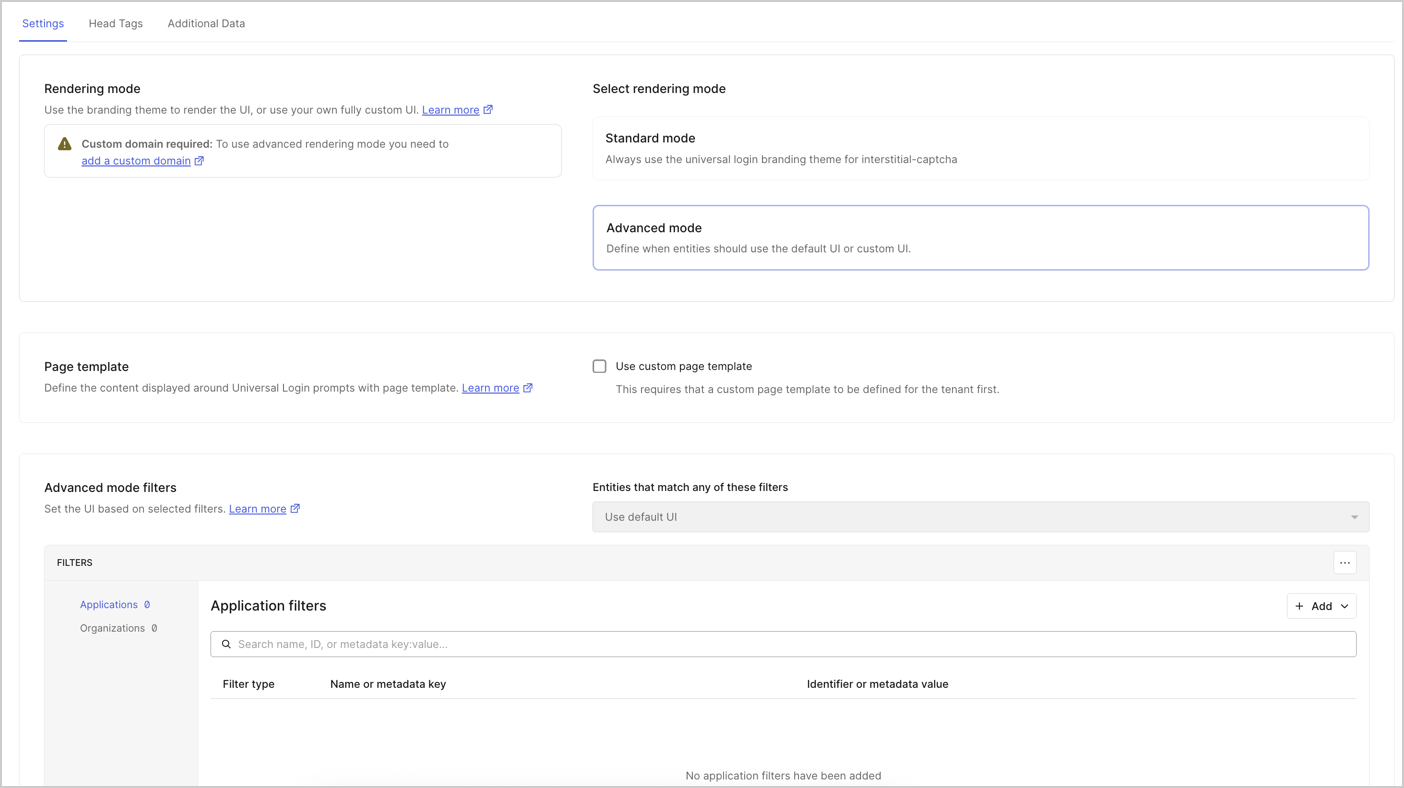
- Select Head Tags to add your own HTML
Head Tags. - (Optional) Select Additional Data to select which additional data to send to the browser.
Additional Data lets you add optional context data properties. For example: the opt-in context data from
user.Infrastructure-as-Code (IaC)
Configure ACUL with IaC tools, including:- The Auth0 CLI’s
auth0 aculcommand. - The Auth0 Terraform Provider’s
auth0_prompt_screen_rendererresource. - The Auth0 Deploy CLI’s
promptsresource.
Auth0 Management API
Use the Auth0 Management API endpoints to configure Universal Login screens individually or to update multiple screens with one API call. You must have Management API access token in the request. Individual screen configuration-
The
GET /v2/prompts/{prompt}/screen/{screen}/renderingendpoint retrieves the configuration for a single screen. -
The
PATCH /v2/prompts/{prompt}/screen/{screen}/renderingendpoint configures ACUL on a single screen.
-
The
GET /v2/prompts/renderingendpoint retrieves configurations for all screens. -
The
PATCH /v2/prompts/renderingendpoint updates screens in bulk.