

This feature is not available on the Free plan.
Supported file formats
We support user data exports in JSON-compatible and CSV formats.- Our JSON-compatible export files are in NDJSON format due to the large size of the export files.
-
In CSV export files, we escape string data types in conformance with OWASP standards for CSV injection mitigation.
- Double-quote characters are prepended with a double-quote character.
- Each string is prepended with a single-quote character.
- Each string is wrapped in double quotes.
Prerequisites
- Auth0 Dashboard
- Management API
- You must have one of the following tenant member roles:
- Admin
- Editor - Users
- Dashboard Viewer - Users
1. Submit export users job
- Auth0 Dashboard
- Management API
To export user data using the Auth0 Dashboard:
- Go to Dashboard > User Management > Users.
- In the top right corner of the page, select Import/Export Users to go to the Import/Export Users page.
-
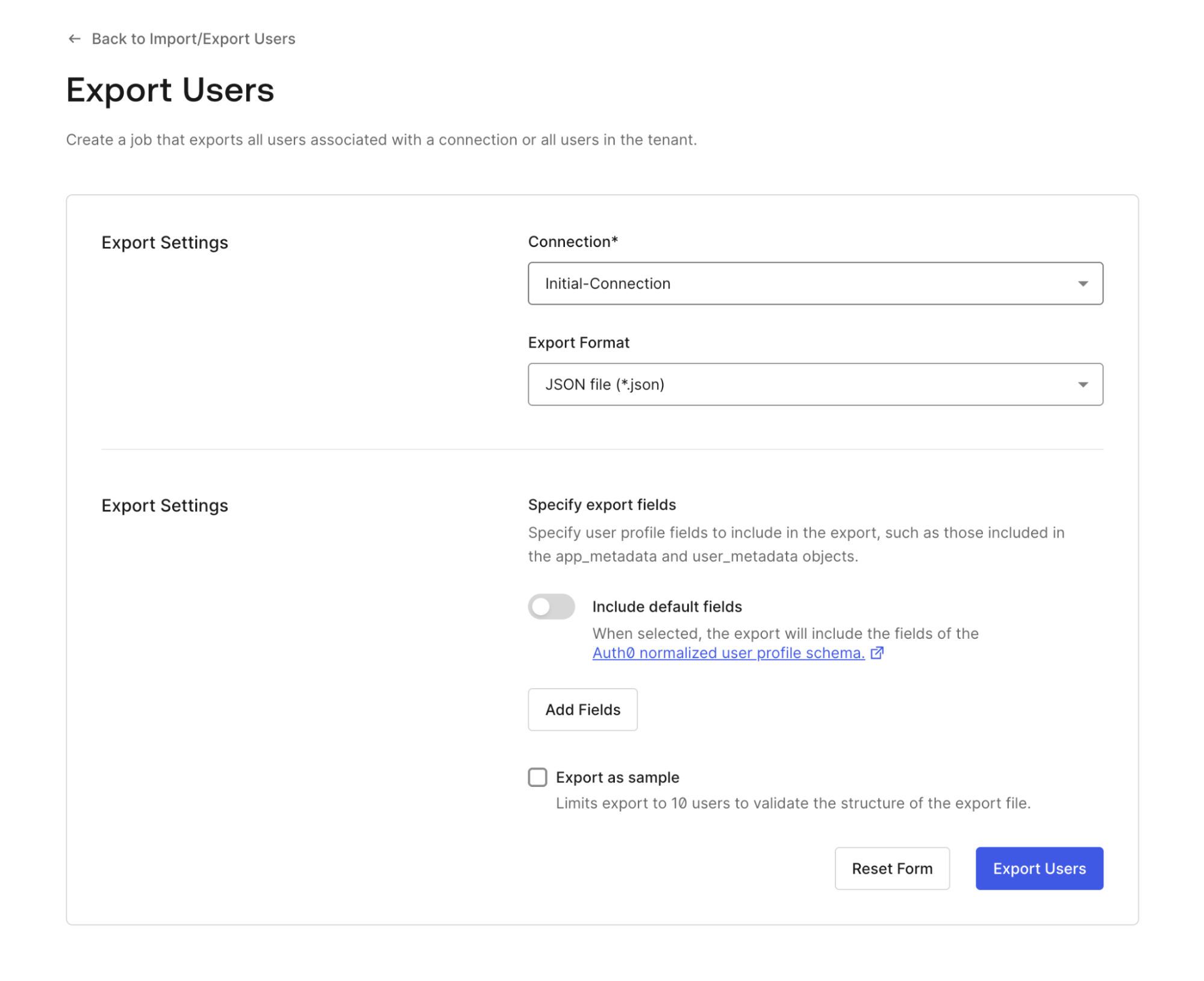
Select Export Users to go to the Export Users page.
-
In the Export Settings section:
- Under Connection, open the drop-down menu and select the database connection where you want to export the user data.
- Under Export Format, open the drop-down menu and select the format you want the data to be in (JSON or CSV).
-
In the Export Fields section, choose the fields you want the export to include:
- Toggle Include default fields to add the fields in the Auth0 normalized user profile schema.
- Select Add Fields and enter a User Attribute and Field Name to add specific fields.
- Optionally, in the Export Fields section, check Export as Sample to limit the export to 10 users. This can be helpful to validate the structure of the export file.
- To submit the job, select Export Users.
2. Check job status and download the export
- Auth0 Dashboard
- Management API
To check the status of a job:
- Go to Dashboard > User Management > Users.
- In the top right corner of the page, select Import/Export Users to go to the Import/Export Users page. Once you start at least one job, this page lists your submitted jobs.
-
Next to each job, you can choose:
- Check Status to monitor job progress.
- Download export to retrieve the result.
- More info to review errors or job metadata.
Limits
- All job-related data is automatically deleted after 24 hours.
- Data exports in CSV format are limited to 30 fields.
-
Data exports in CSV format cannot include
app_metadataoruser_metadataas single objects. Instead, specify fields of metadata objects explicitly or export data in JSON-compatible format (which supports metadata as single objects):JSON-compatible format request bodyCSV format request body