

How are you affected?
This migration affects you in two ways:1. Management API default (the deprecation)
When you create third-party applications viaPOST /api/v2/clients, the default value for third_party_security_mode will change from permissive (existing behavior) to strict (enhanced security controls) on October 23, 2026.
All third-party applications created via the Auth0 Dashboard already use enhanced security controls. This is not configurable via the Auth0 Dashboard.
2. Dynamic Client Registration (independent configuration)
If you use Dynamic Client Registration, DCR clients are controlled by a separatedynamic_client_registration_security_mode tenant setting. This is independent of the deprecation and requires its own configuration decision.
Migration tasks
Review your third-party applications
Before choosing a migration path, review how your third-party applications operate to understand their current requirements. Consider:- What grant types do they use? (authorization code, implicit, client credentials, etc.)
- Do they require OIDC scopes (openid, profile, email) or ID tokens?
- Do they use Classic Login or legacy endpoints?
- How are they created? (manually via Dashboard/API, or dynamically via DCR)
third_party_security_mode property indicating its current security mode (strict or permissive).
Harden existing permissive applications: Consider reviewing the API access policies on your APIs and setting them to Require Client Grant where appropriate. This ensures that permissive third-party applications must have an explicit grant to access those APIs. Note that this policy also applies to first-party applications, so review your existing integrations before changing it.
To understand what enhanced security controls mean for your integrations, review the Feature comparison below and check if your scenario matches any of the Common scenarios. The FAQ section also covers frequently asked questions about the migration.
Step 1: Choose how to create new third-party applications
Decide whether new third-party applications created via the Management API should use enhanced security controls or preserve existing behavior. This choice applies toPOST /api/v2/clients only. Applications created with the Auth0 Dashboard always use enhanced controls.
Option A: Complete the migration (Recommended)
Complete the migration before October 23, 2026 to make enhanced security controls the default. This approach aligns your third-party applications with OAuth 2.1 best practices and prepares them for future capabilities.1. Test enhanced security controls
Create a test third-party application with enhanced security controls to validate compatibility:Using the Auth0 CLI? If you haven’t already, set up and authenticate your CLI session before running this command.
client_id with the tpc_ prefix and third_party_security_mode: "strict".
2. Set up default API permissions
Third-party applications with enhanced security controls require explicit client grants to access APIs. Default permissions define a baseline set of APIs and scopes that all third-party applications can access automatically. This is important for dynamically created clients, where you cannot configure permissions for each application individually. You can also define specific permissions for individual applications (byclient_id) to grant broader or narrower access than the defaults. When both exist, per-application permissions take precedence over the defaults.
- Auth0 Dashboard
- Management API
- Navigate to Applications > APIs.
- Select the API you want third-party applications to access.
- Under the Settings tab, scroll to Default Permissions for Third Party Apps.
- Select Authorized for User Access and/or Client Access.
- Select the scopes to grant.
- Click Save.
subject_type: "user") and machine-to-machine access (subject_type: "client").
To learn more, read Default permissions for third-party applications.
3. Validate compatibility
Test your workflows for creating third-party applications with enhanced security controls enabled. Confirm that:- Your applications can use
authorization_code,refresh_token, andclient_credentialsgrant types - PKCE is implemented in your authorization flows
- You do not require OIDC scopes
- You do not require Classic Login or legacy endpoints
- Your tenant does not have active Rules that need to execute for third-party login flows. Rules are not supported for strict third-party applications and will result in an error. If you use Rules, consider migrating to Actions or use permissive mode.
4. Complete the migration
Once you’ve validated compatibility, complete the migration by turning off the Create Permissive Third-Party Clients by Default toggle: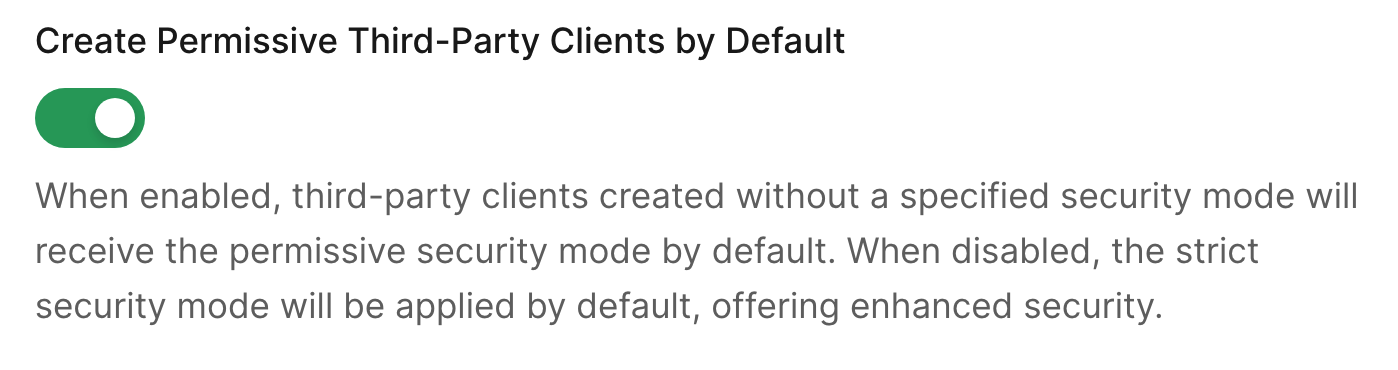
- Navigate to Settings > Advanced.
- Scroll to the Migrations section.
- Toggle off Create Permissive Third-Party Clients by Default.
- Select Save.
POST /api/v2/clients, you can:
- Omit the
third_party_security_modeparameter (enhanced controls apply by default), or - Explicitly set
third_party_security_mode: "strict"
third_party_security_mode: "permissive" in the POST request to the /api/v2/clients endpoint.
Option B: Preserve existing behavior as the default
If you need to continue creating third-party applications with existing behavior as the default, you can keep the Create Permissive Third-Party Clients by Default toggle enabled until you’re ready to adopt enhanced security controls.Before the deadline
The Create Permissive Third-Party Clients by Default toggle stays enabled (no action required on the toggle itself). However, you must prepare your workflows to explicitly specify the security mode after the deadline. Update your application creation code to explicitly passthird_party_security_mode: "permissive":
Test this approach before the deadline to ensure your workflows handle the explicit parameter correctly.
After the deadline
On October 23, 2026, the Create Permissive Third-Party Clients by Default toggle will be automatically turned off. To continue creating applications with existing behavior, you must explicitly setthird_party_security_mode: "permissive" in every POST /api/v2/clients request.
If you omit the third_party_security_mode parameter, enhanced security controls will be applied by default.
Step 2: Choose how to handle Dynamic Client Registration
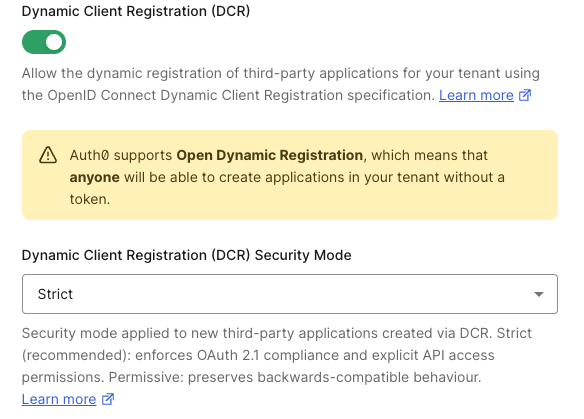
If you use Dynamic Client Registration, configure the security mode for DCR clients separately. This is independent of the Management API default change and you can configure it at any time.Review current DCR behavior
Check your current DCR security mode setting:- Auth0 Dashboard
- Management API
- Navigate to Settings > Advanced. Under Dynamic Client Registration (DCR) Security Mode, check the current value.
Configure DCR security mode
Choose the security mode you want for dynamically registered clients: Option A: Enhanced security controls for DCR clients (recommended)Before enabling strict mode for DCR, configure default API permissions for third-party applications. Without default permissions, DCR clients will not be able to access any APIs.
dynamic_client_registration_security_mode to strict:
Option B: Preserve existing behavior for DCR clients
Keep or set dynamic_client_registration_security_mode to permissive:
To learn more, read Dynamic Client Registration.
Feature comparison
The following table compares the capabilities available to each security mode:Common scenarios
Scenario 1: Partner integrations using modern OAuth
Situation: You have partner integrations that use authorization code flow with PKCE and access your APIs. Recommendation: Adopt enhanced security controls (Option A). This is fully compatible with modern OAuth implementations and provides additional security benefits. Steps:- Set up default API permissions for your APIs
- Test creating a partner application with
third_party_security_mode: "strict" - Complete the migration by turning off the migration toggle
Scenario 2: Applications requiring OIDC
Situation: Your third-party applications require OIDC scopes (openid, profile, email) or ID tokens. Recommendation: OIDC support for third-party applications is planned for a future release. Until then, preserve existing behavior (Option B) or migrate to API-scoped access tokens. Steps:- If you must use OIDC, keep the migration toggle enabled and explicitly pass
third_party_security_mode: "permissive"when creating applications - Alternatively, update your integrations to use API scopes instead of OIDC scopes
Scenario 3: Dynamic Client Registration (MCP, AI agents)
Situation: You use DCR for AI agents, MCP servers, or developer portal applications. Recommendation: Configuredynamic_client_registration_security_mode: "strict" and set up default API permissions. MCP clients (Claude Code, VS Code) are compatible with enhanced security controls.
Steps:
- Configure default API permissions
- Set
dynamic_client_registration_security_mode: "strict"via Management API - Test with a DCR registration
- Verify DCR clients can obtain access tokens
Scenario 4: Applications using Classic Login
Situation: Your third-party applications use Classic Login instead of Universal Login. Recommendation: Classic Login is not supported for third-party applications with enhanced security controls. Migrate to Universal Login or preserve existing behavior. Steps:- Recommended: Migrate to Universal Login before adopting enhanced controls
- Alternative: Keep the migration toggle enabled and explicitly use
third_party_security_mode: "permissive"
Scenario 5: Third-party applications with Organizations
Situation: You want third-party applications (partner integrations, AI agents) to authenticate users in an organizational context. Recommendation: Adopt enhanced security controls. Organizations support for third-party applications is not available in existing behavior. Configurethird_party_client_access: allow on each Organization that should allow third-party access.
Steps:
- Ensure the third-party application uses enhanced security controls (
third_party_security_mode: "strict"). - Configure
third_party_client_access: allowon the Organization:
- Enable the required connection for the Organization.
- Configure Prompt for Organization or Organization Domain Discovery to ensure users are routed to the correct Organization context, since you cannot rely on the external application passing the
organizationparameter.
Troubleshooting
To learn how to resolve common errors during the migration, read Troubleshoot Third-Party Applications.Frequently asked questions
Can I change the security mode on an existing application?
No. Thethird_party_security_mode is set when the application is created and cannot be changed afterward. To use a different security mode, create a new application.
What happens to my existing third-party applications?
Nothing. Existing third-party applications continue working exactly as they do today. This migration only affects the default for newly created applications.Can I use both security modes in the same tenant?
Yes. You can have some third-party applications with enhanced security controls and others with existing behavior. The security mode is configured per application.What about Dynamic Client Registration?
DCR is controlled by a separatedynamic_client_registration_security_mode tenant setting. This is independent of the deprecation and requires its own configuration decision. To learn more, read Dynamic Client Registration.
Can I create applications with existing behavior after the deadline?
Yes, but only using the Management API. Explicitly setthird_party_security_mode: "permissive" when creating each application. The Auth0 Dashboard does not support creating applications with existing behavior.