In this post, we are going to learn how to set up Sign-in with Google using the One Tap prompt in a React application — all powered by Auth0. This will allow you to offer a simple and flexible authentication method right on your homepage!
What is One Tap
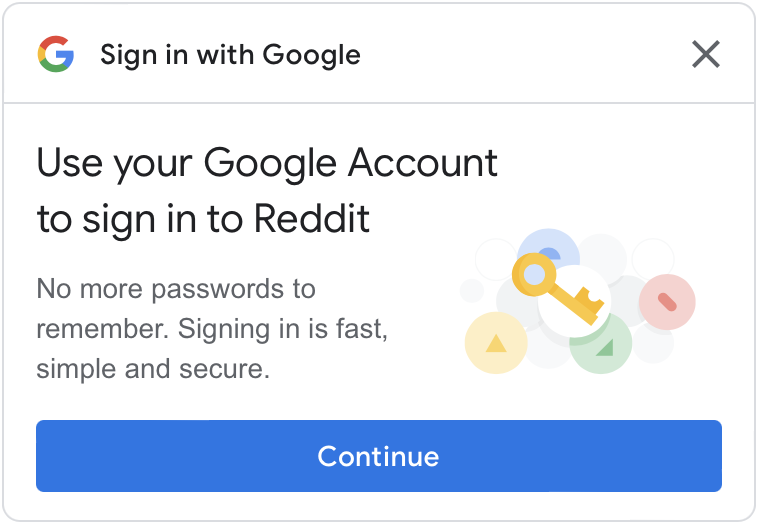
Sign-in with Google enables users to log in to your website using their active Google Account with a personalized sign-in button or One Tap, and Automatic sign-in for users already logged in to their Google Account.
Google One Tap is a cross-platform authentication method that allows users to sign in to an app or website with a single tap of their Google account. It's a low-friction way to sign up and sign in, and it works on mobile and desktop. Google One Tap can take advantage of Federated Credential Management (FedCM), a new approach to identity federation flows.
What is FedCM?
FedCM is a privacy-preserving approach to federated identity services (such as "Sign in with...") that doesn't rely on third-party cookies or navigational redirects. Over the last decade, identity federation has played a central role in raising the bar for authentication on the Web in terms of trustworthiness, ease-of-use (for example, passwordless single sign-in), and security (for example, improved resistance to phishing and credential stuffing attacks) compared to per-site usernames and passwords.
With identity federation, a relying party (RP) relies on an identity provider (IdP) to provide the user an account without requiring a new username and password.
Unfortunately, the mechanisms that identity federation has relied on (iframes, redirects, and cookies) are actively being abused to track users across the web. As the user agent isn't able to differentiate between identity federation and tracking, the mitigations for the various types of abuse make the deployment of identity federation more difficult.
How to Integrate One Tap with Auth0
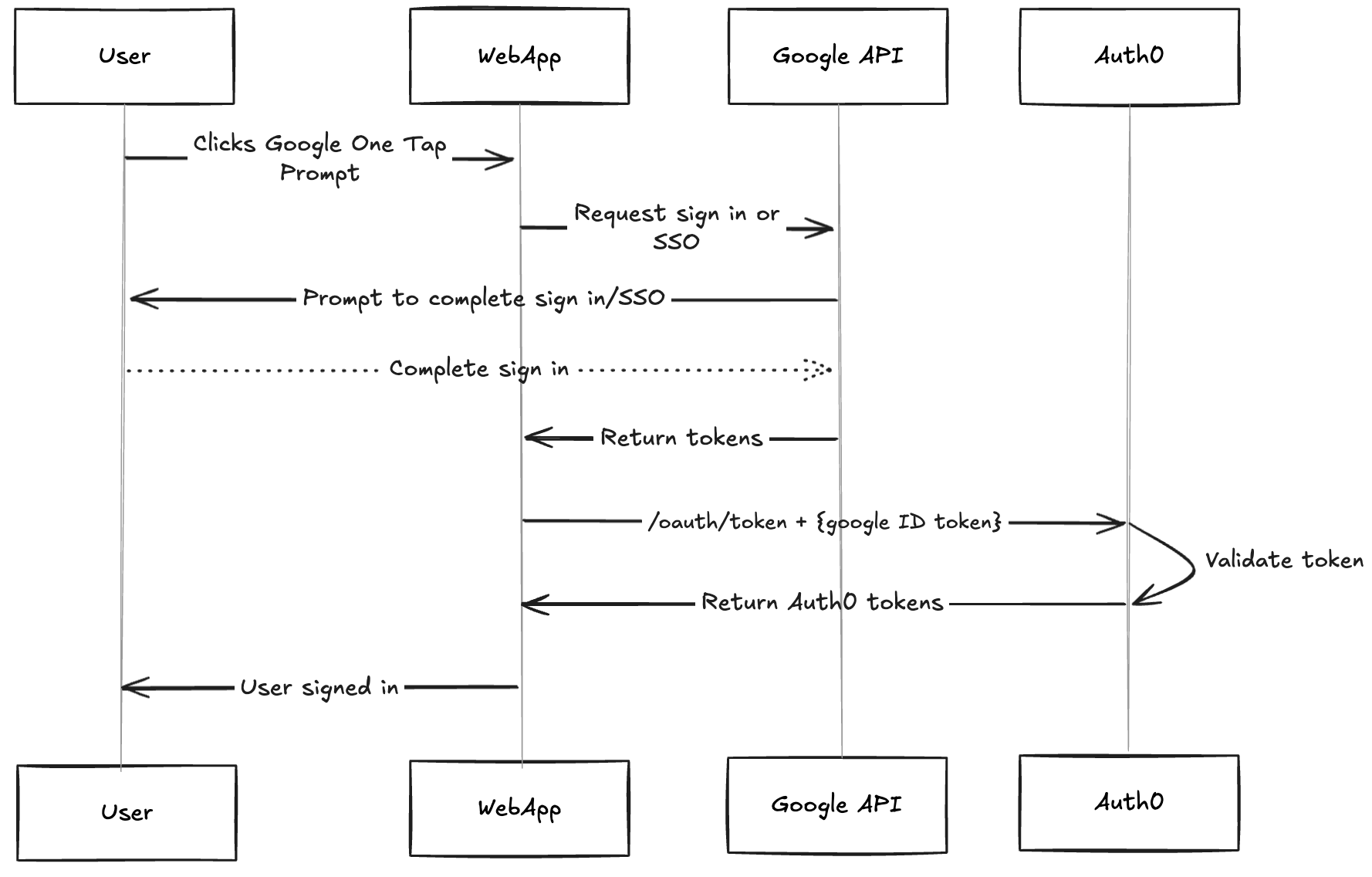
Auth0 offers Sign in with Google as a social login mechanism. This allows users to gain access to your applications without having to create a new username and password. Social Login has gained a lot of popularity in recent years with Google accounting for the majority of social login traffic. Traditionally, users would be redirected from your app to the Universal Login where they could click a Sign in with Google button to initiate this flow. As seen above, we can render the One Tap prompt before the user actually begins a login transaction with Auth0. If they successfully authenticate with https://accounts.google.com, we can take this response and begin a Custom Token Exchange with the Auth0 server. By making a request to the Auth0’s /oauth/token endpoint with a request body like so:
{
    "subject_token_type": "http://auth0.com/oauth/token-type/google-id-token",
    "subject_token": "{google_id_token}",
    "grant_type": "urn:ietf:params:oauth:grant-type:token-exchange",
    "scope": "openid email profile",
    "client_id": "{your_client_id}",
    "audience": "{your_auth0_audience}"
}
When we make this request with the "subject_token_type": "http://auth0.com/oauth/token-type/google-id-token" included, Auth0 knows it’s a native token exchange with Google and is not part of the normal token exchange pathway. Typical Custom Token Exchanges open up Auth0’s extensibility engine, allowing you to run the proper validation on the incoming token. With the google-id-token type, Auth0 will check it against the configured Google Social Connection in your tenant, ensuring the ID token from Google is validated properly. Assuming you have a Google Social connection configured, all you need to do is go into the Application settings -> Advanced Settings -> Device Settings -> Toggle “Enable Sign in with Google”. You can see a screenshot below.
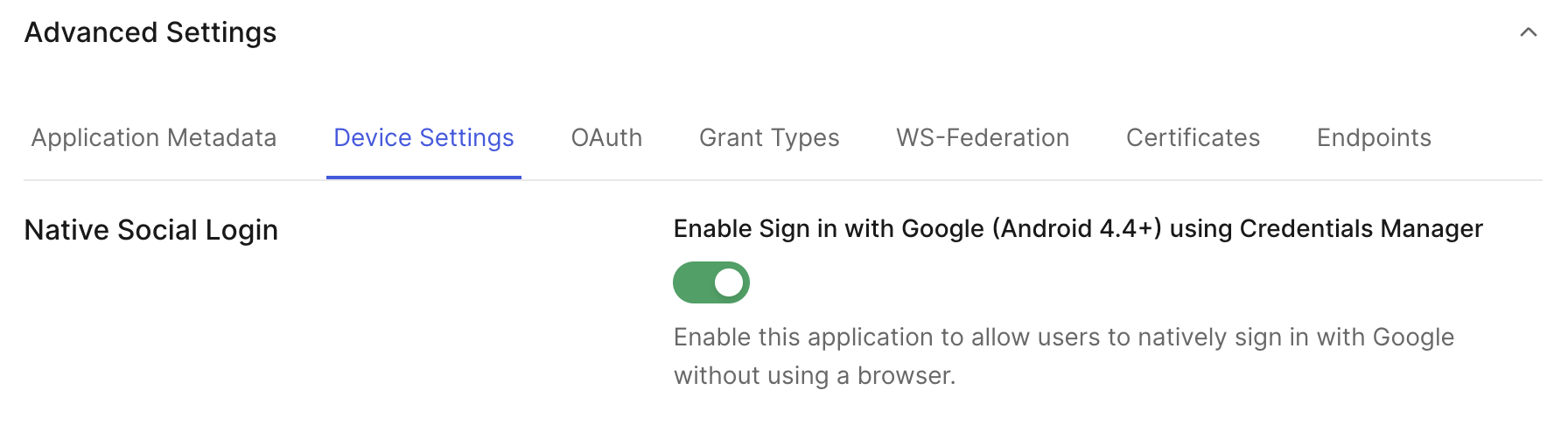
This endpoint will now return valid JWT tokens to your application without any extra configuration! The diagram below illustrates this token exchange flow at a high level.
User Experience
When combining the Google One Tap prompt with Auth0, you provide a seamless user experience for users who both have an existing Google session and those who do not. Here is an example video of showing a user signing in.
Example Code for Auth0 and One Tap Integration
Here is an example of leveraging Google One Tap inside of a React application. We are taking advantage of the Auth0 React SDK and the Google One Tap SDK. We leverage the useEffect() hook in the code snippet below to render the One Tap prompt whenever a user is not authenticated (if the user dismisses the prompt, a cooldown will take effect automatically). From the Auth0 React SDK, we can import the useAuth0 hook to allow us access certain methods like exchangeToken(), that make interacting with Auth0 very easy. This function exchangeToken() is the secret sauce for completing the Custom Token Exchange. This function will handle all the complexities of formatting the request as well as the response. With a successful response we can update the user context and allow the user to begin using the app!
import React, { useState, useEffect, useRef } from "react";
import { useAuth0 } from "@auth0/auth0-react";
import googleOneTap from "google-one-tap";

const generateNonce = () => {
  const array = new Uint8Array(16);
  crypto.getRandomValues(array);
  return btoa(String.fromCharCode(...array))
    .replace(/[+/=]/g, '')
    .slice(0, 22);
};

const YourComponent = () => {
  const {
    user,
    loginWithRedirect,
    logout,
    isLoading,
    isAuthenticated,
    getAccessTokenSilently,
    exchangeToken
  } = useAuth0();

  const [loginData, setLoginData] = useState();
  const [error, setError] = useState(null);
  const isExchanging = useRef(false);

  // Google One Tap Code
  useEffect(() => {
    if (isLoading || isAuthenticated || isExchanging.current) return;

    const options = {
      client_id: process.env.REACT_APP_GOOGLE_CLIENT_ID, // required
      auto_select: false, // optional
      cancel_on_tap_outside: false, // optional
      context: "signin", // optional
      use_fedcm_for_prompt: true,
      nonce: generateNonce()
    };

    googleOneTap(options, async (response) => {
      if (isExchanging.current) return;
      isExchanging.current = true;
      setLoginData(response);

      try {
        await exchangeToken({
          subject_token: response.credential,
          subject_token_type: 'http://auth0.com/oauth/token-type/google-id-token'
        });
      } catch (err) {
        console.error("Login failed", err);
        setError(err.message);
      } finally {
        isExchanging.current = false;
      }
    });
  }, [isLoading, isAuthenticated, exchangeToken]);

  const logoutGlobally = () => {
    setLoginData(null);
    logout();
  };

  // ... rest of your component
};
A Seamless and Secure Authentication Flow
Integrating Google One Tap with Auth0 provides a seamless and secure authentication experience. By combining Google’s intuitive login with Auth0’s powerful identity management, you can simplify logins, reduce password fatigue, and enhance security. Start optimizing your authentication flow today and deliver a login experience your users will love!
About the author

Sam Yapkowitz
Senior Solutions Engineer