
DevOps automation refers to the practice of using tools, scripts, and repeatable workflows to streamline and standardize software development and operations processes. Instead of relying on manual steps which are error-prone, time-consuming, and difficult to track, automation enables teams to define their systems as code, execute changes consistently, and reduce operational overhead.
When applied to identity platforms like Auth0, DevOps automation becomes especially valuable, as you will learn the Scaling Identity series. In the first post, Scaling Identity: Why You Need Auth0 Configuration Automation, we discussed how to treat Auth0 configuration as code and which tools to use for automation. In the second post, Scaling Identity: Automating Auth0 Configuration with the Auth0 Terraform Provider, we discovered how to use Terraform to automate Auth0 configuration. This last article in the series walks through Auth0 configuration automation using GitHub.
Automating Auth0 configuration changes through CI/CD pipelines helps teams deploy identity changes safely, consistently, and with confidence. Using GitHub as an example, Auth0 configuration can be version-controlled and promoted across environments using Terraform and GitHub Actions. GitHub provides a natural platform for Auth0 CI/CD through its source control, collaboration features, and native automation with GitHub Actions. Auth0 configuration, defined as Terraform code, lives alongside application and infrastructure code, enabling teams to apply the same review and governance processes to identity changes.
Pull requests allow changes to Auth0 configuration to be reviewed, discussed, and approved before they are applied. This improves visibility into authentication-related changes and reduces the risk of unintentional or insecure updates.
GitHub Actions Pipeline for Auth0 Deployments
A typical GitHub Actions pipeline for Auth0 deployments uses Terraform to plan and apply changes. The pipeline usually begins by validating Terraform configuration and generating a plan that shows the expected changes to Auth0 resources. This plan can be reviewed as part of the pull request process.
Once approved, the pipeline applies the changes to the target Auth0 tenant using environment-specific credentials and variables. Separate workflows or pipeline stages are commonly used for development, staging, and production to ensure clear separation and controlled deployments.
Promotion of Auth0 Configuration Across Tenants
Promoting Auth0 configuration through multiple tenants follows the same principles as application deployments. Changes are first applied to a development tenant, validated in staging/test, and only then promoted to production.
This is typically achieved by reusing the same Terraform modules across environments while injecting environment-specific values, such as tenant domains, client secrets, or callback URLs. Automation ensures that the configuration remains consistent, while tenant separation ensures that runtime data and secrets remain isolated.
On GitHub, under the Settings and Environments section, we have the possibility to define the environments. In this example, I have defined three of them: dev, test, and prod:
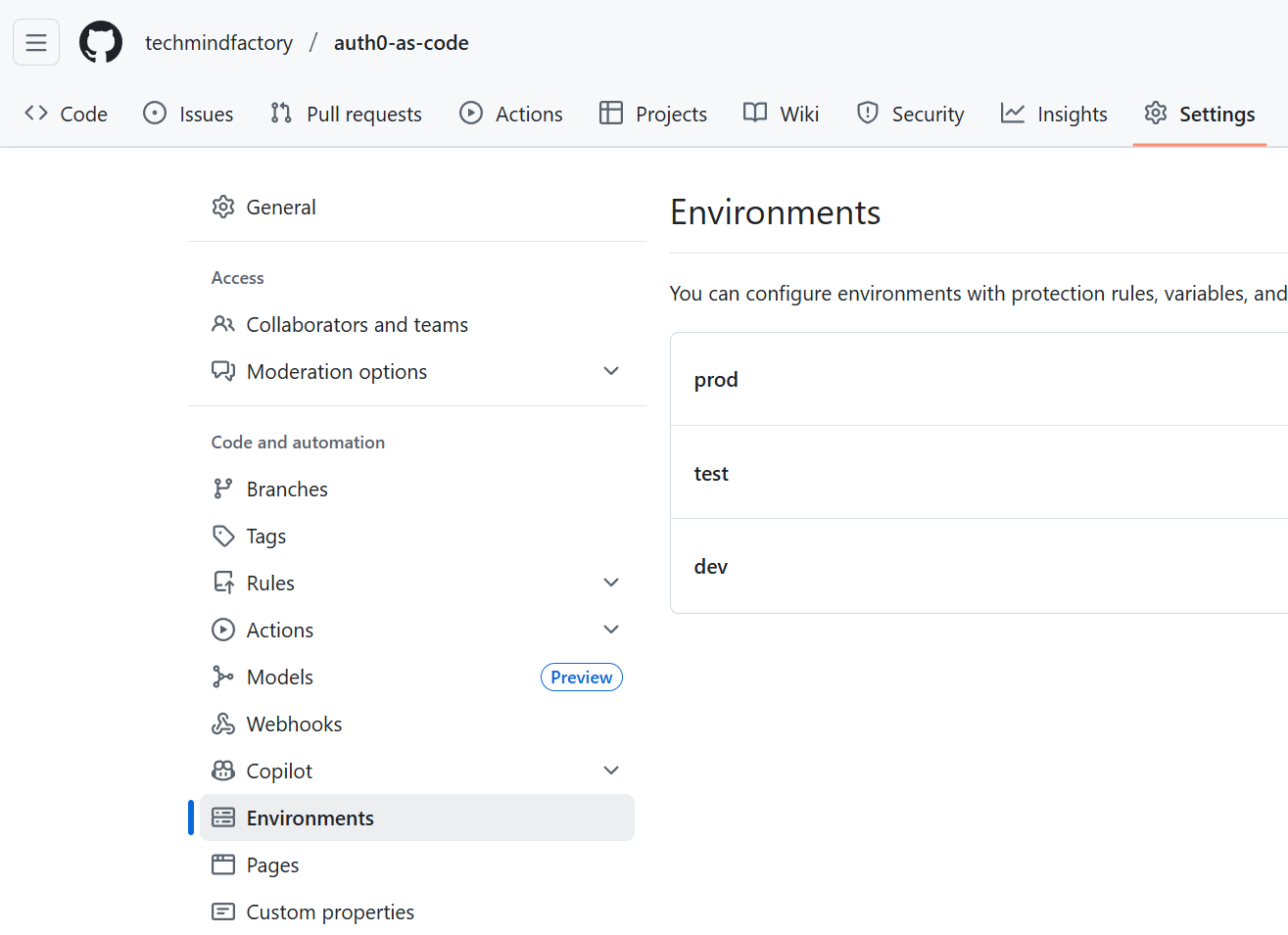
For each environment we can define secrets and variables that will be used by our GitHub Actions workflow:
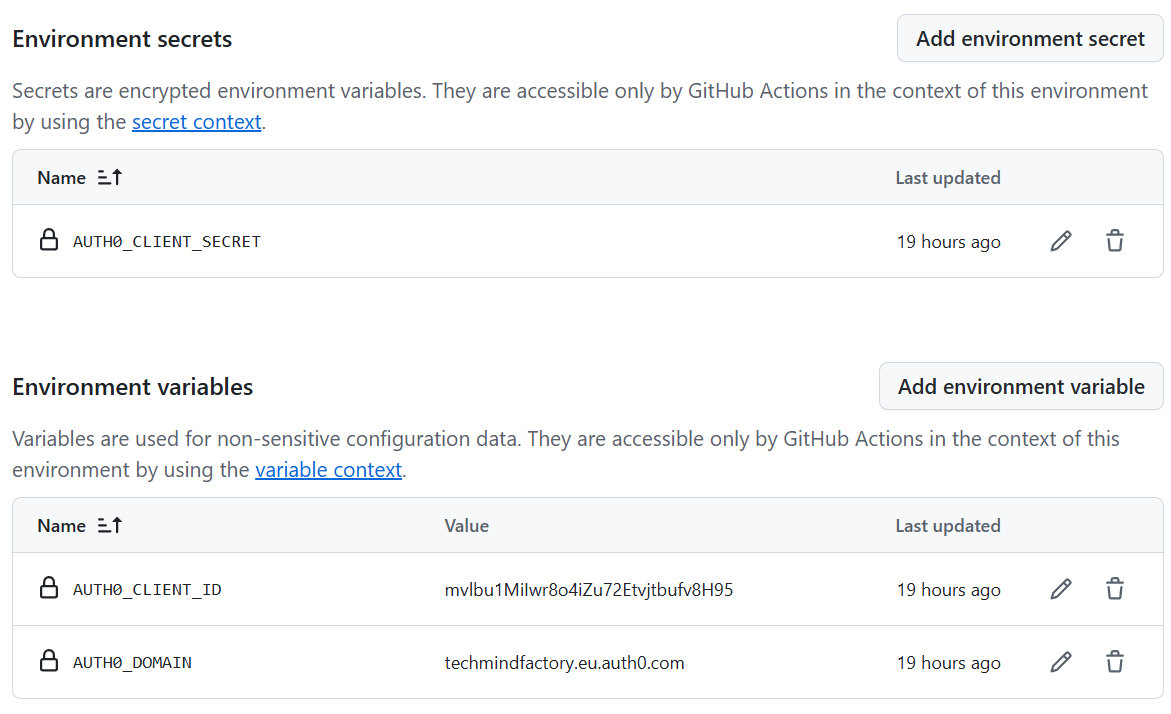
This allows the full isolation of variables and secrets to make sure that the right values will be injected during the deployment to each environment and Auth0 tenant.
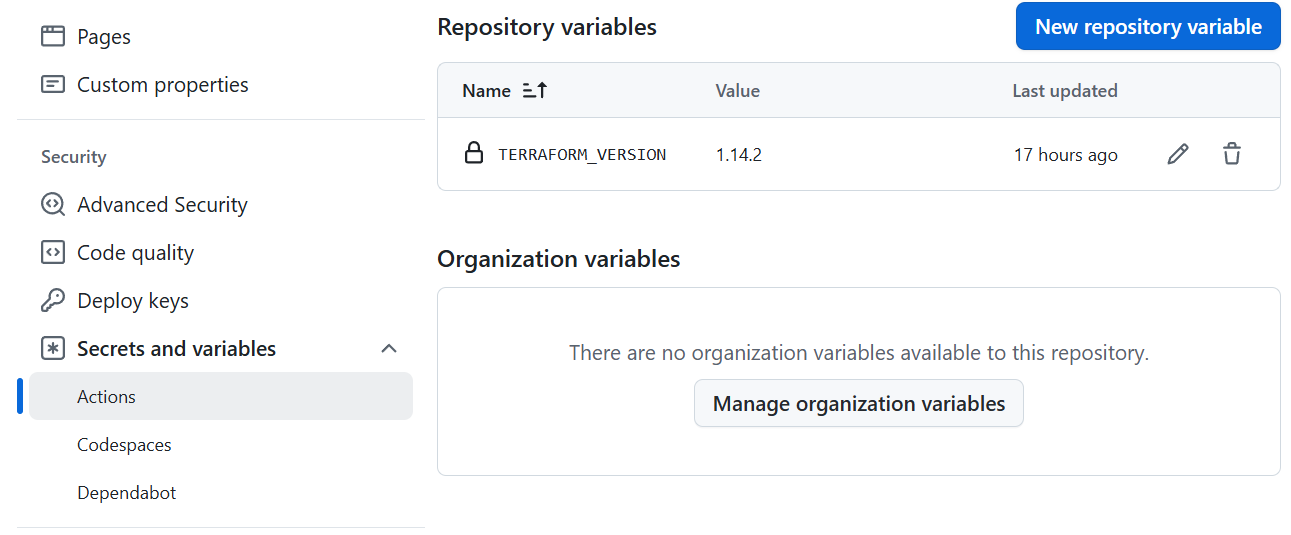
Additionally, under Secrets and variables we can define repository-level secrets and variables. This is the place where we can define Terraform version that will be used in each deployment:
Sample GitHub Actions Workflow for Auth0 Automation
Let’s discover how we can deploy resources to Auth0 using Terraform and GitHub Actions Workflow. To make it easier, here is the source code repository on GitHub which contains a ready-to-use workflow file under the .github folder.
Let’s analyze the auth0-ci-cd.yml workflow file first, using the comments in the code:
name: Auth0 Configuration Deployment

# This workflow will be triggered when there are new changes pushed to main branch. We can also trigger it manually:
on:
  push:
    branches: [ main ]
  workflow_dispatch:

# There are three jobs declared. Each of them is responsible for deploying changes to dev, test, and production Auth0 tenant:
jobs:
  deploy-dev: # This job will deploy to dev Auth0 tenant.
    permissions:
      contents: read # Allows the workflow to read the repository contents.
    uses: ./.github/workflows/terraform-reusable.yml # Uses reusable workflow template called "terraform-reusable.yml".
    with:
      ENVIRONMENT_TYPE: dev # Defines the target environment.
      TERRAFORM_VERSION: ${{ vars.TERRAFORM_VERSION }} # Terraform version defined in GitHub repository variables.
      TF_WORK_DIR: "terraform" # Working directory for Terraform.
      TF_VAR_FILE: dev.tfvars # Variable file used for the dev environment.
    secrets:
      AUTH0_CLIENT_SECRET: ${{ secrets.AUTH0_CLIENT_SECRET }} # Auth0 client secret used by the Terraform provider.

  # Jobs for test and production environments follow the same pattern and are omitted for brevity:
  deploy-test:
    ...

  deploy-prod:
    ...
As we saw, the above workflow references the reusable workflow which is defined in the terraform-reusable.yml file in the same folder as the auth0-ci-cd.yml workflow file. Reusable workflows on GitHub are very helpful as they provide the possibility to extract reusable parts of the workflow. Instead of defining Terraform steps under each job in the above workflow, we can extract these steps and reference them in the form of reusable workflow.
Let’s explain the terraform-reusable.yml file structure using the comments. Let’s begin with input variables:
name: Terraform Auth0 Deployment

# Workflow inputs and secrets
# These values are provided by the calling workflow (auth0-ci-cd.yml)

on:
  workflow_call:
    inputs:
      ENVIRONMENT_TYPE:
        required: true
        type: string
      TERRAFORM_VERSION:
        required: true
        type: string
      TF_WORK_DIR:
        required: true
        type: string
      TF_VAR_FILE:
        required: true
        type: string

    secrets:
      AUTH0_CLIENT_SECRET:
        required: true
Next, there is a Terraform plan job:
# Terraform Plan Job
# This job initializes Terraform and generates a plan for the target environment
jobs:
  plan:
    name: Terraform Plan
    runs-on: ubuntu-latest
    environment: ${{ inputs.ENVIRONMENT_TYPE }}
    outputs:
      plan_artifact_name: tfplan-${{ inputs.ENVIRONMENT_TYPE }}

    steps:
      # Checkout repository source code
      - uses: actions/checkout@v4
        with:
          path: .
          token: ${{ github.token }}

      # Install the required Terraform version
      - name: Setup Terraform
        uses: hashicorp/setup-terraform@v3
        with:
          terraform_version: ${{ inputs.TERRAFORM_VERSION }}

      # Initialize Terraform in the working directory
      - name: Terraform Init
        working-directory: ${{ inputs.TF_WORK_DIR }}
        run: terraform init

      # Generate Terraform plan using environment-specific variables
      - name: Terraform Plan
        working-directory: ${{ inputs.TF_WORK_DIR }}
        run: |
          terraform plan -no-color -input=false -out=tfplan \
            -var-file="${{ github.workspace }}/terraform/vars/${{ inputs.TF_VAR_FILE }}" \
            -var "auth0_domain=${{ vars.AUTH0_DOMAIN }}" \
            -var "auth0_client_id=${{ vars.AUTH0_CLIENT_ID }}" \
            -var "auth0_client_secret=${{ secrets.AUTH0_CLIENT_SECRET }}"

      # Upload the generated Terraform plan as an artifact
      - name: Upload Terraform Plan
        uses: actions/upload-artifact@v4
        with:
          name: tfplan-${{ inputs.ENVIRONMENT_TYPE }}
          path: ${{ inputs.TF_WORK_DIR }}/tfplan
The last job executes Terraform apply command:
# Terraform Apply Job
# This job applies the previously generated Terraform plan
  apply:
    name: Terraform Apply
    needs: plan
    runs-on: ubuntu-latest
    environment:
      name: ${{ inputs.ENVIRONMENT_TYPE }}

    steps:
      # Checkout repository source code
      - uses: actions/checkout@v4

      # Install Terraform
      - name: Setup Terraform
        uses: hashicorp/setup-terraform@v3

      # Download the Terraform plan artifact from the plan job
      - name: Download Terraform Plan
        uses: actions/download-artifact@v4
        with:
          name: tfplan-${{ inputs.ENVIRONMENT_TYPE }}
          path: ${{ inputs.TF_WORK_DIR }}

      # Initialize Terraform
      - name: Terraform Init
        working-directory: ${{ inputs.TF_WORK_DIR }}
        run: terraform init

      # Apply the Terraform plan
      - name: Terraform Apply Plan
        working-directory: ${{ inputs.TF_WORK_DIR }}
        run: terraform apply tfplan
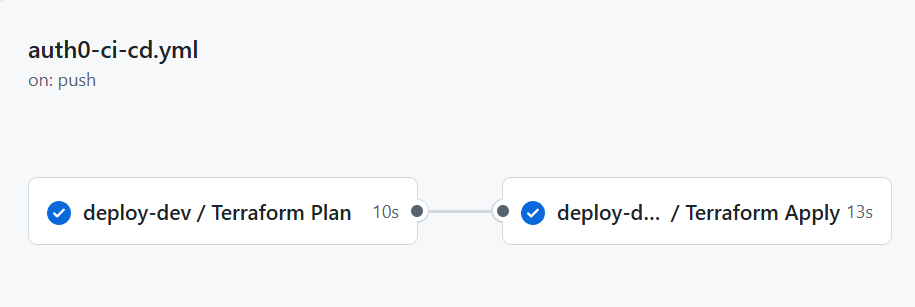
Once deployment is complete, we can see the status on GitHub, under Actions tab:
Version Control Best Practices for Auth0 Configuration
Auth0 tenant configuration should be fully version-controlled to provide clear traceability, reproducibility, and rollback capabilities. Storing configuration as Terraform code allows teams to see exactly when and why a change was made, who approved it, and how it evolved over time. If an issue is introduced, previous versions can be restored by reverting a commit and reapplying the configuration.
Terraform state should be managed securely, typically using a remote backend that supports state locking and access controls. For example, teams might store Terraform state in an encrypted cloud storage bucket or a managed Terraform backend, ensuring that only CI/CD pipelines and authorized engineers can modify it. State locking prevents concurrent changes that could lead to inconsistent or corrupted Auth0 configuration.
Repositories should be structured to clearly separate reusable modules from environment-specific configuration. Reusable modules can define standard patterns, such as a baseline Auth0 client, common Actions, or default branding. Environment-specific folders can then reference these modules while supplying values that differ per tenant, such as callback URLs, allowed origins, or token lifetimes. This structure makes it easy to see what is shared across environments and what is intentionally different.
Sensitive values must never be committed to source control. This includes client secrets, API keys, signing secrets, and connection credentials. Instead, these values should be injected at deployment time using secure mechanisms such as GitHub encrypted secrets, environment variables, or dedicated secrets managers. For example, a GitHub Actions workflow can read Auth0 client secrets from an encrypted repository or environment secrets and pass them to Terraform as variables during deployment.
Finally, tagging and versioning strategies can further improve control and clarity. Using Git tags or release branches to mark production deployments makes it easier to correlate Auth0 changes with application releases and audit events. Combined with pull requests and mandatory reviews, these practices help ensure that Auth0 configuration changes are deliberate, traceable, and safe to promote across tenants.
Building Reliable Auth0 Deployments with DevOps Automation
Managing Auth0 through manual dashboard changes introduces risk, slows delivery, and makes consistency across environments hard to maintain. Throughout the Scaling Identity series, we showed how DevOps automation using Infrastructure as Code(IaC) and CI/CD practices can turn identity configuration into a repeatable, version-controlled process. While we used Terraform and GitHub as concrete examples, the same principles apply with other tools and platforms. By designing multi-tenant environments thoughtfully and isolating sensitive resources, teams can safely promote Auth0 changes from development to production with confidence. If you haven’t already, try it yourself using the steps and example tools presented in this article to take the next step toward automating your Auth0 deployments.
About the author

Daniel Krzyczkowski
Tech Mind Factory
Founder of Tech Mind Factory. Works as a Cloud & Identity Engineer, helping organizations design, build, and deploy modern identity solutions and secure cloud applications.
View profile