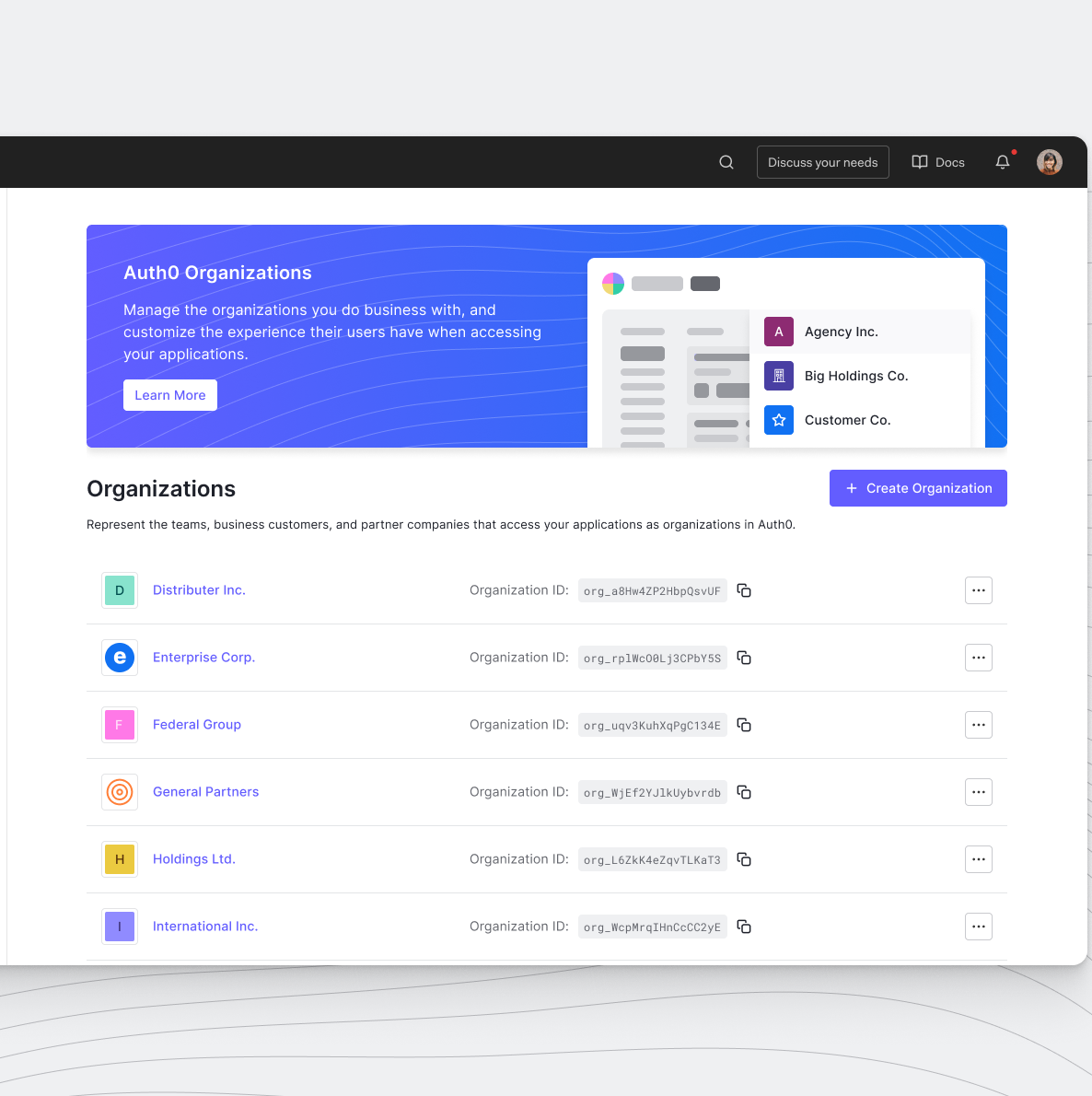
Auth0 Organizations is a powerful feature that enables your SaaS application to support multi-tenant environments seamlessly. By leveraging Organizations, you can represent business customers as distinct entities, configure branded login flows, and implement Role-Based Access Control (RBAC) to assign precise permissions to members.
Ultimately, building these administration capabilities into your product allows your business customers to self-manage their organizations, drastically reducing your operational overhead. Historically, developers have used the Auth0 Management API to accomplish this. While this approach initially meets their needs, developers often hit a wall with rate limits as their businesses grow and the number of organizations in their Auth0 tenant expands.
The Management API is intended to configure Auth0 tenants globally and is not designed for frequent, granular calls. It can quickly become a bottleneck for routine operations like updating settings or inviting members. Enter the My Organization API. This API focuses on efficiently managing organizations in your Auth0 tenant with much higher performance and scalability.
In this blog post, I will show you how to enable the My Organization API and update an existing organization's settings directly from a SaaS multi-tenancy Next.js application.
Configure the Auth0 Tenant
To use the My Organization API, we first need to configure your Auth0 tenant by setting up an Auth0 Organization, activating the API, and configuring an application to consume it.
Prerequisites
Before starting, ensure you have at least one user created in your tenant. In this guide, we use a registered user: org-admin@example.com.
Activate the My Organization API
First, you must enable the API in your tenant:
- Go to the Auth0 Management Dashboard > Applications > APIs.
- Locate the My Organization API banner and select Activate.
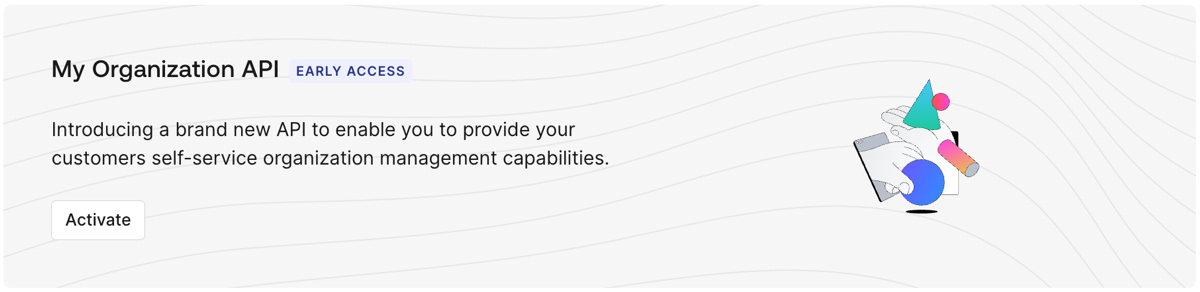
Once activated, keep in mind:
- The API is disabled for all client applications by default.
- You must grant access to applications and roles using Client Grants or RBAC policies.
- Your business customers can retrieve Organization details or configure IdPs on behalf of their own Organizations.
- The API supports a wide variety of granular scopes, including
read:my_org:details,update:my_org:details, and many more.
Create Roles to Control Access for the My Organization API
Next, let's create roles to govern who can use the My Organization API.
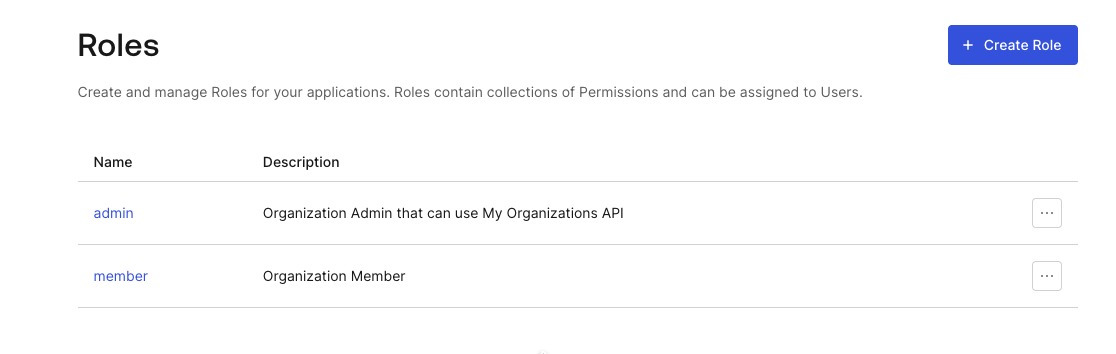
In the Auth0 Management dashboard, go to User Management > Roles and create a new role named admin (Organization Admin).
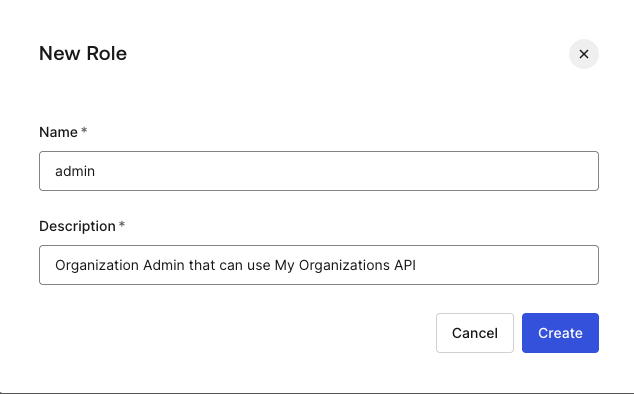
Once the role is created, go to the Permissions tab and click Add Permission.
Choose the Auth0 My Organization API. Add the read:my_org:details and update:my_org:details permissions.
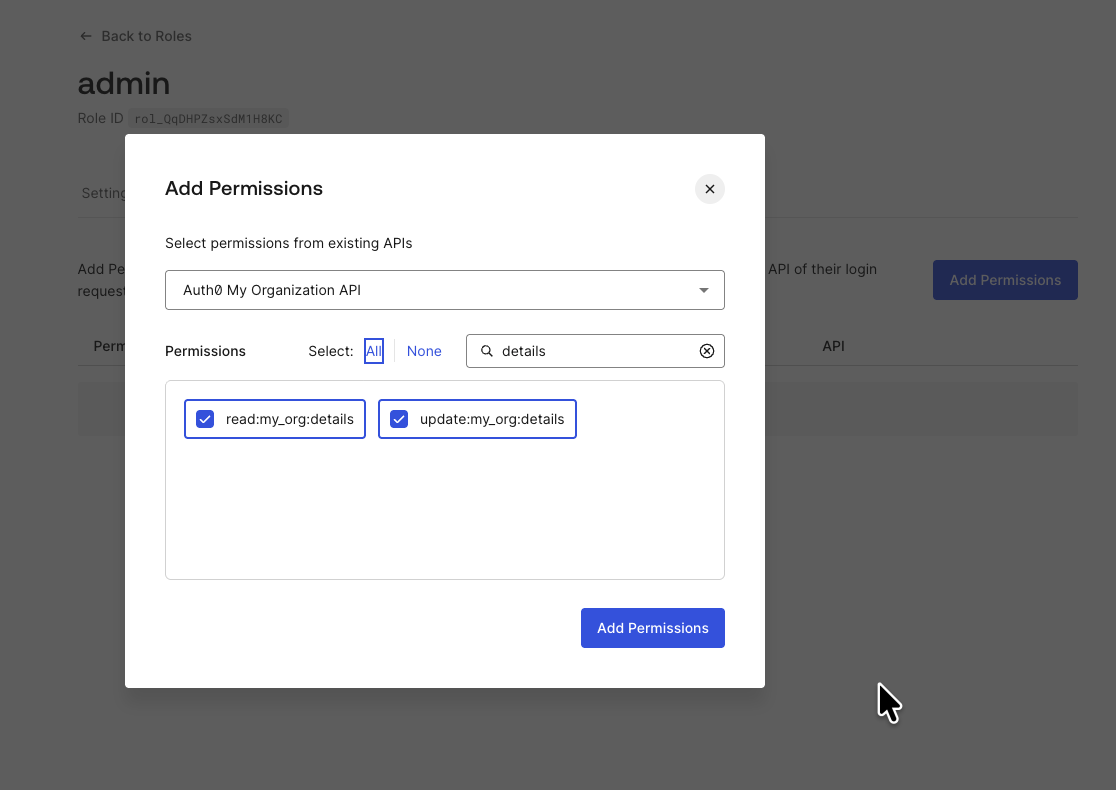
Also, create a second role named member (Organization Member) without these elevated API permissions.
Create an Organization and Add a User as Admin
Now, let's create an organization and assign a member and a domain.
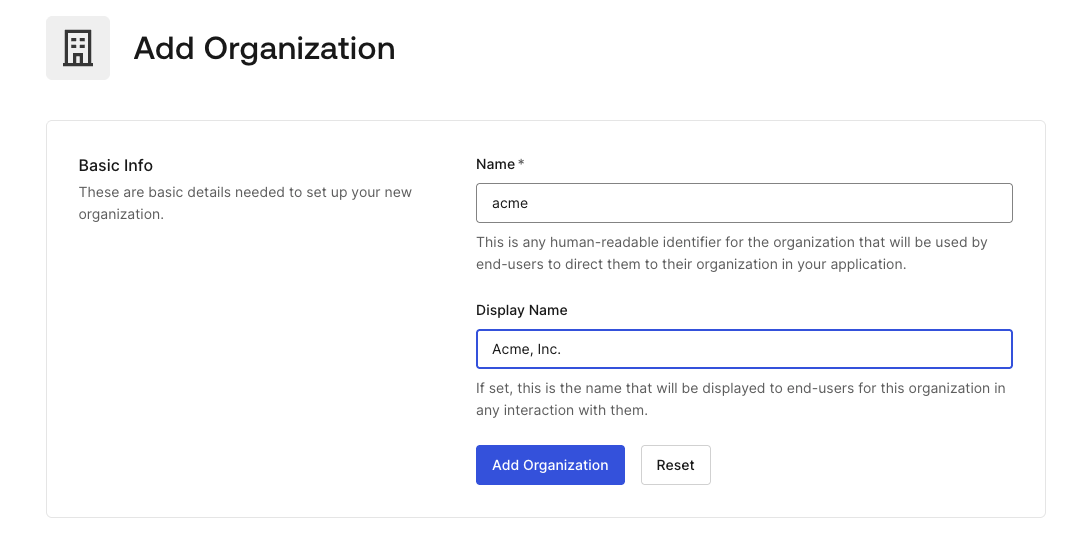
Navigate to Organizations and click Create Organization. Enter the name acme and the display name Acme, Inc..
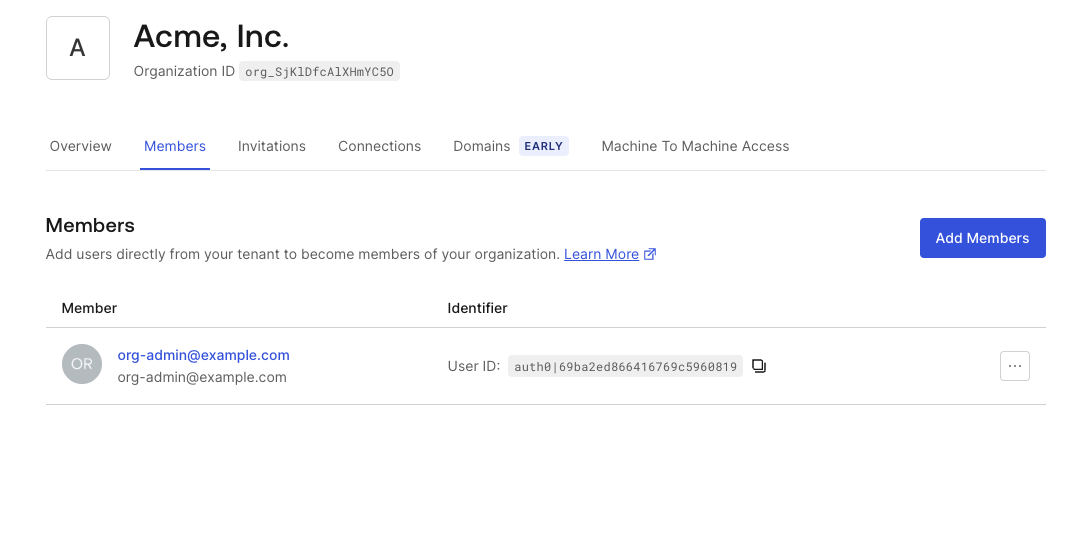
Once the organization is created, go to the Members tab and click Add Members. Add your test user (e.g., org-admin@example.com).
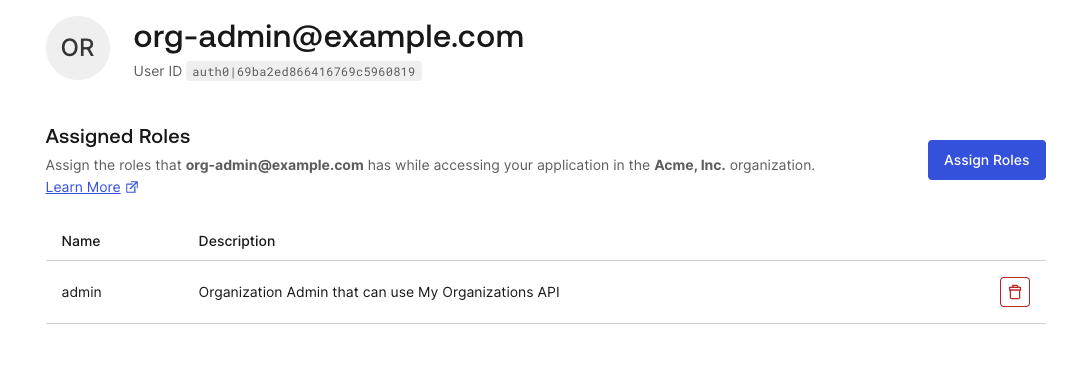
Click the user's link, then assign the admin role you just created.
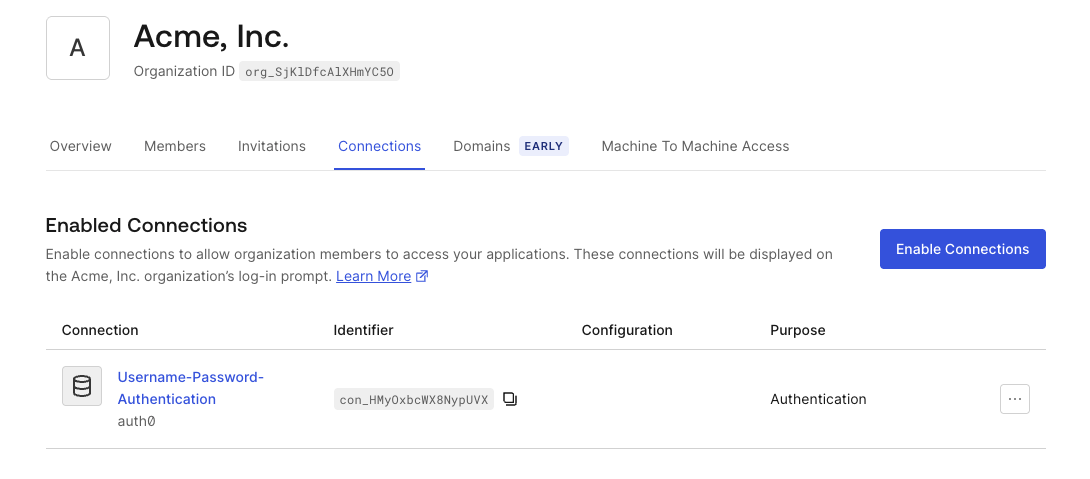
Navigate back to the Organization's settings and go to the Connections tab, click Enable Connections, and choose Username-Password-Authentication.
Finally, go to the Domains tab and click Add Domain.
- Domain:
example.com - Status:
Verified - Check the box for Use this Domain for Organization Discovery.
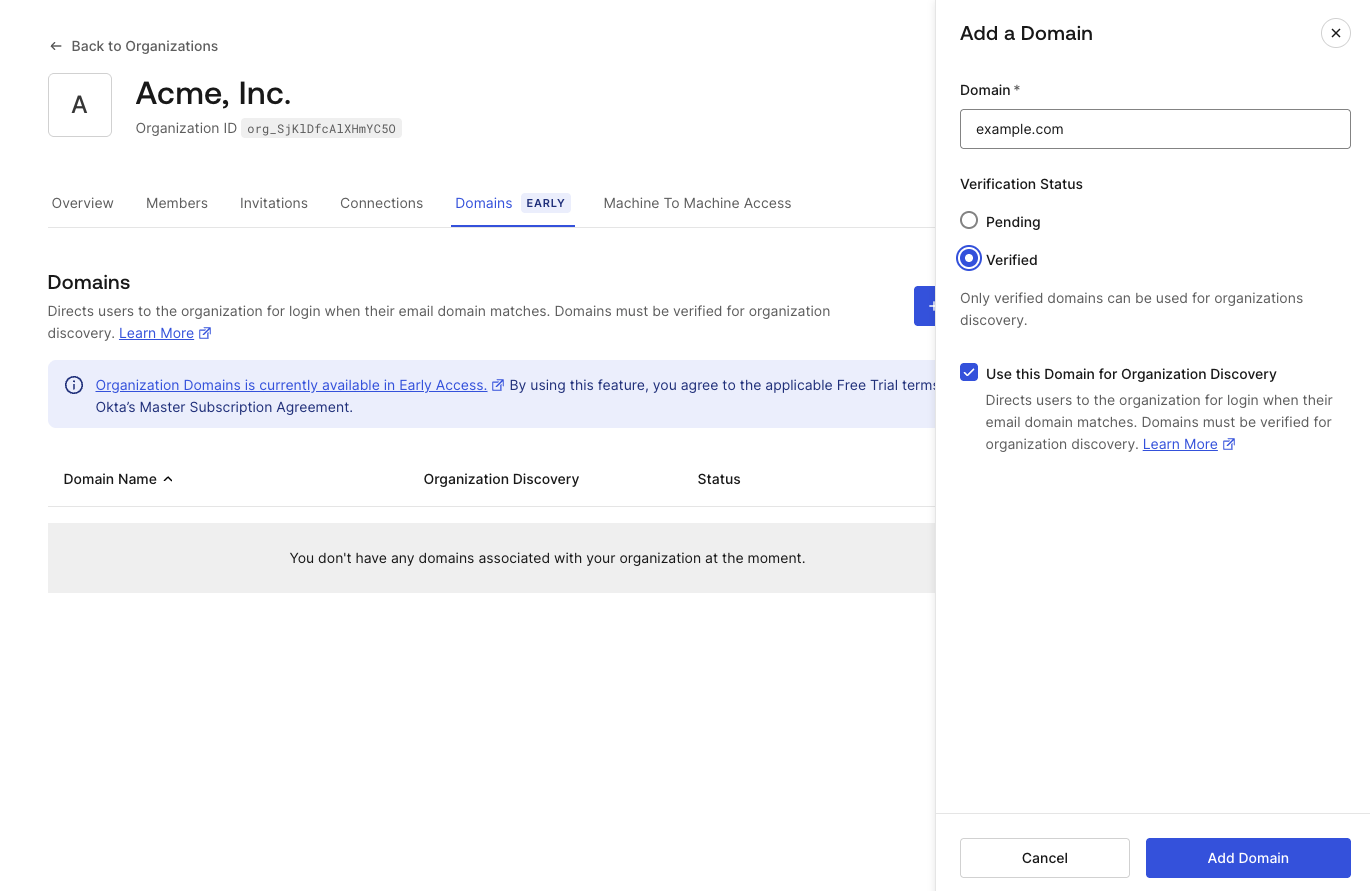
The domain verification allows an organization to prove ownership of a specific email domain. This allows Auth0 to discover the user’s organization based on the email domain and route the login flow to the specific organization.
Create an Application and Associate It with My Organization API
To use the My Organization API from an application, we need to create an Auth0 Application in the Management Dashboard.
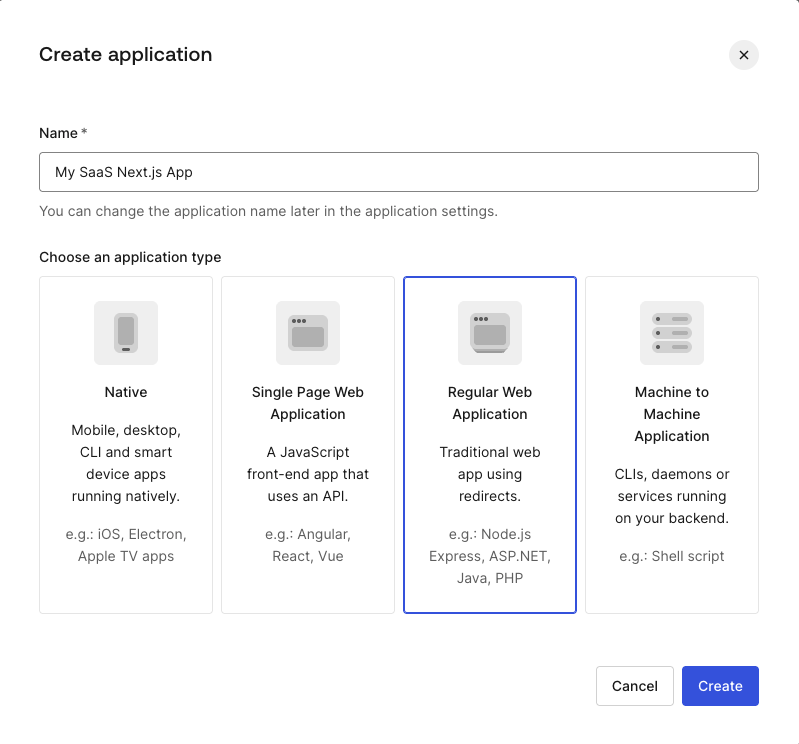
Navigate to Applications > Applications and click Create Application (choose Regular Web Application and name My SaaS Next.js App).
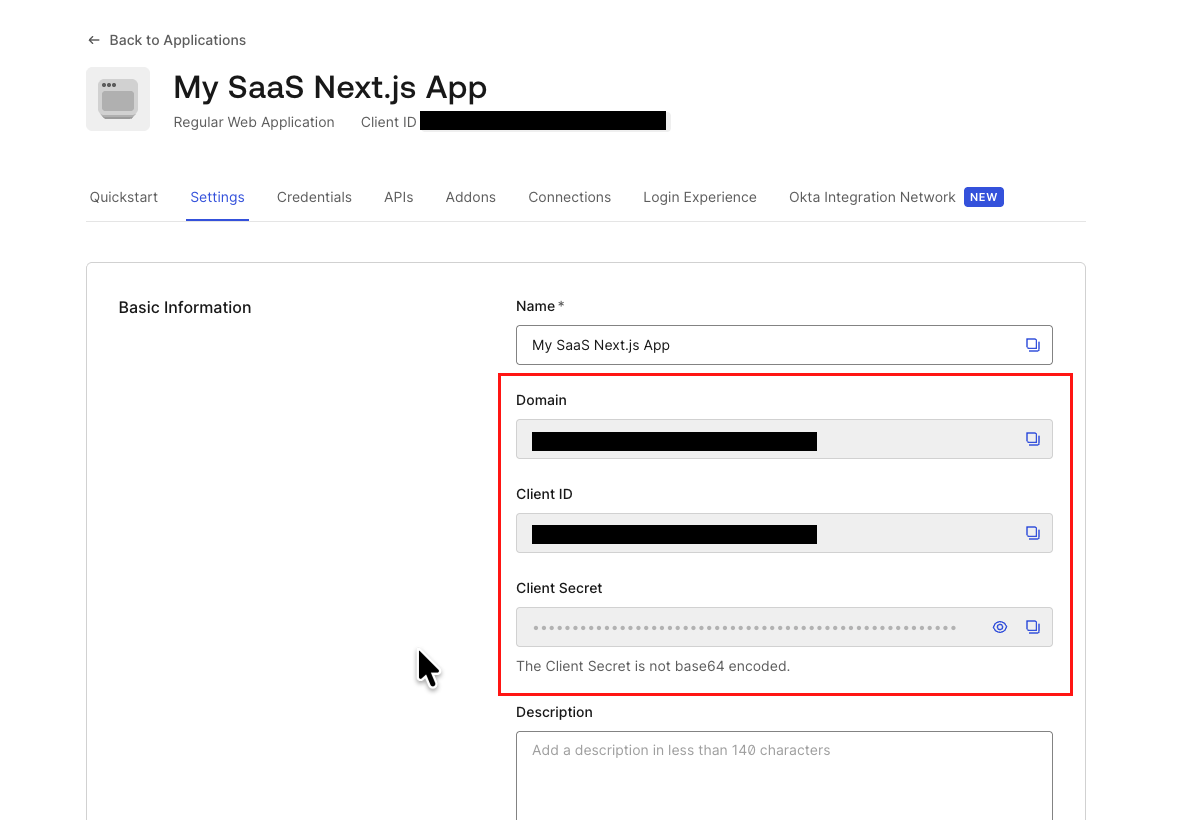
In the Settings tab, note down the application's Domain, Client ID, and Client Secret. These will be used in the Next.js application later.
Also, configure the following fields:
- Allowed Callback URLs:
http://localhost:3000/auth/callback - Allowed Logout URLs:
http://localhost:3000 - Allowed Web Origins:
http://localhost:3000
Next, navigate to the APIs tab and locate the Auth0 My Organization API.
To use the My Organization API in the application, we need to configure profiles and authorize User Access and/or Client Access. Click the Edit button.
Under the Settings tab:
- Connection Profile: Select + Create New to create a new profile and name it
MySaaS Connection Profile. - User Attribute Profile: Select + Create New to create a new profile and name it
MySaaS User Attribute Profile.
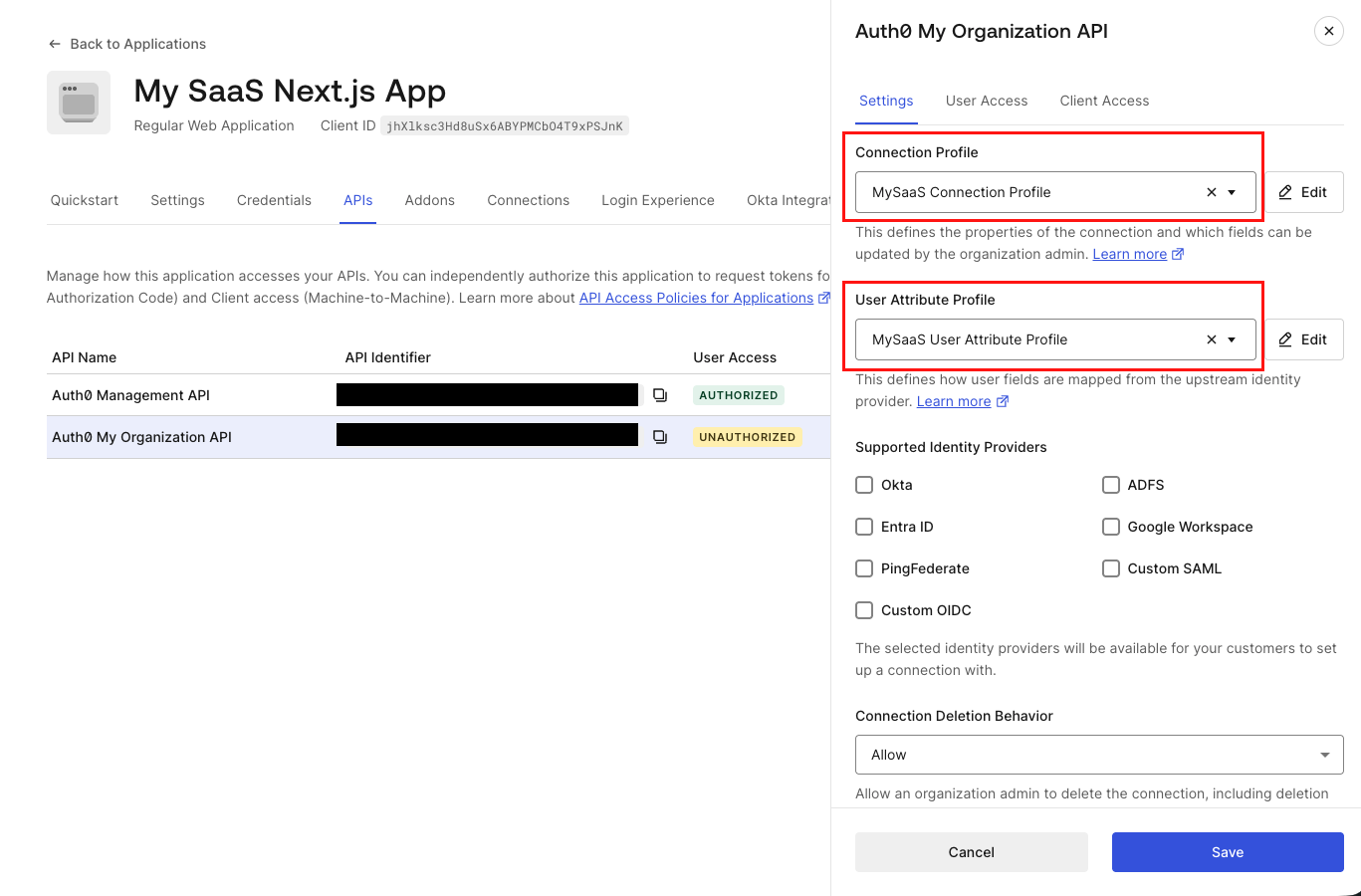
Under User Access tab:
- Authorization:
Authorized - Add
read:my_org:detailsandupdate:my_org:detailspermissions.
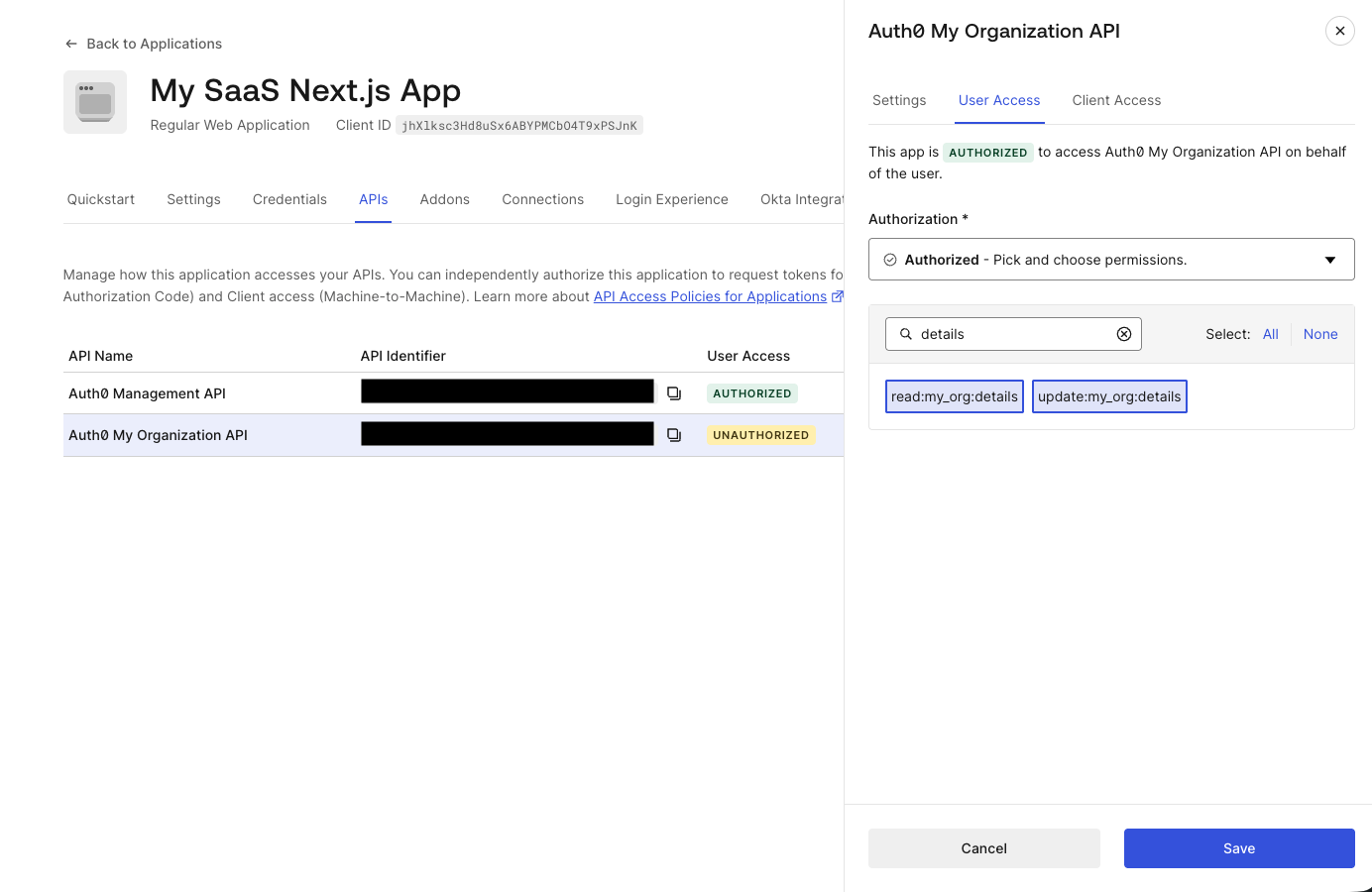
Keep Client Access set to UNAUTHORIZED for this blog post.
This allows the Auth0 Application to access the My Organization API.
Finally, in the Login Experience tab:
- Types of Users:
Business Users - Login Flow:
Prompt for Organization - Organization Discovery:
Prompt for Organization Email
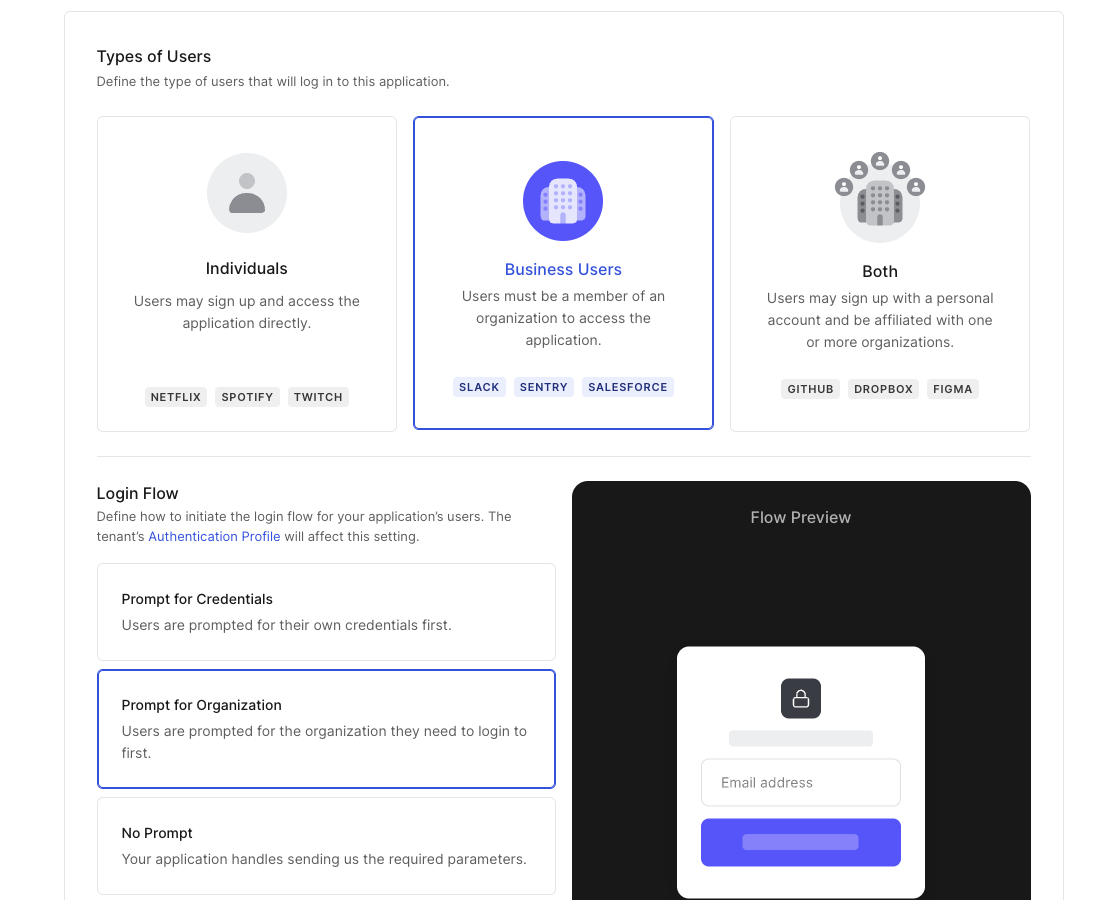
We have now configured an Auth0 Application with access to the My Organization API.
We are almost done. We just need to add two more things to the Auth0 tenant.
Configure Authentication Profile
To ensure a smooth login flow for our business users, we will change the authentication flow.
Navigate to Authentication > Authentication Profile, and set the profile to Identifier First. Users will be asked to enter their email associated with an organization, in this case: example.com.
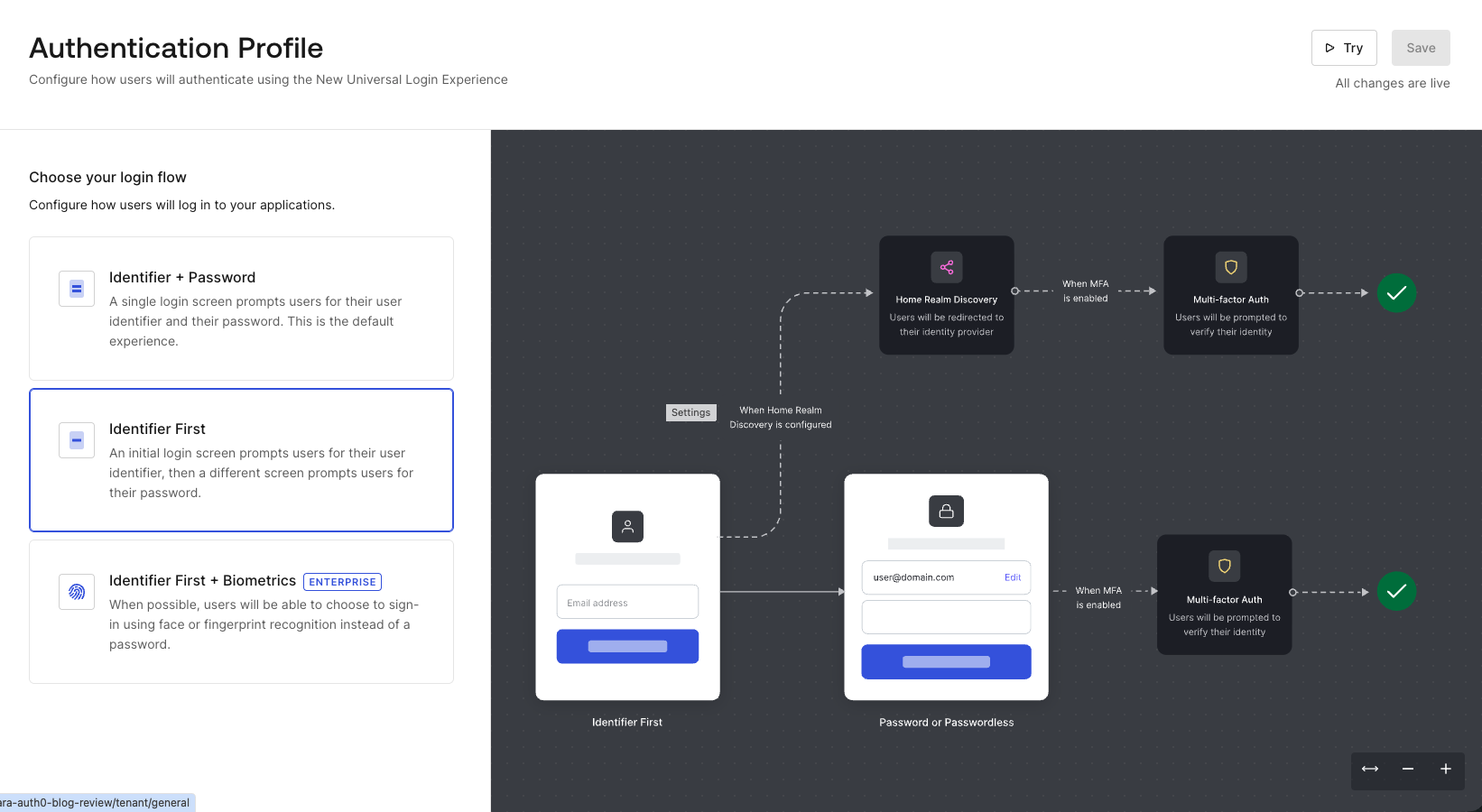
Add Actions to Add Custom Roles to Token
We need our application to know whether the user is an admin to secure access to the admin dashboard, which we will implement later in this blog. By default, the ID Token contains org_id and not organization roles. The easiest way to include organization roles in ID Tokens is to use Auth0 Actions to add them.
Navigate to Actions > Library > Create Action > Create Custom Action.
- Name:
add organization roles - Trigger:
Login / Post Login - Runtime:
Node 22 (Recommended)
Paste the following code into the editor, save, and deploy the Action:
exports.onExecutePostLogin = async (event, api) => {

if (event.organization) {
  const namespace = 'https://my-app';

  // Add organization roles
  if (event.authorization?.roles) {
    api.idToken.setCustomClaim(`${namespace}/org_roles`, event.authorization.roles);
    }
  }
}
Note that https://my-app is a placeholder for this blog post. You should use your own unique namespace.
After deploying the Action, navigate to Actions > Triggers and select post-login. Then drag this new action into the flow.
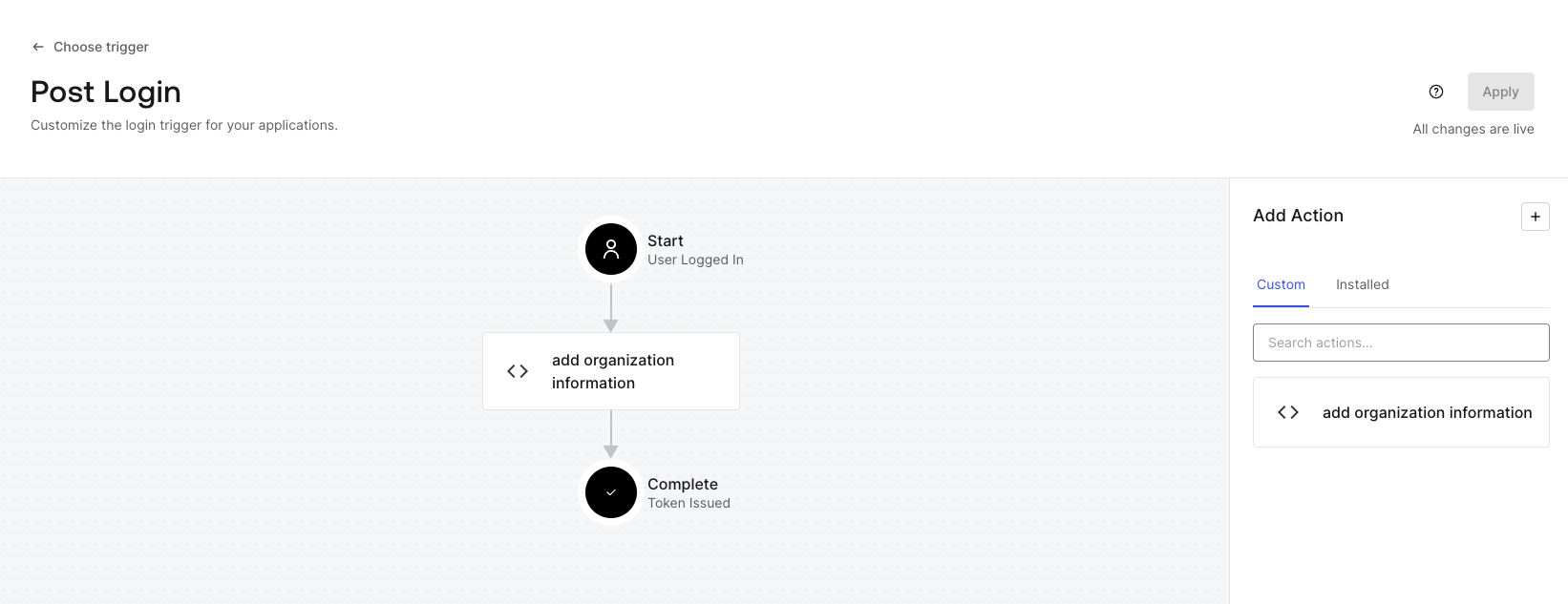
You are all set with the Auth0 tenant.
Build a Next.js Application with Domain Dashboard
Let's see it in action. We will build a Next.js application that utilizes our new Auth0 configuration.
Clone a Starter Project
To get started quickly, clone the starter project from GitHub.
Note: This project is built for demo purposes and lacks production-ready security features. Please use it at your own discretion.
git clone --branch starter --single-branch https://github.com/auth0-blog/nextjs-my-org-api
cd nextjs-my-org-api
This project's foundation was built by following Auth0 Next.js quickstart.
Set Environment Variables
Create a .env.local file in the root of your project and populate it with the values you noted earlier:
AUTH0_DOMAIN='<your-auth0-domain>'
AUTH0_CLIENT_ID='<your-auth0-client-id>'
AUTH0_CLIENT_SECRET='<your-auth0-client-secret>'
# Run `openssl rand -hex 32` in your terminal to generate a random 32-byte hex string
AUTH0_SECRET='<your-random-32-byte-hex-string>'
APP_BASE_URL='http://localhost:3000'
Confirm Current State of the Application
Let’s confirm the current state of the application. Run the following commands to install the necessary dependencies and run:
npm install && npm run dev
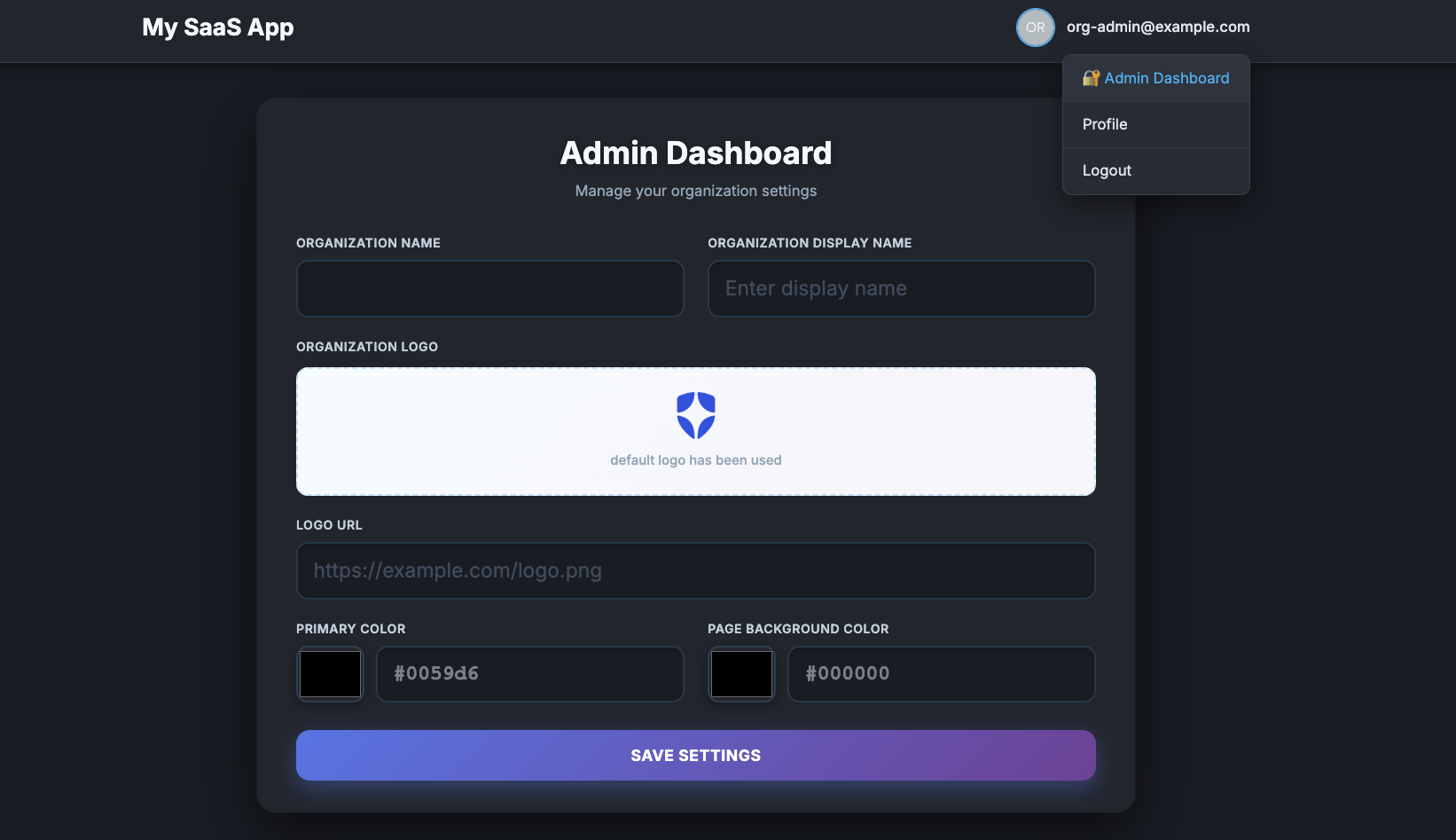
The core authentication features are already implemented in this starter application. When you navigate to http://localhost:3000, you should see a welcome screen, and org-admin@example.com will be able to log in.
Because this user was assigned the admin role, you will see a link for the Admin Dashboard in the header after authenticating. I have already built the UI pages to display the organization details, but it is not calling the API yet.
Use My Organization API in Next.js Application
To wire up the My Organization API in this application, we need to complete a few steps:
- Install the
my-organization-jsSDK. - Acquire the access token for the API.
- Set up the MyOrganizationClient.
- Retrieve Organization details on the admin page.
- Implement a Server Action to update those details.
Install my-organization-js SDK
We have developed a dedicated SDK to make calling the My Organization API a breeze. Stop your dev server and install it:
npm install @auth0/myorganization-js
Acquire the Access Token for the API
To call the API, we need an access token. First, we configure Auth0Client. In the src/lib/auth0.ts file, add authorizationParameters with scope and audience to be able to obtain an access token for the My Organization API. Also adding tokenRefreshBuffer to renew the token if the token expires within 180 seconds.
In the audience, we use Auth0’s domain, and /my-org/ specifies the endpoint for the My Organization API.
// src/lib/auth0.ts

export const auth0 = new Auth0Client({

  // 👇 new code

  // authorizationParameters are passed to the /authorize endpoint.
  // required scope of 'openid profile email offline_access' and custom scopes for API access. The audience is required to get a refresh token.
  authorizationParameters: {
    scope: 'openid profile email offline_access read:my_org:details update:my_org:details',
    ...(process.env.AUTH0_DOMAIN && {
      audience: `https://${process.env.AUTH0_DOMAIN.replace(//$/, '')}/my-org/`,
    }),
  },

  // The SDK will attempt to renew the token if the user is active and the token will expire within the next 180 seconds.
  tokenRefreshBuffer: 180,

  // 👆 new code

  // Filter out default ID token claims and promote custom namespaced claims (org_roles) to top-level claims for easier access throughout the app.
  async beforeSessionSaved(session: SessionData) {
    // Namespace for custom claims set via Auth0 Actions
    const namespace = 'https://my-app';
    const orgRoles = session.user[`${namespace}/org_roles`];

    return {
      ...session,
      user: {
        ...filterDefaultIdTokenClaims(session.user),
        // Promote namespaced org_roles to a top-level claim for app-wide use
        ...(orgRoles !== undefined ? { org_roles: orgRoles } : {}),
      },
    };
  },
});
To obtain an access token, we call auth0.getAccessToken(). In our Next.js application, access token management for Server Components is handled in the src/proxy.ts file because it's not possible to persist both an access token and a refresh token within Server Components. In this way, we are ensuring the session cookie always contains a fresh access token. Server Components can access the access token via session.tokenSet.accessToken if it is available.
/// src/proxy.ts
export async function proxy(request: NextRequest) {

  const authRes = await auth0.middleware(request);
  // Let Auth0 handle its own auth routes (/auth/login, /auth/callback, etc.)
  if (request.nextUrl.pathname.startsWith("/auth")) {
    return authRes;
  }

  // Guard /admin routes - only accessible to authenticated org admins.
  if (request.nextUrl.pathname.startsWith("/admin")) {
    // Must pass `request` here (required in proxy/middleware context)
    const session = await auth0.getSession(request);

    // Not authenticated: redirect to login
    if (!session) {
      const redirectRes = NextResponse.redirect(
        new URL(`/auth/login?returnTo=/admin`, request.nextUrl.origin)
      );

      // Copy set-cookie from authRes so rolling session/token refresh updates are preserved.
      authRes.headers.forEach((value, key) => {
        if (key.toLowerCase() === "set-cookie") {
          redirectRes.headers.append("set-cookie", value);
        }
      });
      return redirectRes;
    }

    // Authenticated but not an org admin → redirect to home
    if (!isOrgAdmin(session.user)) {

      const redirectRes = NextResponse.redirect(new URL("/", request.nextUrl.origin));
      // Copy set-cookie from authRes so rolling session/token refresh updates are preserved.
      authRes.headers.forEach((value, key) => {
        if (key.toLowerCase() === "set-cookie") {
          redirectRes.headers.append("set-cookie", value);
        }
      });
      return redirectRes;
    }
    // 👇 new code

    // Ensure the session cookie always holds an active access token before the Server Component runs.
    try {
      await auth0.getAccessToken(request, authRes);
    } catch (err) {
      console.error("Token refresh failed in proxy:", err instanceof Error ? err.message : String(err));
      return NextResponse.redirect(
        new URL("/auth/logout", request.nextUrl.origin)
      );
    }
    // 👆 new code
  }
  return authRes;
}
isOrgAdmin() is implemented separately in this project to check whether the user is the organization admin. The implementation is the following:
// src/lib/auth0-utils.ts
import type { User } from "@auth0/nextjs-auth0/types";

// Returns true if the user's org_roles claim contains the exact role "admin".
export function isOrgAdmin(user: User): boolean {
  const roles: string[] = Array.isArray(user.org_roles) ? user.org_roles : [];
  return roles.includes("admin");
}
We will use this function later in the blog post again.
Use an Instance of MyOrganizationsClient in Admin Page to Retrieve Organization Details
With the access token, let's set up an instance of MyOrganizationClient in the admin page to retrieve organization details and show them in the UI.
In src/app/admin/page.tsx, add imports.
import OrgSettingsForm from "./OrgSettingsForm";
// add imports
import { auth0 } from "@/lib/auth0";
import { MyOrganization, MyOrganizationClient } from "@auth0/myorganization-js";
Then create a new instance of MyOrganizationClient inside of the AdminDashboard() function.
export default async function AdminDashboard() {

  // 👇 new code

  if (!process.env.AUTH0_DOMAIN) throw new Error('AUTH0_DOMAIN environment variable is not set');
  const session = await auth0.getSession();
  const token = session?.tokenSet?.accessToken;
  if (!token) throw new Error("No access token in session");

  // Initialize the MyOrganizationClient.
  const client = new MyOrganizationClient({
    domain: process.env.AUTH0_DOMAIN,
    token: token,
  });
  // 👆 new code

  // ...
As explained previously, we set a token for the client from the session cookie because we're using the MyOrganizationClient inside the Server Component.
After initialization, use the instance to call the organizationDetails.get() function to request Organization Details via the My Organization API. We will get a MyOrganization.OrgDetailsRead object as the response on success.
export default async function AdminDashboard() {

  if (!process.env.AUTH0_DOMAIN) throw new Error('AUTH0_DOMAIN environment variable is not set');
  const session = await auth0.getSession();
  const token = session?.tokenSet?.accessToken;
  if (!token) throw new Error("No access token in session");

  // Initialize the MyOrganizationClient.
  const client = new MyOrganizationClient({
    domain: process.env.AUTH0_DOMAIN,
    token: token,
  });

  // 👇 new code

  // Fetch initial org settings to populate the form. This is a Server Component, so the data is fresh on each request.
  const initialSettings: MyOrganization.OrgDetailsRead =
    (await client.organizationDetails.get()) ?? {};

  // 👆 new code

  // ...
Let's pass the MyOrganization.OrgDetailsRead object to OrgSettingsForm.
export default async function AdminDashboard() {

  if (!process.env.AUTH0_DOMAIN) throw new Error('AUTH0_DOMAIN environment variable is not set');
  const session = await auth0.getSession();
  const token = session?.tokenSet?.accessToken;
  if (!token) throw new Error("No access token in session");

  // Initialize the MyOrganizationClient.
  const client = new MyOrganizationClient({
    domain: process.env.AUTH0_DOMAIN,
    token: token,
  });

  // Fetch initial org settings to populate the form. This is a Server Component, so the data is fresh on each request.
  const initialSettings: MyOrganization.OrgDetailsRead =
  (await client.organizationDetails.get()) ?? {};

  return (
    <div className="flex flex-col justify-center items-center min-h-[calc(100vh-72px)] w-full p-4">
      <div className="bg-surface rounded-[20px] shadow-[0_20px_60px_rgba(0,0,0,0.6),0_0_0_1px_rgba(255,255,255,0.05)] p-8 px-10 max-w-[900px] w-[90%] animate-[fadeInScale_0.6s_ease-out]">
        <h1 className="text-[2rem] font-bold text-app-text mb-1 text-center [text-shadow:0_2px_8px_rgba(0,0,0,0.3)]">Admin Dashboard</h1>
        <p className="text-[0.95rem] text-text-muted text-center mb-8 font-normal">Manage your organization settings</p>
        {/* 👇 change code  */}
        <OrgSettingsForm initialSettings={initialSettings} />
        {/* 👆 change code  */}
      </div>
    </div>
  );
}
Next, update OrgSettingsForm.tsx to accept the organization details.
In src/app/admin/OrgSettingsForm.tsx, add initialSettings as an interface.
// add imports
import { MyOrganization } from "@auth0/myorganization-js";

// initialSettings will be passed as a prop from the Server Component.
interface Props {
  initialSettings: MyOrganization.OrgDetailsRead;
}
Change the constructor of OrgSettingsForm to accept the initialSettings.
// 👇 change code
export default function OrgSettingsForm({ initialSettings }: Props) {
// 👆 change code
Create a local state and initialize it with props from the Server Component. This is used to display values and allow users to update them.
export default function OrgSettingsForm({ initialSettings }: Props) {
  const [saving, setSaving] = useState(false);
  const [message, setMessage] = useState("");
  const [saveError, setSaveError] = useState(false);

  // 👇 new code
  // Local state for form fields, initialized with props from the Server Component.
  const [settings, setSettings] = useState<MyOrganization.OrgDetails>(initialSettings);
  // 👆 new code

  // Save settings
  const handleSave = async () => {
    // implement save feature.

  };
// rest of code
We need to wire values to the UI. For example,
// ...
export default function OrgSettingsForm({ initialSettings }: Props) {
  // ...

  return (
    <form onSubmit={handleSave} noValidate={false}>
      <div className="grid grid-cols-2 gap-x-6 gap-y-5">
        <div className="flex flex-col gap-2">
          <label htmlFor="org-name" className="text-[0.8rem] font-semibold text-text-dim uppercase tracking-[0.5px]">Organization Name</label>
          {/* 👇 change code  */}
          <input
            id="org-name"
            type="text"
            className="form-input"
            value={settings.name || ""}
          />
          {/* 👆 change code  */}
        </div>

        <div className="flex flex-col gap-2">
          <label htmlFor="display_name" className="text-[0.8rem] font-semibold text-text-dim uppercase tracking-[0.5px]">
            Organization Display Name
          </label>
          {/* 👇 change code  */}
          <input
            id="display_name"
            type="text"
            className="form-input"
            placeholder="Enter display name"
            value={settings.display_name || ""}
          />
          {/* 👆 change code  */}
        </div>

      {/* ...  */}
  );
}
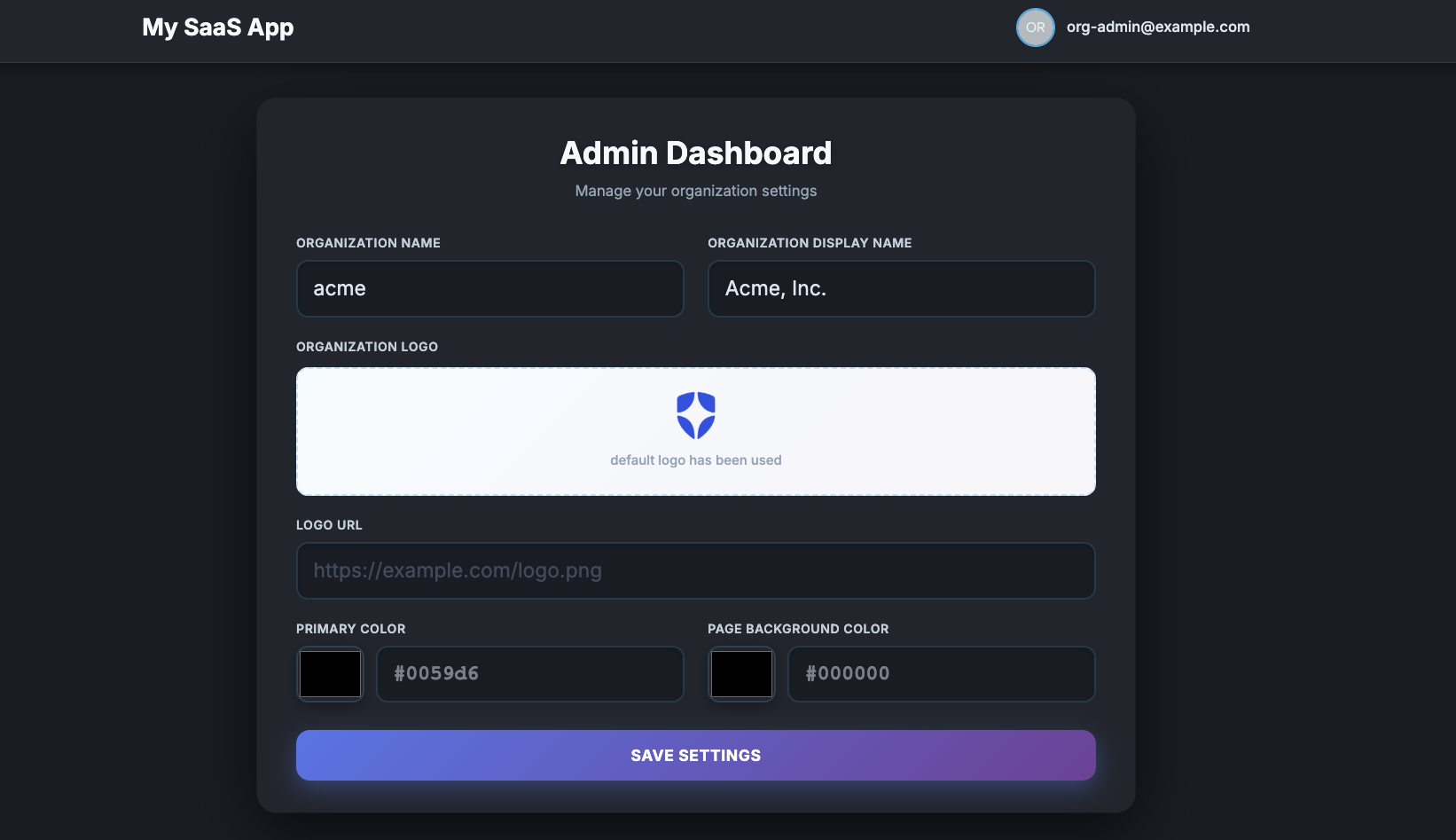
With these changes, the Organization's name and display name will be shown. To test this, log out once, then log in again to obtain an access token. Now, you can see the Organization’s name and display name.
We will repeat this for logo_url, primary_color, background_color fields to accept user inputs in each field and set values back to the local state. Because building a complete UI is outside the scope of this post, you can replace the entire component with the complete code, which handles state management and user input for all fields.
Note that when the user clicks the SAVE SETTINGS button, the following handleSave handler will be triggered. We will later implement this handler to call the My Organization API and perform an update.
// Save settings. Not implemented yet - this is where we call a Server Action.
const handleSave = async (e: React.FormEvent) => {

};
Implement a Server Action to Use MyOrganizationClient instance to update the organization details
We need a way to submit changes back to Auth0. Let's implement a Next.js Server Action that takes form data and uses the organizationDetails.update() method from our client. Since Server Actions execute securely on the server, your My Organization API calls, including the access token, are never exposed to the client-side bundle.
Create src/app/admin/actions.ts and add imports.
"use server";

import { auth0 } from "@/lib/auth0";
import { isOrgAdmin } from "@/lib/auth0-utils";
import { MyOrganizationClient, MyOrganization } from "@auth0/myorganization-js";
import { applyColorDefaults, pruneEmpty } from "@/lib/org-utils";
Next, create a saveOrgSettings function to use the My Organization API to update the Organization details. Use the isOrgAdmin() function to check if an organization admin made the call.
export async function saveOrgSettings(settings: MyOrganization.OrgDetails) {
    // Guard this Server Action to ensure only authenticated org admins can call it.
    const session = await auth0.getSession();
    if (!session) throw new Error("Not authenticated");
    if (!isOrgAdmin(session.user)) throw new Error("Admin access required");

}
We also need to initialize the MyOrganizationClient.
export async function saveOrgSettings(settings: MyOrganization.OrgDetails) {
    // Guard this Server Action to ensure only authenticated org admins can call it.
    const session = await auth0.getSession();
    if (!session) throw new Error("Not authenticated");
    if (!isOrgAdmin(session.user)) throw new Error("Admin access required");

    // 👇 new code
    if (!process.env.AUTH0_DOMAIN) throw new Error('AUTH0_DOMAIN environment variable is not set');

    // getAccessToken will automatically refresh the token if it's expired or about to expire.
    const { token } = await auth0.getAccessToken();
    const client = new MyOrganizationClient({
        domain: process.env.AUTH0_DOMAIN,
        token: token,
    });
    // 👆 new code
}
In Server Action, we can use auth0.getAccessToken() to get an access token, and token refreshes are handled by the Auth0 Next.js SDK.
To update organization details, you will need to send a payload with the changed Organization information. Here is a sample payload:
{
    name: "testorg",
    display_name: "Test Organization",
    branding: {
        logo_url: "https://example.com/logo.png",
        colors: {
            primary: "#000000",
            page_background: "#FFFFFF",
        },
    },
}
There are two conditions:
- If
primaryorpage_backgroundis set, the other value should not be empty. - We can remove keys if the value of a key, or all values of descendants, are empty, as long as condition one is satisfied.
The base project already implemented applyColorDefaults and pruneEmpty helper functions to meet the conditions. Add the following code to construct data to update the Organization details.
export async function saveOrgSettings(settings: MyOrganization.OrgDetails) {
    // ...
    const client = new MyOrganizationClient({
        domain: process.env.AUTH0_DOMAIN,
        token: token,
    });

    // 👇 new code
    // Build branding with color defaults, then prune empty strings/null/undefined.
    const rawBranding = settings.branding ? {
        logo_url: settings.branding.logo_url,
        colors: applyColorDefaults(settings.branding.colors),
    } : undefined;

    const branding = rawBranding ? pruneEmpty(rawBranding) : undefined;

    // Only send fields the Auth0 PATCH endpoint accepts.
    const updatePayload = {
        name: settings.name,
        display_name: settings.display_name,
        ...(branding !== undefined && { branding }),
    };
    const prunedUpdatePayload = pruneEmpty(updatePayload);
    if (Object.keys(prunedUpdatePayload).length === 0) {
        throw new Error("No valid fields to update");
    }
    // 👆 new code
}
Finally, we call the organizationDetails.update() function, which uses the My Organization API to update Organization details and return the result.
export async function saveOrgSettings(settings: MyOrganization.OrgDetails) {

    // ...
    // Only send fields the Auth0 PATCH endpoint accepts.
    const updatePayload = {
        name: settings.name,
        display_name: settings.display_name,
        ...(branding !== undefined && { branding }),
    };
    const prunedUpdatePayload = pruneEmpty(updatePayload);
    if (Object.keys(prunedUpdatePayload).length === 0) {
        throw new Error("No valid fields to update");
    }

    // 👇 new code
    return await client.organizationDetails.update(prunedUpdatePayload);
     // 👆 new code
}
We're almost there. For the last step, wire this Server Action to the handleSave handler in OrgSettingsForm.
import { saveOrgSettings } from "./actions";

export default function OrgSettingsForm({ initialSettings }: Props) {

  // ...

  // Save settings. Not implemented yet - this is where we call a Server Action.
  const handleSave = async (e: React.FormEvent) => {
    // 👇 new code
    e.preventDefault();
    setSaving(true);
    setMessage("");
    setSaveError(false);
    if (messageTimerRef.current) clearTimeout(messageTimerRef.current);

    try {
      // Call the Server Action to save settings via My Organization API
      const updated = await saveOrgSettings(settings);
      setSettings(updated);
      setLogoPreviewUrl(updated.branding?.logo_url || "");
      setMessage("Settings saved successfully!");
      messageTimerRef.current = setTimeout(() => setMessage(""), 3000);
    } catch (error) {
      console.error("Error saving settings:", error);
      setSaveError(true);
      setMessage("Error saving settings");
    } finally {
      setSaving(false);
    }
    // 👆 new code
  };

  // ...

}
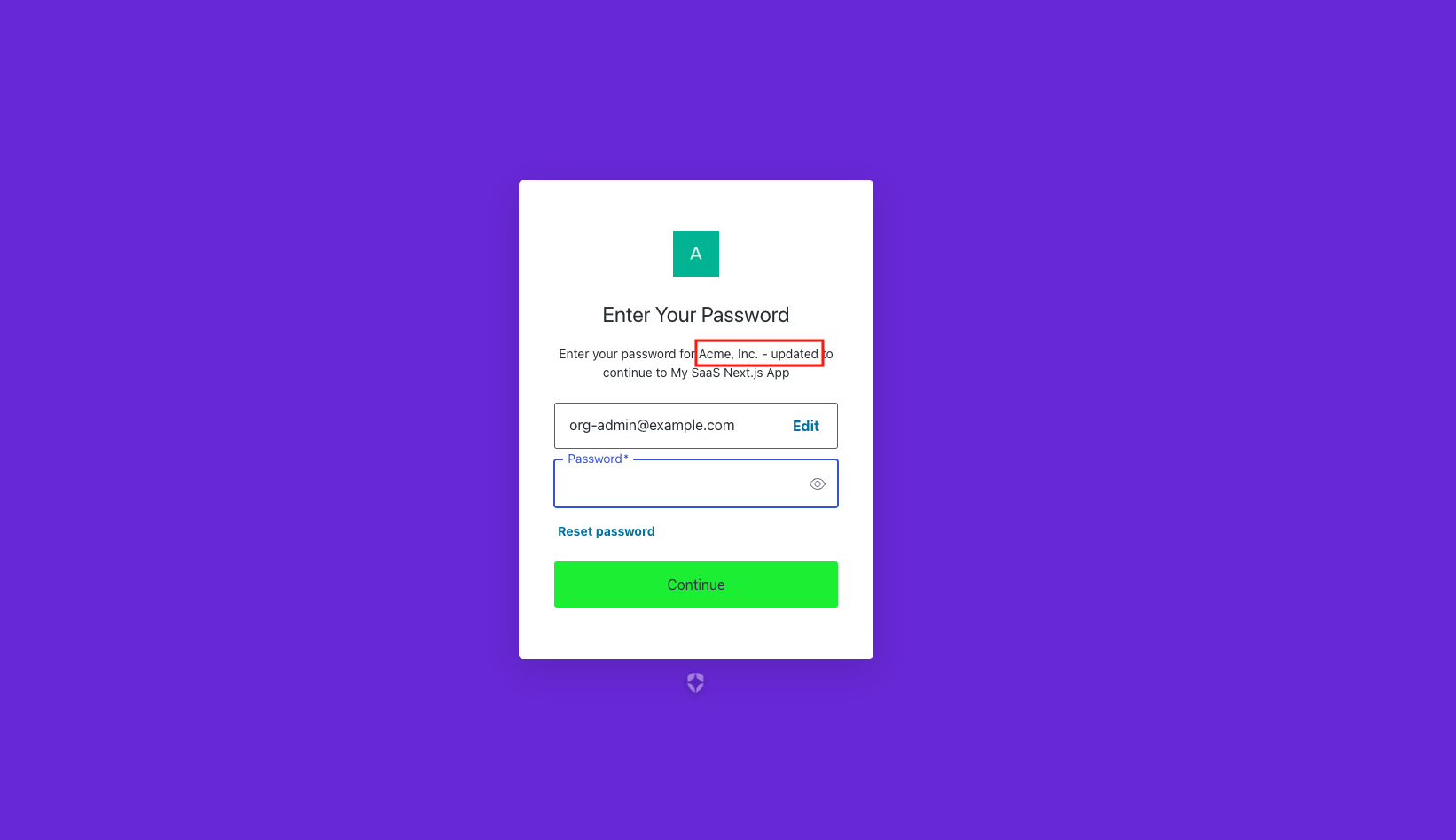
Let's run the application and try to update the display name and/or the primary color. Changing the organization details and branding will affect anything that uses the Organization branding, such as the Universal Login screens. After changing the details, log out once and log in again to confirm your login screen has been updated.
By hooking the Server Action up to the frontend form, organization admins can now seamlessly update their organization's details.
Summary
In this post, you learned how to:
- Identify the challenge of using the Management API for B2B organization management.
- Activate and configure the My Organization API in your Auth0 dashboard.
- Create RBAC roles to delegate organization administration securely.
- Inject organization roles into an ID token using Auth0 Actions.
- Integrate the @auth0/myorganization-js SDK into a Next.js application to read and update organization settings on the fly.
By leveraging the My Organization API, you empower your customers with self-service capabilities while ensuring your Auth0 architecture remains performant and scalable.
In the next blog post, I will add more features to the Admin dashboard to manage the organization.
If you are using React or Next.js, you can speed up your development by leveraging Embeddable UI Components. I will also write a blog post about replacing my own UI with the UI Components in the future.
About the author

Daizen Ikehara
Principal Developer Advocate
.NETエンジニアとしてキャリアをスタートさせた後、UIコンポーネントベンダーやクラウドコミュニケーションプラットフォームベンダーにおいて様々なロールを歴任。2023年3月よりOktaに参画し、日本市場における開発者リレーションを担当。趣味はゲームと長距離散歩。
Daizen Ikehara joined the Developer Relations team in March 2023 as a Principal Developer Advocate. In the early stages of his professional career, Daizen started using C#. Then, he touched on various JavaScript technologies/frameworks—Angular, React, and Vue. Recently, he’s been using Node.js/JavaScript more often. He is passionate about talking with developers. Outside of work, Daizen likes to take long walks, play video games, and watch Formula 1 racing.