
Modern agentic workflows have exposed a delegation gap in traditional Identity and Access Management (IAM), as Agentic systems often rely on overprivileged service accounts or shared credentials. This lack of granular authorization means agents typically inherit a user's full permissions, making it difficult to secure high-stakes actions.
Without robust "On-Behalf-Of" protocols, it is hard to distinguish legitimate user-initiated tasks from "confused deputy" attacks abusing trusted access. As agents transition to multi-step execution across sensitive APIs, securing the chain of custody from human identity to agentic action is now a foundational enterprise trust requirement.
Authentication and Authorization for AI agents.
Securing an agentic solution is hampered by the lack of industry standards and common security lapses:
- Agents lack inherent user identity/context
- API keys are unsuitable
- Prompt engineering alone is insufficient for safety
- "Yes" is inadequate consent
- Role-based access control fails due to dynamic information discovery
- LLMs must not handle credentials.
These flawed practices frequently result in security failures: unauthorized data access, outdated permissions, compliance issues, weak authorization, secret exposure, and privacy breaches, obstructing the successful, large-scale deployment of AI agents.
In this comprehensive guide, we will provide step-by-step instructions for securing Gemini Enterprise Agent Platform Runtime using Auth0 for AI Agents capabilities. The complete code repository for this solution is available here. The need for robust security is paramount, and this guide demonstrates the process.
Solution Prerequisites
Before starting, you need accounts for Auth0 for AI Agents, Auth0 FGA, and Google Cloud.
To begin, ensure the following environments are properly set up:
Google Cloud: You must have a Google Cloud project ready, with both the Gemini Enterprise Agent Platform API and the Secret Manager API activated. Sign up at cloud.google.com if you do not have a Google Cloud account.
Creating an Auth0 for AI Agents Account: If you are new to Auth0, create an account to start using, or if you already have an account, log in using your existing Auth0 credentials.
Creating an Auth0 FGA Account: If you already have an Auth0 account, you can use the same credentials to log in to the Auth0 FGA dashboard at dashboard.fga.dev. If you don't have an Auth0 account, hop over to dashboard.fga.dev and create a free account.
Auth0 for AI Agents
Auth0 for AI Agents ensures robust security for AI deployments and meets stringent authentication and authorization requirements. The agent's interactions are protected by Auth0, which requires authenticated users to provide secure, limited access. Auth0 stops unauthorized actions and stops data breaches.
Gemini Enterprise Agent Platform Runtime
Gemini Enterprise Agent Platform Runtime, a part of the Gemini Enterprise Agent Platform, is a set of services that enables developers to deploy, manage, and scale AI agents in production. Gemini Enterprise Agent Platform Runtime handles the infrastructure to scale agents in production, so you can focus on creating applications.
Architecture of an Auth0-Secured Gemini Enterprise Agent Platform Runtime
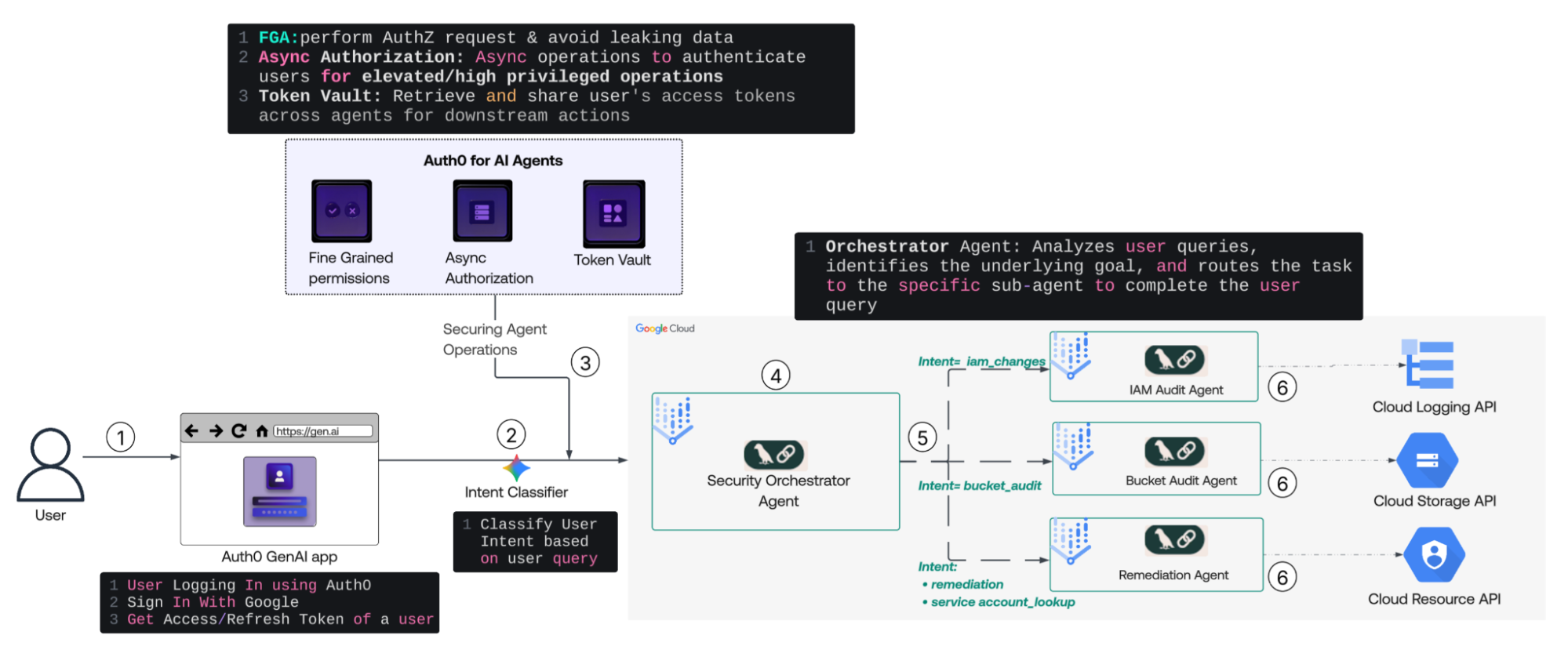
- User Authentication: The user logs in to the application using Auth0, triggering the retrieval of Access and Refresh tokens for a Google Cloud connection. Triggering the storage of these tokens in the Auth0 Token Vault.
- Intent Classification: The system passes the user’s natural-language query to an Intent Classifier in a web application to determine the request's specific goal.
- Security Posture Injection: Before agent execution, the web app integrates Auth0 for AI Agents, utilizing:
- User Authentication to ensure only authenticated users can access AI Agents.
- Fine-Grained Authorization (FGA) to ensure data privacy.
- Async Authorization for high-privilege operations.
- Token Vault to securely share user tokens with downstream agents.
- Orchestration: The Security Orchestrator Agent receives the classified intent, user context, and the security context. It acts as the central hub, deciding which specialized sub-agent is required to complete the task.
- Agent Dispatch & Execution: The Orchestrator routes the task to the intended sub-agents based on its specific "Intent Domain":
- IAM Audit Agent: For identity and access changes.
- Bucket Audit Agent: For storage security checks.
- Remediation Agent: For active service account lookups IAM roles and updates it.
- Resource Interaction: The selected agents interact with the corresponding Google Cloud APIs (Logging, Storage, or Resource Manager) to execute the task and return the result to the user.
We will use four agents in this workflow: one Orchestrator Agent, which will manage the workflow and direct control to the appropriate agent based on the user's request intent, and three Operational Agents, which will execute the user's input operations by interacting with cloud resources and APIs.
How to Build It?
Let's explore the solution's components, understanding their interrelations and contributions to securing the Gemini Enterprise Agent Platform Runtime. We will break our build process into five sections:
- Configuring Auth0 for Securing Agents that covers creating the app, grant types, and social connection with Google Cloud.
- Setting Up the Supporting Google Cloud Infrastructure.
- Building the Gemini Enterprise Agent Platform Runtime covers creating and deploying the agent.
- Implementing Fine-Grained Authorization that covers the FGA model and tuple configuration.
- Configuring and Testing the Application that covers the Flask app setup and test plan.
By the end of this guide, you will have a fully secured Gemini Enterprise Agent Platform Runtime , protected by Auth0 for AI Agents.
Use case
Security teams currently track Google Cloud IAM changes, public buckets, and revoke access manually via logs, individual inspections, and the Google Cloud console/CLI—a time-consuming, error-prone process lacking guardrails.
This project introduces a conversational AI assistant to replace this workflow. Operators can use plain English queries, like "What IAM changes happened?" or "Revoke editor role," to get immediate, accurate answers from live Google Cloud data.
The solution ensures robust security: all actions run under the user's Google identity, not a shared account. This, combined with fine-grained authorization and required step-up approval for destructive actions, results in an auditable, access-controlled, enterprise-ready AI security assistant.
Part 1: Configuring Auth0
Since we will be interacting with Gemini Enterprise Agent Platform Runtime through a web interface, let us begin by setting up a web application in Auth0.
Create an application
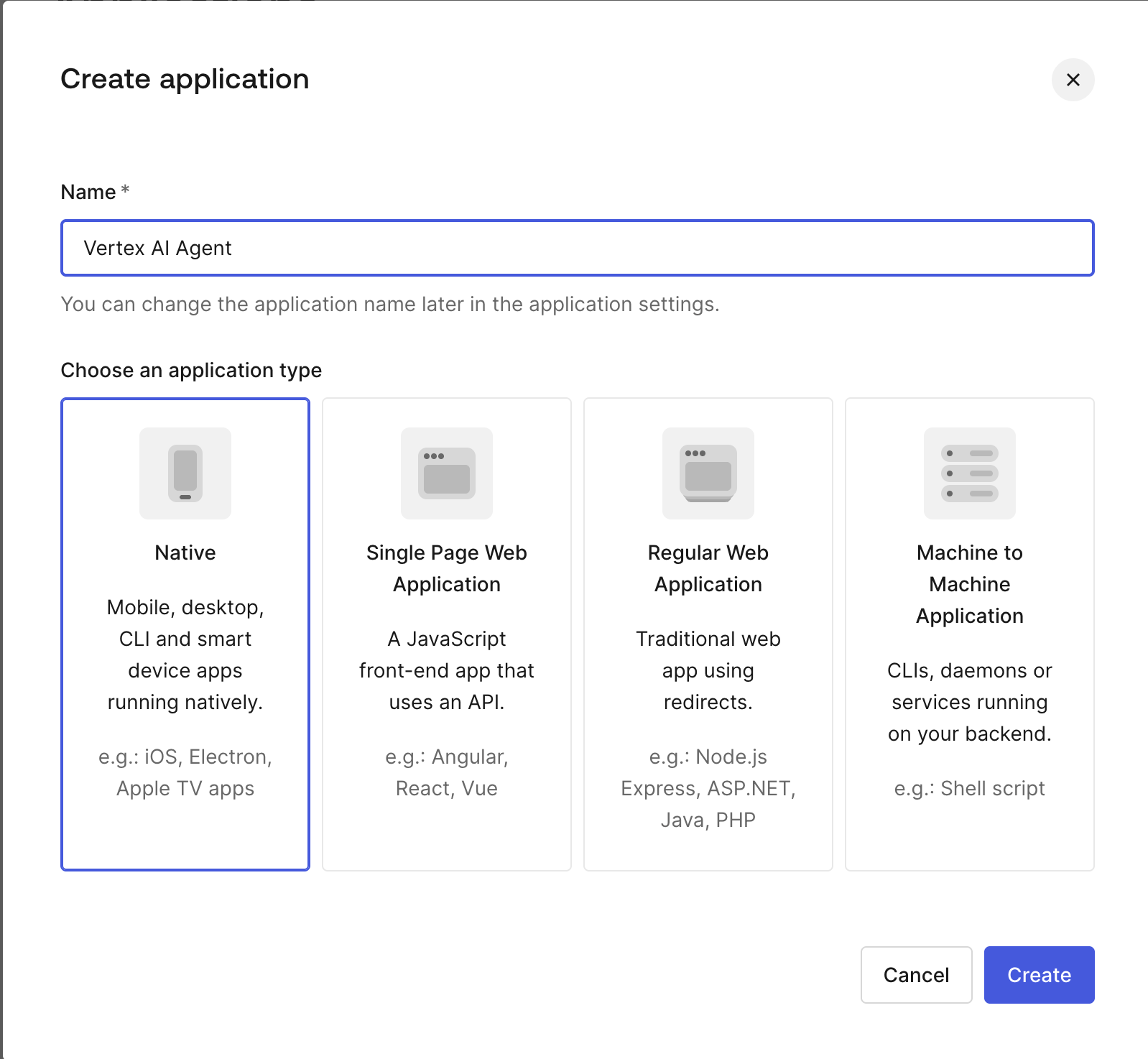
In the Auth0 dashboard, create a Regular Web application (a Python/Flask application) by clicking "Create Application," selecting the "Regular Web application" dialog, and clicking "Create."
Configure an application
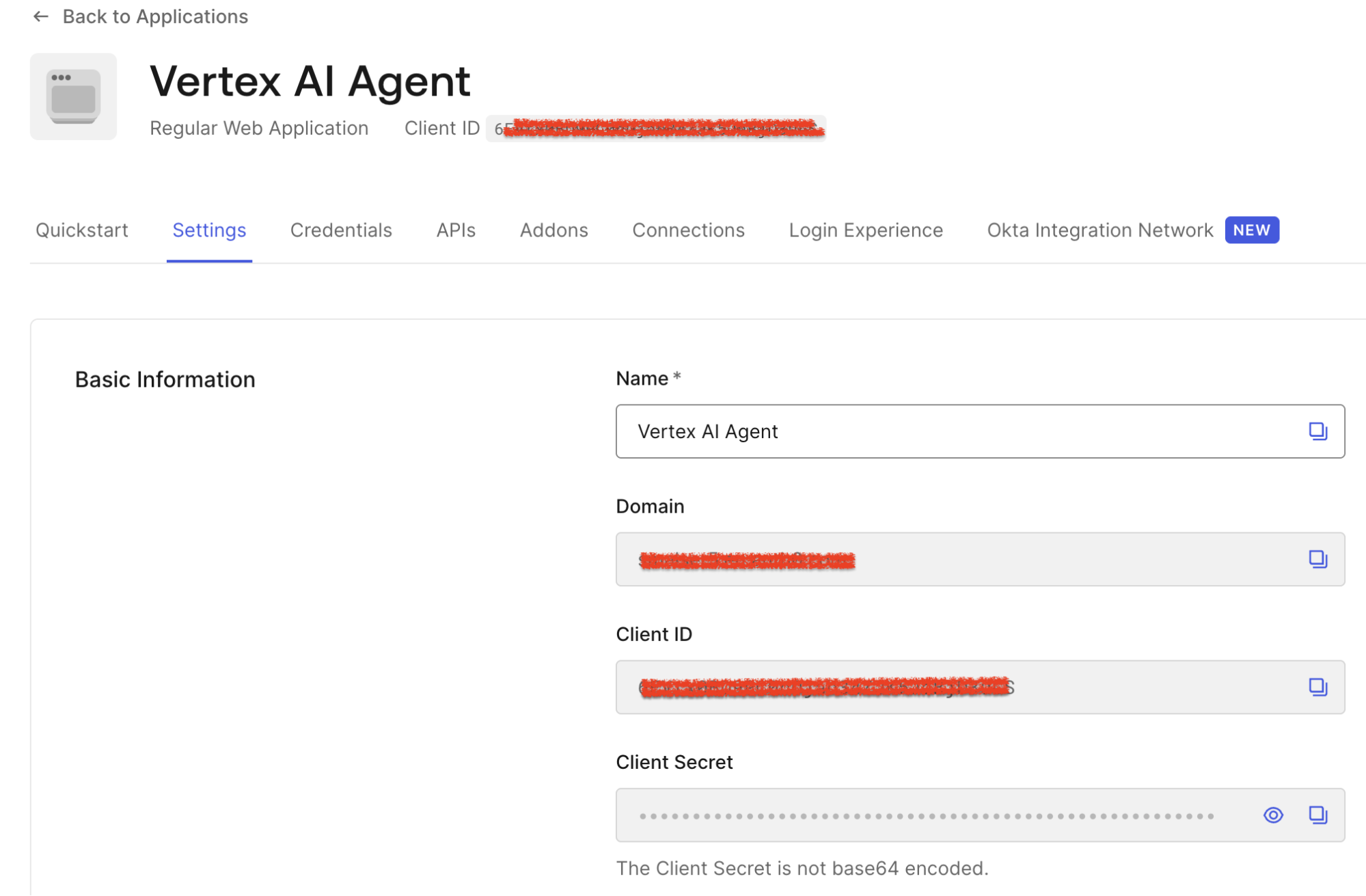
Click on the Settings screen to access essential configuration parameters. Note down the ClientID, Client Secret, and Domain values; they will be used in the Web app codebase.
Go to the bottom of the Advanced Settings section and click Grant Types; make sure the Token Vault and CIBA checkboxes are checked.
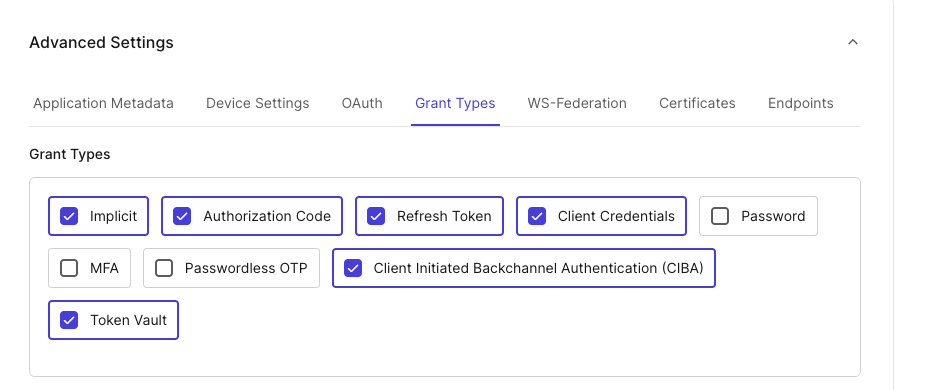
Click Save at the bottom right of the page.
Creating a Google Cloud connection
Follow these instructions to create a Google Cloud connection. Once configured, navigate to your OIDC connection under Authentication -> Social -> google-oauth2, and ensure offline_scope is enabled.
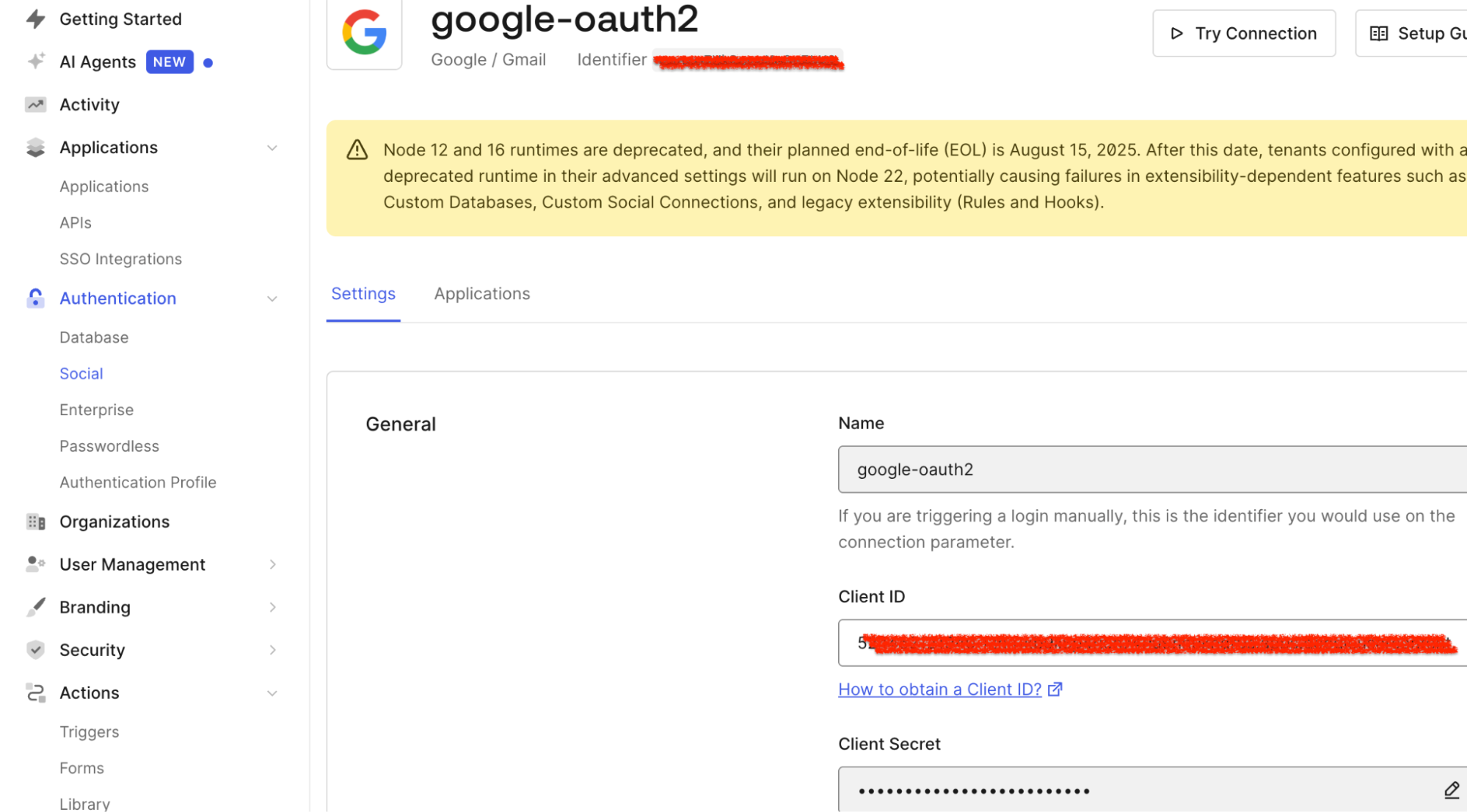
You must bring two specific strings back to your Auth0 Dashboard:
- Client ID: A public identifier for an OAuth application in Google Cloud (for example, 12345-abcde.apps.googleusercontent.com).
- Client Secret: A private password from Google Cloud.
Now, go to the Applications Tab for the Google Social connection you created, and assign it to the app you created earlier.

Application is set, the web application we created will use all configurations . For application files and setting-related information, please refer to the following GitHub repo. Use all Auth0 Settings and configurations in the .env file as directed.
Enabling My Account API for Token Vault
When a user connects with an external identity provider (such as Google Cloud), Auth0 adds the 'connected account' to the user profile, allowing applications to access external APIs through a single Auth0 profile.
Auth0 stores the necessary access and refresh tokens in the Token Vault. Applications retrieve these tokens via a secure token exchange, allowing them to call external APIs without requiring custom provider integrations.
The Connected Accounts flow uses the My Account API to create and manage a user's accounts across supported external providers. User can request for the Connected Accounts request and use the My Account API
To enable My Accounts API, go to Applications > APIs and locate the MyAccount API banner and select Activate.
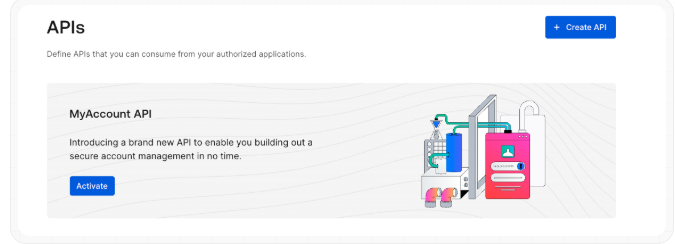
Once activated, select the Application Access tab of Auth0 My Account API, then click Edit next to the app just created.

Then select the User Access tab, select all the application's Connected Accounts scopes, and click Save.
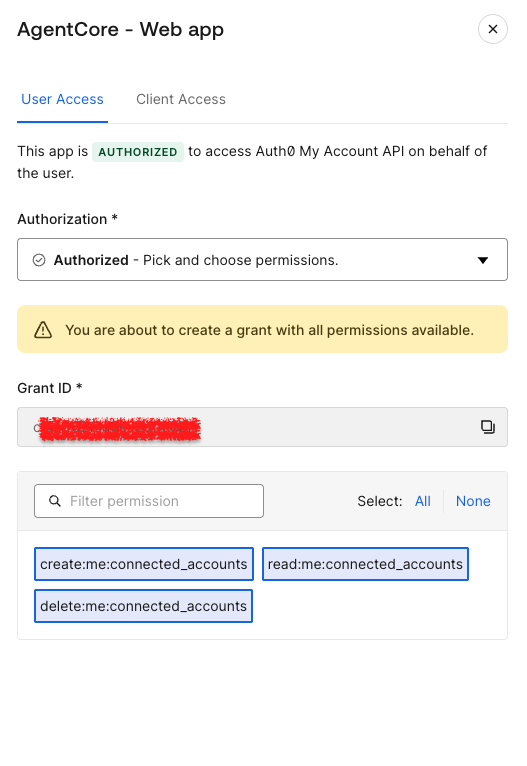
Find more information about how Token Vault and My Account API work together here.
Part 2: Setting Up Google Cloud Components
The setup process involves configuring several resources within Google Cloud, specifically:
- Enabling APIs.
- Generate an OAuth client within your Google Cloud environment.
- Creating and deploying Gemini Enterprise Agent Platform Runtime and an Orchestrator agent.
- Creating a public Google Cloud bucket.
- Setting environment variables for Gemini Enterprise Agent Platform Runtime .
Enable APIs
The use case is based on the user’s identity. The app and agents use Google REST APIs, passing the federated OAuth token obtained from Auth0 as a Bearer token on each request. What APIs Do You Need? The following APIs need to be enabled for the use case. APIs utilized in this solution are:
| API | Component/Usage |
|---|---|
aiplatform.googleapis.com | Gemini Enterprise Agent Platform Runtime (Reasoning Engines) |
logging.googleapis.com | IAM Changes Agent (Queries Cloud Audit Logs) |
storage.googleapis.com | Bucket Audit Agent (Lists buckets and their IAM policies) |
cloudresourcemanager.googleapis.com | Remediation Agent (Gets and sets project IAM policy) |
As we discussed in the architecture diagram, each specialist agent calls its respective Google REST API directly inside its tool function using the requests library, injecting the user's federated token as the Authorization: Bearer header at runtime.
The Web App uses the Gemini Enterprise Agent Platform SDKs, initialized with a Google Cloud token. This token, obtained by federating a Google Cloud token for the cloud-platform scope, provides access to all four Google Cloud APIs.
Check the Enabling an API in your Google Cloud project documentation to enable APIs in your Google Cloud Project.
Google Cloud permissions
The following table outlines the necessary Google Cloud roles and their associated purposes within the A4AA and Gemini Enterprise Agent Platform context:
| Google Cloud Role | Purpose |
|---|---|
roles/aiplatform.user | The user's federated token initializes the Gemini Enterprise Agent Platform . This client is then used to call a GenerativeModel for intent classification and to query a deployed Gemini Enterprise Agent Platform Runtime orchestrator agent. |
roles/storage.admin | The Bucket Audit Agent uses the user's federated token to call two Cloud Storage APIs: list_buckets and get_bucket_iam_policy. It requires storage. admin permission. The agent's tool uses this to check all buckets. |
roles/logging.viewer | The IAM Changes Agent requires to read logs from Cloud Logging via a POST request to the API at query time. |
roles/resourcemanager.projectIamAdmin | The Remediation Agent needs the permission to read, modify, and write the project IAM policy using the Cloud Resource Manager API. This highly privileged role is for authorized remediation users and is used at query time, after CIBA step-up approval, to call the API with the user's federated token. |
roles/storage.objectAdmin | The staging bucket serves as the intermediate transfer location between your local machine and the Gemini Enterprise Agent Platform build pipeline. Specifically, your credentials are used to write data to this bucket, and the Gemini Enterprise Agent Platform service agent reads the data from it. This is used only for deploy-time operation. |
Note:
- Gemini Enterprise Agent Platform Runtime deploys an agent in a container; it runs under the project's Gemini Enterprise Agent Platform Service Agent
(service-PROJECT_NUMBER@gcp-sa-aiplatform.iam.gserviceaccount.com). Please ensure this service agent has theroles/storage.objectViewerrole on the staging bucket to read the packaged agent artifacts during container initialization. - The agents deploy with model="gemini-2.5-pro” and the web app uses gemini-2.0-flash for intent classification. These models must be explicitly enabled in Gemini Enterprise Agent Platform Model Garden in the Google Cloud console.
- For demonstration purposes only, we have created these roles. In your specific use cases, please ensure you implement roles based on the principle of least privilege.
Bucket
Two distinct Google Cloud buckets are required for the use case: a private Staging Bucket and a public Demo Bucket.
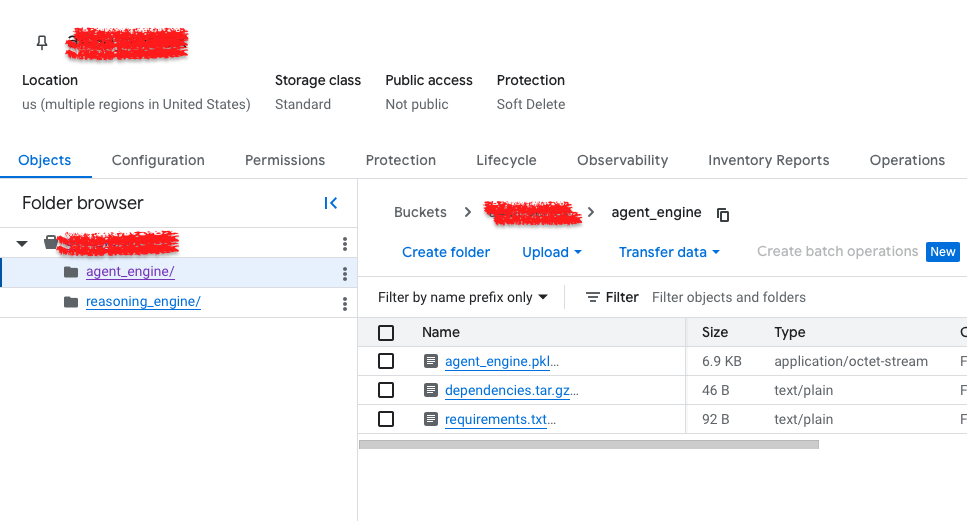
Staging Bucket (Private): Used solely during agent deployment to upload private agent code artifacts to the Gemini Enterprise Agent Platform. It must remain private to protect implementation. Create this bucket before you deploy any agent.
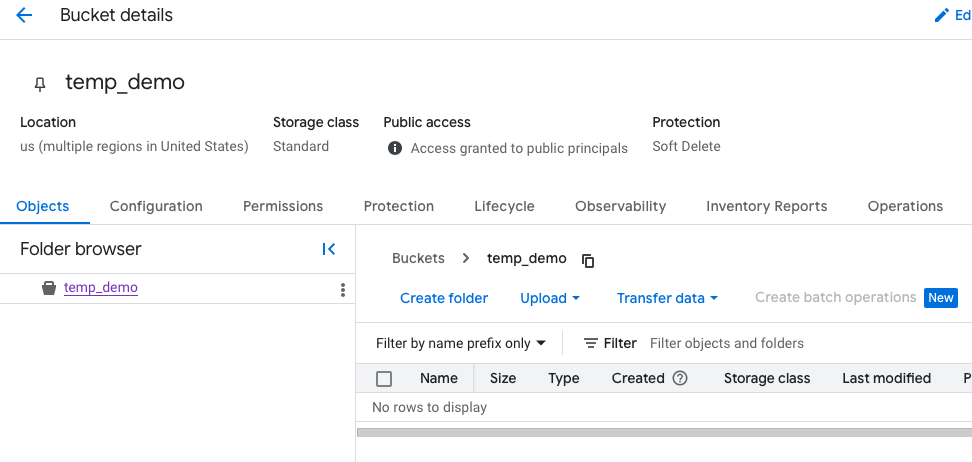
Demo Bucket (Public): Intentionally made public (allUsers:objectViewer) to ensure the Bucket Audit Agent finds a public bucket and returns a meaningful result during demonstration.
The demo bucket's purpose is purely to provide a finding for the find_public_buckets() tool in a Bucket Policy Agent.
Part 3: Building and Deploying the Gemini Enterprise Agent Platform Runtime and Wiring the Agents with the Web Application
Gemini Enterprise Agent Platform Runtime
This project has four agents arranged in a two-tier hierarchy: an orchestrator agent and specialist agents. Each agent is an independent agent deployed on the Gemini Enterprise Agent Platform Runtime.
The Orchestrator serves as the sole gateway for all incoming user questions. Its function is strictly to receive a query, identify the most appropriate specialist to address it, and then route the request to that specialist. Crucially, it never makes direct calls to any Google Cloud API. To facilitate routing, it is deployed with the resource IDs of all three specialists hardcoded, allowing it to know precisely where to send each user inquiry.
The Specialists: There are three specialist agents, each owning a specific security domain: The IAM Audit Specialist, The Bucket Audit Specialist, and The Remediation Specialist.
The IAM Audit Specialist queries the Cloud Logging API for events detailing IAM policy changes (who, what, when, and specific role binding additions/removals).
def get_iam_changes(hours_back: int = 24) -> str:
  """Query Cloud Audit Logs for IAM policy changes in the last N hours."""
      url = "https://logging.googleapis.com/v2/entries:list"
      body = {
          "resourceNames": [f"projects/{project_id}"],
          "filter": f'protoPayload.methodName="SetIamPolicy" AND timestamp>="{since}"',
          "orderBy": "timestamp desc",
      }
      resp = requests.post(url, headers={"Authorization": f"Bearer {token}"}, json=body)
      return resp.json()
The Bucket Audit Specialist uses the Cloud Storage API to list all project buckets and checks their IAM policy bindings, reporting publicly accessible buckets and their exposed roles.
  def find_public_buckets() -> str:
       """List all GCS buckets and flag any that grant access to allUsers or allAuthenticatedUsers."""
       PUBLIC_PRINCIPALS = {"allUsers", "allAuthenticatedUsers"}
       buckets = requests.get("https://storage.googleapis.com/storage/v1/b",
                              headers={"Authorization": f"Bearer {token}"},
                              params={"project": project_id}).json().get("items", [])
       for bucket in buckets:
           iam = requests.get(f"https://storage.googleapis.com/storage/v1/b/{bucket['name']}/iam",
                              headers={"Authorization": f"Bearer {token}"}).json()
The Remediation Specialist revokes IAM roles by looking up a service account's current roles. As the sole write agent, this action requires human in the loop step-up approval in the web app.
def revoke_service_account_binding(service_account_email: str, role: str) -> str:
      """Read-modify-write the project IAM policy to remove a specific binding."""
      policy = requests.post(f"{base_url}:getIamPolicy",
                             headers={"Authorization": f"Bearer {token}"}, json={}).json()

      # remove the matching member+role binding
      policy["bindings"] = [
          {**b, "members": [m for m in b["members"] if m != f"serviceAccount:{service_account_email}"]}
          for b in policy["bindings"] if b["role"] == role
      ]

      requests.post(f"{base_url}:setIamPolicy",
                    headers={"Authorization": f"Bearer {token}"},
       json={"policy": policy})
Agent Deployment
Deployment is sequential and order-dependent. The three specialists are deployed first each independently, in any order among themselves. Each deployment prints a resource name of the form projects/.../locations/.../reasoningEngines/.... You can find endpoint information in the Google Cloud console.
The deployment process requires deploying three specialists (IAM Audit Specialist, Bucket Audit Specialist, Remediation Specialist) first, writing their resource names to an .env file.
The Orchestrator is then deployed using those three names, and its own resource name is finally added to the Web app's .env file.
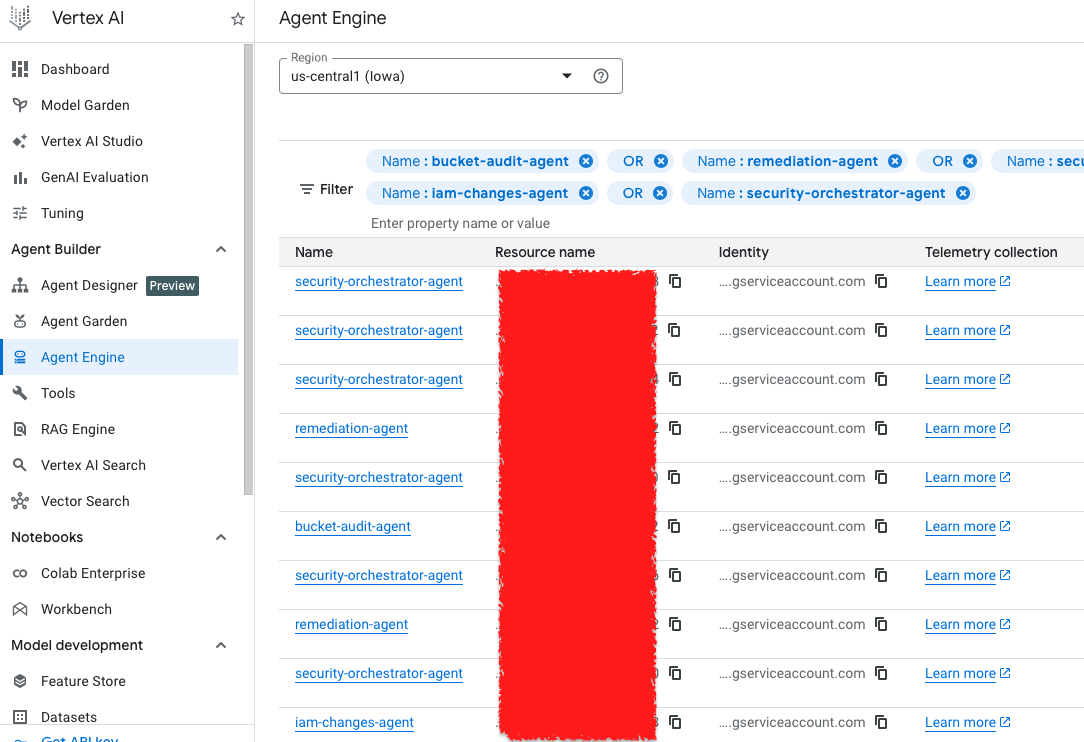
And you click here, and here you will notice the endpoint.

The Security Orchestrator agent
The Security Orchestrator is the single entry point into the agent layer. The agent receives the user's message and their federated Google Cloud token from the web app, the agent decides which specialist can answer the query. It has no tools that call Google Cloud APIs directly; it only knows how to delegate.
The routing occurs within call_specialist_agent(), a function defined in set_up() and registered as the orchestrator's only tool. When Google’s Gemini model inside the orchestrator decides which specialist to call, it invokes this function:
# Resource endpoints for worker agents
    SPECIALIST_AGENT_MAP = {
        "iam_changes":  os.environ.get("GOOGLE_CLOUD_AGENT_ENGINE_ID_IAM_CHANGES"),
        "bucket_audit": os.environ.get("GOOGLE_CLOUD_AGENT_ENGINE_ID_BUCKET_AUDIT"),
        "remediation":  os.environ.get("GOOGLE_CLOUD_AGENT_ENGINE_ID_REMEDIATION"),
    }
#Dictionary of intent label
 _agent_map = {
   "iam_changes":  SPECIALIST_AGENT_MAP["iam_changes"],
   "bucket_audit": SPECIALIST_AGENT_MAP["bucket_audit"],   "sa_lookup":SPECIALIST_AGENT_MAP["remediation"],#same agent,read-only tool
    "remediation":  SPECIALIST_AGENT_MAP["remediation"],# same agent, update-service_account-only tool
}
#Calls the specialist  agent based on the intent discovered

def call_specialist_agent(agent_type: str, user_query: str) -> str:
resource_id = _agent_map.get(agent_type.lower())
response =reasoning_engines.ReasoningEngine(resource_id).query(
            input=user_query,
            user_id=self._user_id,
            access_token=self._access_token)
Note: sa_lookup and remediation both map to the same agent resource. The same deployed agent handles reading and revoking roles because both operations use the same Cloud Resource Manager API.
Intent classifier
When a user submits a message, the web app immediately runs it through _classify_intent() in app.py. The returned intent string is then used to:
- FGA authorization check, confirming user is allowed to perform an operation.
- If the intent is remediation, a CIBA push notification is sent to the user's device for approval before any agent is called.
- For all other intents that pass the FGA check, the web app initializes Gemini Enterprise Agent Platform Runtime .
The orchestrator then takes over and decides which specialist to route to by calling call_specialist_agent().
 # Step 1: classify the user's free-text into a structured intent
  intent = _classify_intent(user_message)   # → "iam_changes" | "bucket_audit" | "sa_lookup" | "remediation"

  # Step 2: FGA check — is this user allowed to perform this intent?
  if not await _fga_check(user_email, intent):
      messages.append({"sender": "system", "message": "This action is not authorized."})
      return RedirectResponse(url="/chat", status_code=302)

  # Step 3: CIBA step-up — remediation requires out-of-band device approval before proceeding
  if intent == "remediation":
      bc_data = await auth_client.initiate_backchannel_authentication({
          "login_hint": {"sub": user_sub},
          "binding_message": "Approve access to the remediation capability",
      })
      request.session["ciba_pending"] = True
      request.session["ciba_auth_req_id"] = bc_data["auth_req_id"]
      return RedirectResponse(url="/chat", status_code=302)

  # Step 4: initialize Gemini Enterprise Agent Platform  with the user's federated Google Cloud token
  credentials = Credentials(token=federated_token)
  vertexai.init(project=..., location=..., credentials=credentials)

  # Step 5: call the orchestrator — passes the original message and token
  remote_agent = reasoning_engines.ReasoningEngine(_orchestrator_id)
  response = remote_agent.query(
      input=user_message,
      user_id=user_email,
      access_token=federated_token,
  )
Part 4: Implementing Fine-Grained Authorization
Auth0 FGA uses an authorization model to manage all relationships between users and the operations they can perform. This section demonstrates how Gemini Enterprise Agent Platform Runtime can leverage an FGA Model created for our specific use case to make authorization decisions based on the logged-in user.
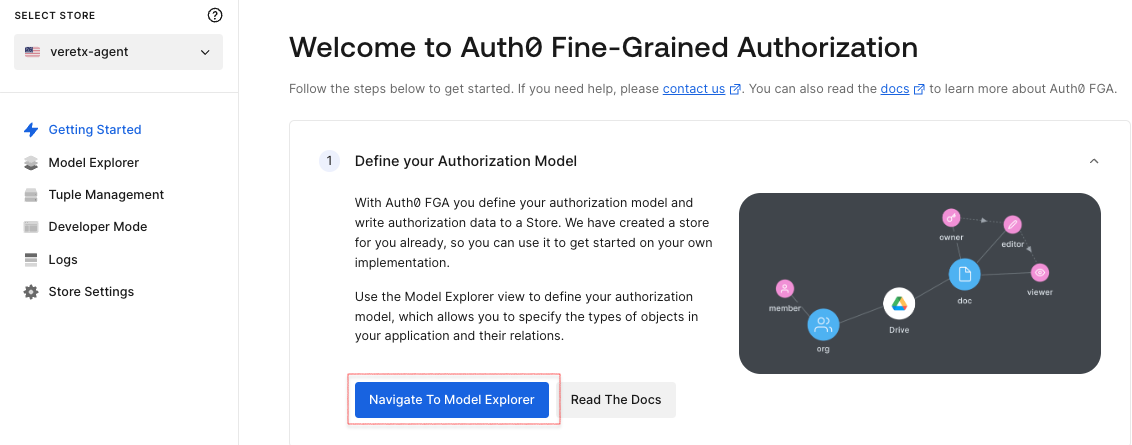
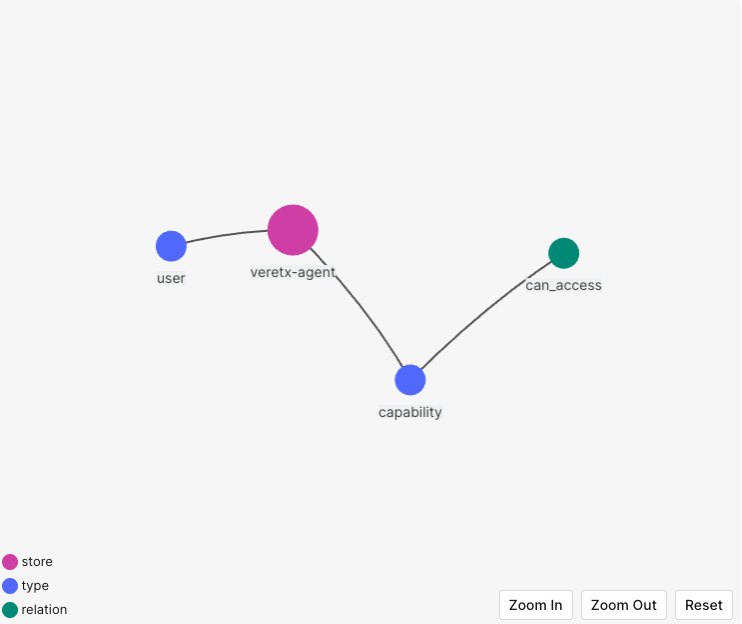
Add the following FGA Authorization Model to the model editor, then click Save.
 model
  schema 1.1
 type user

 type capability
  relations
    define can_access: [user]
After saving the model, you will see its preview and authorization model.
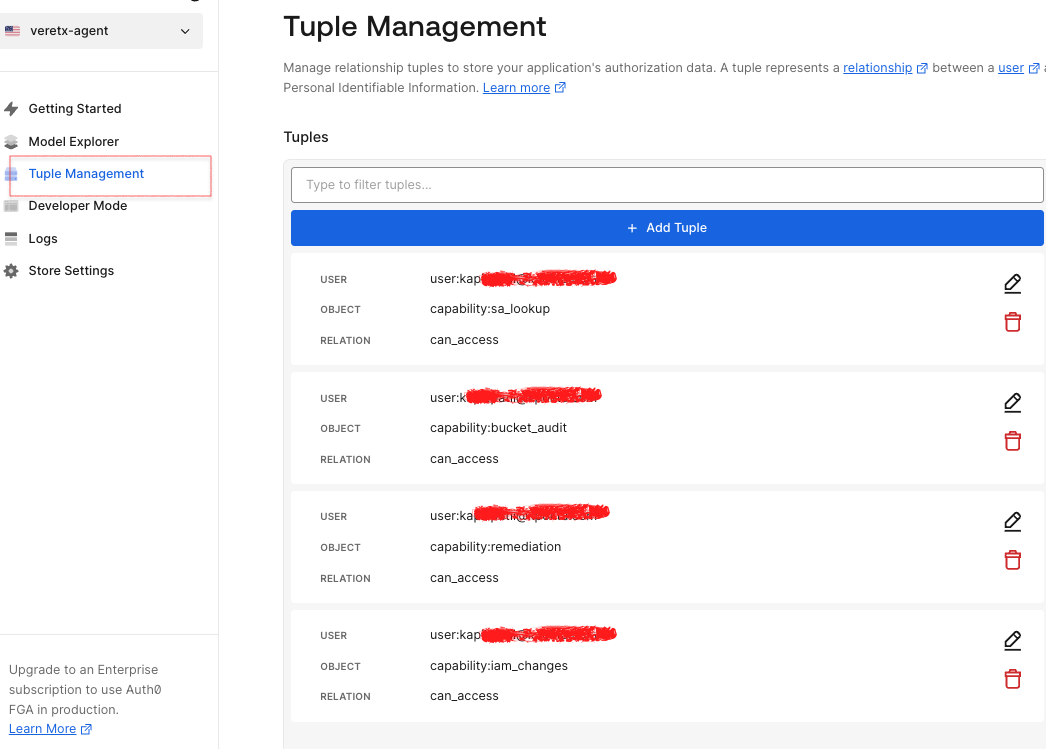
Go to the Tuple Management section, accessible from the main dashboard, to define users and their relationships to various application objects.
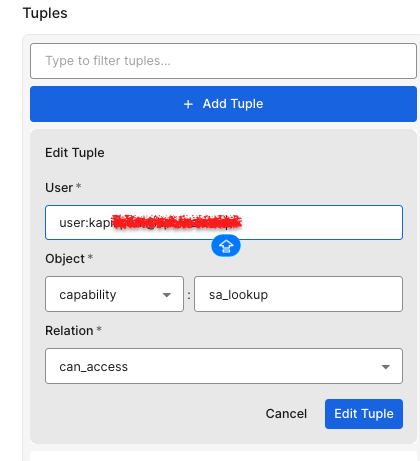
Click the Add Tuple button to add relationship data, then add a tuple to demonstrate.
The following tuple represents that the user ID can access a specific intent/operation of Gemini Enterprise Agent Platform Runtime.
So far, we have the Okta FGA Authorization Model and all the relationships ready.
Configuring the FGA authorization model
To configure the Authorized Client for the authorization model, which will help to connect to the application, click on the settings menu of the Authorization model you are working on, and click on + Create Client.
Select the appropriate set of permissions your application needs, then click Create.
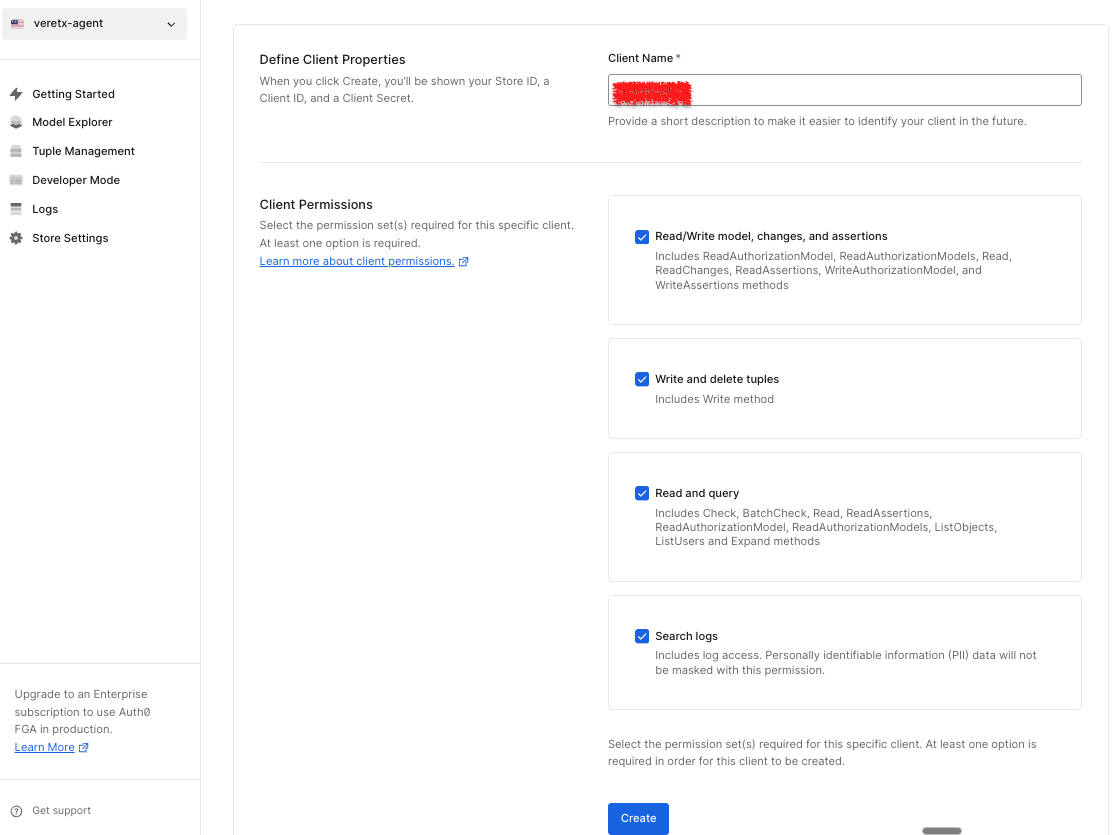
This step creates the credentials your app needs. Make sure to save these values before clicking on the continue button.
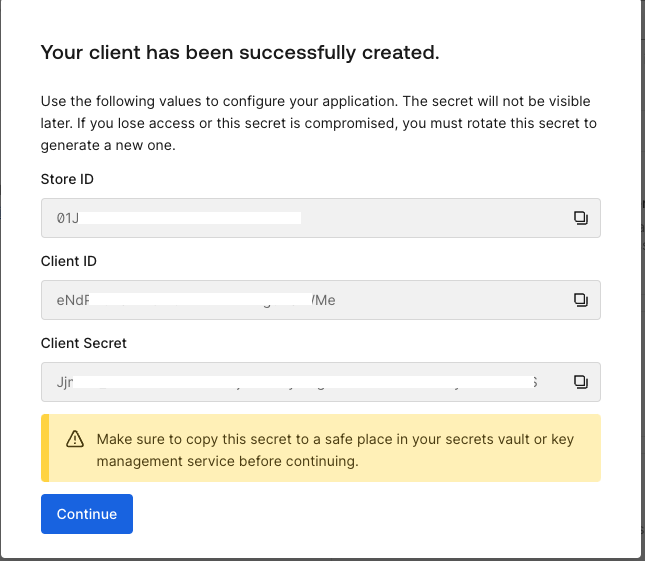
This authorization model will be implemented to support authorization decisions for the Gemini Enterprise Agent Platform Runtime. The web app will leverage FGA to assess and control the actions a user is authorized to perform before agent execution.
Part 5: Configuring and Testing the Application
We have now configured all the necessary components for the demo. So far, we have set up an Auth0 App, an Auth0 FGA model, and Google Cloud resources and Gemini Enterprise Agent Platform Runtime . The next step is to integrate these elements by configuring our Flask application.
Start by creating a Flask web application using the provided GitHub repository. This application will communicate with the Gemini Enterprise Agent Platform Runtime you created in earlier steps.
How to test the application:
- Open the Web App URL in your browser and log in using your Auth0 credentials.
Expected Result: You are prompted to provide consent and enroll in MFA via Auth0 Guardian; the login is completed successfully. - In a new tab, go to the Auth0 Dashboard, navigate to Security → Multi-factor Auth, and set the MFA policy to "None".
Expected Result: MFA is now disabled for your account and will not be triggered during future logins. This change will ensure the token vault works as expected. - Return to the Web App and verify that the chatbot interface is visible.
Expected Result: A chatbot UI should load and be ready for interaction.In the chatbot input box, type " Show me IAM changes in the last 24 hours " and send the message. Expected Result: The chatbot should respond with a list of IAM changes associated with your account.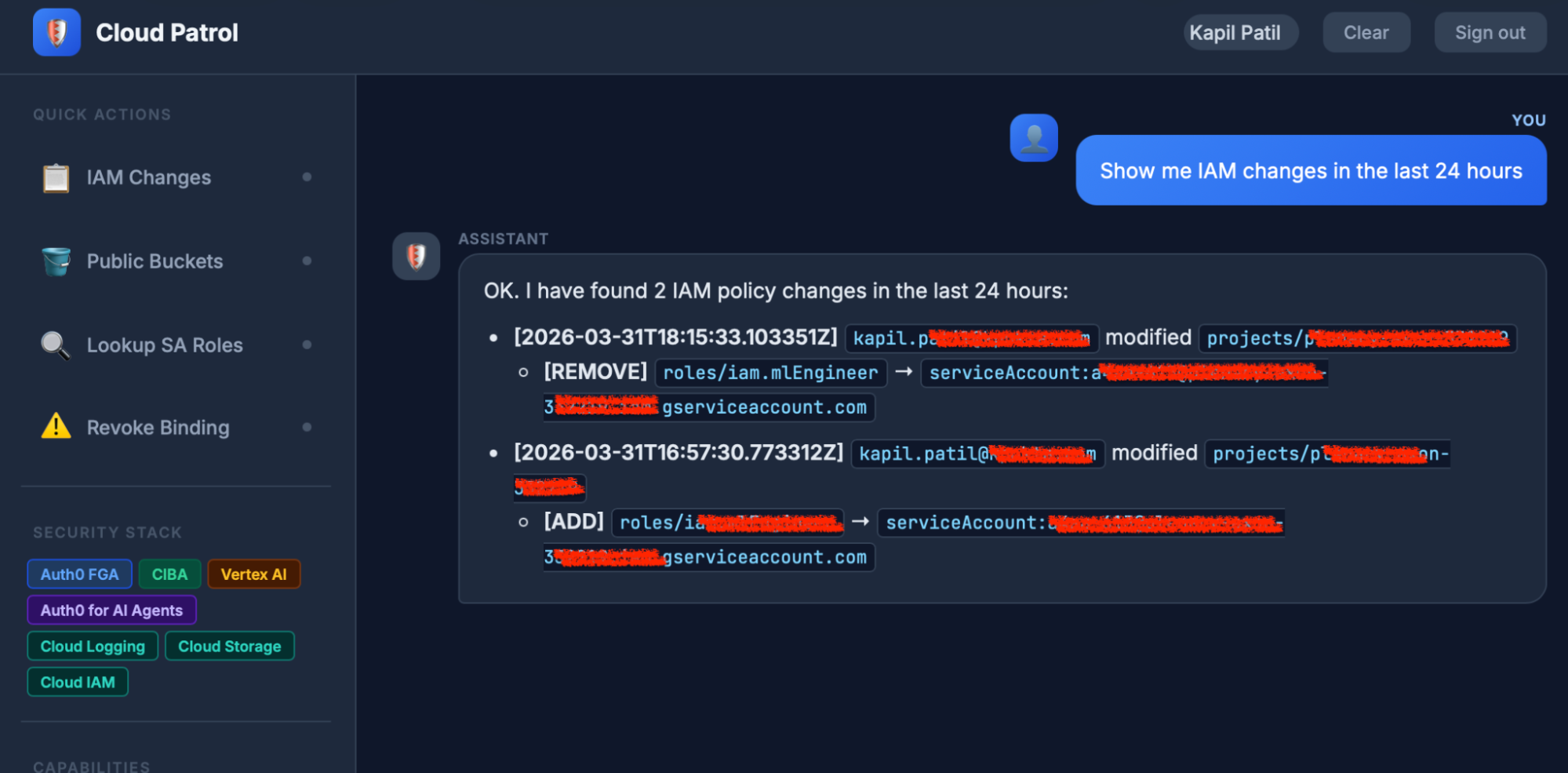 Test Case: Accessing Google Cloud Resources API using Auth0 Token Vault
 - In the chatbot, type Are any storage buckets publicly accessible?
Expected Result: User See, it a bucket which was made public in our earlier configurations.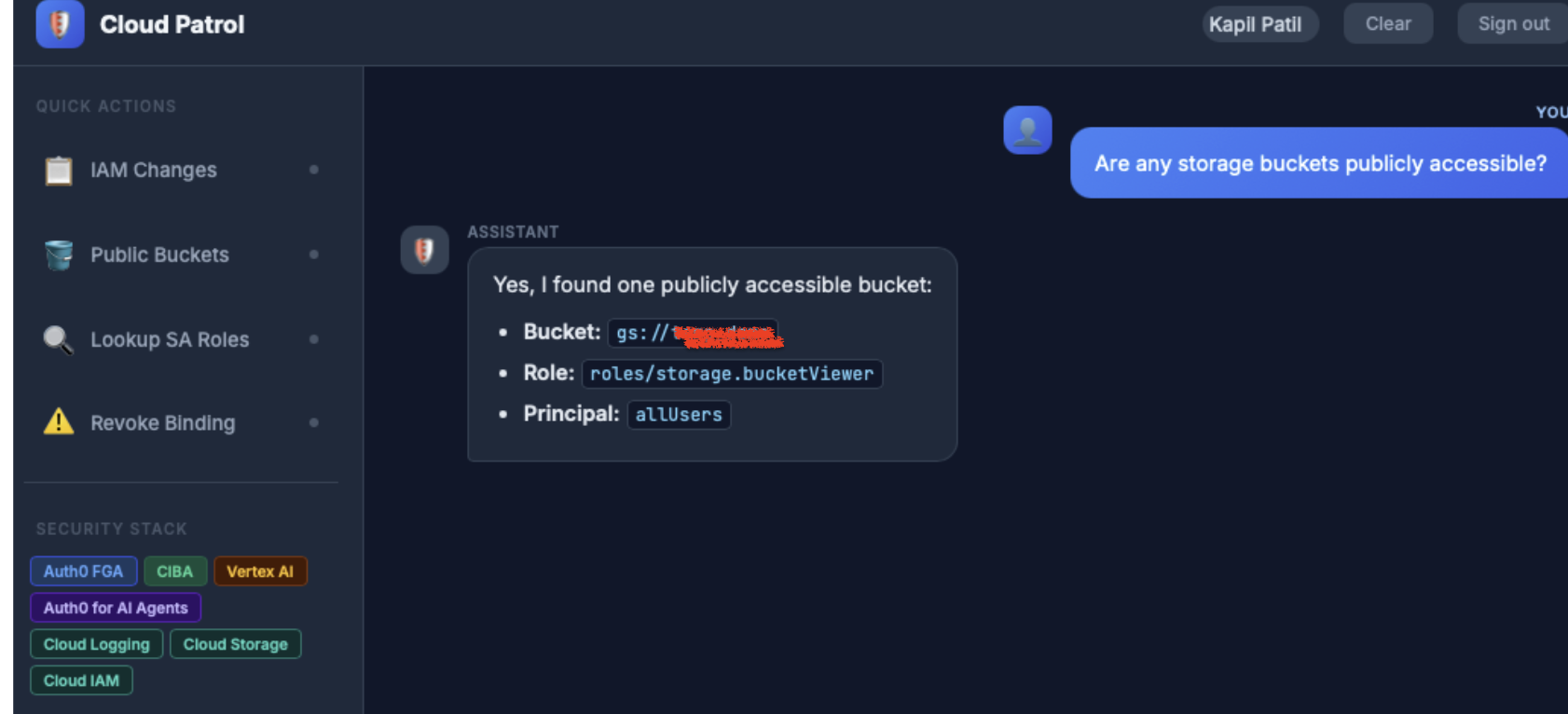 Test Case: List public Google Cloud buckets
 - In the chatbot, type "What roles does serviceAccount: name@project.iam.gserviceaccount.com have? and hit enter.
Expected Result: The user would see a list of IAM roles based on what is configured in the service account.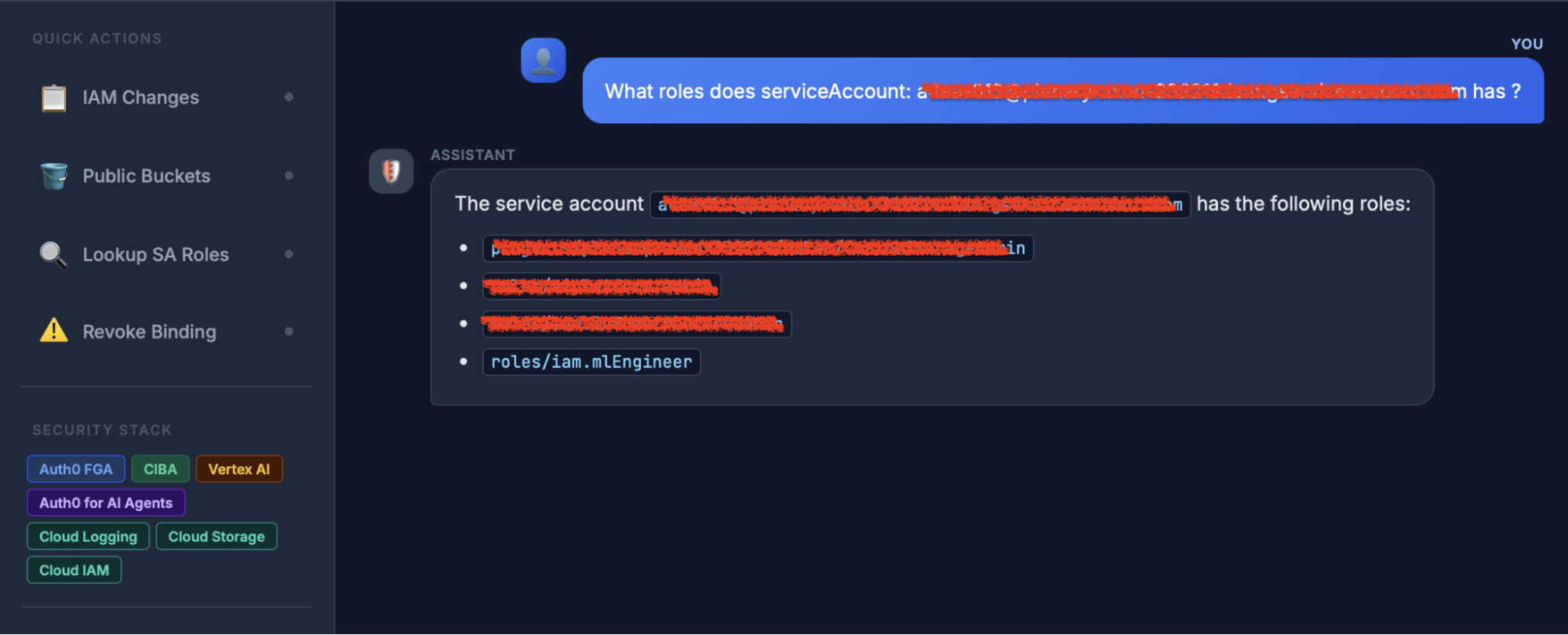 Test Case: List IAM roles for a service account.
 - As part of the next step, we will remove an IAM ML Engineer role from a service account that was previously used.
You would notice an authorization request to your configured mobile application.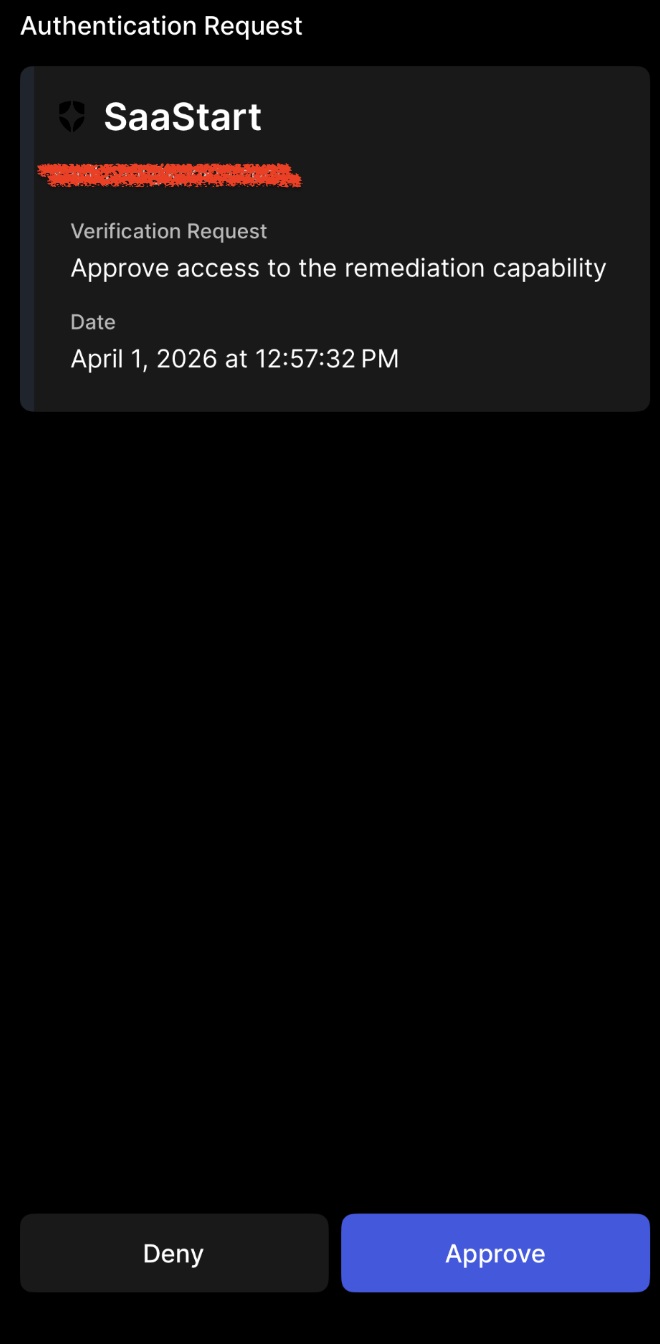 Test Case: CIBA Flow
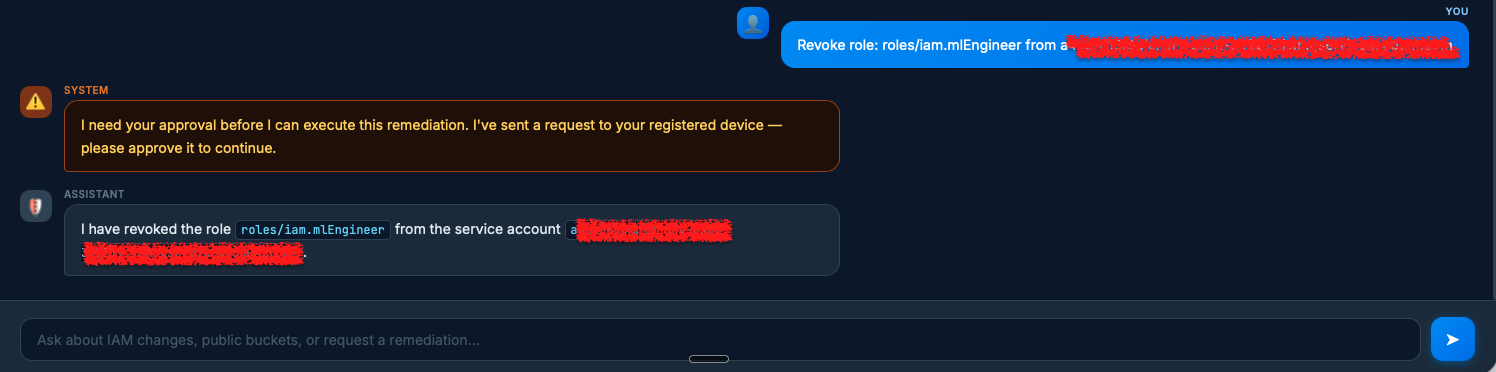 Test Case: Remove IAM role from service account post CIBA request approval.
The Path Forward
This integration combines Auth0's secure identity services (authentication, authorization, granular permissions) with the Gemini Enterprise Agent Platform Runtime to create secure, identity-aware AI capabilities. This enhances the security and accountability of agentic workflows, enabling AI agents to act on behalf of users, enforce policies instantly, and retain full user context without risking sensitive data.
Now it's your turn to put it into practice and use this blueprint for securing your Gemini Enterprise Agent Platform Runtime with Auth0 for AI Agents.
Take the Next Step:
- Get Your Accounts: If you haven't already, sign up for a free Auth0 for AI agents account and a Google Cloud account.
- Access the Code: Clone the complete solution code from our GitHub repository.
- Deploy and Secure: Follow the step-by-step instructions to configure Auth0, set up your Gemini Enterprise Agent Platform Runtime, and enforce fine-grained authorization.
Start building secure, accountable, and enterprise-ready AI agents today!